



Cum să vă orientați în calendare
Alegeți vizualizarea cea mai practică pentru a găsi un interval orar: toate terenurile într-o singură zi, un singur teren pe mai multe zile sau lista intervalelor orare încă libere.
Alegerea vizualizării: pe zi, pe săptămână sau disponibilități
Meniul de rezervare oferă până la trei vizualizări complementare, în funcție de ceea ce a activat organizația dumneavoastră:
Vizualizarea pe zi
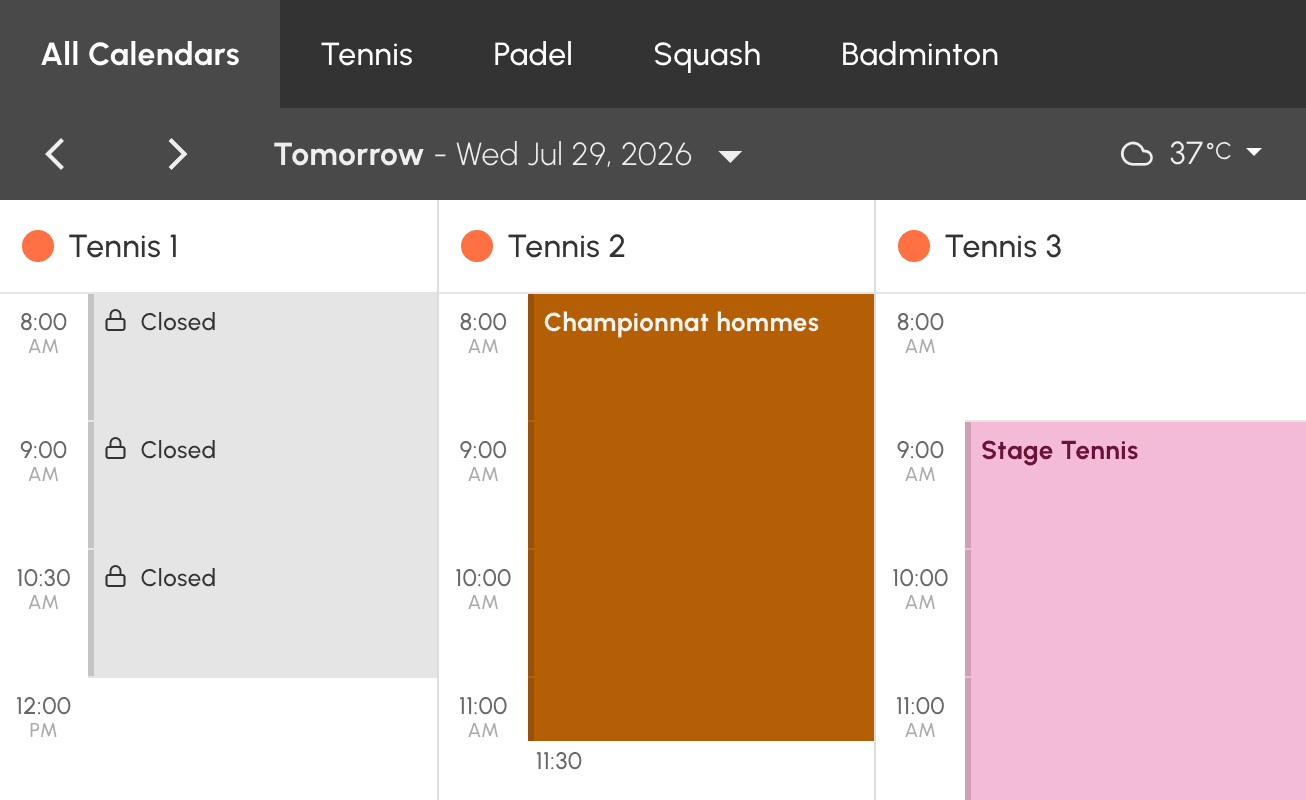
Calendare pe zi afișează toate calendarele organizației unul lângă altul, pentru o singură zi. Ideal pentru a compara disponibilitatea terenurilor la o anumită dată.
Dacă organizația dumneavoastră și-a organizat calendarele în grupuri (de exemplu, pe activitate sau pe locație), deasupra vizualizării pe zi apar file. Fila Toate calendarele afișează totalitatea calendarelor.
Vizualizarea pe săptămână
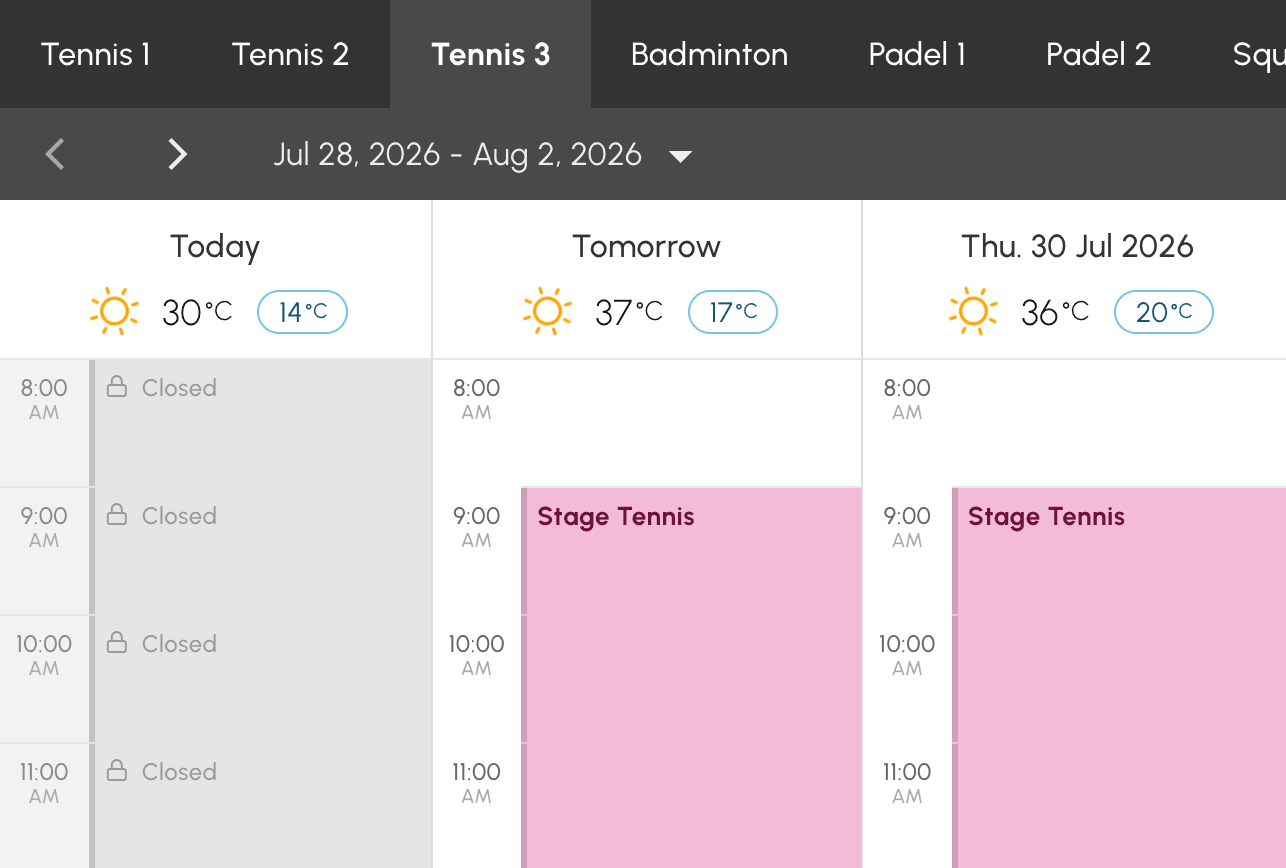
Calendare pe săptămână afișează un singur calendar pe mai multe zile. Ideal pentru a găsi următorul interval orar liber pe terenul dumneavoastră preferat.
Vizualizarea Disponibilități
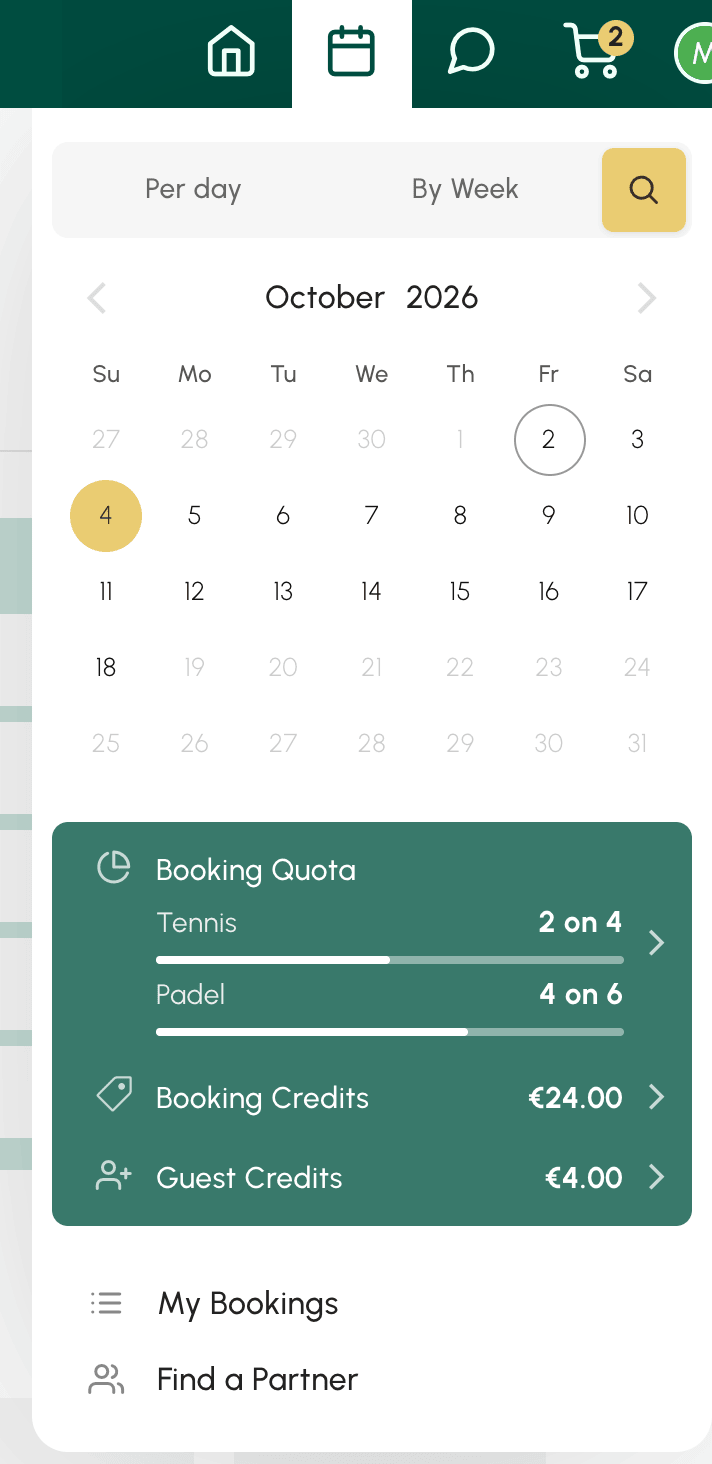
Disponibilități, butonul în formă de lupă, afișează doar ceea ce mai puteți rezerva, teren cu teren sau oră cu oră, cu durata și prețul fiecărui interval orar. Ideal pentru a ști imediat unde și când puteți juca.
Găsirea unui interval orar cu vizualizarea Disponibilități
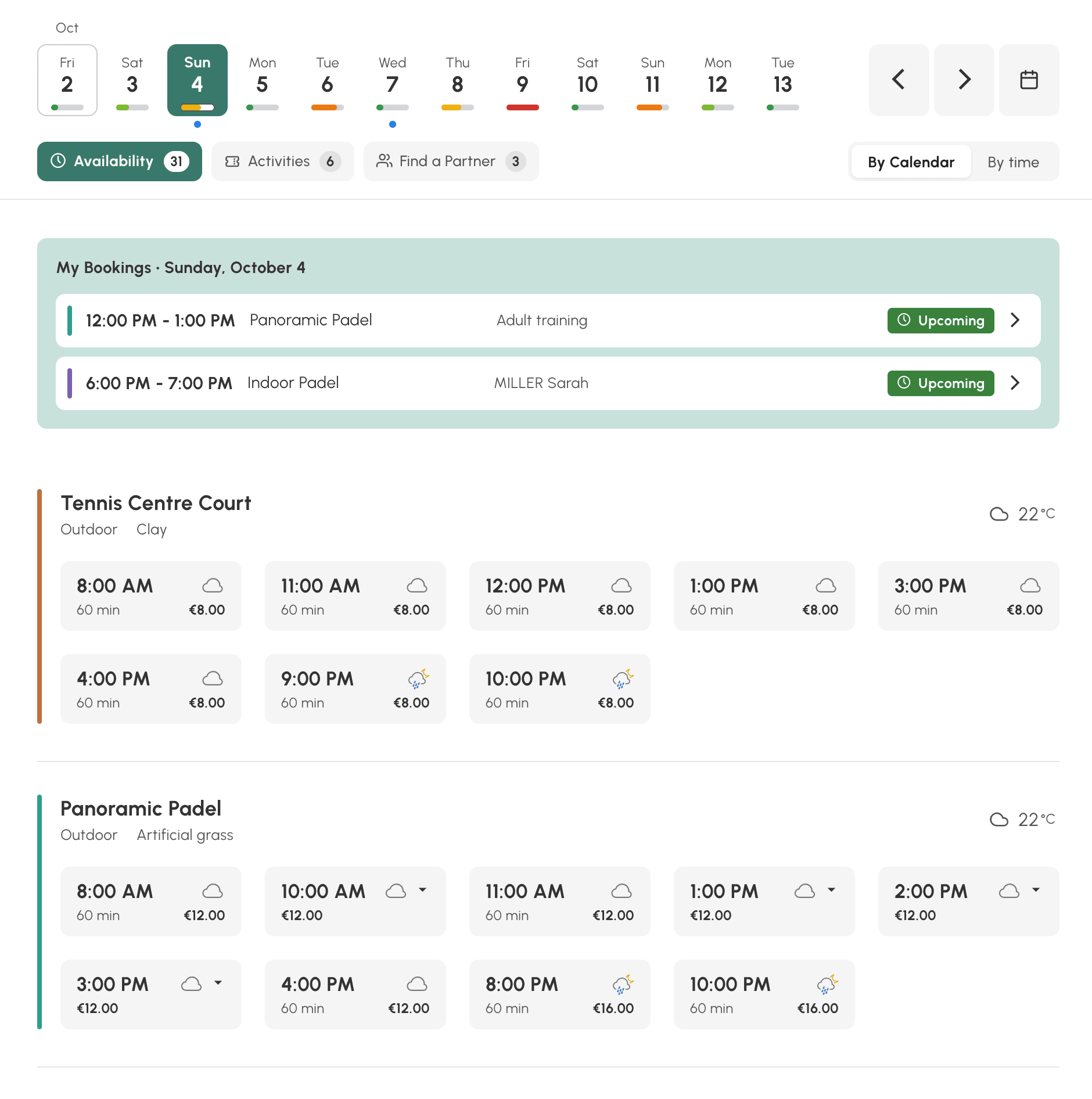
Această vizualizare nu arată grila completă: ea listează intervalele orare pe care abonamentul dumneavoastră vă permite să le rezervați în ziua aleasă.
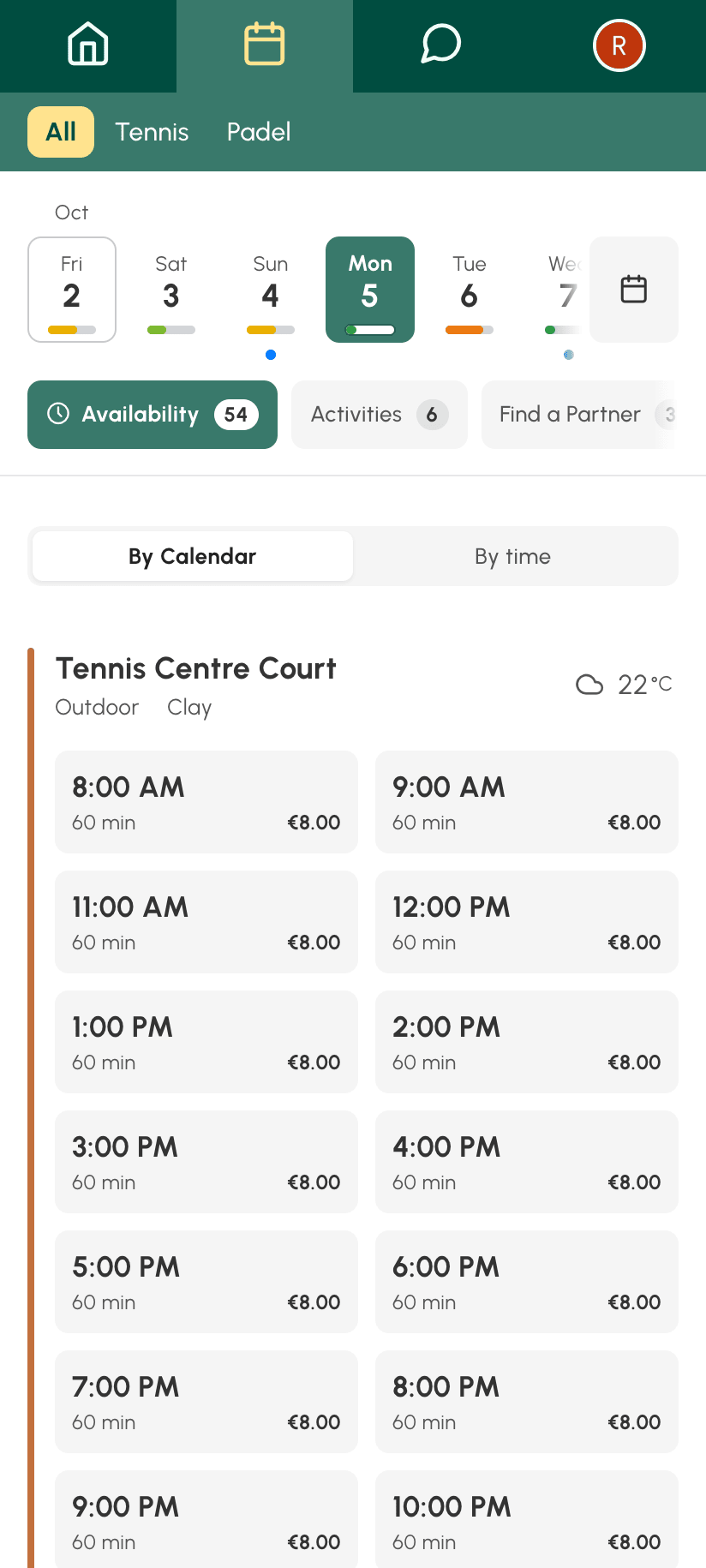
- Alegeți o zi din bara de sus. Sub fiecare zi, un indicator arată dacă mai sunt multe locuri, puține sau niciunul. Un punct albastru marchează zilele în care aveți deja o rezervare.
- Alegeți modul de afișare care vă convine: Pe calendar pentru a vedea intervalele orare ale fiecărui teren, După oră pentru a vedea, oră cu oră, terenurile libere.
- Faceți clic pe un interval orar: se deschide formularul de rezervare. Dacă intervalul orar are o mică săgeată, sunt posibile mai multe durate: clicul le afișează împreună cu prețul lor, iar dumneavoastră o alegeți pe cea dorită.
Intervalele orare rămân afișate chiar dacă v-ați atins cota sau dacă nu vă ajung creditele: formularul vă semnalează acest lucru în momentul rezervării.
Rezervările dumneavoastră din ziua respectivă sunt reamintite în partea de sus a listei, sub Rezervările mele.
Alte două file pot apărea lângă Disponibilități:
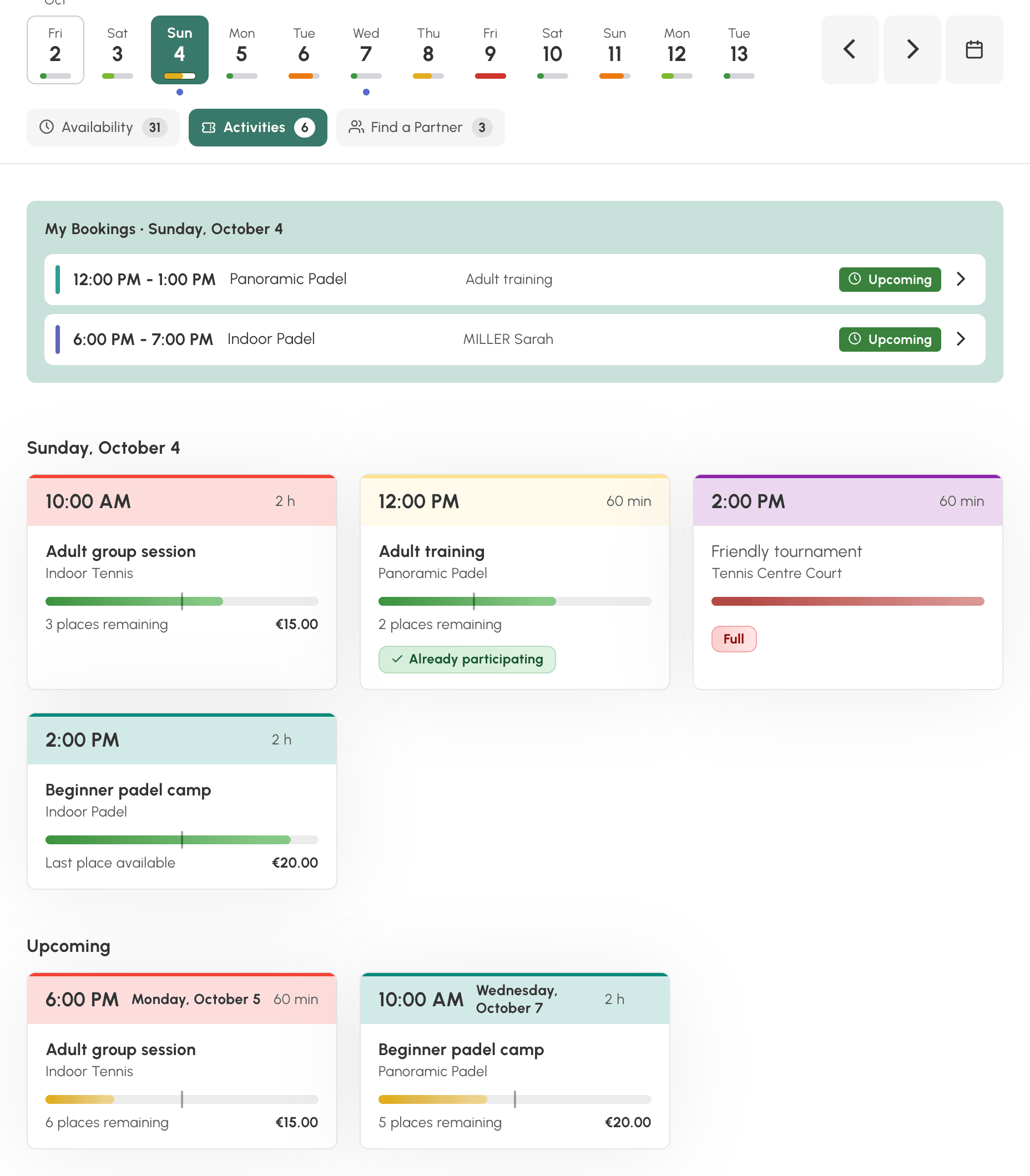
- Activități: cursurile, cantonamentele și activitățile deschise înscrierilor, cu locurile rămase și prețul. Faceți clic pe o activitate pentru a vă înscrie.
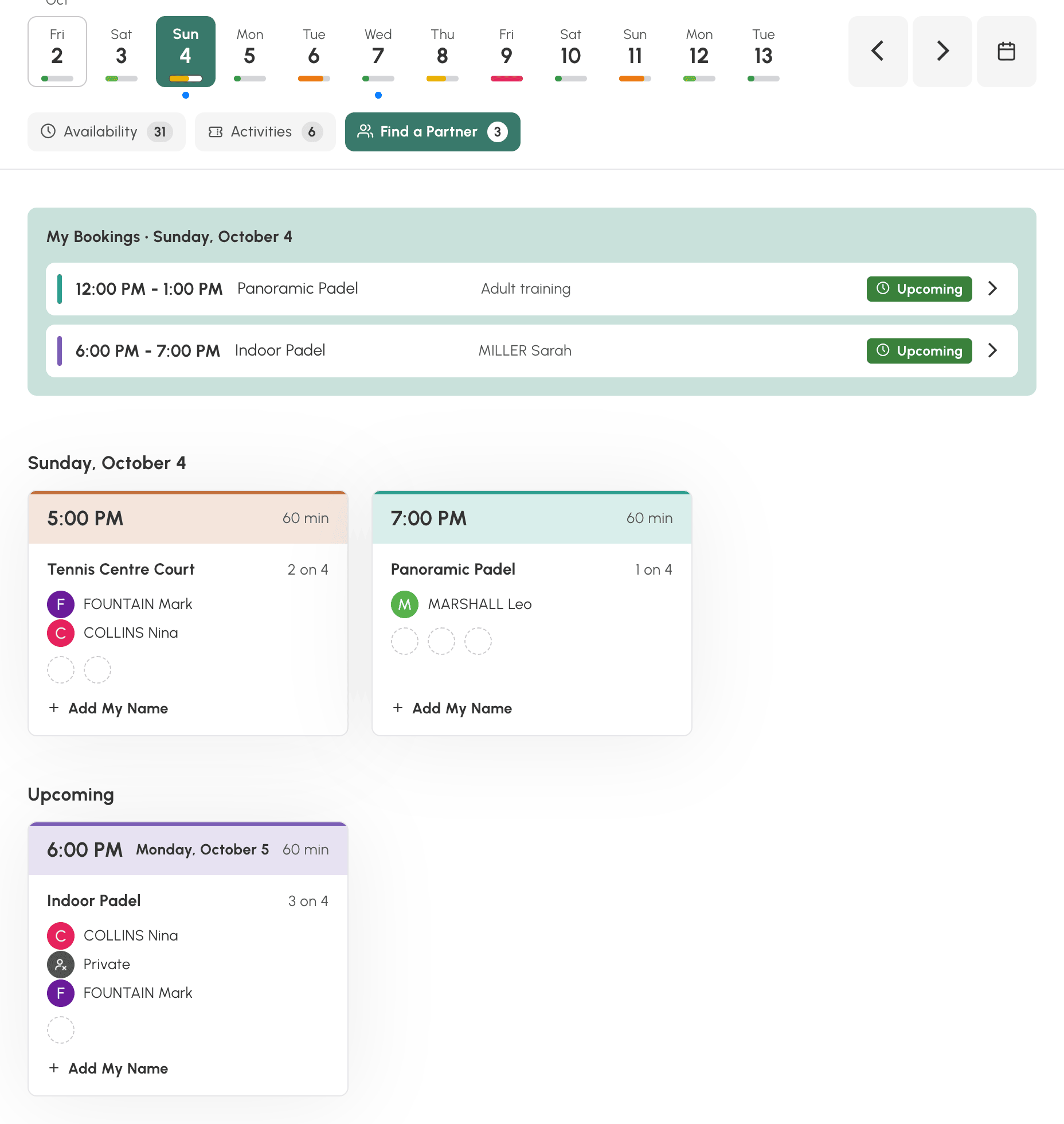
- Căutare partener: rezervările pe care alți jucători le-au deschis și care mai au locuri. Faceți clic pe Adaugă numele meu pentru a vă alătura.
În aceste două file, secțiunea Următoarele prezintă și ceea ce se oferă în zilele următoare.
La finalul listei, Afișează intervalele orare nerezervabile arată, cu titlu informativ, intervalele orare libere pe care abonamentul dumneavoastră nu vă permite să le rezervați.
Pe telefon, vizualizarea se afișează în același fel, iar antetul se restrânge când derulați lista.
Navigarea după dată
- Folosiți săgețile pentru a trece la ziua următoare sau precedentă.
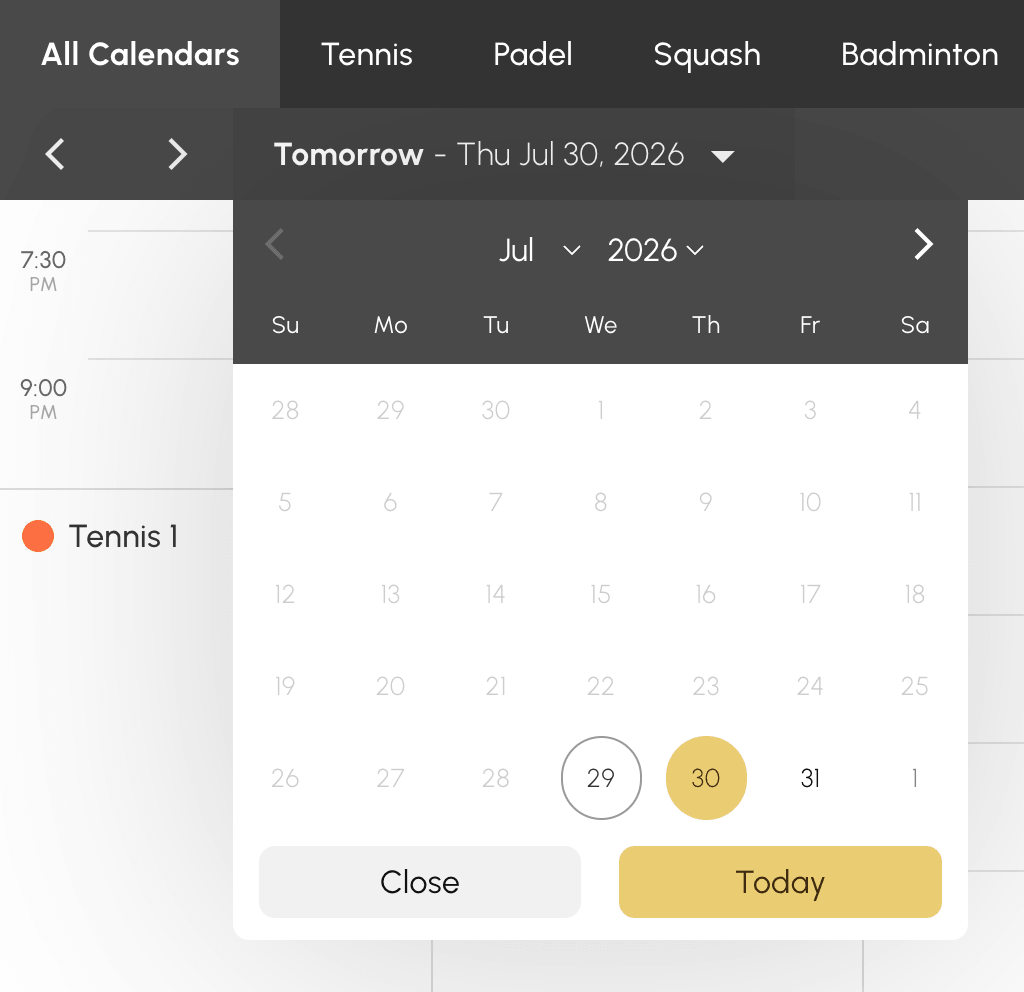
- Faceți clic pe data afișată pentru a deschide selectorul de dată.
- Butonul Astăzi vă readuce la data de astăzi.
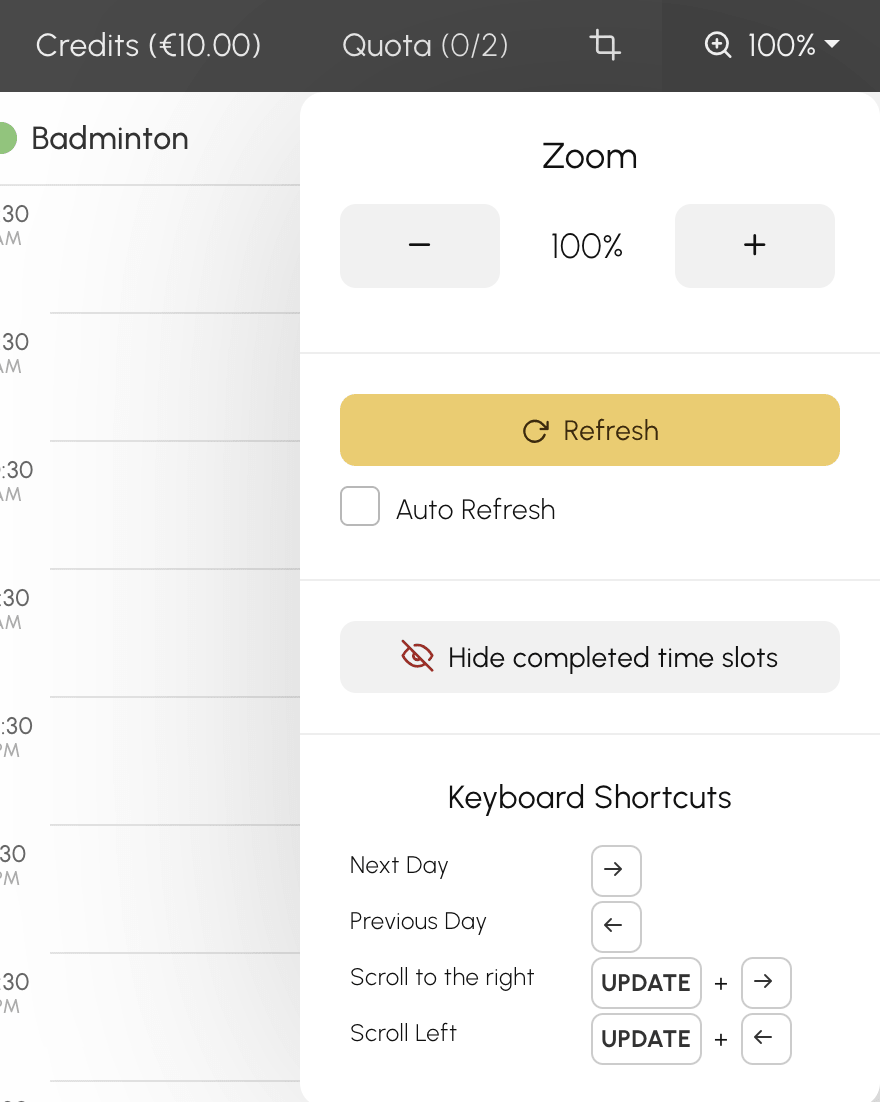
Pe computer, scurtăturile de tastatură accelerează navigarea: săgețile stânga și dreapta pentru a schimba ziua, combinate cu tasta SHIFT pentru a derula calendarele. Lista completă este afișată în meniul de zoom.
Numărul de zile vizibile în avans depinde de abonamentul dumneavoastră: dincolo de această limită, datele sunt inaccesibile în selector.
Urmărirea cotei și a creditelor
Bara de instrumente a calendarelor afișează, în funcție de configurația organizației dumneavoastră:
- un buton Cota cu un contor: numărul de rezervări în curs raportat la maximul autorizat. Faceți clic pe el pentru a vedea detaliile. La finalul unui interval orar rezervat, unitatea de cotă este eliberată și puteți rezerva din nou.
- un buton Credite cu soldul dumneavoastră: faceți clic pe el pentru a consulta creditele de rezervare și, dacă organizația a activat această opțiune, pentru a cumpăra altele.
Ajustarea afișării
Meniul de zoom din bara de instrumente vă permite să:
- Măriți sau micșorați dimensiunea intervalelor orare cu Zoom, apoi să reveniți la dimensiunea standard cu Resetați zoom-ul.
- Afișați sau ascundeți intervalele orare deja trecute din ziua respectivă cu Afișează intervalele terminate și Ascunde intervalele terminate.
Crearea unei scurtături care se deschide mereu pe ziua curentă
Ați adăugat calendarele la favorite sau ați creat o scurtătură pe ecranul principal al telefonului, iar aceasta se deschide mereu pe o dată veche?
Adresa calendarelor memorează ziua pe care o consultați și face acest lucru în două moduri, în funcție de felul în care ați ajuns acolo:
- cu săgețile și cu butonul Astăzi, adresa reține un decalaj față de data de astăzi (astăzi, mâine, ieri…). Ea urmează deci calendarul: un favorit salvat în acel moment va rămâne mereu valabil;
- cu selectorul de dată, adresa reține data exactă pe care ați ales-o. Un favorit salvat în acel moment va redeschide la nesfârșit acea zi, care se va îndepărta în trecut pe măsură ce trec săptămânile.
Pentru a corecta o scurtătură care se deschide pe o dată veche:
- Deschideți calendarele.
- Faceți clic pe dată, apoi faceți clic pe Astăzi: adresa încetează astfel să mai indice o dată fixă și indică din nou ziua curentă.
- Salvați favoritul sau recreați scurtătura pe ecranul principal, din această pagină.
