



Spartime: securizați accesul offline, cu coduri temporare și coduri QR
Spartime concepe soluții de acces din 2002 și înlocuiește cheile și badge-urile cu accese temporare personalizate. Particularitatea sa: portarele FacilitAcces® funcționează fără conexiune la internet la locația echipată.
Prezentare
Spartime Innovations concepe și dezvoltă soluții de acces din 2002 și gestionează astăzi peste un milion de accese pe an. Promisiunea sa: să înlocuiască cheile și badge-urile cu accese temporare, personalizate și securizate, fără ca nimeni să fie nevoit să se deplaseze pentru a deschide o ușă.
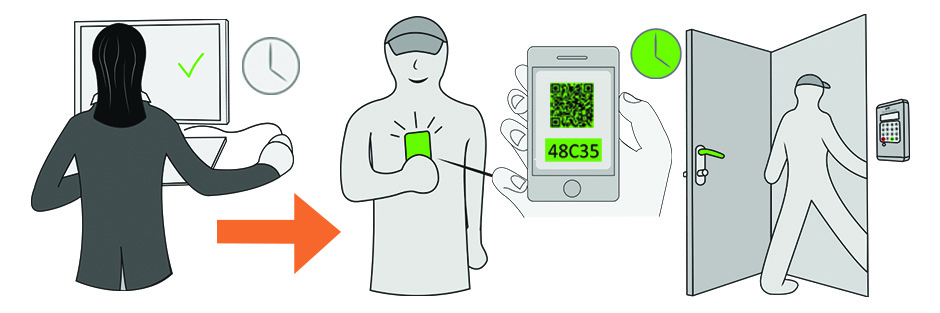
Particularitatea sa ține de autonomia portarelor FacilitAcces®. Acolo unde alte soluții au nevoie de o legătură permanentă între organizație și echipament, Spartime calculează coduri Persocode® valabile într-un interval orar dat, iar portarul le verifică singur. Nu este necesară nicio conexiune la internet la locația echipată.
Ce aduce soluția în activitatea de zi cu zi
- Nu mai aveți de gestionat un set de chei: dreptul de a intra este creat și retras automat, doar prin citirea codului.
- O instalare simplă, fără cablare de rețea și fără configurare de internet la fața locului.
- O administrare complet la distanță, din contul organizației dumneavoastră și din platforma Spartime.
- Fiecare rezervare generează un cod diferit, iar evenimentele sunt memorate în portar, cu posibilități de alerte.
- Portarele compatibile acceptă și coduri QR, practice de transmis unui jucător ocazional.
- Aceeași instalare poate comanda iluminatul și încălzirea terenului, pe lângă ușa acestuia.
Deschideți tot traseul jucătorului
O singură rezervare poate deschide mai multe treceri succesive: poarta principală, clubul, vestiarele, apoi ușa terenului. Jucătorul introduce un singur cod și își urmează drumul până la teren, fără să fie nevoit să rețină o combinație pentru fiecare ușă.
Fiecare dintre aceste accese se reglează după două logici, la alegere: un interval orar fix — de exemplu de luni până vineri, de la 8:00 la 22:00 — sau o deschidere condiționată de o rezervare în curs.
Un portar poate comanda și un seif sau un dulap, pentru a pune la dispoziție echipamente cu același cod ca cel al rezervării.
Utilizări care depășesc cadrul organizației
Un teren izolat, o locație fără rețea sau o instalare în care tragerea unei legături ar costa scump: exact în această situație autonomia portarului face diferența.
Același echipament se regăsește atât în sălile de sport și în structurile asociative, cât și în birouri, în spațiile de coworking, în parcări sau în dotările gestionate de o autoritate locală. Este un argument de luat în calcul dacă structura dumneavoastră gestionează mai multe tipuri de spații cu un singur instrument.
Conectarea contului dumneavoastră Spartime
- Deschideți Administrare›Setări›Control acces & pilotaj, apoi Mai multe informații pe fișa Spartime.
- Activați modulul.
- Introduceți Identificator Spartime și Parolă Spartime, apoi faceți clic pe Conectare.
Blocul Stare gateway confirmă conectarea. Aceste date de identificare vă sunt furnizate de Spartime: nu sunt cele ale contului organizației dumneavoastră.

Declararea portarelor
Un portar corespunde unui punct de acces fizic: ușa unui teren, un vestiar, o poartă de intrare. Din Configurare portiere, faceți clic pe Portar nou.
- Bifați Portar activat.
- Indicați în câmpul Numele accesului o denumire clară, de exemplu „Terenul nr. 1 – Ușa Sud” sau „Vestiare”.
- Alegeți Calendar / Tip de acces: acesta este elementul care leagă portarul de rezervările unui teren anume.
- Bifați Cu cod QR dacă portarul dumneavoastră este compatibil.
- Completați parametrii tehnici furnizați de Spartime pentru acest echipament.
Deschiderea mai multor uși cu un singur cod
Un jucător care rezervă un teren trebuie adesea să treacă mai multe uși: poarta, apoi vestiarul, apoi terenul. În loc să îi dați trei coduri, desemnați un Portar principal și atașați-i Portari secundari (opțional).
Codul emis în momentul rezervării deschide astfel întregul traseu.
Verificarea înainte de deschiderea către public
Fila Statut & coduri de test a unui portar vă permite să controlați instalarea înainte de a o pune la dispoziția jucătorilor: generați un cod și verificați-l la fața locului.
Testați cele două familii de coduri propuse de soluție, Coduri ore calibrate pe un interval orar și Coduri instantanee, înainte de a anunța utilizatorilor noul mod de funcționare.
Controlul iluminatului și al încălzirii
Aceeași instalare poate comanda iluminatul și încălzirea terenului, pe lângă ușa acestuia.
Declanșarea este legată de codul de acces: lumina se aprinde atunci când un jucător înscris pe rezervare introduce codul. Nu se declanșează nimic dacă nu vine nimeni, ceea ce evită iluminarea unui teren pe care un jucător l-a rezervat și apoi l-a uitat — în intervalele de la sfârșitul zilei se realizează cea mai mare parte a economiei.
Contact
Spartime Innovations analizează fiecare instalare înainte de a propune o configurare și pune la dispoziție o asistență online pentru portarele sale.
- Site: spartime.com
- E-mail: contact@spartime.com
- Telefon: 02 51 11 02 40 sau +33 2 51 11 02 40 din străinătate
- Adresă: Le Carré de Couëron, 5 rue des Vignerons, 44220 Couëron, Franța
