



Cursuri colective și antrenamente
Organizați cursurile colective și antrenamentele: rezervați intervalele orare pentru tot anul, primiți grupuri numeroase, evitați anulările în cascadă și folosiți etichetele de blocare și notele informative în mod potrivit.
- Rezervarea intervalelor orare ale cursurilor pentru tot anul
- Primirea mai multor jucători decât permite un interval orar
- Evitarea ștergerii întregului curs printr-o anulare
- Încadrarea rezervărilor de antrenament cu o etichetă de blocare dedicată
- Semnalarea unei priorități fără blocarea intervalului orar
Rezervarea intervalelor orare ale cursurilor pentru tot anul
- Din calendarele de rezervare, faceți clic pe primul interval orar al cursului.
- Alegeți o etichetă de blocare (de exemplu „Școala de tenis”), apoi folosiți caseta Repetă rezervarea pentru a repeta rezervarea pe mai multe săptămâni, mai multe zile sau mai multe calendare.
- Folosiți opțiunile rezervate administratorilor: Nu contabiliza în cotă, Dezactivați notificările și, dacă este necesar, Suprascrie rezervările existente.

Accesul la repetare se configurează în Administrare›Utilizatori›Drepturi de acces›Profiluri & roluri cu dreptul Rezervați cu repetiție.
Primirea mai multor jucători decât permite un interval orar
O rezervare primește un număr limitat de participanți (responsabilul și partenerii sau invitații săi). Pentru un curs colectiv numeros:
- În fișa calendarului, împărțiți plaja cursului în intervale orare mai scurte: Adăugați un interval orar, apoi reduceți Durata unui interval (de exemplu trei intervale orare de 20 de minute într-o oră).
- Rezervați fiecare interval orar cu aceeași etichetă de blocare și cu o parte dintre participanți: vizual, ora întreagă formează un singur bloc cu numele cursului.
Administratorii care dispun de dreptul Rezervați cu repetiție pot de asemenea să ajusteze liber orele de început și de sfârșit ale unei rezervări, pentru a plasa mai multe rezervări succesive pe aceeași plajă.
Evitarea ștergerii întregului curs printr-o anulare
În mod implicit, un participant care anulează poate anula rezervarea în întregime. Pentru a evita acest lucru:
- În Administrare›Utilizatori›Drepturi de acces›Abonamente, deschideți abonamentul elevilor, fila Permisiuni.
- În Setări avansate din Anularea rezervărilor, activați Abonatul poate anula doar numele său.
- Doar responsabilul rezervării (profesorul sau administratorul care a creat-o) poate atunci anula intervalul orar în întregime; fiecare elev își retrage numai propria participare.

Încadrarea rezervărilor de antrenament cu o etichetă de blocare dedicată
Pentru a permite jucătorilor să își rezerve singuri intervalele orare de antrenament sau de campionat, fără a le deschide toate etichetele de blocare:
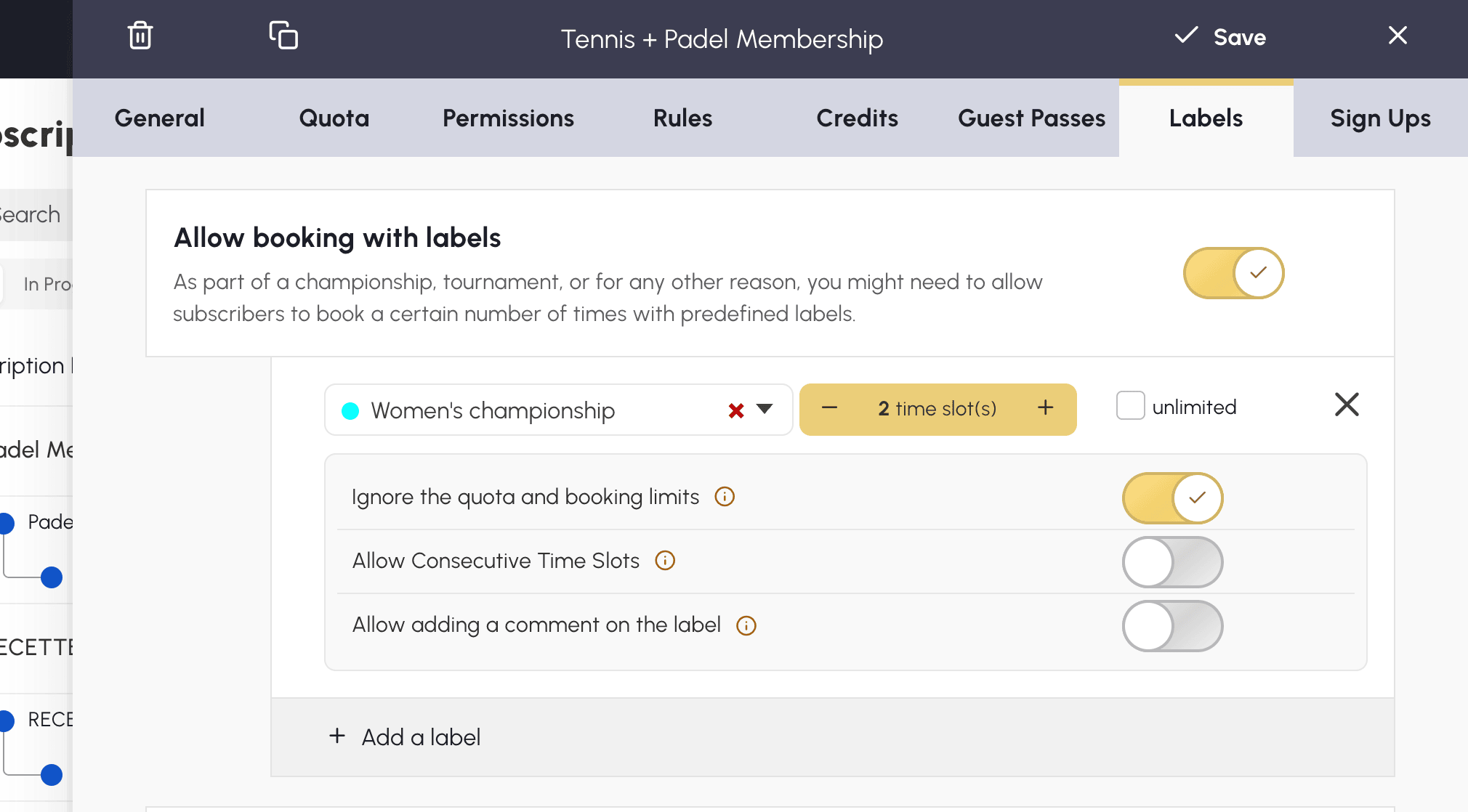
- În abonament, fila Etichete Blocante, activați Permite rezervarea cu etichete blocante.
- Selectați eticheta de blocare (de exemplu „Campionat”) și numărul de intervale orare permise per utilizator.
- Ajustați opțiunile în funcție de nevoile dumneavoastră: Ignorați cota și limitele de rezervare pentru ca aceste intervale orare să nu consume cota și Permiteți intervale consecutive pentru formatele lungi.
Semnalarea unei priorități fără blocarea intervalului orar
O notă informativă afișează un mesaj suprapus pe anumite intervale orare (de exemplu „LIBER PE VREME BUNĂ” sau „CLUB DACĂ PLOUĂ”), fără a împiedica rezervarea. Este instrumentul ideal pentru a indica o prioritate de utilizare flexibilă.
- Creați notele informative în Administrare›Setări›Rezervare›Etichete & Anotări, fila Anotări.
- Acordați dreptul Rezervați cu o notă informativă profilurilor vizate în Administrare›Utilizatori›Drepturi de acces›Profiluri & roluri.

