



Cote, autorizații și reguli de rezervare
Fiecare abonament include un motor complet de reguli: cote, calendare autorizate, termene, anulare, interdicții, credite și invitații. Această pagină vă ghidează obiectiv cu obiectiv în configurarea unui abonament.
- Limitarea numărului de rezervări
- Umplerea terenurilor în ultimul moment
- Restricționarea calendarelor și a orizontului de rezervare
- Încadrarea momentului rezervării
- Propunerea de intervale orare personalizate
- Gestionarea partenerilor
- Încadrarea anulării
- Interzicerea unor intervale orare și a unor combinații
- Plata rezervării în credite
- Autorizarea invitaților
- Autorizarea etichetelor
Limitarea numărului de rezervări
În fila Cota, Cota de rezervare stabilește numărul de rezervări pe care un abonat le poate planifica simultan. Rezervând un interval orar, abonatul consumă o unitate de cotă; imediat ce rezervarea sa se încheie, unitatea redevine disponibilă.
- Activați Ascundeți calendarele când cota de rezervare este atinsă pentru a bloca și consultarea calendarelor pe zi și pe săptămână. Vizualizarea Disponibilități rămâne accesibilă: cota este verificată acolo în momentul rezervării.
- Faceți clic pe Configurație avansată, apoi pe Adăugați o cotă pentru a defini mai multe cote în funcție de calendare, zile sau intervale orare.
- Completați la nevoie cu Limitați rezervările pe un calendar fix (de exemplu 5 rezervări pe săptămână calendaristică) sau Limitați rezervările pe un calendar glisant (pe ultimele X zile).

Umplerea terenurilor în ultimul moment
Opțiunea Ignorați cota și limitele înainte de începutul intervalului permite unui abonat să rezerve chiar dacă și-a atins cota, cu condiția să o facă cu puțin timp înainte. Este ora 14:45, intervalul orar de la 15:00 este liber: abonatul îl poate lua în ciuda cotei sale.
Este cel mai bun mod de a nu lăsa un teren gol atunci când un jucător este disponibil, fără a relaxa totuși regula generală.
Restricționarea calendarelor și a orizontului de rezervare
În fila Permisiuni, secțiunea Calendare autorizate & număr de zile pentru rezervare stabilește ce vede abonatul:
- Debifați un calendar pentru a-l interzice și a-l ascunde complet.
- Reglați numărul de zile de navigare pentru fiecare calendar: de exemplu, afișarea calendarelor cu 14 zile înainte, dar rezervarea doar cu 7 zile înainte.
- Ora de tranziție către o zi suplimentară: oferiți acces la ziua următoare începând cu o oră precisă, fără a aștepta miezul nopții.

Încadrarea momentului rezervării
În mod implicit, un abonat poate rezerva un interval orar până în ultimul moment, iar intervalul orar devine indisponibil de îndată ce a început. Patru opțiuni din fila Permisiuni modifică acest comportament:
- Permiteți abonatului să rezerve un interval deja început: intervalul orar de la 10:00 rămâne rezervabil până la 10:15.
- Limitați rezervarea cu câteva minute înainte de începutul intervalului: intervalul orar de la 10:00 nu mai este rezervabil după 9:45.
- Limitați rezervarea cu câteva ore înainte de începutul intervalului: intervalul orar de luni, ora 10:00, se închide duminică la ora 10:00.
- Deschideți rezervarea cu câteva ore înainte de începutul intervalului: invers, intervalul orar se deschide doar cu un anumit timp în avans, reglabil zi cu zi.
Propunerea de intervale orare personalizate
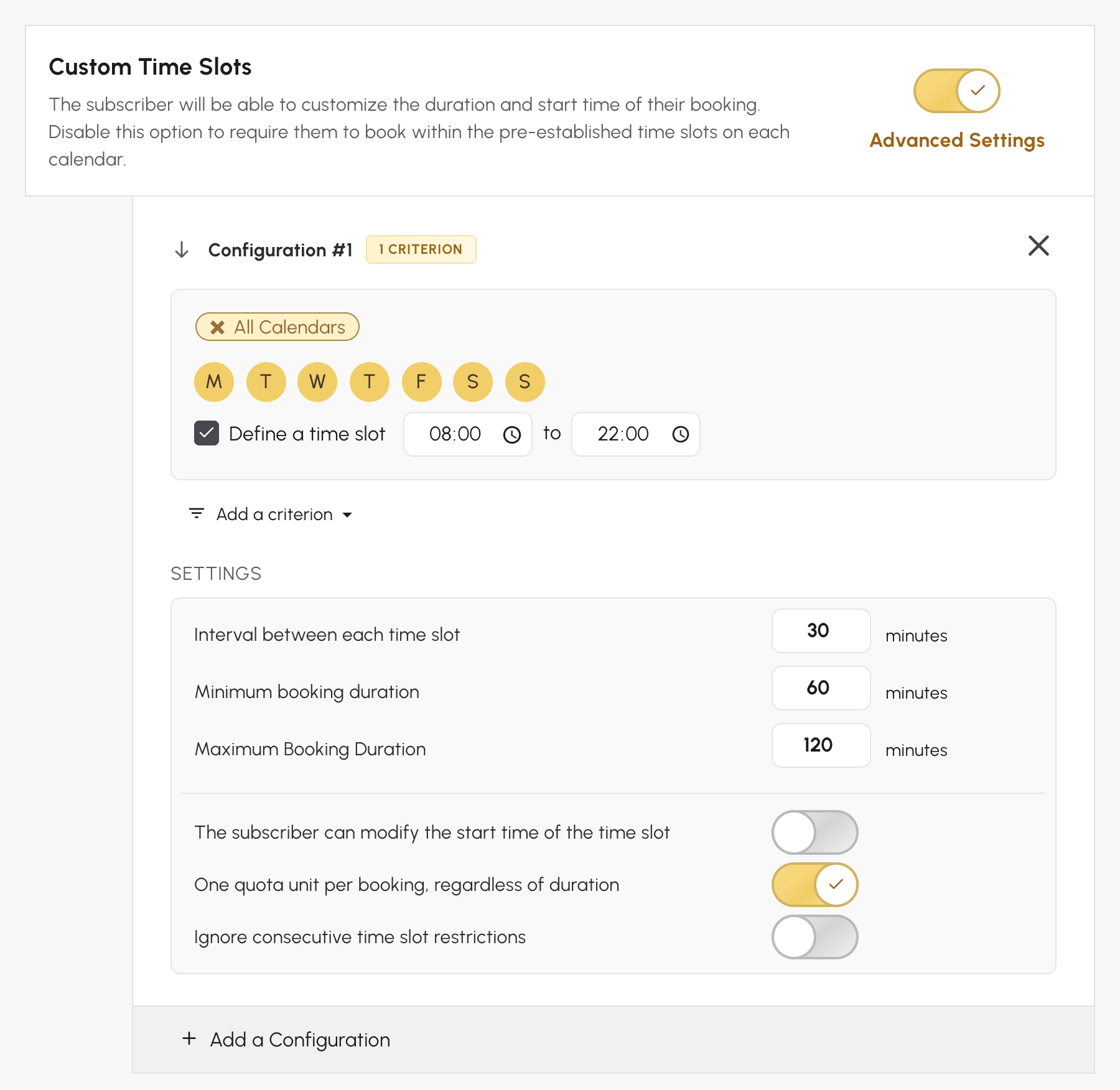
O grilă de intervale orare fixe nu convine tuturor utilizărilor: un jucător de padel vrea să joace 1 h 30 în loc de o oră, o mașină de lansat mingi se închiriază la jumătate de oră, o plecare la golf se ia la ora care convine. Opțiunea Intervaluri orare personalizate permite abonatului să aleagă durata rezervării sale și, dacă îi permiteți, ora de început, în limitele pe care le stabiliți.
- În Administrare›Utilizatori›Drepturi de acces›Abonamente, deschideți abonamentul, fila Permisiuni.
- Activați Intervaluri orare personalizate, apoi faceți clic pe Setări avansate.
- Reglați configurația descrisă mai jos, apoi faceți clic pe Salvează.
Reglajul este propriu abonamentului: titularii celorlalte formule continuă să rezerve intervalele orare obișnuite ale calendarelor, pe aceleași terenuri.
Reglarea duratelor propuse
Trei valori stabilesc orele pe care abonatul le poate alege:
- Interval între fiecare interval orar: diferența dintre două ore propuse, calculată de la ora de deschidere a calendarului. Cu 30 de minute pe un teren deschis la ora 8:00, orele cad la 8:00, 8:30, 9:00 și așa mai departe.
- Durata minimă a unei rezervări și Durata maximă a unei rezervări: cea mai scurtă și cea mai lungă rezervare posibilă.
Cu configurația de mai sus, un abonat care face clic pe intervalul orar de la 16:00 al unui teren de padel poate termina la 17:00, 17:30 sau 18:00: minimum o oră, maximum două ore, din 30 în 30 de minute.
Când Abonatul poate modifica ora de început a intervalului orar este dezactivat, rezervarea începe la ora intervalului orar pe care s-a făcut clic. Activați-l pentru a-i permite abonatului să aleagă și începutul dintre orele zilei, de exemplu 16:30: orele de sfârșit propuse urmează acest nou început.
Ce vede abonatul
În formularul de rezervare, ora se alege din liste: ora de sfârșit și ora de început, dacă îi permiteți acest lucru. Când rezervarea se plătește în credite, costul afișat urmează durata aleasă.
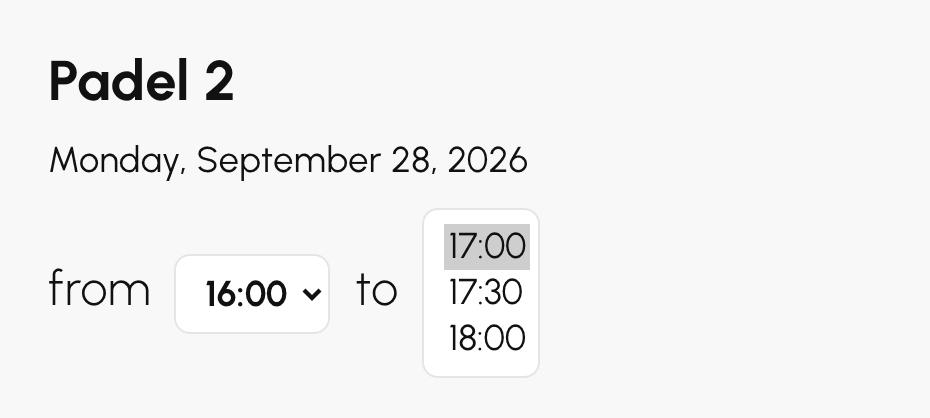
În calendar, rezervarea acoperă intervalele orare pe care le traversează: de la 16:00 la 17:30 pe un teren cu intervale orare de o oră, ea ocupă intervalul de la 16:00 și o parte din cel de la 17:00. Dacă mutarea rezervărilor este autorizată, abonatul o poate apoi prelungi sau scurta din calendare, întotdeauna între duratele minimă și maximă.
Alegerea a ceea ce consumă rezervarea din cotă
Cota se calculează în intervale orare ale calendarului. O rezervare cu durată liberă acoperă adesea mai multe: de la 16:00 la 18:00 pe un teren cu intervale orare de o oră, ea acoperă intervalele de la 16:00 și de la 17:00. Opțiunea O unitate de cotă pe rezervare, indiferent de durată decide ce consumă:
- activată, o unitate de cotă, fie că rezervarea durează o oră sau două;
- dezactivată, o unitate pentru fiecare interval orar acoperit, chiar și parțial: de la 16:00 la 17:30, două unități.
Să luăm un abonat a cărui cotă este de 2 rezervări simultane și care rezervă de la 16:00 la 18:00. Cu opțiunea activată, îi rămâne o unitate și mai poate rezerva un alt interval orar. Cu opțiunea dezactivată, cota sa este atinsă. Iar dacă cota rămasă nu acoperă toată durata aleasă, se rezervă doar primele intervale orare, un mesaj indicând pe cele care nu au putut fi rezervate.
Lăsați opțiunea activată pentru a oferi flexibilitate în privința duratei. Dezactivați-o dacă o rezervare lungă trebuie să cântărească la fel de mult ca mai multe scurte.
Opțiunea contează și pentru credite atunci când tariful este stabilit pe rezervare (1 rezervare în Tarifele rezervărilor): activată, rezervarea este facturată o singură dată; dezactivată, fiecare interval orar acoperit este facturat ca o rezervare. Pentru un cost proporțional cu durata, exprimați mai degrabă tariful în minute: la 10 credite pentru 60 de minute, o rezervare de 1 h 30 costă 15 credite.
Împăcarea duratei libere cu intervalele orare consecutive
Dacă abonamentul interzice intervalele orare consecutive (Interziceți intervalele consecutive, fila Reguli), o rezervare care acoperă mai multe intervale orare ale calendarului este văzută ca o succesiune de intervale orare consecutive: ceea ce depășește limita nu este rezervat. Activați Ignorați restricțiile de intervale consecutive pentru ca durata aleasă să nu fie supusă acestei reguli. Interdicția continuă să se aplice între două rezervări distincte.
Adaptarea configurației în funcție de calendar, zi sau oră
Fiecare configurație se aplică calendarelor, zilelor și, cu Definiți un interval orar, orelor pe care le alegeți. Ea are propriile durate și propriile opțiuni. Faceți clic pe Adaugă o configurație pentru a crea altele, până la 10: de exemplu de la 1 h la 2 h pe terenurile de padel și de la 30 de minute la 1 h pe mașina de lansat mingi. Adaugă un criteriu limitează în plus o configurație la o Perioadă, între două date.
Cu un interval orar, orele de început propuse rămân în interval, iar rezervarea nu se poate încheia după sfârșitul acestuia. Dacă mai multe configurații vizează același interval orar, se aplică prima din listă. În afara oricărei configurații, abonatul rezervă intervalele orare obișnuite ale calendarului.
Gestionarea partenerilor
Fila Permisiuni reunește setările legate de jucătorii prezenți pe rezervare:
- Rezervați cu parteneri: abonatul selectează alți utilizatori, anunțați prin e-mail; reglați numărul minim și maxim de parteneri.
- Rezervați fără partener: util pentru un perete de antrenament sau un teren de exersare.
- Căutare partener (rezervare deschisă): abonatul își deschide rezervarea către ceilalți, care se pot adăuga. Opțiunea Anulați automat rezervările incomplete eliberează intervalul orar dacă nu participă nimeni.
- Oferiți timp suplimentar dacă sunt mai mulți parteneri: de exemplu 30 de minute în plus începând de la 3 parteneri, dacă intervalul orar următor este liber. Acest timp oferit nu se scade din cotă.
Timpul suplimentar este setarea care rezolvă elegant jocul de dublu: în loc să impuneți intervale orare de 1 h 30 tuturor, păstrați intervale orare de o oră și le prelungiți automat pe cele care se joacă în patru — fără a imobiliza terenul dacă intervalul orar următor este deja ocupat.
Încadrarea anulării
În fila Permisiuni, secțiunea Anularea rezervărilor permite sau nu abonatului să anuleze:
- Timp maxim permis pentru anulare: de exemplu până cu 60 de minute înainte de începutul intervalului orar.
- Anularea invitațiilor: dezactivați această opțiune pentru a interzice anularea unei rezervări care include invitați.

Un termen de anulare prea scurt se întoarce împotriva organizației: un jucător care nu mai poate anula lasă terenul gol în loc să îl elibereze. Un termen generos, însoțit de o notificare de anulare, repune intervalul orar în circulație.
Interzicerea unor intervale orare și a unor combinații
Fila Reguli reunește interdicțiile:
- Interziceți anumite intervale la rezervare: de exemplu, nicio rezervare în timpul săptămânii între 16:00 și 19:30 pe anumite terenuri.
- Interziceți intervalele consecutive: împiedică înlănțuirea mai multor intervale orare, la nivel global sau pe anumite intervale.
- Reguli de interdicție cu un criteriu Abonamente: face două categorii de utilizatori incompatibile pe aceeași rezervare.
Opțiunea Permiteți mai multe intervale în aceeași zi la aceeași oră (fila Permisiuni) rămâne dezactivată în mod implicit: un abonat nu poate rezerva două terenuri la aceeași oră.
Aceste interdicții se deosebesc de închiderile de calendar: o închidere retrage intervalul orar pentru toată lumea, o interdicție îl retrage doar pentru titularii acestui abonament. Pentru a rezerva terenurile acoperite competitorilor sâmbătă dimineața, interdicția este cea care trebuie pusă pe celelalte abonamente — nu o închidere.
Plata rezervării în credite
În fila Credite, activați Activați sistemul de credite: abonatul trebuie să dispună de credite în contul său pentru a rezerva. Creditați conturile manual după o plată la fața locului sau activați plata online.
- Cu Configurație avansată, apoi Adăugați o regulă de activare, limitați sistemul de credite la anumite calendare, zile sau intervale orare.
- În Tarifele rezervărilor, faceți clic pe Adăugați o regulă tarifară pentru a stabili costul în funcție de calendar, zi și oră.
- În Plăți și facturare, activați achiziționarea de credite online și definiți tarifele propuse abonaților. Cantitățile, tarifele degresive și plata în mai multe rate fac obiectul unei pagini dedicate.

Autorizarea invitaților
În fila Invitații, activați Permiteți rezervarea cu invitați pentru a primi persoane din afara organizației:
- Reglați numărul minim și maxim de invitați pe rezervare; fiecare invitat consumă credite de invitație.
- Stabiliți tarifele și propuneți pachete, ca și pentru creditele de rezervare.
- Alegeți cine este debitat și dacă numele invitaților trebuie completate.


Solicitarea numelui invitaților schimbă natura funcționalității: fără nume, numărați treceri; cu nume, știți cine a venit, ceea ce este indispensabil dacă asigurarea sau federația dumneavoastră o cere.
Autorizarea etichetelor
În fila Etichete Blocante, opțiunea Permite rezervarea cu etichete blocante permite abonaților să creeze un număr limitat de rezervări cu etichete predefinite (campionat, turneu...), cu opțiuni pentru a ignora cota sau regula intervalelor orare consecutive.
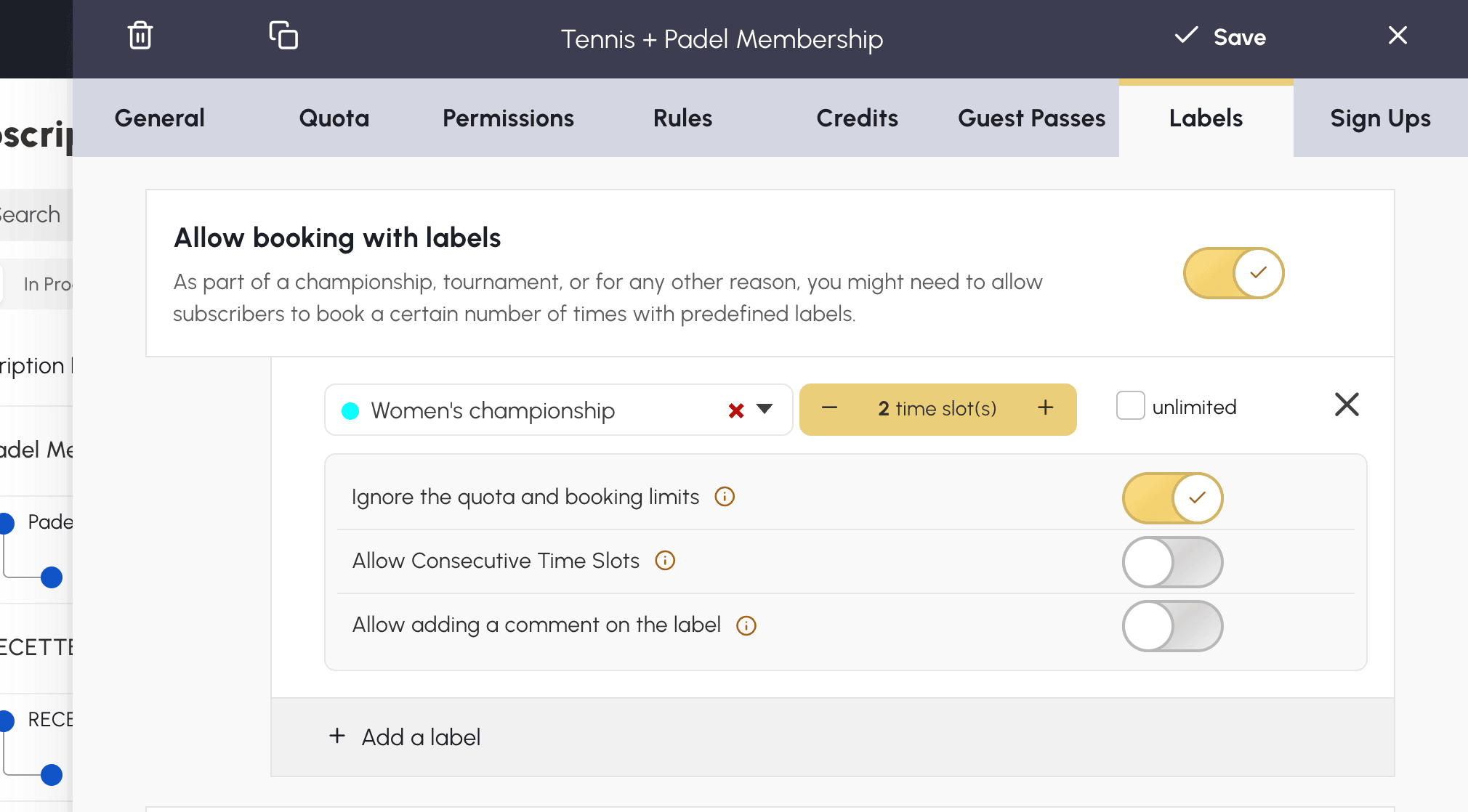
Este modul potrivit de a deschide etichetele unui căpitan de echipă: el își programează meciurile pe echipe fără a-și consuma cota personală, dar rămâne limitat la etichetele pe care le-ați autorizat — spre deosebire de dreptul de profil, care deschide toate etichetele fără limită.
