



Crearea și gestionarea abonamentelor
Un abonament reunește condițiile de acces și de rezervare ale unui plan: date, tarif, cotă de rezervări și reguli de respectat. Creați abonamentele oferite de organizația dumneavoastră, apoi atribuiți fiecărui utilizator abonamentul care i se potrivește, direct din fișa sa.
- Crearea unui abonament
- Organizarea automată a listei
- Aranjarea abonamentelor în grupuri manuale
- Adaptarea afișării și acțiunile asupra mai multor abonamente
- Partajarea setărilor cu un abonament de referință
- Urmărirea plății cotizațiilor
- Vânzarea abonamentului online
- Trimiterea automată a memento-urilor înainte de expirare
- Solicitarea documentelor justificative pentru a rezerva
- Duplicarea unui abonament pentru noul sezon
- Arhivarea abonamentelor devenite inutile
- Ștergerea unui abonament gol
- Reatribuirea unui abonament în masă
Crearea unui abonament
Începeți cu un plan oferit de organizația dumneavoastră, de exemplu Tenis recreativ. Îl veți putea atribui apoi utilizatorilor vizați, fără să reintroduceți aceleași reguli în fiecare fișă.
- Accesați Administrare›Utilizatori›Drepturi de acces›Abonamente și faceți clic pe Nou.
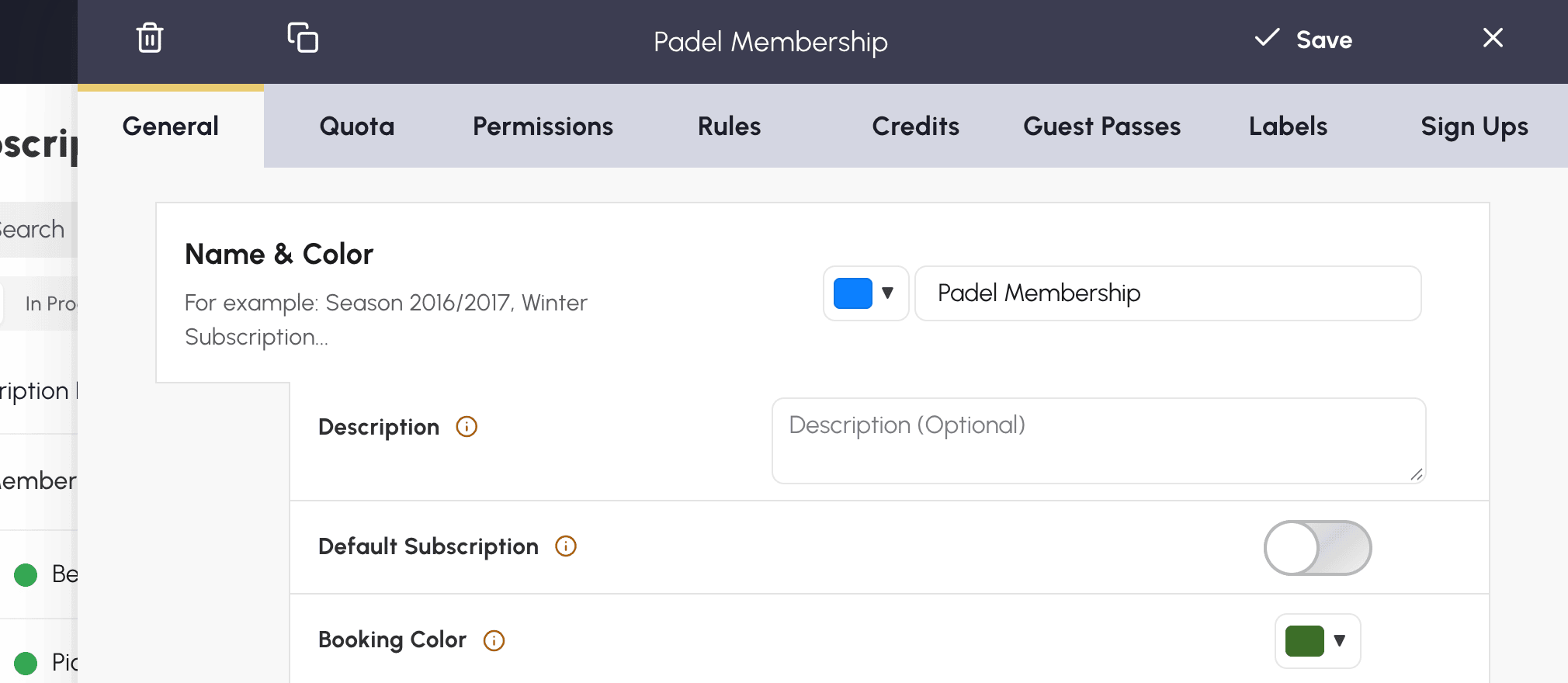
- În fila General, completați Nume & culoare și o descriere opțională.
- În secțiunea Datele de deschidere a drepturilor, stabiliți perioada în care abonații se pot conecta. Lăsați setarea dezactivată pentru un acces fără limită de dată.
- Faceți clic pe Salvează.
Completați apoi condițiile de rezervare: câte rezervări poate avea un abonat în același timp, la ce terenuri are acces, ce reguli trebuie să respecte? Filele Cota, Permisiuni și Reguli vă permit să precizați aceste alegeri. Ghidul de mai jos vă însoțește în configurarea lor.
Organizarea automată a listei
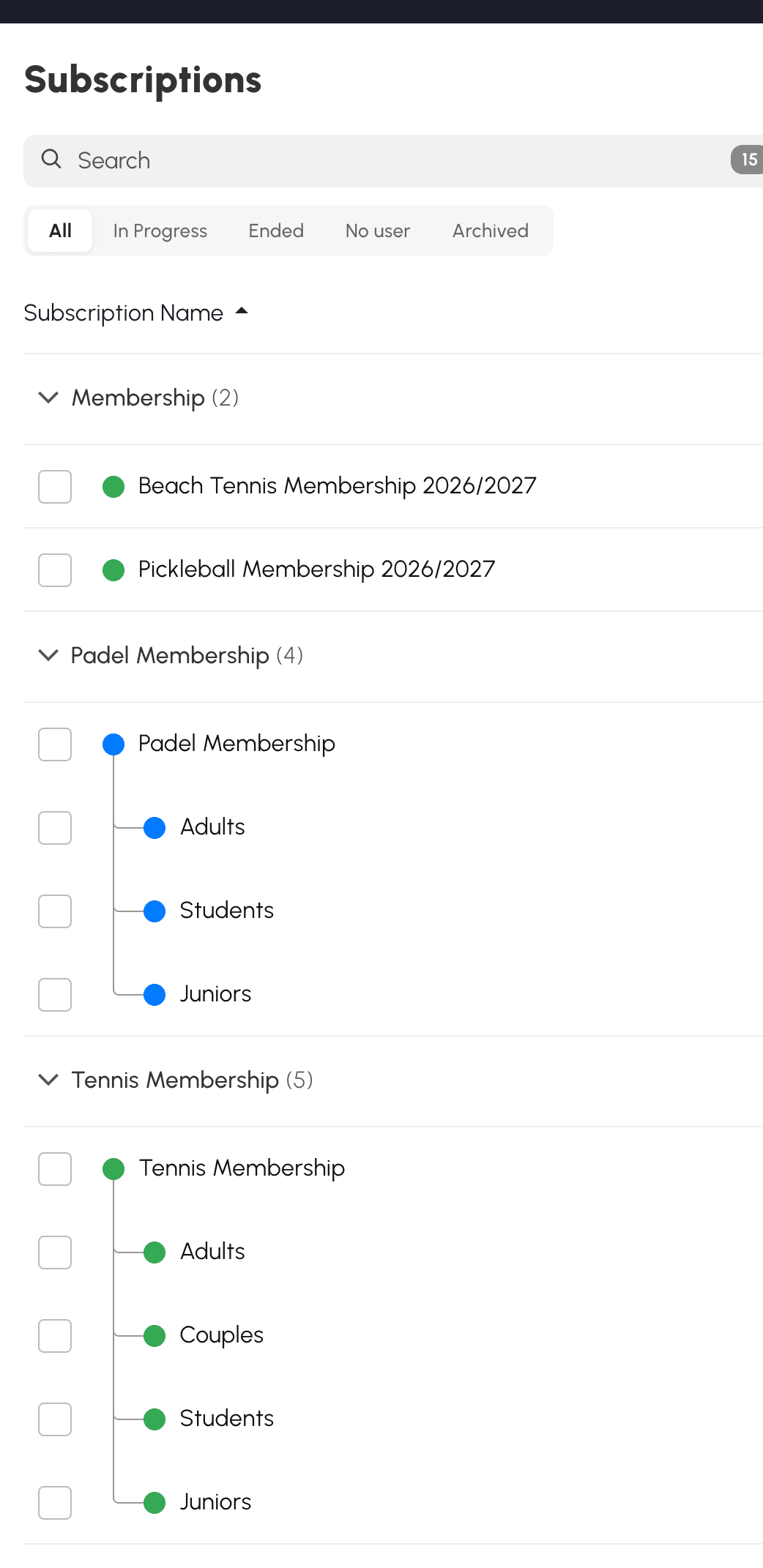
Modul Automat organizează lista în locul dumneavoastră: nu trebuie să creați niciun grup. Faceți clic pe antetul numelui, al datei de început sau al datei de sfârșit pentru a alege sortarea. Grupurile se adaptează acestei alegeri, fără a modifica abonamentele.
Cu o sortare după nume, aplicația caută cuvintele și sezoanele comune. Astfel, poate apropia Tenis recreativ 2026/2027 - Adulți și Tenis recreativ 2026/2027 - Juniori. Numele coerente ușurează această clasificare. Dacă denumirile sunt foarte diferite, aplicația are mai puține indicii pentru a le grupa. Cu o sortare după dată, grupurile se formează pe baza datelor de început și de sfârșit ale abonamentelor.
Faceți clic pe titlul unui grup pentru a-l plia sau a-l desfășura. Această stare este memorată pentru contul dumneavoastră.
Aranjarea abonamentelor în grupuri manuale
Alegeți acest mod dacă doriți să organizați lista după propriile criterii. Puteți, de exemplu, să reuniți tenisul și padelul într-un grup Școală de sport, apoi să separați abonamentele de practică liberă de ofertele ocazionale, indiferent de numele lor.
- Treceți pe Grupuri manuale.
- Faceți clic pe Adaugă un grup și dați-i un nume: noul grup apare în capul listei.
- În Toți, fără căutare și fără filtru, trageți rândurile pentru a le aranja în grupuri și pentru a le stabili ordinea. Pe ecran tactil, țineți degetul apăsat pe rând înainte de a-l deplasa.
- Trageți titlul unui grup pentru a-i schimba locul. Abonamentele care nu sunt aranjate în niciun grup rămân jos, sub Niciun grup.
La trecerea cursorului peste titlu, butoanele vă permit să redenumiți sau să ștergeți grupul. Ștergerea unui grup păstrează abonamentele sale, care revin în Niciun grup.
Puteți, de asemenea, să faceți clic pe un antet de coloană pentru a sorta abonamentele după nume sau după dată în fiecare grup. Dacă mutați apoi un abonament independent sau de referință, aranjarea dumneavoastră preia locul sortării: poziția aleasă este păstrată.
Abonamentele asociate, prezentate mai jos, rămân sub abonamentul lor de referință. Le puteți schimba ordinea în interiorul acestei familii fără a modifica sortarea restului listei. Dacă mutați referința, abonamentele asociate o urmează.
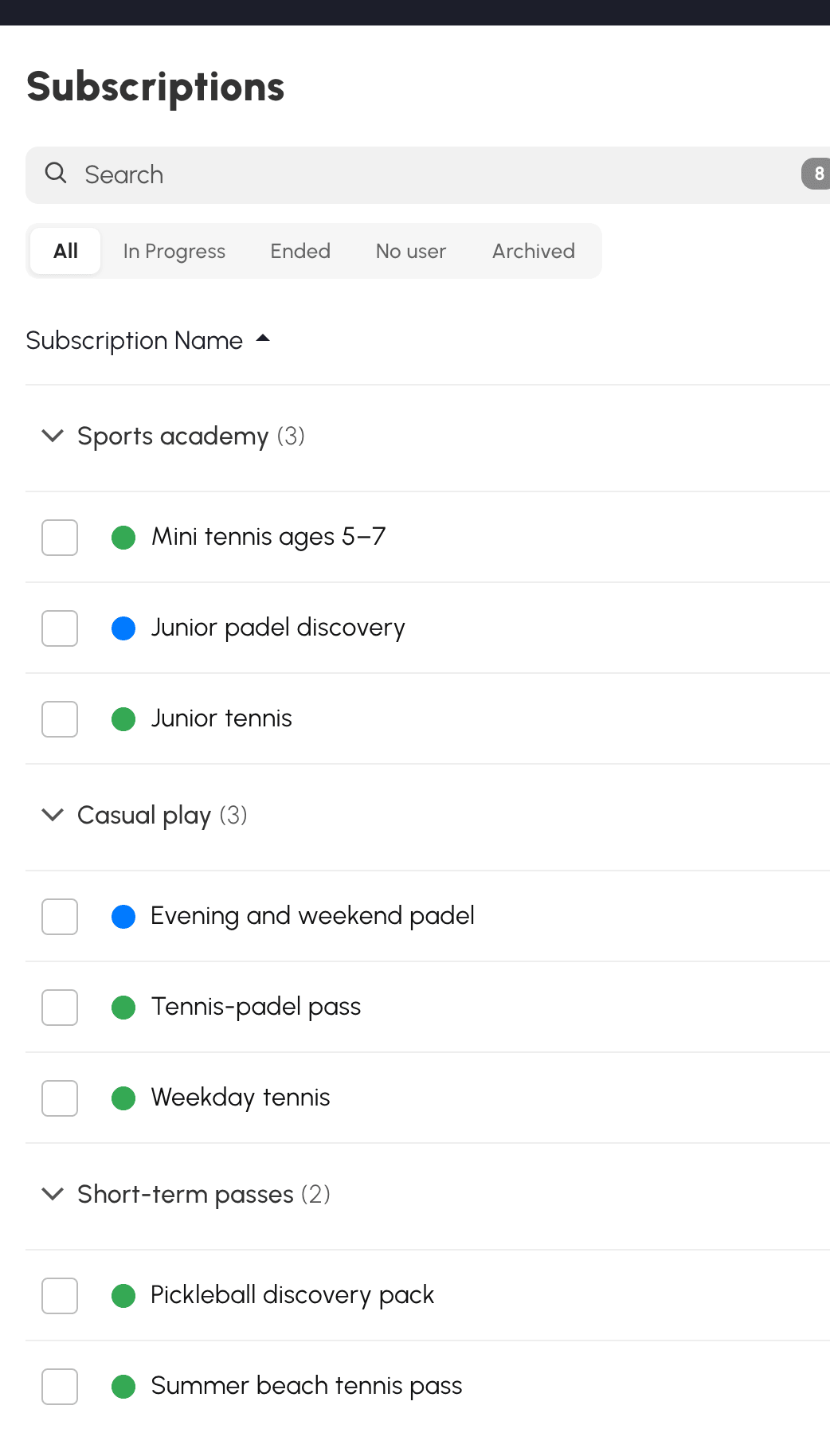
Veți regăsi aceste grupări și în listele de alegere a abonamentului, atunci când ele ușurează lectura. Numele complete ale abonamentelor rămân afișate acolo.
Adaptarea afișării și acțiunile asupra mai multor abonamente
Adaptați lista la felul dumneavoastră de a lucra: citiți descrierile, consultați plățile sau afișați mai multe rânduri pe ecran. Meniul Setări, în dreapta lui Nou, memorează preferințele dumneavoastră:
- Afișează descrierile: adaugă descrierea sub nume, pe maximum două rânduri.
- Afișează plățile: înlocuiește coloana datei de început cu cea a plăților.
- Mod condensat: reduce spațierea rândurilor și dimensiunea numelor, a butoanelor și a contoarelor.
Aceste opțiuni sunt dezactivate în mod implicit. Numele lungi rămân lizibile pe mai multe rânduri.
Coloanele de început și de sfârșit apar numai dacă cel puțin un abonament din lista filtrată are data corespunzătoare. Pentru a consulta sau a modifica un abonament, faceți clic pe numele său, inclusiv pe mobil.
Bifați casetele din stânga abonamentelor pentru a acționa asupra mai multor rânduri deodată. Butoanele Arhivați, Asociază, Detașați și Șterge apar atunci în locul filelor de mod. Se aplică aceleași drepturi și restricții ca în cazul unei acțiuni asupra unui singur abonament.
În modul manual, Mută la… aranjează întreaga selecție într-un grup. În Arhivate, Restaurează readuce abonamentele selectate în lista curentă.
Partajarea setărilor cu un abonament de referință
Oferiți mai multe planuri de padel — adulți, juniori, studenți — cu tarife diferite, dar cu aceleași reguli? Fără o legătură între aceste abonamente, fiecare schimbare de cotă sau de acces la terenuri trebuie repetată în fiecare plan, cu riscul de a uita unul dintre ele.
Un abonament de referință vă permite să gestionați aceste setări într-un singur loc. Creați, de exemplu, Abonament Padel, apoi asociați-i planurile dumneavoastră: modificările setărilor comune vor fi aplicate automat tuturor abonamentelor asociate, în timp ce fiecare își va păstra tariful și informațiile proprii. Dacă anumite planuri trebuie să aibă reguli diferite, păstrați-le independente sau atașați-le unei alte referințe.
Setările se transmit numai de la referință către abonamentele asociate, atunci când le salvați. Schimbarea tarifului sau a numelui unui abonament asociat nu are, așadar, niciun efect asupra referinței și nici asupra celorlalte abonamente. Puteți, de asemenea, să atribuiți abonamentul de referință unor utilizatori: el rămâne un abonament de sine stătător.
Crearea unui abonament asociat
Din listă, butonul Creează un abonament asociat al referinței vă permite să creați rapid o nouă variantă. Puteți face acest lucru și din configurarea sa:
- Deschideți abonamentul care va servi drept referință, fila General.
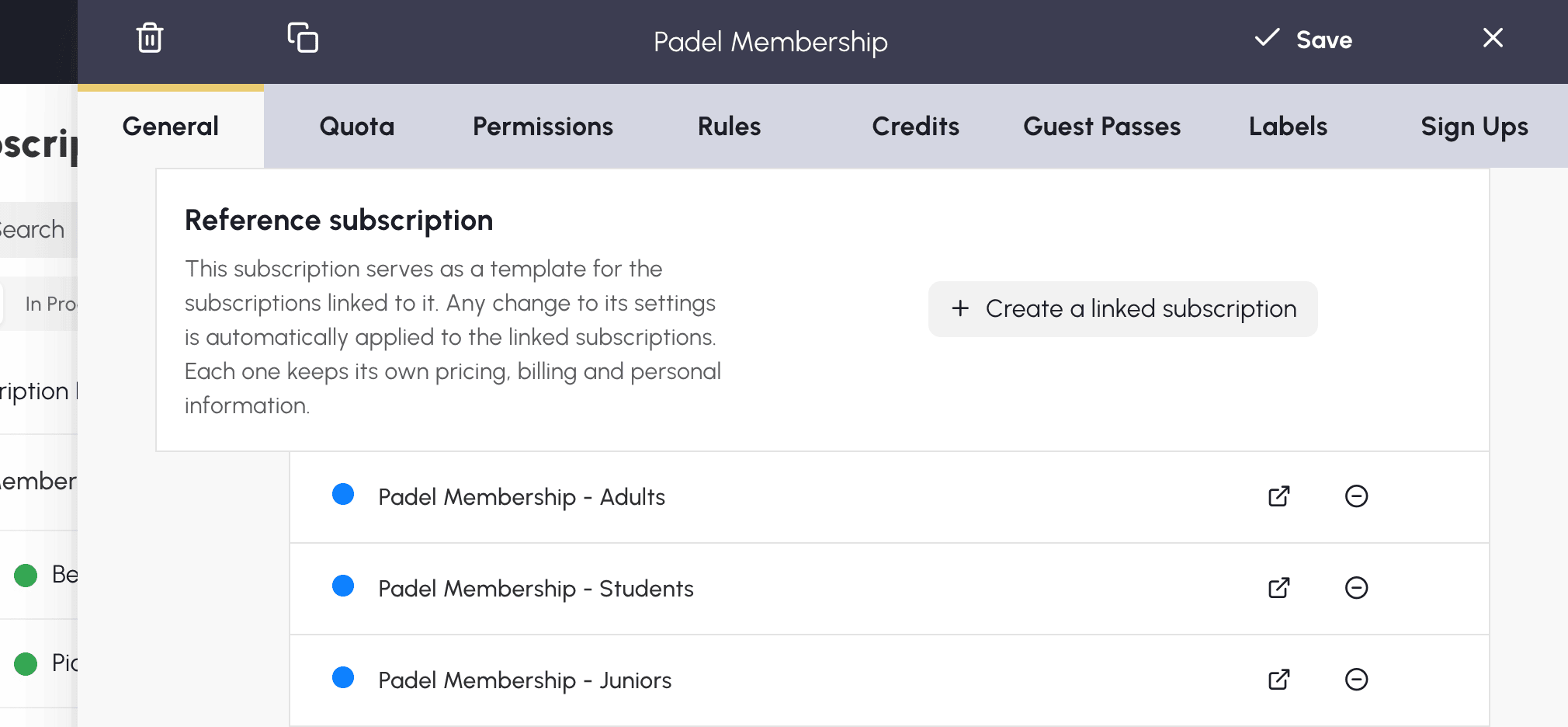
- În secțiunea Abonament de referință, faceți clic pe Creează un abonament asociat.
- Introduceți numele dorit în fereastra de confirmare, apoi validați.
- Abonamentul creat apare în lista abonamentelor asociate ale referinței. Faceți clic pe butonul său Deschide pentru a-i personaliza numele, tariful și celelalte informații proprii.
Asocierea unui abonament existent
- Deschideți abonamentul de asociat și salvați mai întâi eventualele modificări.
- În General, secțiunea Abonament de referință, alegeți referința dorită.
- Citiți cu atenție confirmarea: ea indică numărul de utilizatori vizați. Prin validare, înlocuiți setările comune ale acestui abonament cu cele ale referinței alese. Tariful și informațiile sale proprii sunt păstrate.
Un abonament nu poate fi în același timp asociat unei referințe și referință pentru altele. Prin urmare, nu puteți alege ca referință un abonament deja asociat și nici nu puteți asocia unei alte referințe un abonament care are deja abonamente asociate.
Să știți unde se modifică setările
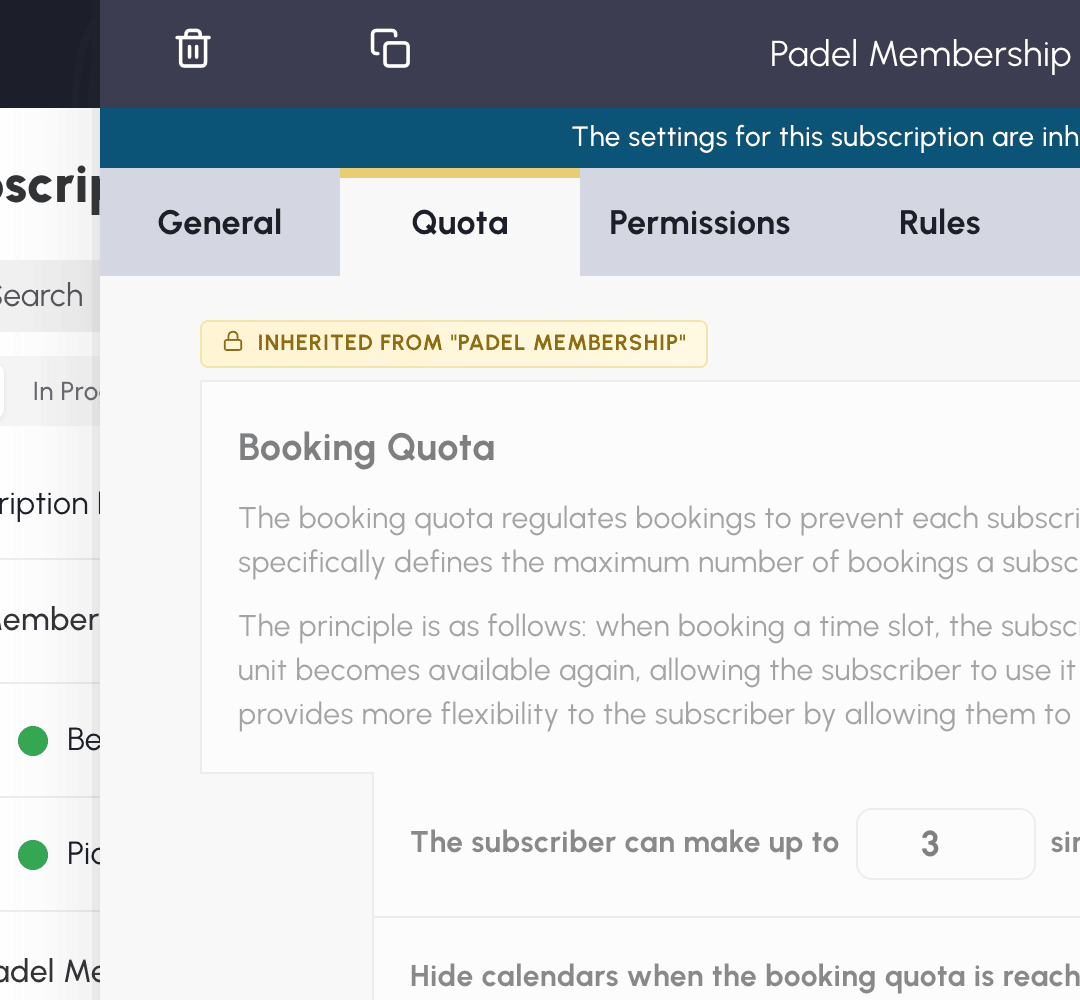
Într-un abonament asociat, banda din partea de sus a panoului indică din ce referință provin setările. Cele moștenite apar estompate, cu numele referinței. Pentru a le modifica, deschideți acea referință: schimbarea se va aplica tuturor abonamentelor sale asociate.
Rămân personalizabile pentru fiecare abonament asociat:
- numele, descrierea, culoarea și cuvintele-cheie;
- datele și culorile sale de rezervare;
- tarifele și facturarea sa, inclusiv tarifele și vânzarea creditelor de rezervare sau de invitație;
- opțiunile din fila Înregistrări.
Celelalte setări sunt moștenite: cote, permisiuni, reguli, etichete, funcționarea creditelor și a invitațiilor, informațiile obligatorii pentru a rezerva, blocarea în caz de neplată și memento-urile înainte de expirare.
De exemplu, puteți stabili tariful pentru juniori la 160 € și tariful pentru adulți la 320 €. Fiecare își păstrează prețul, chiar și atunci când modificați regulile comune pe Abonament Padel.
În listă, o linie leagă bulinele abonamentelor asociate de cea a referinței lor: astfel identificați planurile care împart aceleași setări. Dacă numele lor începe cu cel al referinței, poate fi afișată doar continuarea: Padel - Juniori devine Juniori sub Padel. Numele complet este păstrat și poate fi văzut la trecerea cursorului.
Detașarea unui abonament fără a-l șterge
Din cardul referinței, folosiți Detașați pe rândul vizat. Puteți, de asemenea, să alegeți Niciunul în câmpul Abonament de referință al abonamentului asociat, apoi să confirmați.
Detașarea înlătură doar legătura: abonamentul și utilizatorii săi sunt păstrați. Setările moștenite rămân așa cum sunt în momentul detașării și devin modificabile direct pe acest abonament. Schimbările aduse ulterior fostei referințe nu i se vor mai aplica.
Pentru a detașa mai multe abonamente deodată, bifați-le în listă, apoi folosiți Detașați, în funcție de drepturile dumneavoastră de gestiune.
Urmărirea plății cotizațiilor
Dacă încasați cotizațiile la recepție sau prin transfer bancar, puteți nota plățile pentru a ști cine și-a achitat abonamentul. În fila General, completați Tariful abonamentului: caseta Abonament plătit din fiecare fișă vă permite să indicați plata, data și suma acesteia.
Pentru a vedea situația tuturor utilizatorilor, deschideți Administrare›Utilizatori›Drepturi de acces›Urmărirea abonamentelor. Puteți filtra lista după abonament sau după starea plății, apoi o puteți exporta în format Excel.
Activați, dacă este nevoie, Blocați rezervările dacă utilizatorul nu și-a plătit abonamentul: pe fișa utilizatorului apare atunci o bandă, iar rezervarea îi este refuzată până la înregistrarea plății.
Pentru a nu fi nevoit să supravegheați acest ecran, activați rapoartele de activitate: ele vă trimit în fiecare lună lista nominală a abonamentelor care expiră în următoarele 30 de zile.
Vânzarea abonamentului online
Activați Plăți și facturare în fila General pentru ca abonamentul să poată fi plătit online: utilizatorii îl pot cumpăra sau reînnoi conform planurilor configurate, cu facturare automată. Plata se face prin mijloacele de încasare ale contului de facturare asociat.
Când această secțiune este activă, datele capătă un alt sens: ele devin Date de acces implicite, aplicate atât timp cât abonatul nu are un plan în curs. De îndată ce cumpără un plan, datele planului preiau controlul.
Trimiterea automată a memento-urilor înainte de expirare
Memento-urile le amintesc utilizatorilor să își reînnoiască abonamentul înainte de a-și pierde accesul la rezervări. Sunt prevăzute trei e-mailuri înainte de data expirării: cu 30 de zile înainte, cu 7 zile înainte, apoi în ajun.
Pentru a consulta setarea, accesați Administrare›Utilizatori›Drepturi de acces›Abonamente, deschideți abonamentul vizat, apoi fila General, secțiunea Notificări automate înainte de expirare. Memento-urile sunt activate în mod implicit. Pentru un abonament asociat, această setare se modifică pe abonamentul său de referință.
Adăugarea unui mesaj personalizat
Sub comutator, un editor vă permite să adăugați câteva rânduri care vor fi preluate în e-mail: data adunării generale, tariful sezonului următor, programul de înscriere, adresa unui formular de completat, un document atașat...

Ce primește abonatul
E-mailul amintește abonamentul vizat, data expirării și numărul de zile rămase, apoi mesajul dumneavoastră, dacă ați introdus unul.
Un buton de reînnoire apare dacă utilizatorul are acces la un abonament pe care îl poate cumpăra online din contul său. În caz contrar, e-mailul conține doar mesajul de reamintire și textul dumneavoastră: nu uitați să explicați acolo cum se poate reînnoi altfel.
Cine nu primește memento
- Abonații fără dată de expirare completată în fișa lor: fără această dată, aplicația nu poate programa un memento.
- Abonații al căror abonament are memento-urile dezactivate.
- Abonații suspendați.
- Cei care au dezactivat notificările Plăți și facturare în contul lor.
Solicitarea documentelor justificative pentru a rezerva
În fila General, secțiunea Informații obligatorii pentru a rezerva îi obligă pe abonați să completeze anumite informații înainte de a putea rezerva: adresă de e-mail, adresă poștală, telefon, fotografie de profil, dată de naștere, clasament, număr de licență, dovadă de domiciliu sau certificat medical.
Utilizatorul este invitat să își completeze fișa încă de la prima conectare, apoi atunci când face clic pe un interval orar liber. Dacă activați Aplicați această restricție atunci când abonatul este partener într-o rezervare, el nu va putea nici să fie adăugat la rezervarea altei persoane atât timp cât informațiile cerute lipsesc.

Duplicarea unui abonament pentru noul sezon
Duplicarea vă scutește să porniți de la zero: reluați configurarea unui sezon anterior, apoi adaptați datele și opțiunile copiei.
- În listă, faceți clic pe Duplicare pe rândul abonamentului de reluat.
- Introduceți numele copiei în fereastra de confirmare, apoi validați: copia apare în listă.
- Faceți clic pe numele său pentru a-i ajusta datele și opțiunile necesare.
Puteți duplica și din panoul de configurare al unui abonament. În acest caz, panoul copiei se deschide direct după confirmare.
Duplicarea unui abonament asociat păstrează legătura sa către aceeași referință, dacă aveți drepturile necesare asupra acesteia. Ea nu creează o nouă referință pentru sezonul următor.
Arhivarea abonamentelor devenite inutile
Arhivați un plan vechi pentru a ușura lista, fără a șterge abonamentele utilizatorilor care încă îl dețin. Puteți astfel să puneți deoparte un sezon trecut, fără să așteptați ca toți utilizatorii să își fi schimbat planul.
Faceți clic pe Arhivați în listă, apoi confirmați. Abonamentul trece în Arhivate. El nu mai este propus ca alegere nouă la adăugarea sau la modificarea unui utilizator; cei care sunt deja abonați îl păstrează.
O bandă vă poate sugera abonamente de arhivat. Verificați selecția înainte de a confirma. Dacă faceți clic pe Ascundeți, dispare doar banda, iar această alegere este memorată pentru contul dumneavoastră: niciun abonament nu este arhivat.
Abonamentul implicit nu poate fi arhivat. Pentru a arhiva o referință, trebuie să arhivați și abonamentele sale asociate încă active: selectați-le împreună cu ea în listă.
Pentru a readuce un abonament în lista curentă, deschideți Arhivate și faceți clic pe Restaurează. Dacă restaurați un abonament asociat a cărui referință este arhivată, aceasta este restaurată la rândul ei, în limita drepturilor dumneavoastră.
Abonamentele arhivate rămân disponibile pentru asocierea abonamentelor la importurile clasic și ADOC.
Ștergerea unui abonament gol
Ștergeți un abonament dacă nu mai aveți nevoie de el și dacă niciun utilizator nu îi este atașat. Dacă este încă folosit, arhivați-l pentru a-l retrage din listă, păstrându-l totodată pentru abonații săi.
Folosiți Șterge în listă sau în panoul de configurare. Ștergerea este refuzată dacă abonamentul mai are utilizatori, dacă este definit ca implicit sau dacă este cel al administratorului conectat. Aceleași protecții se aplică atunci când ștergeți mai multe abonamente deodată; mesajul propune atunci arhivarea.
Ștergerea unei referințe goale detașează abonamentele sale asociate: acestea sunt păstrate cu setările lor actuale. Pentru a retrage doar o legătură, folosiți Detașați, fără a șterge abonamentul.
Reatribuirea unui abonament în masă
La începutul unui sezon, puteți atribui noul abonament mai multor utilizatori într-o singură operațiune, fără a deschide fiecare fișă.
- Accesați Administrare›Utilizatori›Gestionarea utilizatorilor și selectați utilizatorii vizați sau Selectează tot după aplicarea unui filtru.
- Deschideți Acțiuni, apoi Editare rapidă.
- Alegeți noul abonament și, dacă este nevoie, datele sale, apoi faceți clic pe Salvează.
În cadrul aceleiași operațiuni, puteți marca abonamentul ca neplătit pentru utilizatorii selectați, de exemplu la începutul unui nou sezon.
Dacă pregătiți aceste schimbări într-un fișier, puteți folosi și importul pentru a actualiza abonamentele utilizatorilor vizați.
