



Membuat dan mengelola langganan
Sebuah langganan menghimpun ketentuan akses dan reservasi dari sebuah paket: tanggal, tarif, kuota reservasi, dan aturan yang harus dipatuhi. Buatlah langganan yang ditawarkan oleh organisasi Anda, lalu berikan kepada setiap pengguna langganan yang sesuai melalui profilnya.
- Membuat langganan
- Menata daftar secara otomatis
- Menata langganan dalam grup manual
- Menyesuaikan tampilan dan bertindak pada beberapa langganan
- Berbagi pengaturan dengan langganan referensi
- Memantau pembayaran iuran
- Menjual langganan secara daring
- Mengirim pengingat otomatis kepada pelanggan sebelum masa berlaku berakhir
- Mewajibkan dokumen pendukung untuk memesan
- Menggandakan langganan untuk musim baru
- Mengarsipkan langganan yang tidak lagi digunakan
- Menghapus langganan yang kosong
- Menetapkan ulang langganan secara massal
Membuat langganan
Mulailah dengan satu paket yang ditawarkan organisasi Anda, misalnya Tenis rekreasi. Selanjutnya Anda dapat memberikannya kepada pengguna terkait, tanpa mengisi ulang aturan yang sama pada setiap profil.
- Buka Administrasi›Pengguna›Hak akses›Langganan lalu klik Baru.
- Pada tab Umum, isi Nama & warna dan deskripsi yang bersifat opsional.
- Di bagian Tanggal pembukaan hak, tentukan periode saat pelanggan dapat masuk ke akun. Biarkan pengaturan ini nonaktif untuk akses tanpa batas tanggal.
- Klik Simpan.
Kemudian lengkapi ketentuan reservasi: berapa banyak reservasi yang boleh dimiliki seorang pelanggan secara bersamaan, lapangan mana saja yang dapat diaksesnya, dan aturan apa yang harus dipatuhinya? Tab Kuota, Izin, dan Aturan memungkinkan Anda menentukan pilihan tersebut. Panduan di bawah ini akan membantu Anda mengaturnya.
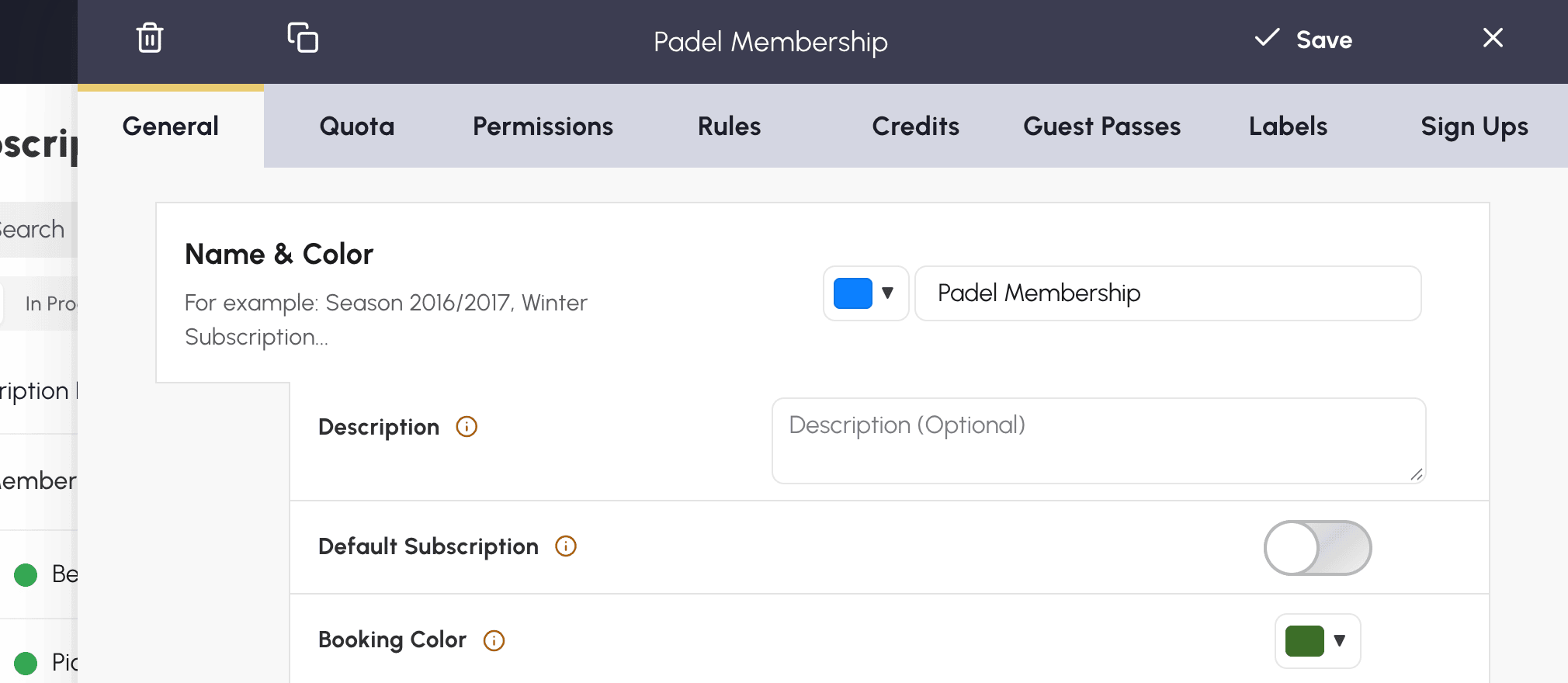
Menata daftar secara otomatis
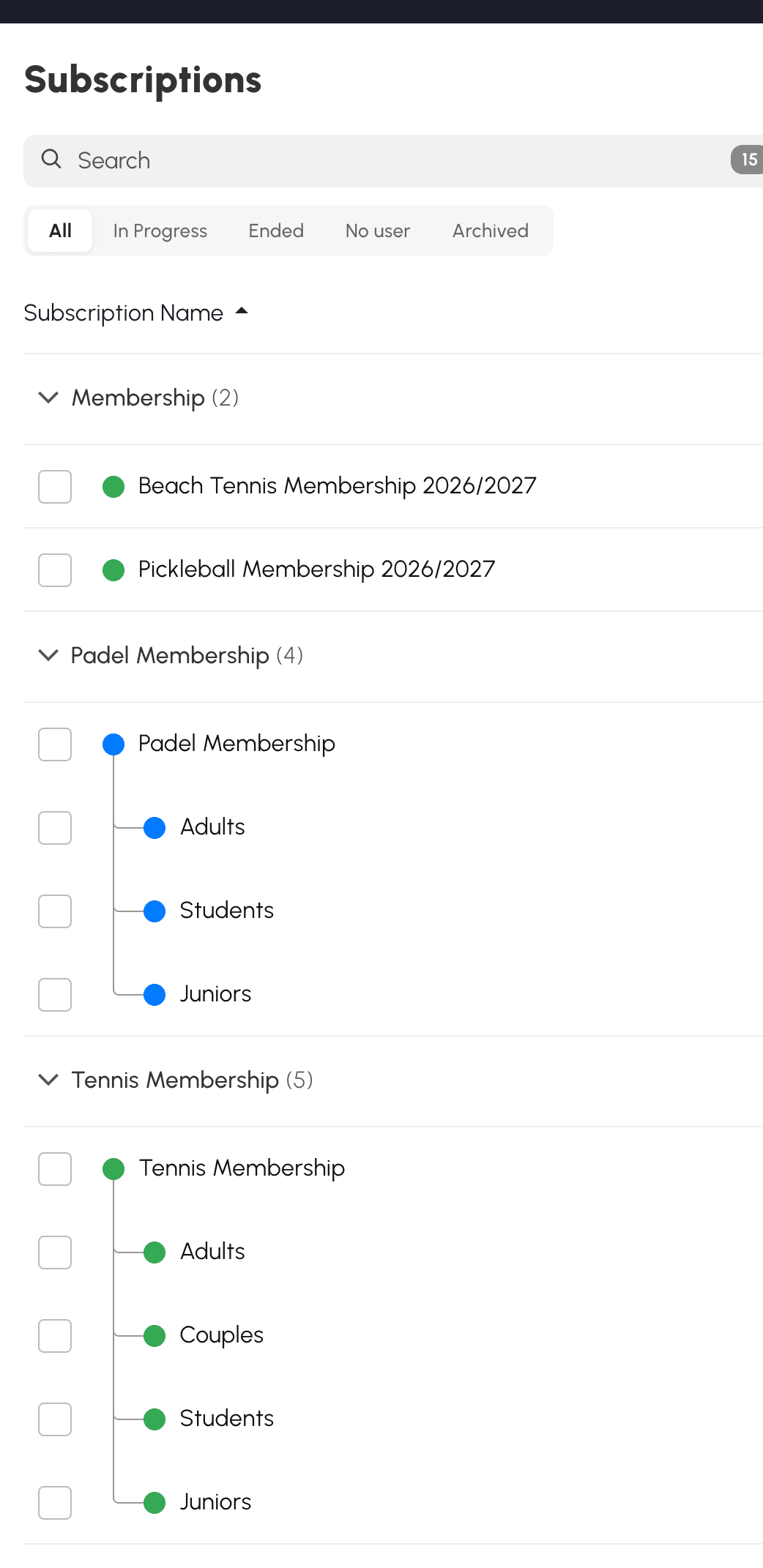
Mode Otomatis menata daftar untuk Anda: Anda tidak perlu membuat grup apa pun. Klik header kolom nama, tanggal mulai, atau tanggal berakhir untuk memilih pengurutan. Grup akan menyesuaikan dengan pilihan tersebut, tanpa mengubah langganan.
Dengan pengurutan berdasarkan nama, aplikasi mencari kata dan musim yang sama. Dengan begitu, aplikasi dapat mendekatkan Tenis rekreasi 2026/2027 - Dewasa dan Tenis rekreasi 2026/2027 - Remaja. Penamaan yang konsisten memudahkan pengelompokan ini. Jika nama-namanya sangat berbeda, aplikasi memiliki lebih sedikit petunjuk untuk mengelompokkannya. Dengan pengurutan berdasarkan tanggal, grup dibentuk dari tanggal mulai dan tanggal berakhir langganan.
Klik judul sebuah grup untuk melipat atau membukanya. Status ini disimpan untuk akun Anda.
Menata langganan dalam grup manual
Pilih mode ini jika Anda ingin menata daftar sesuai kriteria Anda sendiri. Misalnya, Anda dapat menggabungkan tenis dan padel dalam grup Sekolah olahraga, lalu memisahkan langganan bermain bebas dan penawaran sesekali, apa pun namanya.
- Beralihlah ke Grup manual.
- Klik Tambah grup lalu beri nama: grup baru muncul di bagian atas daftar.
- Di Semua, tanpa pencarian maupun filter, seret baris-baris untuk menatanya ke dalam grup dan menentukan urutannya. Pada layar sentuh, tahan jari Anda pada baris sebelum memindahkannya.
- Seret judul sebuah grup untuk mengubah posisinya. Langganan yang tidak ditempatkan dalam grup mana pun tetap berada di bawah, pada Tidak ada grup.
Saat kursor diarahkan ke judul, tombol-tombol memungkinkan Anda mengganti nama atau menghapus grup. Menghapus sebuah grup tetap mempertahankan langganannya, yang akan kembali ke Tidak ada grup.
Anda juga dapat mengklik header kolom untuk mengurutkan langganan berdasarkan nama atau tanggal di dalam setiap grup. Jika setelah itu Anda memindahkan langganan mandiri atau langganan referensi, penataan Anda akan menggantikan pengurutan: posisi yang dipilih tetap dipertahankan.
Langganan tertaut, yang dijelaskan lebih lanjut di bawah, tetap berada di bawah langganan referensinya. Anda dapat mengubah urutannya di dalam keluarga tersebut tanpa mengubah pengurutan bagian daftar lainnya. Jika Anda memindahkan langganan referensi, langganan tertautnya akan mengikuti.
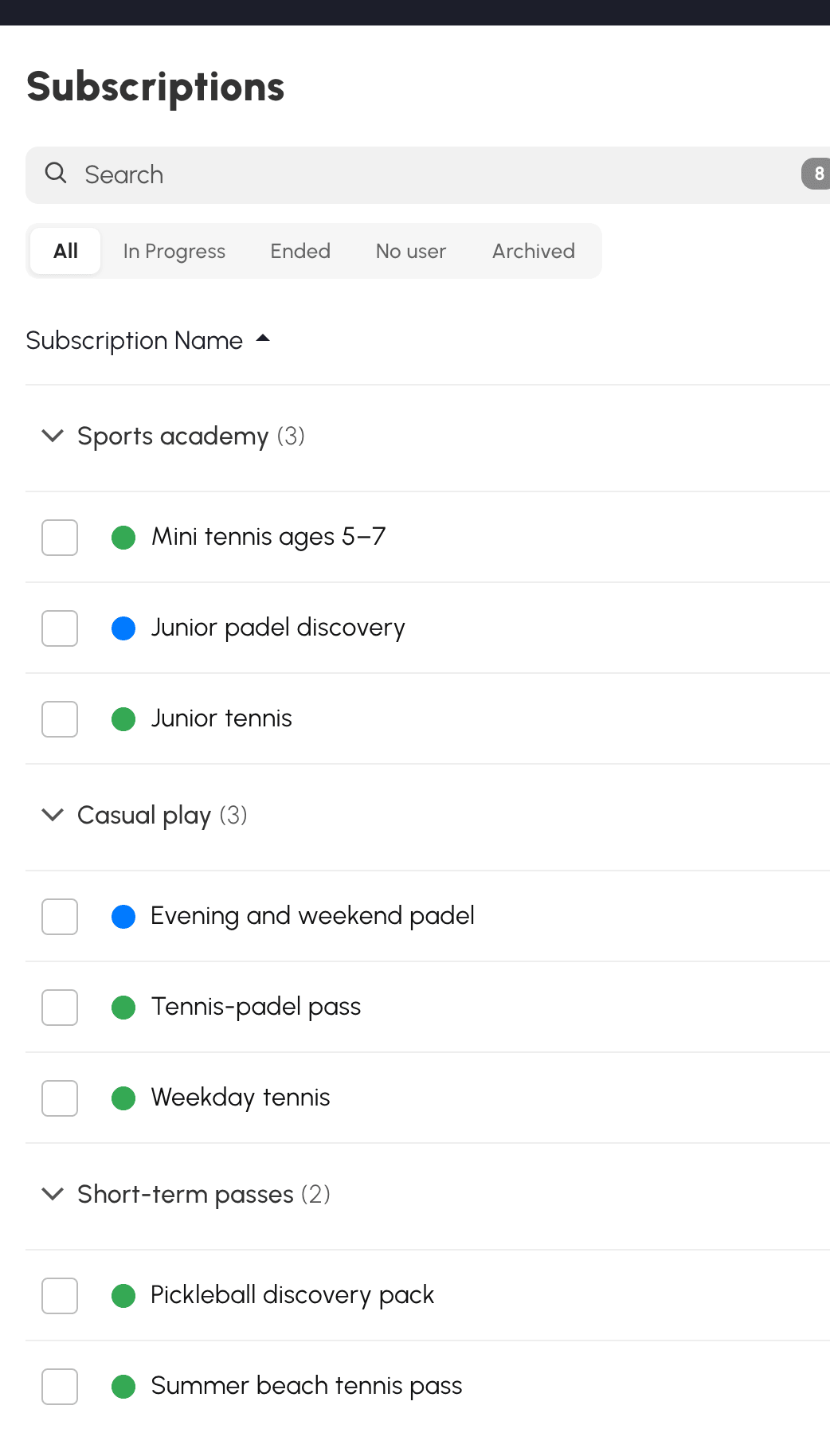
Pengelompokan ini juga akan Anda temukan pada daftar pilihan langganan bila memudahkan pembacaan. Nama lengkap langganan tetap ditampilkan di sana.
Menyesuaikan tampilan dan bertindak pada beberapa langganan
Sesuaikan daftar dengan cara kerja Anda: membaca deskripsi, memeriksa pembayaran, atau menampilkan lebih banyak baris di layar. Menu Pengaturan, di sebelah kanan Baru, menyimpan preferensi Anda:
- Tampilkan deskripsi: menambahkan deskripsi di bawah nama, maksimal dua baris.
- Tampilkan pembayaran: mengganti kolom tanggal mulai dengan kolom pembayaran.
- Mode ringkas: memperkecil jarak antarbaris serta ukuran nama, tombol, dan penghitung.
Opsi-opsi ini nonaktif secara bawaan. Nama yang panjang tetap terbaca dalam beberapa baris.
Kolom tanggal mulai dan tanggal berakhir hanya muncul jika setidaknya satu langganan dalam daftar terfilter memiliki tanggal tersebut. Untuk melihat atau mengubah sebuah langganan, klik namanya, termasuk di perangkat seluler.
Centang kotak di sebelah kiri langganan untuk bertindak pada beberapa baris sekaligus. Tombol Arsipkan, Tautkan, Lepaskan, dan Hapus akan muncul menggantikan tab mode. Hak dan pembatasan yang berlaku sama seperti pada tindakan terhadap satu langganan.
Dalam mode manual, Pindahkan ke… menempatkan seluruh pilihan ke dalam sebuah grup. Di Diarsipkan, Pulihkan mengembalikan langganan yang dipilih ke daftar aktif.
Berbagi pengaturan dengan langganan referensi
Anda menawarkan beberapa paket padel — dewasa, remaja, pelajar — dengan tarif berbeda, tetapi aturan yang sama? Tanpa keterkaitan antara langganan-langganan ini, setiap perubahan kuota atau akses lapangan harus diulang pada setiap paket, dengan risiko ada yang terlewat.
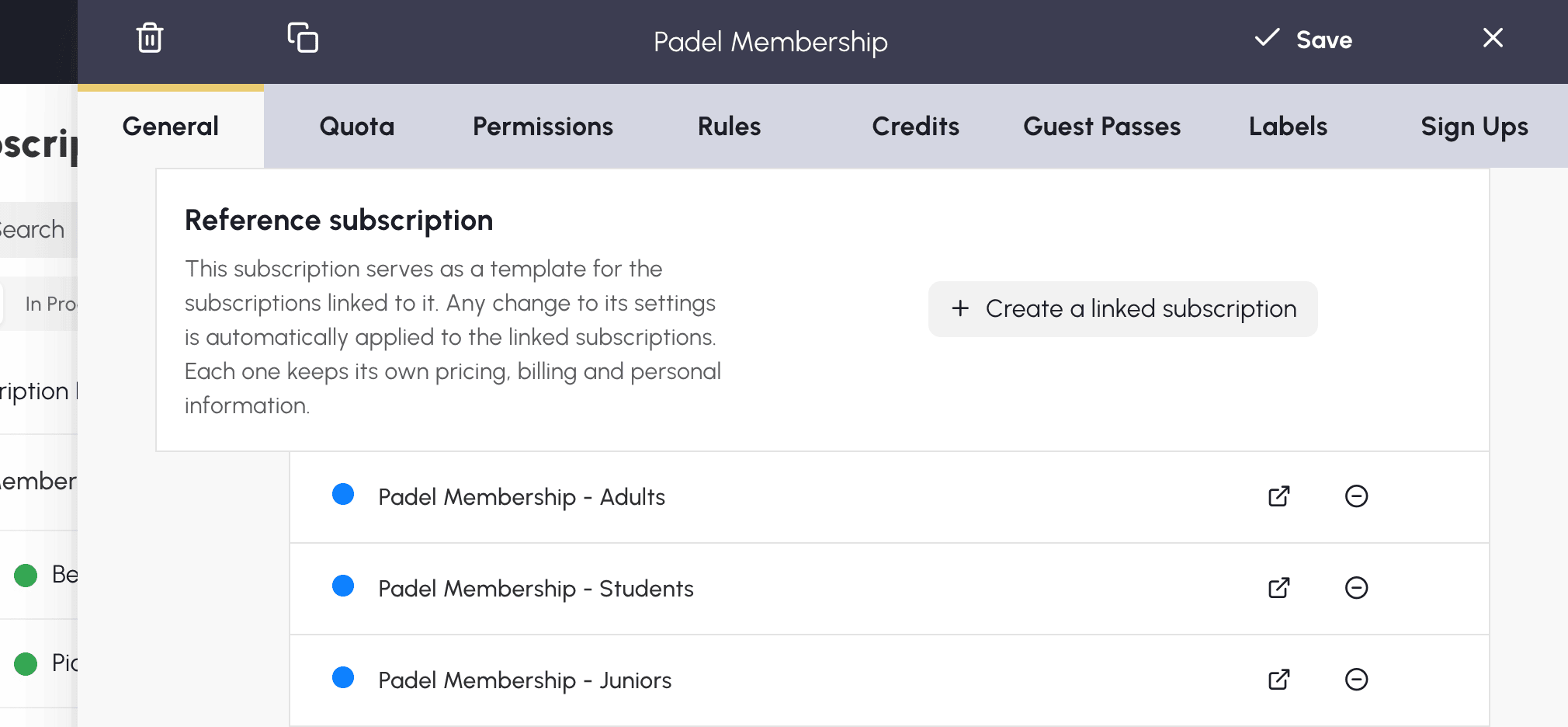
Langganan referensi memungkinkan Anda mengelola pengaturan tersebut di satu tempat. Buatlah misalnya Langganan Padel, lalu tautkan paket-paket Anda kepadanya: perubahan pada pengaturan bersama akan diterapkan secara otomatis ke semua langganan tertaut, sementara masing-masing tetap mempertahankan tarif dan informasinya sendiri. Jika sebagian paket harus memiliki aturan berbeda, biarkan mandiri atau tautkan ke referensi lain.
Pengaturan hanya diteruskan dari referensi ke langganan tertaut, saat Anda menyimpannya. Karena itu, mengubah tarif atau nama sebuah langganan tertaut tidak berpengaruh pada referensi maupun langganan lainnya. Anda juga dapat memberikan langganan referensi kepada pengguna: ia tetap merupakan langganan yang utuh.
Membuat langganan tertaut
Dari daftar, tombol Buat langganan terkait pada langganan referensi memungkinkan Anda membuat varian baru dengan cepat. Anda juga dapat melakukannya dari halaman konfigurasinya:
- Buka langganan yang akan menjadi referensi, tab Umum.
- Di bagian Langganan referensi, klik Buat langganan terkait.
- Masukkan nama yang diinginkan pada jendela konfirmasi, lalu validasi.
- Langganan yang dibuat muncul dalam daftar langganan tertaut milik referensi. Klik tombol Buka untuk menyesuaikan nama, tarif, dan informasi lainnya yang khusus baginya.
Menautkan langganan yang sudah ada
- Buka langganan yang akan ditautkan dan simpan terlebih dahulu perubahan yang mungkin Anda buat.
- Di Umum, bagian Langganan referensi, pilih langganan referensi yang diinginkan.
- Baca kembali konfirmasinya: pesan tersebut menunjukkan berapa banyak pengguna yang terdampak. Dengan memvalidasi, Anda mengganti pengaturan bersama langganan ini dengan pengaturan dari referensi yang dipilih. Tarif dan informasi khususnya tetap dipertahankan.
Sebuah langganan tidak dapat sekaligus tertaut ke sebuah referensi dan menjadi referensi bagi langganan lain. Karena itu, Anda tidak dapat memilih langganan yang sudah tertaut sebagai referensi, dan tidak dapat menautkan ke referensi lain sebuah langganan yang sudah memiliki langganan tertaut.
Mengetahui di mana pengaturan harus diubah
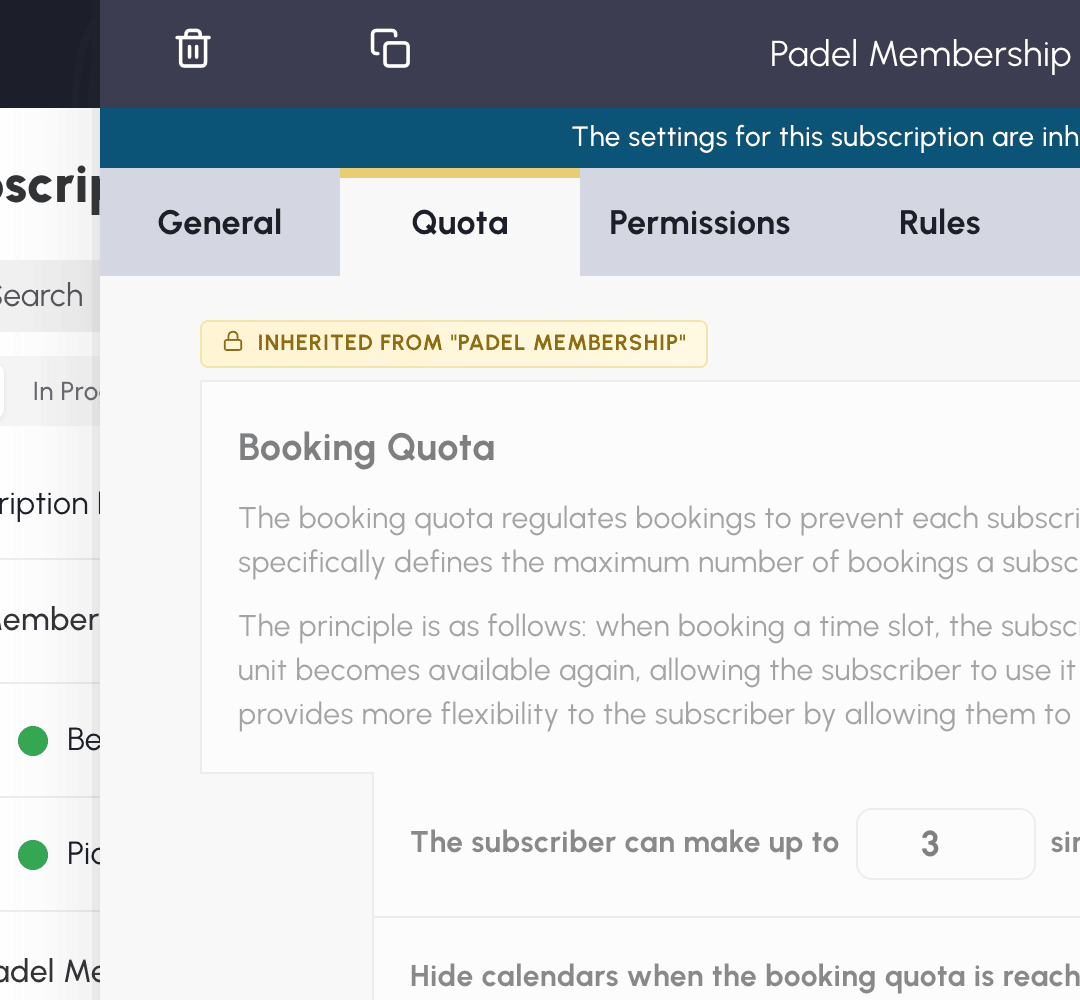
Pada langganan tertaut, panel di bagian atas menunjukkan dari referensi mana pengaturan berasal. Pengaturan yang diwarisi tampil berwarna abu-abu, disertai nama referensinya. Untuk mengubahnya, buka referensi tersebut: perubahan akan berlaku untuk semua langganan tertautnya.
Yang tetap dapat disesuaikan pada setiap langganan tertaut:
- nama, deskripsi, warna, dan kata kuncinya;
- tanggal dan warna reservasinya;
- tarif dan penagihannya, termasuk tarif dan penjualan kredit reservasi atau kredit undangan;
- opsi pada tab Pendaftaran.
Pengaturan lainnya diwarisi: kuota, izin, aturan, label, cara kerja kredit dan undangan, informasi yang wajib diisi untuk memesan, pemblokiran jika ada tagihan belum dibayar, serta pengingat sebelum masa berlaku berakhir.
Sebagai contoh, Anda dapat menetapkan tarif remaja sebesar 160 € dan tarif dewasa sebesar 320 €. Masing-masing mempertahankan harganya, bahkan ketika Anda mengubah aturan bersama pada Langganan Padel.
Dalam daftar, sebuah garis menghubungkan titik penanda langganan tertaut dengan titik penanda langganan referensinya: dengan begitu Anda dapat mengenali paket-paket yang berbagi pengaturan yang sama. Jika namanya diawali dengan nama referensi, hanya kelanjutannya yang ditampilkan: Padel - Remaja menjadi Remaja di bawah Padel. Nama lengkapnya tetap tersimpan dan dapat dilihat saat kursor diarahkan ke sana.
Melepas tautan langganan tanpa menghapusnya
Dari kartu langganan referensi, gunakan Lepaskan pada baris yang bersangkutan. Anda juga dapat memilih Tidak ada pada kolom Langganan referensi dari langganan tertaut, lalu konfirmasikan.
Pelepasan tautan hanya menghapus keterkaitannya: langganan dan penggunanya tetap dipertahankan. Pengaturan yang diwarisi tetap seperti saat pelepasan tautan dilakukan dan menjadi dapat diubah langsung pada langganan tersebut. Perubahan yang dilakukan setelahnya pada referensi lama tidak akan diterapkan lagi kepadanya.
Untuk melepas tautan beberapa langganan sekaligus, centang langganan tersebut dalam daftar lalu gunakan Lepaskan, sesuai hak pengelolaan Anda.
Memantau pembayaran iuran
Jika Anda menerima iuran di meja penerimaan atau melalui transfer, Anda dapat mencatat pembayaran untuk mengetahui siapa saja yang telah melunasi langganannya. Pada tab Umum, isi Tarif langganan: kotak Langganan dibayar pada setiap profil memungkinkan Anda mencatat pembayaran, tanggal, dan jumlahnya.
Untuk meninjau seluruh pengguna, buka Administrasi›Pengguna›Hak akses›Pemantauan langganan. Anda dapat memfilter daftar berdasarkan langganan atau status pembayaran, lalu mengekspornya dalam format Excel.
Aktifkan bila perlu Blokir pemesanan jika pengguna belum membayar langganannya: sebuah panel akan muncul pada profil pengguna, dan reservasi akan ditolak baginya sampai pembayaran dicatat.
Agar tidak perlu memantau layar ini, aktifkan laporan aktivitas: setiap bulan Anda akan menerima daftar nama langganan yang akan berakhir dalam 30 hari.
Menjual langganan secara daring
Aktifkan Pembayaran & penagihan pada tab Umum agar langganan dapat dibayar secara daring: pengguna dapat berlangganan atau memperpanjangnya sesuai paket yang dikonfigurasi, dengan penagihan otomatis. Pembayaran dilakukan sesuai cara penerimaan pembayaran dari akun penagihan yang terkait.
Ketika bagian ini aktif, tanggal memiliki makna lain: tanggal tersebut menjadi Tanggal akses default, yang berlaku selama pelanggan belum memiliki paket yang sedang berjalan. Begitu ia membeli sebuah paket, tanggal paket tersebutlah yang berlaku.
Mengirim pengingat otomatis kepada pelanggan sebelum masa berlaku berakhir
Pengingat mengingatkan pengguna untuk memperpanjang langganannya sebelum kehilangan akses reservasi. Tiga e-mail disiapkan sebelum tanggal berakhir: 30 hari sebelumnya, 7 hari sebelumnya, lalu sehari sebelumnya.
Untuk melihat pengaturannya, buka Administrasi›Pengguna›Hak akses›Langganan, buka langganan yang bersangkutan, lalu tab Umum, bagian Pengingat otomatis sebelum kedaluwarsa. Pengingat aktif secara bawaan. Untuk langganan tertaut, pengaturan ini diubah pada langganan referensinya.
Menambahkan pesan khusus
Di bawah sakelar, tersedia editor untuk menambahkan beberapa baris yang akan disertakan dalam e-mail: tanggal rapat umum, tarif musim berikutnya, jadwal layanan pendaftaran, alamat formulir yang harus diisi, lampiran, dan sebagainya.

Apa yang diterima pelanggan
E-mail tersebut mengingatkan langganan yang bersangkutan, tanggal berakhirnya, dan jumlah hari yang tersisa, lalu pesan Anda jika Anda menuliskannya.
Tombol perpanjangan muncul jika pengguna memiliki akses ke langganan yang dapat ia beli secara daring dari akunnya. Jika tidak, e-mail hanya berisi pengingat dan pesan Anda: jangan lupa menjelaskan cara perpanjangan lainnya di sana.
Siapa yang tidak menerima pengingat
- Pelanggan tanpa tanggal berakhir pada profilnya: tanpa tanggal ini, aplikasi tidak dapat menjadwalkan pengingat.
- Pelanggan yang langganannya memiliki pengingat nonaktif.
- Pelanggan yang ditangguhkan.
- Mereka yang menonaktifkan notifikasi Pembayaran & penagihan pada akunnya.
Mewajibkan dokumen pendukung untuk memesan
Pada tab Umum, bagian Informasi wajib untuk memesan mewajibkan pelanggan melengkapi informasi tertentu sebelum dapat memesan: alamat e-mail, alamat surat, telepon, foto profil, tanggal lahir, peringkat, nomor lisensi, bukti domisili, atau sertifikat medis.
Pengguna diminta melengkapi profilnya sejak pertama kali masuk, lalu ketika ia mengklik slot waktu yang kosong. Jika Anda mengaktifkan Terapkan pembatasan ini ketika pelanggan adalah mitra dalam sebuah pemesanan, ia juga tidak dapat ditambahkan ke reservasi orang lain selama informasi yang diminta belum lengkap.

Menggandakan langganan untuk musim baru
Penggandaan menghindarkan Anda dari memulai dari nol: ambil kembali konfigurasi musim sebelumnya, lalu sesuaikan tanggal dan opsi pada salinannya.
- Dalam daftar, klik Duplikat pada baris langganan yang ingin digunakan kembali.
- Masukkan nama salinan pada jendela konfirmasi, lalu validasi: salinan tersebut muncul dalam daftar.
- Klik namanya untuk menyesuaikan tanggal dan opsi yang diperlukan.
Anda juga dapat menggandakan dari panel konfigurasi sebuah langganan. Dalam hal ini, panel salinan langsung terbuka setelah konfirmasi.
Penggandaan sebuah langganan tertaut tetap mempertahankan tautannya ke referensi yang sama jika Anda memiliki hak yang diperlukan atas referensi tersebut. Penggandaan tidak membuat referensi baru untuk musim berikutnya.
Mengarsipkan langganan yang tidak lagi digunakan
Arsipkan paket lama untuk meringkas daftar tanpa menghapus langganan pengguna yang masih memilikinya. Dengan begitu Anda dapat merapikan musim yang telah lewat tanpa menunggu semua pengguna berpindah paket.
Klik Arsipkan dalam daftar, lalu konfirmasikan. Langganan tersebut berpindah ke Diarsipkan. Ia tidak lagi ditawarkan sebagai pilihan baru saat menambahkan atau mengubah pengguna; mereka yang sudah berlangganan tetap mempertahankannya.
Sebuah panel dapat menyarankan langganan yang sebaiknya diarsipkan. Periksa pilihannya sebelum mengonfirmasi. Jika Anda mengklik Sembunyikan, hanya panel tersebut yang hilang, dan pilihan ini disimpan untuk akun Anda: tidak ada langganan yang diarsipkan.
Langganan bawaan tidak dapat diarsipkan. Untuk mengarsipkan sebuah langganan referensi, Anda juga harus mengarsipkan langganan tertautnya yang masih aktif: pilihlah semuanya bersama referensi tersebut dalam daftar.
Untuk menemukan kembali sebuah langganan dalam daftar aktif, buka Diarsipkan lalu klik Pulihkan. Jika Anda memulihkan langganan tertaut yang referensinya diarsipkan, referensi tersebut juga akan dipulihkan, sesuai dengan hak Anda.
Langganan yang diarsipkan tetap tersedia untuk penautan langganan pada impor klasik maupun impor ADOC.
Menghapus langganan yang kosong
Hapus sebuah langganan jika Anda tidak lagi membutuhkannya dan tidak ada pengguna yang terkait dengannya. Jika masih digunakan, arsipkan saja agar hilang dari daftar tetapi tetap tersimpan bagi para pelanggannya.
Gunakan Hapus dalam daftar atau di panel konfigurasi. Penghapusan ditolak jika langganan masih memiliki pengguna, jika ditetapkan sebagai langganan bawaan, atau jika merupakan langganan administrator yang sedang masuk. Perlindungan yang sama berlaku ketika Anda menghapus beberapa langganan sekaligus; pesan yang muncul akan menawarkan pengarsipan.
Menghapus langganan referensi yang kosong akan melepas tautan langganan tertautnya: langganan tersebut tetap dipertahankan beserta pengaturannya saat itu. Untuk hanya menghapus tautannya, gunakan Lepaskan, tanpa menghapus langganan.
Menetapkan ulang langganan secara massal
Pada awal musim, Anda dapat memberikan langganan baru kepada beberapa pengguna dalam satu operasi, tanpa membuka setiap profil.
- Buka Administrasi›Pengguna›Manajemen pengguna lalu pilih pengguna yang bersangkutan, atau Pilih semua setelah menerapkan filter.
- Buka Tindakan lalu Pengeditan cepat.
- Pilih langganan baru dan, bila perlu, tanggalnya, lalu klik Simpan.
Dalam operasi yang sama, Anda dapat menandai langganan sebagai belum dibayar bagi pengguna yang dipilih, misalnya pada awal musim baru.
Jika Anda menyiapkan perubahan ini dalam sebuah berkas, Anda juga dapat menggunakan impor untuk memperbarui langganan pengguna terkait.
