



Accept payments with PayFiP
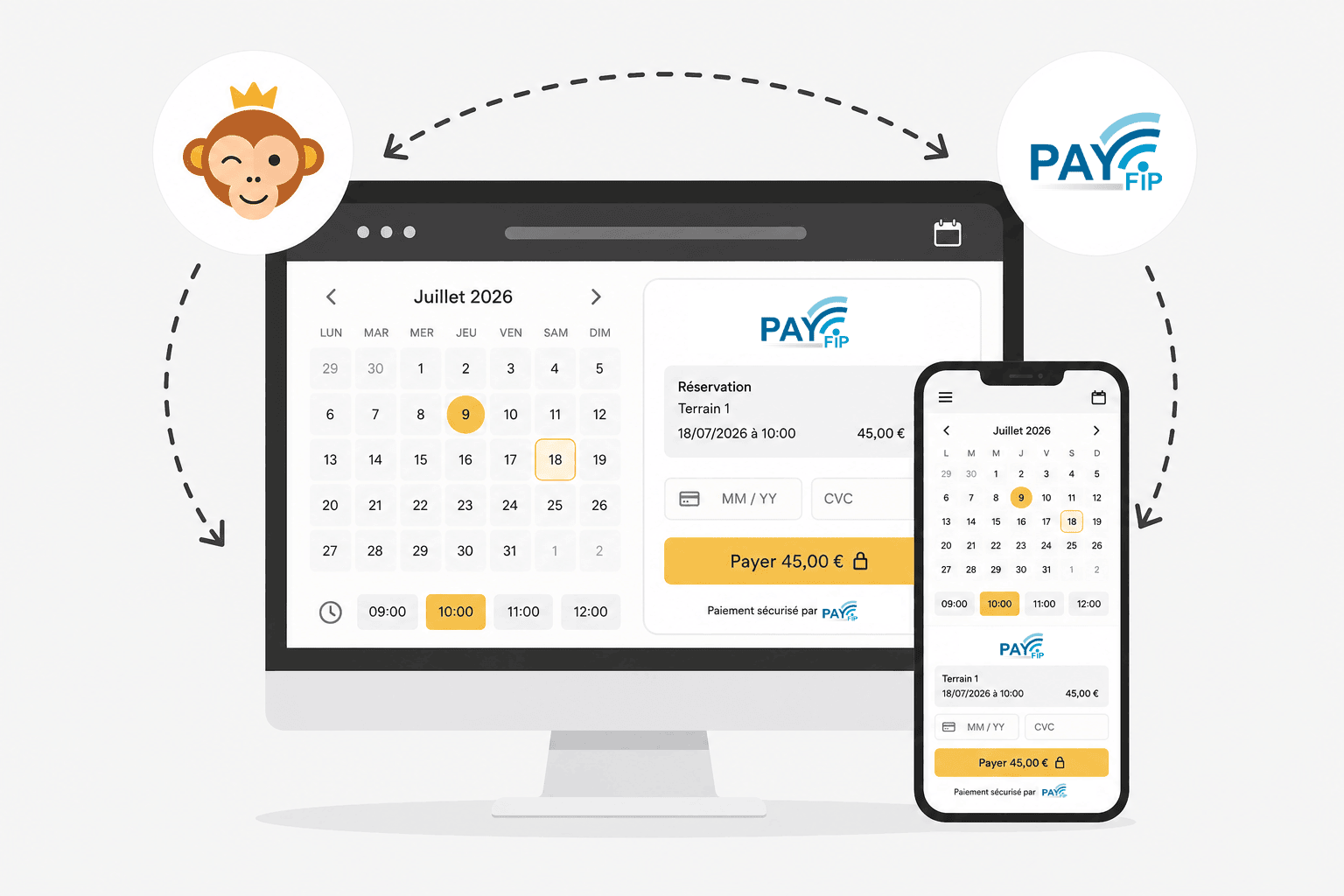
PayFiP is the online payment service of the French Public Finances Directorate General (DGFiP), reserved for local authorities' revenue collection offices. Your users pay by bank card or by direct debit on the State's payment page, and the funds are paid into the cash officer's Treasury deposit account. OpenResa takes no commission on these payments.
Prerequisites
PayFiP is intended for local authorities that collect payments through a revenue collection office (State public establishments are excluded). Before configuring anything in OpenResa, your authority must have completed these steps with its departmental public finances directorate. Your contact there is the payment methods officer.
- Have a revenue collection office with a Treasury deposit account in the cash officer's name, and a SEPA creditor identifier if you wish to offer direct debit.
- Sign the PayFiP membership agreement, together with the form specifying the revenue collection office and the products payable online.
- Obtain your PayFiP customer number in web service mode. This mode is what allows OpenResa to create payments for you: without it, PayFiP refuses them.
- Ask the officer to declare the
ballejaune.comdomain, the notification address and the certificate authority shown in the account form (see below). The domain is taken into account within 24 hours; certificates are added on the first Thursday of the month, with a delay of up to 7 working days.
The agreement also requires the authority to inform users of their data protection rights with the public accountant, and the cash officer to keep the receipts and the transaction file for one year.
Configuring PayFiP on a billing account
Each billing account has its own gateway: you can reserve PayFiP for the revenue collection office and leave the club's other activities on another account.
- Go to Administration›Settings›Billing›Billing Accounts, open the billing account concerned and go to the Payments tab.
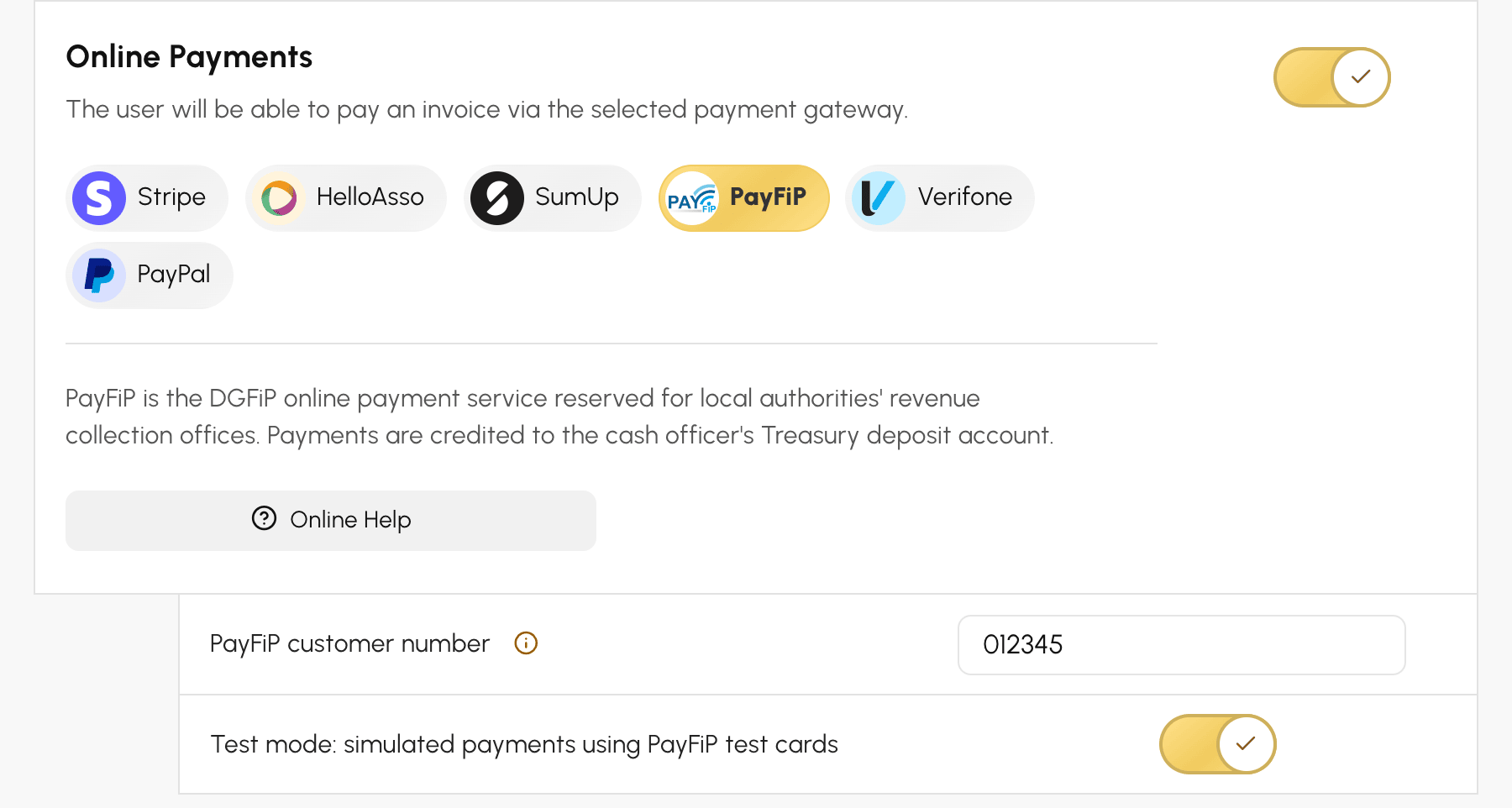
- Enable Online Payments and select PayFiP from the list of gateways.
- Enter your PayFiP customer number (6 digits) and leave Test mode: simulated payments using PayFiP test cards ticked until activation is complete.
- Click Save, then Test the connection: OpenResa queries PayFiP and confirms that the number is recognised, for example Customer number recognised: Régie municipale des sports.
No key or password is required: the customer number is enough. A Online Help link in the form sets out the steps to take, the test cards and the technical information to pass on to your officer.
If the test fails, the message tells you why: number unknown to PayFiP, number that does not belong to a revenue collection office, or an office not yet in web service mode. In this last case, ask your payment methods officer to enable web service mode.
Passing on the notification address
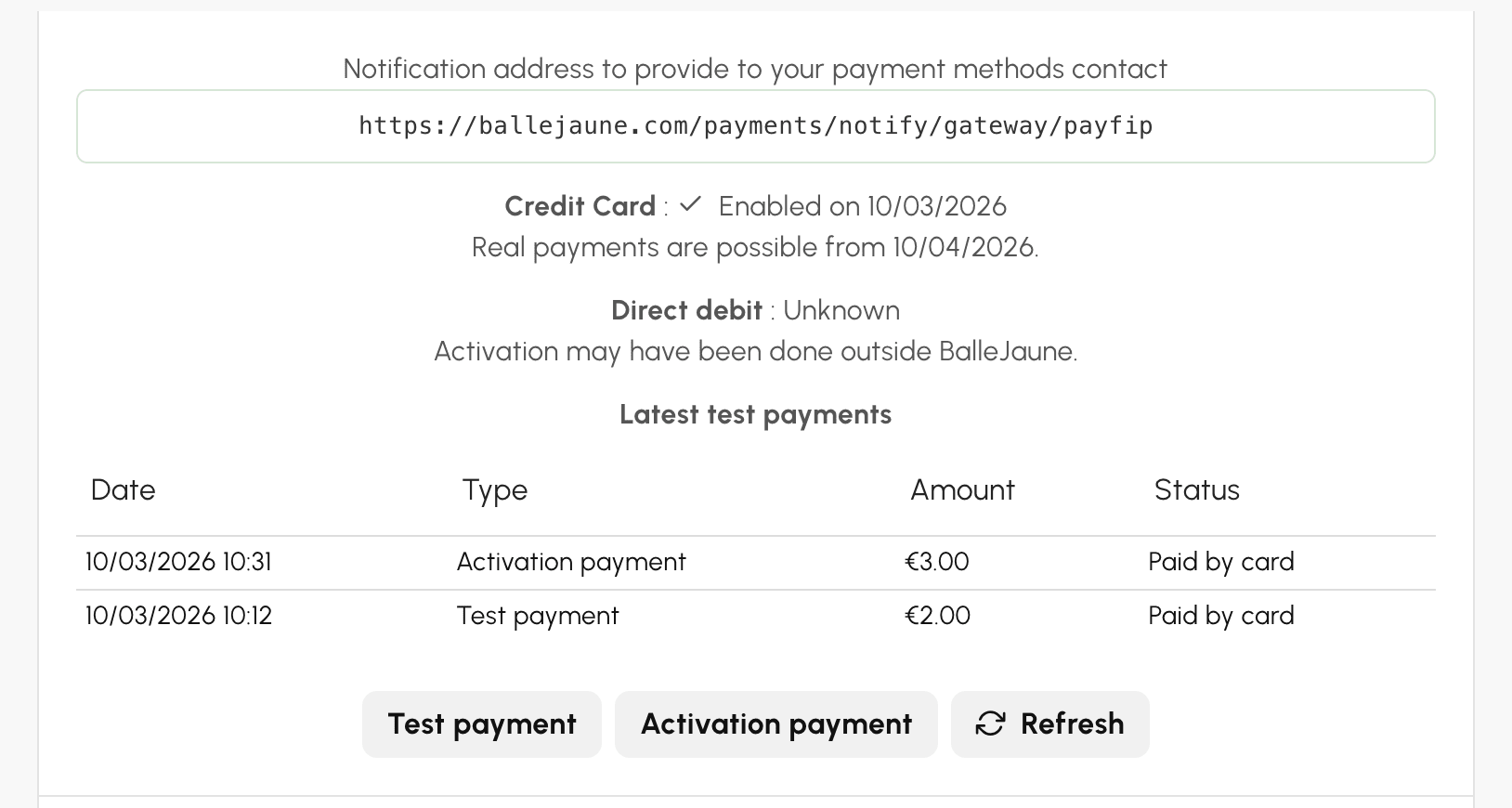
Once the customer number is saved, the activation block in the form displays the address at which PayFiP notifies OpenResa as soon as a payment is completed. Pass it on to your payment methods officer, along with the ballejaune.com domain and the certificate authority mentioned in the online help (the "GTS Root R1" and "GTS Root R4" roots): the site certificate is renewed roughly every three months, whereas PayFiP only adds new certificates on the first Thursday of the month. Declaring the authority rather than the certificate prevents each renewal from cutting off notifications.
Making the test payment, then the activation payment
PayFiP only opens a revenue collection office to payments from the public after a test payment and an activation payment have been made from the application that uses it. Both are launched from the billing account's activation block.
- Click Test payment and confirm: you are sent to the PayFiP payment page. Pay with a test card, for example Visa 5017674000000002, Mastercard 5017670000001800 or CB 4978860713891312, with an expiry date later than the current month and any security code you like. No money is taken.
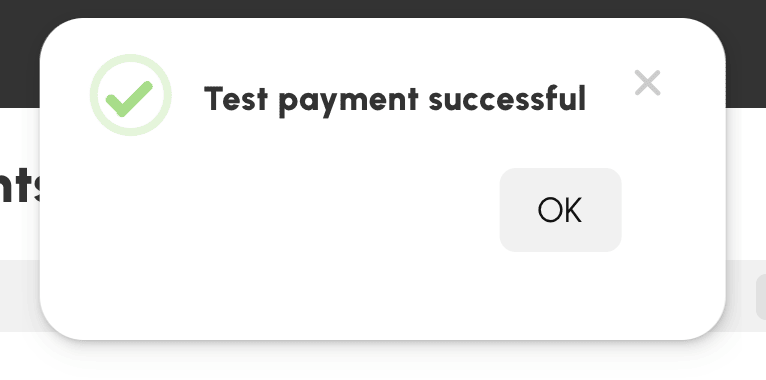
- Back in OpenResa, the result is displayed: Test payment successful, or Result not yet known if PayFiP has not yet replied. In that case, wait a few minutes and click Refresh.
- Then click Activation payment and pay in the same way: it is this payment that confirms the service is open to the public. The block then displays Enabled on 12/03/2026 and the date from which real payments are possible.
- If your revenue collection office has signed up for direct debit, make another activation payment choosing that method on the PayFiP page: click "Connexion", choose the account offered, then click "Valider".
- The day after activation, untick test mode, then click Save: your users can now pay.
The activation block keeps a record of the latest test payments, with their amount and their result. Each test uses a different amount, chosen by OpenResa: in test mode, PayFiP refuses the same amount being paid twice.
Understanding the payment from the user's side
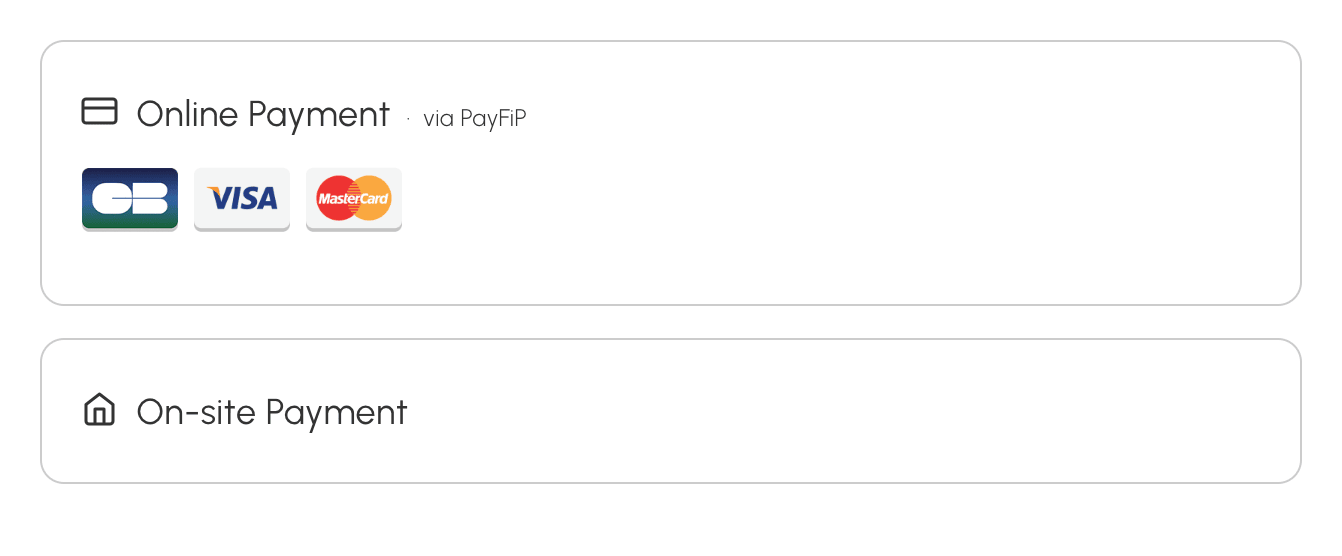
When paying, the user chooses Online Payment, shown with the wording via PayFiP and the logos of the accepted cards, then is redirected to the PayFiP payment page. There they pay by bank card or, if the revenue collection office has signed up for it, by direct debit. PayFiP sends them its own payment receipt; OpenResa then sends them, as with any gateway, the confirmation and the invoice.
A few rules specific to PayFiP apply, and the message shown to the user explains them if they are not met: payment is made in euros, from €1 upwards, the user must have a valid e-mail address on their account, and in test mode amounts must have no cents.
The PayFiP payment page remains valid for 15 minutes. If the user abandons it or lets it expire, their order stays awaiting payment: they can pay it again, by PayFiP or by another means you offer. A payment completed after the browser has been closed is taken into account as soon as PayFiP confirms it, at the latest through the regular re-reading of pending payments.
Finding a payment and reading its results
The revenue collection office's remittance file identifies each payment by a reference combining the order number and the attempt number, for example 2026000123T15349533. Paste it as it is into the search box in Administration›Dashboard›Billing›Invoices & Transactions: the order is displayed. The order number on its own, without its dashes, will not find it.
In the order details, the transaction shows the method used (card or direct debit), the payment date and the PayFiP authorisation number. The billing account's Event log option lists the notifications received and the result re-read from PayFiP, with the reason for any refusal.
Refunding a payment
Actually refunding the user is a matter for the revenue collection office and the public accountant, under public accounting rules: OpenResa cannot trigger it with PayFiP. If you record a refund on an order paid by PayFiP from Administration›Dashboard›Billing›Invoices & Transactions, the order is updated on your side (status, credit note, credits or subscription removed) and a message reminds you that the money must be returned by the revenue collection office. Contact your cash officer to refund the user.
