



Tiešsaistes reģistrācijas atvēršana
Ļaujiet spēlētājiem pašiem pieprasīt savu kontu no jūsu sākumlapas: jūs izvēlaties, kuri abonementi ir atvērti reģistrācijai, veidlapas saturu un pieteikumu apstiprināšanas veidu.
Reģistrāciju aktivizēšana abonementam
- Atveriet Administrācija›Lietotāji›Reģistrācijas tiešsaistē un noklikšķiniet uz Iestatījumi.
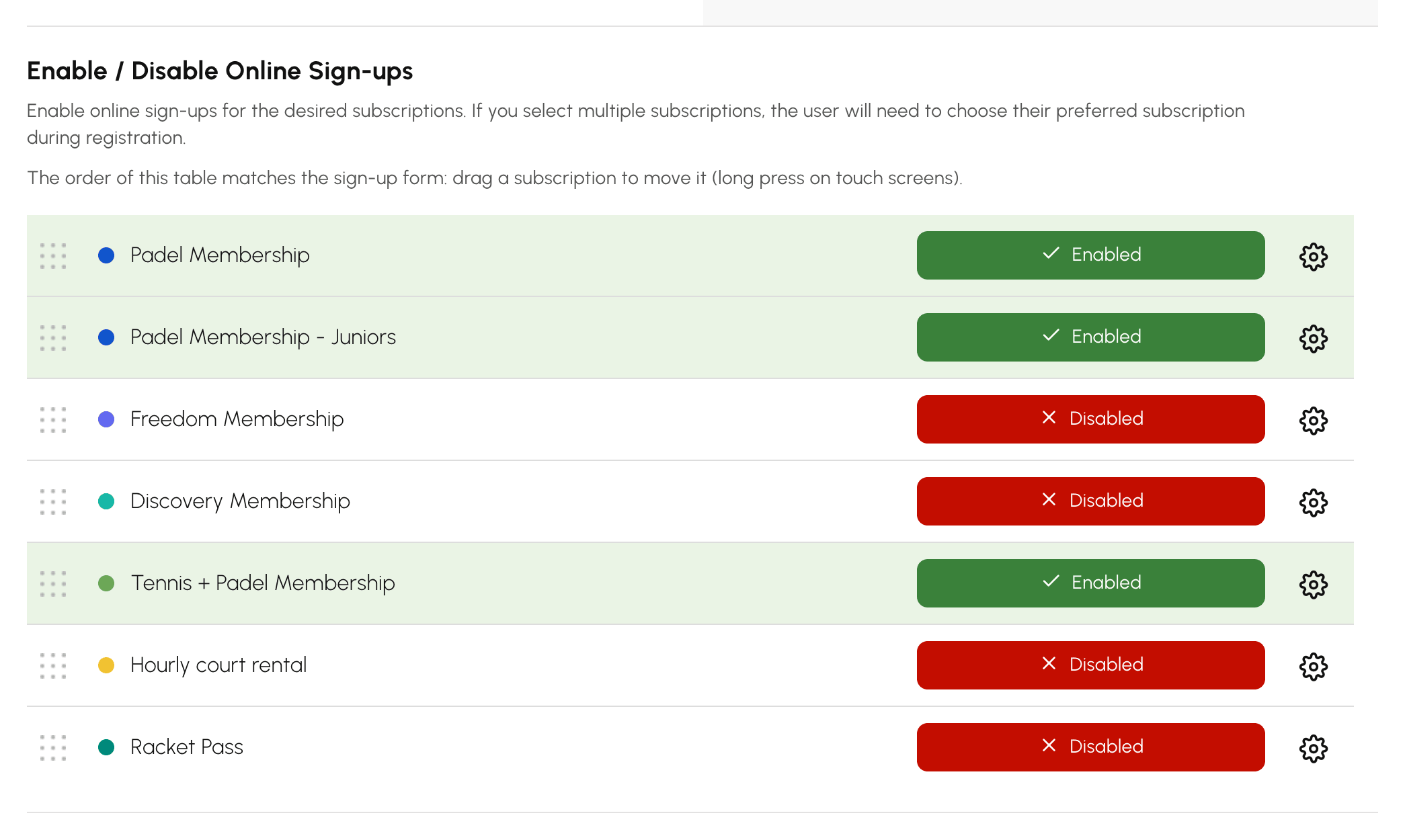
- Sadaļā Aktivizēt / deaktivizēt tiešsaistes reģistrācijas aktivizējiet vajadzīgos abonementus. Ja reģistrācijai ir atvērti vairāki abonementi, lietotājs reģistrācijas laikā izvēlas savējo.
- Noklikšķiniet uz Atvērt veidlapu, lai pārbaudītu, kā izskatās veidlapa. Tā ir pieejama jūsu sākumlapā.
Katram abonementam ir arī savi reģistrācijas iestatījumi tā cilnē Reģistrācijas. Tieši šajā līmenī ir ērti nošķirt jūsu plānus: pieaugušie reģistrējas ar automātisku apstiprināšanu, bet tenisa skola — ar manuālu apstiprināšanu un obligātu medicīnisko izziņu.
Abonementu secības un automātiski atzīmētā abonementa izvēle
Veidlapā abonementi tiek rādīti tabulas Aktivizēt / deaktivizēt tiešsaistes reģistrācijas secībā, un pirmais no tiem ir atzīmēts automātiski. Kamēr nekas nav pārvietots, tie ir sakārtoti alfabētiskā secībā. Pirmajā vietā novietojiet plānu, kuru izvēlas lielākā daļa jauno reģistrēto lietotāju, piemēram, Padel abonements pirms Padel abonements - Jaunieši.
- Tabulā velciet abonementu uz tā jauno vietu. Skārienekrānā ilgi turiet nospiestu tā rindu, pirms to velkat.
- Atlaidiet: secība tiek saglabāta uzreiz, un veidlapa to ievēro.
Deaktivizēts abonements saglabā savu vietu tabulā: ja to atkal aktivizējat, tas veidlapā parādās tajā pašā vietā. Vēlāk izveidots abonements tiek novietots aiz jau izvietotajiem abonementiem; ja vēlaties to citur, pārvelciet to.
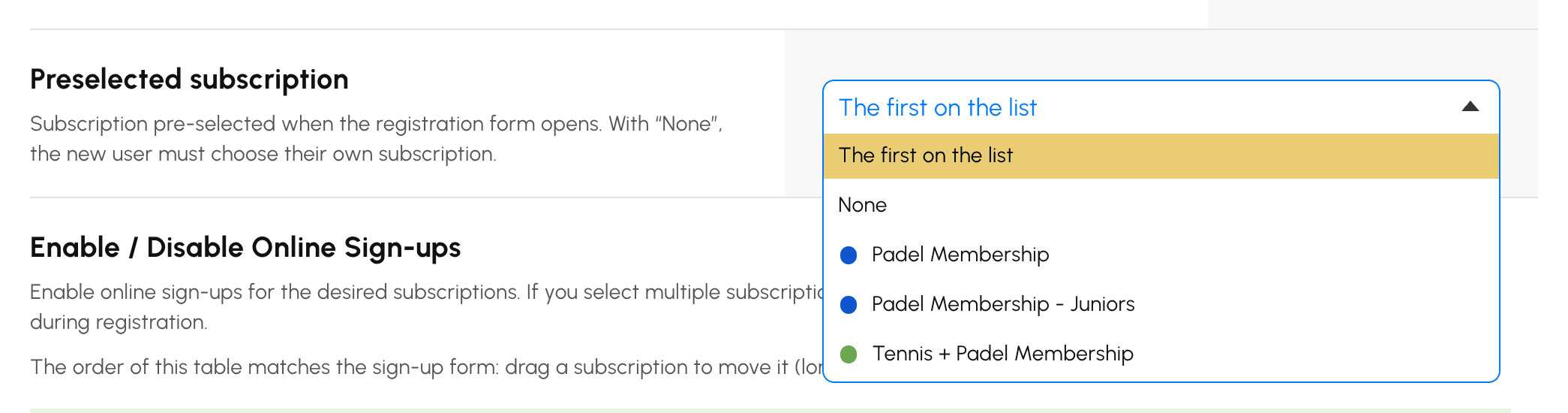
Lai automātiski atzīmētu citu abonementu, nevis pirmo, vai neatzīmētu nevienu, izvēlieties to laukā Iepriekš izvēlēts abonements un pēc tam noklikšķiniet uz Saglabāt:
- Pirmais sarakstā: pirmais tabulas abonements, sākotnējais iestatījums.
- Neviens: nekas nav atzīmēts, lietotājs pats izvēlas savu abonementu. Noderīgi, ja jūsu plāni ir līdzvērtīgi un iepriekš piedāvāta izvēle radītu kļūdas.
- konkrēts abonements: tas ir atzīmēts neatkarīgi no tā vietas sarakstā.
Ja izvēlētais abonements vēlāk tiek deaktivizēts vai arhivēts, veidlapā atkal tiek atzīmēts pirmais saraksta abonements. Ja reģistrācijai ir atvērts tikai viens abonements, tas vienmēr ir atzīmēts; lietotājs, kas turpina iesāktu reģistrāciju, atrod savu iepriekš izvēlēto abonementu.
Apstiprināšanas veida izvēle
Abonementa cilnē Reģistrācijas Apstiprināšanas režīms nosaka, kā konts tiek aktivizēts:
- Manuālā apstiprināšana: kluba vadītājs apstiprina katru pieteikumu.
- Automātiskā validācija: konts tiek aktivizēts, tiklīdz spēlētājs ir verificējis savu e-pasta adresi.
- Apstiprināšana pēc maksājuma: konts tiek aktivizēts pēc abonementa apmaksas tiešsaistē, ja abonementam ir aktīvs Maksājumi un rēķini.

Veidlapas izveide un pieteikumu filtrēšana
Reģistrāciju iestatījumos:
- Veidlapas lauki: atlasiet pieprasāmo informāciju (kontaktinformācija, dzimšanas datums, licence, reitings...).
- Nepieciešamie pielikumi: pieprasiet medicīnisko izziņu, dzīvesvietas apliecinošu dokumentu vai personu apliecinošu dokumentu jau reģistrācijas laikā.
- Ziņojums veidlapā: parādiet savus norādījumus veidlapas augšdaļā.
- Filtrēt e-pasta adreses (domēna nosaukums): pieņemiet tikai noteiktus domēnus, piemēram, universitāte reģistrāciju atļauj tikai saviem studentiem.
- Aizliegt vienreizējās vai anonīmās e-pasta adreses: bloķējiet pagaidu adreses.
Profila, grupu un kredītu piešķiršana reģistrācijas laikā
Joprojām abonementa cilnē Reģistrācijas:
- Saistītais profils: profils, kas automātiski tiek iestatīts jaunā reģistrētā lietotāja kartītē.
- Pievienot jaunus abonentus grupai: automātiska piesaiste vienai vai vairākām grupām.
- Pievienot rezervācijas kredītus pēc reģistrācijas un Pievienot ielūgumus pēc reģistrācijas: kreditējiet kontu jau tā izveides brīdī.
- Paziņojumi pa e-pastu: līdz 4 organizācijas adresēm, kuras tiek informētas par katru pieteikumu.
Pieteikumu apstrāde
Spēlētājs aizpilda veidlapu, pēc tam apstiprina savu adresi, ievadot e-pastā saņemto verifikācijas kodu. Pēc tam pieteikums parādās sadaļā Administrācija›Lietotāji›Reģistrācijas tiešsaistē:
- Atveriet pieteikumu, lai pārbaudītu informāciju un pievienotos dokumentus.
- Ja tiek atklāts Dublikāta risks, piedāvātajā sarakstā atlasiet atbilstošo lietotāju: Pieņemt nosūtīs viņam piekļuves datus, neizveidojot otru kontu.
- Noklikšķiniet uz Pieņemt: konts tiek izveidots un piekļuves dati tiek nosūtīti pa e-pastu. Pretējā gadījumā noklikšķiniet uz Noraidīt.

Dublikātu sasaistīšana ir tā vērta: spēlētājs, kurš reģistrējas tiešsaistē, lai gan viņam jau ir konts, gandrīz vienmēr ir spēlētājs, kurš ir pazaudējis savus piekļuves datus. Pieņemot pieteikumu bez sasaistīšanas, tiek izveidots otrs konts, un viņa rezervāciju vēsture tiek sadalīta divās daļās.
Maksas reģistrācijas apmaksas saņemšana
Ja abonements tiek pārdots tiešsaistē, pieteikumā ir norādīta summa un pasūtījuma atsauce.
- Ja spēlētājs ir samaksājis klātienē, ar čeku vai pārskaitījumu, atzīmējiet Apstiprināt maksājumu un pēc tam izvēlieties Maksājuma veids: pasūtījums tiek atzīmēts kā apmaksāts un tiek izveidots rēķins.
- Ja atstājat rūtiņu neatzīmētu, piekļuve tiek piešķirta nekavējoties, un maksājums paliek saņemams vēlāk.
Gaidošie pieteikumi ir norādīti vārdiski darbības pārskatos: tas ir drošības tīkls, kad organizāciju administrē vairākas personas, kuras nav savstarpēji sadalījušas uzdevumus.
