



Paying for your bookings
Credits are the organization's internal currency. They are deducted from your account when you book. You can buy credits online or pay when you book. You can also track your balance and view your transaction history.
Understanding credits
Depending on how your subscription is configured, a booking can cost one or more credits. There are two types of credits:
- booking credits, deducted when you book a time slot;
- guest credits, deducted when you play with a guest who is not a member.
Not all organizations separate these two uses. Yours may use a single counter instead. In that case, there are no guest credits, and your booking credits cover both booking a time slot and inviting someone.
You do not need to look for a setting: if you see only one balance on your account, this is how it works for you. The summary shown when you book then totals everything in this single currency, including guests. Your transaction history shows only booking credit transactions. Any credits you buy are added to this single counter, whatever you use them for later.
Your organization may also charge booking credits for your participation in a training camp, a group lesson or a tournament. The cost is shown on the Join button. It is deducted only once per participation, even for a series of sessions. If you withdraw, your credits are returned under the same rules as when you cancel a booking. The confirmation tells you what will be credited back to you.
Tracking your balance and history
- On the booking page, click the Credits button in the toolbar to display your balance.
- You can also find your balance in My Account›My Subscription, in the Booking Credits section (and Guest Credits if applicable).
- Click History to open the Operation History. Each purchase, deduction or adjustment is listed with its date and source (booking, payment, goodwill gesture from the organization...).
When you pay a partner's share, or another player pays yours, the transaction is marked paid for … or paid by …, with the other player's name. If your organization changes the value of its credits, a Change in credit value (×10) line shows the conversion of your balance. The monetary value of your balance does not change.
Buying credits in advance
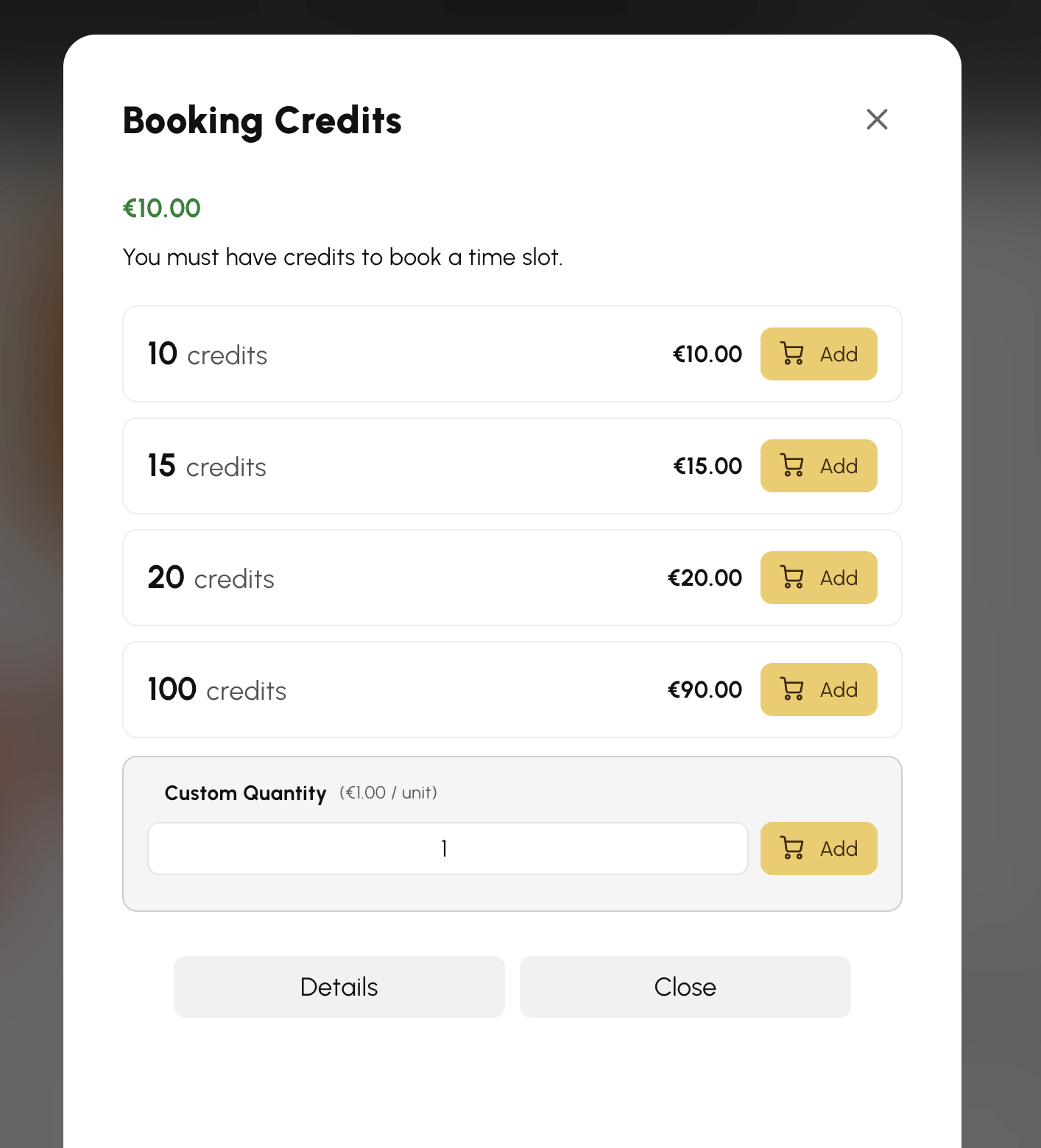
If the organization sells credits online for your subscription, the offers appear in My Account›My Subscription, in the Booking Credits section. You can also access them from the Credits button in the calendar toolbar.
- Choose a pack (the price may decrease with the quantity), or enter a Custom Quantity if the organization allows it.
- Click Add to add the credits to your cart.
- Then confirm your cart and pay for the order.
- The credits are added to your balance as soon as the payment is confirmed.
If no offers appear, the organization does not sell credits online for your subscription. Contact the organization directly.
Paying when you book
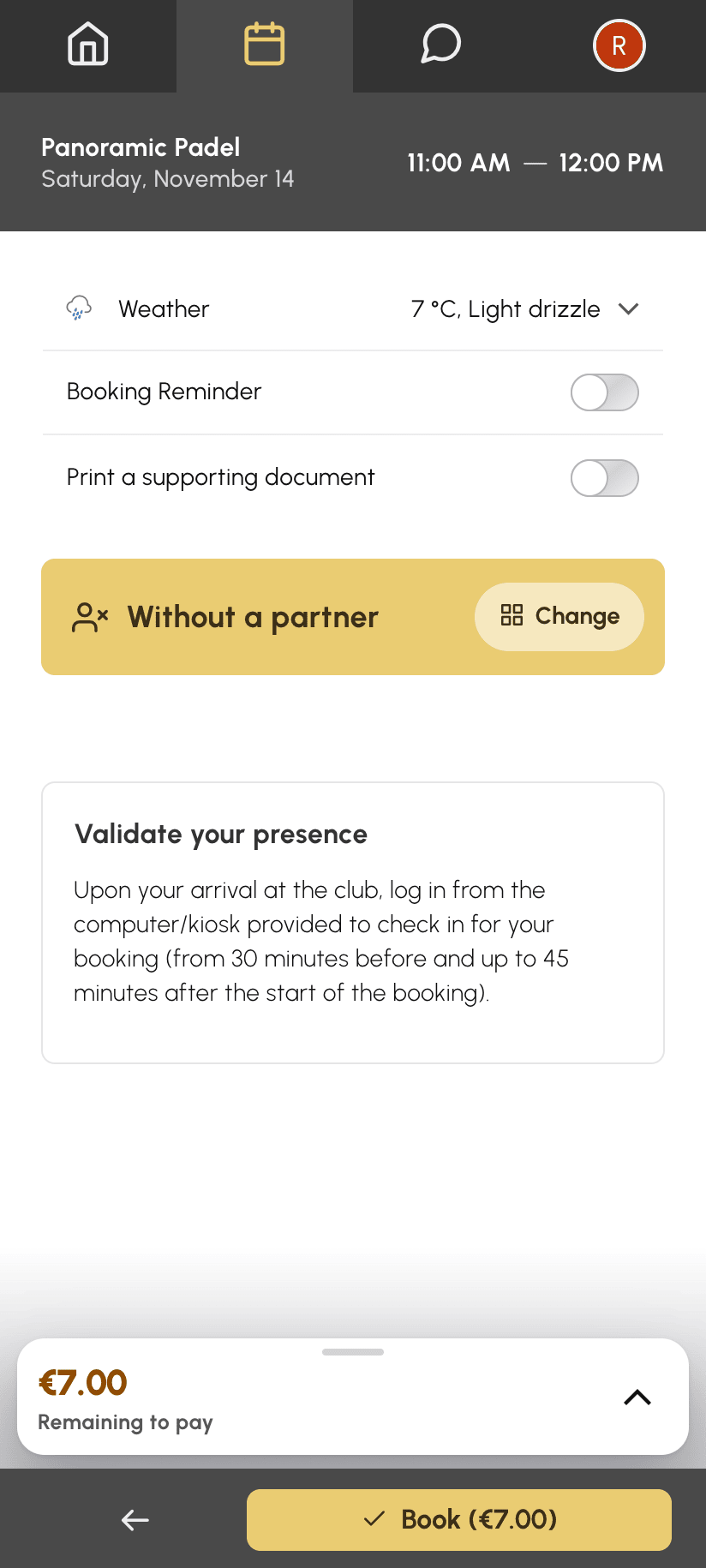
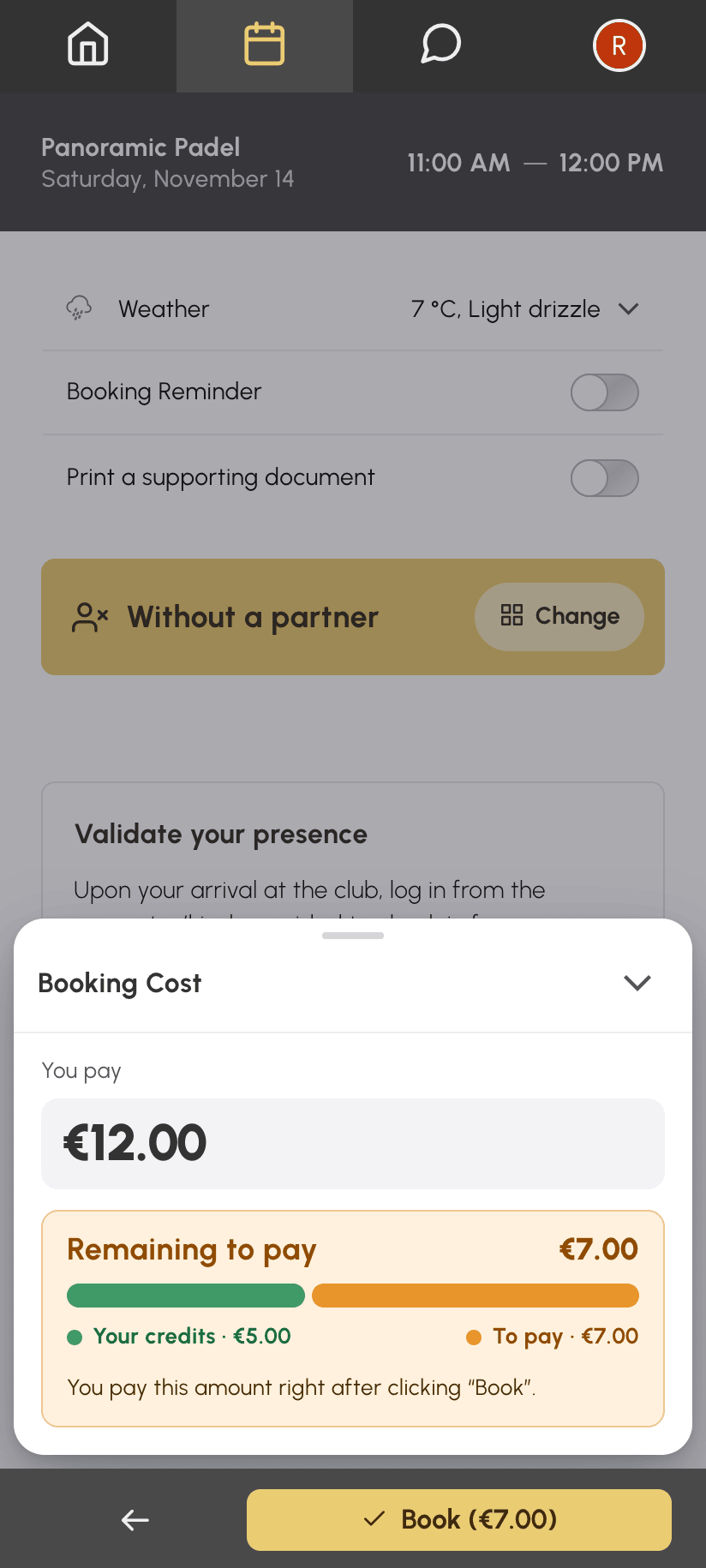
Your organization may let you pay for a booking when you make it, without buying credits in advance. If you have no credits, you pay for the whole booking. If you have some but not enough, you pay only the missing amount. For example, with €5 on your account for a €12 place, you have €7 left to pay.
- Choose your time slot and your partners as usual.
- The Booking Cost box shows Remaining to pay: the amount to pay and, for each type of credits, the share already covered by your balance. On mobile, the cost bar at the bottom of the screen, above the Book button, shows this amount in orange.
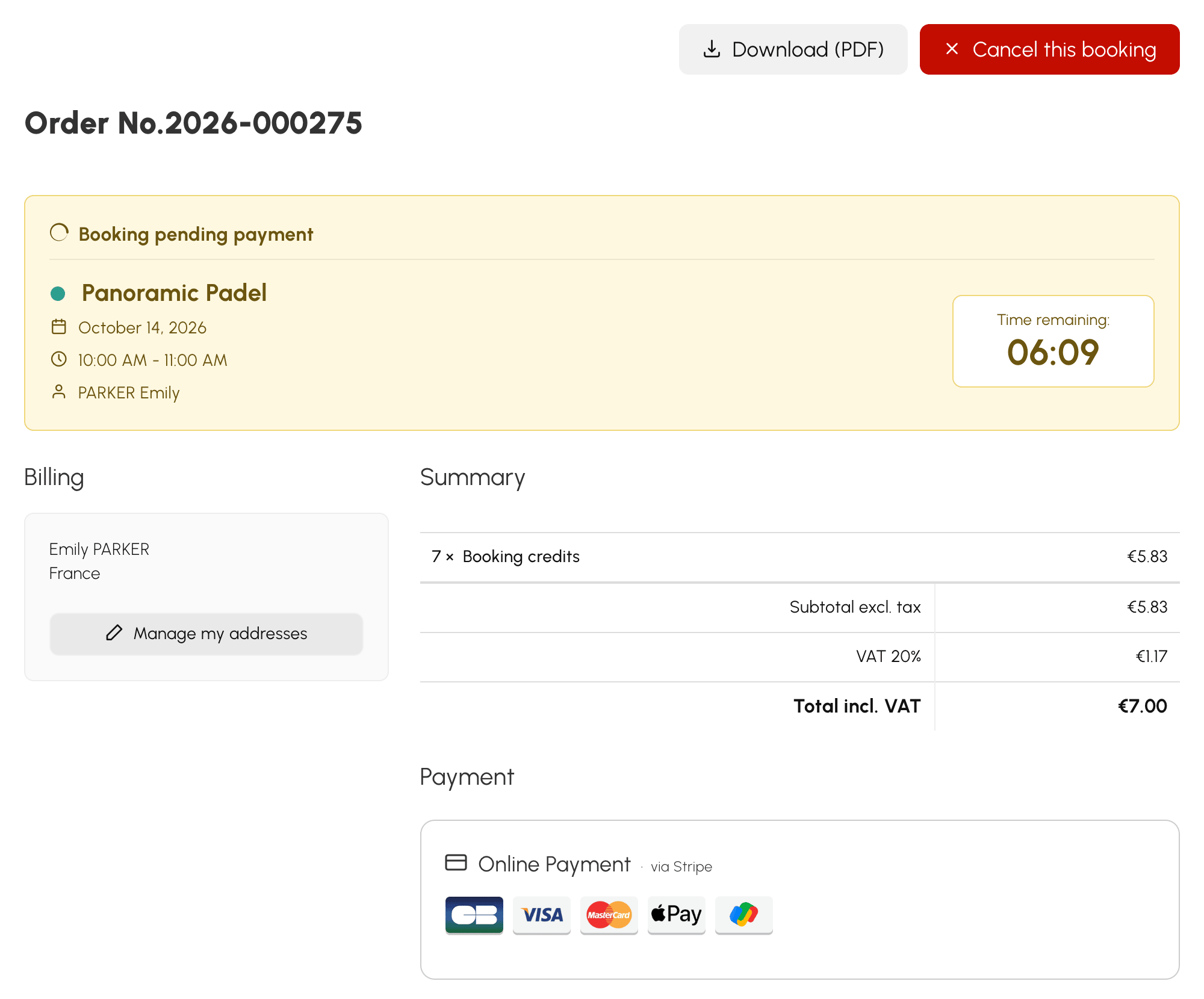
- Click Book, which shows the amount to pay. Your time slot is held and you are taken to the payment page.
- Pay for the order before the deadline shown.
If you choose to pay on site, by cheque or by bank transfer, your booking is confirmed as soon as you make this choice. You then pay for the order at the club, or by bank transfer.
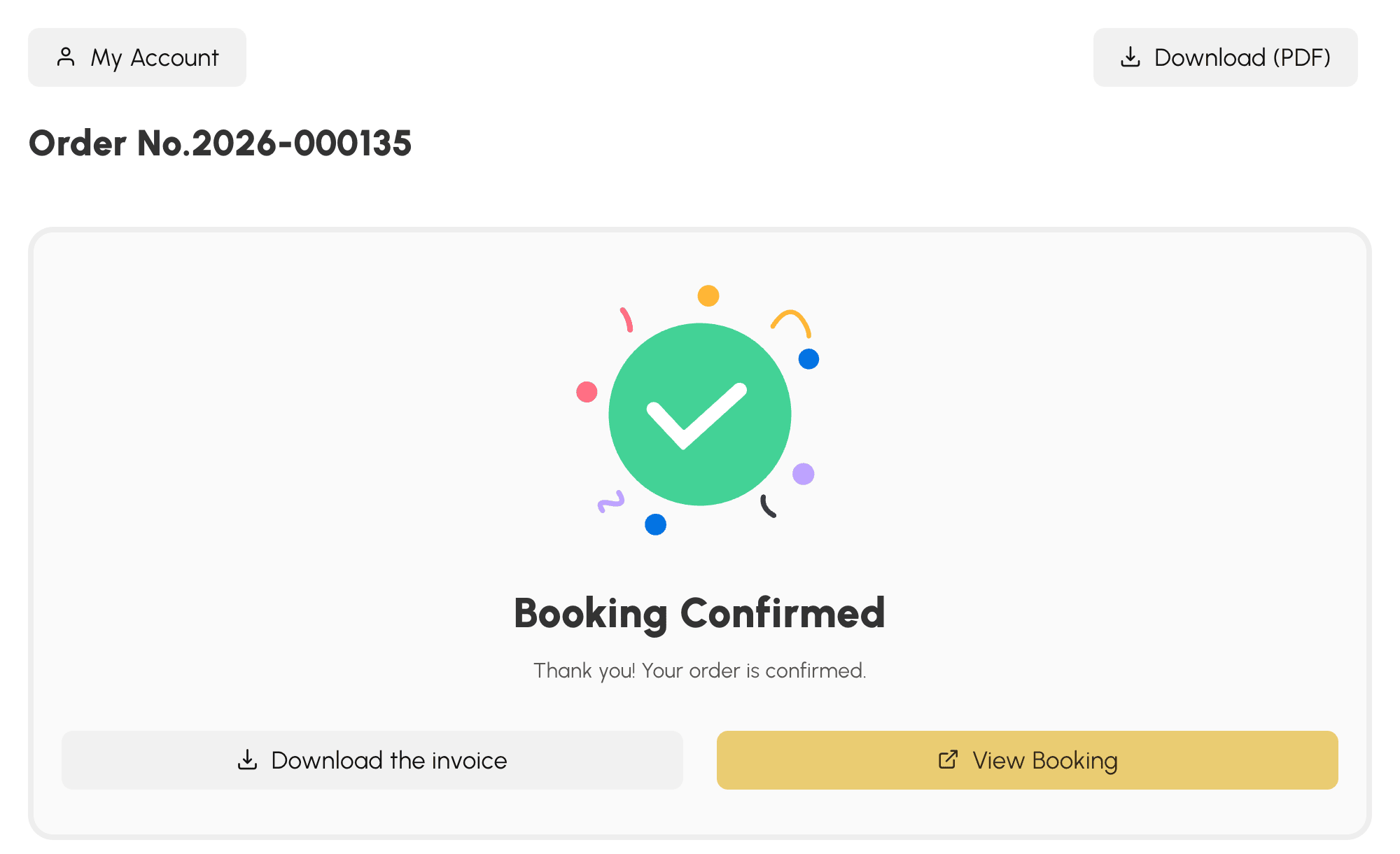
As soon as the payment is received, the booking is confirmed. The credits purchased are used to pay for it, and confirmation e-mails and reminders are sent as usual.
This mode covers your share, your guests' share and the shares you pay for your partners. A partner who does not have enough credits must first top up their own account, unless you pay for their place.
Completing or cancelling a booking awaiting payment
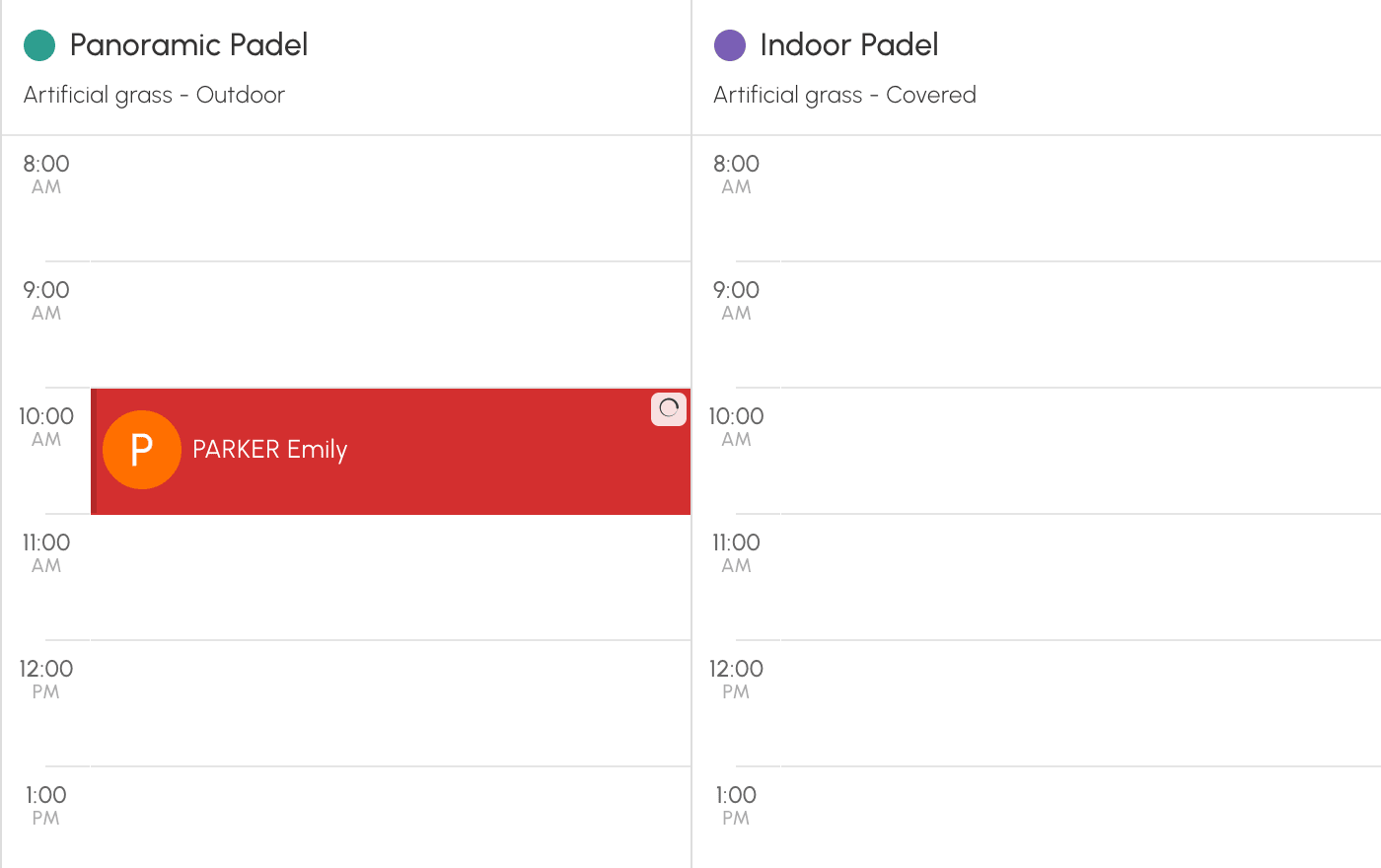
Until you have paid, the booking appears in the calendars with the icon.
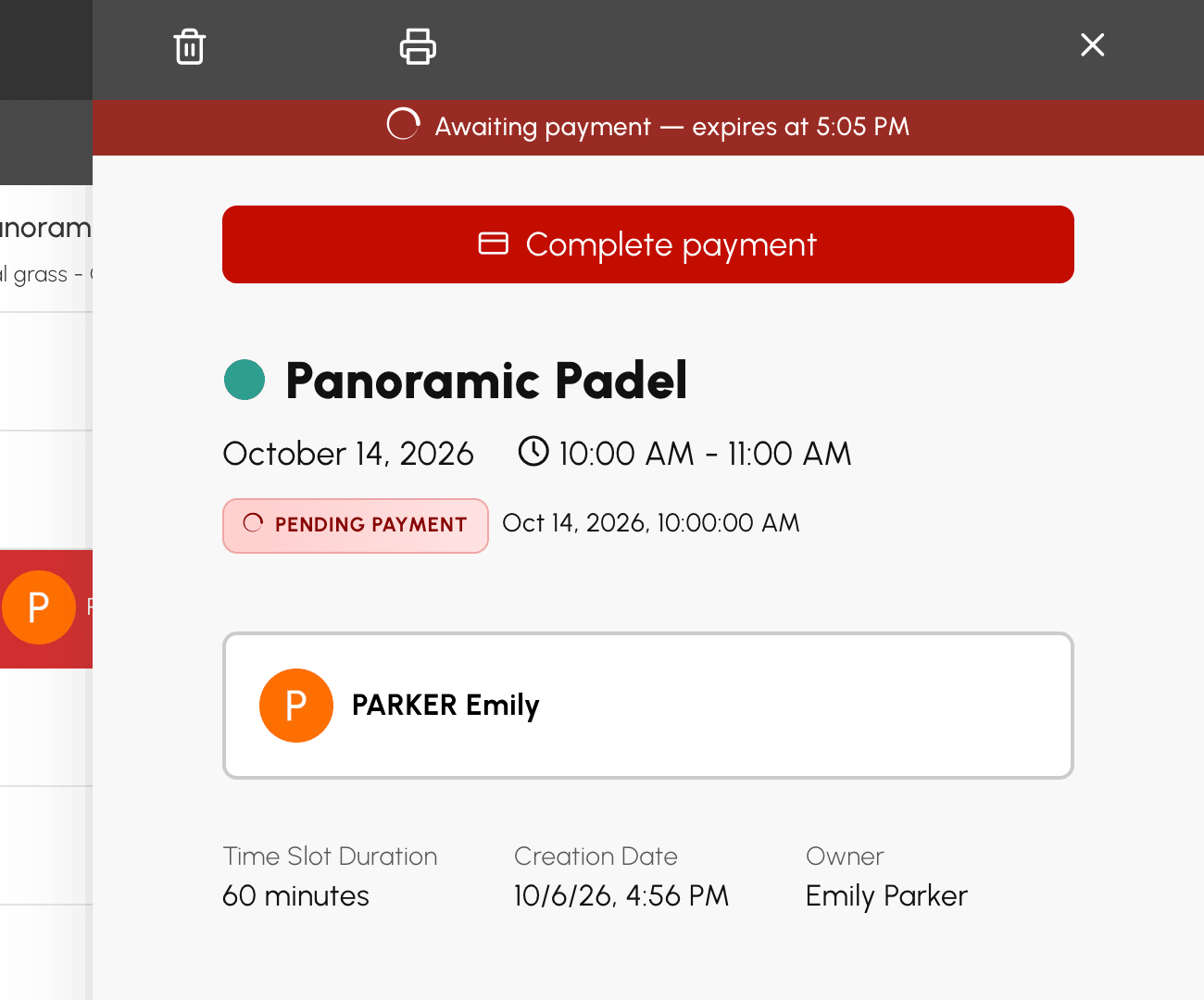
Open it to see the deadline. Then click Complete payment to return to the payment page. If you change your mind, cancel it from this same panel, from the payment page or from My Account›My Orders. The booking and its order are cancelled, and your credits are returned to you.
If you do not pay before the deadline, the booking is cancelled and the time slot is released. Your credits are returned to you. If your payment still goes through after the deadline, the booking is restored if the time slot is still free. Otherwise, the credits purchased stay on your account and you receive an e-mail informing you.
Buying credits from the form
If your organization does not offer payment at booking, the form offers to let you buy credits before booking.
- When you book, a message tells you that no credits are available, with a Purchase credits button.
- Click it to open the purchase window with your balance and the available offers.
- Add a pack. You are taken directly to your cart to pay.
- Once the payment is confirmed, click Book to return to the calendars and book your time slot.
