



Fine-tuned booking rules
Go further with subscription settings: quotas by court, reliable guest invitation counters, mandatory complete profiles, controlled cancellations, and free playing time for multi-player bookings.
Summary
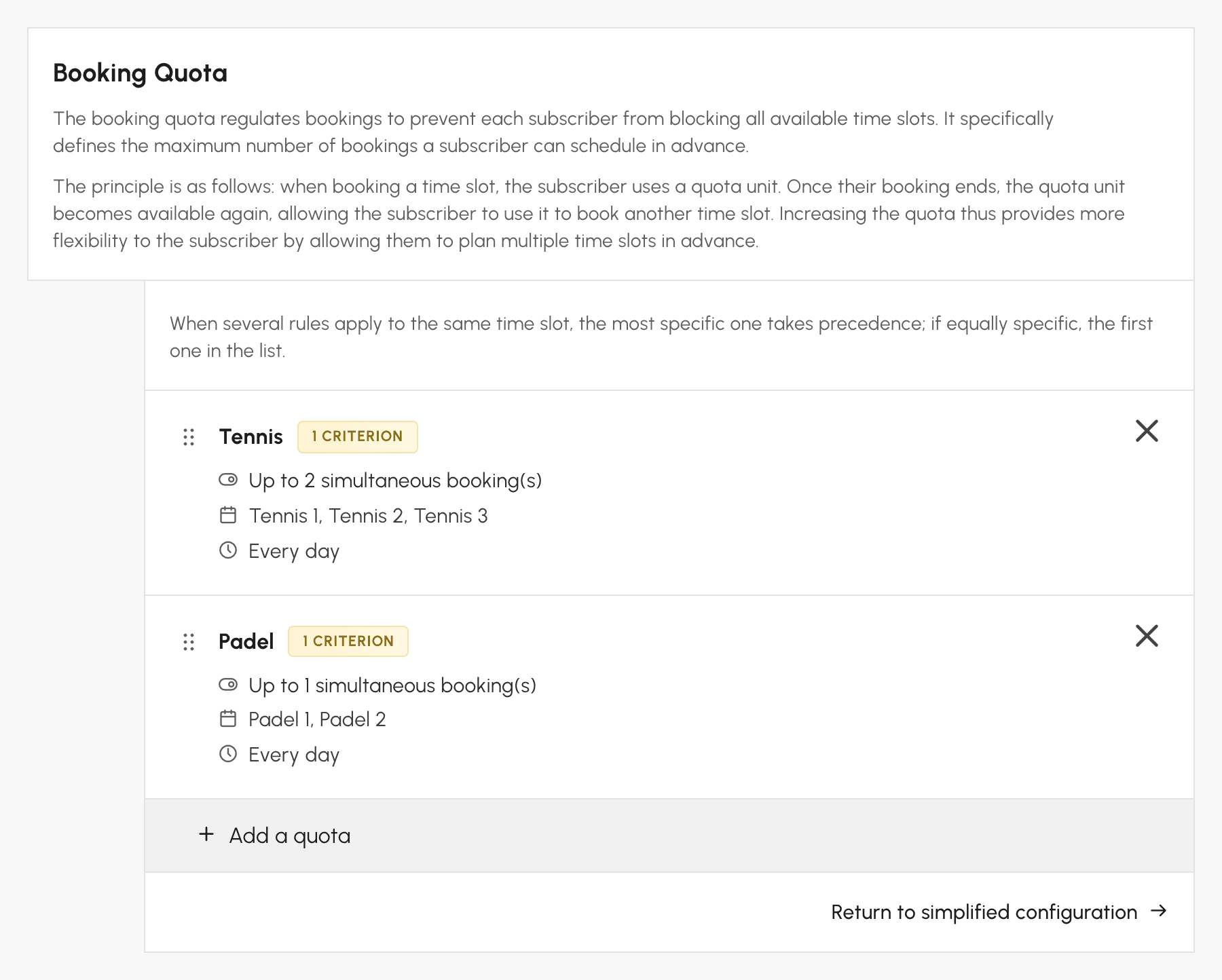
Define different quotas depending on the courts
For example, you can allow one simultaneous booking on indoor courts and two on outdoor courts:
- Go to Administration›Users›Access Rights›Subscriptions and open the subscription, tab Quota.
- Open Advanced Configuration to switch to expert mode.
- Click Add a quota. Name it. Set the number of simultaneous bookings. Then limit it to specific calendars, days, or time ranges.
- Repeat the operation for each court group: the quotas add up without interfering with each other.
Prevent negative guest invitation counters
A guest invitation counter can become negative when an administrator books “on behalf of” a user: by default, these bookings ignore subscription rules.
- Go to Administration›Users›Access Rights›Profiles & Roles and open the profile of the relevant administrators.
- In the Booking tab, tick Enable Restrictions.
- Subscription rules (quotas, credits, suspended account, expired subscription) then also apply to bookings made on behalf of a user.
Without this option, nothing prevents a booking from being made on behalf of a user whose guest invitation balance is already zero: the counter then becomes negative.
Require a complete profile before booking
- In Administration›Users›Access Rights›Subscriptions, open the subscription, tab General.
- In the Mandatory information for booking section, tick the required information: e-mail address, phone number, profile photo, supporting documents, etc.
- The user is prompted to complete their profile at first login, then when booking as long as information is missing.
To make this requirement also apply when an administrator books on behalf of the user, enable Enable Restrictions in the administrator profile.
Control or prevent the cancellation of a booking with a guest
- In the subscription, tab Permissions, open the Advanced Settings for Booking Cancellations.
- Disable Cancellation of Guest Passes: the user can no longer cancel a booking with a guest by themselves.
- If needed, add the Maximum allowed cancellation period. This can be up to X minutes before the time slot starts, or even after it starts.
- To limit abuse, use Limit cancellations to prevent abuse and set a maximum number of cancellations per period.
Offer extra time for multi-player bookings
Encourage games with three or four players by extending their booking:
- In the subscription, tab Permissions, enable Offer additional time if multiple partners.
- Define the number of free minutes and the required number of partners, for example 30 minutes from 3 partners.
- The free time is granted only if the next time slot is available, and it is not counted in the user’s quota.
- Limit the benefit to specific calendars if necessary.
