

Sharing the cost of a booking
If your organization allows it, you can treat a friend to a game, help out a partner whose balance is empty, or pay for a player who joins you at the last minute. You can then see who paid for what, and what was given back.
Choosing who pays when you book
Each player normally pays their share with their own credits: their place and, if the booking includes guests, the guest passes charged to them. Your organization can also let you pay for your partners. You can treat them to a game, book with a friend who hasn't topped up their account yet, or simply pay for the court in one go.
These options only appear if your subscription lets you pay for your partners and at least one of them has something to pay. Depending on your subscription, you can pay for their place, their guest passes, or both. They remain responsible for the rest. You pay for a partner's place at the price set by their subscription, which may differ from yours.
Take Nicolas, a subscriber to the Discovery Subscription, where a place on the Panoramic Padel court costs €12. He books with Léa:
- if they each pay their share, Nicolas and Léa are each charged €12;
- if Nicolas treats Léa to the game, he is charged €24 and Léa is charged nothing;
- if they play as a group of three with Inès and Nicolas only pays for Léa's place, Nicolas pays €24, Léa pays nothing and Inès pays her €12.
To make this choice:
- Open the booking form, select With a partner and tick your partners.
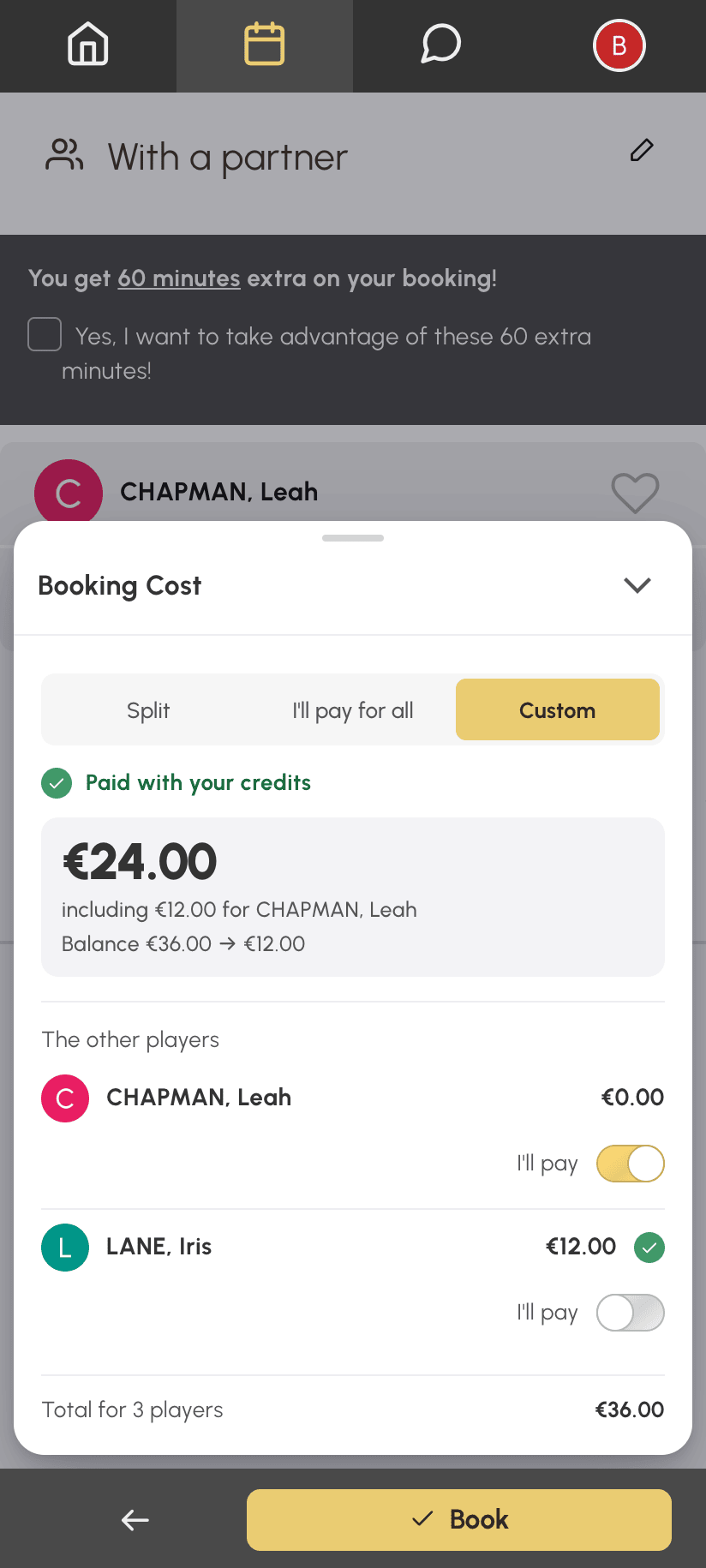
- At the top of the Booking Cost box (on mobile, first tap the cost bar at the bottom of the screen to expand it), keep Split so that each player pays for their own place. Choose I'll pay for all to pay for all your partners' places, or Custom to choose partner by partner.
- With Custom, turn on I'll pay under the name of each partner whose place you are paying for.
- Check your amount.
- Click Book.
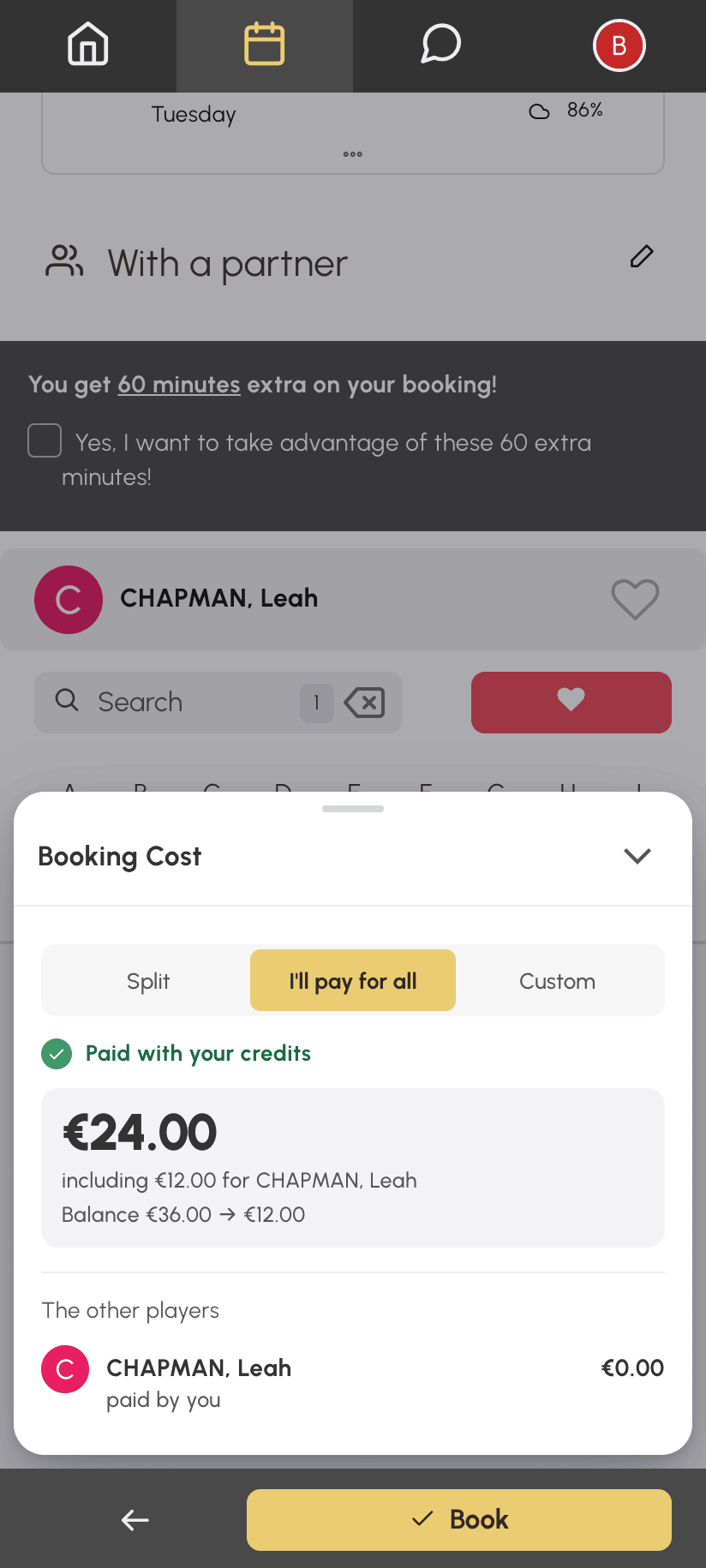
Your amount then includes the places you are paying for, and a line just below it shows who they are for. With I'll pay for all, the label paid by you appears under the name of each partner concerned, in place of the dot that shows whether they have enough credits: they have nothing left to pay.
If your organization offers payment at the time of booking, the amount you pay when booking also includes the places you are paying for. For example, with €5 in his account, Nicolas would have €19 to pay if he treats Léa to the game.
Once the booking is made, the confirmation e-mail tells each player who paid their share. Your credit history names the partner you paid for.
Helping out a partner who doesn't have enough credits
Pierre wants to play with Nicolas, but his account is empty. As soon as Nicolas ticks him, the box shows Booking not possible: the booking cannot be confirmed until Pierre has enough to pay for his place.
Rather than waiting for Pierre to top up his account, Nicolas clicks Pay for their spot. He pays Pierre's €12 on top of his own, and the option switches to Custom, with I'll pay turned on under Pierre's name. He can also click Remove to remove Pierre from the booking and choose another partner.
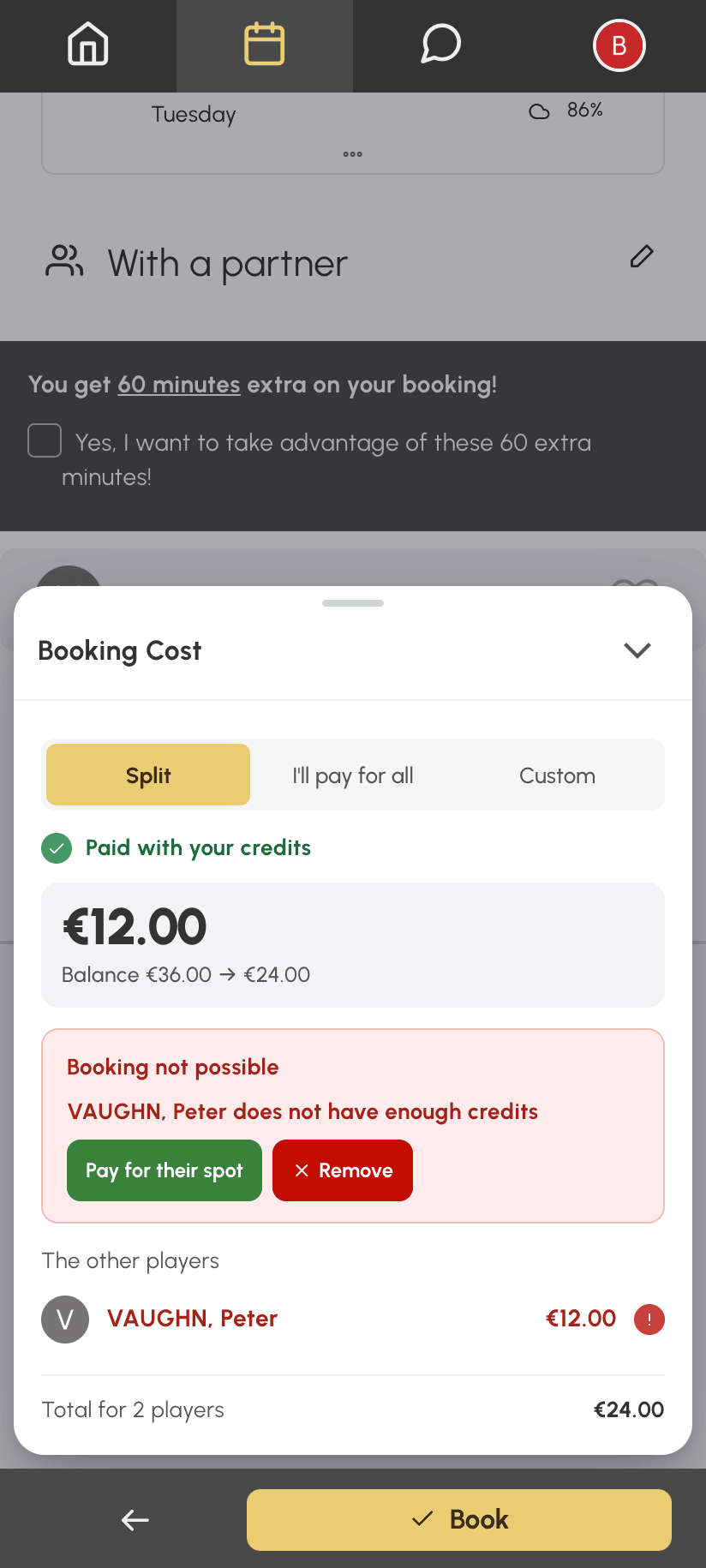
Pay for their spot is only offered if your subscription lets you pay for your partners. Otherwise, only Remove is shown.
Paying for a player who joins your booking
Nicolas treated Léa to the game. The day before, Inès offers to join them. Nicolas adds her and pays for her place too.
- Open the booking details from the calendar or from My Account›My Bookings.
- Click Add a participant, or the icon next to a player to replace, if your organization allows it.
- Choose the incoming player: their share is shown under their name, with the I'll pay switch.
- Turn on I'll pay. Before you save, the window shows what will be charged or given back, and to whom.
- Click Save.
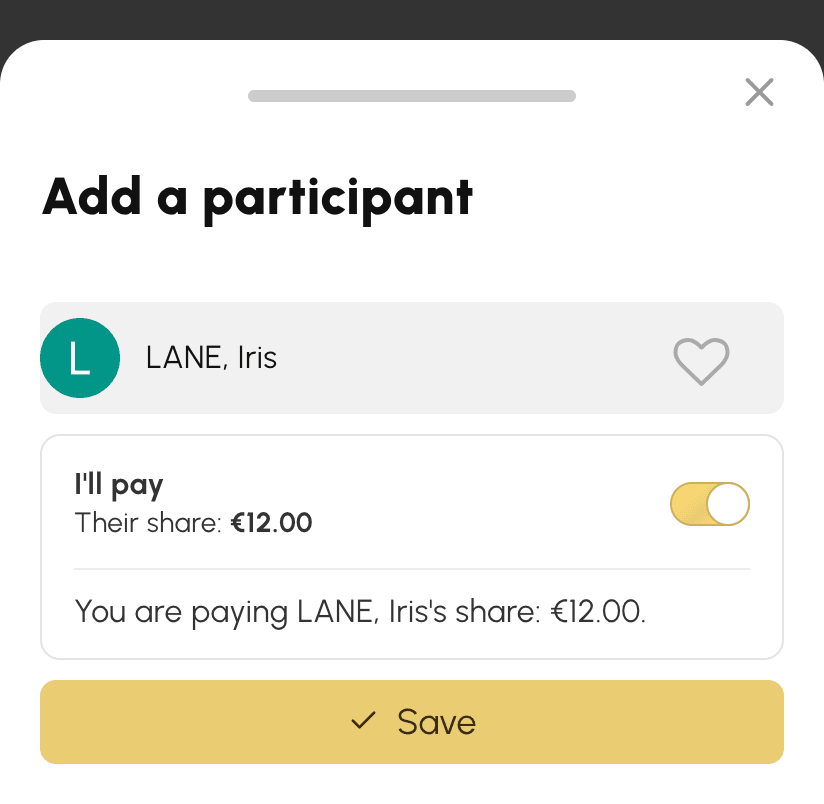
If Léa had dropped out and Inès were replacing her, I'll pay would be turned on automatically, since Nicolas was already paying for Léa's place. The €12 paid for Léa would be given back to him and Inès's €12 charged, leaving his balance unchanged.
If the incoming player doesn't have enough credits, the window offers Pay for their spot. If the amounts cannot be calculated, it shows Amounts unavailable: you can still save.
This option is offered when a single player joins, not for guests. A player who joins an open booking on their own always pays their own share.
Knowing what is given back if the game is cancelled or a player withdraws
A paid place always goes back to whoever paid for it. Let's return to Nicolas, who treated Léa to the game:
- the game is cancelled the day before: Nicolas gets his €12 back according to the cancellation conditions of his subscription, and the €12 paid for Léa according to those of Léa's subscription. If Léa's subscription doesn't give credits back so close to the game, those €12 are not given back;
- Léa withdraws, or Nicolas replaces her: the €12 paid for her are given back to Nicolas;
- the booking lasts two hours, from 6 pm to 8 pm: Léa cannot withdraw from the second hour only. Her withdrawal applies to the whole duration, the booking continues for Nicolas, and Nicolas gets back everything he paid for her. A message reminds Léa of this before she confirms.
If you were paying for a partner's place and you leave a booking that continues without you, what you paid for them is given back to you, and they pay for their place with their own credits. If they don't have enough, your withdrawal is refused: ask them to top up their account, then try again.
Reading the payment summary
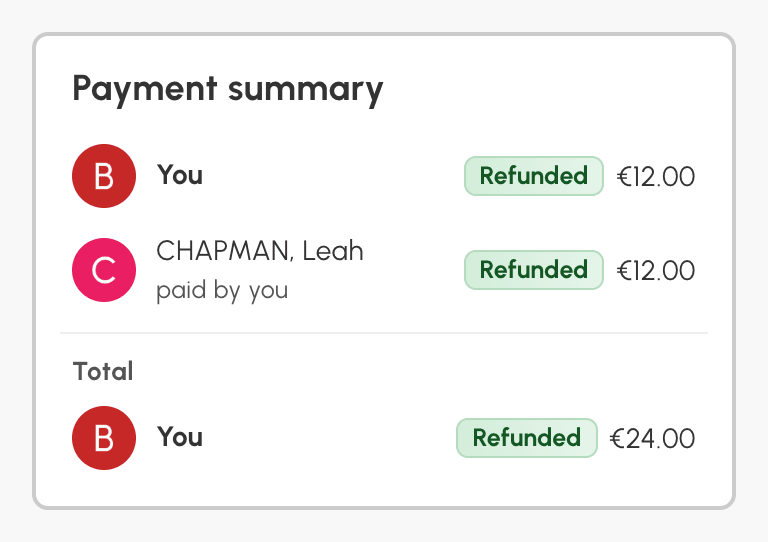
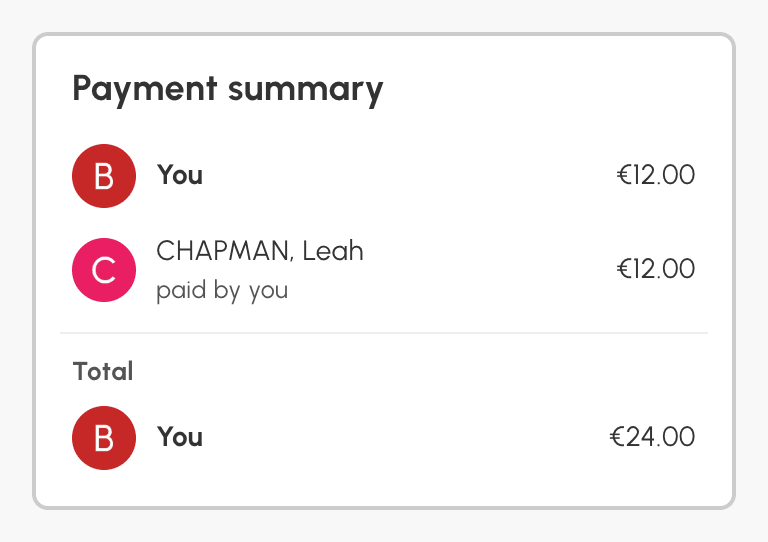
To see who paid for what, open the booking details. The Payment summary at the bottom shows what each player paid and, when a player's place was paid by someone else, the name of the person who paid for it. In the example, Léa's line shows that her place was paid by Nicolas, and the Total section shows that Nicolas paid €24 in total. The summary is visible to the players in the booking and never shows anyone's balance.
A player who has left the booking remains listed under Withdrawals and replacements, with what they had paid. After a cancellation, each amount carries the Refunded or Not refunded badge, so you can see at a glance what was given back. To view a cancelled booking, find it in My Account›My Bookings and open its details.