



Filter the user list
Narrow down the users you need by combining profiles, subscriptions, groups, activity and many other criteria, then act on the result: message, bulk action, export.
Open the filter panel
- Go to Administration›Users›User Management.
- Click Filters, above the list.
The panel opens on the right-hand half of the screen and keeps the list visible on the left. Each criterion you tick updates the list straight away, and the number of result(s) at the top of the panel tells you how many users match your selection. Click that number to close the panel.
Your filters stay applied from one visit to the next: when you come back to the list, you find the selection you left behind.
Choose a layout
Three buttons, to the right of the search field, change the way criteria are presented. The panel remembers the last layout used.
- Display by section: a contents list on the left, one section at a time on the right. This is the clearest layout when lists are long.
- Show All: every section one below the other. Beyond twelve items, a list collapses behind See More.
- Columns: the former two-column layout, one row per filter. Simple filters are on the left, lists (profiles, subscriptions, groups, age categories, rankings) on the right.
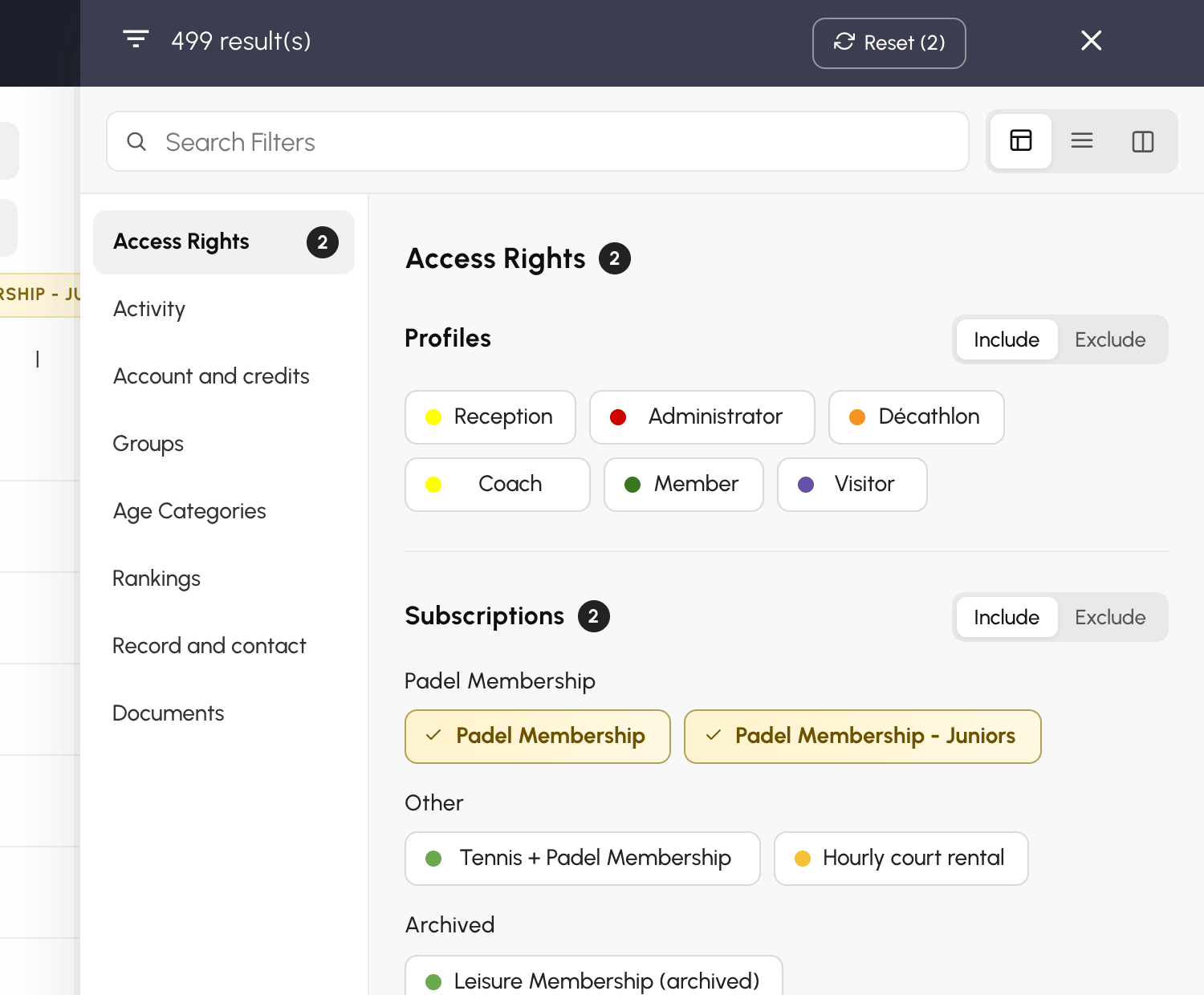
On a phone, the panel always shows every section one after the other.
Select profiles, subscriptions or groups
The lists in the Access Rights section (profiles and subscriptions) and in the Groups, Age Categories and Rankings sections all work the same way: click an item to keep it, click it again to remove it.
- Several items from the same list add up: two subscriptions ticked keep the users on one or the other.
- Different lists combine: a profile and a subscription ticked together keep only the users who have both.
Exclude rather than include
Each list has its own Include / Exclude switch. In Exclude mode, the items ticked turn red and the list keeps the users who have none of them. It is the simplest way to target "everyone except": all the users who are not on the Tennis Loisir subscription, for example.
Users with no subscription, or with no date of birth for age categories, are part of the result: they have none of the excluded items.
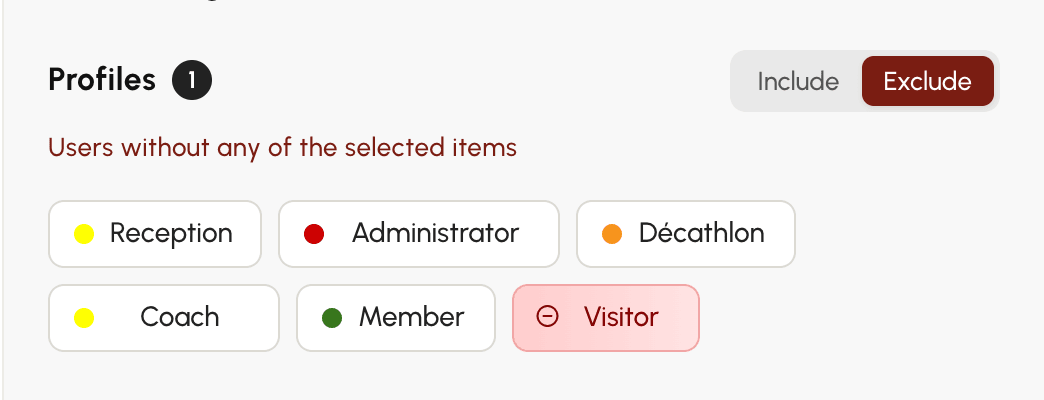
The mode is set list by list: excluding a profile changes nothing in the subscription list, which stays in Include mode.
Refine with criteria
The other sections (Activity, Account and credits, Record and contact, Documents) group their filters into criteria. Each criterion offers All and one or more options, sometimes with a duration to choose right next to it. A criterion keeps only one option at a time: choosing another one replaces the previous one.
A few criteria in the Activity section deserve a word:
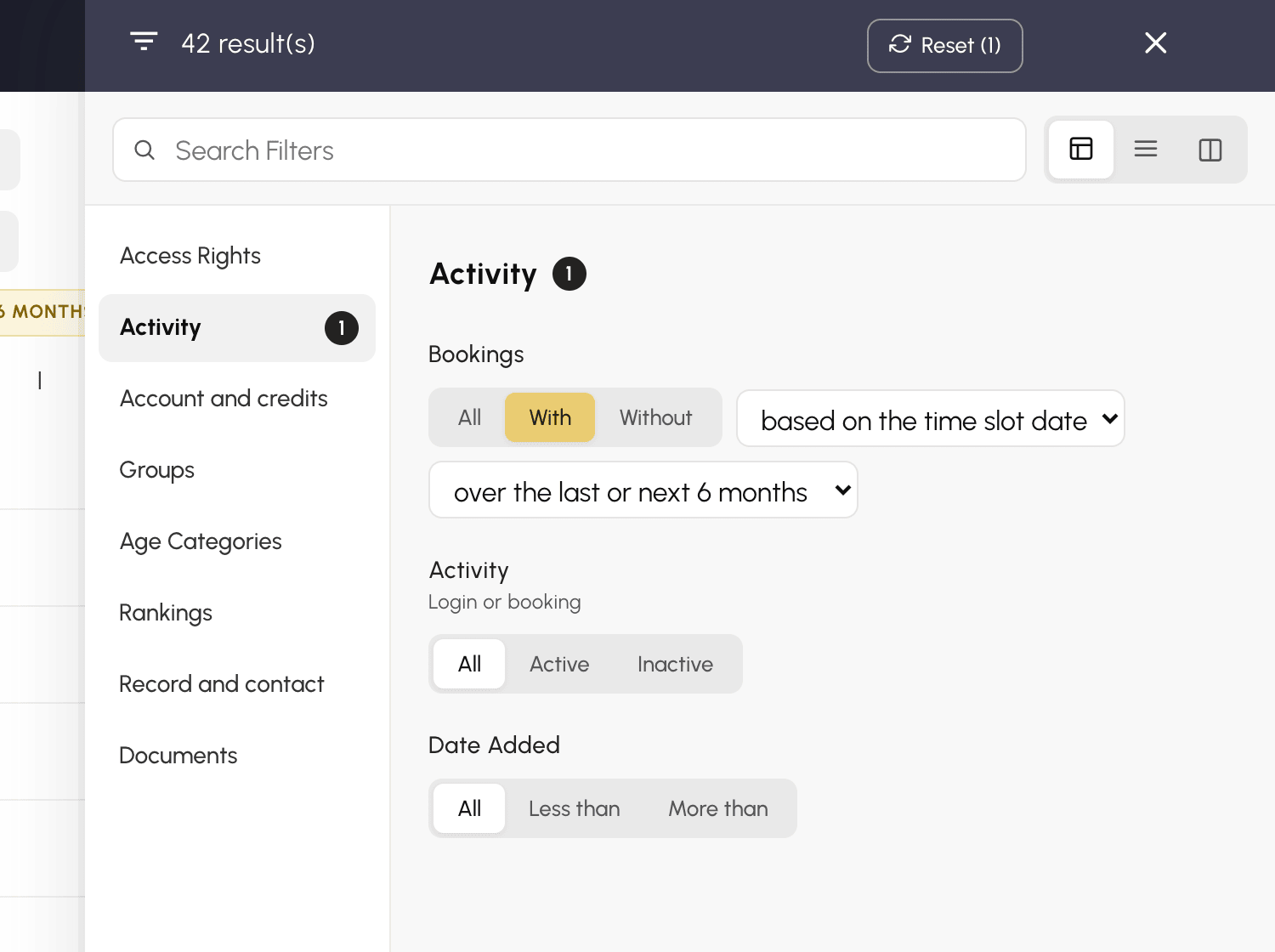
- Activity: Active or Inactive over the chosen period. The criterion takes account of logins and bookings: a user who never logs in but whom their partners add to their time slots is not counted as inactive.
- Bookings: With or Without booking over the chosen period. A second menu specifies the date to take into account: based on the time slot date, which includes upcoming bookings, or based on the booking date, that is to say the day the booking was made.
- Date Added: Less than or More than 3, 6 or 12 months, depending on the date the user was added.
In Access Rights, the Payment criterion tells paid subscriptions from unpaid ones. Unpaid keeps only the users who have a subscription: a user without a subscription has nothing to pay.
Find a filter
The Search Filters field, at the top of the panel, keeps only the criteria and items whose name contains the word you type: "padel", "inactive", "licence". In the section layout, every section is shown one after the other while you search; clear the field to go back to the contents list.
Review and remove your filters
Active filters appear above the user list as chips: yellow for an inclusion, red for an exclusion ("Profiles: except Visitor").

- Click the cross on a chip to remove that filter.
- Click the chip itself to reopen the panel on the section concerned.
- In the panel, Reset, next to the number of results, removes every filter at once. Right afterwards, Cancel brings them back if you clicked too quickly.
Act on the result
Once the list is filtered, Select All takes the whole result, then the Actions menu applies an action to the entire selection: message, quick edit, credits, suspension, trash.
