


Day, week and month views
Your users view the calendars from three angles: all courts for one day, one court over several days, or the whole month. Here is what each view shows, what a club manager sees in addition, and how to choose the views for each profile.
Understanding the three views
Each view answers a different question:
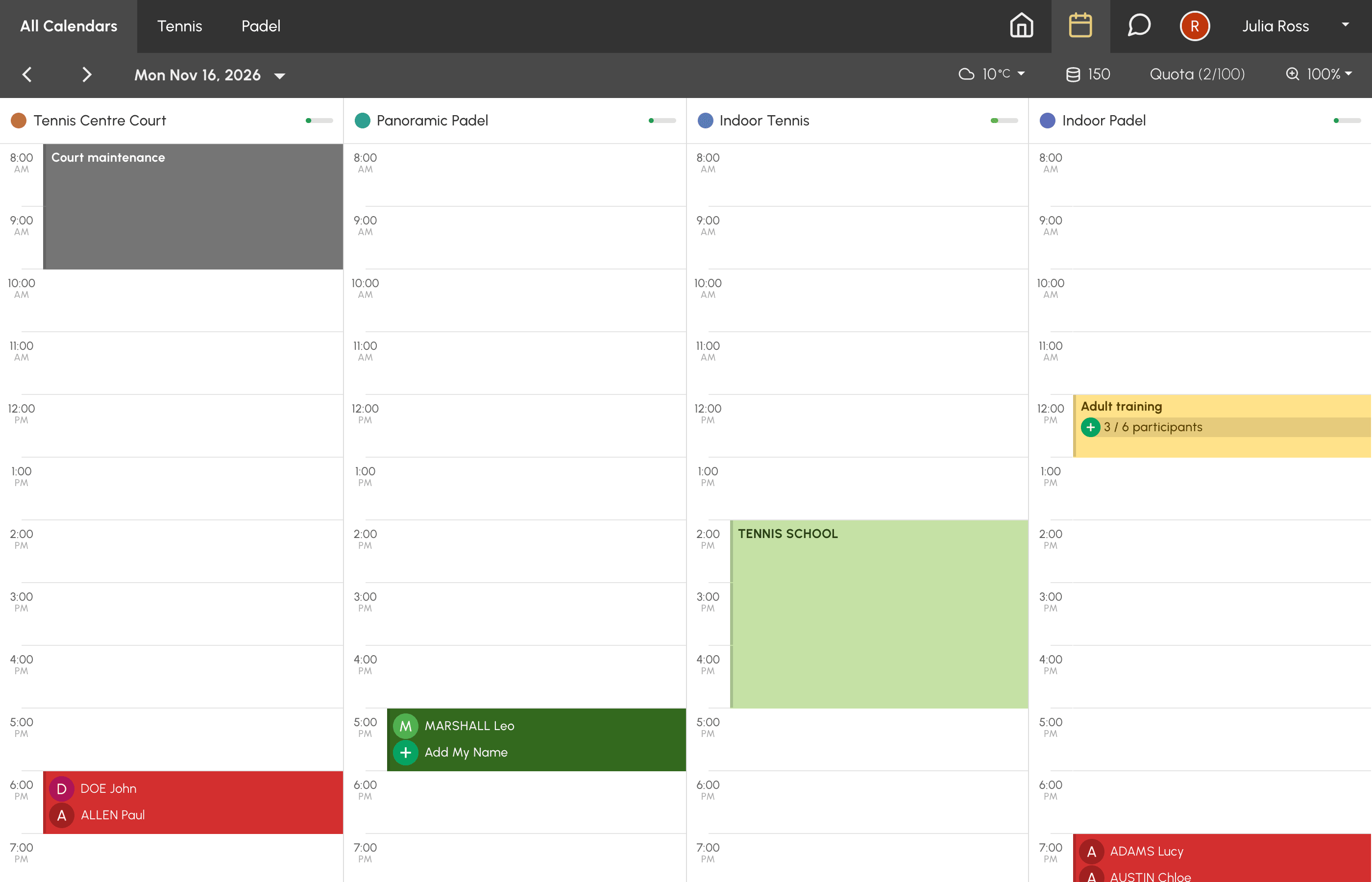
- Calendars by Day: "What's happening on our courts today?" All the calendars in a group side by side, for one day. This is the view for the front desk and for everyday bookings.
- Calendars by Week: "When is my court free this week?" A single calendar, day after day.
- Calendars by Month: "What's planned this month?" The month at a glance, with the organization's events, activities open for participation, bookings that still need players, and a day-by-day log.
A fourth view, Availability, lists only the time slots that can still be booked. It has its own page.
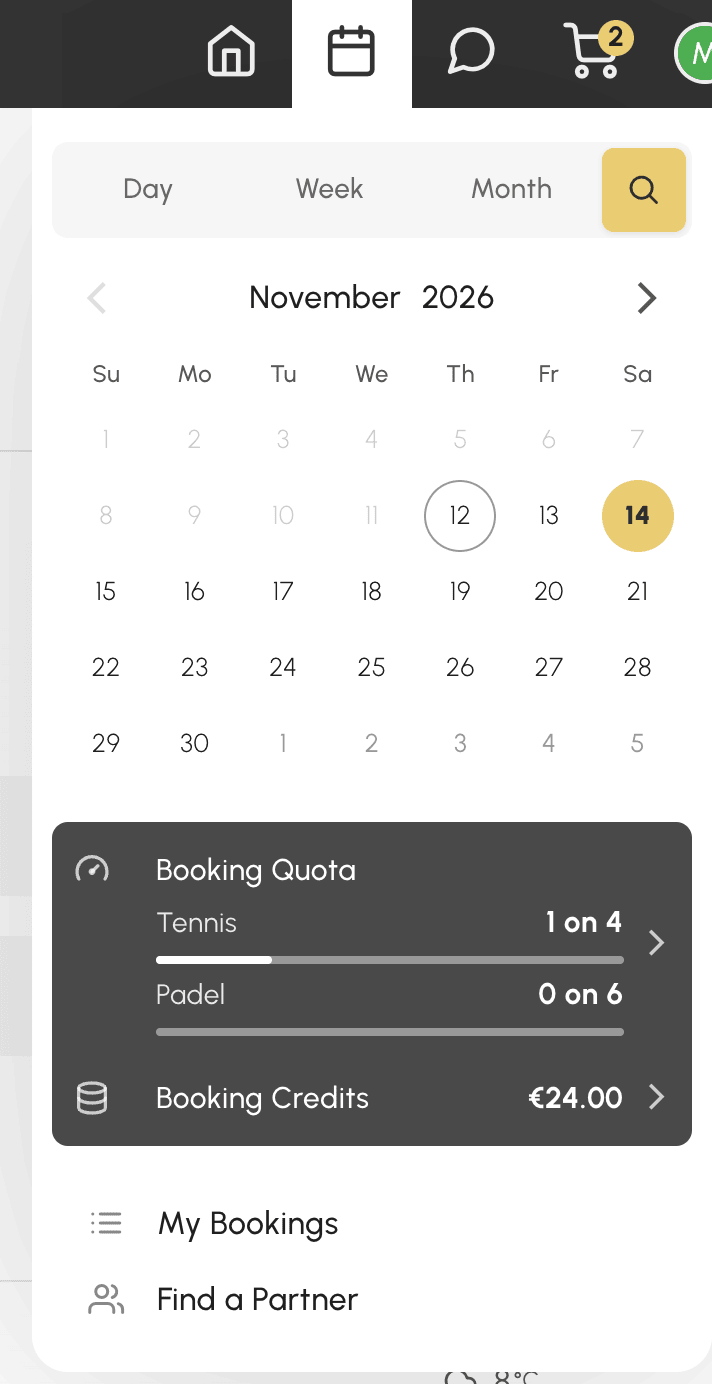
Users switch between views from the "Booking" menu in the navigation bar. When all three views are available, its tabs are called Day, Week and Month, followed by the Availability magnifying glass. The calendar below takes them directly to a date.
Choosing the views available to each profile
Each view is a profile permission. For example, you can reserve the month view for your members and limit a "Rental" profile to the Availability view only.
- Go to Administration›Users›Access Rights›Profiles & Roles and open a profile.
- In the Booking tab, tick or untick Calendars by Day, Calendars by Week and Calendars by Month.
- In Default view, choose the view that opens when the user arrives on the booking page: Per day, By Week, Per month or Availability.
- Click Save.
If the default view is not available to the profile, the first permitted view opens instead, in this order: day, week, month, then availability. A new profile receives all views.
Reading the day view
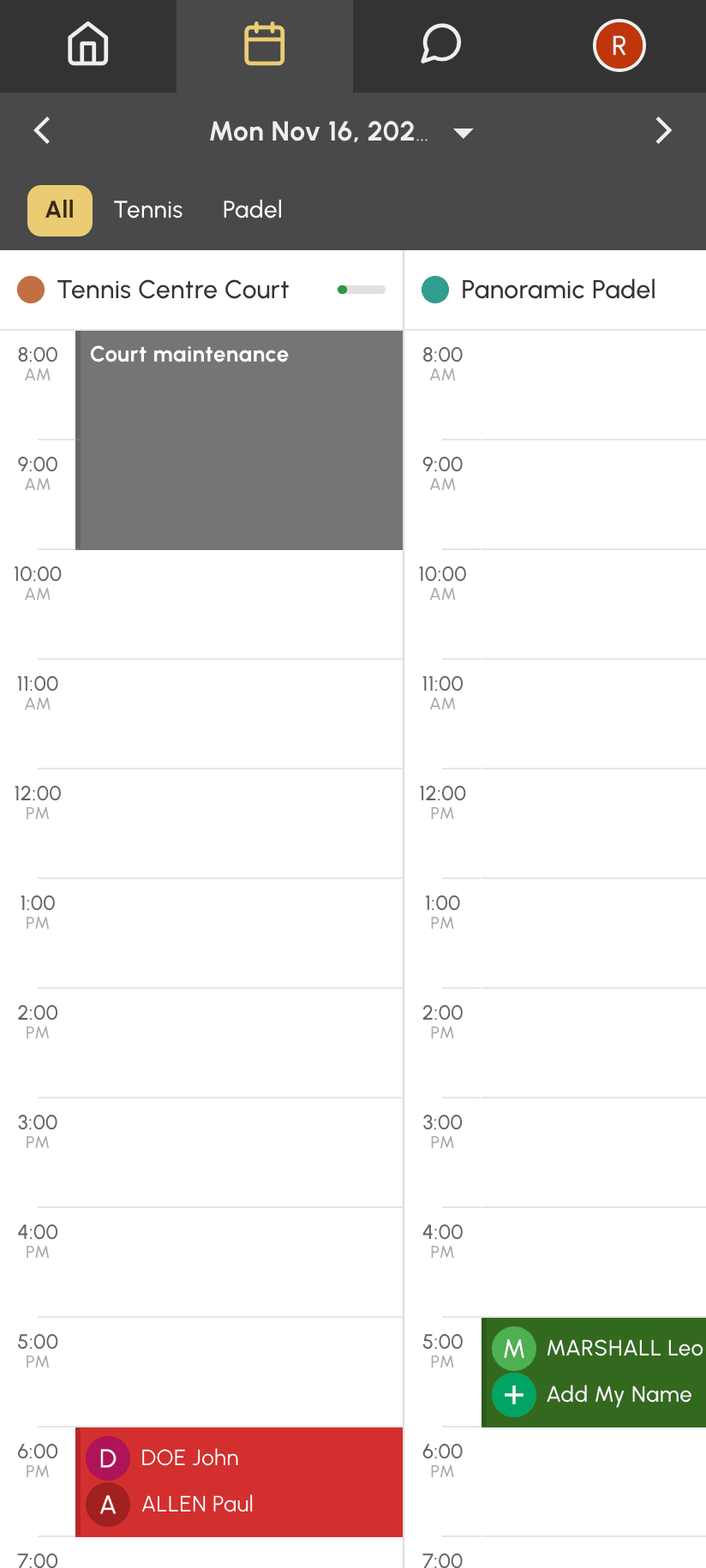
The day view lines up the calendars of the group selected in the tabs at the top: All Calendars, then one tab per group. Each booking fills its time slots, in the colours of its label or those chosen in the display preferences. On a phone, only a few calendars fit on the screen, depending on its width and the zoom level. Swipe the grid to see the next ones.
What a club manager finds in addition:
- the Display Preferences button in the toolbar, to adjust the appearance of all calendars without leaving the page;
- the manager's booking options (book for a user, overwrite a time slot, repeat a booking), depending on the permissions of their profile;
- moving and resizing bookings with the mouse or a finger.
Reading the week view
The week view displays a single calendar, with one column per day and the weather for each day. The tabs at the top switch calendars. On a phone, only a few days fit on the screen, depending on its width and the zoom level. Swipe the grid to see the next ones.
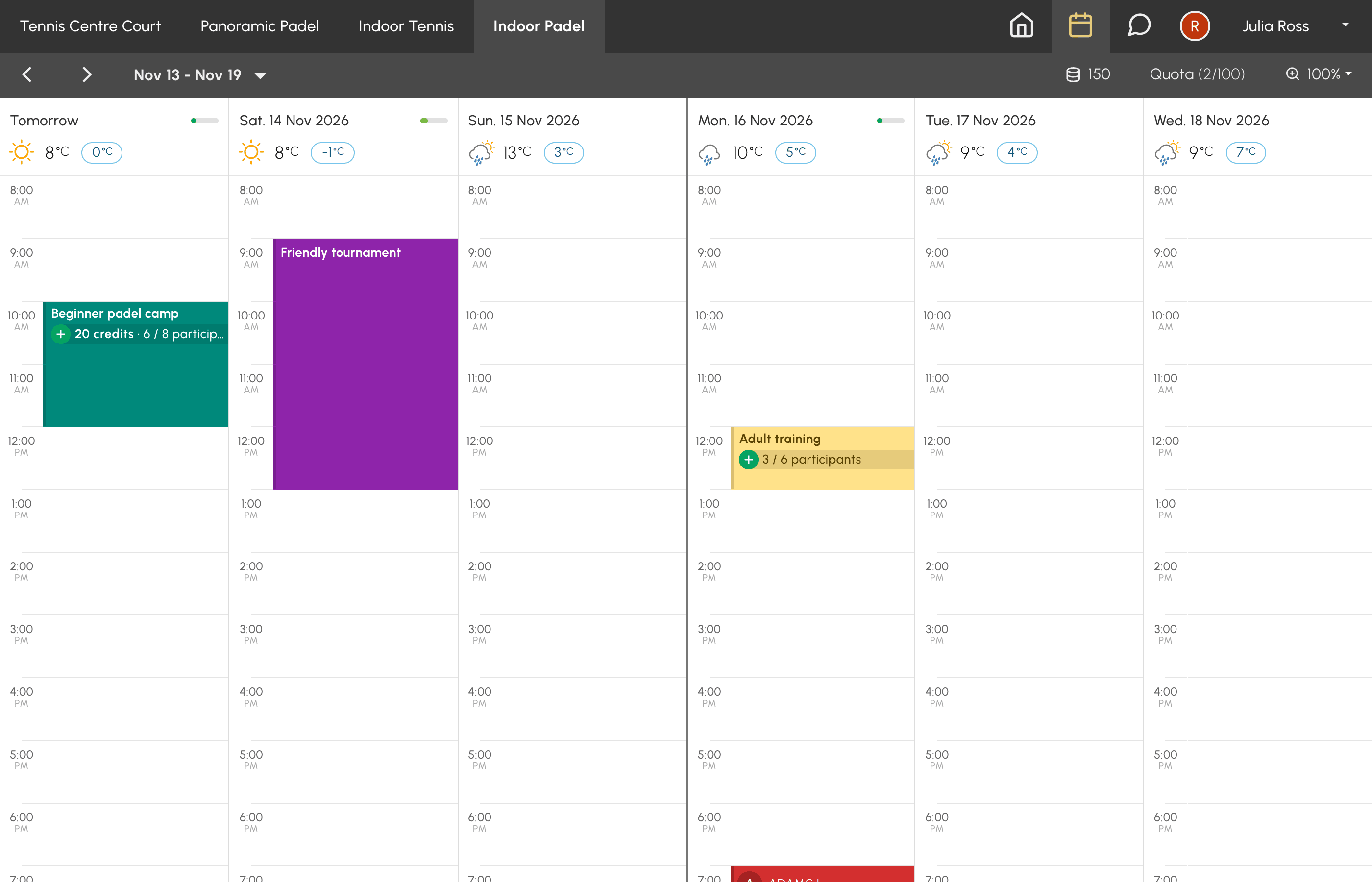
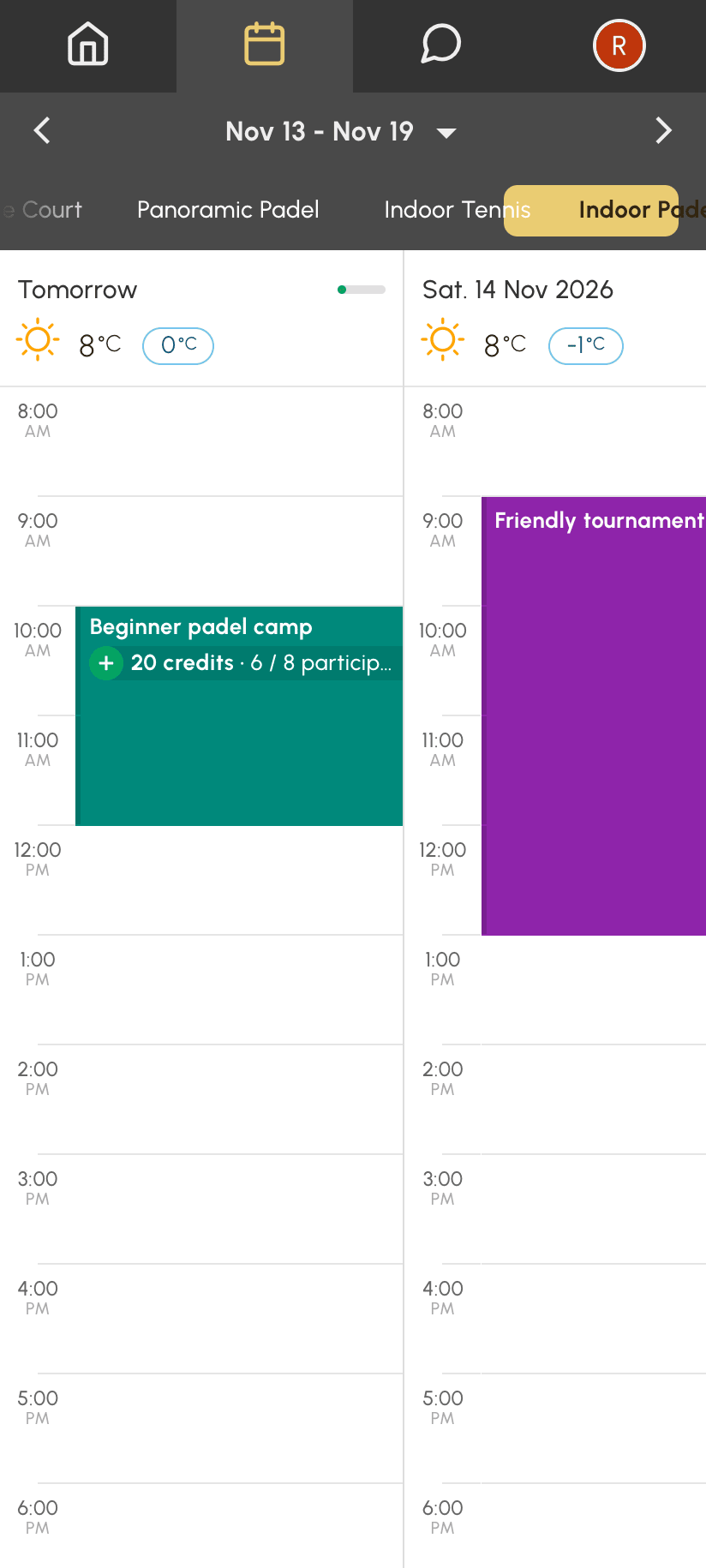
This is the most practical view for tracking how busy a court is or for finding where a training camp fits in the week. The club manager's tools are the same as in the day view.
Reading the month view
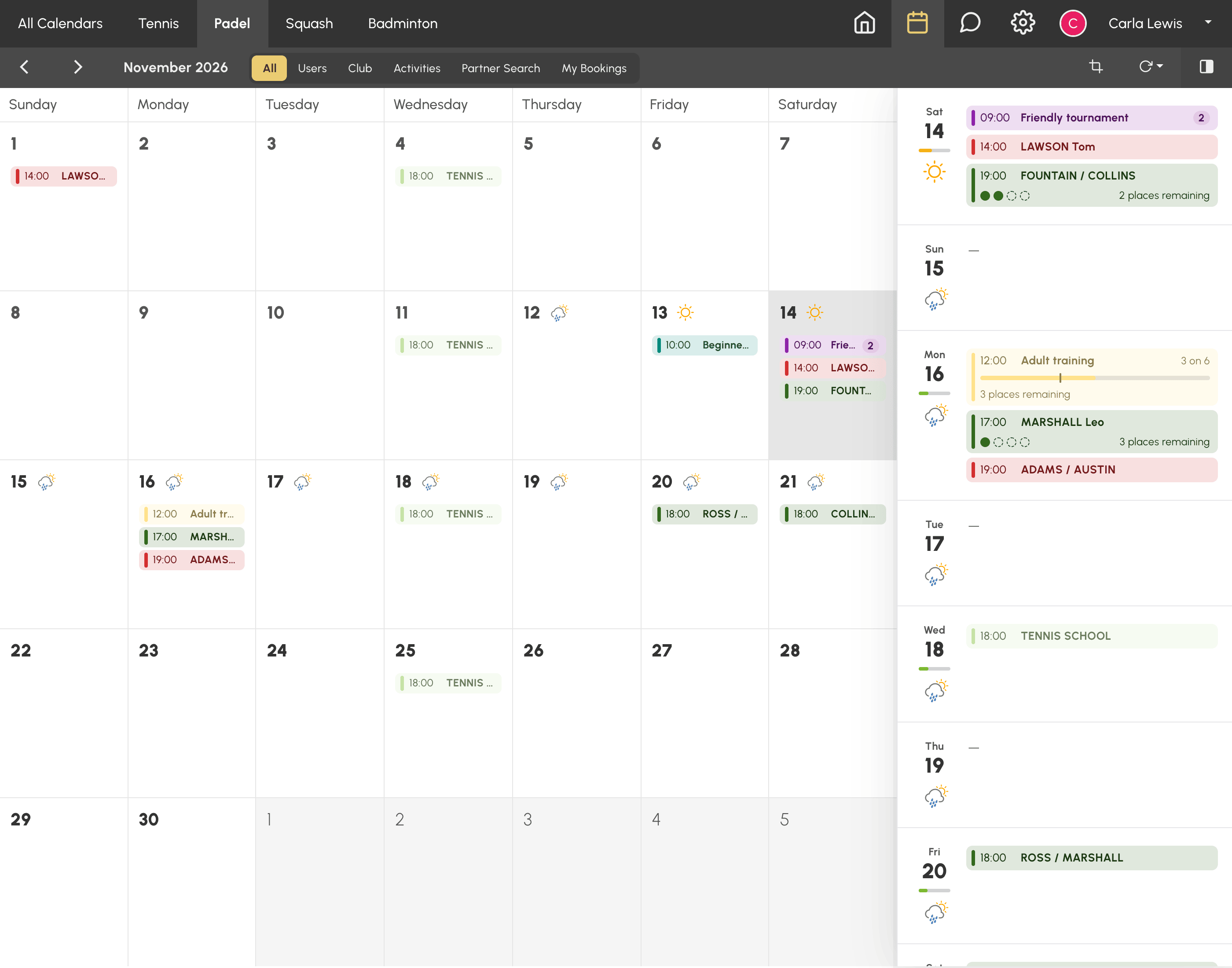
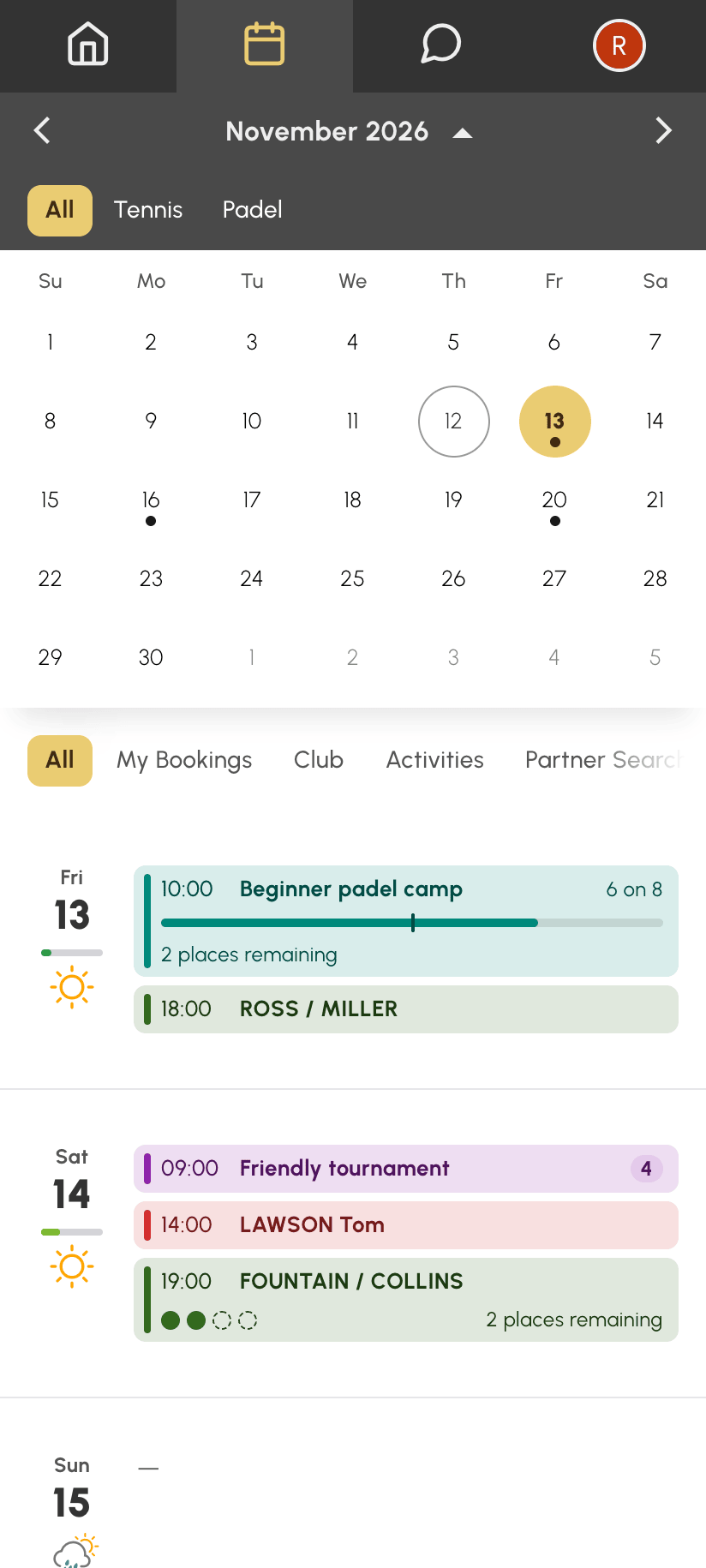
The month view shows the whole month for All Calendars, a group or, in an organization without groups, a calendar. On a computer, each day is a box with its first bookings, the weather and a counter for the rest. The log, opened on the right with the last button in the bar, details the days one by one. On a phone, the month calendar is displayed at the top and the log scrolls below it.
What a club manager finds in addition:
- six tabs instead of five: All, Users, Club, Activities, Partner Search and My Bookings. Users groups the users' bookings, Club those of the organization. These tabs are displayed for a profile that ignores the subscription rules, or that has permission to book for other users, overwrite bookings or book with a club label;
- the details of any booking in the log, by clicking its row, with access to Booking log or permission to overwrite bookings. A user can only open their own bookings and activities;
- the Display Preferences button, as in the other views.
The Activities and Partner Search tabs follow the boxes in the profile's Tabs block, described with the Availability view. A tab with no bookings in the month is not shown, except All and My Bookings.
The month view does not allow booking: the date of a row in the log opens that day in the day view, or the week when only one calendar is displayed, if the profile has access to it.
Setting the display shared by all three views
The Display Preferences on the Administration›Settings›Booking›Calendars page apply to all three views. Several settings directly change what the month view shows:
- Calendar occupancy rate: Bar or Ring displays the share of booked time slots next to the name of each calendar in the day view, and next to each day in the week view. In the month view, a bar under each date in the log shows the day's occupancy for the displayed calendars. Disabled removes these indicators from all three views.
- Labels style: Colored cell or Border, also used by the month rows.
- Hide the label titles: users without permission to book with a label see "Booked" instead of the event name, in all three views.
- Display User Names: determines whether the month rows show the names of participants in other bookings; otherwise, they display "Booked".
- Weather Forecast: the weather for the coming days, in the boxes and log of the month view as in the other views.
Hiding calendars based on quota or credits
Two subscription options hide the calendars from the users concerned, in the day, week and month views:
- Hide calendars when the booking quota is reached: when the quota is reached, these three views are replaced by the quota message;
- Hide calendars if no credit: when the credit balance is used up, calendars paid with credits disappear, except for a user who can pay when booking. In the month view, they then have no row and no occupancy bar, day by day.
The Availability view remains available in both cases: the quota and the balance are checked at the time of booking. A profile that ignores the subscription rules is never affected.
