



Book with repetition
Create a booking in a single operation across several days, several weeks and several calendars to plan a whole season of lessons or training, follow its progress live, then cancel all or part of the series when needed.
Allow booking with repetition
- Go to Administration›Users›Access Rights›Profiles & Roles and open the profile concerned.
- In the Booking tab, enable Book with Repetition.
- Click Save.
This right displays the repetition box on the booking form. It also lets you freely choose the start time and the end time of each booking. It usually goes together with the Book for other users, Book with a club label and Overwrite/Cancel Existing Bookings rights.
Prepare the booking
- On the calendars, click the time slot of the first session: its day, its time and its court serve as the template for the whole series.
- Adjust the start time and the end time if needed, for example to cover two consecutive time slots.
- Choose the users or the label, just as for a single booking.
Repeat the booking
On a computer, the Repeat Booking box appears directly in the form. On a phone, tap Repetition to display it.
- Tick the days of the week on which the booking repeats. The day of the selected time slot is always included.
- In Select a Duration, choose how long the repetition lasts, from The following week to 12 months. The list of the weeks concerned appears, each with its date.
- Untick the weeks to skip, for example during the holidays.
- Tick the other calendars that receive the same booking. The calendar of the selected time slot is always included.
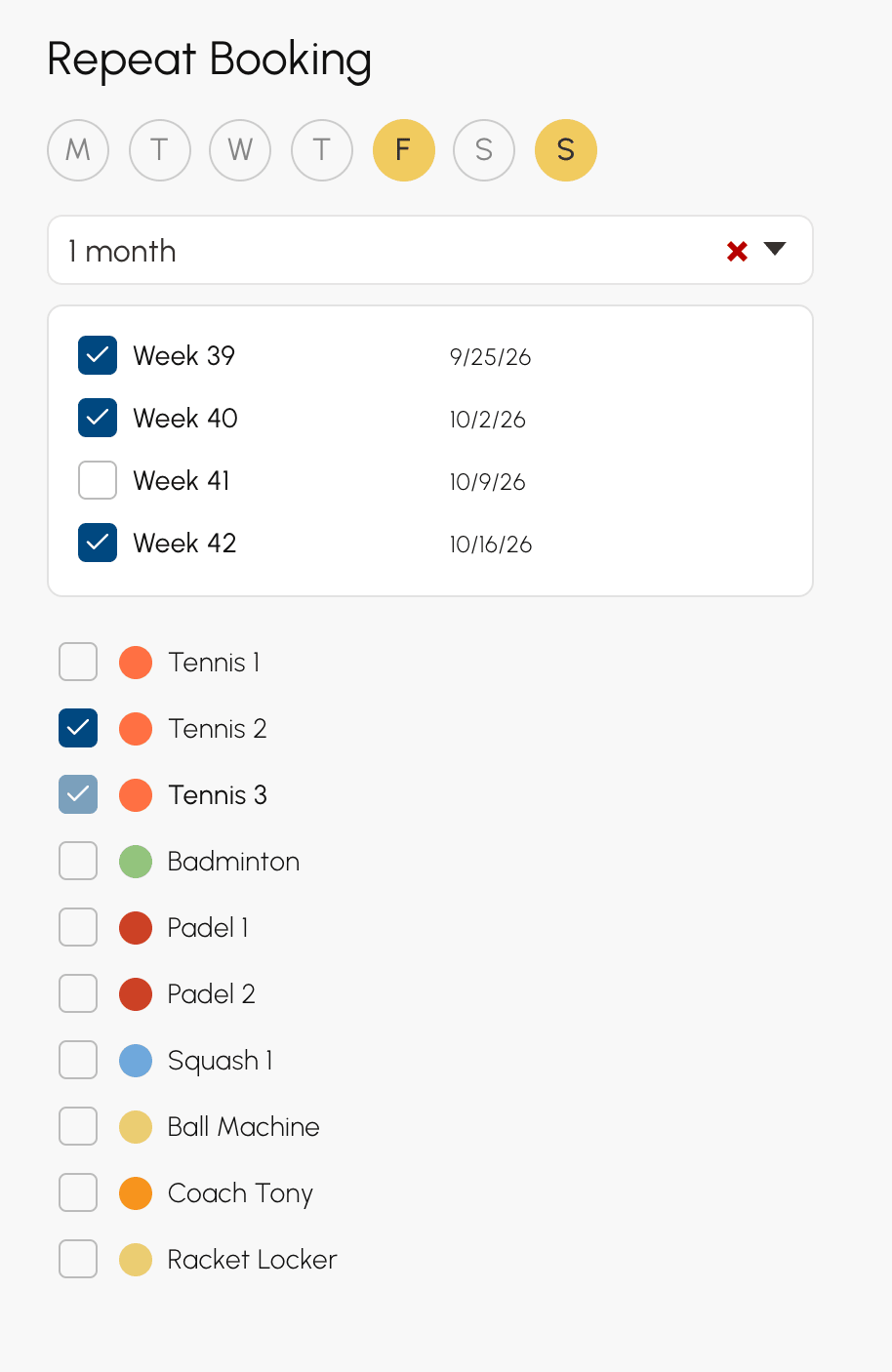
The booking is created on every combination of day, week and calendar, starting from the selected time slot. For example, Tuesday and Thursday for 1 month on two courts give 20 bookings: 2 days × 5 weeks, the week of the selected time slot plus the 4 following ones, × 2 calendars.
The list of calendars only offers those included in your subscription, unless your profile has Ignore the subscription and its restrictions.
Choose the options for the series
The options on the form apply to every booking in the series. Your latest choices are remembered from one booking to the next: check them before you confirm.
- Overwrite existing bookings: a booking already present on a session is cancelled, then replaced. Without this option, the session is skipped and the existing booking stays in place.
- Do not count towards the quota and Do not count credits: the series does not use up the quota or the credits of the selected users.
Confirm and follow the operation
- Click Book.
- If the operation takes some time, a progress panel opens and shows how far each step has got. During creation, it also shows the number of time slots processed, the rate per second and the time remaining.
- At the end, the panel closes and a message summarises the result.
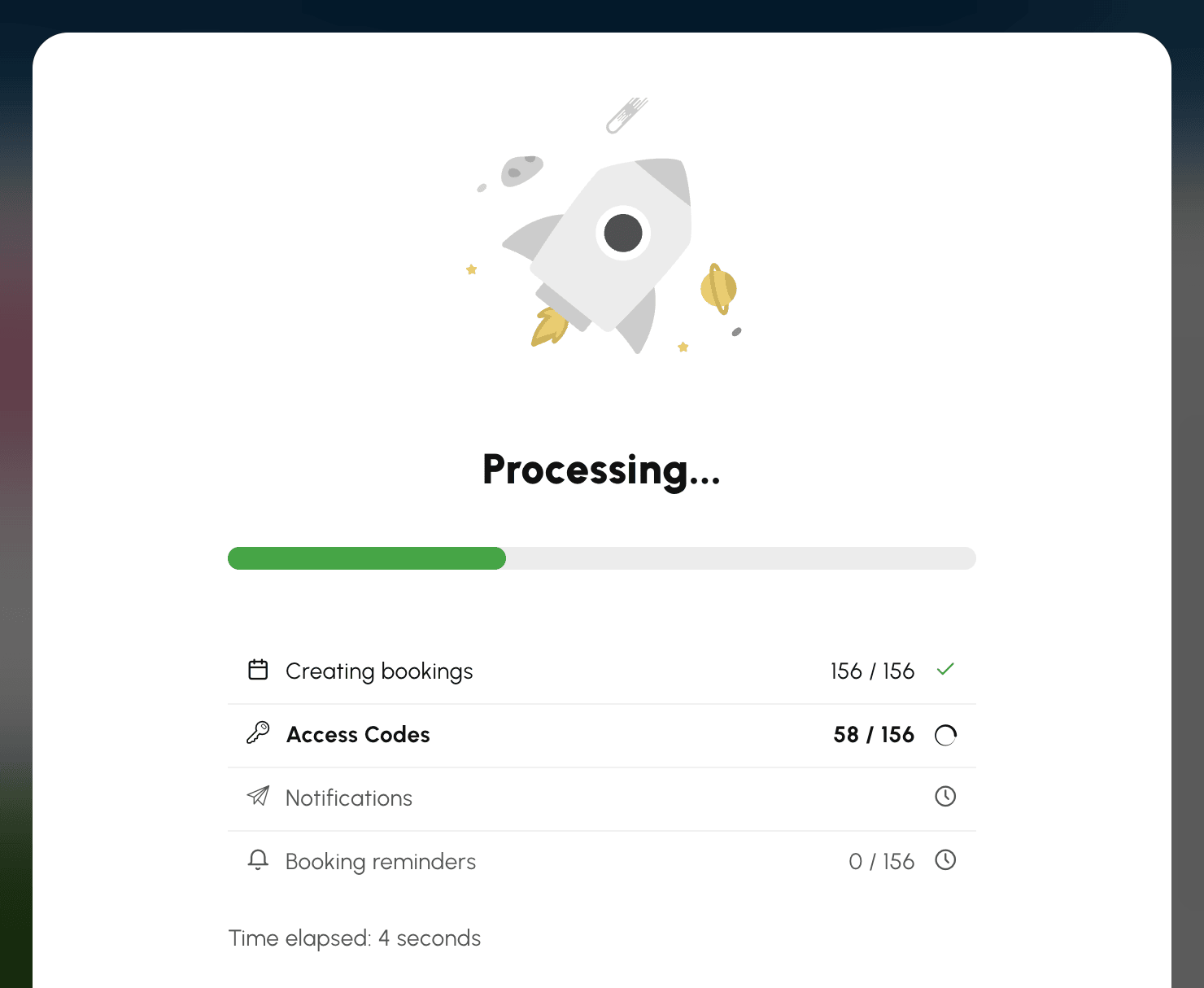
Depending on your organization, other steps follow Creating bookings: Access Codes, Notifications, Participants' orders and Booking reminders. A step that does not apply is not displayed.
- The panel only opens for an operation lasting several seconds: a quick booking never displays it.
- It stays open until the operation is finished, so that you always know where it stands.
- While the bookings are being created, Cancel stops the repetition. The bookings already created are kept.
- If the connection is interrupted, the operation is followed through to the end. A message then tells you so, and the calendars are reloaded.
To protect your calendars, the number of time slots created or deleted within one hour is limited, per owner and for the whole organization. Beyond that, the operation is refused before any change is made: the message indicates the limit and the time from which you can try again.
Read the result
The final message counts time slots: a two-hour booking on one-hour time slots counts as two.
- 40 booked time slots: the number of time slots created.
- 3 existing bookings have been overwritten.: the bookings cancelled by overwriting.
- 2 time slots are occupied and could not be overridden.: the time slots where a booking was already present and stays in place.
- No booking added: no session could be created.
When time slots have been overwritten or skipped, the message stays on screen until you close it.
Find the dates of a series
Each session remains a booking in its own right: you can edit, move or cancel just one without affecting the others.
The details of a repeated booking list the dates of its series, with the court and the time of each one. Beyond 50 dates, the list stops and View All opens the complete series in Administration›Dashboard›Booking›Booking log.

Moving a session by drag and drop only moves that day: the other dates in the series stay in place.
Cancel all or part of a series
With the Overwrite/Cancel Existing Bookings right, cancelling a repeated booking asks you how far the cancellation should go.
- Hover over a booking in the series in the calendars and click the trash . You can also use the cancel button in its details.
- Choose the scope of the cancellation. The number in brackets indicates the bookings concerned.
- If the series is long, the progress panel shows how far the cancellation has got.
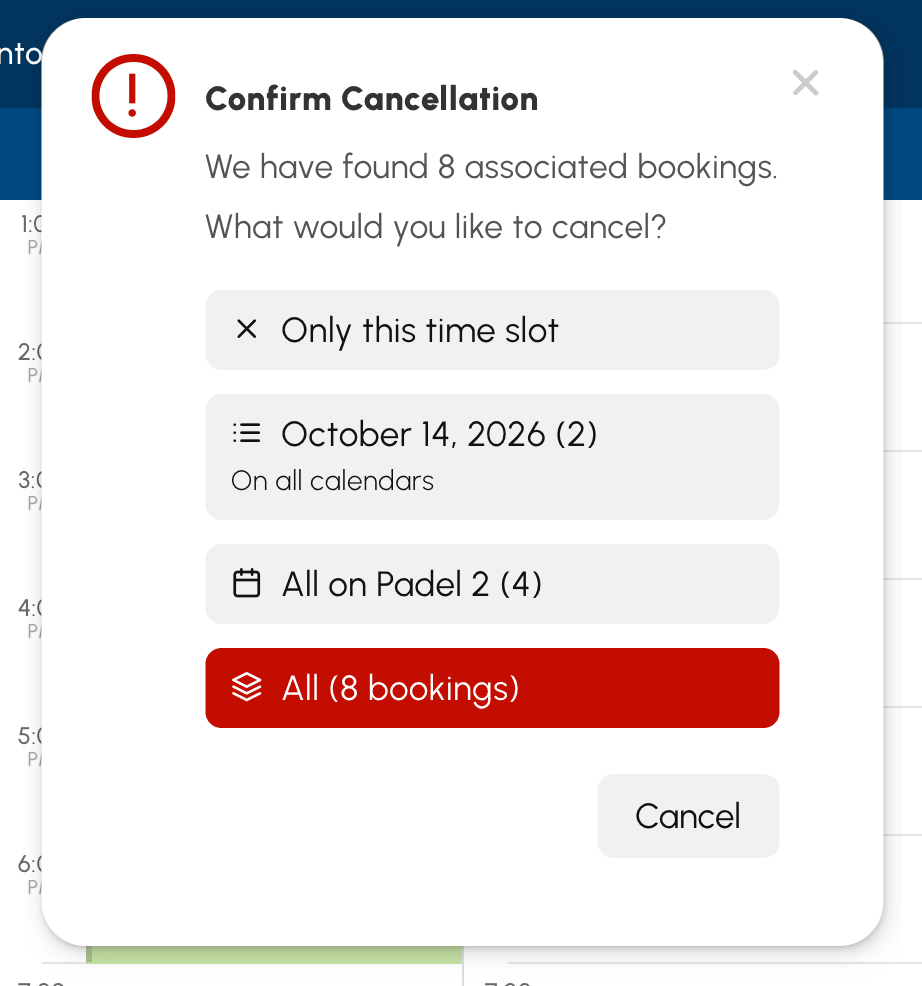
- Only this time slot: this booking only.
- The date of the session, On the calendar Padel 2 or On all calendars: the bookings in the series on that day.
- All on Padel 2 (4): every date in the series on this calendar.
- All (8 bookings): the entire series.
Only the choices that make a difference are offered: a series created on a single calendar does not display the per-calendar choice.
Delete the bookings of several weeks
The booking form also frees up time slots over a whole period, whether the bookings are part of a series or not.
- Click the time slot of the first session to free up.
- Set the time, the days, the duration and the calendars, just as when booking.
- Click the trash on the form, then Delete.
Every booking present on those sessions is cancelled, then the 12 bookings deleted message gives you the number. Without the Overwrite/Cancel Existing Bookings right, only your own bookings are cancelled.
