Making a booking
Book a court in a few clicks: pick a free time slot in the calendars, say who you are playing with, then confirm.
Choosing a free time slot
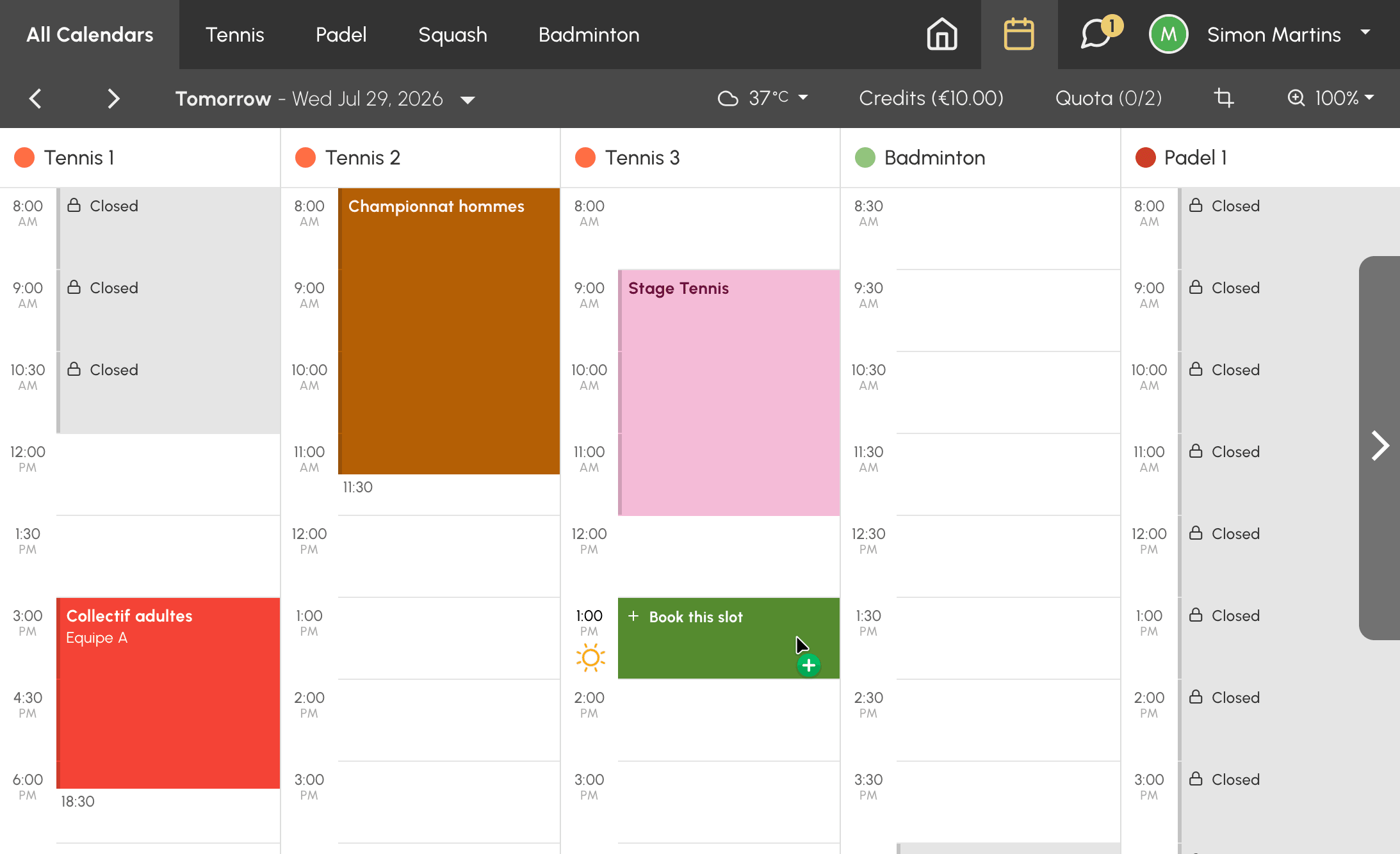
- Open the organization's calendars from the booking menu.
- Find a free time slot on the date and at the time you want.
- Click the time slot: the booking form opens.
The time slots you can see depend on the rules set by your organization: the range of dates open for booking, the calendars allowed by your subscription, and the opening hours.
Saying who you are playing with
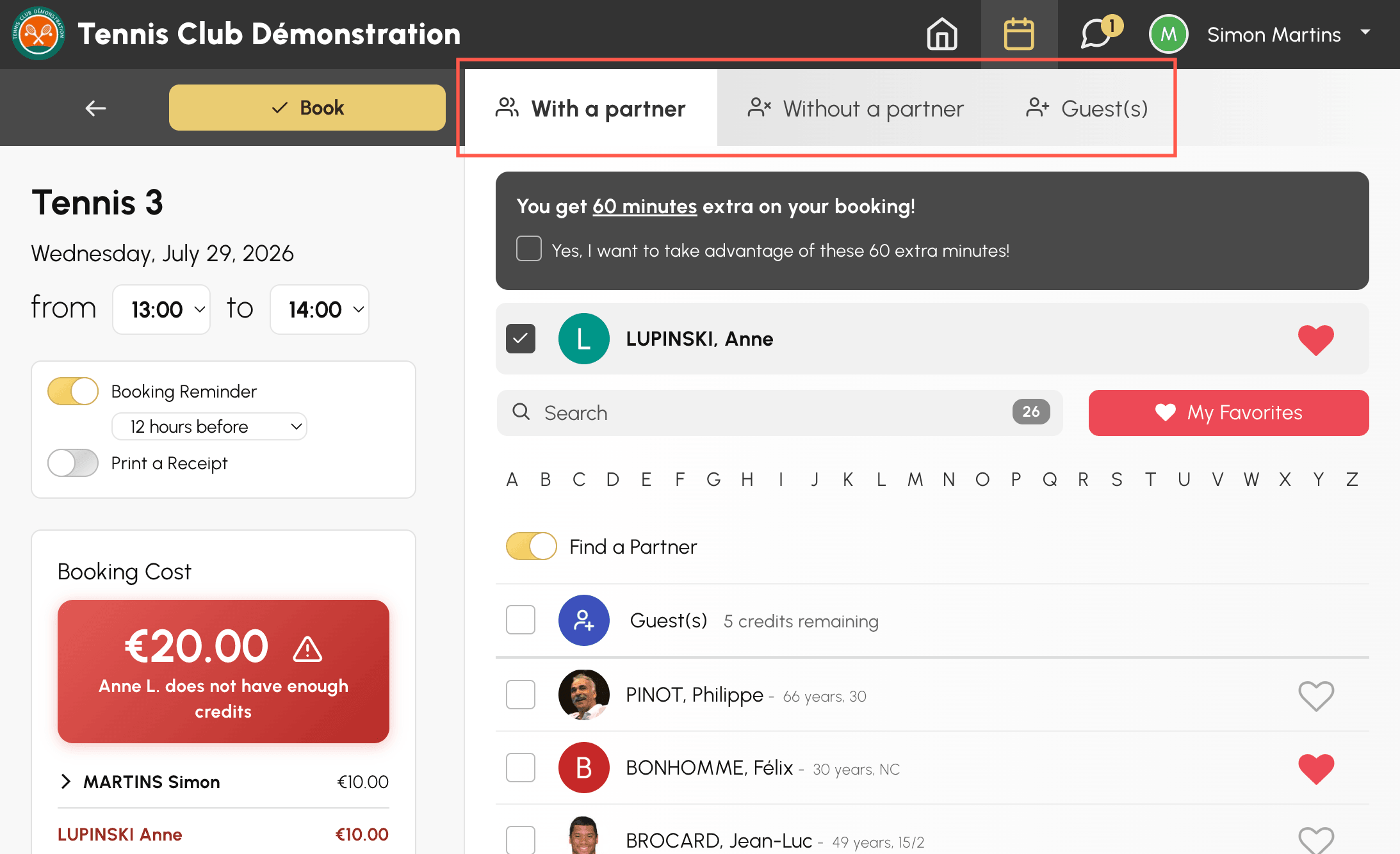
Depending on your subscription and your organization's configuration, the form offers one or more tabs:
- With a partner: search for and select one or more other users of the organization. The My Favorites button shows the partners you have added to your favourites, with a heart icon displayed next to their name.
- Without a partner: book on your own, if your organization allows it.
- Guest(s): add one or more people from outside the organization.
Your organization may require a minimum or maximum number of players per time slot. Each user also controls who can book with them in their privacy settings: a player may therefore not appear in the list.
Checking the cost and confirming
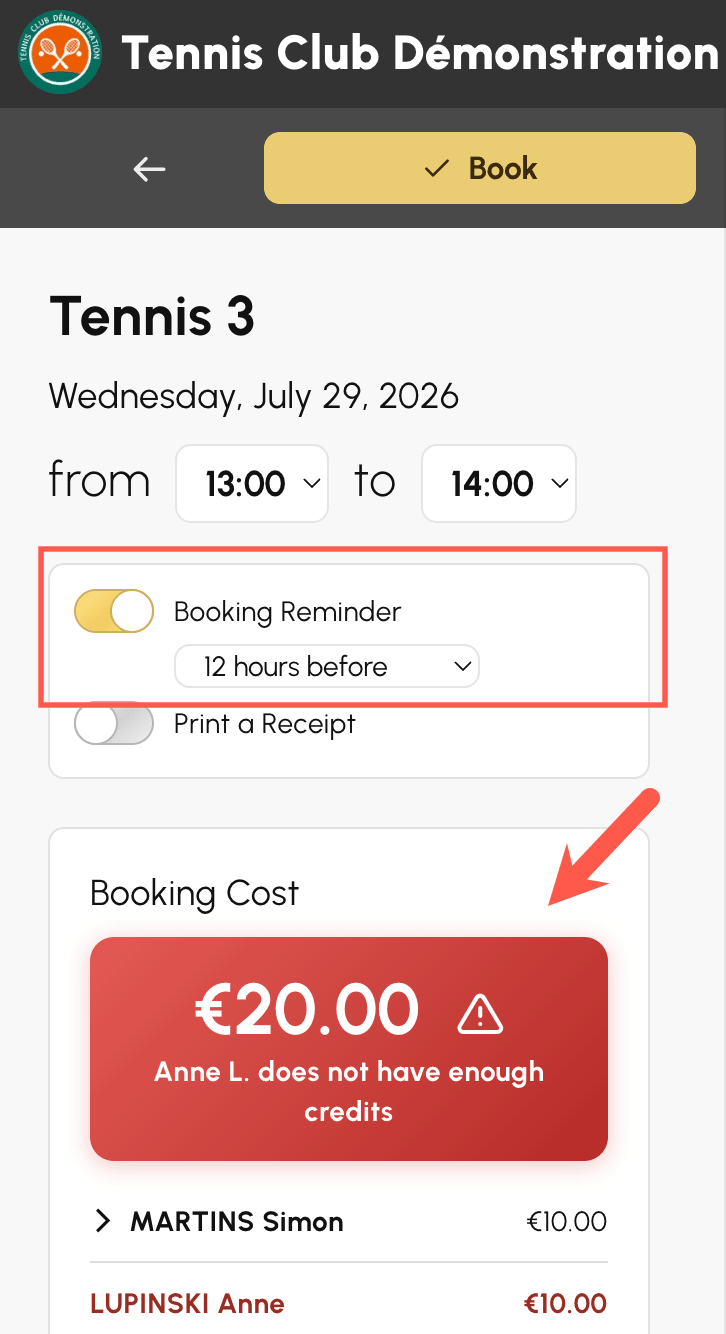
- If your organization uses booking credits, the Booking Cost box shows the total that will be deducted, with a breakdown per player.
- If needed, turn on the Booking Reminder option to receive a notification before the time slot starts.
- Click Book to confirm.
Once the booking is confirmed, your partners are notified according to their preferences. You will find all your bookings in My Account›My Bookings.
Opening your booking to other players
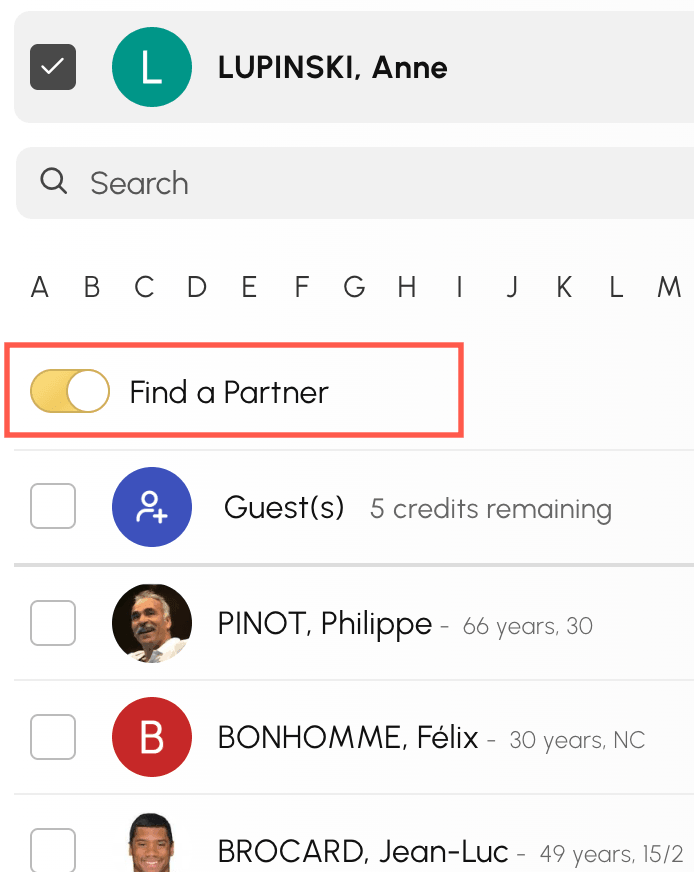
If your organization has enabled Find a Partner, the Find a Partner option in the form opens your booking to other users: they can sign up for your time slot, up to the authorised number of participants.
Conversely, you can join a booking opened by another player: click the relevant time slot in the calendar, then add your name.