


View and renew your subscription
View the rights linked to your subscription (quota, permitted calendars, cancellation deadlines). If the organization offers it, you can also renew it or switch to another offer online.
View your subscription and your rights
- Go to My Account›My Subscription.
- The page shows the name of your subscription, its validity dates and the details of your booking rights.
Depending on the configuration chosen by the organization, you will find the following information:
- your quota of simultaneous bookings and how much of it you are currently using;
- your balance of booking credits and guest credits;
- the calendars and days on which you can book;
- the cancellation rules and any time restrictions.

Do you have a question about your rights? Use the Contact the Club button at the top of the page.
Renew or change your subscription online
If the organization sells subscriptions online, a Manage my subscription button appears at the top of the page.
- Click Manage my subscription. If the button does not appear, the organization does not offer online purchases. Contact the organization directly to renew.
- Choose Renew my subscription to extend your current offer, or Change Subscription to switch to another offer.
- Select the plan you want. It is added to your cart, and you are redirected to the cart to complete the payment.

Switch to a free subscription
Your organization may offer a subscription with no membership fee, for example so that you can book and pay for each booking individually. If the organization makes it available to you, you can switch to it yourself, at no cost.
- Click Manage my subscription. If the window also offers renewal, open Change Subscription.
- Under the free offer, click Switch to this subscription.
- If your current subscription is still valid, a message reminds you that you are giving it up immediately, without a refund. Confirm with Switch to this subscription, or click Cancel to keep it.
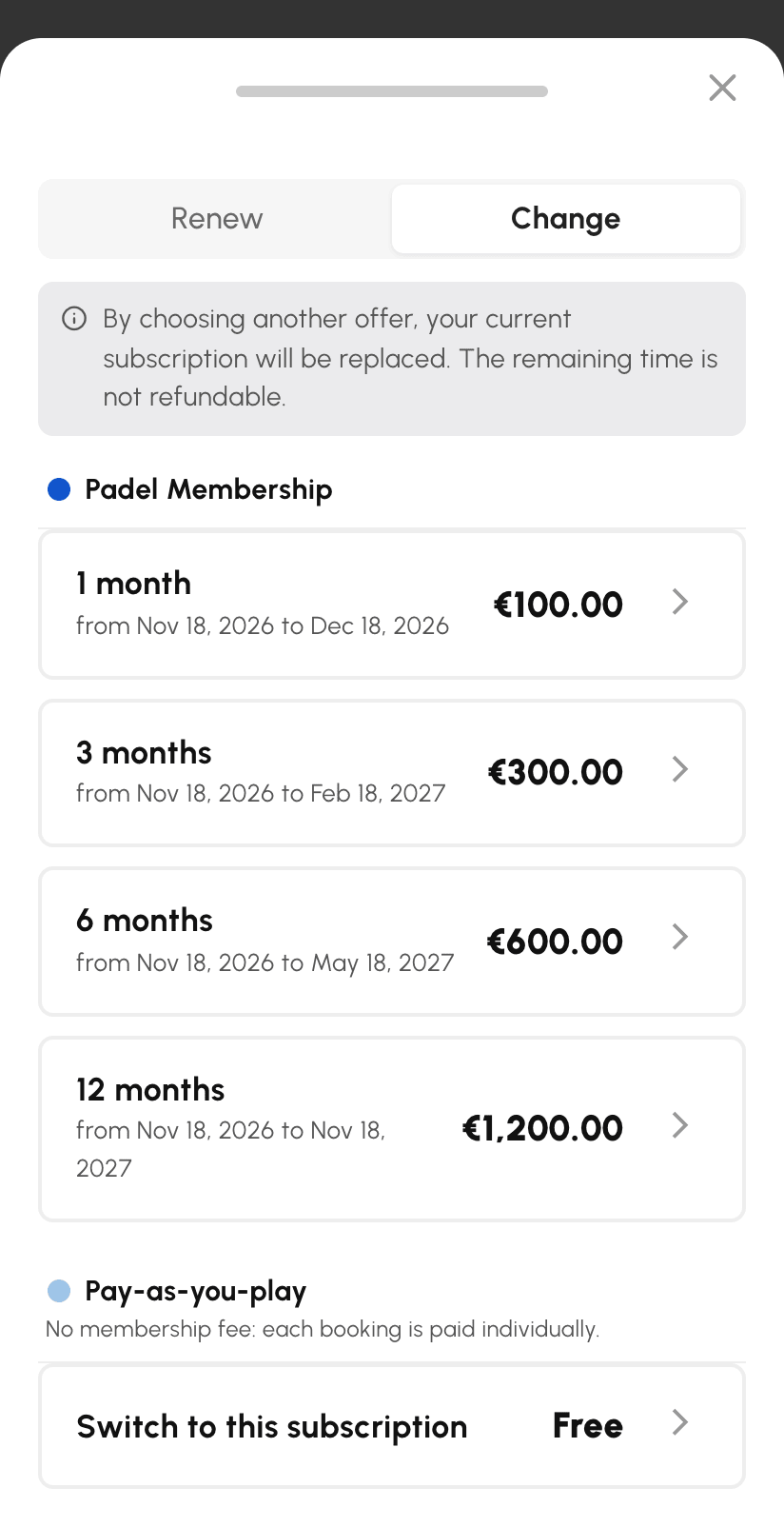
The change is immediate. The page reloads on your new subscription. You receive the dates set by the organization for this offer, or no date limit if none has been set. No order is created, and your credits remain on your account.
The free offer is not shown to you if your current membership fee is unpaid and the organization requires this payment. If a subscription order is awaiting your payment, a message asks you to pay it or to contact the organization before switching.
The same window also opens from the message that reports an expired subscription, from the button in the reminder e-mail sent before expiry, and from the offer record in the organization's online shop.
Provide the supporting documents requested by the organization
Some organizations require a medical certificate or proof of address to validate the subscription or to allow bookings. You may be asked for this information when you sign up or when you make a booking.
You can access and edit this information at any time:
- Go to My Account›Account Details.
- Open the My Personal Information tab.
- Drop the requested file (JPEG, PNG, GIF or PDF) into the corresponding area.
- Click Save.
