


Selling subscriptions online
Let your users take out and renew their own subscription, with immediate payment and automatic assignment of rights. There are two ways to sell: by duration, or by season. You can also offer them a free option.
Where sales are configured
You don't set up the sale of a subscription from the product catalogue. You set it up from the subscription's own record.
- Go to Administration›Users›Access Rights›Subscriptions and open the subscription you want to sell.
- In the General tab, enable the Payments & Billing section.
- The corresponding product is created automatically.

Once created, this product appears in Administration›Settings›Billing›Products & Services. You can edit it from either place.
Choosing between rolling duration and fixed cycles
Duration Mode is the key decision: everything else follows from it, and changing it later means reconfiguring your plans.
- Rolling: the period starts on the day of purchase. You sell "three months" or "one year", with no calendar date.
- Fixed Cycles: you sell dated periods that are the same for everyone. You sell "the 2026-2027 season", from 1 September to 31 August.
- Free: you don't sell anything. Users switch to this subscription without paying a membership fee, as explained at the end of this page.
For a paid subscription, ask yourself just one question: should two people who buy two months apart see their subscription end on the same day?
- Yes: fixed cycles. This suits an organization whose year follows a sports season, with a general meeting, a season start and aligned licences.
- No: rolling. This suits a venue that welcomes people as they come, where everyone pays for twelve months from the day they sign up.
Setting up a rolling duration
Under Proposed durations for purchase, each row is a plan: a Label, a Duration in months and a Price. Click Add a duration to offer several plans. The user chooses one at purchase.
A three-row grid is enough in most cases:
| Label | Duration | Price |
|---|---|---|
| 3 months | 3 | €60 |
| 6 months | 6 | €105 |
| 12 months | 12 | €180 |
Volume discounts are not calculated for you: it's up to you to make the longer plan more attractive, otherwise nobody will choose it.
Two behaviours are worth knowing, because they prevent complaints:
- Renewing never loses a day: if the user renews the same subscription before it expires, the new period starts the day after the current one ends, not on the day of purchase. Renewing early therefore never costs any playing time.
- Month ends are normalised. A one-month purchase made on 31 January ends on 28 or 29 February, never on 3 March. The duration stays the same whatever the purchase day.
Setting up fixed cycles
Under Cycles available for purchase, each row is a dated cycle: a Label, a Period with its Start Date and its End date, and a Price. The Add a cycle button lets you prepare several cycles in advance.
| Label | Period | Price |
|---|---|---|
| 2026-2027 season | 01/09/2026 → 31/08/2027 | €180 |
| 2027-2028 season | 01/09/2027 → 31/08/2028 | €185 |
Preparing next season right now carries no risk: a finished cycle disappears from the offer on its own, without any action on your part. You can therefore leave old seasons in place. They will never be offered for purchase.
Calculating a prorated price
With fixed cycles, a user who joins the organization in March would pay for the whole season at full price. Prorated price calculation solves this problem: the price decreases as the cycle progresses.
Three Calculation Mode are available:
- By remaining days: the most precise, the price decreases every day.
- Per remaining month: the price decreases in monthly steps.
- By remaining quarters: the price decreases in quarterly steps, useful when your offer is already expressed in quarters.
Before the cycle starts, the full price applies: buying next season in advance does not give any discount.
Two floors prevent ridiculously low prices at the end of the season:
- Floor percentage: minimum percentage of the full price. At 30%, a €180 season will never go below €54.
- Absolute Ceiling Floor: minimum amount in euros, whatever the calculation.
Both can be combined, and the higher one applies. A prorated price can never exceed the full price, even if a high absolute floor applies to a cheap cycle.
If the prorated price drops to zero and no floor is set, the plan is not offered at all, rather than being displayed and then refused at payment.
Managing renewal
Behavior upon expiration determines what happens when the subscription reaches its end:
- Manual: the user must buy again on their own from their account.
- Assisted renewal: the next time they try to make a booking after expiry, a window offers them a one-click repurchase.
Assisted renewal turns a refusal into a sale. The user discovers their subscription has expired at the worst possible moment — when they want to play — and the application gives them the solution right away, instead of sending them to a menu they would have to look for.
Early pre-sale sets the number of days before expiry during which the user can already buy the next period. The new period starts at the end of the current one, with no overlap or loss.
Opening the subscription to changes
The Propose subscription change option decides who sees this offer:
- enabled, all users can choose this subscription from their account to change plan;
- disabled, it remains reserved for those who already have it — who can still renew it.
This setting lets you keep a legacy plan, a preferential rate or an offer reserved for a group, without taking it away from those who already benefit from it.
The option is enabled by default. On a subscription in Free mode, it lets your users switch to it without paying: its exceptions are detailed in the next section.

Offering a free subscription
Some organizations welcome users without a membership fee, who pay for each booking individually. With a Visitor rental subscription in Free mode, your users switch to it themselves from their account, with no order or payment, for example when they don't want to renew their membership fee. The offer can also appear in the online shop.
- Go to Administration›Users›Access Rights›Subscriptions and open the free subscription.
- In the General tab, enable Payments & Billing.
- Under Duration Mode, choose Free.
- Leave Propose subscription change enabled, then click Save.
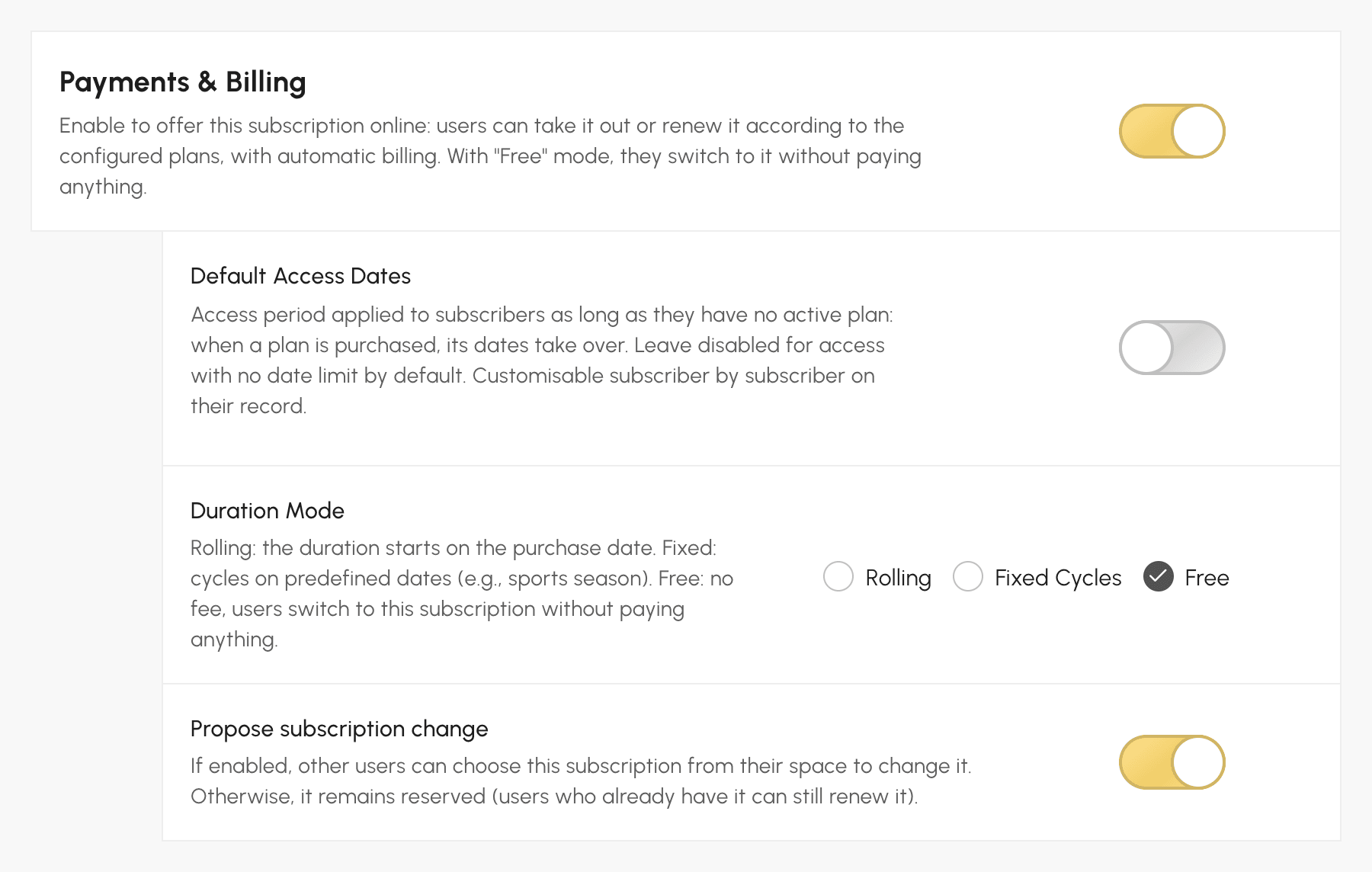
In Free mode, durations, cycles, prorating, payment in instalments, renewal, pre-sales and VAT disappear from the form, and the subscription price is set to 0. Whatever you had entered is kept: if you switch back to Rolling or Fixed Cycles, you'll find it again. The same choice is available on the product record, in Administration›Settings›Billing›Products & Services.
A free subscription is not sold: it is never added to the cart and does not appear in the cash register. To assign it yourself, select it on the user's record, without a plan.
What switching to the free subscription does
In the Manage my subscription window, the user finds the free offer with the Switch to this subscription button. If their current membership is still running, a message reminds them that they are giving it up immediately, with no refund, and asks them to confirm. If it has expired, they switch directly.
The change:
- takes effect immediately;
- clears the user's personal dates: they take on the Default Access Dates of the free subscription, or have no date limit if you haven't set any;
- resets the tracking of their membership fee payment (Paid Subscription);
- creates no order or invoice, sends no e-mail and leaves their credits untouched.
Each switch appears in Subscription History, on the user's record, with the mention Self-service change (free subscription). As no order is created, it does not appear in orders or in sales statistics.
Who can switch to the free offer
The offer is available to all your users, whatever their current subscription, including those on a subscription reserved for a group (coaches, juniors…). To close this door, disable Propose subscription change. There are three exceptions:
- a user whose membership fee is unpaid, on a subscription that blocks bookings for unpaid members, does not see the free offer;
- a user with a subscription order pending payment is asked to pay it or contact you before changing;
- if the same subscription also has an active paid product, the paid one takes priority: the free offer is not available and does not appear in the shop.
If you set Default Access Dates on the free subscription, make sure they cover the current period: a user who switches to it takes on these dates and would otherwise expire immediately, or be denied access until they start. For online registrations on this subscription, choose Automatic validation or Manual Validation: with nothing to pay, Validation after payment amounts to manual approval.
