

Making a booking
Book a court in just a few clicks: choose a free time slot in the calendars, indicate who you are playing with, then confirm.
Choosing a free time slot
- Open the organization's calendars from the booking menu.
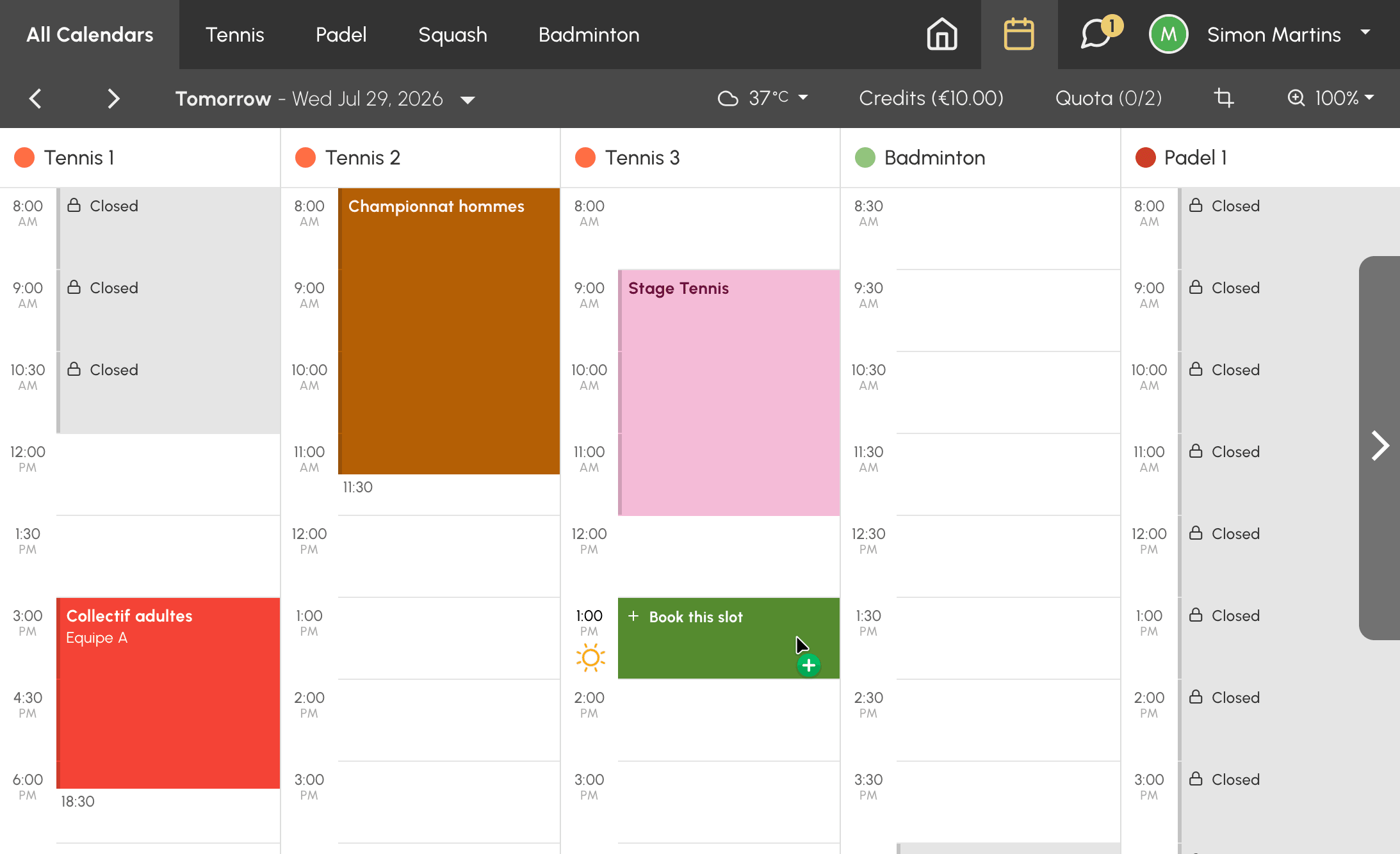
- Find a free time slot at the date and time you want.
- Click the time slot. The booking form opens.
The time slots you can see depend on the rules set by your organization: the date range open for booking, the calendars allowed by your subscription, and the opening hours.
Indicating who you are playing with
Depending on your subscription and your organization's configuration, the form offers one or more tabs:
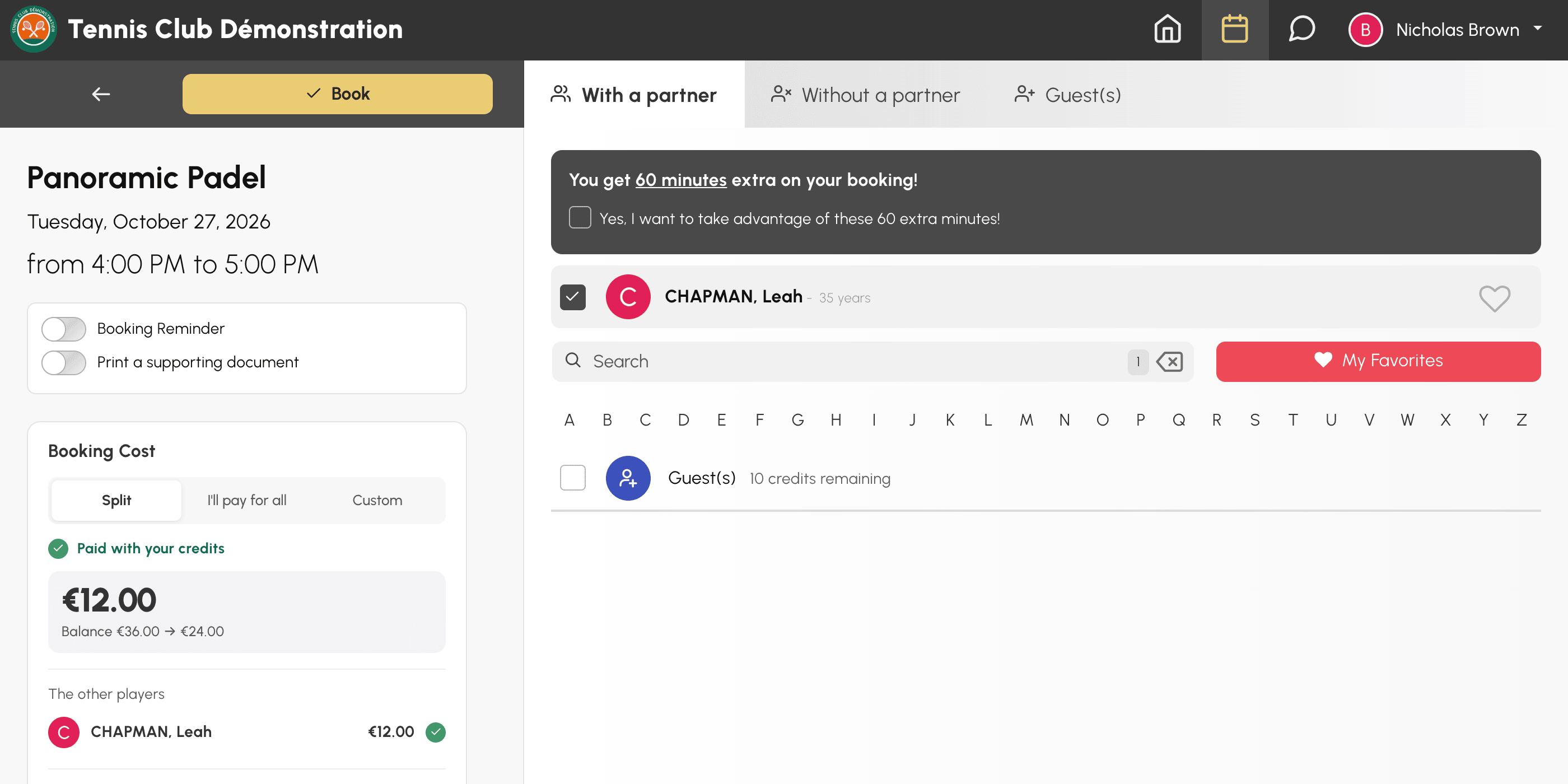
- With a partner: search for and select one or more other users of the organization. The My Favorites button shows the partners you have added to your favorites using the heart icon next to their name.
- Without a partner: book on your own, if your organization allows it.
- Guest(s): add one or more people from outside the organization.
Your organization may set a minimum or maximum number of players per time slot. Each user also controls who can book with them in their privacy settings. A player may therefore not appear in the list.
Checking the cost and confirming
If your organization charges for bookings in credits, the form shows you what the game will cost you before you confirm it. It also checks that everyone can pay for their place. This way, you avoid a last-minute refusal.
Finding the cost on mobile and on computer
On mobile: the cost is shown in a bar fixed at the bottom of the screen, just above the Book button. It stays in view while you select your partners and updates with every change. A quick glance tells you where you stand:
- a green dot and Paid with your credits: your balance covers what you are paying, so you can book;
- an amount in orange and Remaining to pay: your balance is not enough, but your organization lets you pay the rest when booking, and this amount is what you will pay;
- a fully red bar: you are short of credits, or a partner does not have enough, in which case the bar shows their name.
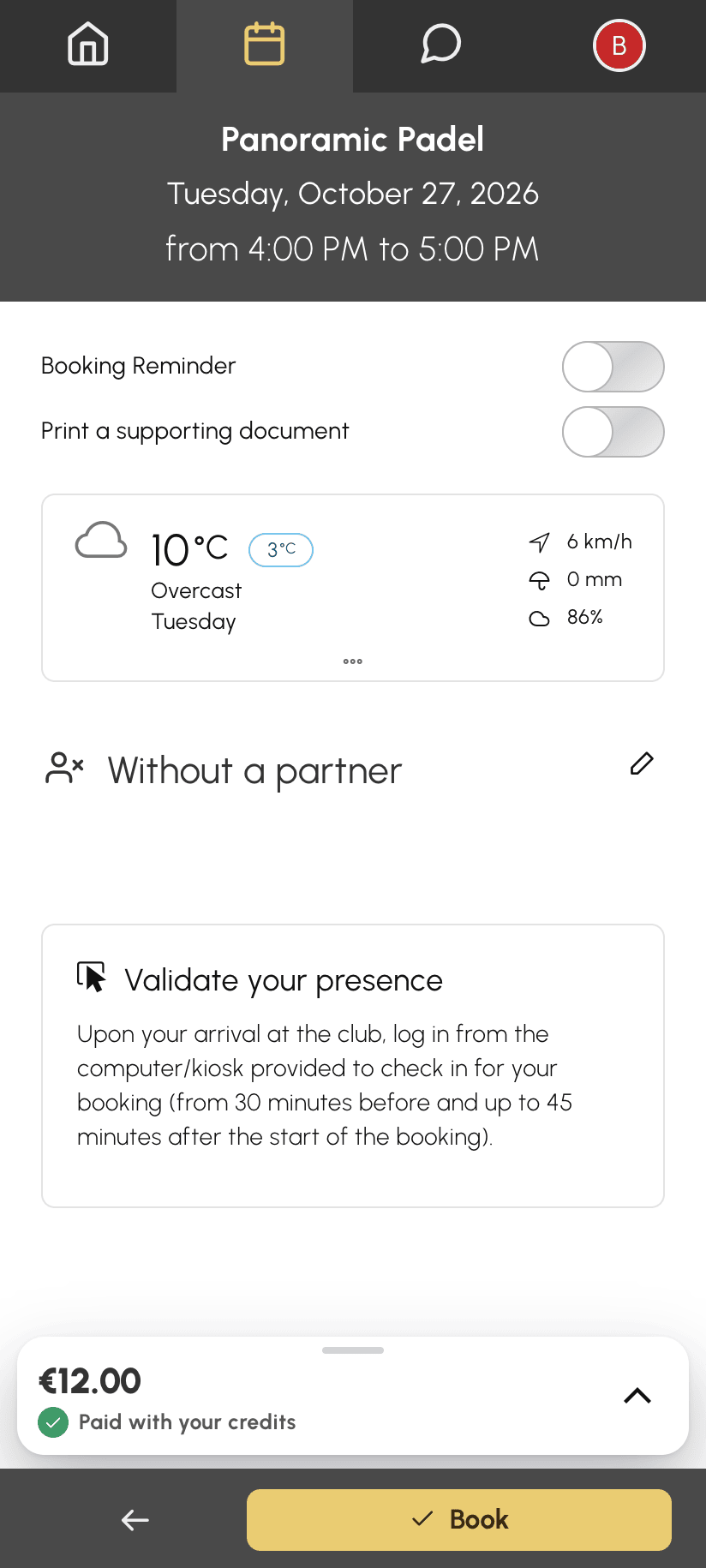
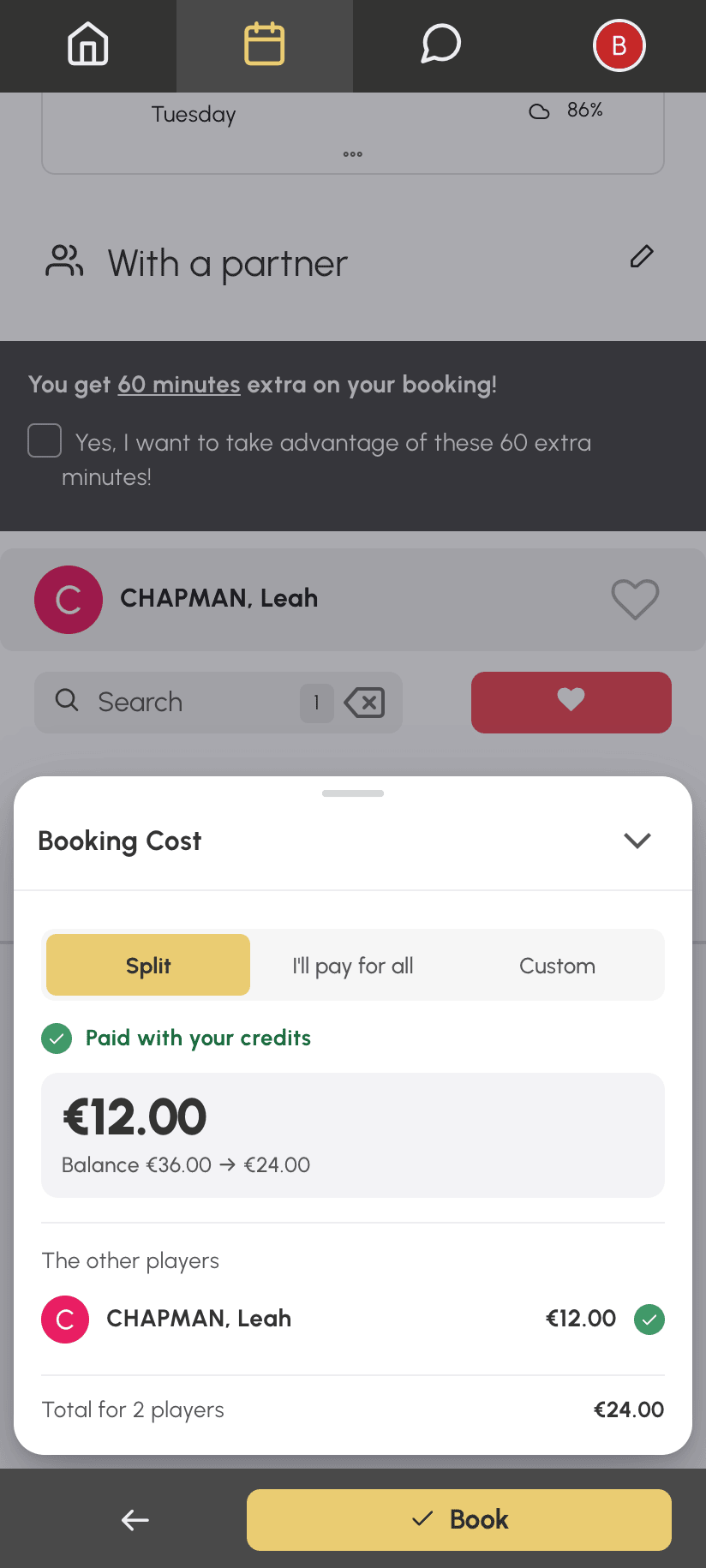
To see the details, tap the bar or swipe it up. The details open over the form. Once you have checked them, close them by tapping the arrow, tapping the page beside them, or swiping them down.
On computer: the cost is shown in a Booking Cost box, in the left column of the form, below the date and options. It displays all the details directly.
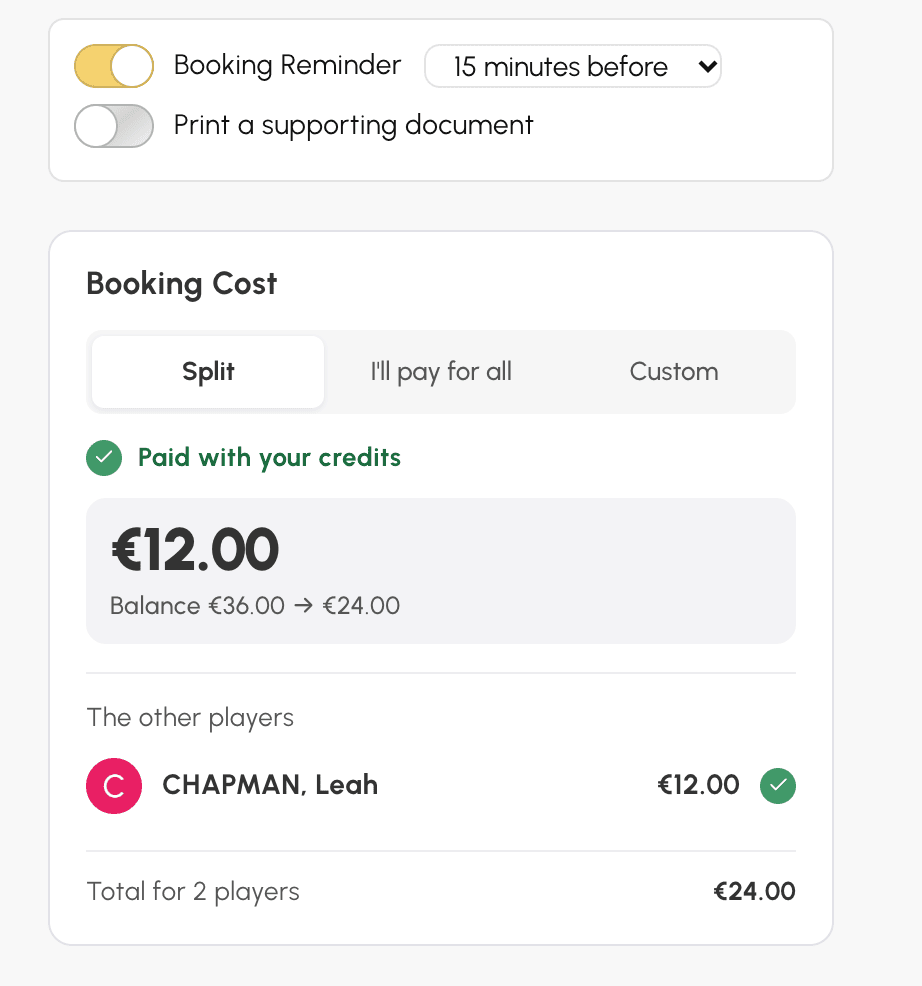
Reading the cost details
Let's take Nicolas, who is booking the Panoramic Padel court with Léa, at €12 per place. He has €60 in his account. His organization displays credits in euros; in other organizations, the same amounts are shown as a number of credits. The details show him:
- at the top, what he pays: €12, with Paid with your credits and the Balance line, which shows his balance before and after the booking, from €60 to €48;
- under The other players, what Léa pays, with a green dot because her credits cover her place. Her own balance is never displayed;
- at the bottom, the total for both players, €24.
A partner who pays nothing is marked nothing to pay. If you are playing with guests, a line shows how many there are and who pays for them.
Booking when your credits are not enough
If your balance does not cover what you are paying, it all depends on your organization:
- if it offers payment when booking: the orange Remaining to pay box shows the amount to pay, and the Book button displays it. You only pay what is missing;
- otherwise, a red box shows the credits you are missing. When the organization sells credits online, the Purchase credits button lets you top up your account without leaving the page.
When a partner does not have enough credits, their dot turns red and the box shows Booking not possible with their name. Click Remove to remove them from the booking, or ask them to top up their account. If your subscription allows you to pay for your partners, you can also pay for their place with Pay for their spot, or choose who pays to treat them to the game.
Confirming the booking
- If needed, enable the Booking Reminder option to receive a notification before the time slot starts.
- Click Book.
Once the booking is confirmed, your partners are notified according to their preferences. You can find all your bookings in My Account›My Bookings.
Opening your booking to other players
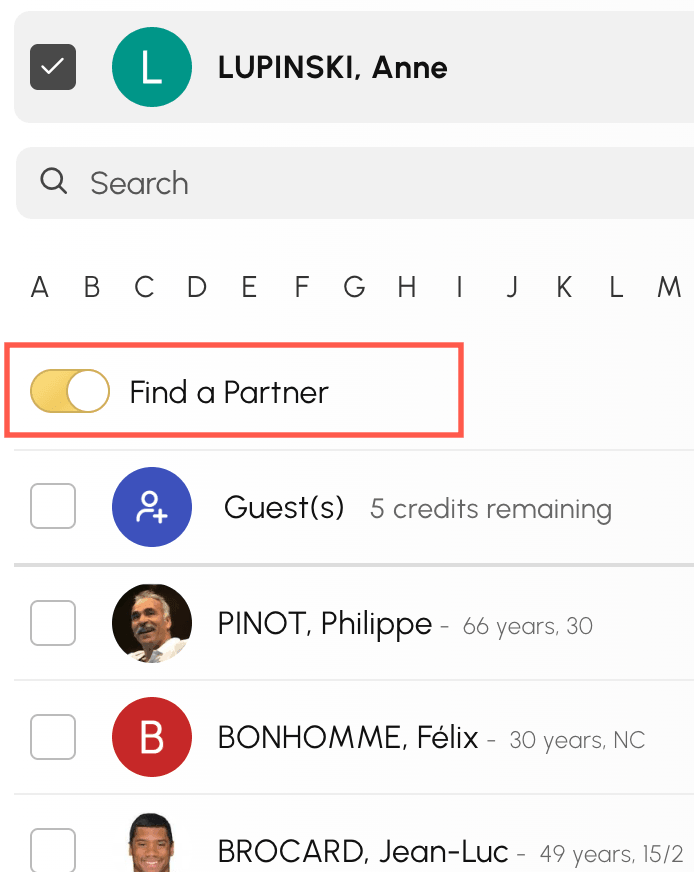
If your organization has enabled Find a Partner, the Partner Search option in the form opens your booking to other users. They can join your time slot, up to the allowed number of participants.
Conversely, you can join a booking opened by another player. Click the relevant time slot in the calendar, then add your name.