



Quotas, permissions and booking rules
Every subscription comes with a complete rules engine: quotas, permitted calendars, time limits, cancellation, restrictions, credits and guests. This page guides you goal by goal through the configuration of a subscription.
- Limiting the number of bookings
- Filling courts at the last minute
- Restricting calendars and the booking horizon
- Controlling when a booking can be made
- Offering custom time slots
- Managing partners
- Controlling cancellation
- Forbidding time slots and combinations
- Charging for bookings in credits
- Allowing guests
- Allowing labels
Limiting the number of bookings
In the Quota tab, the Booking Quota sets how many bookings a subscriber can schedule at the same time. When booking a time slot, the subscriber uses up one quota unit; as soon as their booking ends, the unit becomes available again.
- Enable Hide calendars when the booking quota is reached to also block access to the daily and weekly calendar views. The Availability view remains available: the quota is checked there at the moment of booking.
- Click Advanced Configuration then Add a quota to set several quotas depending on calendars, days or time ranges.
- If needed, add Limit bookings on a fixed calendar (for example 5 bookings per calendar week) or Limit bookings on a rolling calendar (over the last X days).

Filling courts at the last minute
The Ignore the quota and limits before the start of the time slot option lets a subscriber book even when their quota has been reached, provided they do so shortly beforehand. It's 2:45 pm and the 3 pm time slot is free: the subscriber can take it despite their quota.
This is the best way to avoid leaving a court empty when a player is available, without loosening the general rule.
Restricting calendars and the booking horizon
In the Permissions tab, the Authorized Calendars & Number of Days for Booking section determines what the subscriber sees:
- Untick a calendar to forbid it and hide it completely.
- Set the number of browsing days for each calendar: for example, show the calendars up to D+14 but only allow bookings up to D+7.
- Transition time to an additional day: give access to the next day from a specific time, without waiting until midnight.

Controlling when a booking can be made
By default, a subscriber can book a time slot up to the very last minute, and the time slot becomes unavailable as soon as it has started. Four options in the Permissions tab change this behaviour:
- Allow the subscriber to book a time slot that has already started: the 10 am time slot can still be booked until 10:15 am.
- Limit booking a few minutes before the start of the time slot: the 10 am time slot can no longer be booked after 9:45 am.
- Limit booking a few hours before the start of the time slot: the Monday 10 am time slot closes on Sunday at 10 am.
- Open the booking a few hours before the start of the time slot: conversely, the time slot only opens a given time in advance, adjustable day by day.
Offering custom time slots
A fixed grid of time slots doesn't suit every use: a padel player wants to play for an hour and a half rather than an hour, a ball machine is hired by the half-hour, a golf tee time is taken whenever it suits. The Custom Time Slots option lets the subscriber choose how long their booking lasts, and if you allow it, when it starts, within the limits you set.
- In Administration›Users›Access Rights›Subscriptions, open the subscription and go to the Permissions tab.
- Turn on Custom Time Slots, then click Advanced Settings.
- Adjust the configuration described below, then click Save.
The setting is specific to the subscription: holders of the other plans continue to book the usual time slots of the calendars, on the same courts.
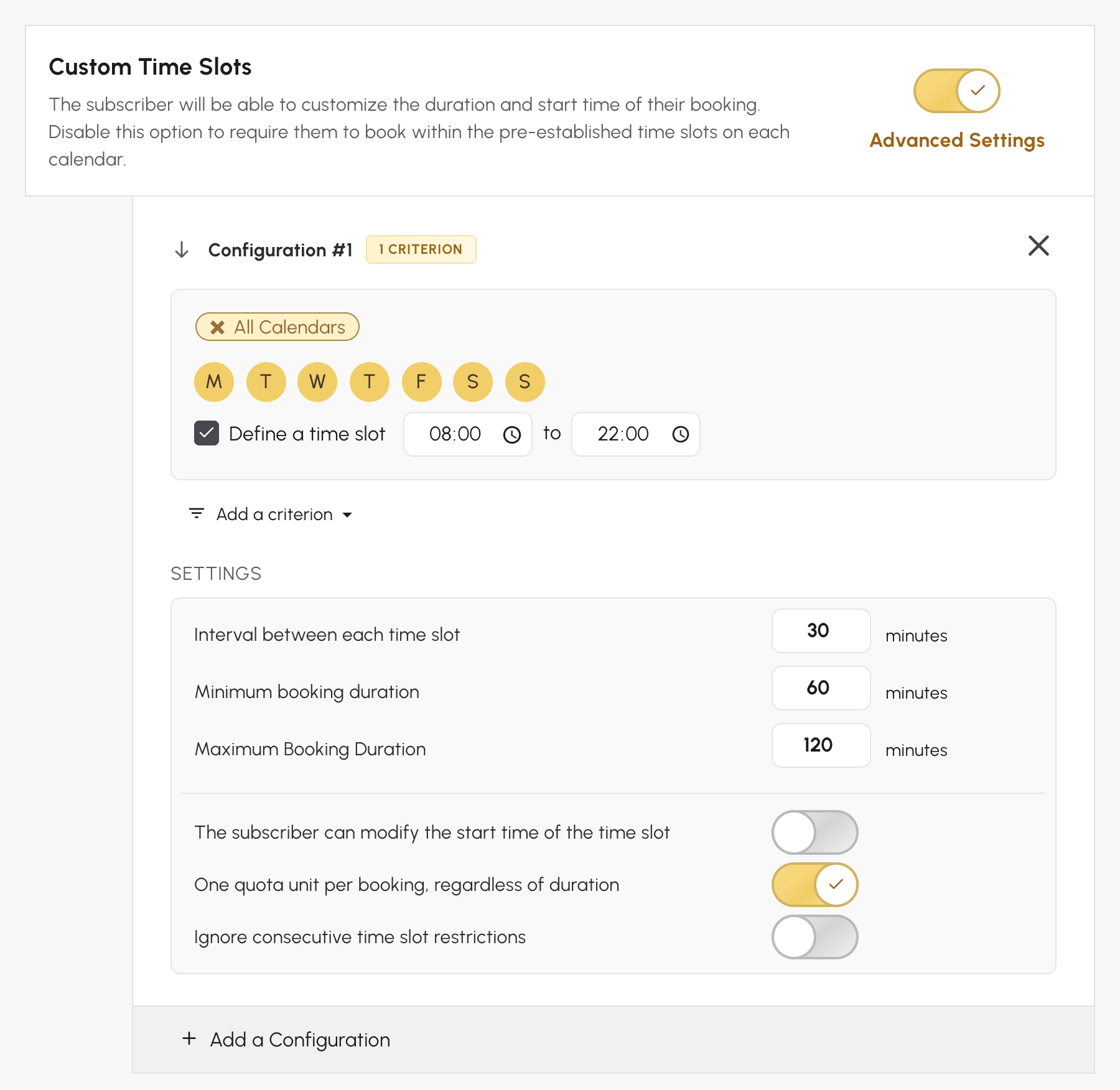
Setting the durations offered
Three values determine the times the subscriber can choose:
- Interval between each time slot: the gap between two times offered, counted from the calendar's opening time. With 30 minutes on a court that opens at 8 am, the times fall at 8 am, 8:30 am, 9 am, and so on.
- Minimum booking duration and Maximum Booking Duration: the shortest and the longest booking possible.
With the configuration above, a subscriber who clicks the 4 pm time slot on a padel court can finish at 5 pm, 5:30 pm or 6 pm: one hour minimum, two hours maximum, in steps of 30 minutes.
When The subscriber can modify the start time of the time slot is turned off, the booking starts at the time of the time slot clicked. Turn it on to let the subscriber also choose the start from the times available that day, for example 4:30 pm: the end times offered follow this new start.
What the subscriber sees
In the booking form, the time is chosen from drop-down lists: the end time, and the start time if you allow it. When the booking is paid for in credits, the cost shown follows the duration chosen.
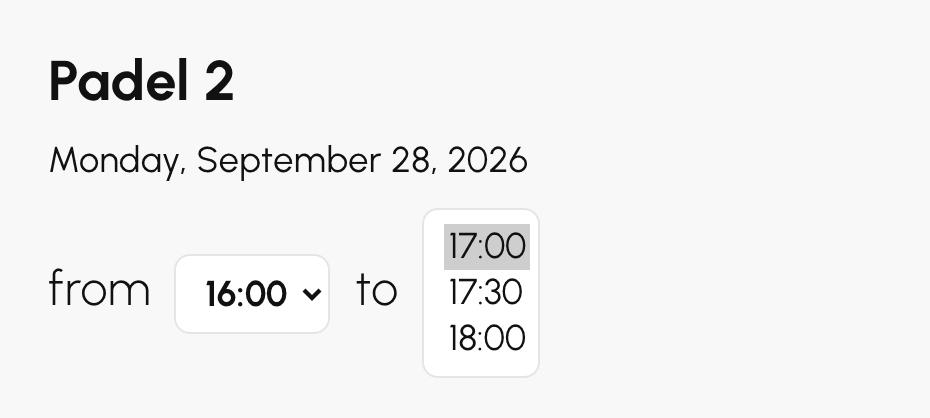
On the calendar, the booking covers the time slots it spans: from 4 pm to 5:30 pm on a court with one-hour time slots, it takes up the 4 pm time slot and part of the 5 pm one. If moving bookings is allowed, the subscriber can then make it longer or shorter from the calendars, always between the minimum and maximum durations.
Choosing what the booking uses up from the quota
The quota is counted in calendar time slots. A booking with a free duration often covers several of them: from 4 pm to 6 pm on a court with one-hour time slots, it covers the 4 pm and 5 pm ones. The One quota unit per booking, regardless of duration option decides what it uses up:
- turned on, one quota unit, whether the booking lasts one hour or two;
- turned off, one unit per time slot covered, even partly: from 4 pm to 5:30 pm, two units.
Take a subscriber whose quota is 2 simultaneous bookings and who books from 4 pm to 6 pm. With the option turned on, they have one unit left and can still book another time slot. With the option turned off, their quota is reached. And if the remaining quota doesn't cover the whole duration chosen, only the first time slots are booked, with a message indicating those that could not be.
Leave the option turned on to offer flexibility on duration. Turn it off if a long booking should count as much as several short ones.
The option also applies to credits when the price is set per booking (1 booking in the Booking Rates): turned on, the booking is charged once; turned off, each time slot covered is charged as a booking. For a cost proportional to the duration, set the price in minutes instead: at 10 credits for 60 minutes, a 90-minute booking costs 15 credits.
Combining free duration with consecutive time slots
If the subscription forbids consecutive time slots (Prohibit Consecutive Time Slots, Rules tab), a booking that covers several calendar time slots is seen as a series of consecutive time slots: anything beyond the limit is not booked. Turn on Ignore consecutive time slot restrictions so that the chosen duration escapes this rule. The restriction still applies between two separate bookings.
Adapting the configuration by calendar, day or time
Each configuration applies to the calendars, the days and, with Define a time slot, the hours you choose. It has its own durations and its own options. Click Add a Configuration to create others, up to 10: for example from 1 hour to 2 hours on the padel courts, and from 30 minutes to 1 hour on the ball machine. Add a criterion additionally limits a configuration to a Period, between two dates.
With a time range, the start times offered stay within the range, and the booking cannot end after it finishes. If several configurations target the same time slot, the first one in the list applies. Outside any configuration, the subscriber books the calendar's usual time slots.
Managing partners
The Permissions tab brings together the settings relating to the players on the booking:
- Book with Partners: the subscriber selects other users, who are notified by e-mail; set the minimum and maximum number of partners.
- Book Without a Partner: useful for a practice wall or a driving range.
- Partner search (open booking): the subscriber opens their booking to others, who can add themselves to it. The Automatically cancel incomplete bookings option frees up the time slot if nobody joins.
- Offer additional time if multiple partners: for example 30 minutes extra from 3 partners onwards, if the next time slot is free. This extra time is not deducted from the quota.
Extra time is the setting that elegantly solves doubles: instead of imposing 90-minute time slots on everyone, you keep one-hour time slots and automatically extend those played with four players — without tying up the court if the next time slot is already taken.
Controlling cancellation
In the Permissions tab, the Booking Cancellations section determines whether the subscriber may cancel:
- Maximum allowed cancellation period: for example up to 60 minutes before the start of the time slot.
- Cancellation of Guest Passes: turn this option off to prevent the cancellation of a booking that includes guests.

A cancellation deadline that is too short backfires on the organization: a player who can no longer cancel leaves the court empty rather than freeing it up. A generous deadline, combined with a cancellation notification, puts the time slot back into circulation.
Forbidding time slots and combinations
The Rules tab brings together the restrictions:
- Restrict certain time slots from booking: for example, no booking on weekdays from 4 pm to 7:30 pm on certain courts.
- Prohibit Consecutive Time Slots: prevents several time slots being taken in a row, either globally or on certain time ranges.
- Prohibition Rules with a Subscriptions criterion: makes two groups incompatible on the same booking.
The Allow multiple time slots on the same day at the same time option (Permissions tab) is turned off by default: a subscriber cannot book two courts at the same time.
These restrictions are different from calendar closures: a closure removes the time slot for everyone, whereas a restriction only removes it for the holders of that subscription. To reserve the indoor courts for competitive players on Saturday mornings, it is a restriction that must be set on the other subscriptions — not a closure.
Charging for bookings in credits
In the Credits tab, enable Activate the credit system. The subscriber must then have credits on their account to book. Credit accounts manually after a payment on site, or enable online payment.
- Use Advanced Configuration and then Add an activation rule to restrict the credit system to certain calendars, days or time ranges.
- Under Booking Rates, click Add a pricing rule to set the cost by calendar, day and time.
- Under Payments & Billing, enable online credit purchases and set the prices offered to subscribers. Quantities, tiered pricing and payment in instalments are covered on a separate page.
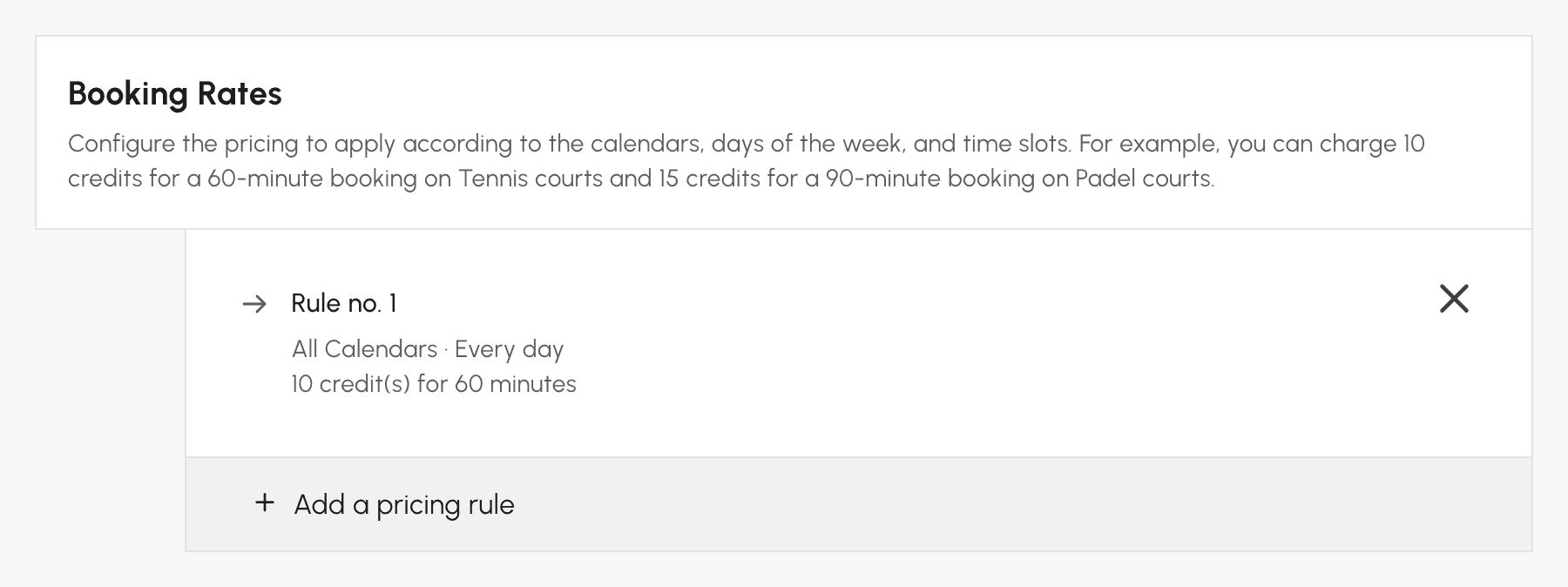
As long as one credit of the subscription is not worth €1 (or one unit of your currency), the Enable Wallet mode box appears at the top of the tab. It converts the subscription to 1 credit = €1 without changing the value of the balances. Any subscriptions you create are set up this way from the start.
The Who pays for the booking? section of the same tab determines whether only the booking owner is debited (Charge only the booking organizer) or whether Each subscriber pays for their own spot. With this second option, Allow the subscriber to pay for their partners' spots lets the subscriber making the booking pay for their partners' places.
Allowing guests
In the Guest Passes tab, enable Allow booking with guests to welcome people from outside the organization:
- Set the minimum and maximum number of guests per booking. Each guest uses guest credits, or booking credits with the Unified credit system.
- Set the prices and offer bundles, as for booking credits.
- Under Who pays for guest passes?, choose whether only the booking owner is charged, or whether Each subscriber pays for guest passes. With this second option, Allow the subscriber to pay for their partners' guest passes lets the subscriber who books pay for them.
- Choose whether guest names must be entered.
- Enable Combine partners and guests in a single tab so that your subscribers can add their guests from the With a partner tab, without a dedicated tab.
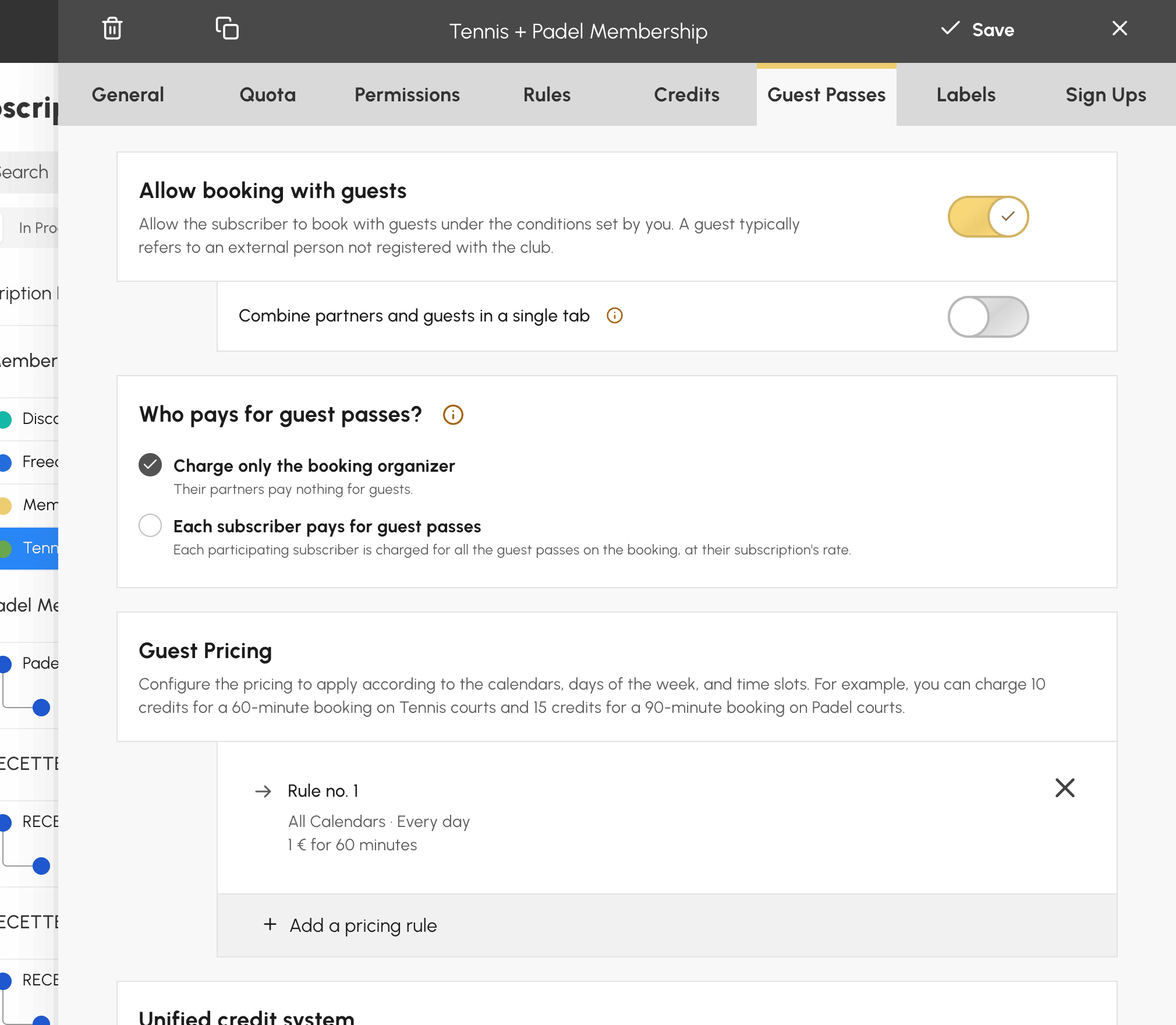
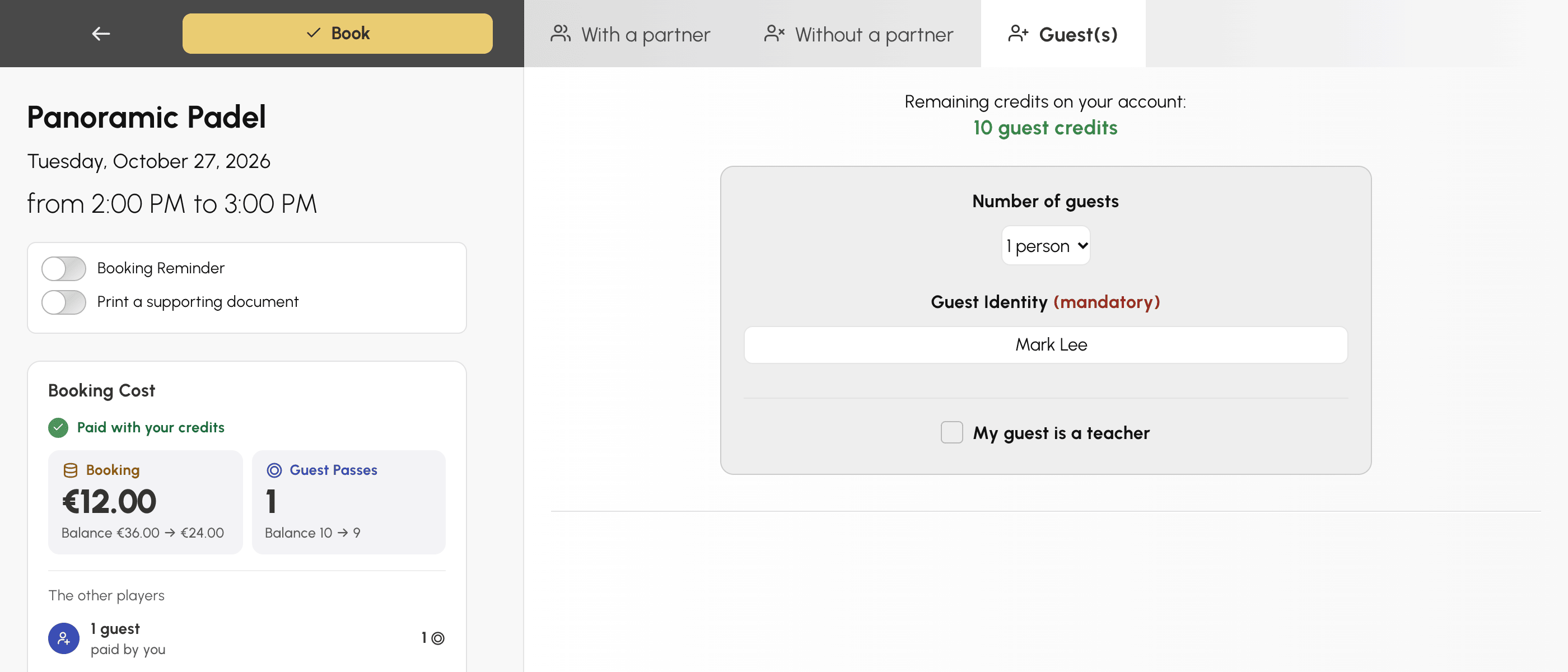
Asking for guest names changes the nature of the feature. Without names, you count visits. With names, you know who came, which is essential if your insurer or federation requires it.
Allowing labels
In the Labels tab, the Allow booking with labels option lets subscribers create a limited number of bookings with predefined labels (championship, tournament, etc.), with options to ignore the quota or the consecutive time slots rule.
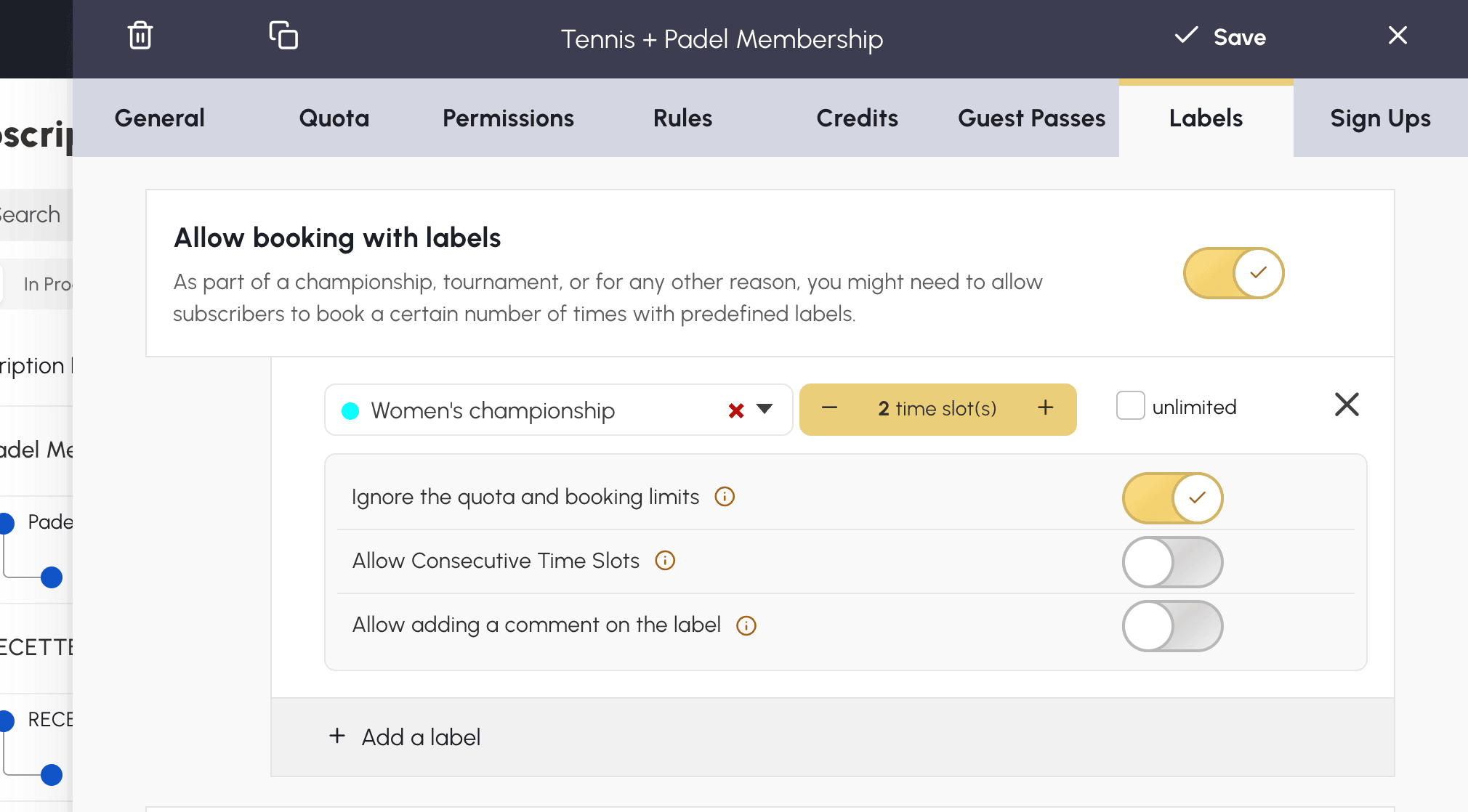
This is the right way to open labels up to a team captain: they schedule their team matches without using up their personal quota, but remain limited to the labels you have allowed — unlike the profile right, which opens up all labels without limit.
