



Participatory bookings: opening a time slot for participation
Book a time slot on behalf of the organization — training camp, tournament, lesson, group class — and let your users join it themselves, free of charge or against payment, online or in booking credits. You set the capacity, the access criteria and the deadlines, and you follow the list of participants.
- Choosing who builds the participant list
- Opening a time slot to participation
- Setting the capacity and the scope of a participation
- Choosing who can join
- Charging for participation
- Charging in booking credits
- Following and managing participants
- Setting time limits on participation
- Counting participations or not
- Notifying by e-mail
- Reusing a configuration
- Closing participation
Choosing who builds the participant list
Any booking carrying a label can take participants. What changes from one time slot to another is who builds the list — you, or the users themselves.
You build the list
Book the time slot with its label and choose the participants, without enabling Participatory booking. Users cannot join by themselves: the list is yours.
It is not set in stone, though. Reopen the booking from the calendar at any time to add or remove people in the Labels tab, where the participants already on the list appear pre-selected.
This is how a training session works when you call up the group, how a team is lined up for a match, or how a class works when its participants are decided in advance.
Users join by themselves
Enable Participatory booking and the time slot opens up: it shows a counter of spots on the calendar, and everyone comes and takes theirs from their own account.
This is how a holiday training camp works, an internal tournament, or an event open to anyone.
Once the option is active, managing the list moves from the booking form to the time slot details, where you have Add participants and Delete at your disposal.
Switching from one to the other
The two modes are not mutually exclusive, and the choice is never final. You can build a list first, then enable Participatory booking later to open up the remaining spots: the people already chosen stay on the list.
The reverse works too — see closing participation, at the end of this page.
Opening a time slot to participation
- On the calendar, click the time slot to book.
- Open the Labels tab of the booking form.
- Choose the label — training camp, tournament, lesson, training session — and add a comment if you wish.
- Enable Participatory booking, then click Configure to open the settings.
- Optionally select the people to add straight away, then confirm.
Use Repetition to cover every session of a training camp or a weekly class in a single operation: you will then choose whether a participation applies to one session or to the whole series.
On the calendar, the time slot then shows the number of participants against the capacity, along with an invitation to join as long as spots remain. A click leads to the time slot details, where the list and the participation button are found.
To go back to your settings later on, open the time slot and use Configure in the Participants block.

Setting the capacity and the scope of a participation
The Participants block of the settings holds two numbers.
Maximum sets the number of spots. Once it is reached, the time slot displays Full and the participation button disappears.
Minimum blocks no one: this number only acts as a quorum for automatic cancellation, described further down. Its minimum value is 1. To keep the session whatever the number of participants, leave this field alone and simply keep Automatically Cancel disabled.
Scope of a participation is the most structuring setting, and the one to decide on first:
- This booking — people join a single session. This is what you need for a weekly training session people attend when they can, or for a one-off event.
- All recurrences — people join the whole set. A single participation places the person on every session of the series, and a single withdrawal removes them from all of them. This is what you need for a five-day training camp or a cycle of consecutive classes. A series stays open as long as one session is still to come: a training camp that has already started can therefore still be joined.
With All recurrences, the time slot details list the dates of the series: everyone knows exactly what they are committing to. With This booking, only the open session is shown.

Choosing who can join
With no setting, the time slot is open to every user in your organization.
Enable Eligibility criteria to restrict that openness, then select the criteria. They use the filters of your user list, across five families: profiles, subscriptions, age categories, groups and rankings, to which gender is added.
A user who does not match still sees the button, but clicking it tells them that their profile does not match the criteria of this time slot. The same goes for the other refusals: time slot full, participation not open yet, product unavailable. Every case has its message — no one is left facing a silent button.
A few common uses: restricting a training camp to an age category, opening a group class to the holders of a given subscription only, limiting an internal tournament to a team group.
Disabling the option clears the selected criteria: the time slot becomes open to everyone again.
Charging for participation
Enable Payments & Billing in the time slot settings, then choose how the participant pays: Product for an online payment, or Booking Credits to charge the credits on their account, like a booking (see the next section).
With Product, choose the product to be paid. The list offers the active products of your catalogue of the training camp, lesson, tournament and custom types.
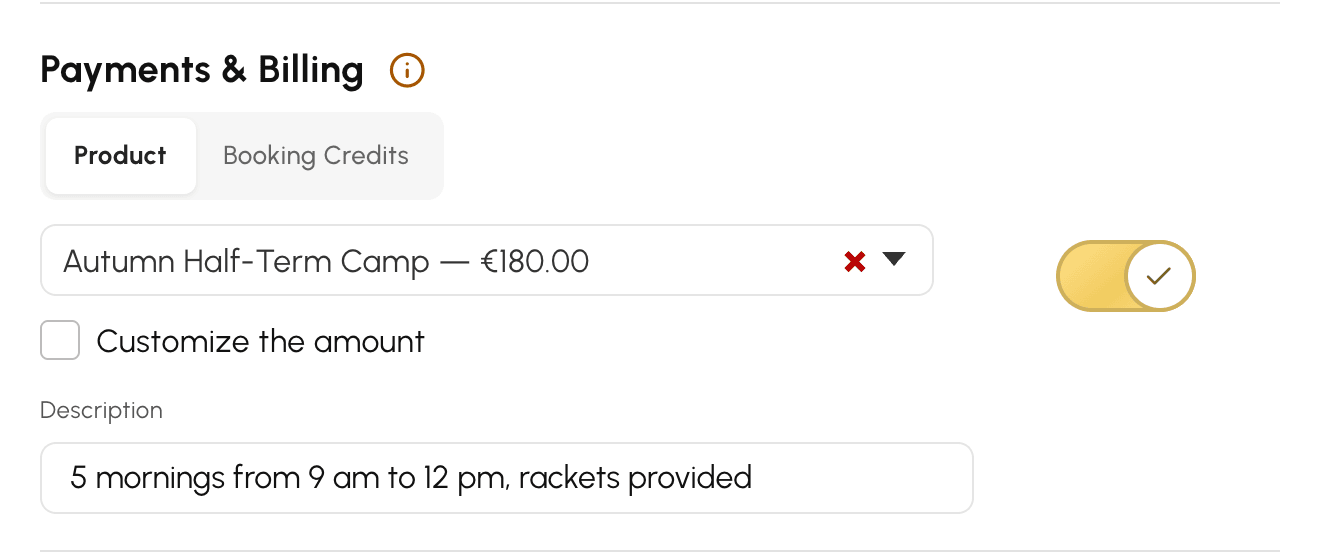
The participant pays online at the moment they join. Their spot is only secured once the payment has been collected: as long as the order stays pending, the time slot displays “Complete payment” and the spot remains available for someone else.
Two settings fine-tune the price without touching your catalogue:
- “Customise the amount” applies a Unit Price specific to this time slot. Without it, everyone pays the price that results from the pricing rules configured in the selected product.
- The description entered here is displayed below the participation button, for the participant to read.
From a kiosk, a time slot paid by product displays a message inviting the user to pay from their account: online payment is not made on the kiosk.
Charging in booking credits
Do your users already buy credit packs to book their courts? They can pay for a group class, a training camp or a tournament with those same credits. Nothing to collect on your side, no online payment: the credits are taken from their account the moment they join.
Choosing the pricing
- In the time slot settings, enable Payments & Billing.
- Click the Booking Credits tab.
- Choose how the price of a participation is calculated, then save.
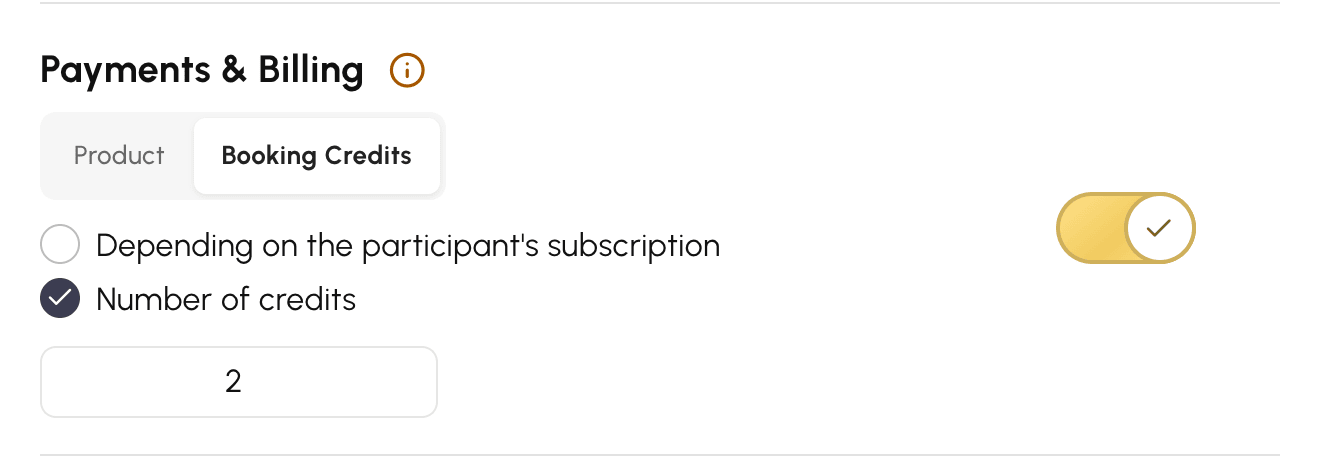
Two pricing options are available:
- Depending on the participant's subscription: everyone pays what their subscription would charge them to book this time slot. This is the simplest option when the class replaces a usual booking. For example, for a 2-hour session:
- Julie has a subscription that counts 1 credit per booking: she pays 1 credit;
- Marc has a subscription that counts 1 credit per hour: he pays 2 credits.
- Number of credits: everyone pays the same number of credits, which you enter in the field that appears. This is the right choice for a single price, set in advance.
Changing the pricing while people have already joined only applies to the following participations: credits already charged are not affected.
Charging for a whole series at once
A participation is charged only once, even when Scope of a participation is set to All recurrences.
Take a training camp of 5 mornings during the holidays:
- with Number of credits set to 10, joining the training camp costs 10 credits, for all 5 mornings;
- with Depending on the participant's subscription, it would only cost the price of a single morning.
For a series, we recommend setting the price of the whole with Number of credits.
Knowing who does not pay
Participation is free for a user whose subscription does not charge credits on this time slot, whatever the pricing chosen:
- their subscription does not use booking credits;
- their subscription does not charge credits on this calendar;
- their subscription makes same-day bookings free, and the session takes place today.
They join as usual, without paying anything. A player whose subscription does not use credits can therefore join the same training camp as a subscriber who pays in credits.
What the participant sees
The cost is shown directly on the Join button, in brackets (2 credits, for example). On click, a confirmation recalls the amount that will be charged, and the participant confirms with Yes, I'm participating.
If they do not have enough credits, participation is refused with the message Insufficient number of credits. If your organization sells credits online, a Purchase credits button lets them top up their account, then come back and join.
A user exempt from subscription rules, such as an administrator, is added and charged even if their balance is insufficient.
Crediting back on withdrawal from the time slot
A participant who withdraws gets their credits back, as if they were cancelling a booking. The rule of their subscription that limits crediting back also applies: no credit back at all, or no credit back in the hours preceding the session. The confirmation window tells them what will be given back.
For example, with a subscription that no longer credits back within 24 hours of a booking:
- Paul withdraws on Wednesday from a Saturday session: his credits are given back;
- he withdraws on Friday evening: he gets nothing back.
Once the session has started, or once the first morning of a training camp has started, withdrawing no longer gives anything back.
Adding or removing participants yourself
When you add participants, you have two options:
- Comp the participation: the person joins without paying anything;
- Debit credits: the participation is charged to their account, as if they had joined themselves.
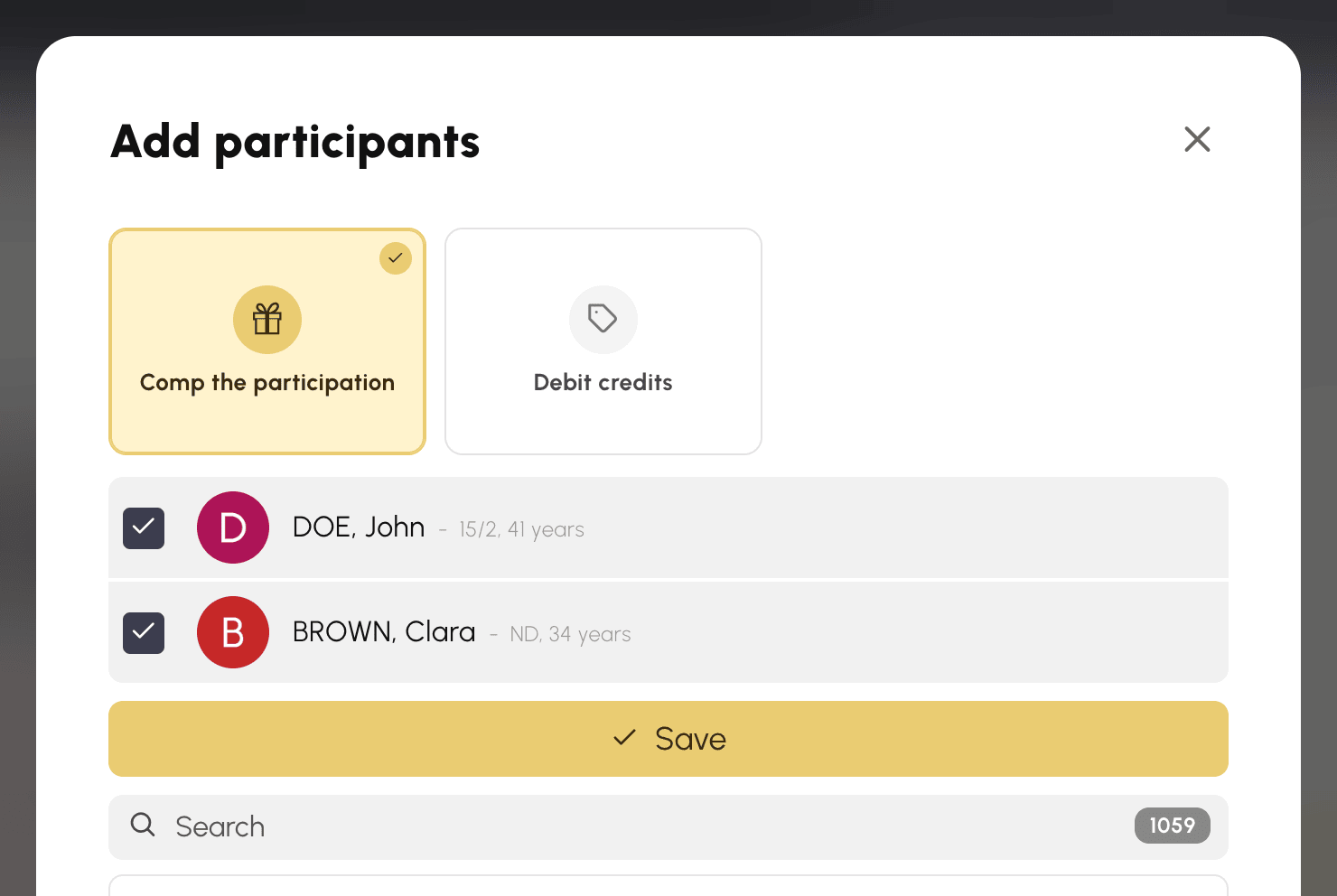
The same options appear in the Labels tab when you add people while creating the time slot.
With Debit credits, everyone's balance is checked. If a single person is short of credits, no one is added, and the message tells you which one. If your profile lets you book for other users without the Enable Restrictions option, this check does not apply, just as for a booking made for a user: the person is added and charged, even if their balance goes negative.
To remove a participant who has been charged, you choose whether to give their credits back or keep them (Do not re-credit). In the participant list, each one shows the amount charged, or the Free badge.
Cancelling a session or a series
Cancelling a session gives their credits back to the participants who were charged for it.
For a participation covering the whole series, it depends on what is left of the training camp:
- you cancel one morning, and others are still to come: the participation still applies to the rest, the charge is kept;
- you cancel the whole training camp before it starts: everyone gets their credits back;
- the training camp has started and you cancel the last mornings: you are asked to choose between Re-credit participants and Do not re-credit.
Automatic cancellation, for lack of participants, follows the same rules. In the last case, it gives the credits back without asking.
Following and managing participants
The Participants block of the time slot details lists the participants and indicates the remaining spots. You always see the complete list there, even if you have hidden it from users.
Add participants lets you add several at once, Delete lets you remove someone. Both actions apply to the whole scope defined above.
On a time slot paid by product, adding someone makes you choose how to handle the amount:
- Comp the participation — the person is added, no order is created. This is the default choice, the one for an invitation or a goodwill gesture.
- Checkout immediately — an order is created and the cash register opens straight away to collect the payment on site. With several participants, the payment collections follow one after the other. This choice is only offered if your profile gives access to Administration›Dashboard›Billing›Invoices & Transactions.
- Collect payment later — an order is created and the purchase order is sent by e-mail. The person will pay later.
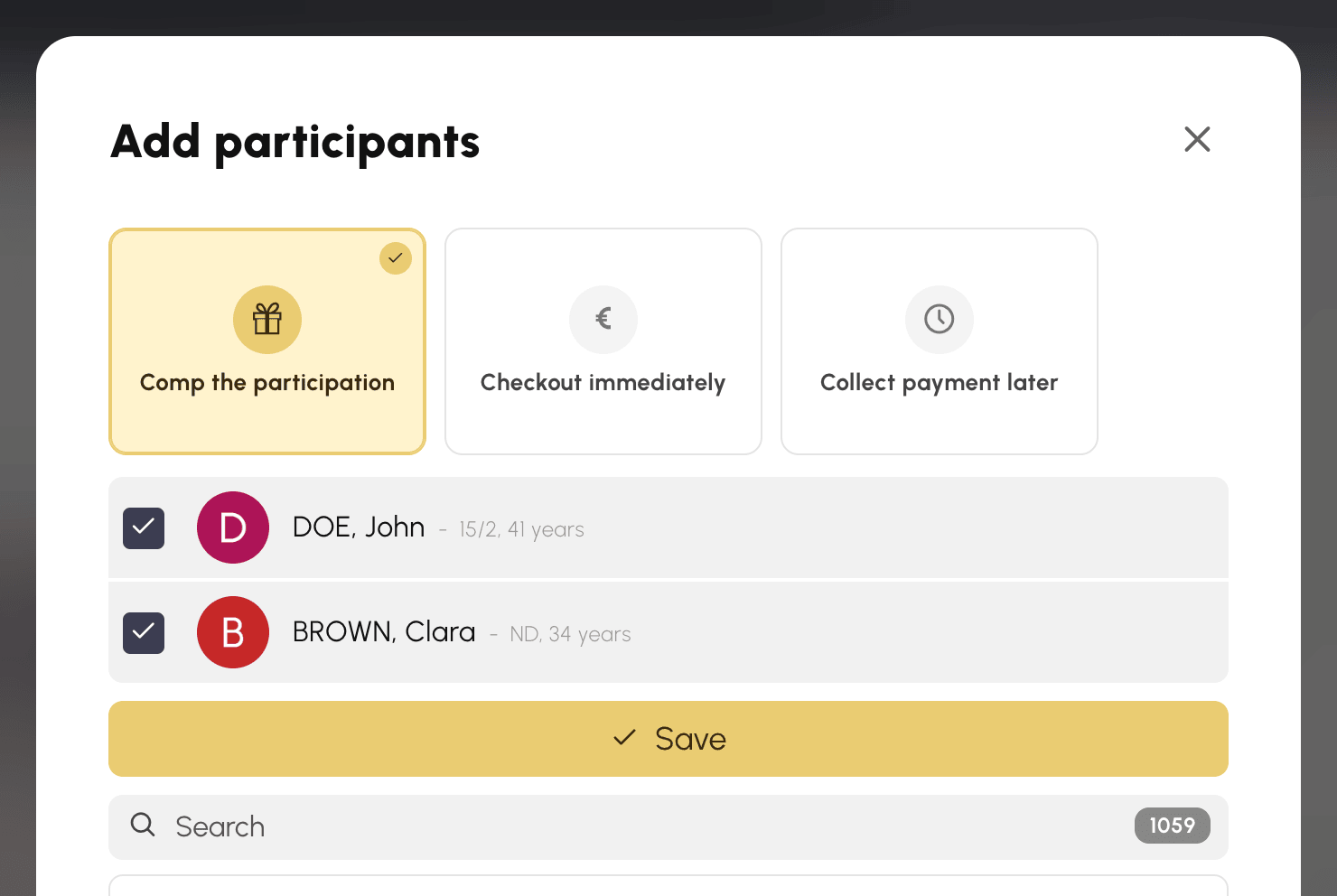
The same choice is offered when you add people at the moment you create the time slot: it appears in the Labels tab as soon as you tick a first participant. On a time slot paid in credits, the choices are Comp the participation and Debit credits, described above.
For each participant, the list recalls the state of the payment: Free if the participation was offered to them, otherwise the associated order, with what you need to Checkout it or resend the invoice by e-mail.
Guests are not accepted on this type of time slot: each spot corresponds to an identified user.

Setting time limits on participation
Three deadlines, all optional, all expressed relative to the start of the time slot.
Opening lead time delays the opening of participation. With 48 hours, a time slot on Monday at 10 a.m. opens its spots on the previous Saturday at 10 a.m. This is what prevents a training camp published three months in advance from being full on the very day it is published.
Limit unregistration closes the way out past a certain deadline. Beyond it, the participant can no longer withdraw on their own — it is up to you to do it if necessary. Without this setting, they can withdraw from the time slot up until it starts.
Automatically Cancel cancels the booking if the Minimum of participants is not reached by the chosen deadline. The participants and the creator of the time slot are warned by e-mail. A booking created when its deadline has already started is never cancelled automatically — you can therefore open a time slot at the last minute without any risk.
On a paid time slot, this cancellation also cancels the orders left awaiting payment: no one can pay any longer for a session that will not take place. The participations already collected, on the other hand, are kept and are not refunded — it is up to you to handle them.
Counting participations or not
By default, joining a time slot consumes nothing: neither the quota of simultaneous bookings, nor the limits per period, nor the consecutive time slots. A user can join a training camp without losing the possibility of booking a court on the same day.
Count towards quota and limits reverses this behaviour: each participation is then counted as an ordinary booking, and a person who has reached their quota can no longer join.
When it is you who add participants, while creating the time slot or through Add participants, their quotas and their limits are checked in the same way, and the message names the person concerned. If your profile lets you book for other users without the Enable Restrictions option, you override this, as for a booking made for a user.
Enable this option when participation must have a cost for the user — a group class included in their subscription, for example. Leave it inactive for everything that adds to usual practice without replacing it.
Notifying by e-mail
The participant always receives a confirmation when they join, and an e-mail if the time slot is cancelled automatically. These messages cannot be disabled.
Enable Notifications concerns the creator of the time slot: they receive an alert every time someone joins, every time someone withdraws, and when the last spot is taken. Turn this option off on a busy time slot if you do not want to follow every movement.
Everyone's notification preferences are respected: a user who has turned off their notifications will receive nothing.
Display the list of participants decides what users see. Enabled, everyone knows who has joined. Disabled, only the counter and the remaining spots are public.
Reusing a configuration
Setting a dozen options for every training camp would be tedious. Two mechanisms avoid it.
The Template block, at the top of the settings, brings both actions together. Save as template keeps the settings of the time slot under the Model Name you enter. As soon as a template exists, the Choose a template... list appears above: one selection bases its settings on any other time slot.
A time slot stays attached to the template it came from. If you change its settings afterwards, you will be asked how far the change should reach: this booking alone, this booking and its recurrences, or Everywhere — that is to say, every time slot sharing this template.
Closing participation
Disabling Participatory booking on a time slot that already has participants is possible and harmless for them: the participants stay in place, the orders issued remain valid. Only joining and withdrawing stop, and the participants block disappears on the user's side.
Refunding a participation or removing someone afterwards remains an action on your part: closing participation does not take care of it.
