



Availability: see free time slots at a glance
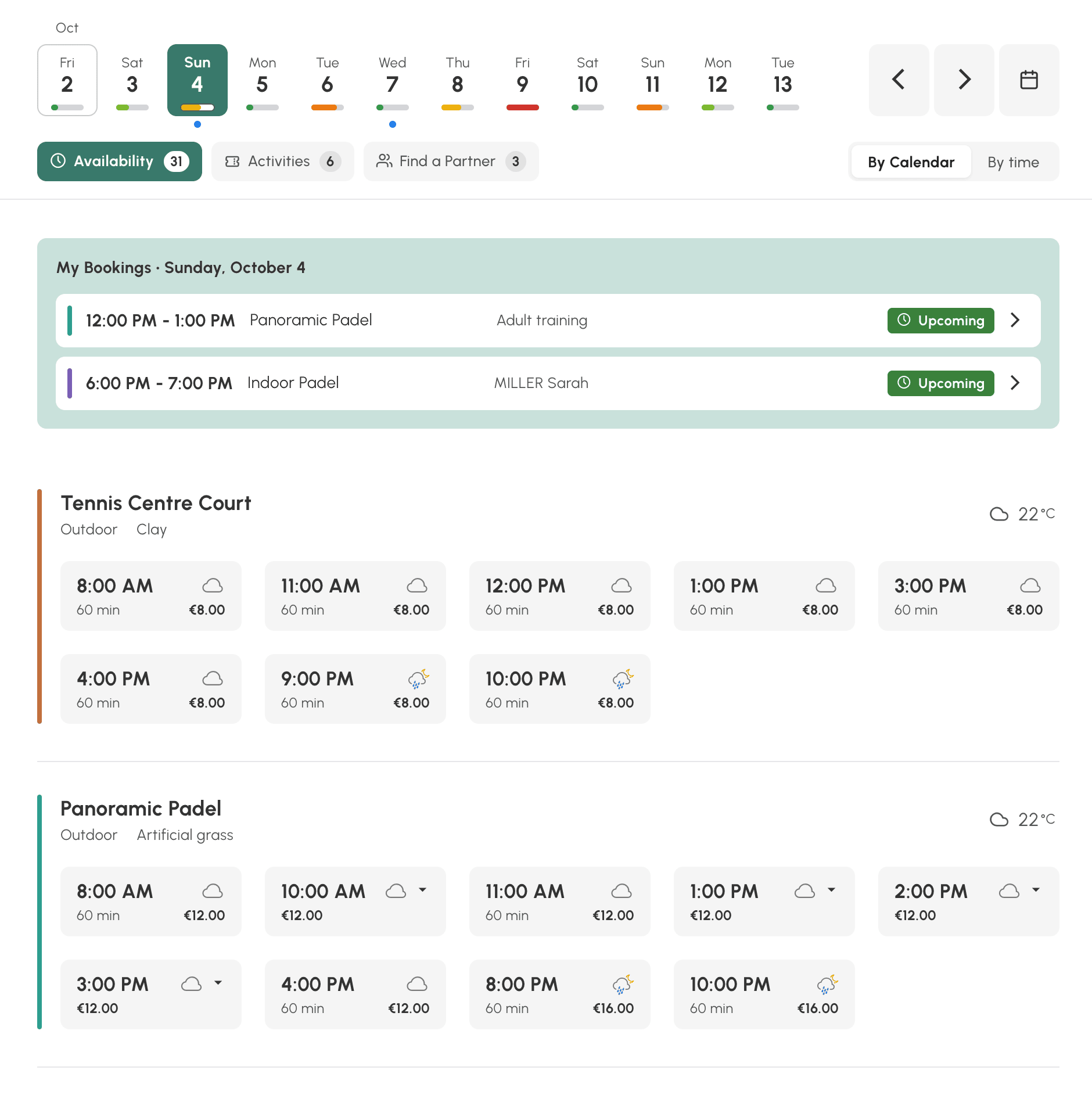
The Availability view gathers, for a single day, everything a player can still book: the free time slots of each calendar with their duration and price, the activities open to participation and the bookings waiting for more players.
- Understanding what this view brings
- Using the view on a phone
- Reading the free time slots
- Showing prices and offering several durations
- Showcasing your activities
- Helping your players complete a booking
- Showing or hiding non-bookable time slots
- Checking what a subscriber sees
- Giving access to the view
Understanding what this view brings
The day and week calendars show a complete grid, including booked time slots. That is the right view for a classic, readable overview of what is happening at the club. To answer the question "where can I play tomorrow evening?", however, a player has to go through each court, column after column.
The Availability view only keeps what is still possible for the person looking at it. It applies the rules of their subscription: permitted calendars, booking horizon, permitted hours and durations, price list. Two users with different subscriptions therefore do not see the same list.
The screen reads from top to bottom:
- the custom calendar groups, if you have created any, let you filter the view by activity (Tennis, Padel, etc.) or by location (Indoor Tennis, Outdoor Padel, etc.);
- a strip of days, with an availability gauge under each day;
- three tabs, Availability, Activities and Partner Search, each with its number of results;
- the user's bookings for the day shown, then the list of time slots.
Using the view on a phone
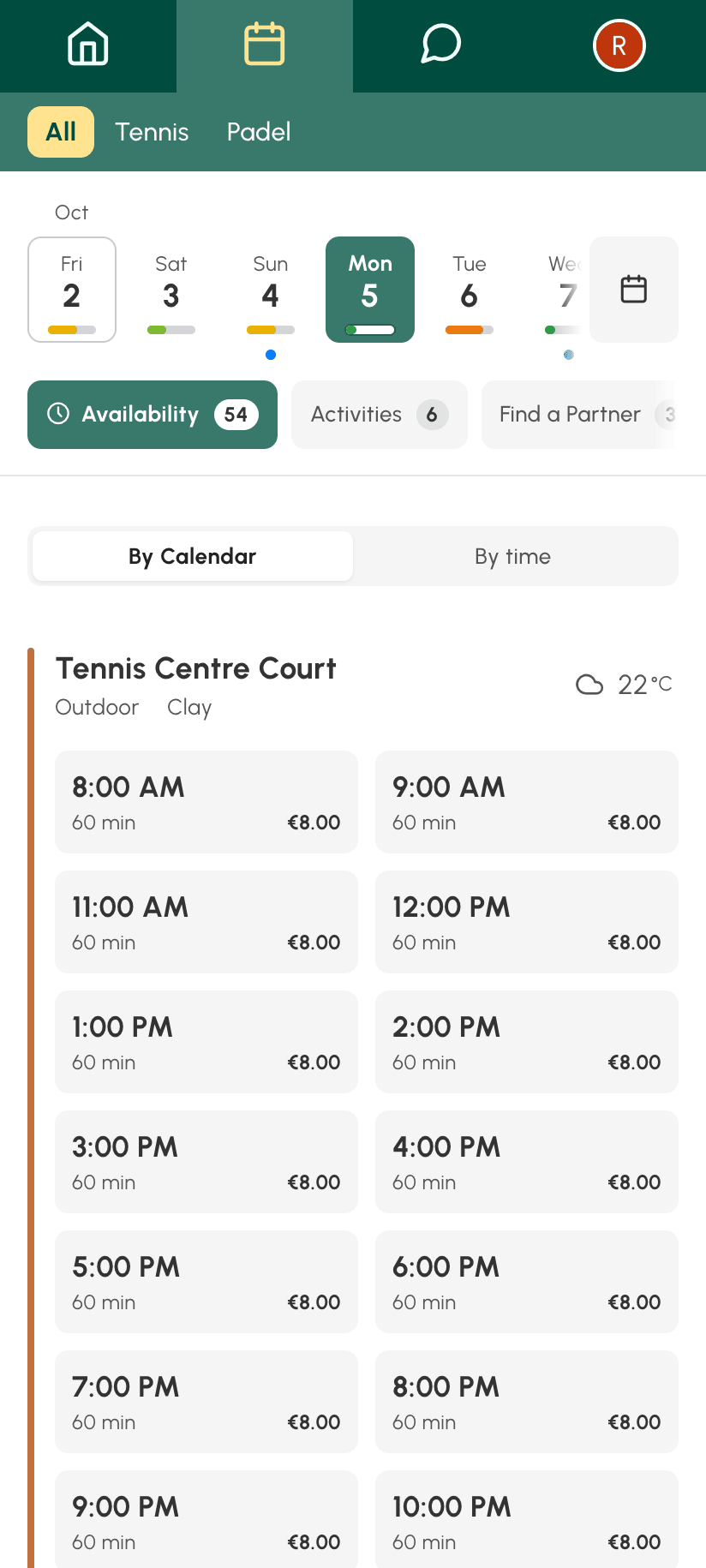
On a phone, the view keeps the same elements, stacked: calendar groups, a scrollable strip of days, tabs, then the time slots. When you scroll the list, the header folds away to leave room for the time slots, and comes back as soon as you scroll up.
Reading the free time slots
The Availability tab offers two readings, which each user chooses and finds again on their next visit:
- By Calendar: one card per court, with its free time slots for the day. Handy when you want a specific court. The calendar name opens its week view, if the profile has access to it.
- By time: the hours of the day, each with the courts free at that moment. Handy when the time matters more than the court.
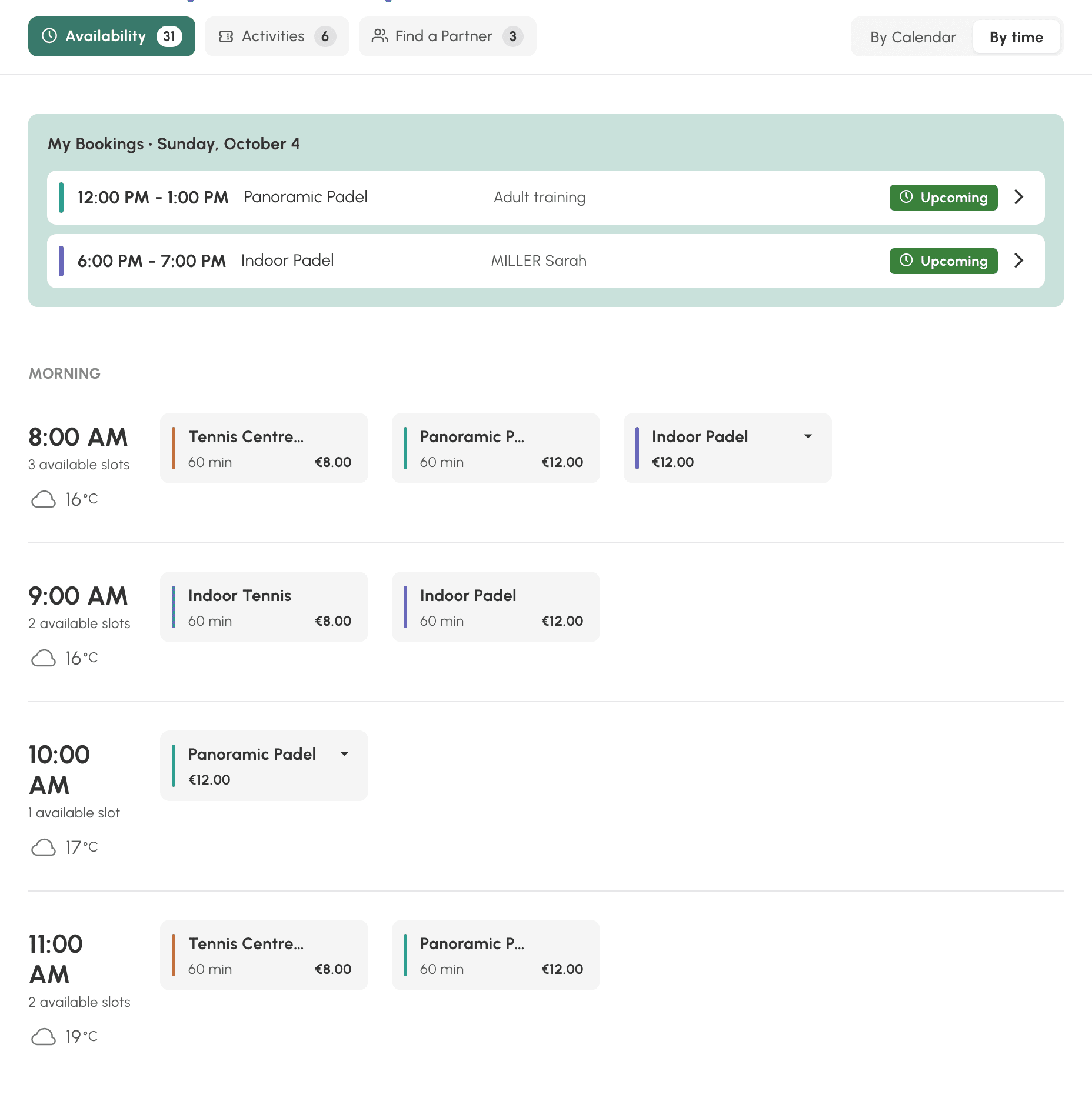
Each time slot shows its start time, its duration and its price when the booking is chargeable. A click opens the usual booking form, with the chosen duration.
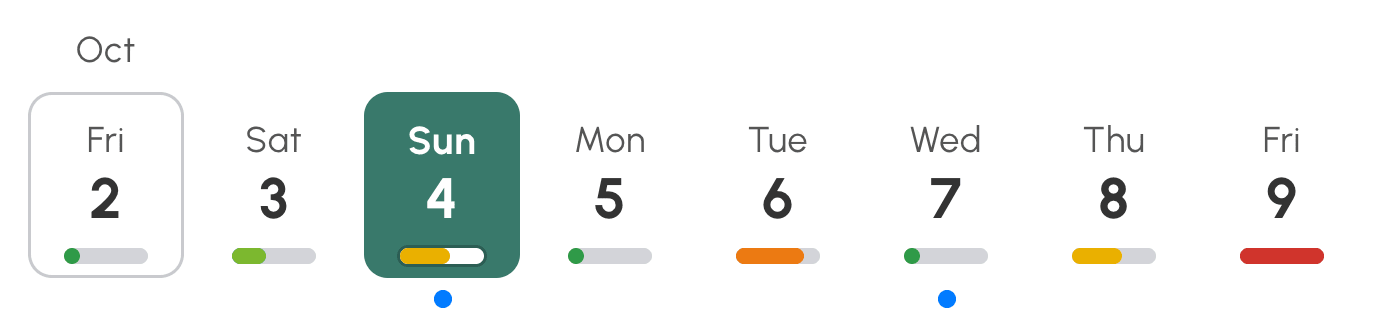
Under each day of the strip, the gauge sums up the day: Available, Almost full or Full. A blue dot marks the days on which the user already has a booking. The strip stops at the last day their subscription allows them to view.
When a day has no time slot left, the view says so and offers to go straight to the next day that has one.
Showing prices and offering several durations
The view reflects what you have defined in each user's subscription. The price shown on a time slot is the one the booking form will state at the next step, for the user alone, without a partner or a guest. So if you charge for your bookings in credits displayed in a currency, your players see the price of each time slot before they even click, including your peak and off-peak rates.
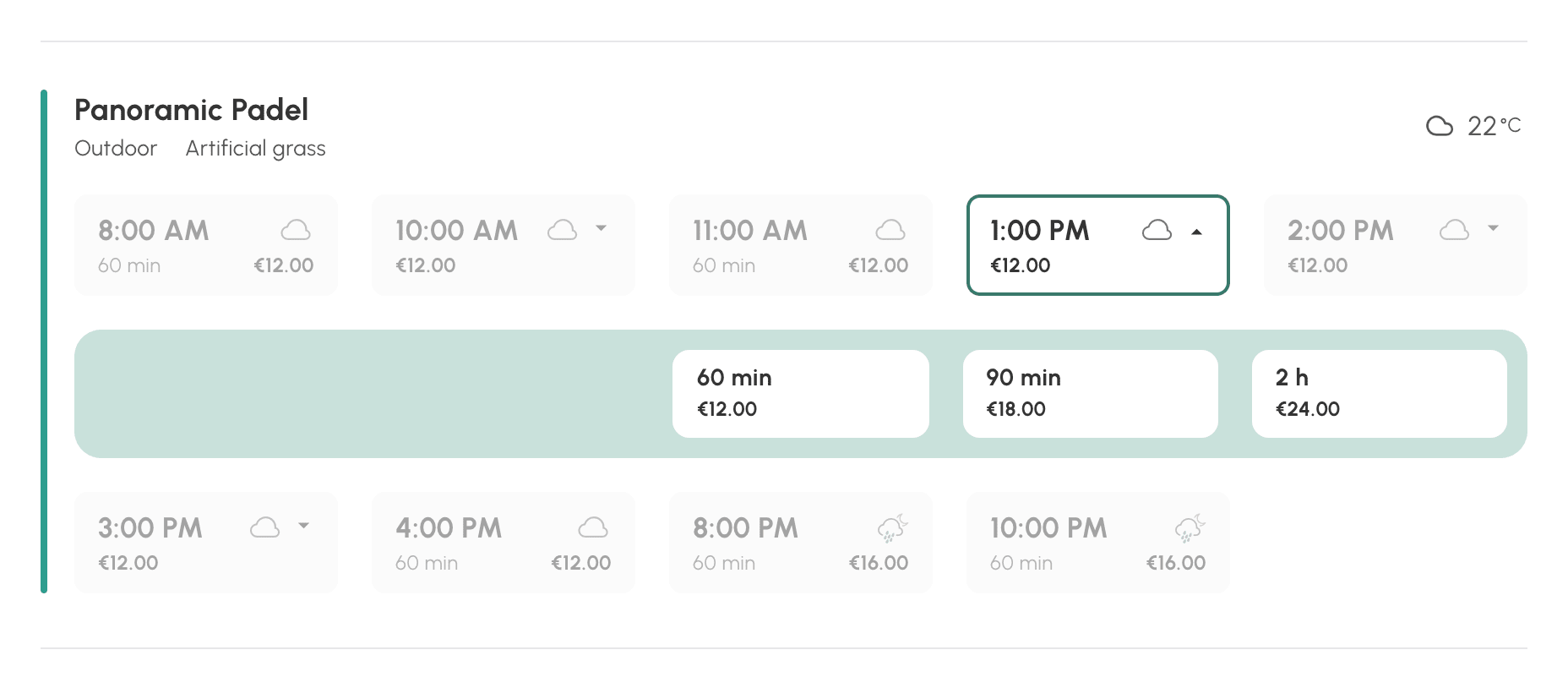
If the subscription offers custom time slots, the same start time can be booked for several durations. The time slot then carries a small arrow and the price of its cheapest duration. A click unfolds the possible durations, each with its price.
Showcasing your activities
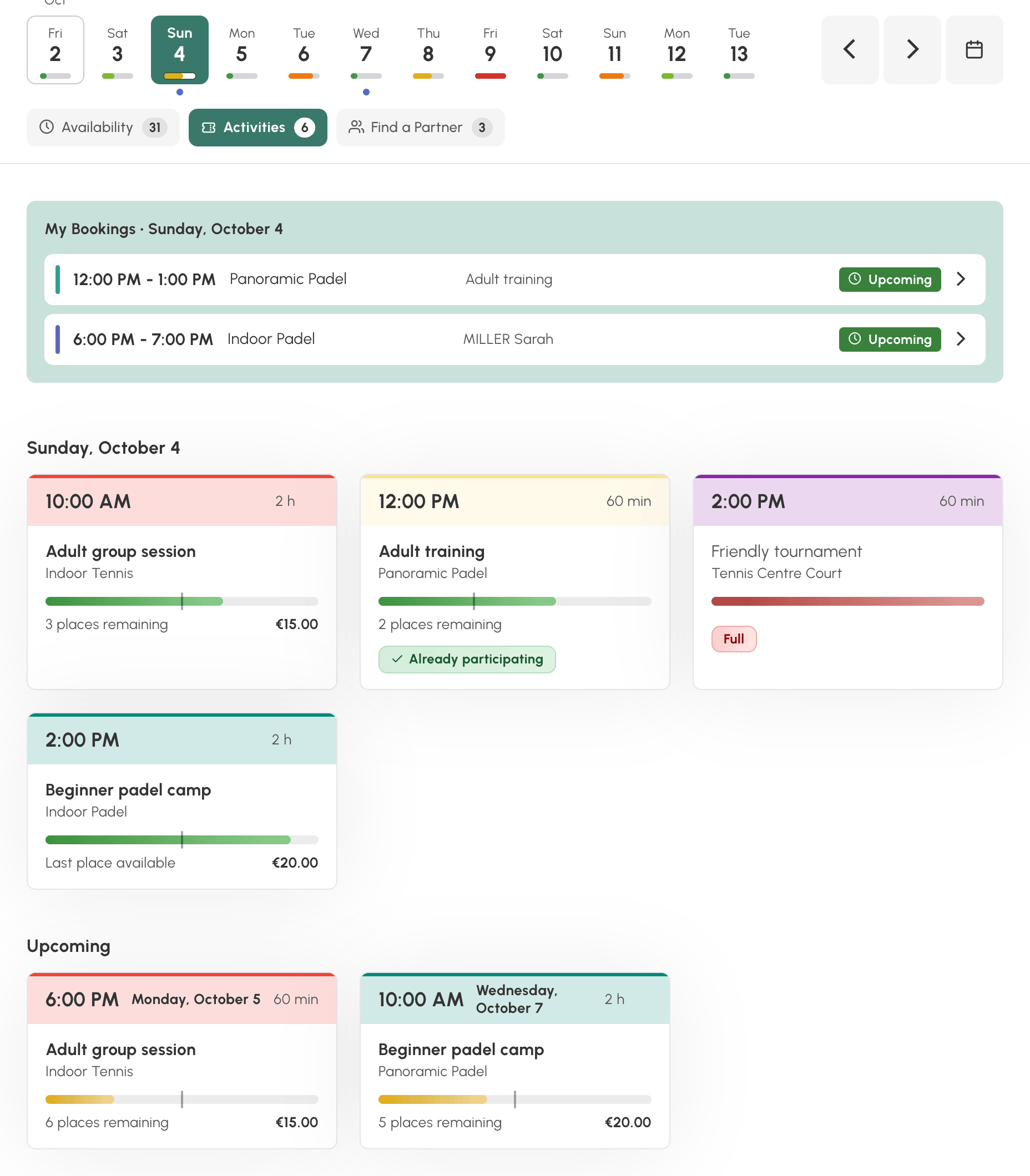
The Activities tab lists your participatory bookings that are open to participation: group lessons, training camps, tournaments, events. It is a showcase your users did not have until now, since they had to spot these time slots in the grid.
Each card shows the time, the duration, the name of the activity, the calendar, how full it is, the number of places left and the price. A badge marks the activities in which the user Already participating and those that are Full. A click opens the activity details, where the user joins in.
Under the activities of the day, the Upcoming section presents the following ones, up to the last day of the strip. If the day shown has no activity, it is displayed straight away.
There is nothing to configure in the view: a participatory booking appears there as soon as it accepts the user's participation.
Helping your players complete a booking
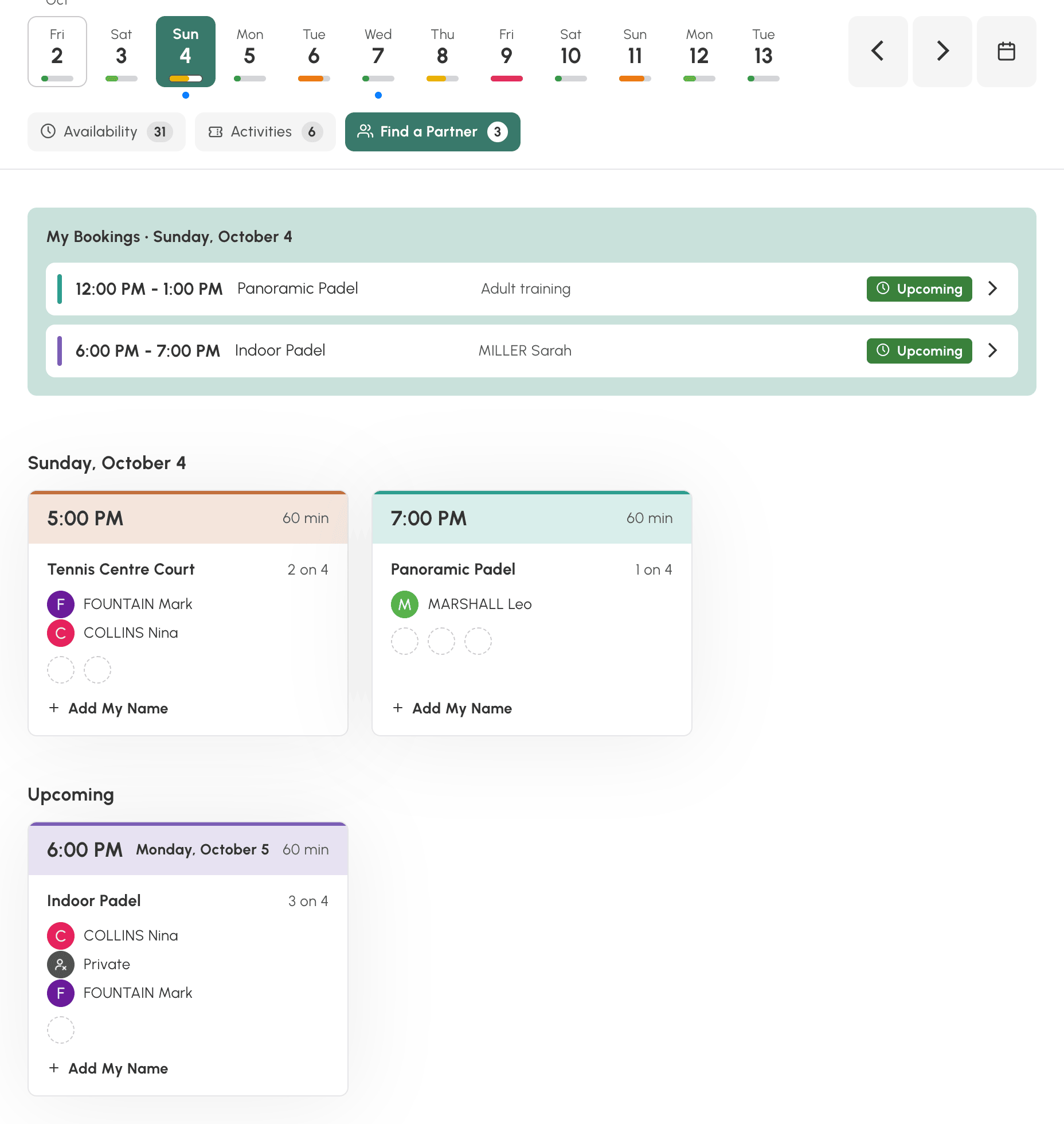
The Partner Search tab lists the bookings whose owners have opened them to other players and that still have room. The user sees the time, the court, the players already taking part and the free places, then clicks on Add My Name to join them.
Names and photos follow your privacy settings, as in the standard calendars. As for the activities, an Upcoming section presents the open bookings of the following days.
A club manager allowed to book for other users sees there all the open bookings that still have room, and views them with View Booking.
The Activities and Partner Search tabs only appear if they have something to show. When only the Availability tab is left, the tab bar disappears.
Showing or hiding non-bookable time slots
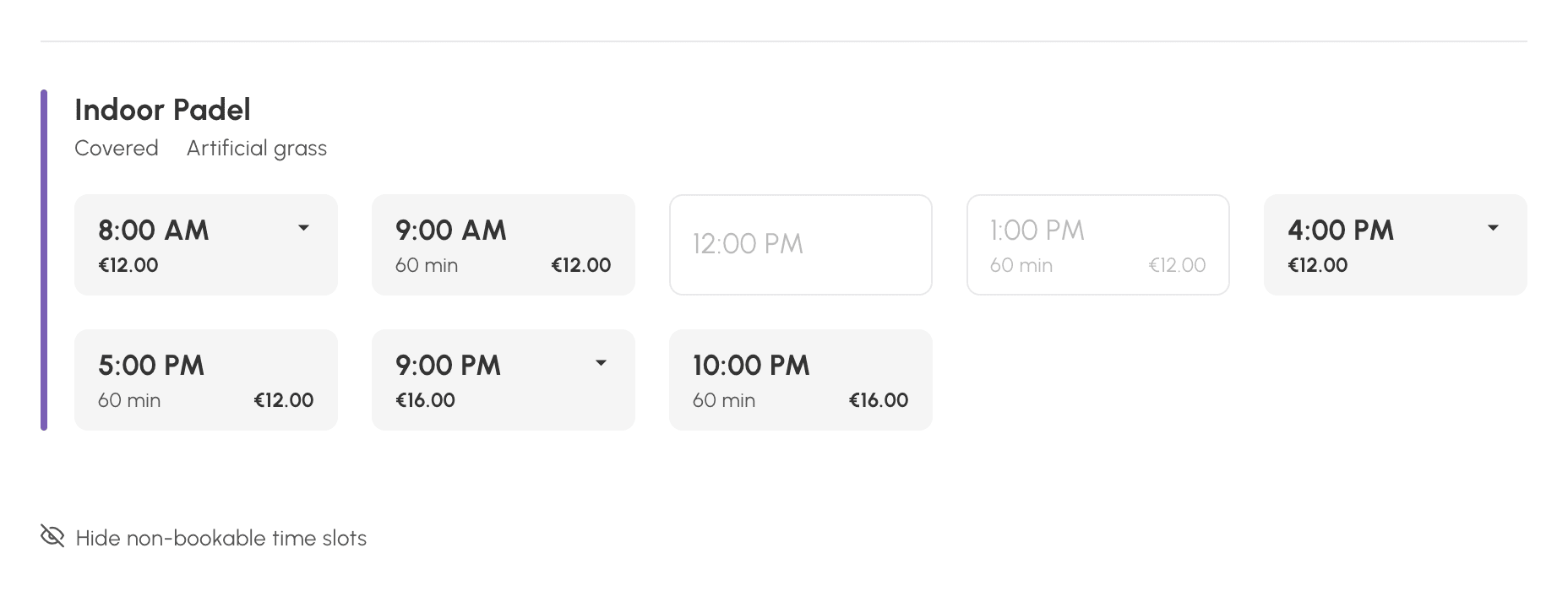
By default, the view only shows what the user can book. The free time slots that a rule of their subscription forbids them, for example an hour that is not open to them, are hidden.
At the bottom of the list, Show non-bookable time slots indicates how many time slots are hidden and makes them appear, greyed out. They are there for information: a click does nothing. Hide non-bookable time slots returns to the short list. The choice is remembered for each user.
The calendars that have nothing to offer that day are grouped under Unavailable calendars, each with its reason: Closed, Outside the booking window or No time slots available.
A quota that has been reached or an insufficient credit balance hide nothing in this view: the time slots remain displayed, even if the subscription carries the Hide calendars when the booking quota is reached or Hide calendars if no credit options, which only concern the day and week calendars. It is the form, on click, that indicates what prevents the booking. The same goes for an activity paid in credits: it remains displayed, and participation reports an insufficient balance.
Credits are checked last there. A player whose quota has been reached and whose balance is insufficient therefore sees the quota message, not an invitation to buy credits that would be of no immediate use to them.
Checking what a subscriber sees
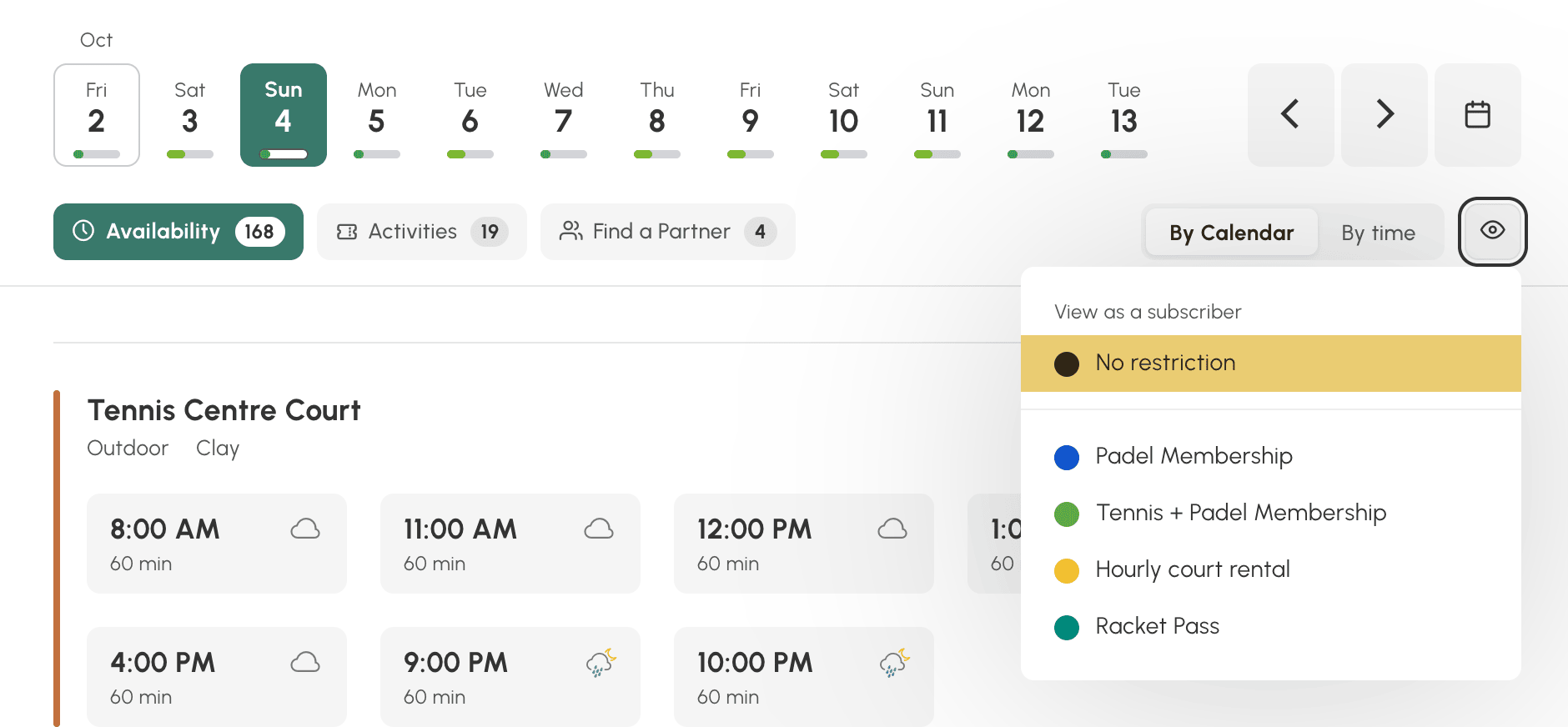
A calendar administrator sees the view without restriction, outside the limits of a subscription. To check what your rules actually produce, the View as a subscriber button shows the view as a subscription gives it to its users.
- Open the Availability view.
- Click on View as a subscriber, to the right of the tabs.
- Choose a subscription from the list.
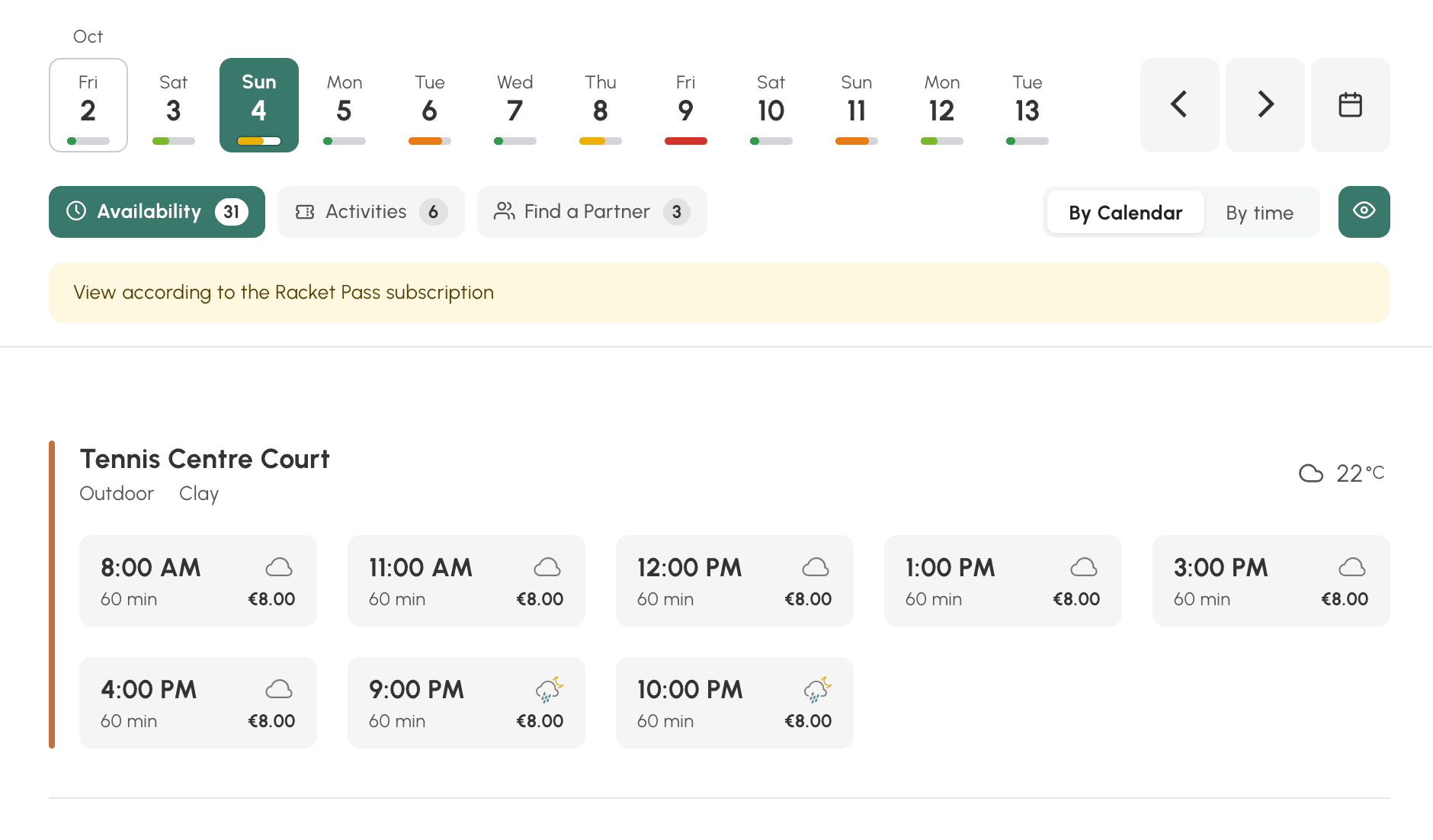
A banner is a reminder of the simulated subscription. The time slots, the durations and the prices are those of that subscription. It is the quickest way to check a rule you have just changed: booking horizon, forbidden calendars, custom time slots, price.
To return to your own view, choose No restriction in the same menu.
Giving access to the view
This new view is enabled by default for all users. If needed, you can customise access profile by profile, as for the other two views. You can thus open it to your players and keep the day grid for the reception team, or the other way round. Another example is a "Rental" profile on which only the Availability view is available, while members have all three views.
- Go to Administration›Users›Access Rights›Profiles & Roles and open a profile.
- In the Booking tab, tick Availability.
- In Default view, choose the view that opens when the user arrives on the booking section: Per day, By Week or Availability.
- Click on Save.
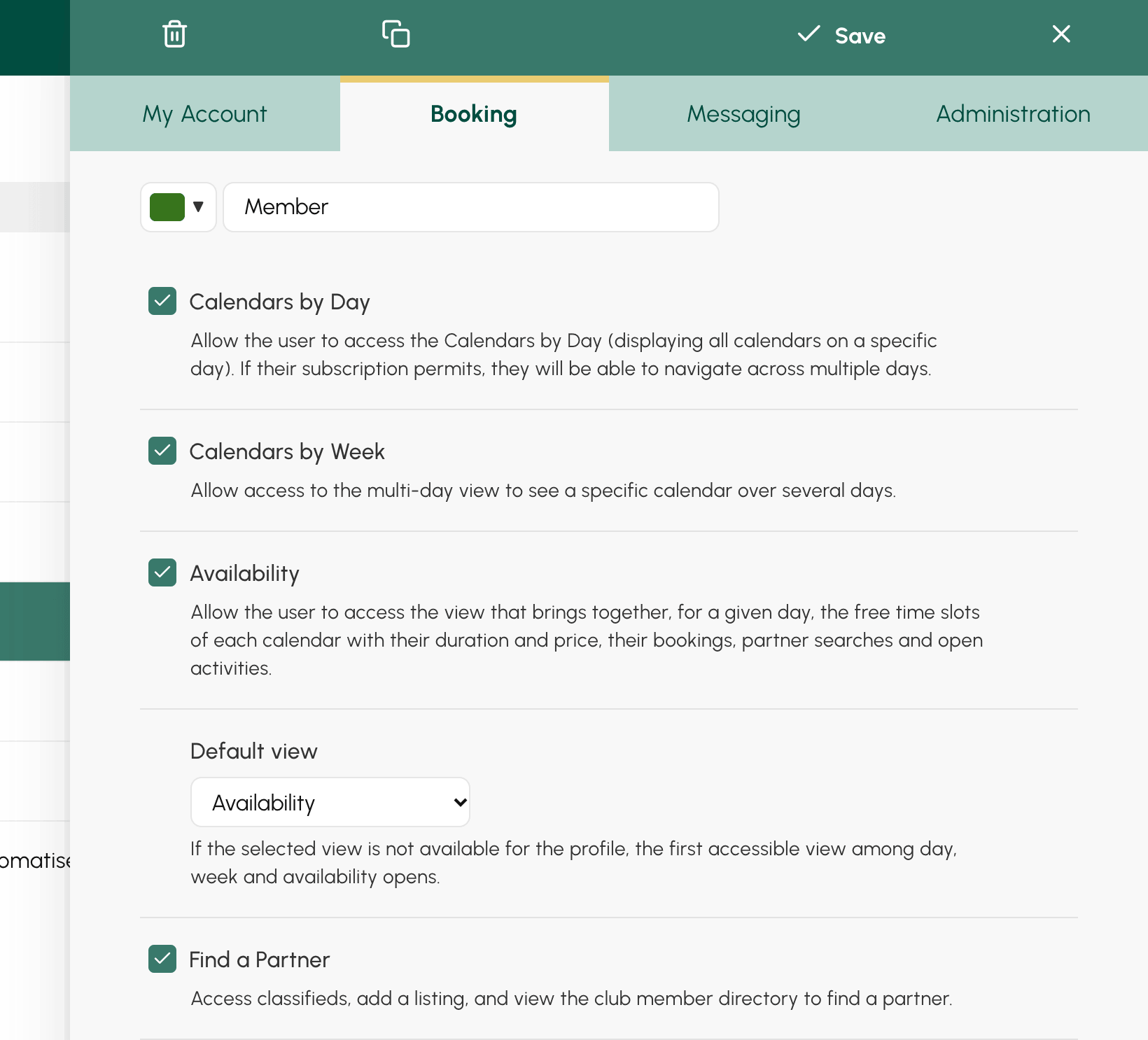
When the view was activated, the right was given to the profiles that already viewed the day or week calendars. Their default view remained Per day: nothing changes for your users as long as you do not change this setting.
If the default view of a profile is not accessible to it, the first permitted view opens instead.
Users find the view in the menu, under Availability, next to the day and week calendars. In the booking panel of the navigation bar, it is the magnifying glass button.
