You can now pay for your booking while you make it, directly from the booking form. With no credit on your account, you pay for the whole booking; with a few credits, you only pay what is missing. Buying credits in advance is of course still possible.
Until now, an insufficient balance blocked the booking: you had to buy credits, go back to the calendar and start again. Now the form shows you what remains to be paid and takes you to the payment while holding your slot.
The details are in the documentation: Paying for your bookings.
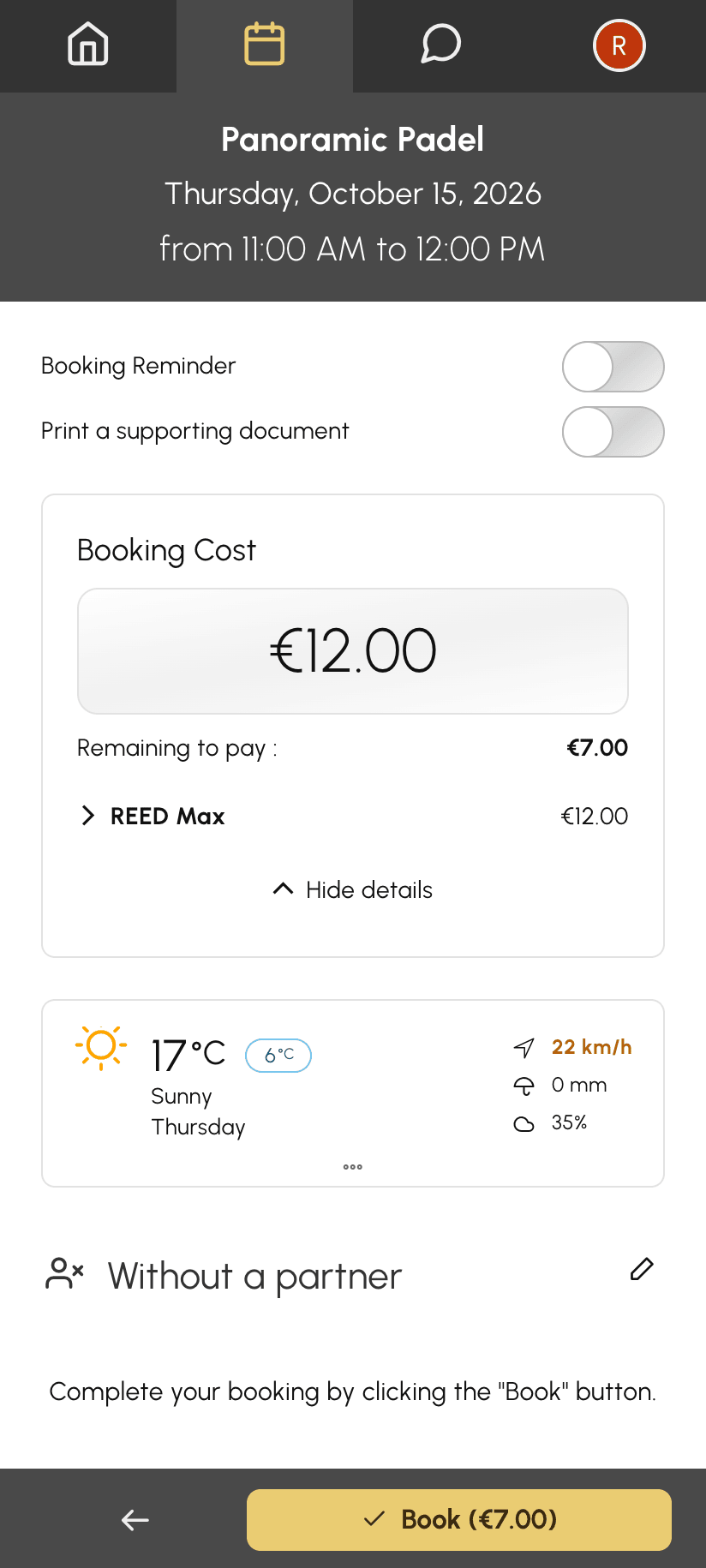
Choose your slot and your partners as usual. If your balance is not enough, the Booking Cost box shows Remaining to pay, and the Book button shows the amount to pay.
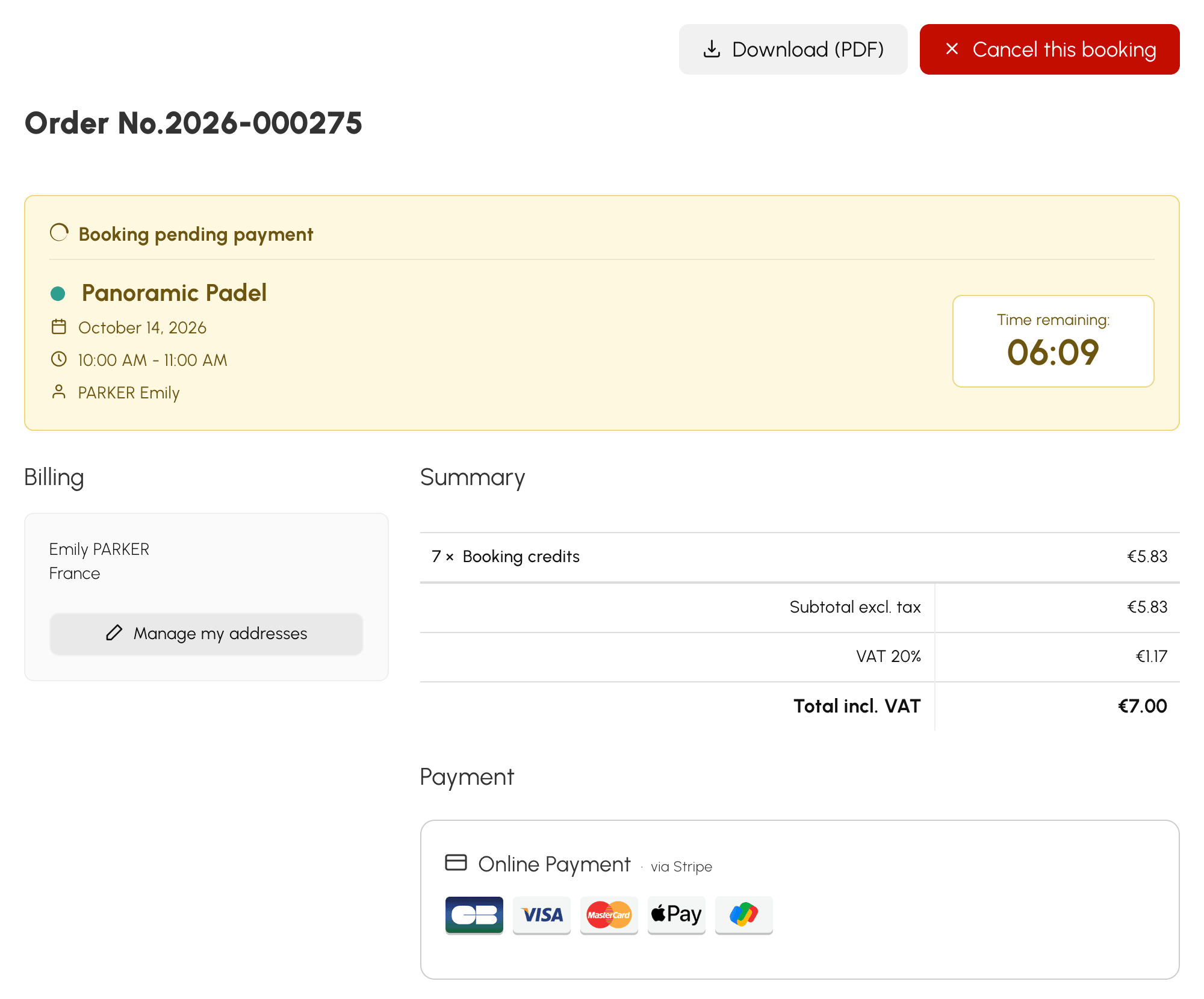
Click it: your slot is held for a few minutes while you pay, and you land on the payment page. It recalls the court, the date, the time and the time remaining.
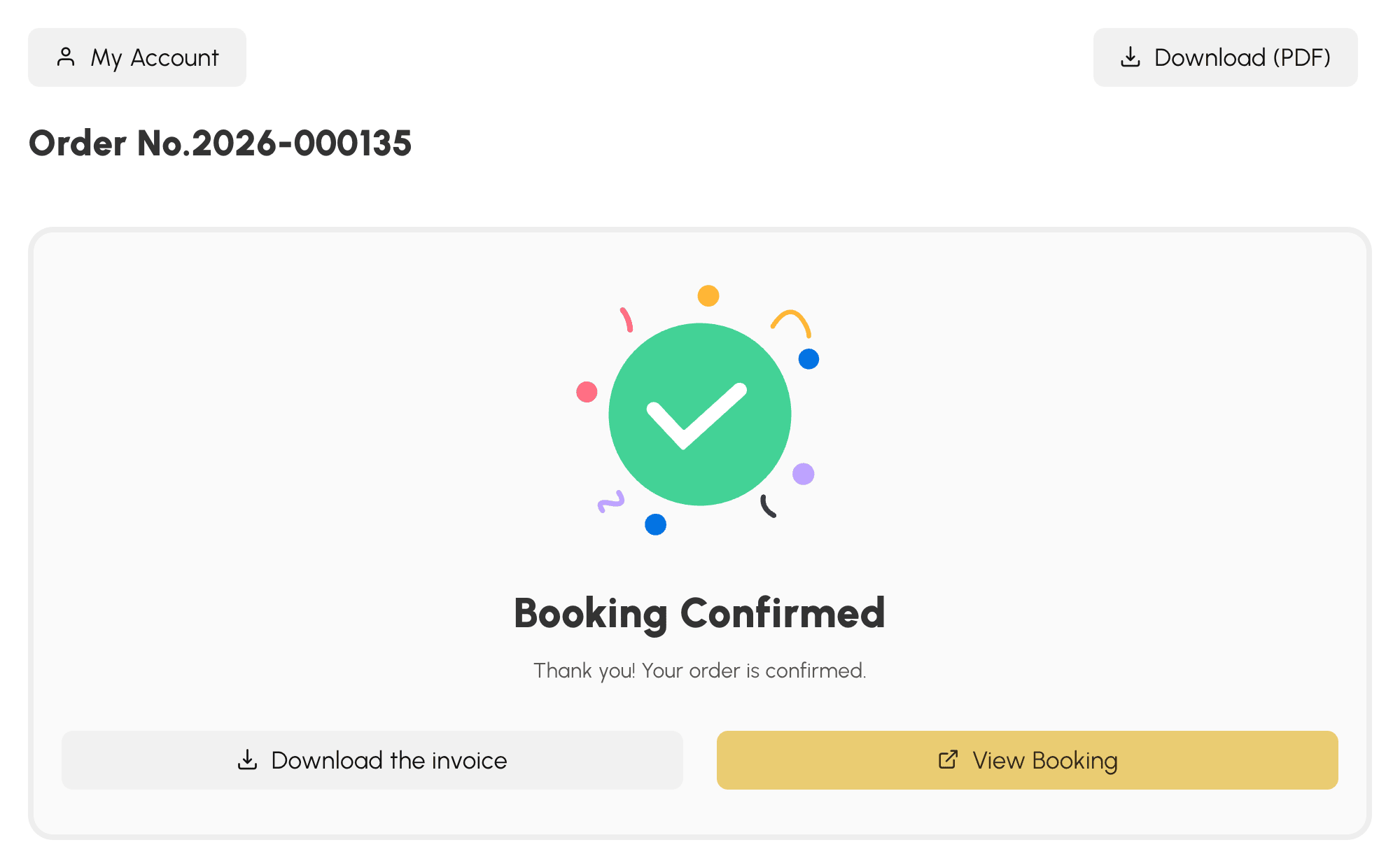
As soon as the payment is received, the booking is confirmed. Your partners are notified and your reminders are scheduled, just like for any other booking.
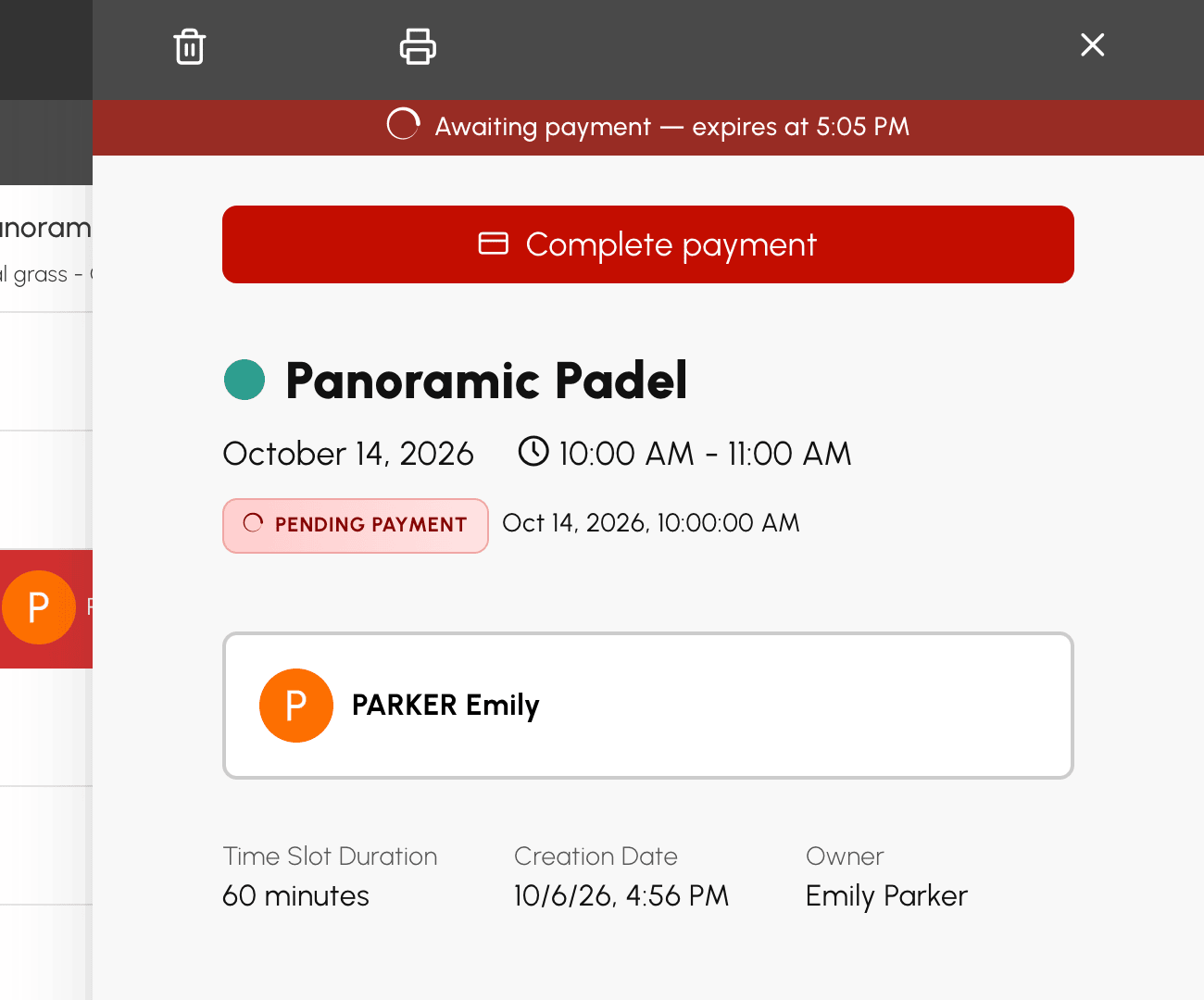
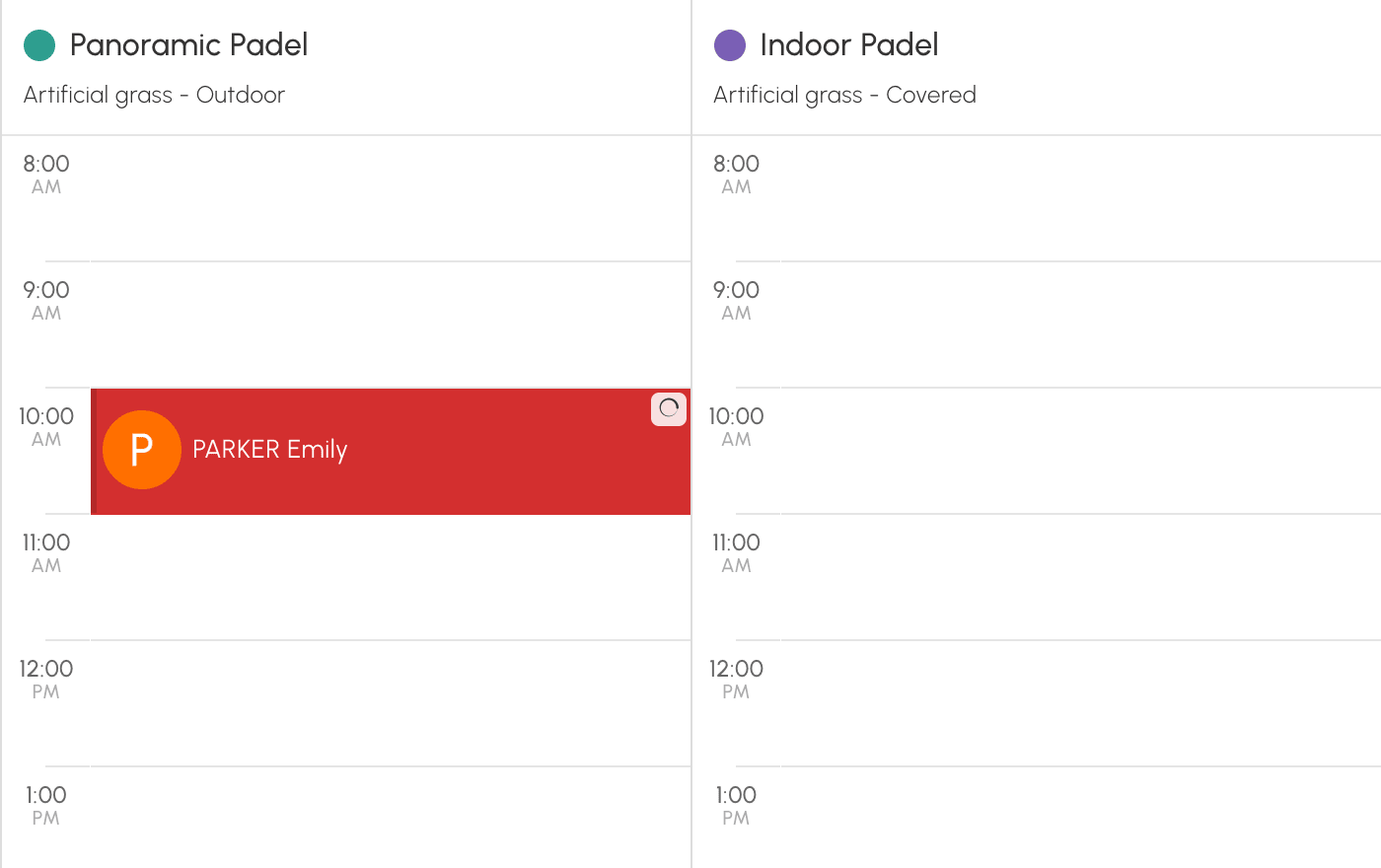
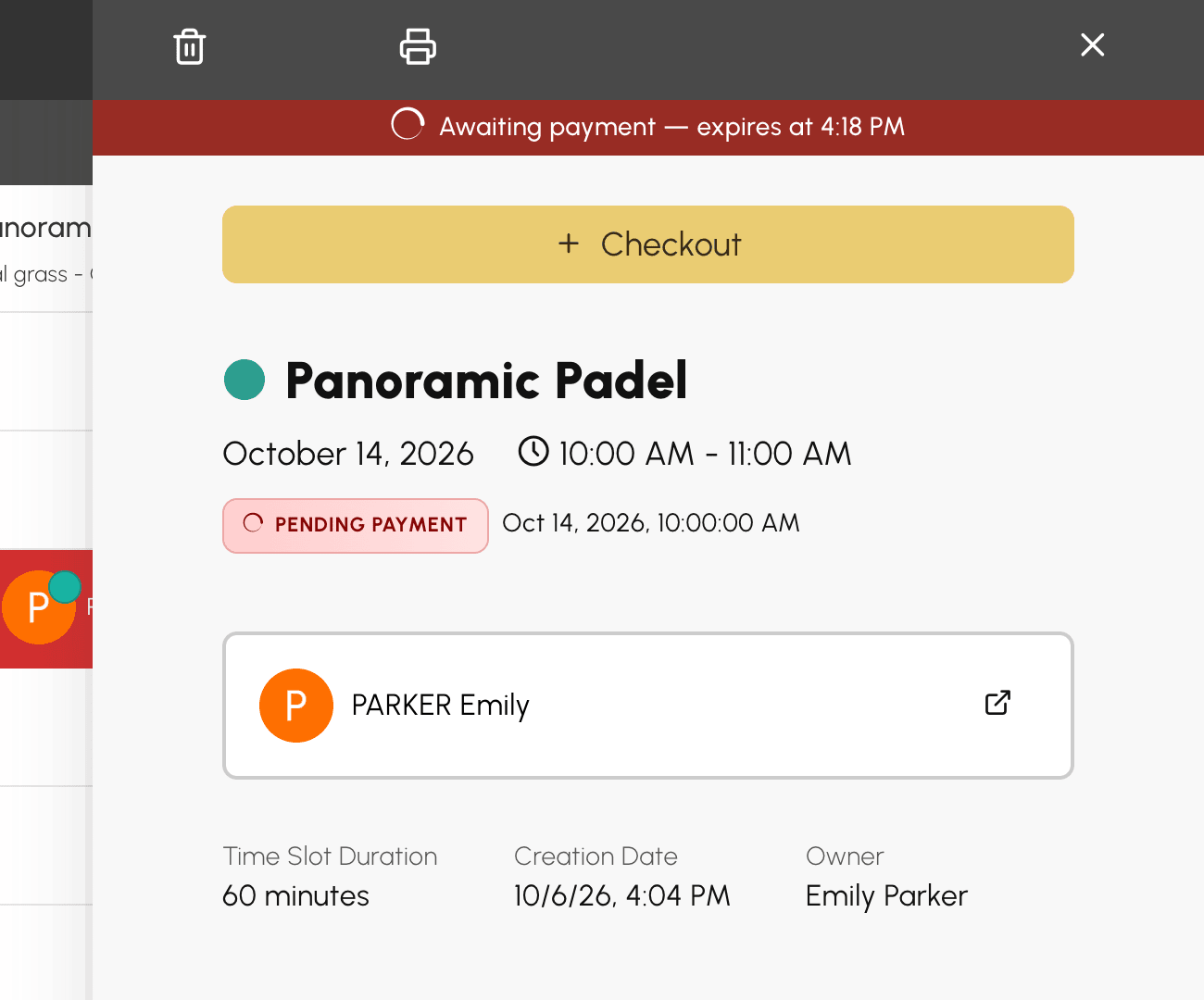
A booking awaiting payment appears on the calendar with a loading icon. Open it to see the deadline and click Complete payment. If you change your mind, cancel it: the slot is released.
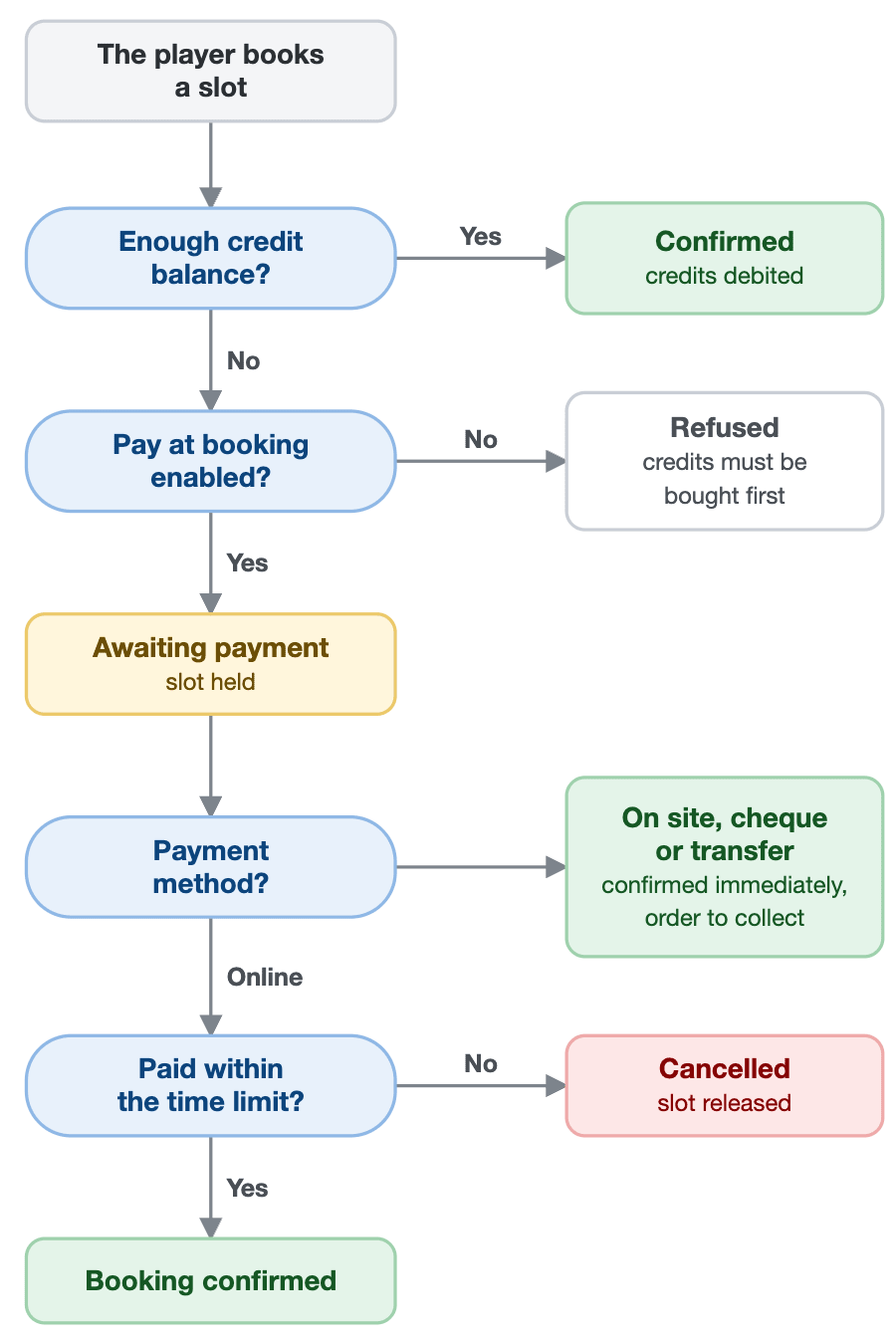
Without payment before the deadline, the booking is cancelled automatically. If your payment still goes through after the time limit, the booking is restored when the slot is still free; otherwise, the credits you bought stay on your account and you are informed by email.
The Payment on booking option is in the General tab of each membership, under Administration›Users›Access Rights›Subscriptions. It is enabled by default: if you already sell credits online, your players benefit from it right away. You can disable it membership by membership, and set the time allowed to pay, from 5 to 30 minutes.
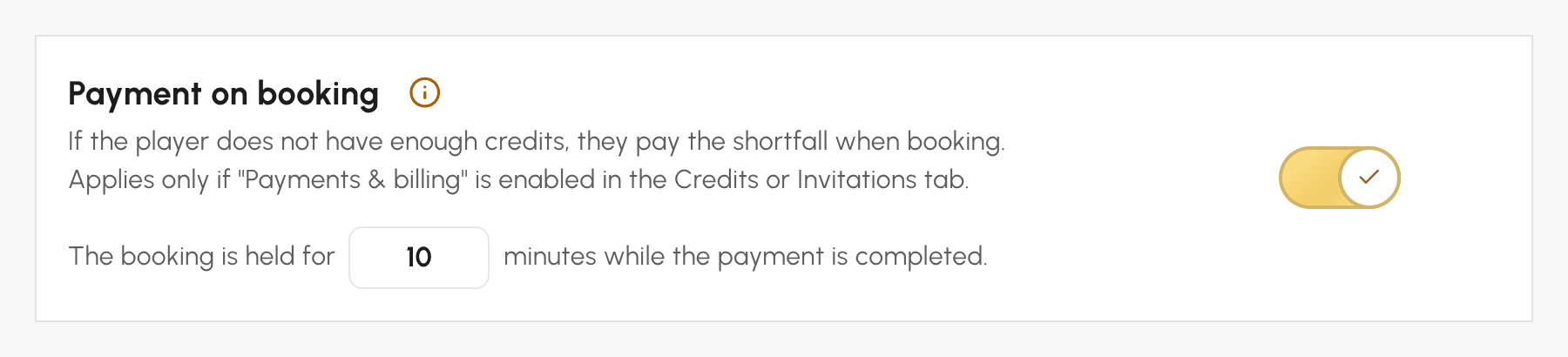
Pay at booking requires credit sales enabled under Payments & Billing, in the Credits or Guest Passes tab, and a billing account that accepts online payment, or a deferred payment (on site, cheque, bank transfer) with the Deliver ordered products & services immediately option.
The missing amount is paid at the rate of your credits, quantity discounts included. It is the right time to adopt a simple rule: 1 credit = €1 (or one unit of your currency). Each booking then costs its real price, which you vary by court, day or time, and, with this rule only, the Display credits in currency option shows your players a balance and a remaining amount in your currency rather than in credits, which is easier to read. With the Unified credit system option in the Guest Passes tab, your players only have one balance to book and invite, and the remaining amount also includes their guests. Contact us if you would like more information on this.
The player chooses a payment method among those of your billing account, and the time limit does not work the same way:
A player who pays on site just before playing therefore keeps their booking: only the choice of payment method must be made within the time limit.
A booking awaiting payment already occupies the slot. On your calendars, a loading icon flags it, and its details panel shows the deadline. Confirmation emails, reminders and access codes are only sent once the payment is received.
A player comes to pay at the club? Open their booking and click Checkout: the booking is confirmed immediately. You can also cancel it from the same details panel, which releases the slot and gives the credits back to the player.
The full step-by-step guide and our pricing tips are in the documentation: Selling booking credits.
A question about the setup? Our team is here to help.
The OpenResa team at your service!