Until now, changing the time, court or length of a booking meant cancelling it, then booking again and re-entering its participants. Now you simply drag it across the calendars, with a mouse or with your finger.
This update also makes recurring bookings much faster, up to 100 times faster, and shows the progress of the longest operations live.
The full step-by-step guide is in the documentation: /manager/schedules/move-bookings.
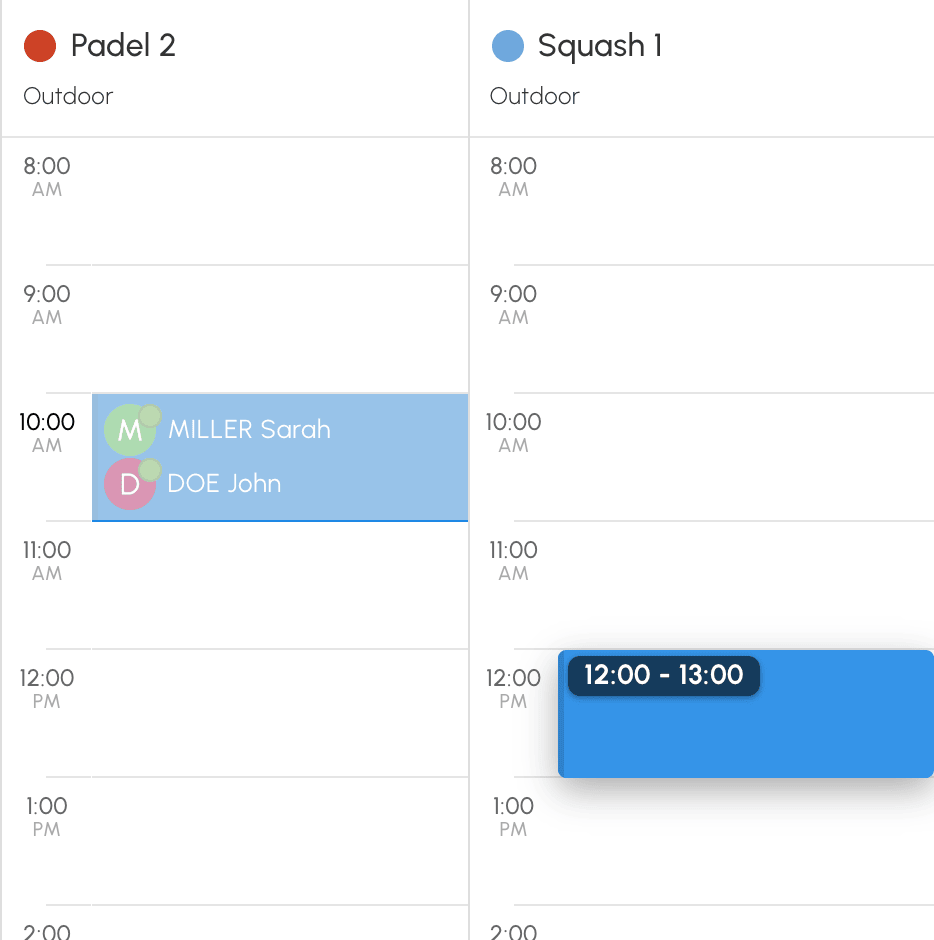
Click and hold a booking, then drag it: a preview follows the pointer and shows the new time. Release it where you want, and the booking appears there straight away, with its participants and options.
In the day view, you change the time, the court, or both. In the week view, you change the time or the day. To reach a court that is not displayed, hold the booking near the edge of the calendars: the next courts scroll into view.
On a phone or tablet, the gesture is the same: simply press the booking for half a second to pick it up. A finger that slides straight away keeps scrolling the calendars, and a click or a short tap still opens the booking, as before.
When you hover over a booking, two handles appear at the top and bottom. Drag the top one to change the start time, and the bottom one to change the end time. With a finger, a half-second press released without moving shows the handles.
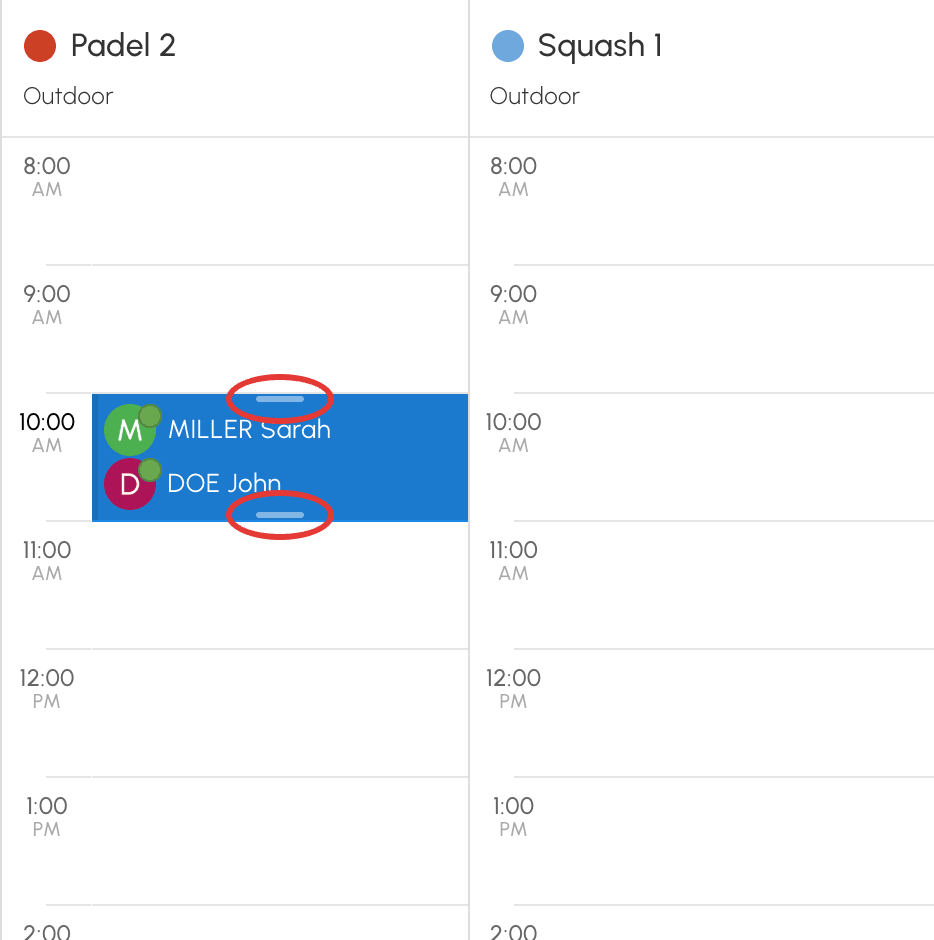
Lengthening a booking adds time slots with the same participants and the same options; shortening it frees the extra time slots. The start and end snap to a step you choose, from 5 to 60 minutes.
While you drag, the outline of the preview tells you before you even release:
Every spot is checked with the same rules as the booking form: whatever the form would refuse is refused here too.
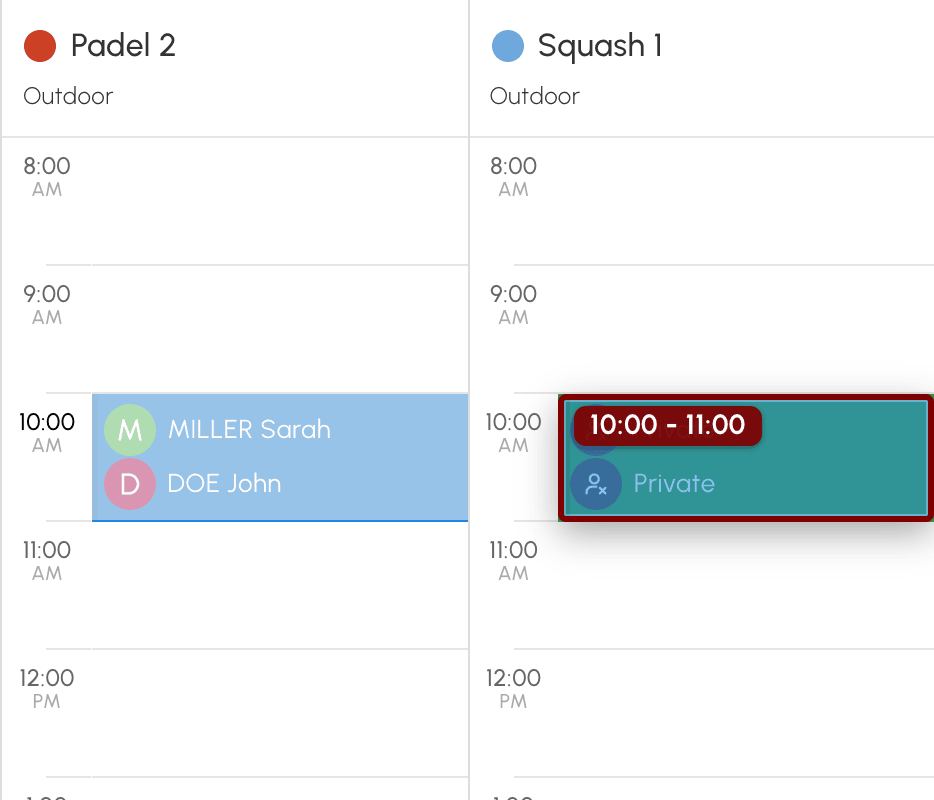
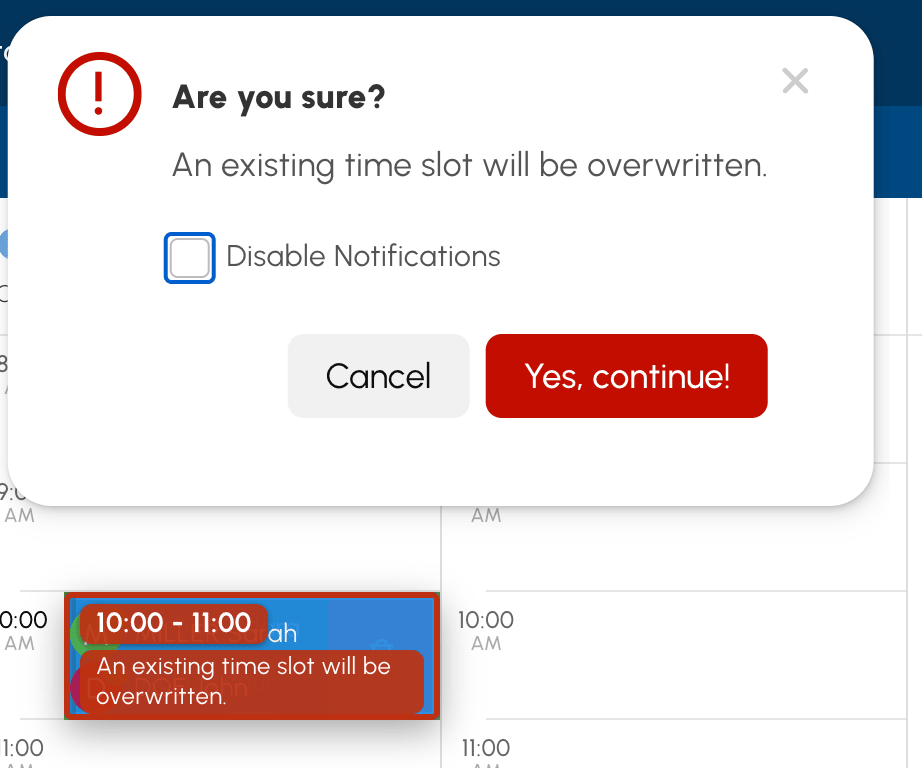
Club managers with the Overwrite/Cancel Existing Bookings permission can drop a booking onto a booked time slot. A confirmation window then shows the number of time slots affected, and the Disable Notifications box lets you notify no one.
Overwriting a booking cancels it permanently: its participants receive a cancellation e-mail, unless you turn off notifications.
A booking on one of the Synchronized Calendars with the target court is never overwritten: the spot is refused.
Something came up, a partner running late? Your users move their own bookings themselves, without going through reception. The Allow bookings to be moved option is enabled by default in every subscription; you will find it in Administration›Users›Access Rights›Subscriptions, Permissions tab.

Users only move their own bookings, and always to a free time slot. Their usual rules apply:
Scheduling a season of lessons at a club with a long history could take a while: at a club with 750,000 bookings, recurrence created 13 time slots per second. We have completely reworked the search for time slots that are already booked. The same club now creates nearly 1,200 per second: a whole season is set up in a few seconds.
The calendar display benefits from the same optimisation and stays fast, even with years of history.
Repeating a booking over a whole season, generating the access codes for each time slot, cancelling a series or moving a booking can take a few seconds. A progress panel then opens and shows the steps involved in the operation, each with its progress: Creating bookings, Access Codes, Notifications, Participants' orders or Booking reminders.
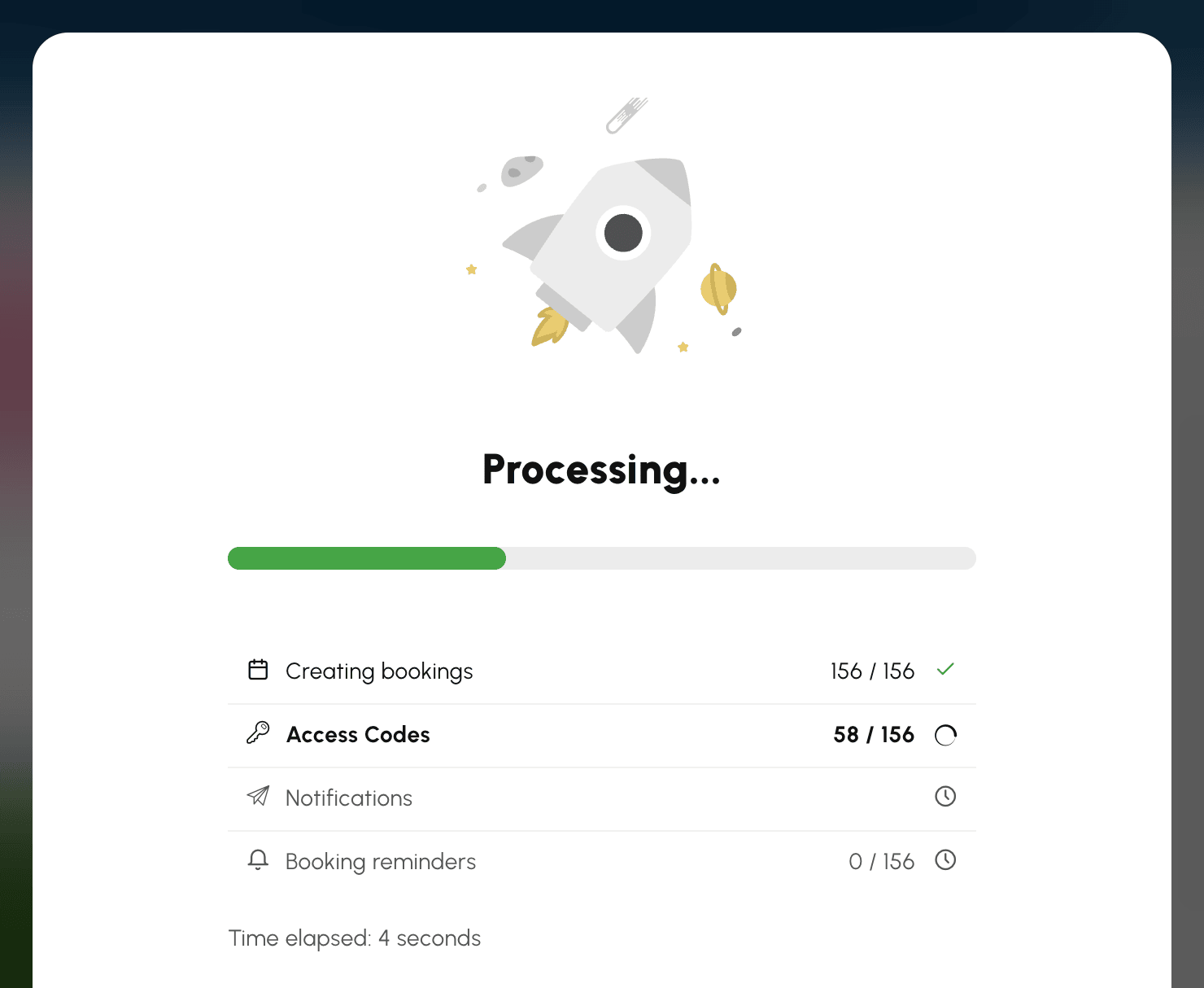
The panel only opens for an operation that takes time: a quick booking never shows it. It stays open until the end, so you always know where the operation stands. While time slots are being created, the Cancel button stops the recurrence; the time slots already created are kept.
Any questions about these new features? Our team is here to help.
The OpenResa team at your service!