Until now, the Booking menu in the top bar held just four links. On a computer, your quota and your credits appeared in the calendar toolbar; on a phone held upright, they appeared nowhere at all, neither in that menu nor on the calendar. From now on, the menu shows your quota, your credits and a small calendar that takes you straight to the day you want, on every screen.
Two further changes come with this update: the name of the court or of the day stays on screen while you scroll through the grid, and your reading position is kept when you change day or when you have just booked.
The full step-by-step guide is in the documentation: Finding Your Way Around the Calendars.
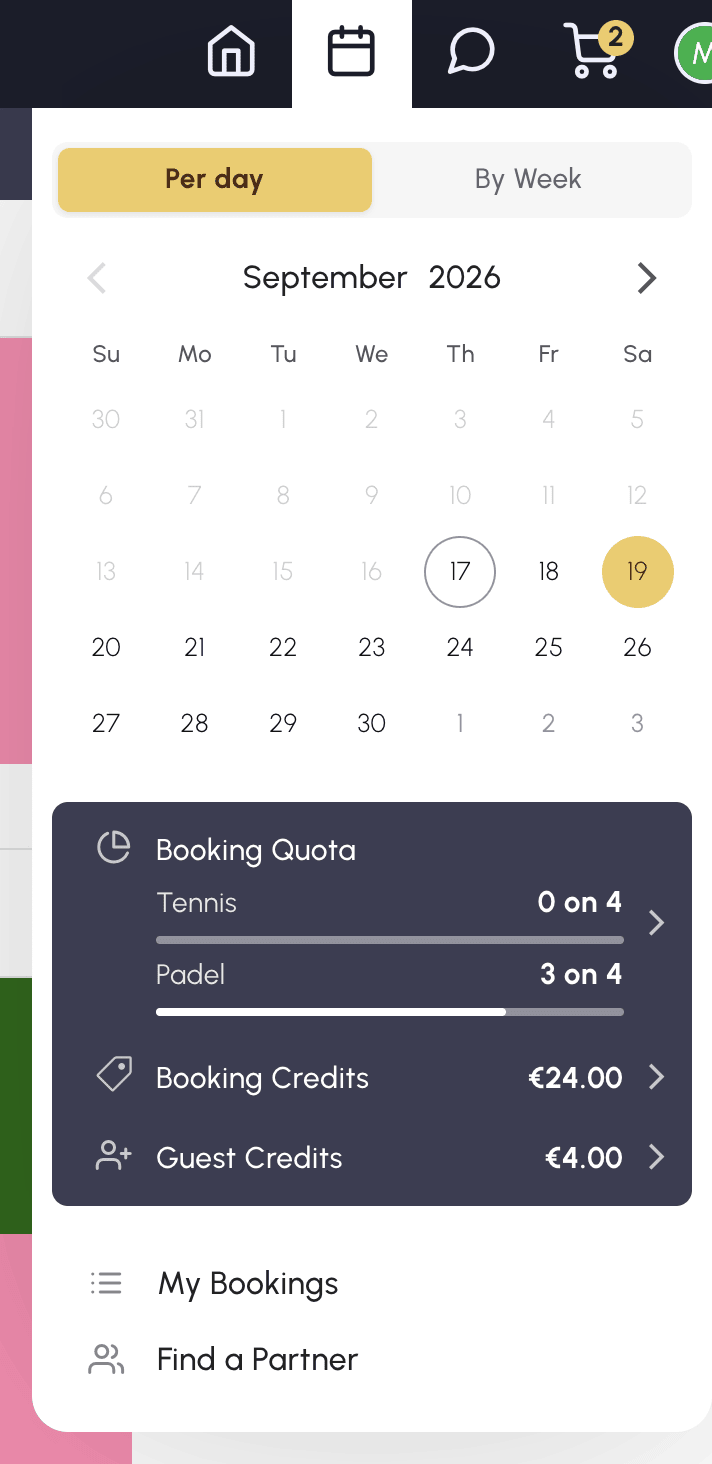
The Booking menu now brings together, in one place:
Each line of the panel opens the usual details, the ones you know from the calendar toolbar on a computer. This panel only appears if your organization uses quotas or credits.
On a busy grid, you had to scroll back up to check which court you were looking at. A strip now repeats the name of the calendar, in the day view, or the day on screen, in the week view, as soon as the headers leave the screen.
The strip follows the columns when you scroll the grid sideways, and the name of a column cut off on the left stays readable. On a computer, clicking the name of a calendar opens its week view, just as the full header does.
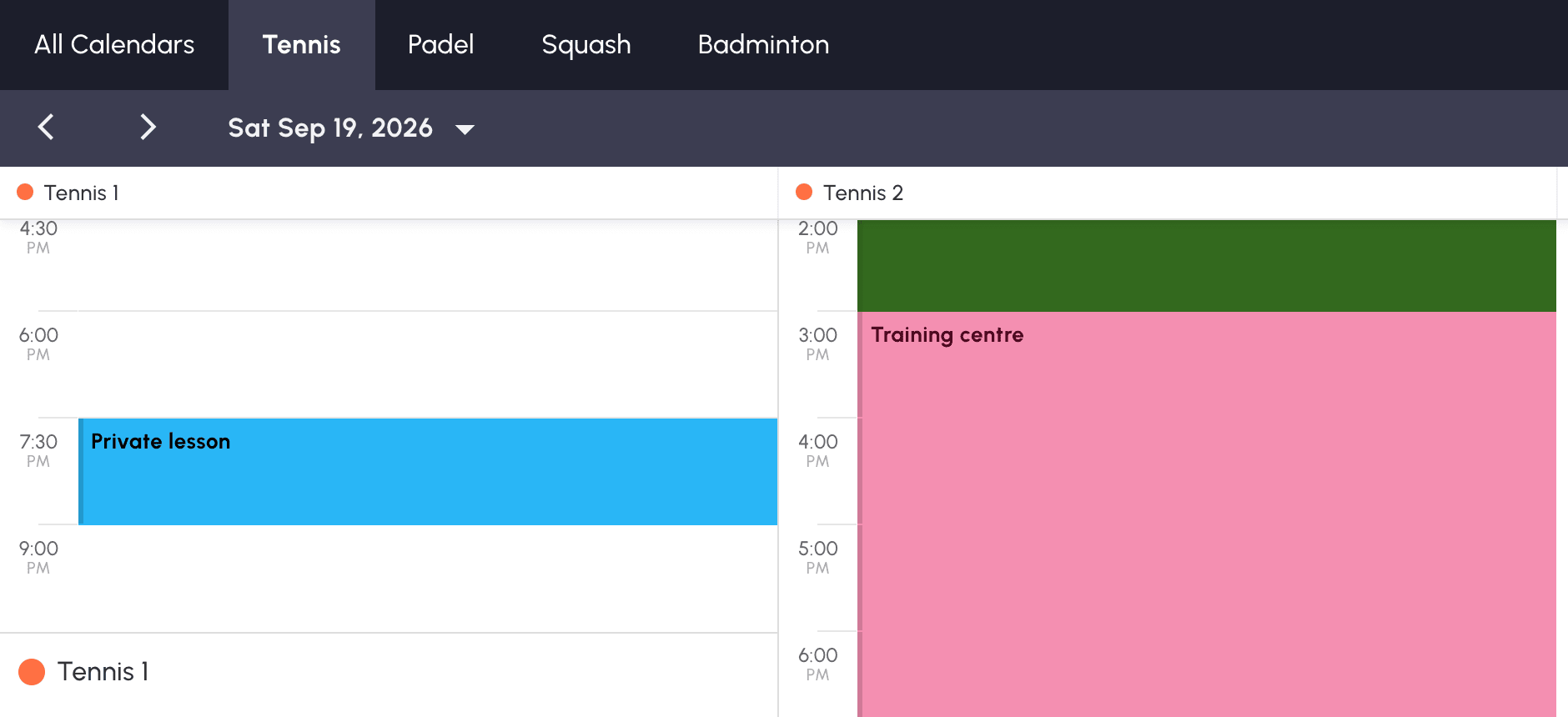
Previously, the grid always jumped back to the top left: after every booking, every cancellation and every change of day, you had to scroll again to the court and the time you were looking at.
That is no longer the case. Your position is now kept:
Only switching from one view to the other, from day to week, starts again at the top left: the columns no longer stand for the same thing.
The week view now loads at least seven days, instead of the two or three it loaded before depending on screen size and zoom. The days that do not fit on screen are reached by scrolling the grid sideways, just like the courts in the day view, and the arrows move a full week at a time.
Any questions about these new features? Our team is here to help.
The OpenResa team at your service!