A fourth view joins the Booking menu: Calendars by Month. It shows the whole month on a single screen, with each day's bookings, the weather and your own bookings, plus a journal that details the days one by one. Ideal for spotting at a glance the activities (training camps, tournaments, group lessons, etc.) and the games that still need players.
Until now, to find out what was coming up in the weeks ahead, you had to go through the calendars day by day or week by week. The month view gives you that overview, on a computer as well as on a phone. The day view, the week view and Availability do not change: they remain the right views for booking.
The full details are in the documentation: Finding your way around the calendars.
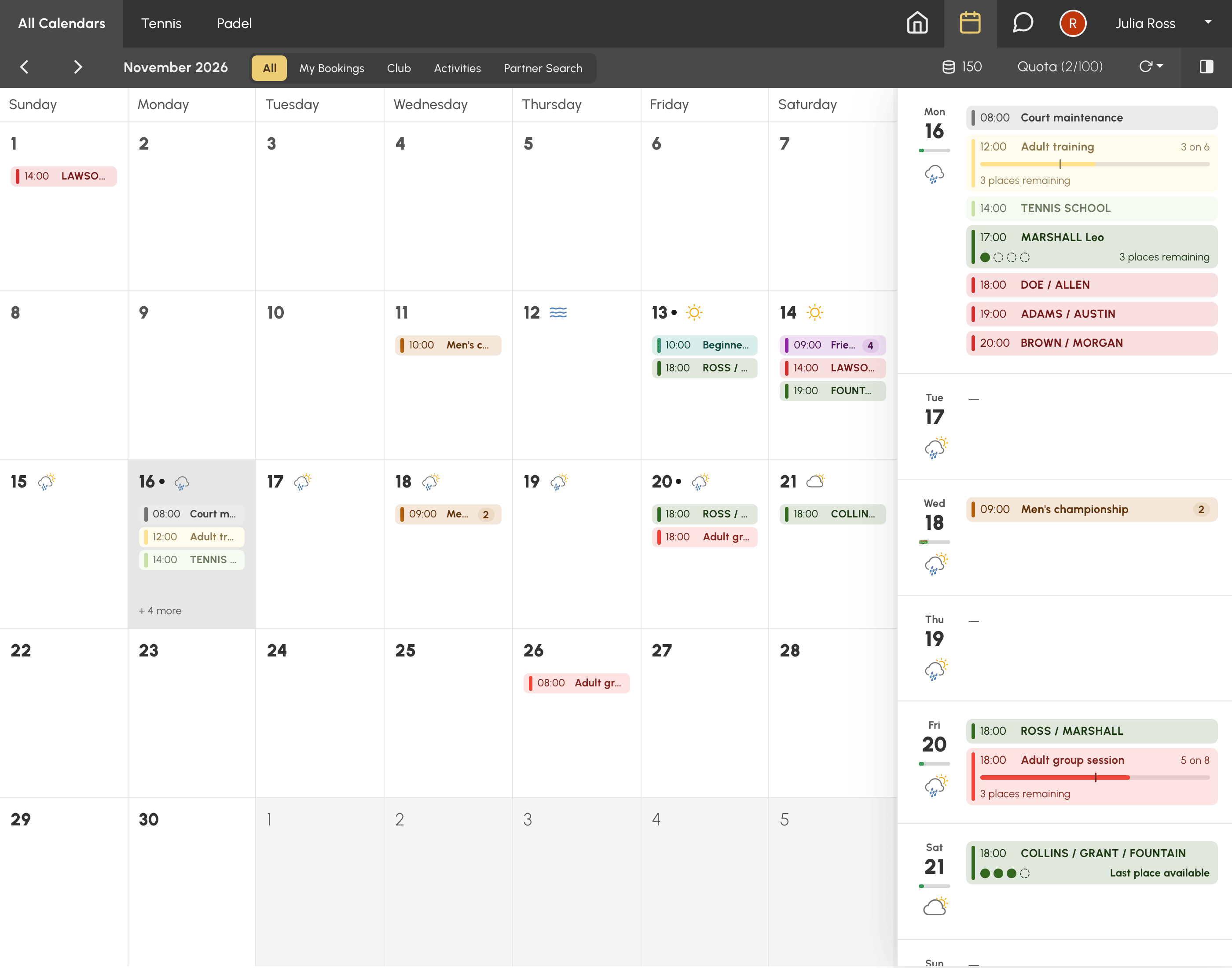
The view is open to all users: the right has been given to the profiles that could already see the calendars by day or by week. It is in the Booking menu of the navigation bar, between Week and the Availability magnifying glass.
The view that opens by default does not change: nothing moves for your users as long as you do not change this setting. How to adapt it to each profile is explained at the end of this article.
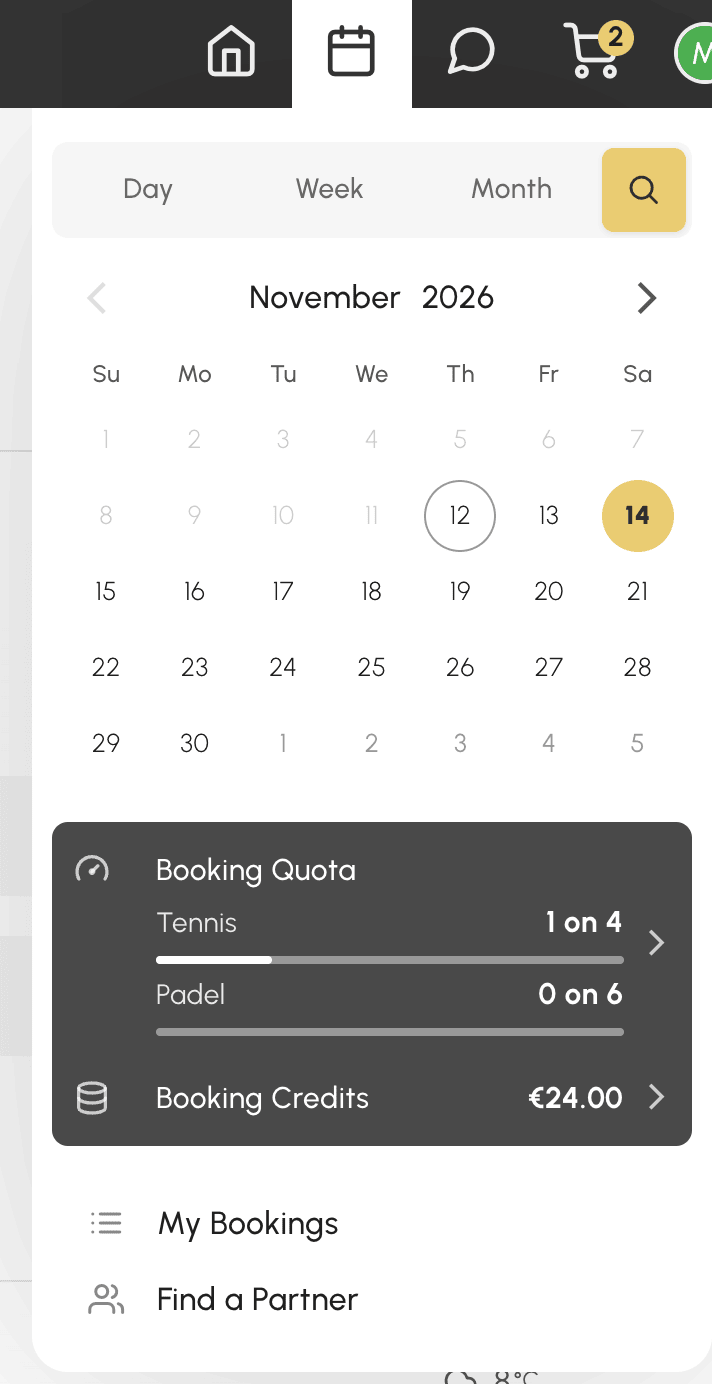
On a computer, each day is a box. It shows the weather on forecast days, a dot on the days you have a booking, then the bookings of the day, from the earliest to the latest. Each booking fits on one line: the start time, then the label of the event or the names of the participants, in the colours of your calendars. A tournament that takes up four courts at the same times uses a single line, with the number of courts.
When a box is full, a counter such as + 5 more shows what is left to see. The arrows of the bar move to the previous or next month, within the days the subscription allows you to view. At the top, you choose what you are looking at: All Calendars, a calendar group or, if you have not created any groups, a single calendar.
A click on a day opens the journal to the right of the grid, positioned on that day. It lists the days of the month with all their bookings. Activities show how full they are and the places left, open bookings their free places. Under each date, a bar shows the share of time slots already taken if you display the occupancy rate.
The journal is also a gateway: a click on one of your bookings or on an activity opens its details, and a click on the date of a day opens that day in the day view, or in the week view when a single calendar is displayed. The view is for looking ahead and planning: to book a free time slot, you go through the day or through the Availability view.
The tabs of the bar filter the month:
A tab with nothing to show this month does not appear, and the view remembers the last tab chosen. A player who wants to know which days they play this month only has to open My Bookings.
On a phone, the month calendar is shown at the top, with a dot under the days you have a booking, and the journal scrolls below it. Tapping a day moves the journal to that day. Tapping the name of the month hides the calendar to leave all the room to the journal; the view remembers this choice for your next visits.
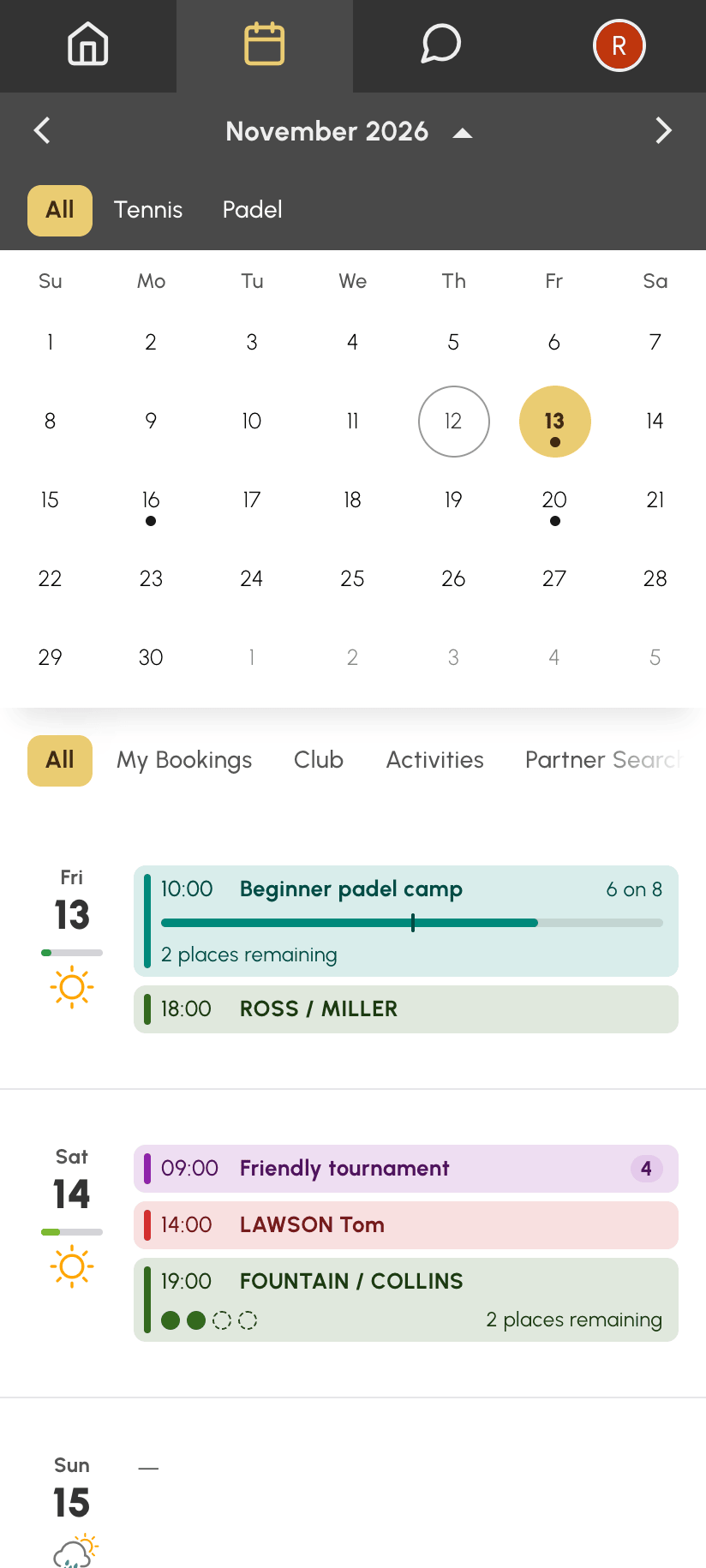 The month view on a phone, calendar shown |
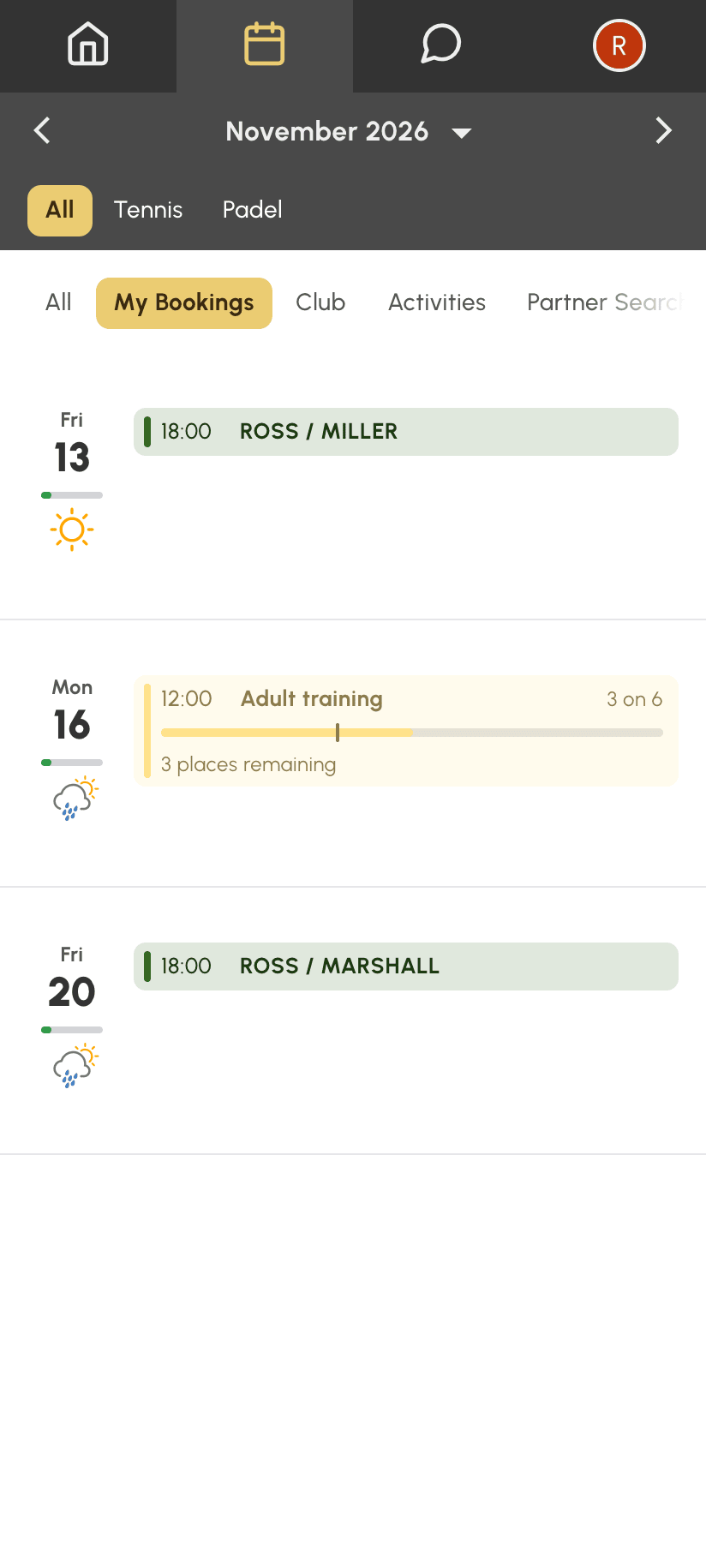 The month view on a phone, calendar hidden: the journal alone, filtered on My bookings |
A calendar administrator has six tabs instead of five: Users gathers the bookings of the users, next to Club. Depending on the rights of their profile, they can also open the details of any booking from the journal, whereas a user only opens their own bookings and the activities.
The Display Preferences apply to the three calendar views. The Calendar occupancy rate setting, for example, adds the occupancy bar of each day to the month journal, and the Labels style is also used on the lines of the month.
As with the other views, access is set profile by profile. You can, for example, offer the month view to all your users and keep the day view as the default view of the front desk team.
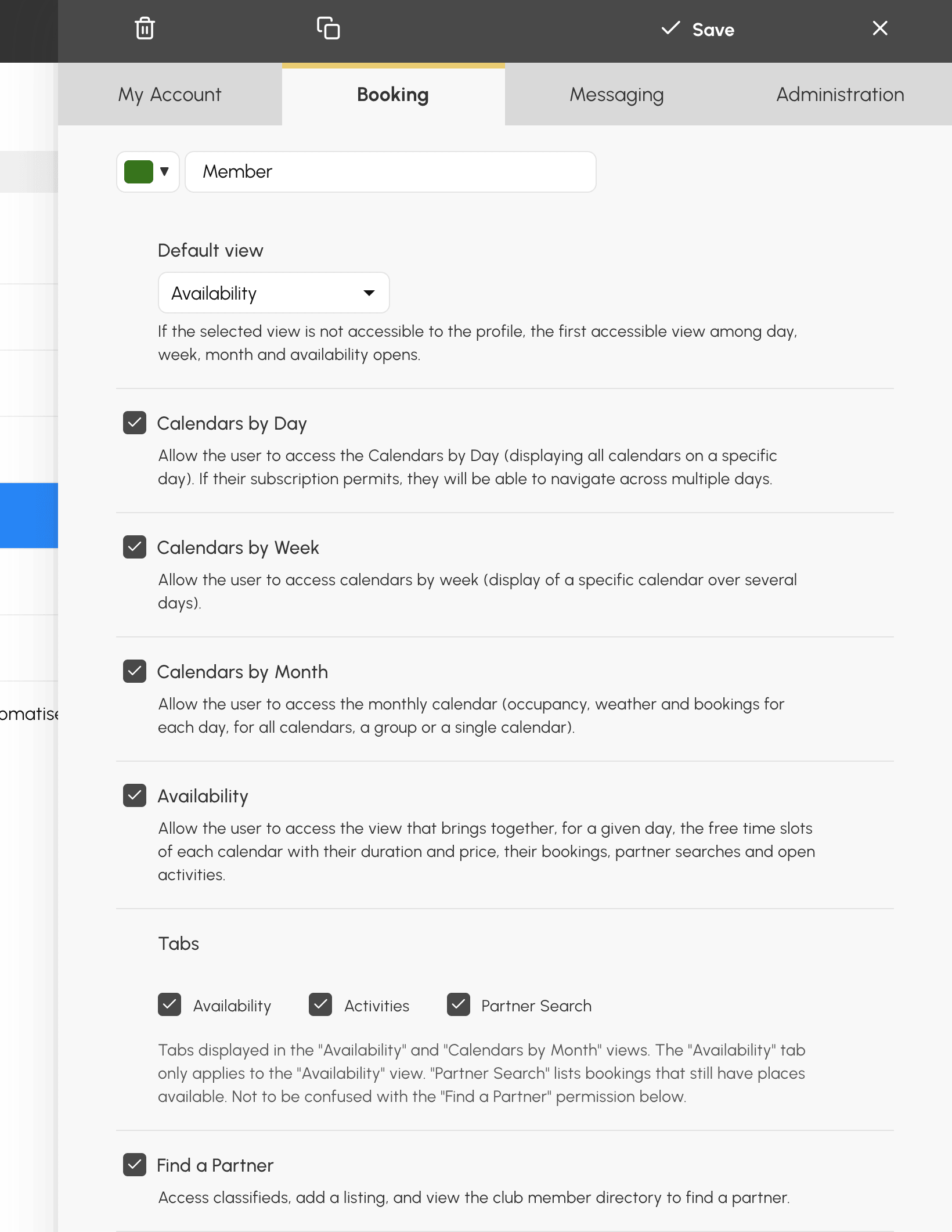
Go to Administration›Users›Access Rights›Profiles & Roles and open a profile. In its Booking tab, tick Calendars by Month and choose in Default view the view that opens when arriving on the booking page, Per month included. The Tabs block sets the tabs offered to the profile in the Availability view and in the month journal.
Our team is here to help with any question about this new view.
The OpenResa team at your service!