A product in your catalogue can now come in variants: several sizes, several colours, or any other criterion you choose. Each variant has its own stock and, if you wish, its own price, in the online shop as well as at the cash register.
Until now, selling a polo shirt in four sizes and two colours meant creating eight products, with eight product sheets and eight stock levels to keep up to date. A single product is now enough: your users choose their size and colour on its page, and the stock of the right variant is updated with every sale.
The full step-by-step guide is in the documentation: Products & services.
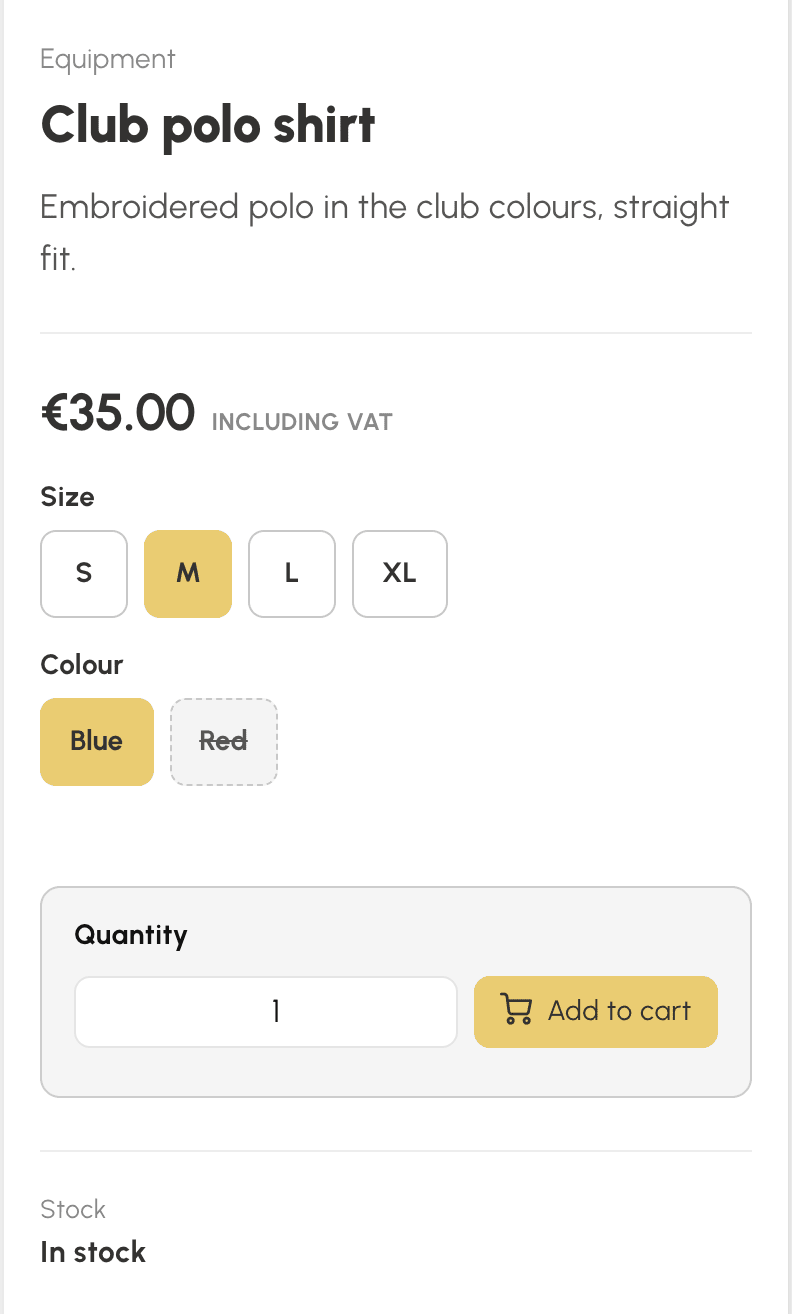
Variants are set up in the product sheet, from Administration›Settings›Billing›Products & Services. Turn on Variants, name a first criterion, for example “Size”, then add its values: S, M, L, XL. A second, optional criterion can hold the colour, for example.
The Variant pricing table then shows one line per combination. For each of them, you set three things:
Variants are available for equipment, food and drink, and custom products. A criterion accepts up to 20 values, which you reorder with a simple drag and drop.
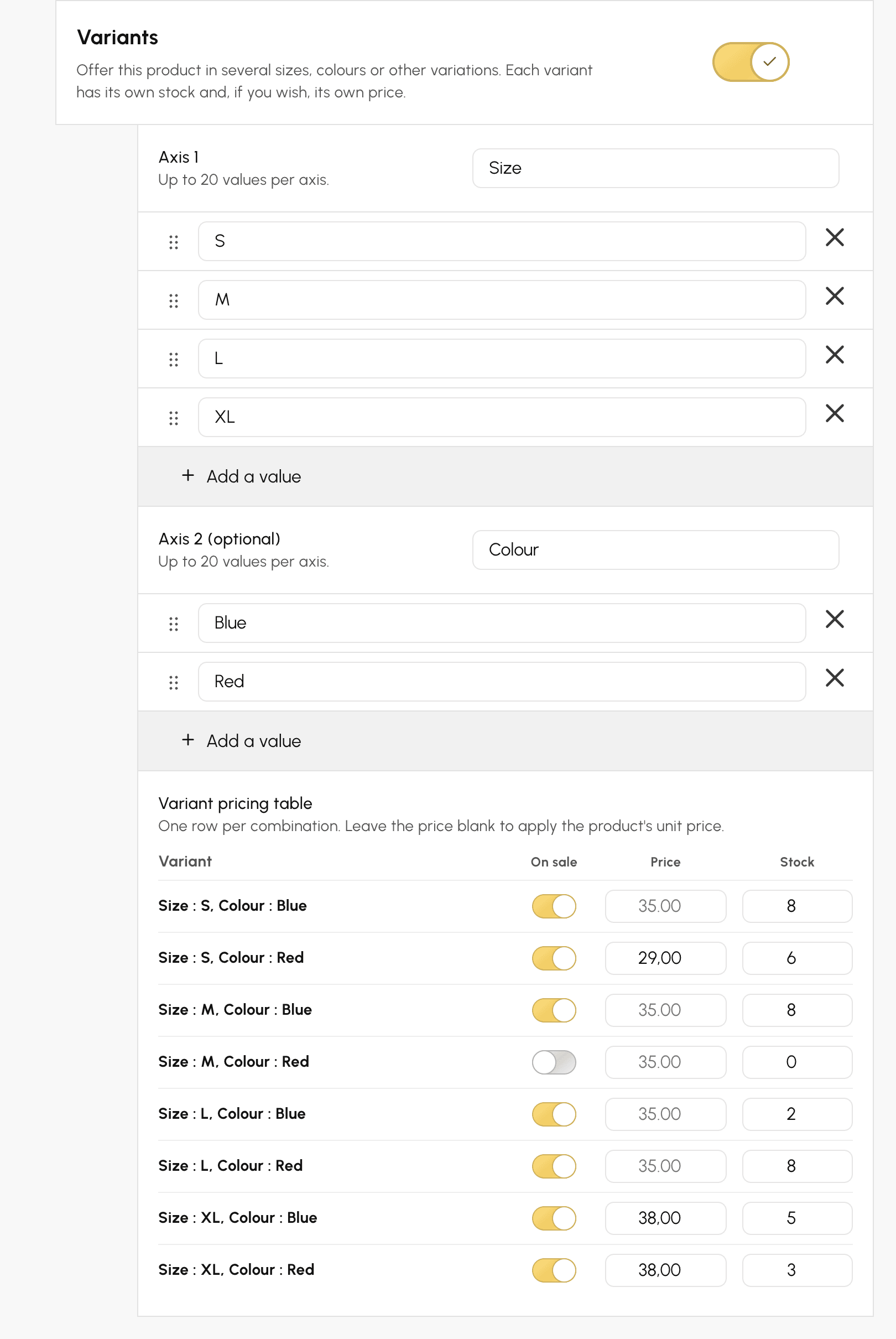
On the product page, each criterion becomes a row of buttons. The user clicks their size, then their colour, and the add to cart button becomes active as soon as the choice is complete.
The price shown follows the chosen variant. As long as nothing is selected, the shop shows the lowest price, preceded by “from”. A combination you do not sell is greyed out, and a variant that is out of stock says so clearly and cannot be added to the cart.
In the cart, on the order and on the invoice, each variant has its own line, named after the product followed by the variant: “Club polo shirt — Size: M, Colour: Blue”.
You can attach a photo to a value, for example the photo of the red polo shirt to the colour “Red”. As soon as the user chooses that colour, the page shows the right photo. A variant with no attached photo shows the main photo of the product.
Each product now accepts up to ten additional photos.
The cash register and manual orders handle variants too. When you tap the tile of a product with variants, you choose the variant sold before it joins the receipt. A variant that is out of stock cannot be selected there.
The stock of each variant goes down with every sale and back up if the order is cancelled. The product sheet shows the total available, all variants combined.
In Inventory & stock, each variant has its own line: you can see at a glance that the L in blue is about to run out, and you adjust several stock levels in a single save. The low stock threshold of the product applies to each variant, and the alert e-mail says which one is concerned.
Turning on variants for a product that has quantity-based prices removes them, after confirmation: a product with variants is sold by the unit, in the quantity chosen by the buyer.
A question about setting up your variants? Our team is here to help.
The OpenResa team at your service!