



Move & resize bookings
Move a booking to another time, another court or another day, or change its duration, by dragging it directly on the calendars, with the mouse as well as with your finger.
Move a booking
- Open the calendars, by day or by week.
- Grab the booking: hold the mouse click on it, or press it for half a second on a touch screen.
- Drag it: a preview of the booking follows the pointer and shows the new time.
- Release it at the desired location: the booking immediately appears in its new place.
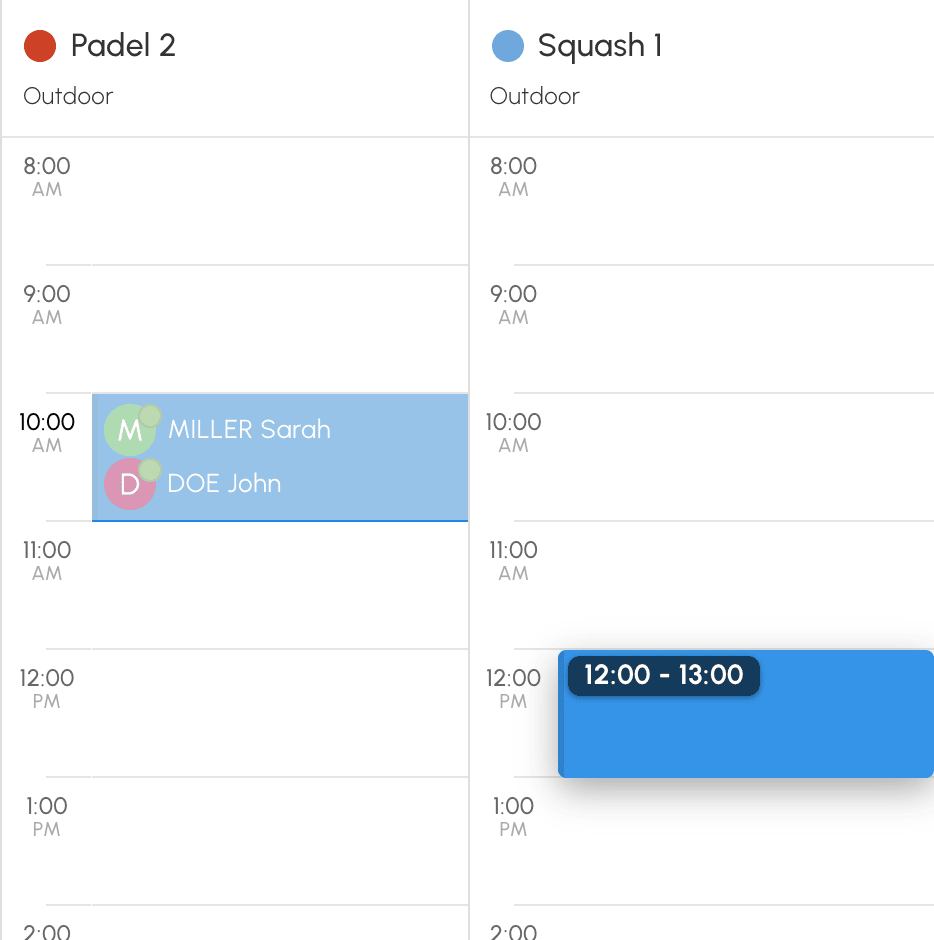
In the day view, you change the time, the court, or both. In the week view, you change the time or the day, on the same court.
To reach a court that is not displayed, hold the booking near the left or right edge of the calendars: the following courts scroll past. Move away from the edge as soon as the desired court appears.
- A click or a short press on the booking always opens its form.
- The Esc key cancels the gesture in progress, and nothing is changed.
- A booking that covers several time slots moves as a single block. For a recurring booking, only the day you move changes: the other dates in the series stay in place.
Change the duration of a booking
- Display the booking's handles: hover over it with the mouse, or press it for half a second then lift your finger without moving on a touch screen.
- Grab the top handle to change the start time, or the bottom one to change the end time. With your finger, the handle is grabbed directly: no new long press is needed.
- Drag, then release.
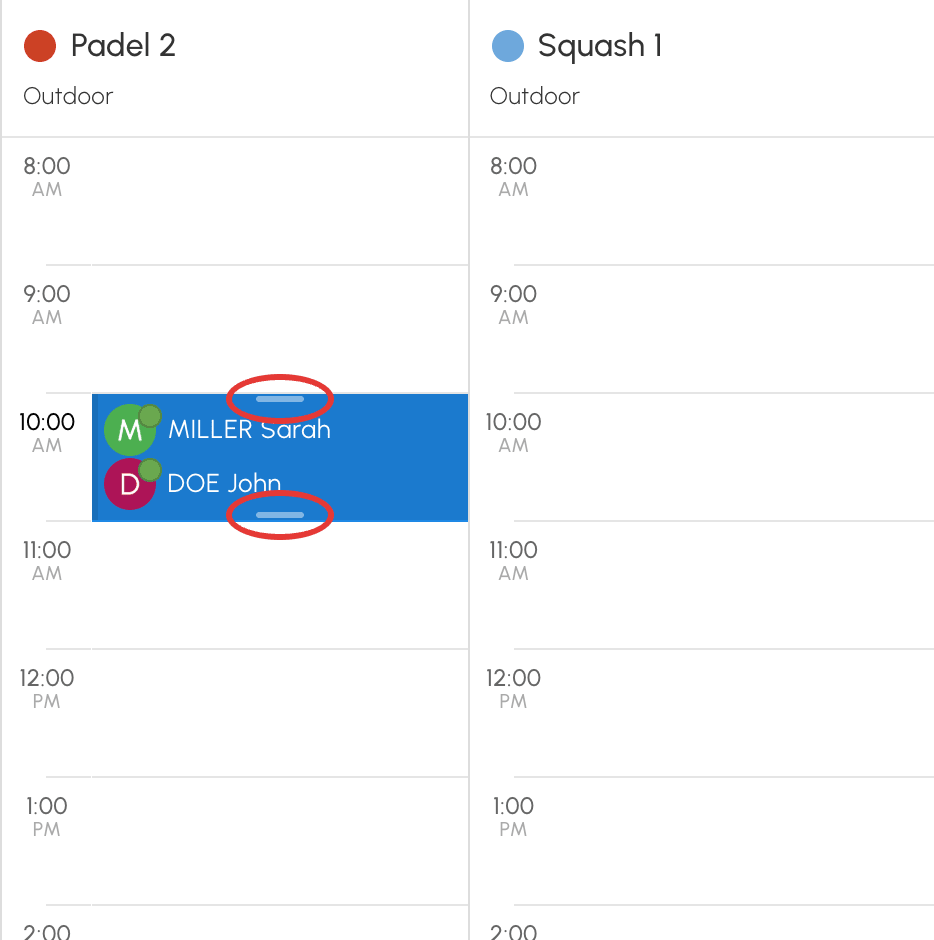
Extending a booking adds time slots with the same participants and the same options; shortening it cancels the time slots that are freed up.
With your finger, the booking stays selected, highlighted by a shadow, until you touch the screen outside of it. Its handles are two round dots, at the top right and at the bottom left; a short press on one of them does nothing. Drag the selected booking to move it, with no new long press; a short press on it always opens its form.
Choose the precision of the gesture
The start and the end of a booking that is moved or resized snap to a step of a few minutes.
- Go to Administration›Settings›Booking›Calendars and open the Display Preferences.
- In Move and resize precision, choose a step of 5, 10, 15, 20, 30 or 60 minutes. The step is 15 minutes by default.
- Click on Save.

This step applies to club managers: a booking can then start or end in the middle of a time slot, but never outside the calendar's opening hours. A user who moves their own booking follows the times offered by the booking form.
Read the preview while moving
The preview takes on the appearance of the booking. Its outline shows whether the target location is possible:
- dark outline: the location is free and permitted;
- orange outline, with the number of time slots concerned: existing bookings will be overwritten;
- flashing red outline: the location is refused. Release it: a window explains why, and the booking stays in place.
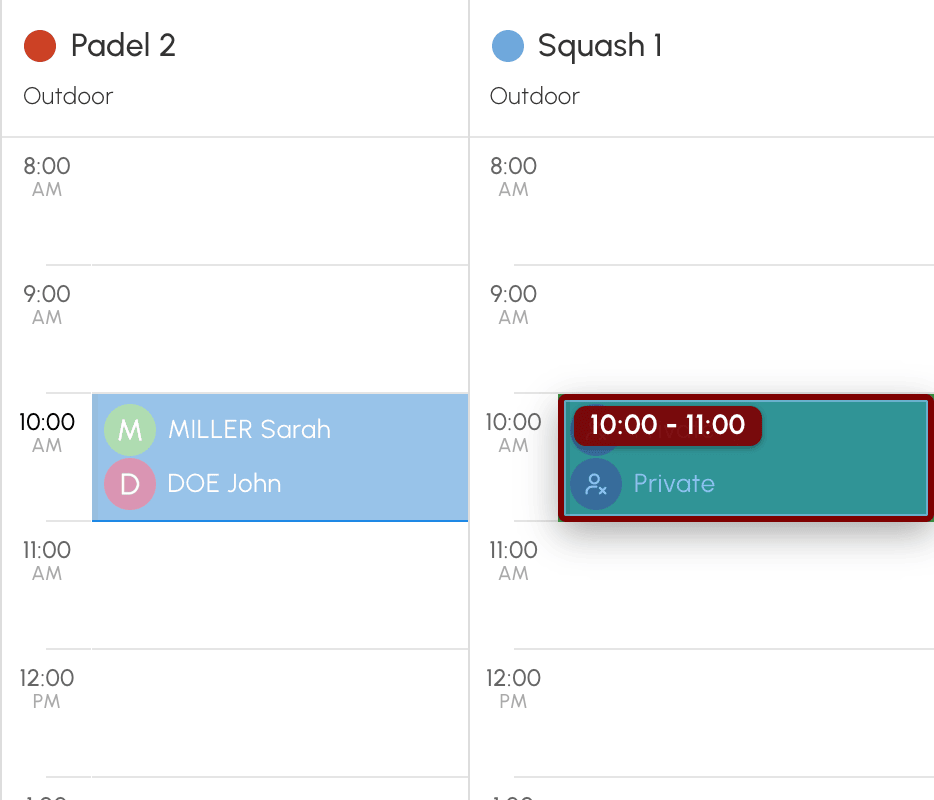
Every location is checked with the same rules as the booking form: a location that the form would refuse is refused here too.
Overwrite an existing booking
Dropping a booking on an occupied time slot requires the Overwrite/Cancel Existing Bookings permission. Without this permission, the location is refused.
- Release the booking on the occupied time slot: the preview is orange.
- A confirmation window shows the number of time slots that will be overwritten, and reminds you, for a recurring booking, that only this day will be moved.
- Tick Disable Notifications if needed. The box is offered when participants would be notified.
- Click on Yes, continue!, or give up with Cancel: the booking returns to its place.
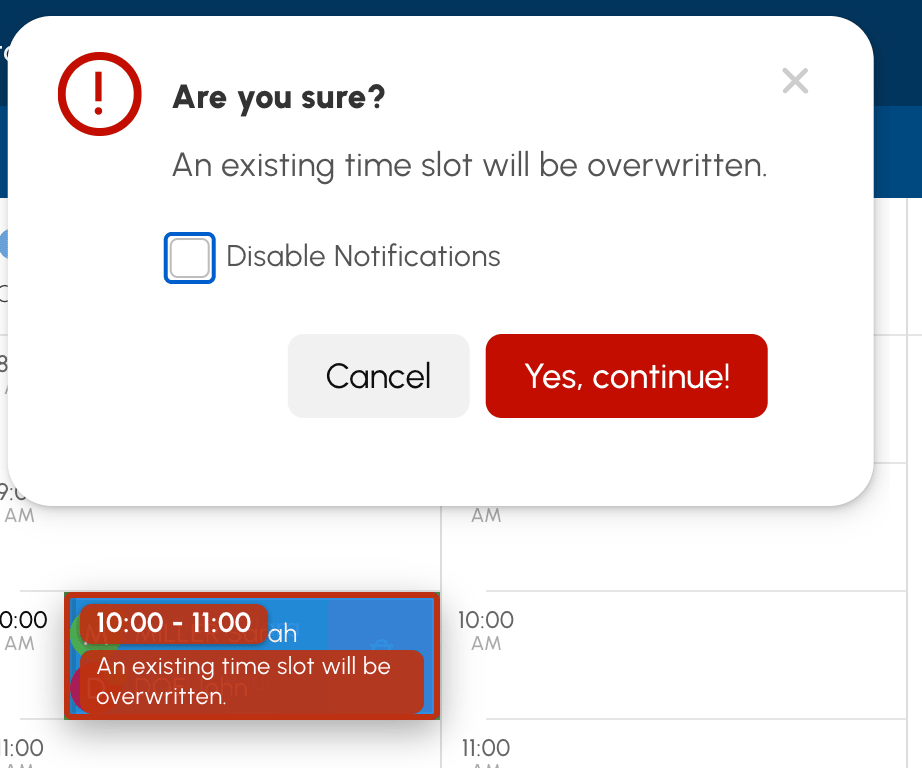
The participants of the overwritten bookings receive a cancellation e-mail, unless you have ticked Disable Notifications. This box also switches off the "booking moved" e-mail to the participants of the booking you are moving.
A booking that is present on one of the Synchronized Calendars with the target court is never overwritten: the location is refused.
Know what changes for the participants
- Participants receive a "booking moved" e-mail with the old and new time slot when the day, time or court changes. No e-mail is sent when the new time slot has already ended, for example when a past booking is moved to another date in the past. Each participant is notified according to their notification preferences.
- Credits follow the new booking. If it costs more, the difference is deducted. If it costs less, the difference is refunded, but never more than what was paid. When a player paid for another player's place, that player pays or gets back the difference.
- When a player in the booking paid for another player's place, moving a booking from a series to the day and court of another booking in the same series detaches it from the series. It becomes a separate booking and is no longer cancelled with the series. A message informs you of this.
- Access codes are revoked, then recreated for the new time slot. Participants receive them in the e-mail. On your side, click the booking to view them.
- Booking reminders are recalculated.
Club managers can still move past, started or checked-in bookings. On a participatory booking, the participants follow the booking. Annotations, however, are not moved.
Choose who can move bookings
Club managers
In Administration›Users›Access Rights›Profiles & Roles, the Booking tab of the profile determines which bookings can be moved:
- Book for other users: user bookings;
- Book with a club label: bookings with a club label;
- Overwrite/Cancel Existing Bookings: in addition to one of the two previous permissions, bookings the club manager does not participate in, and overwriting occupied time slots.
Without the permission that matches the booking type, a club manager can still move the bookings they created, with the same rules as a user.
With Enable Restrictions, players' subscription rules are checked at each move: quota, credits and expired subscription. Without this option, the credit difference is deducted even if the player's balance is insufficient, as for a booking made by a club manager.
Users
- Go to Administration›Users›Access Rights›Subscriptions.
- Open the relevant subscription.
- In the Permissions tab, enable or disable Allow bookings to be moved. The option is enabled by default.
- Click Save.

A user can only move their own bookings, never a club label, and always to a free time slot. They stay within the limits of their subscription:
- they can only move a booking as long as they can still cancel it;
- the start times are those offered by the booking form;
- open dates, quotas and credits apply as for a new booking;
- they can only change the duration if their subscription uses Custom Time Slots, within the minimum and maximum durations set.
Drag and drop is not available:
- on the organization's kiosk;
- to a user who still has to accept the Internal Rules;
- to profiles without access to the administration, when the Protection against bots (automated actions) option is enabled.
These users change their bookings using the form.
