


Accept payments with Global Payments
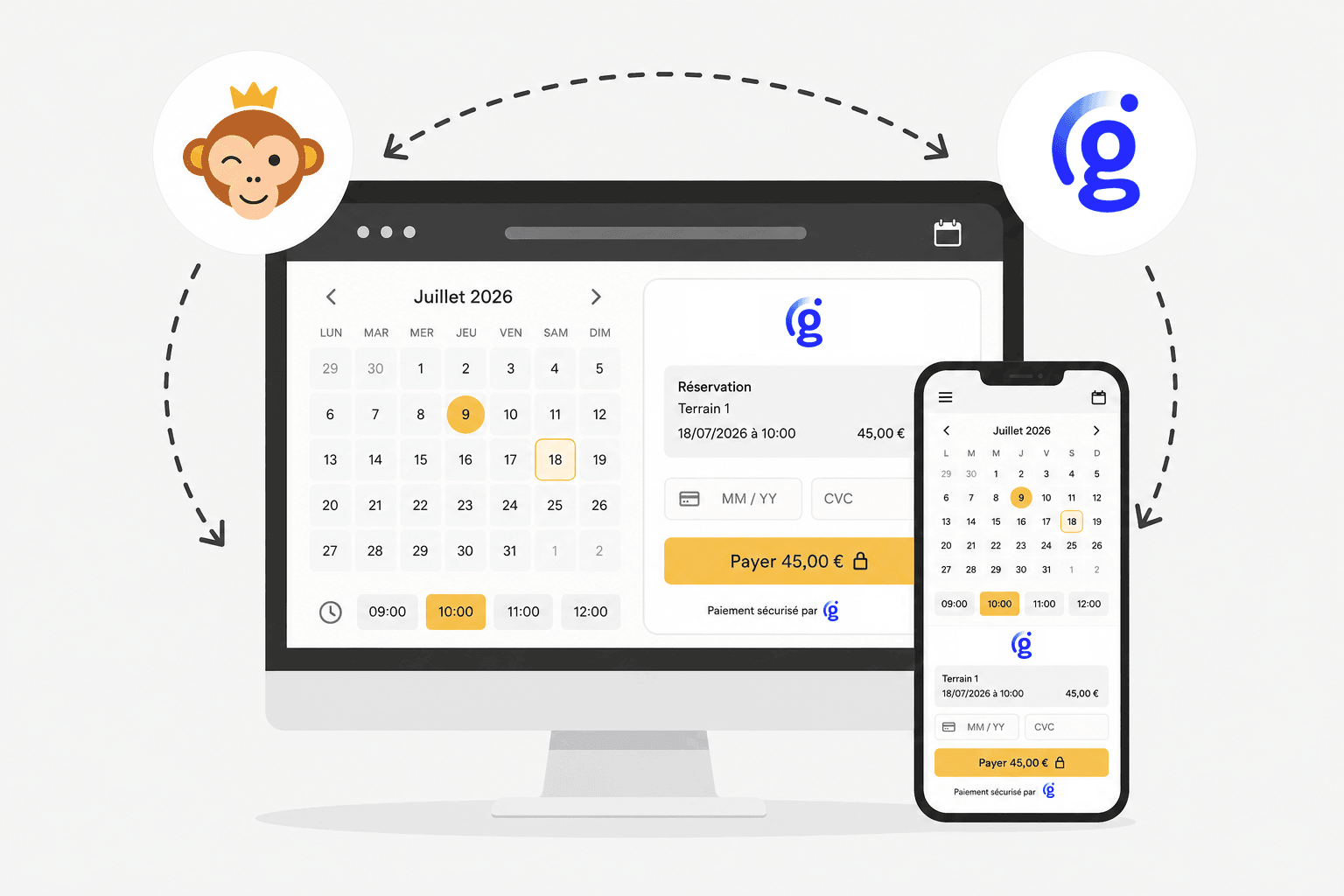
Global Payments is an international payment provider that works with Desjardins (Quebec). Your users pay by card on a secure Global Payments payment page, which also handles 3-D Secure authentication. Fees are set by your contract with Global Payments. OpenResa takes no commission on these payments.
Prerequisites
To accept real payments, your organization needs a Global Payments merchant account, for example through Desjardins in Quebec. Your account manager then gives you two credentials specific to your application: an App ID and an App Key.
To try the gateway before signing a contract, create a free account on the Global Payments developer portal (developer.globalpayments.com). A test application is created there, with its own App ID and App Key.
Set up Global Payments on a billing account
Each billing account has its own gateway. You can therefore use Global Payments for some of your activities and keep the others on a different account.
- Go to Administration›Settings›Billing›Billing Accounts, open the billing account concerned and go to the Payments tab.
- Enable Online Payments and select Global Payments from the list of gateways.
- Paste your App ID and your App Key. The App Key is stored encrypted and is never displayed in full again.
- Leave the API Address set to
apis.globalpay.com. Chooseapis.eu.globalpay.comonly if Global Payments has told you to. - Leave the Account Name empty: OpenResa chooses the account to use by itself (see below).
- Tick Test environment (sandbox) if you are entering the credentials of a test application.
- Click Save, then Test the connection.
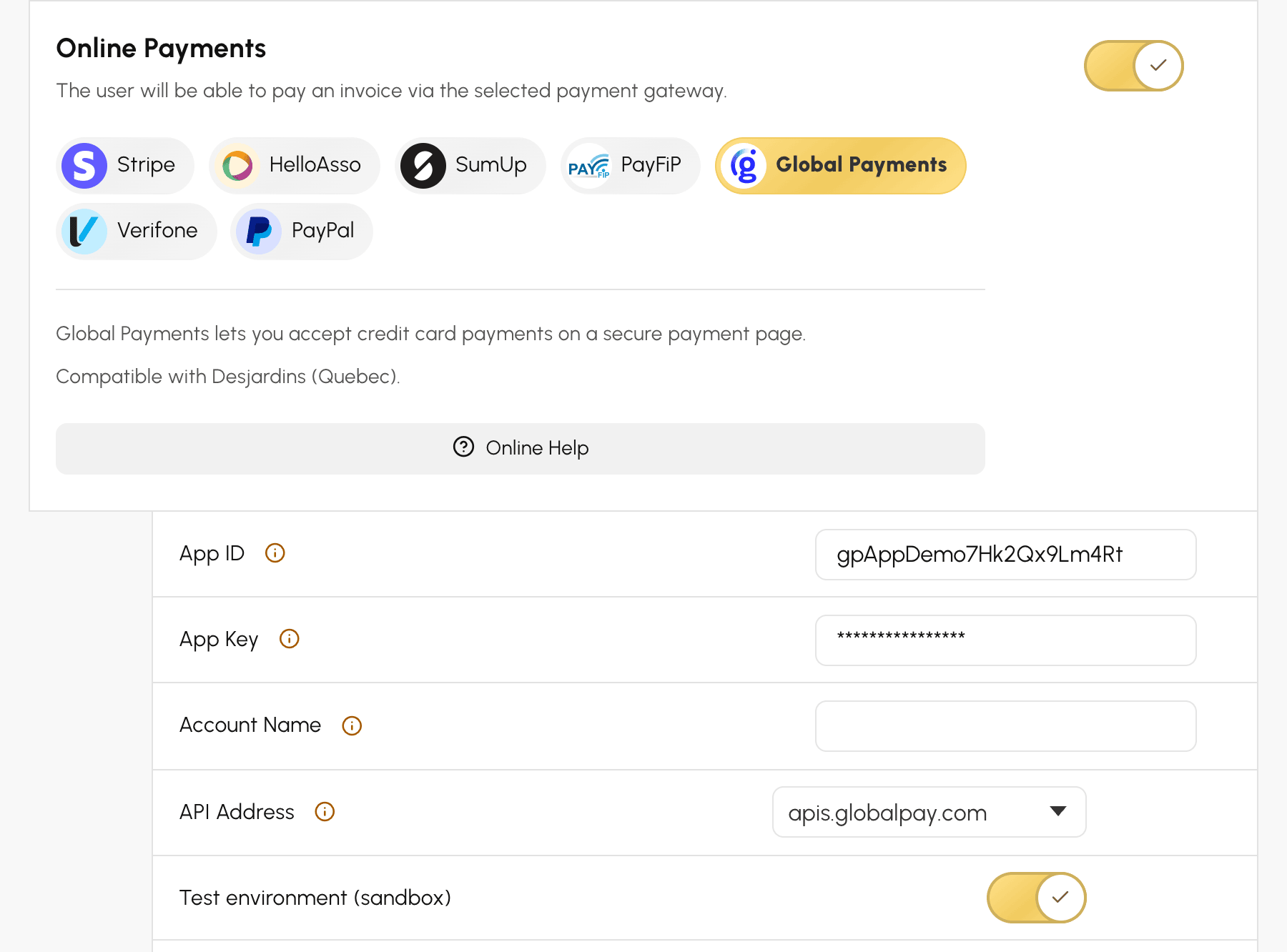
You do not need to register any notification address in your Global Payments account: OpenResa sends its own return addresses with each payment. A Online Help link in the form repeats these steps.
If the test reports that the credentials are rejected, first check the test environment box. Test credentials only work with the box ticked, and production credentials only with the box unticked.
Choose the processing account
A Global Payments application can include several payment processing accounts. When the Account Name is empty, OpenResa uses the only available account. If there are several, it uses the single account dedicated to the payment page, whose name ends with _hpp. The connection test shows you which account was selected, for example Global Payments connection OK — processing account selected automatically: transaction_processing_hpp.
If OpenResa cannot choose by itself, the test message lists the available accounts. Copy the name of the one Global Payments gave you into Account Name, save, then run the test again.
Try it out with the test environment
With the credentials of a test application and the Test environment (sandbox) box ticked, payments are simulated: no card is charged, and paid orders generate invoices in the SPECIMEN series, which have no accounting value.
To make a test payment, pay for an order with the Visa test card 4263970000005262, expiry date 05/39 and security code 599: the payment is accepted. Other test cards are described in the Global Payments documentation.
To switch to production, replace the App ID and the App Key with your production credentials, untick the box, save, then run the connection test again.
Understand the payment from the user's side
When paying, the user chooses Online Payment, shown with the mention via Global Payments. They are then redirected to the Global Payments payment page, in French or English depending on their language. There, they enter their card details and confirm with 3-D Secure authentication if their bank requires it.
They then return to OpenResa, which waits for confirmation from Global Payments: the message Payment validated usually appears about ten seconds after the payment. As with any gateway, OpenResa then sends them the confirmation and the invoice.
A few rules specific to Global Payments apply:
- E-mail address. Global Payments requires the payer's e-mail address. The user must therefore have a valid address of 50 characters or fewer on their order or on their account. Otherwise, online payment is refused with the message A valid e-mail address is required to pay online. Check your account.
- Currency. The payment is made in the order's currency, for example Canadian dollars for a club in Quebec. This currency must be enabled on your Global Payments account. Otherwise, the user sees an unavailability message and you are alerted after several failures.
- One attempt per page. After a card is declined, the user returns to OpenResa and restarts the payment: a new payment page is created.
The Global Payments payment page remains valid for 24 hours. If the user abandons it, their order remains awaiting payment and they can pay for it again, through Global Payments or another payment method you offer.
Find a payment
In your Global Payments portal, each payment has a reference that combines the order number, without its hyphens, and the payment attempt number. For example, BJ2026000123T15349533 corresponds to order 2026-000123. Search for this order number in Administration›Dashboard›Billing›Invoices & Transactions to open it.
In the order details, the transaction shows the Global Payments Transaction ID, the Authorization Number and the Reference. The billing account's Event log option lists the responses received from Global Payments and the checked result, with the reason for any failure. On a failed line, Replay checks the payment again with Global Payments and records it if it went through.
Refund a payment
Refunds are started from Administration›Dashboard›Billing›Invoices & Transactions: open the order, click Refund, then choose a full or partial refund. With the Global Payments tile, OpenResa updates the order and sends the refund to Global Payments, which credits the payer's card.
A full refund removes the deliverables (credits returned, subscription revoked) and marks the order as refunded. A partial refund leaves the order paid and only reduces the amount collected. Global Payments does not allow refunding more than the payment amount.
If Global Payments does not confirm the refund, for example because of a connection outage, the order is still updated. A Refund to be verified on the Global Payments side message then asks you to check in your portal that the refund was made, and to make it if not.
