


Targeting a subscription rule: criteria and priority
Restrict a subscription rule to certain bookings only (during holidays, from four participants, at the last minute…) and find out which one applies when several overlap.
Understanding what a criterion is
Subscription settings are often made through lists of rules: restrictions, limits, credit rates, custom time slots… A rule targets calendars, days and, if needed, a time range. A criterion adds one more condition: the rule only applies to bookings that meet it.
Here is an example. You want a doubles match to cost less per person than a singles match: 8 credits each for singles and 5 credits each from three participants. In the booking rates, create two rates. Set the first one at 8 credits with the Participants criterion up to 2. Set the second one at 5 credits with Participants from 3. Each booking takes the rate that matches its number of participants.
Another example: you want a specific rate during school holidays and public holidays, for example 6 credits instead of 10. Create a 6-credit rate with the Holidays and public holidays criterion set to Only these dates and your date group, alongside your usual 10-credit rate. Bookings that fall on these dates take the 6-credit rate. The others keep the usual rate.
Adding a criterion to a rule
- In Administration›Users›Access Rights›Subscriptions, open the subscription, then the tab of the list to configure, for example Rules for restrictions.
- Click the rule to expand it, or add a new one.
- Click Add a criterion and choose the criterion.
- Configure it, then click Save.
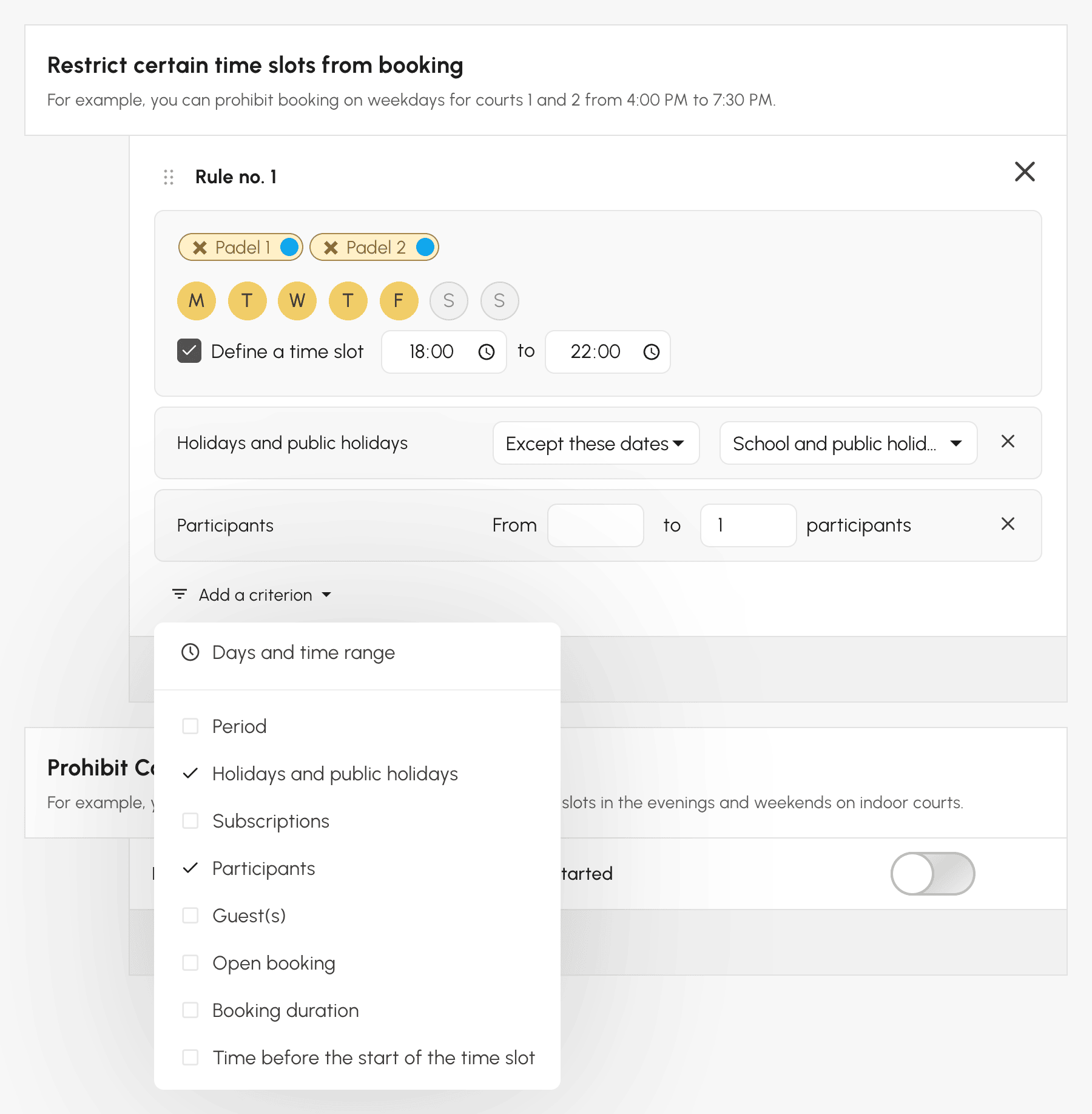
To remove a criterion, click the cross on the right of its box.
Choosing the right criterion
| Criterion | The rule applies… | Example |
|---|---|---|
| Period | between two dates | a summer rate, from 1 July to 31 August |
| Holidays and public holidays | during the dates of a group (Only these dates), or outside them (Except these dates) | cheaper credits during school holidays |
| Participants | depending on the number of people on the booking, guests included | a rate from 4 participants |
| Guest(s) | to bookings with or without a guest | no guests on Saturday mornings |
| Open booking | to bookings open to other users, or to the others | credits waived for open bookings |
| Subscriptions | when a partner holds one of the selected subscriptions | a reduced rate with a Youth partner |
| Labels | to bookings that carry one of the selected labels | a rate specific to Training sessions |
| Booking duration | depending on the selected duration, in minutes | credits only from 90 minutes |
| Time before the start of the time slot | depending on the time between the booking and its start | a last-minute rate, less than 24 h before |
A few useful details:
- Subscriptions looks at the subscription of the partners, not that of the subscriber: the rule is already part of the subscriber's own subscription.
- To target a booking made alone, use Participants up to 1.
- Time offered to bookings with several players does not count towards the duration: 60 minutes extended by 30 free minutes count as 60 minutes.
- "More than 24 h" also includes a booking made exactly 24 h before the start.
The Holidays and public holidays criterion relies on date groups that you set up once, and that official dates can fill in and keep up to date.
Knowing which criteria each list offers
Each list only offers the criteria that are useful for it:
| List | Tab | Criteria offered |
|---|---|---|
| Restrict certain time slots from booking | Rules | Period, Holidays and public holidays, Subscriptions, Participants, Guest(s), Open booking, Booking duration, Time before the start of the time slot |
| Limit bookings on a fixed calendar | Quota | Period, Holidays and public holidays, Participants, Guest(s), Open booking, Booking duration, Time before the start of the time slot |
| Credit system activation rules (Advanced Configuration) | Credits | the same as limits |
| Booking Rates | Credits | Period, Holidays and public holidays, Labels, Subscriptions, Participants, Guest(s), Open booking, Time before the start of the time slot |
| Guest Pricing | Guest Passes | Period, Holidays and public holidays, Subscriptions, Participants, Open booking, Time before the start of the time slot |
| Custom Time Slots | Permissions | Period, Holidays and public holidays |
Rates do not need the duration criterion: each rate already has its own duration. The other lists, such as multiple quotas, are configured by calendars, days and time ranges only.
Understanding which rule applies
When several rules in the same list match a booking, there are two cases.
Restrictions and limits: they all apply. A single restriction is enough to refuse the booking, and each limit keeps its own count.
Rates, custom time slots and multiple quotas: only one applies, the most specific one. The most specific rule is the one with the most conditions. Selected calendars (not all of them), days (not the whole week), a time range and each criterion each count as one. This is the number shown by the 3 criteria indicator when the rule is collapsed.
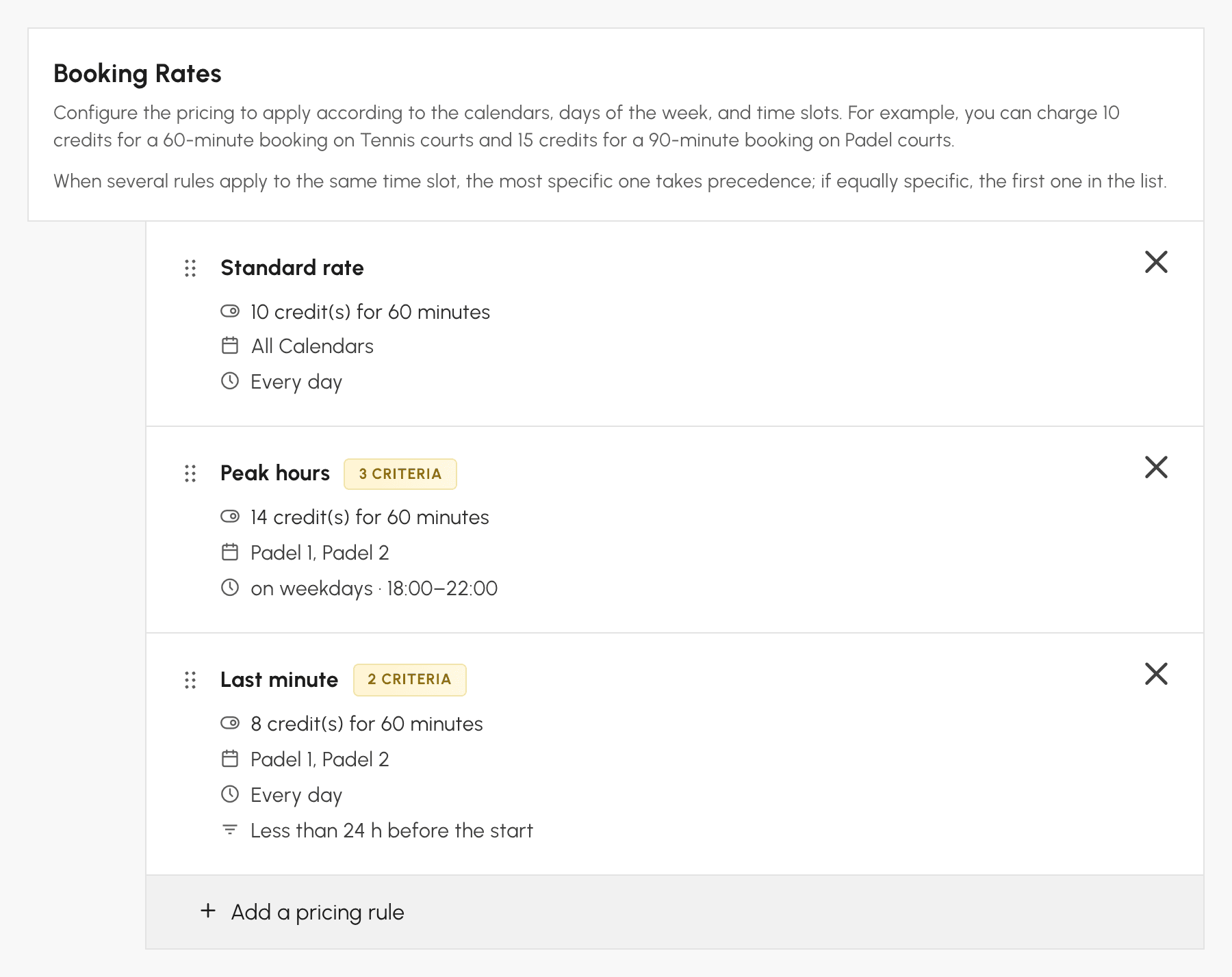
With these three rates:
- a padel court on Tuesday at 7 pm, booked the day before: Peak hours (3 conditions) applies, 14 credits;
- a padel court on Saturday at 11 am, booked two hours before: Last minute (2 conditions) applies, 8 credits;
- a padel court on Tuesday at 7 pm, booked two hours before: Peak hours wins, because it has more conditions than Last minute.
To make the last-minute rate also apply in the evening, add a rate that combines both: padel, on weekdays from 18:00 to 22:00, less than 24 h before. With four conditions, it wins over the other two.
Knowing what your users see
- In My Account›My Subscription, each restriction and each limit displays its criteria: users understand why a time slot is refused to them.
- When a restriction depends on participants or guests, the refusal occurs when the booking is submitted, once the participants are known.
- When a rate depends on participants, the Availability view displays the lowest possible price, and the form shows it as "from" until the partners are chosen. The exact price is displayed afterwards.
- When someone joins or leaves the booking, the credits adjust to the new rate. For example, when each player pays for their own place: a rate of 8 credits for two and 5 credits from three. If a third participant joins a singles booking, they pay 5 credits, and the first two each get 3 credits back.
