


Manage holidays and public holidays
Group school holidays and public holidays under a single name, then use them in your subscription rules and to schedule recurring bookings: a holiday-specific rate, a restriction lifted on public holidays, lessons that stop during the holidays. Official dates are filled in with a single choice and are updated automatically every month.
Understand what these date groups are for
A date group has a name and a list of days or periods. On its own, it does not change anything about bookings: no closure, no message to users. It takes effect in two places, always in one of two ways: either on these dates (Only these dates), or on all other days (Except these dates):
- in a subscription rule, using the Holidays and public holidays criterion;
- in a recurring booking, to choose the dates of the series.
Two examples in a tennis club:
- courts are cheaper to rent during the school holidays: a rate with Only these dates and the holiday group for your zone;
- Juniors subscribers cannot book on weekdays from 5 pm to 7 pm, except during the holidays: a restriction on this time range, with Except these dates and the same group.
A single group can be used in as many rules and subscriptions as you like. When you change its dates, all the rules that use it are updated immediately.
Find the groups created automatically
The first time an administrator opens this page, or a subscription form, an organization that does not yet have any groups receives those whose dates are certain. There are at most three: school holidays and public holidays combined, school holidays only, and public holidays only, each one updated automatically (see below).
In France, the holiday zone is determined from your organization's postcode. Elsewhere, a group is only created if your country's holidays or public holidays are the same everywhere. If the zone cannot be determined with certainty, nothing is created: create your groups yourself, and the pre-fill option will suggest the zones.
An automatically created group that you delete is never recreated.
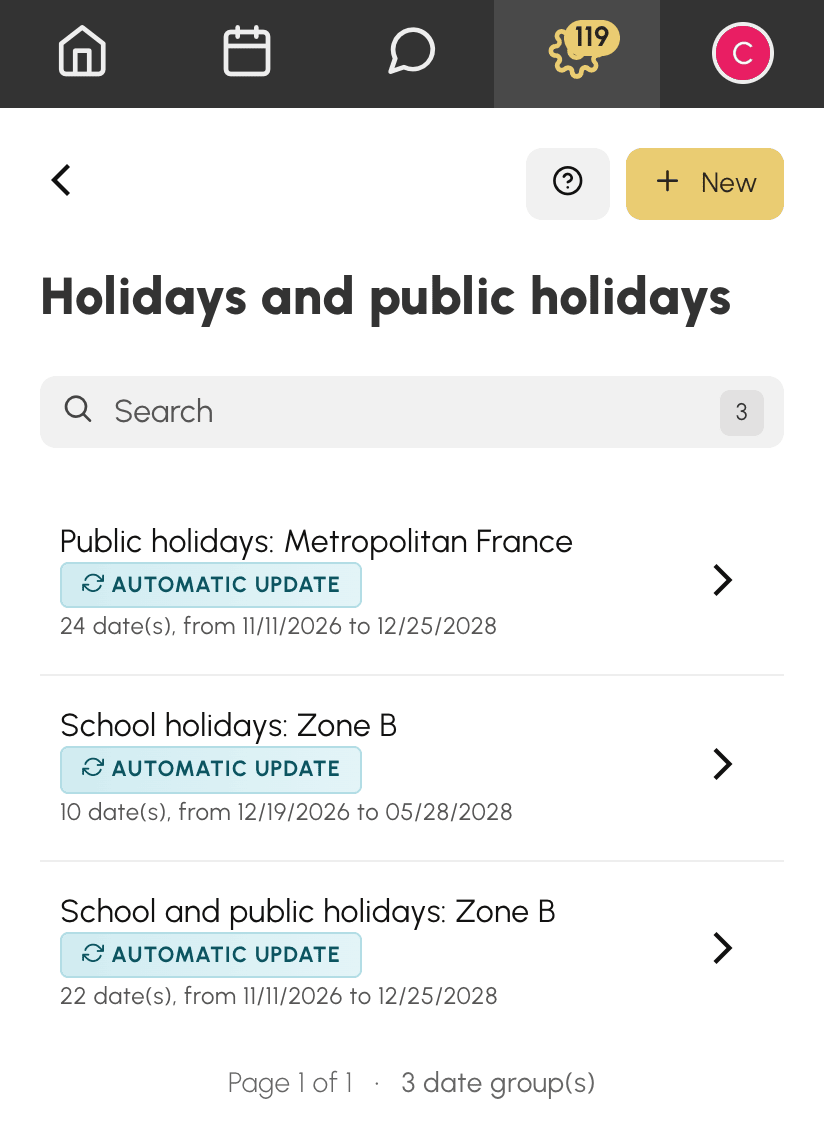
In the Administration›Settings›Booking›Holidays and public holidays list, each group shows its number of dates, along with the first and last date. Two labels may also appear:
- Automatic update: the group receives newly published dates every month;
- No more upcoming dates: all its dates are in the past. Rules that use it with Only these dates no longer apply to anything, and those with Except these dates apply every day. Add the dates for the next season.
Create a date group
- Go to Administration›Settings›Booking›Holidays and public holidays.
- Click New.
- Give the group a meaningful name, for example Winter holidays or Summer closure.
- Under Dates, enter one date per line. Leave the end date empty (Same day) for a single day, or fill it in for a period. The number of days is displayed below each line.
- Click Add a date for each additional date.
- Click the cross on a line to remove it.
- Click Save.
A group contains at least one date. The lines are sorted by start date when you save.
Pre-fill with official dates
When your organization's country is covered (France, including its overseas territories, and many other countries, mostly in Europe), the form offers a Pre-fill list. It brings together three families:
- School holidays and public holidays;
- School holidays;
- Public holidays.
Each family is broken down by zone or region, plus Whole country when the dates are the same everywhere. In France, the option for your zone is marked Zone B (your zone), based on your organization's postcode. Nothing is selected in advance: the list opens on Choose holidays or public holidays… and waits for your choice.
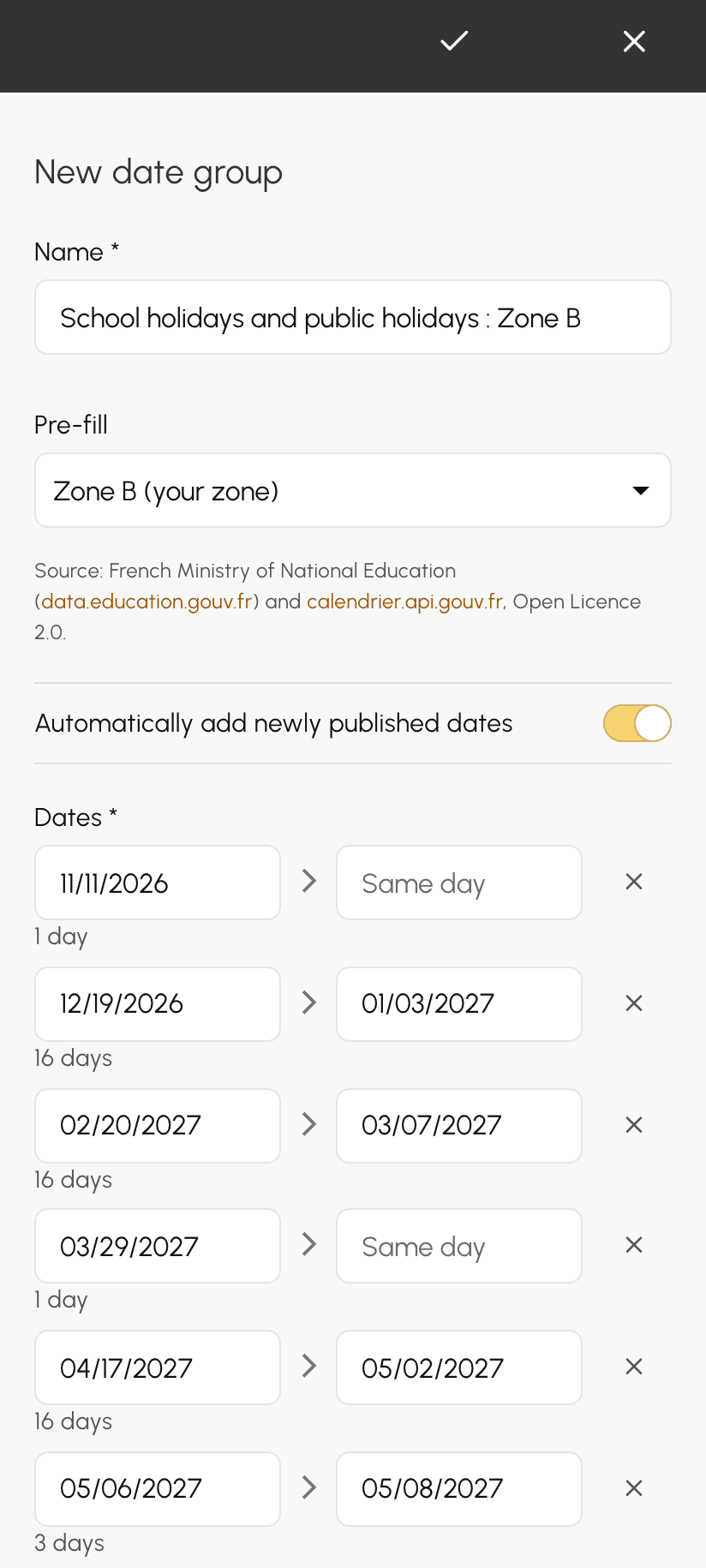
As soon as you choose an option:
- the date lines are filled with the upcoming dates for that choice; past dates are not offered;
- a group name is suggested, if you have not entered one yet;
- the dates you entered manually stay in place. If you change options, only the lines from the previous option are replaced.
Nothing is saved until you click Save. You can therefore adjust the group: remove a bridge day that your club does not take off, or add the weekend of your internal tournament.
The source of the dates is shown below the list: for France, the Ministry of National Education and the official public holiday calendar; for other countries, the OpenHolidays database, published under the ODbL licence. If your country is not covered, the list does not appear: enter your dates manually.
Automatically follow new dates
Once an option is chosen, the Automatically add newly published dates switch appears, already enabled. The group then stays linked to its choice: every month, newly published dates for that zone are added to the group. When the school calendar for the following year is published, your rules take it into account without you having to think about it.
Automatic updates only add dates:
- a date already in the group is never changed;
- a date you have deleted does not come back;
- dates you added yourself are never touched.
To freeze a group, disable the switch, or go back to Choose holidays or public holidays…, then save: the dates remain, and automatic updates stop.
Use a group in a subscription rule
- In Administration›Users›Access Rights›Subscriptions, open the subscription, then the rule you want to refine: a rate, a restriction, a limit…
- Click Add a criterion, then Holidays and public holidays.
- Choose Only these dates or Except these dates, then the group.
- Click Save.
The rule is assessed based on the day the booking starts. A rule can only use one group: to target both holidays and public holidays, choose the group that combines the two.
If your organization does not yet have any groups, the criterion displays a link to this page instead.
Schedule recurring bookings
When you book with recurrence, for example a lesson every Wednesday of the season, a date group saves you from removing weeks one by one:
- Except these dates: the series skips the dates in the group. Your Wednesday lesson falls neither during the school holidays nor on a public holiday;
- Only these dates: the series keeps only the dates in the group. A training camp every morning of the holidays can be scheduled in one go.
Before booking, the recurrence preview shows the dates kept and those excluded by the group. You can still remove or add a date with a single click.
With an automatically updated group, the series for a following season takes the holidays into account as soon as they are published: simply choose the same group.
Delete a group
Click Delete in the list or in the group form, then confirm.
Deletion is refused as long as a subscription rule uses the group: the message names the subscriptions concerned. First remove the criterion from these rules, then delete the group.
