This new version brings an improvement that many of you had requested: allowing users to open a booking to other users, even when they have already selected one or more partners. Here's what changes concretely.
Until now, a subscriber who wanted to let other users add themselves to their time slot had to book without a partner. Once the booking was initiated, other users could click on the time slot and add their name — this is the famous "Booking without partner > Add my name" function.
This greatly limited usage: it was impossible, for example, for a duo of users already formed to look for a third and fourth partner for a double, or for a trio to look for a fourth. It was absolutely necessary to book "alone without a partner" for others to add themselves one by one.
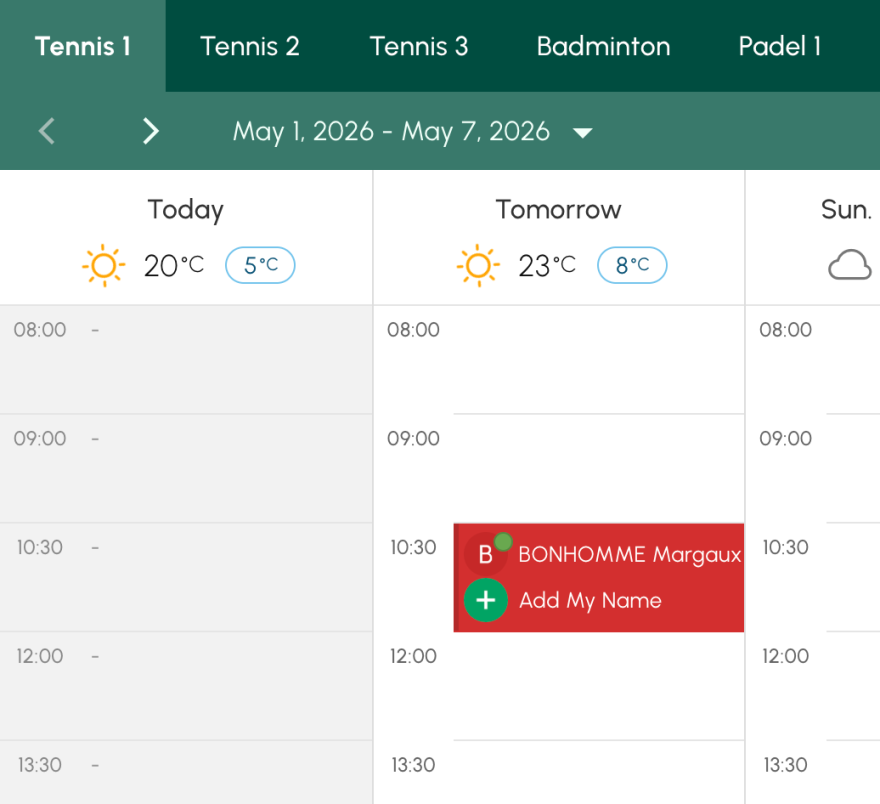
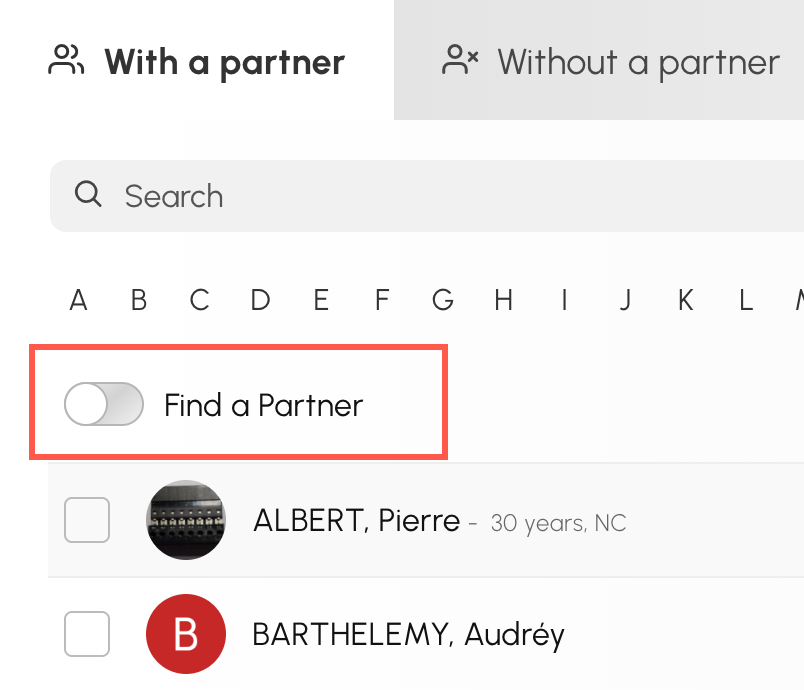
From now on, your subscribers can open their booking to other users, whether they book alone or with already selected partners. Concretely, on the booking form, under the "With a partner" tab, they will find a new option: 🔘 Partner search
By activating this option, their booking becomes "open": other subscribers can add themselves to the time slot within the limit of the number of participants allowed by their subscription.
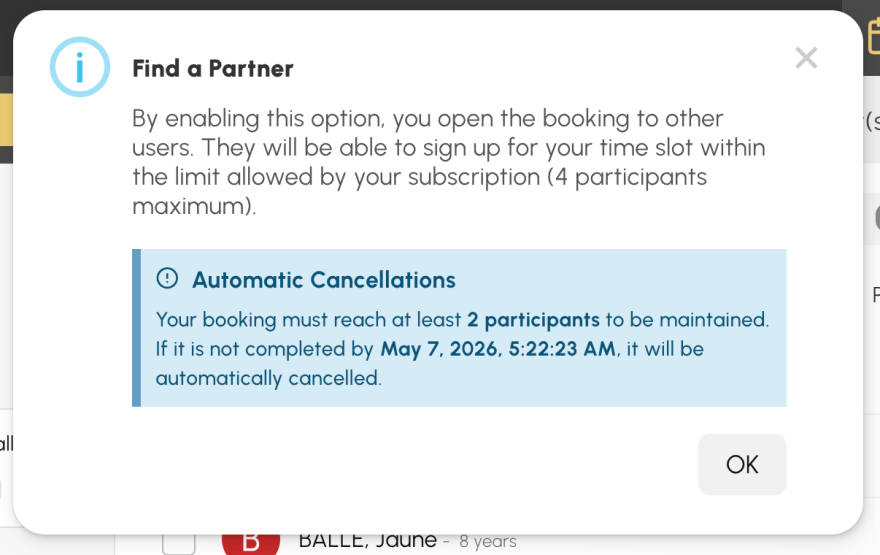
When activating the option, an information window clearly explains what this implies for them — including, if applicable, automatic cancellation if the booking remains incomplete.
On the administration side, in the menu Administration > Users > Subscriptions, under the "Permissions" tab, the old option "Book without partner > The subscriber can add their name to another subscriber's booking" has been replaced by a standalone main option:
⚙️ Partner search (open booking)
This unique option now allows the subscriber to:
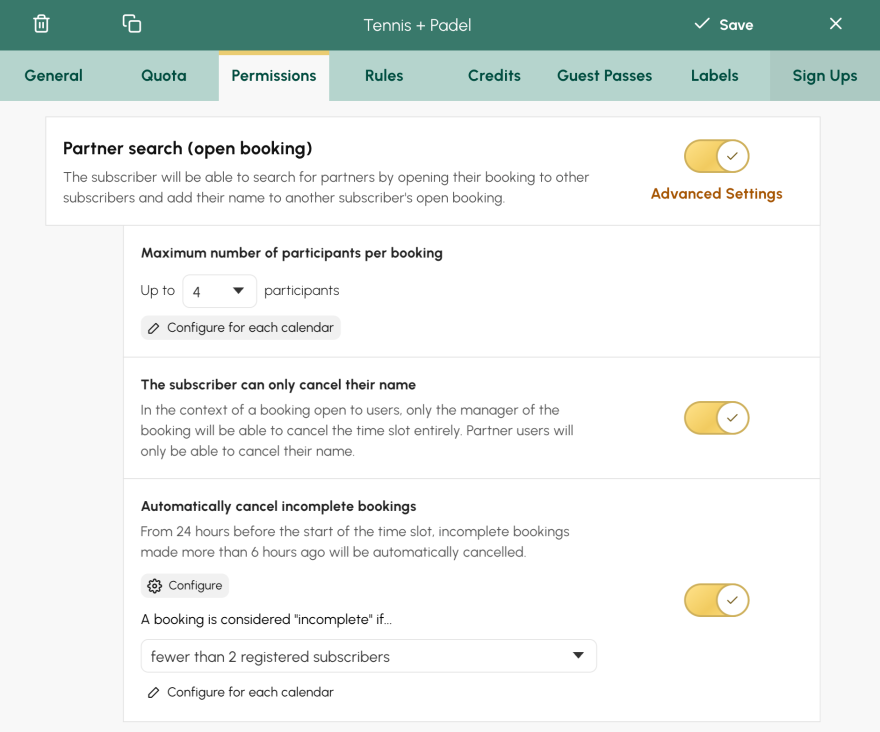
For the "Partner search" option to be truly useful, three settings must be aligned. Taken individually, each has its logic; combined correctly, they define the complete behavior of partner search.
If you set, for example, minimum 3 partners and maximum 3 partners, the "Partner search" function becomes obsolete when used with "Book with partners": the subscriber is forced to select exactly 3 partners at the time of booking, so the time slot is already full and no one can add themselves.
👉 Golden rule: for other players to be able to register afterwards, the minimum must be less than the maximum. The difference between the two represents the "number of open spots" to be filled.
The player can book alone or with 1, 2, or 3 partners. The booking accommodates up to 4 subscribers in total. If fewer than 2 subscribers are registered after the delay, the time slot is automatically released.
|
Setting |
Value |
|---|---|
|
Book without partner |
✅ Activated |
|
Book with partners (Number of partners allowed per booking) |
min 1 / max 3 |
|
Maximum number of participants per booking |
4 |
|
Automatically cancel incomplete bookings |
✅ Activated |
|
A booking is considered "incomplete" if... |
< 2 participants |
The player can book alone, with 2 or 3, and look for the missing ones. The booking is automatically canceled if it does not reach 4 players within the allotted time — ensuring that no padel court remains occupied by an incomplete time slot.
|
Setting |
Value |
|---|---|
|
Book without partner |
✅ Activated |
|
Book with partners (Number of partners allowed per booking) |
min 1 / max 3 |
|
Maximum number of participants per booking |
4 |
|
Automatically cancel incomplete bookings |
✅ Activated |
|
A booking is considered "incomplete" if... |
< 4 participants |
The panel Administration > Settings > Automatic cancellations has been redesigned to be clearer. The cancellation rule now explicitly consists of two cumulative conditions:
It is the first deadline reached that triggers the cancellation. And of course, these cancellations apply to both solos and new open bookings with partners.
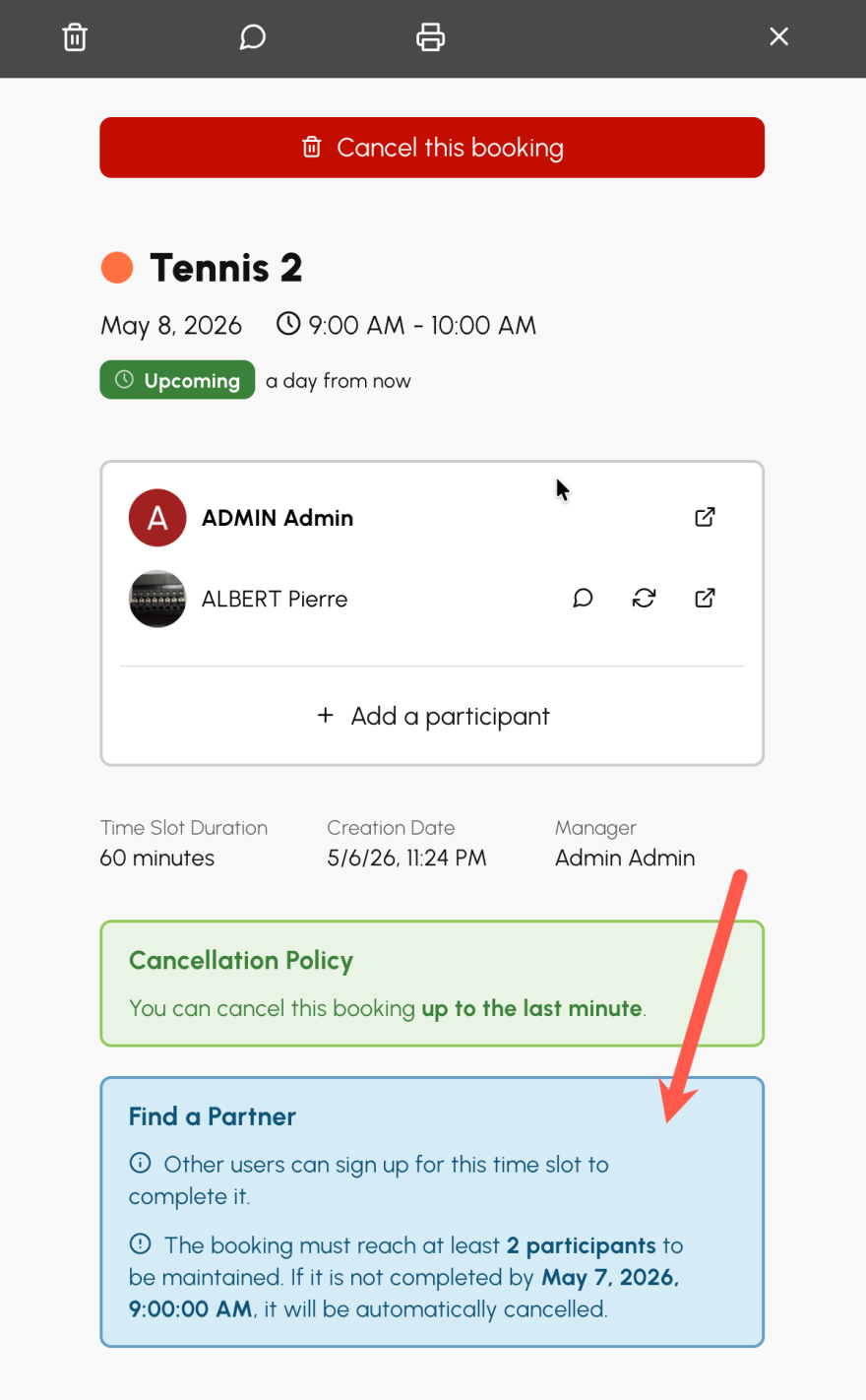
Users are now informed of this automatic cancellation at the time of booking, in email notifications and in the booking details. The deadline by which the booking will be cancelled if it is not completed is also stated, to make the process even simpler.
Feel free to contact support if you have any questions or need help configuring this feature and the various settings.
You can now go take a look at your subscriptions to see the new options, and — why not — communicate this new feature to your users.
The OpenResa team at your service!