The Dashboard > Activity Summary module has been revamped with a completely redesigned presentation centered around synthetic cards. Each indicator is accompanied by an evolution chart to visualize your organization's trends at a glance. For clarity, the statistics are organized into two distinct tabs: Bookings and Users & Payments.
Each card is a shortcut to the corresponding detailed module: a click is enough to delve deeper into the analysis with more filters and settings. This redesign also introduces new data: the overall occupancy rate, the most occupied time slot, and the most occupied calendar, as well as a chart and a top 10 of active users over the period.
A more modern, faster, and more actionable display to track activity and manage your organization daily.
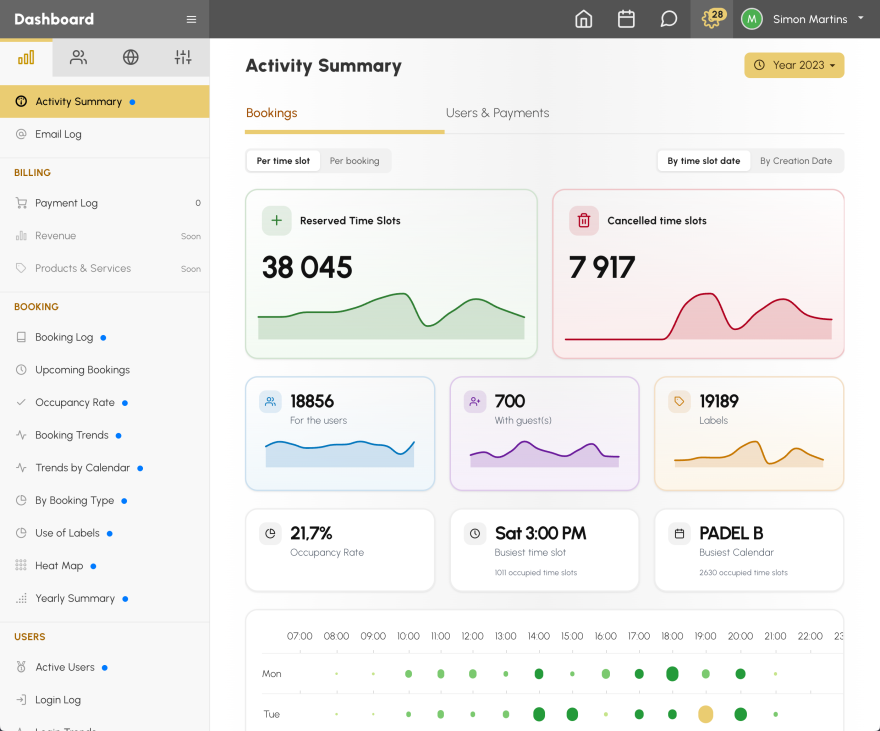
Tab "Bookings"
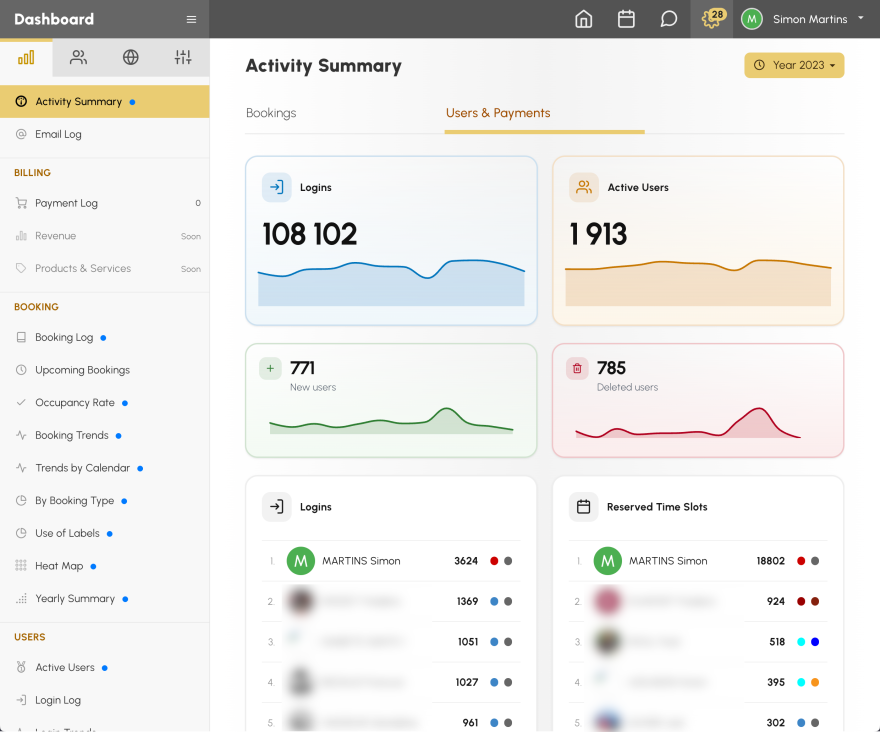
Tab "Users & Payments"
Until now, the Occupancy Rate module required you to select one court at a time. Now, an "All" mode presents the aggregated occupancy of all your calendars on a unique hourly grid, dynamically built from your opening slots. The presentation itself is slightly redesigned with the overall rate and a visual gauge of the three components (Club / Users / Unoccupied).
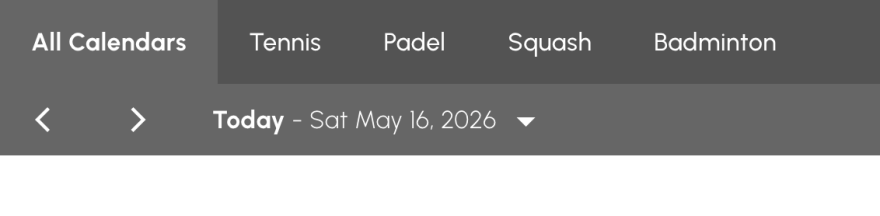
If you have organized your courts into calendar groups (by discipline, by category…), a second filter bar on the right allows you to quickly isolate a group, thus enabling you, for example, to obtain the occupancy rate of all your Padel calendars.
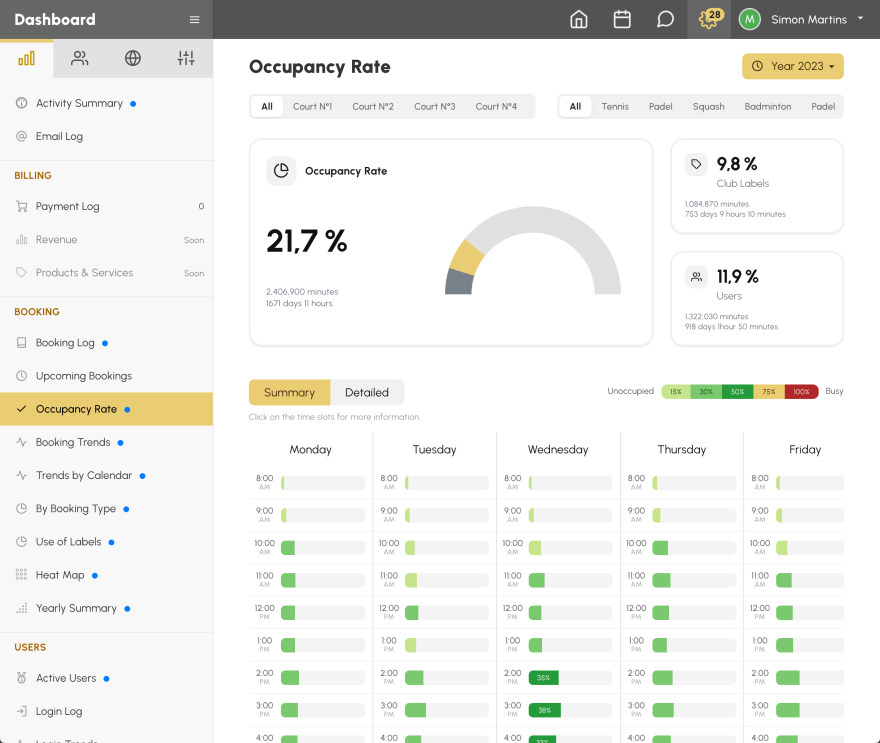
All modules in the Booking section of the Dashboard now benefit from a filter bar placed above the content. These filters replace the numerous back-and-forths between dropdown menus of the "Filters" button for the most common uses. For finer filtering (by user, by subscription, by specific label…), the Filters button remains obviously available.
Two types of shortcuts depending on the modules:
By booking type — Users / With guest / Labels / Cancelled.
By calendar or by calendar group — the bar automatically adapts: if your club has configured groups, they are displayed as shortcuts; otherwise, the individual calendars are shown.
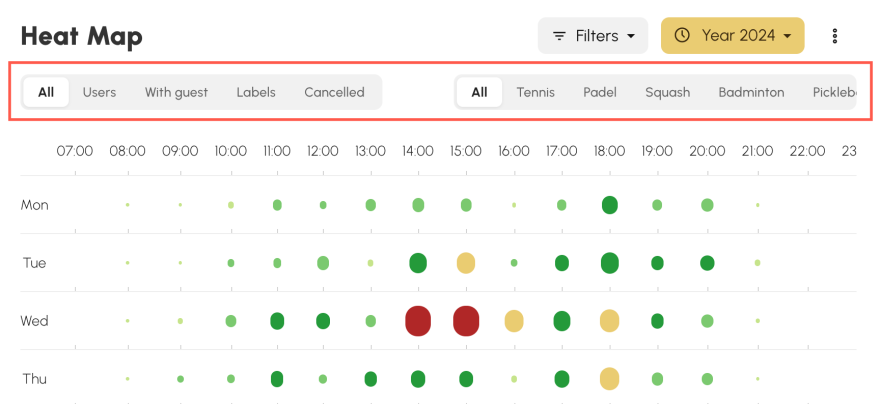
Go to the Administration > Settings > Calendar Groups menu to configure calendar groups. If you have many calendars, for example, covered tennis courts, outdoor courts, and padel courts, you can create groups for each category and find them as tabs on the booking module... and now in your dashboard as well!
The OpenResa team at your service!