


Finding your way around the calendars
Choose the most convenient view to find a time slot: all courts for a single day, one court over several days, the whole month, or the list of time slots that are still free.
Choosing the view: by day, by week, by month or availability
The booking menu offers up to four complementary views, depending on what your organization has enabled:
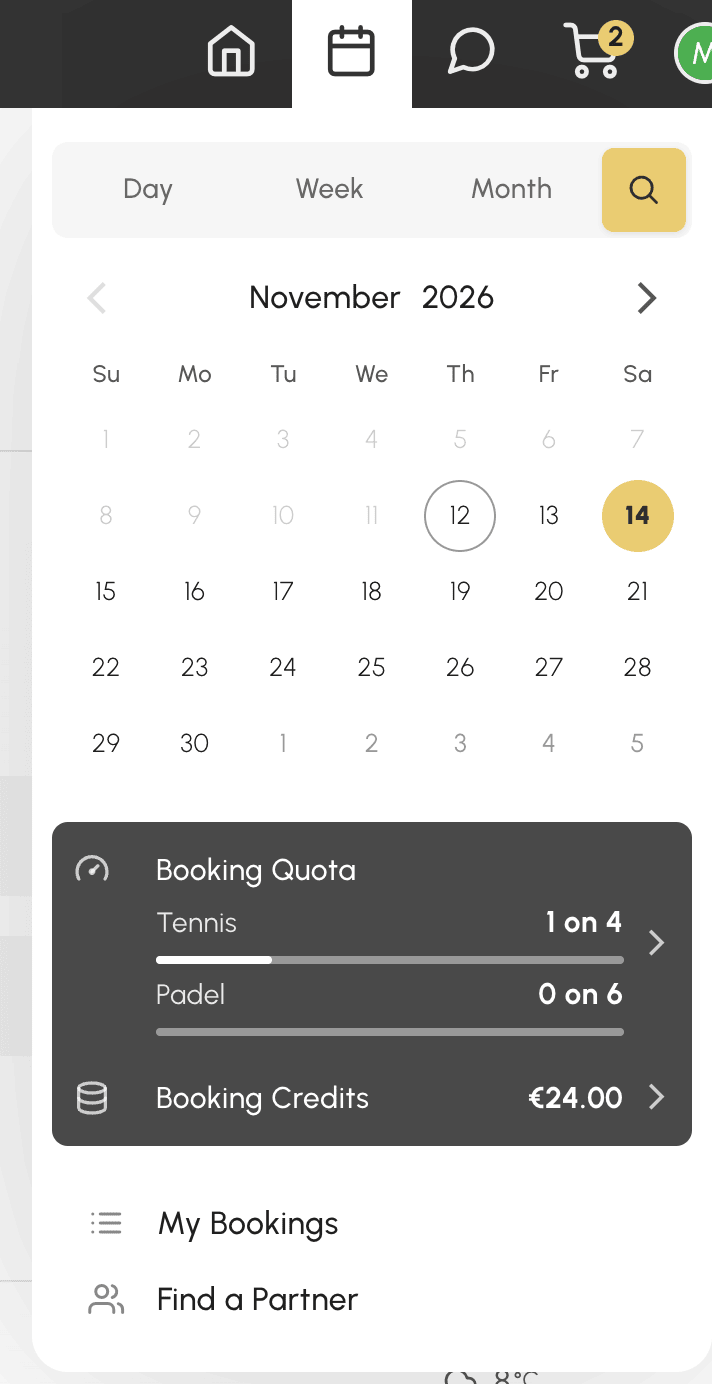
The day view
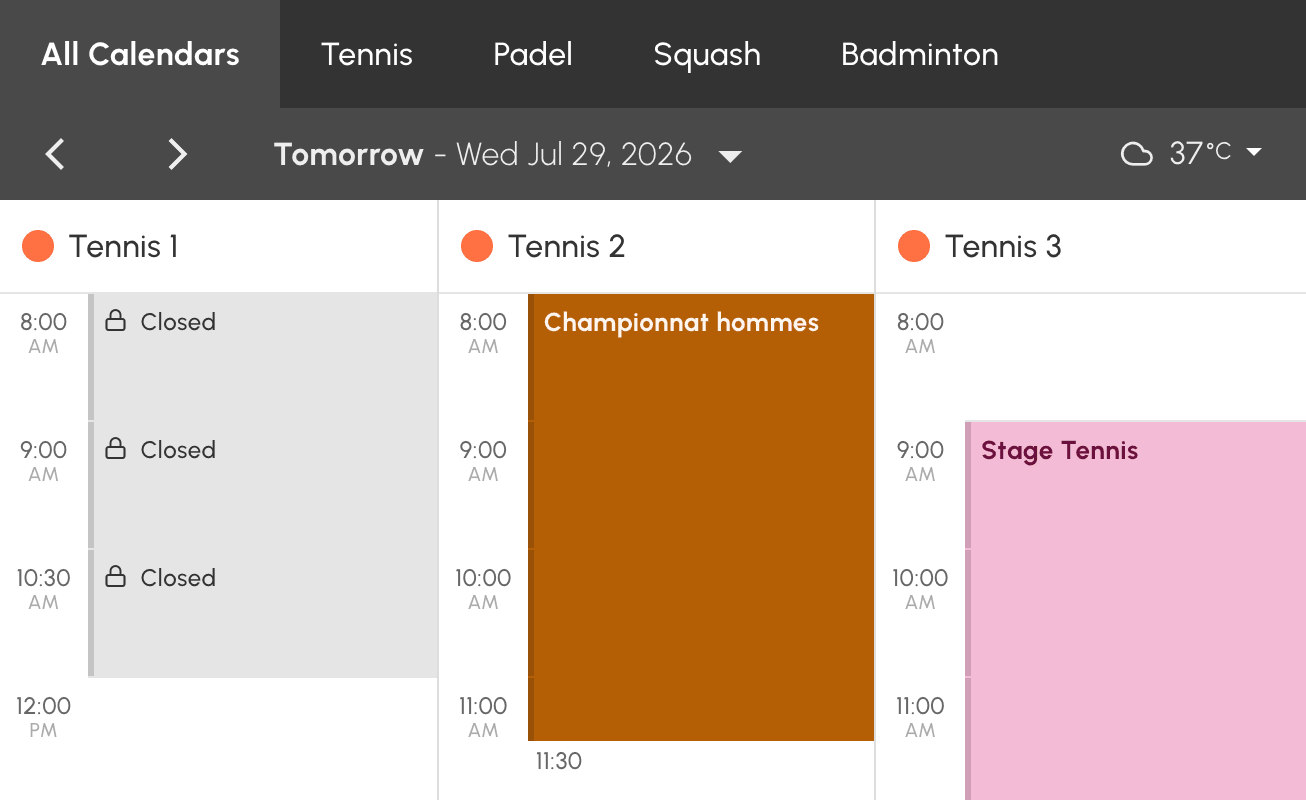
Calendars by Day shows all of the organization's calendars side by side for a single day. Ideal for comparing court availability on a given date.
If your organization has arranged its calendars into groups (by activity or by site, for example), tabs appear above the day view. The All Calendars tab shows everything.
The week view
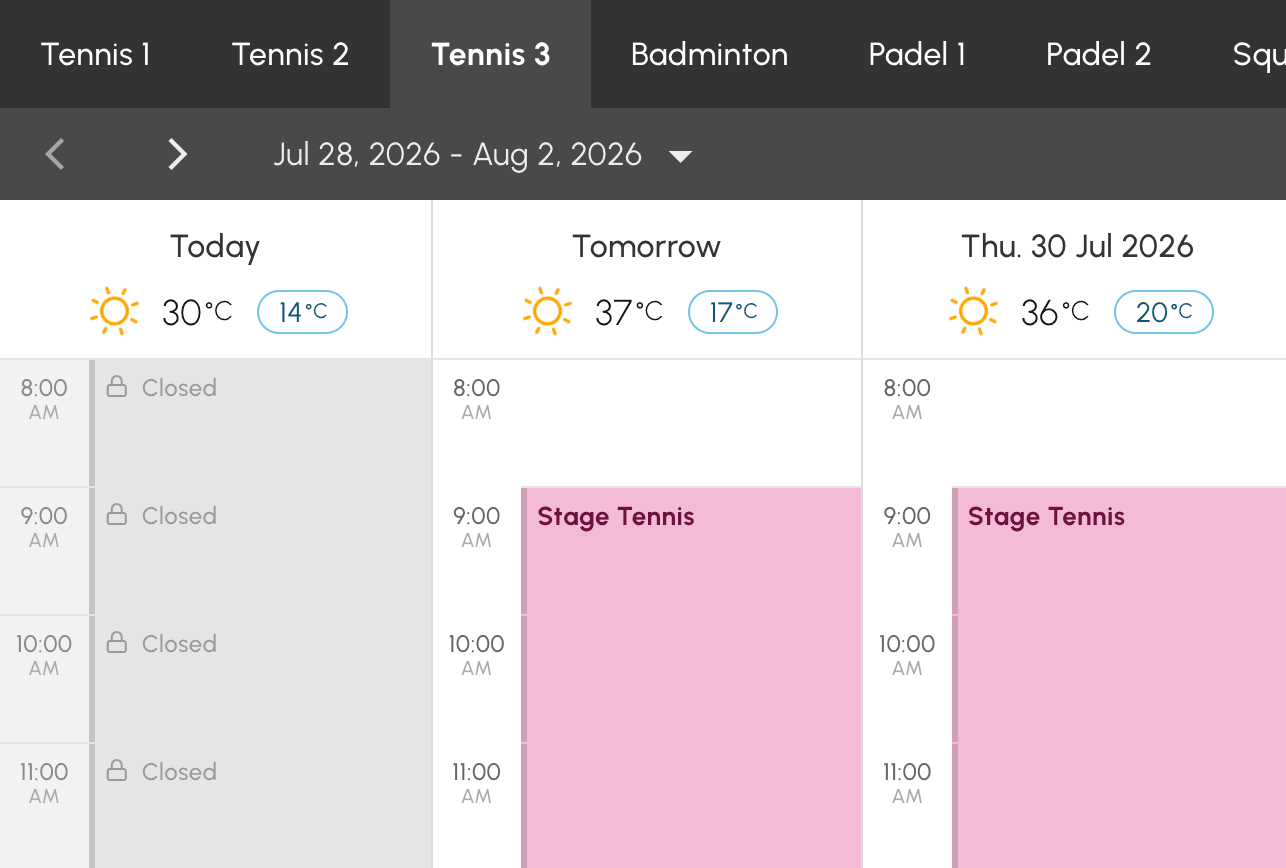
Calendars by Week shows a single calendar over several days. Ideal for finding the next free time slot on your favourite court.
The month view
Calendars by Month shows the whole month: for each day, the bookings, the weather, and a marker on the days when you have a booking. Ideal for spotting training camps, tournaments and games to fill over the coming weeks at a glance.
The Availability view
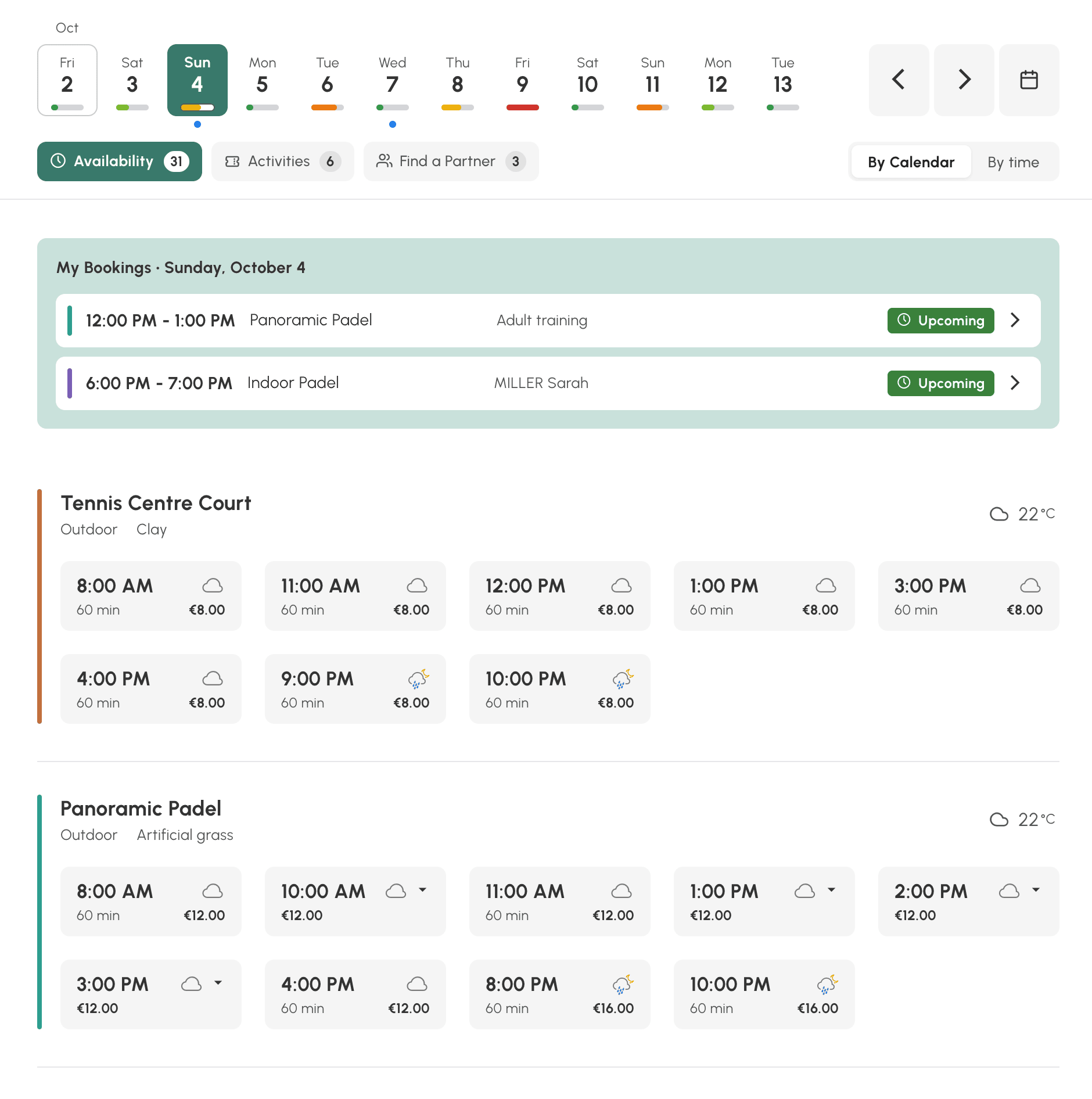
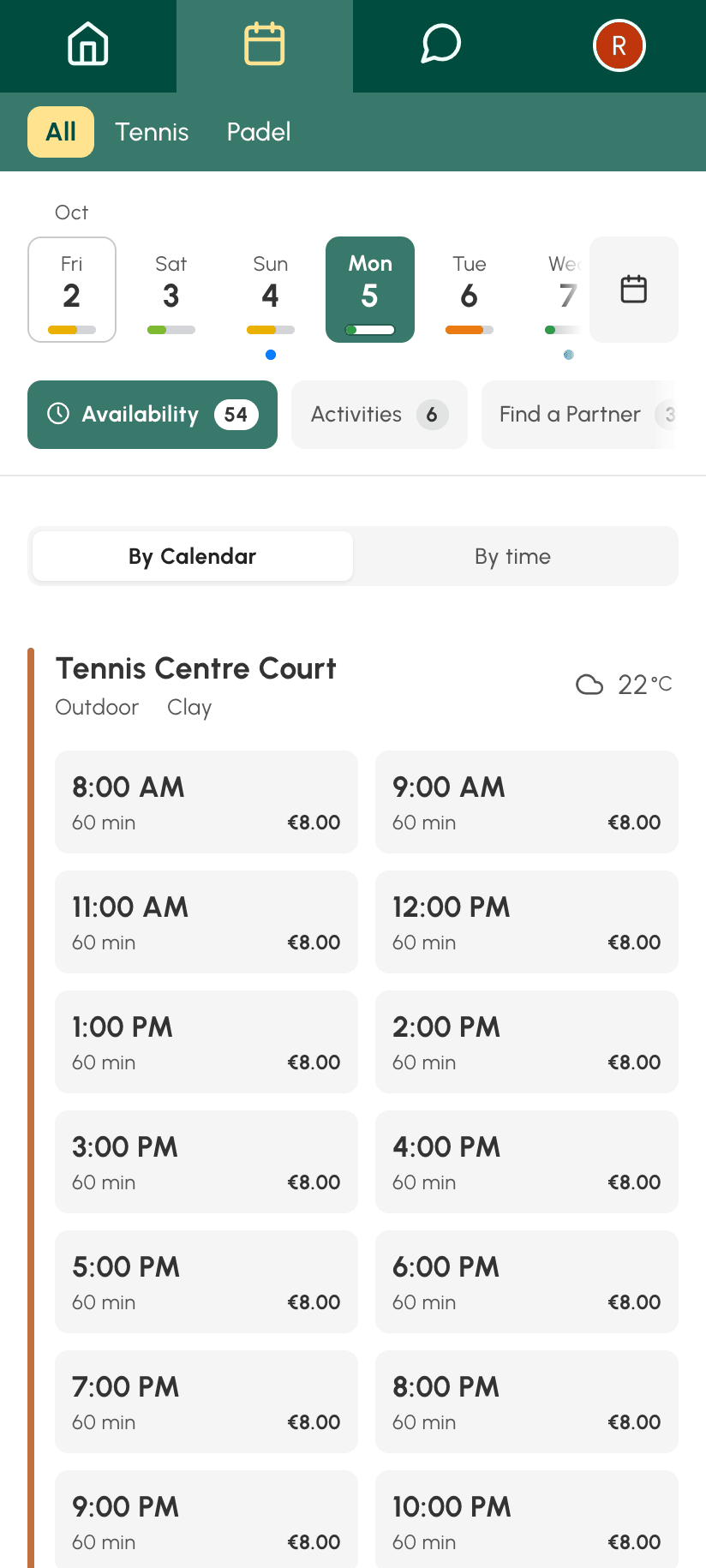
Availability, the magnifying glass button, shows only what you can still book, court by court or hour by hour, with the duration and price of each time slot. Ideal for knowing right away where and when to play.
Finding a time slot with the Availability view
This view does not show the full grid: it lists the time slots that your subscription allows you to book on the chosen day.
- Choose a day in the top banner. Under each day, a gauge shows whether there is plenty of room left, little, or none at all. A blue dot marks the days when you already have a booking.
- Choose the layout that suits you: By Calendar to see the time slots for each court, By time to see the free courts hour by hour.
- Click a time slot: the booking form opens. If the time slot has a small arrow, several durations are available: clicking shows them with their prices, and you choose yours.
Time slots remain displayed even if you have reached your quota or do not have enough credits: the form tells you when you book.
Your bookings for the day are shown at the top of the list, under My Bookings.
Two other tabs may appear next to Availability:
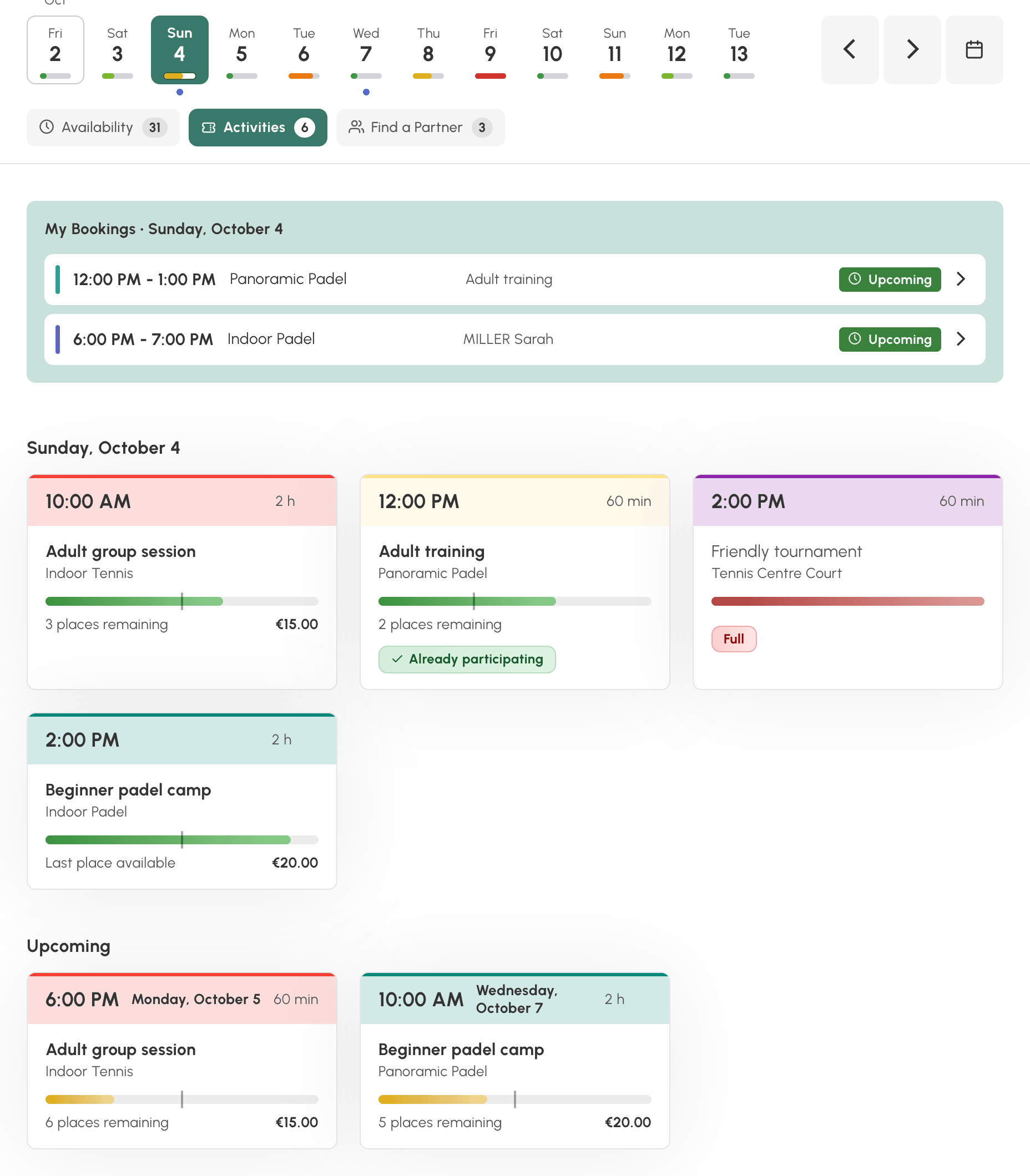
- Activities: lessons, training camps and events open for participation, with the remaining places and the price. Click an activity to join it.
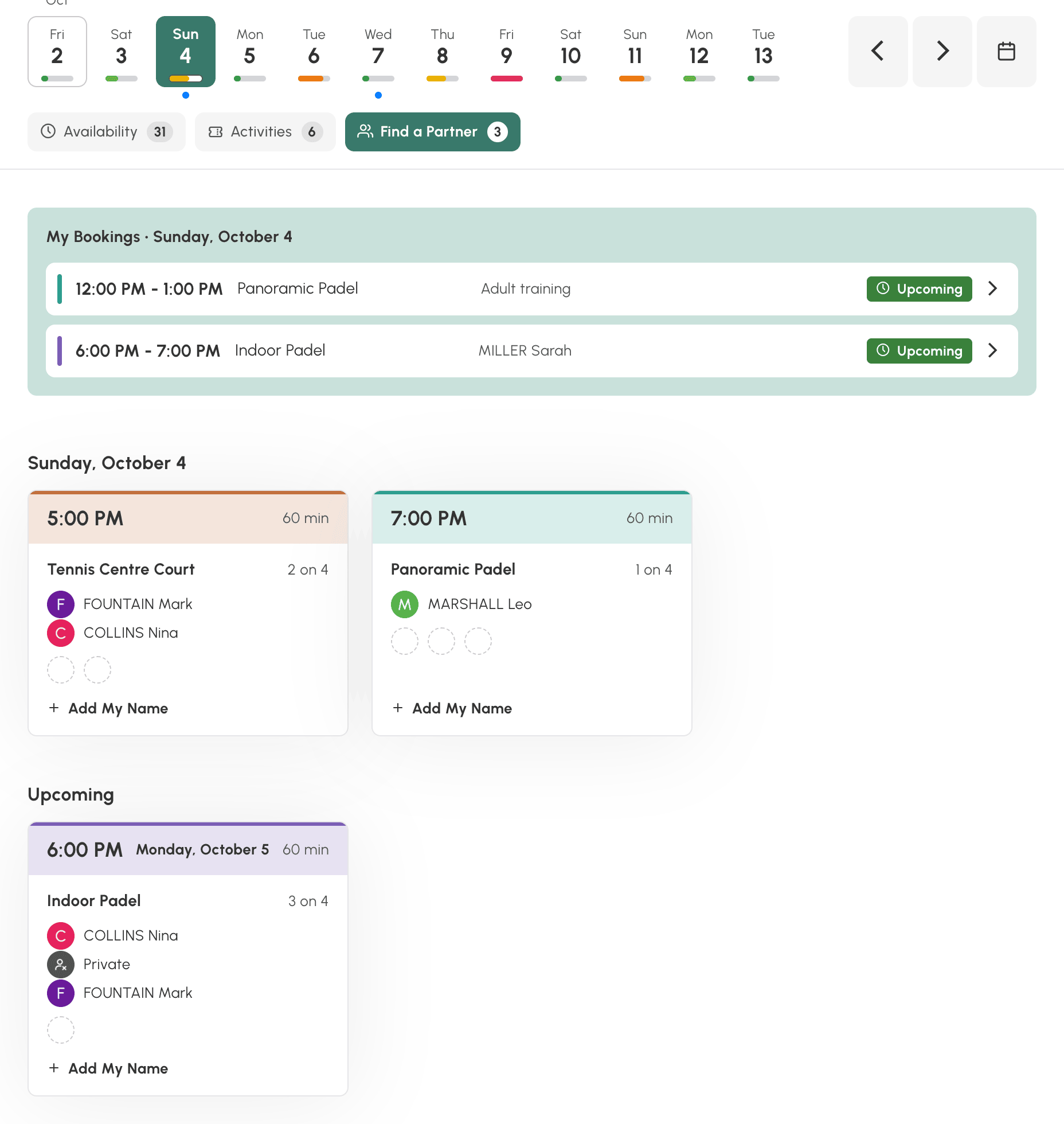
- Partner Search: bookings that other players have opened and that still have room. Click Add My Name to join them.
In these two tabs, the Upcoming section also shows what is on offer in the following days.
At the bottom of the list, Show non-bookable time slots shows, for information, the free time slots that your subscription does not allow you to book.
On a phone, the view is displayed in the same way, and the header collapses when you scroll through the list.
Following the month with the month view
The month view brings the whole month together on a single screen: the organization's events, activities open for participation, bookings to fill and your own bookings. It answers questions such as "when is the next training camp?" or "which days am I taking part in something this month?".
At the top of the view, choose what you are looking at: All Calendars, a group of calendars (Tennis, Padel…) or, if the organization has not created any groups, a single calendar. The arrows move to the previous or next month, within the limit of the days your subscription allows you to view.
Each booking fits on one line: the start time, then the event label or the participants' names, in the colours of the day calendars. When the same event takes up several courts at the same times, a single line shows it, with the number of courts.
Filtering with the tabs
The tabs sort the month's bookings:
- All: all bookings;
- My Bookings: the bookings you are in, including activities you are taking part in;
- Club: the organization's bookings, such as training camps, tournaments or court maintenance;
- Activities: time slots open for participation, with the remaining places;
- Partner Search: open bookings that other users are offering to fill.
A tab with nothing to show this month does not appear, except All and My Bookings. The view remembers the last tab you chose.
On a computer: the grid and the journal
Each day is a box. It shows its number, the weather for forecast days, a dot if you have a booking that day, then the day's bookings, from earliest to latest. When the box is full, a counter shows what remains to be seen, for example + 5 more. Hover over a line to see the duration and calendars of the booking. Hatched days cannot be viewed with your subscription.
Click a day: the journal opens to the right of the grid, positioned on that day, and the day's box stays highlighted. The last button on the bar, on the right, opens or closes the journal; the view remembers your choice. On the keyboard, the left and right arrows change the month, and with the SHIFT key, the group or calendar.
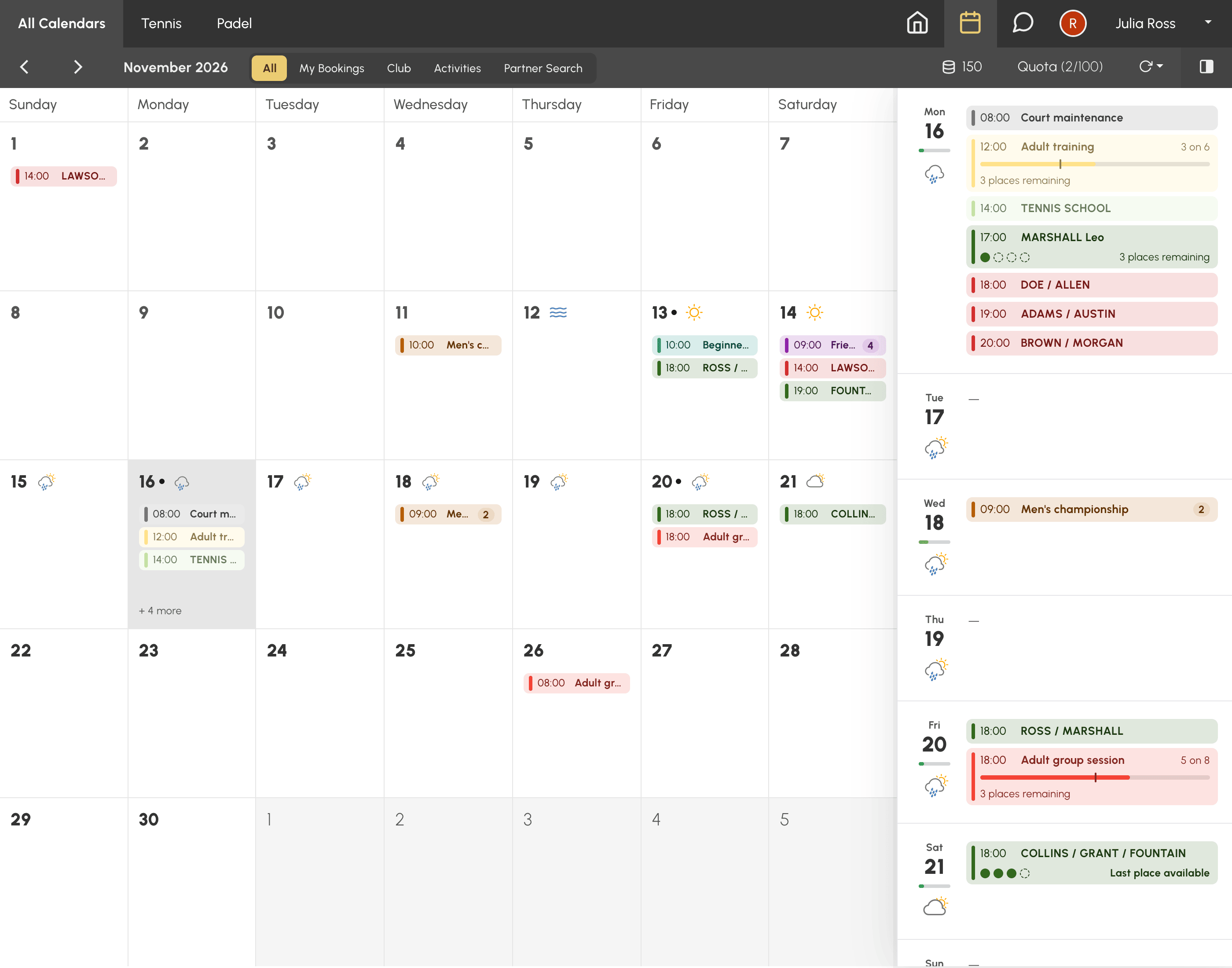
The journal lists the days of the month, one per row, with their bookings. Under the date, a bar shows the share of time slots already taken, if the organization displays it. Activities show how full they are and the remaining places, and open bookings show their free places. Beyond 12 bookings in a day, View All shows the next ones.
- Click one of your bookings or an activity to open its details.
- Click the date of a row to open that day in the day view, or in the week view if you are looking at a single calendar.
On a phone: the calendar and the journal
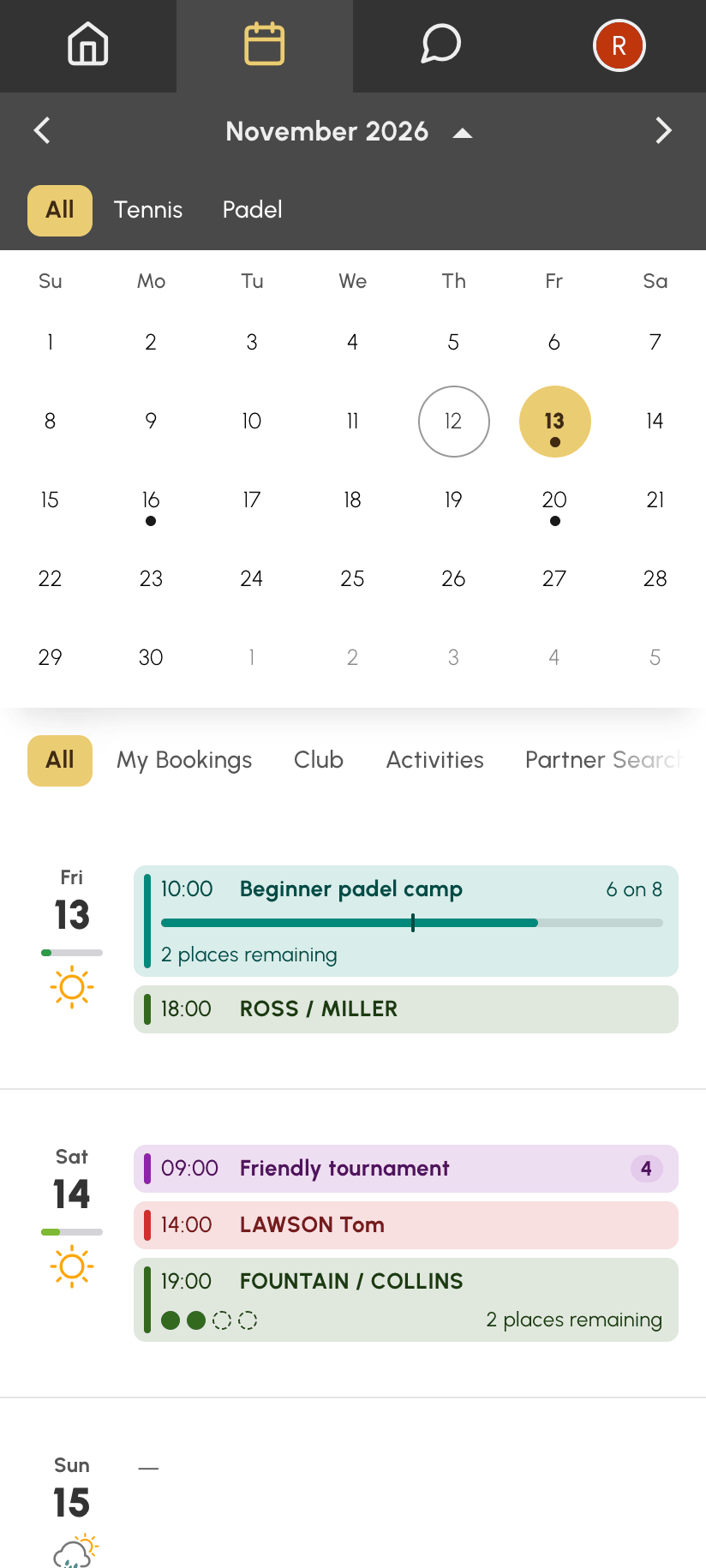
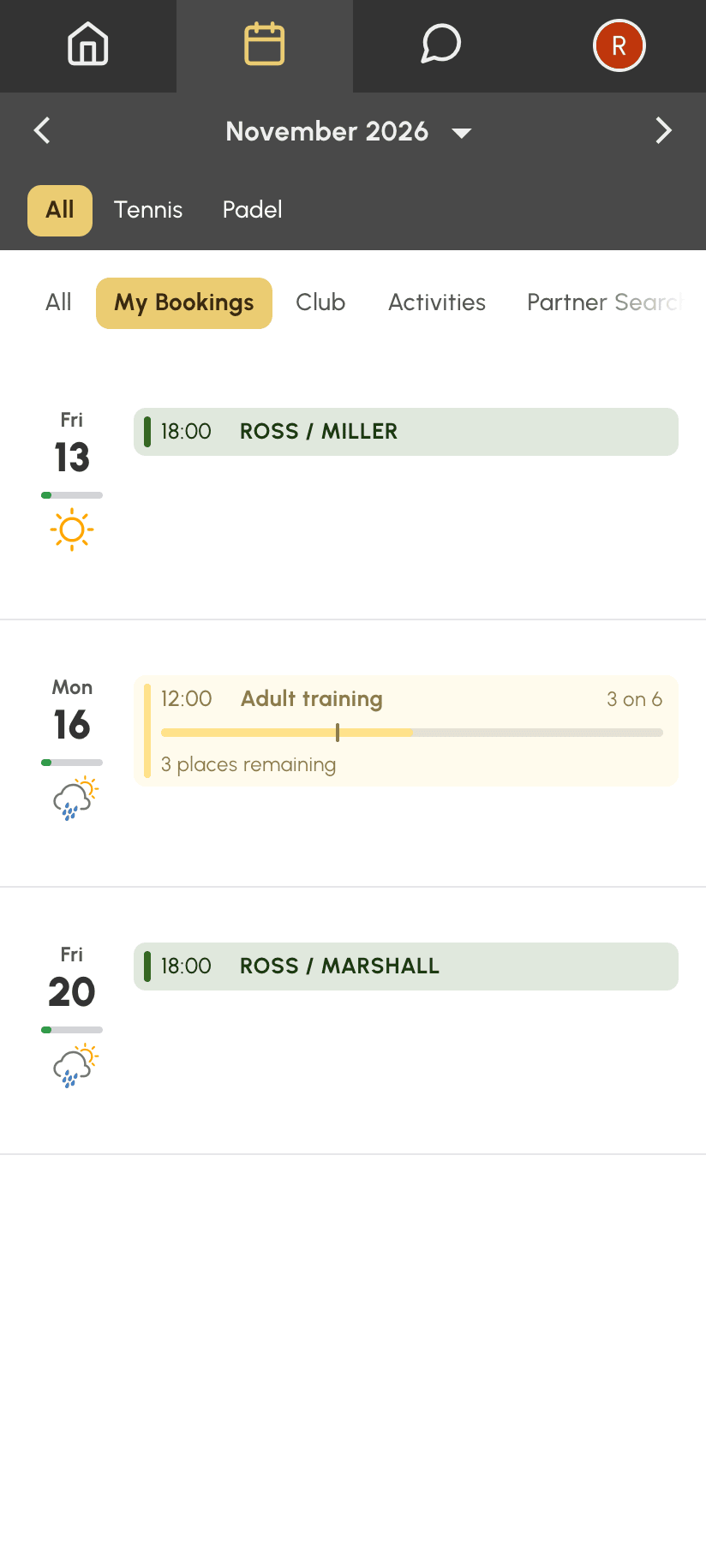
The month calendar is shown at the top, with a dot under the days when you have a booking, and the journal scrolls below it. Tap a day: the journal moves to that day. A day from the previous or next month opens that month.
Tap the month name to hide the calendar and give all the space to the journal. Tap it again to show it again. Your choice is remembered for your next visits.
| Calendar shown | Calendar hidden |
|---|---|
 |  |
Navigating by date
- Use the arrows to move to the next or previous day.
- Click the displayed date to open the date picker.
- The Today button takes you back to today's date.
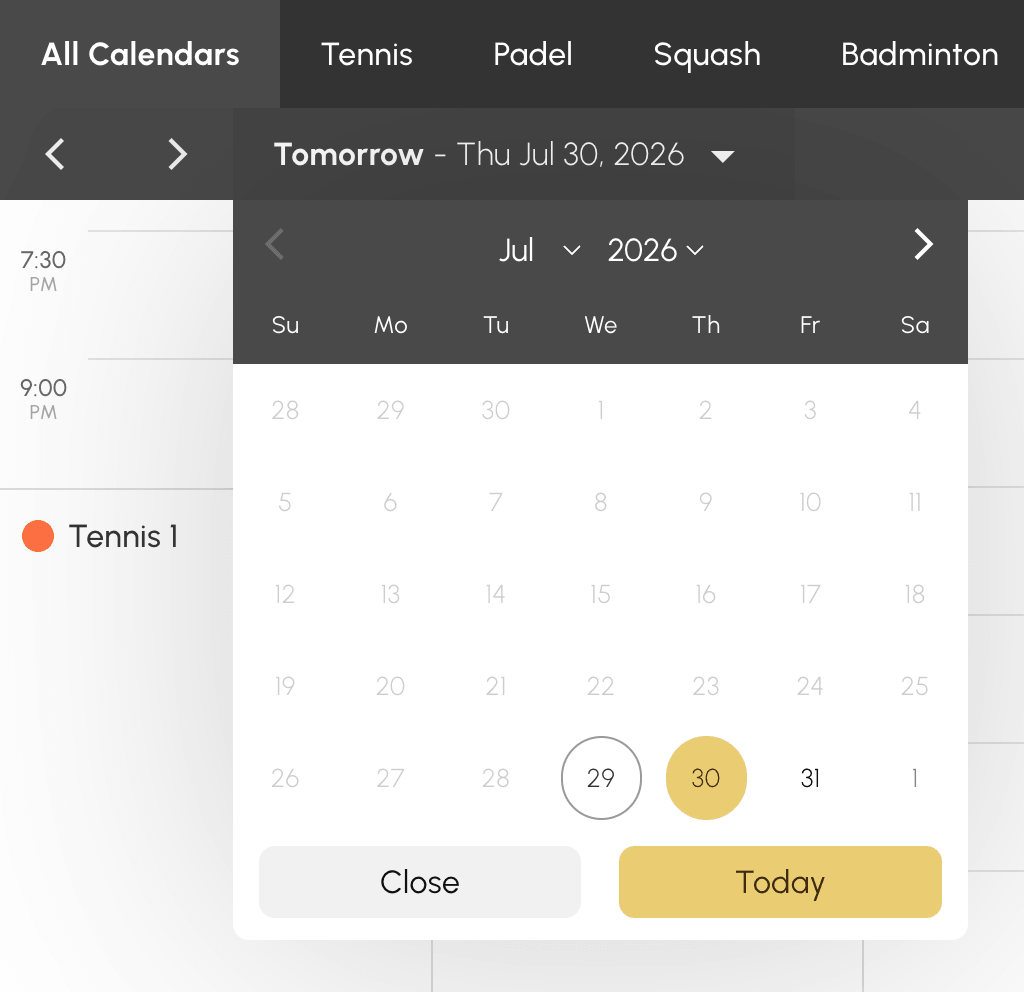
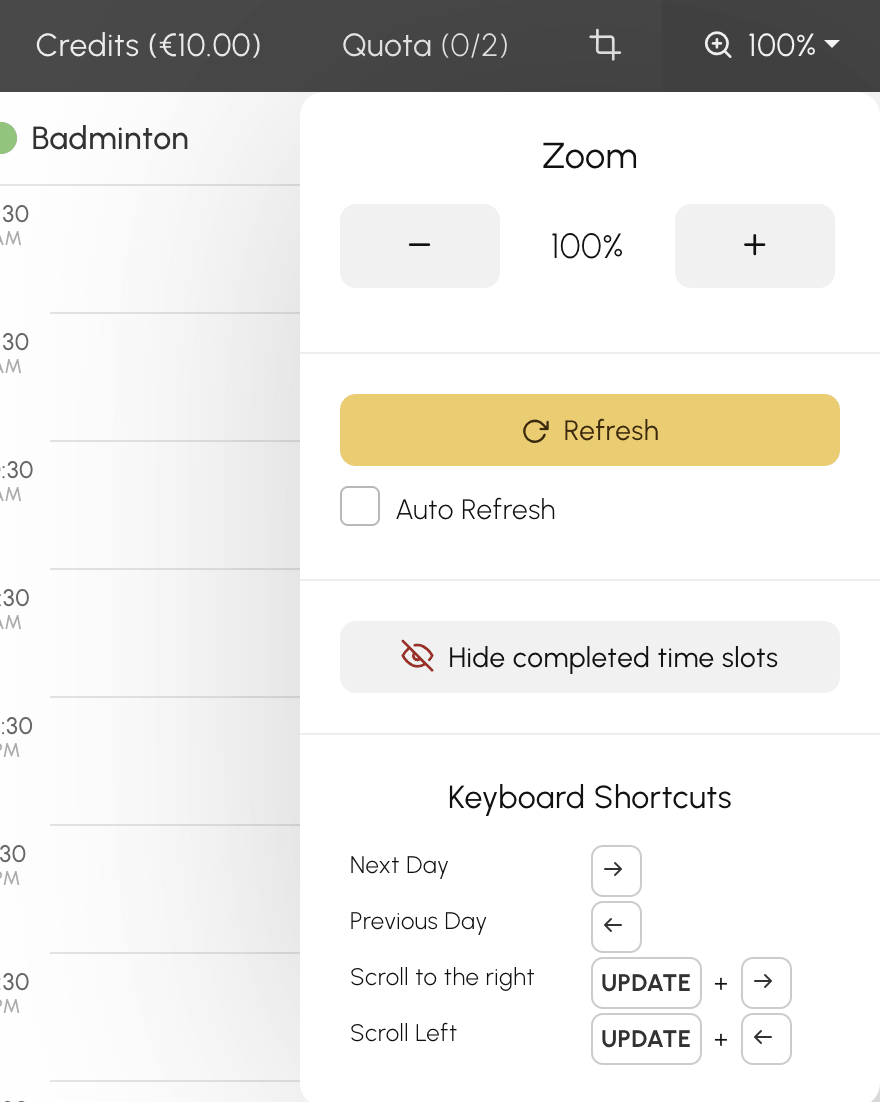
On a computer, keyboard shortcuts speed up navigation: the left and right arrows change the day, and combined with the SHIFT key they scroll through the calendars. The full list is shown in the zoom menu.
The number of days visible in advance depends on your subscription: beyond that, dates cannot be selected in the date picker.
Tracking your quota and credits
Depending on your organization's configuration, the calendar toolbar shows:
- a Quota button with a counter: the number of current bookings compared with the maximum allowed. Click it to see the details. When a booked time slot ends, the quota unit is released and you can book again.
- a button with the credits icon and your balance: click it to view your booking credits and, if the organization has enabled it, buy more.
Adjusting the display
The zoom menu in the toolbar lets you:
- Enlarge or reduce the size of the time slots with Zoom, then return to the standard size with Reset Zoom.
- Show or hide the day's past time slots with Display completed time slots and Hide completed time slots.
Creating a shortcut that always opens on today
Have you added the calendars to your bookmarks, or created a shortcut on your phone's home screen, and it always opens on an old date?
The calendar address remembers the day you are viewing, and it does so in two ways depending on how you got there:
- with the arrows and the Today button, it stores an offset from today's date (today, tomorrow, yesterday…). It therefore follows the calendar: a bookmark saved at that point will always remain valid;
- with the date picker, it stores the exact date you chose. A bookmark saved at that point will keep reopening that day indefinitely, and that day will drift further into the past as the weeks go by.
To fix a shortcut that opens on an old date:
- Open the calendars.
- Click the date, then click Today: the address then stops pointing to a fixed date and points to the current day again.
- Save the bookmark, or recreate the shortcut on your home screen, from this page.
