


Online shop
Offer your products on your organization's homepage: equipment, food & drink, tournaments, lessons, training camps, credits… Visitors can browse the shop freely. Logged-in users add items to their cart and pay online.
- Publish a product in the shop
- Understand what each visitor sees
- Sell a product with variants
- Add several photos to a product
- Feature a product
- Limit publication to a period
- Restrict a product to certain users
- Advertise a promo code in the shop
- Browse, search and sort the shop
- Track stock and stock-outs
- Feature products on the homepage
- Get found and shared
- Find shop sales
Publish a product in the shop
- Go to Administration›Settings›Billing›Products & Services and open the product.
- Enable Online store.
- Click Advanced Settings to access the optional settings: Detailed description (formatted text shown on the product page below its photo and price), Editor's pick, Display criteria and Publication period, described below.
- Click Save.
With online billing, the Shop link appears in the navigation bar of your homepage. As long as no product is published, the shop displays a placeholder message and, for you, a direct link to product management. In the product list, a dot next to the product icon marks published products. Its tooltip shows the publication period, the editor's pick status and any display criteria. The Shop tab shows you at a glance what is on display.

Understand what each visitor sees
- A visitor who is not logged in sees equipment, food & drink, tournaments, lessons, training camps and custom products, as well as your subscriptions for information. To buy, they log in from the product record and return to it straight afterwards.
- A logged-in user also sees the booking credits and guest credits linked to their subscription, when online purchase is allowed for it. A user whose profile does not allow online payments, or whose account is suspended, browses the shop like a visitor and cannot buy.
- Subscriptions cannot be bought from the shop. The record presents the available prices. It then redirects to online registration if it is enabled for this subscription, or to the contact page otherwise. For a logged-in user, it redirects to subscription management. A paid subscription with no current price does not appear, and neither does an archived subscription.
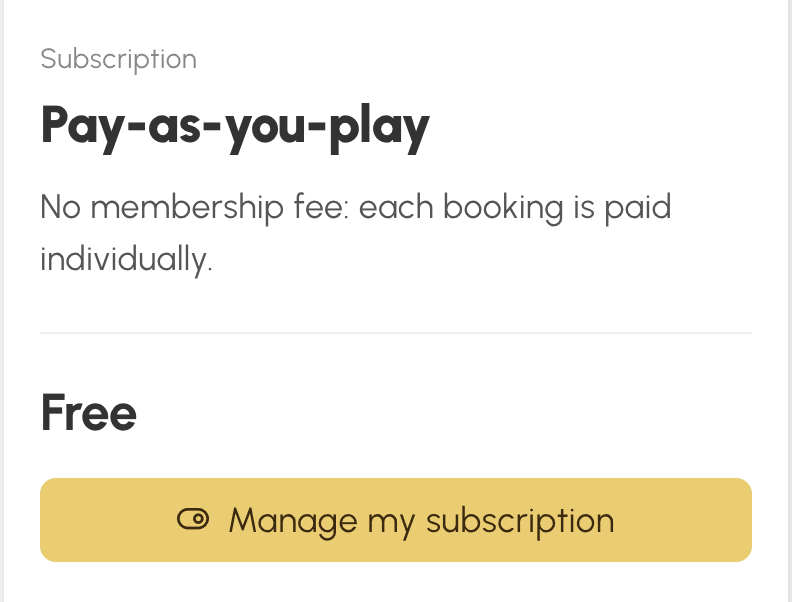
A free subscription, set to Free mode in its Payments & Billing section, is displayed with the mention Free instead of the price, without a promo code. The button on its record depends on who is viewing it:
- visitor who is not logged in: Sign Up if online registration is open for this subscription, otherwise More Information, which leads to the contact page;
- user on another subscription: Manage my subscription, which opens the window where they switch to the free offer, without needing the right to pay online;
- user already on this subscription: the mention Your subscription, with no button;
- user whose membership fee is unpaid under a subscription that requires it, or offer closed to changes: More Information;
- user whose profile does not have access to My Account›My Subscription: Online purchase unavailable for your profile, as on the record of a paid subscription.
The free card does not appear if the same subscription also has an active paid product: the paid offer takes precedence.
For a tournament, lesson or training camp whose price depends on the profile, the visitor sees the lowest price preceded by "from". A pricing rule cheaper than the base price therefore takes precedence. The logged-in user sees the price that applies to them directly, without this mention. A credit product offering several quantity tiers also displays "from", for everyone.
On the record, the price is displayed including tax. The option to pay in instalments (if the billing account allows partial payments) and the stock status are added when they exist. For a credit, the quantity tiers configured on the product are offered in one click. A custom quantity remains possible if the product allows it.

Sell a product with variants
When a product comes in variants (sizes, colours…), its page shows one row of choices per criterion. The user clicks a value in each row, for example "M" then "Blue". The add-to-cart button becomes active once the selection is complete.
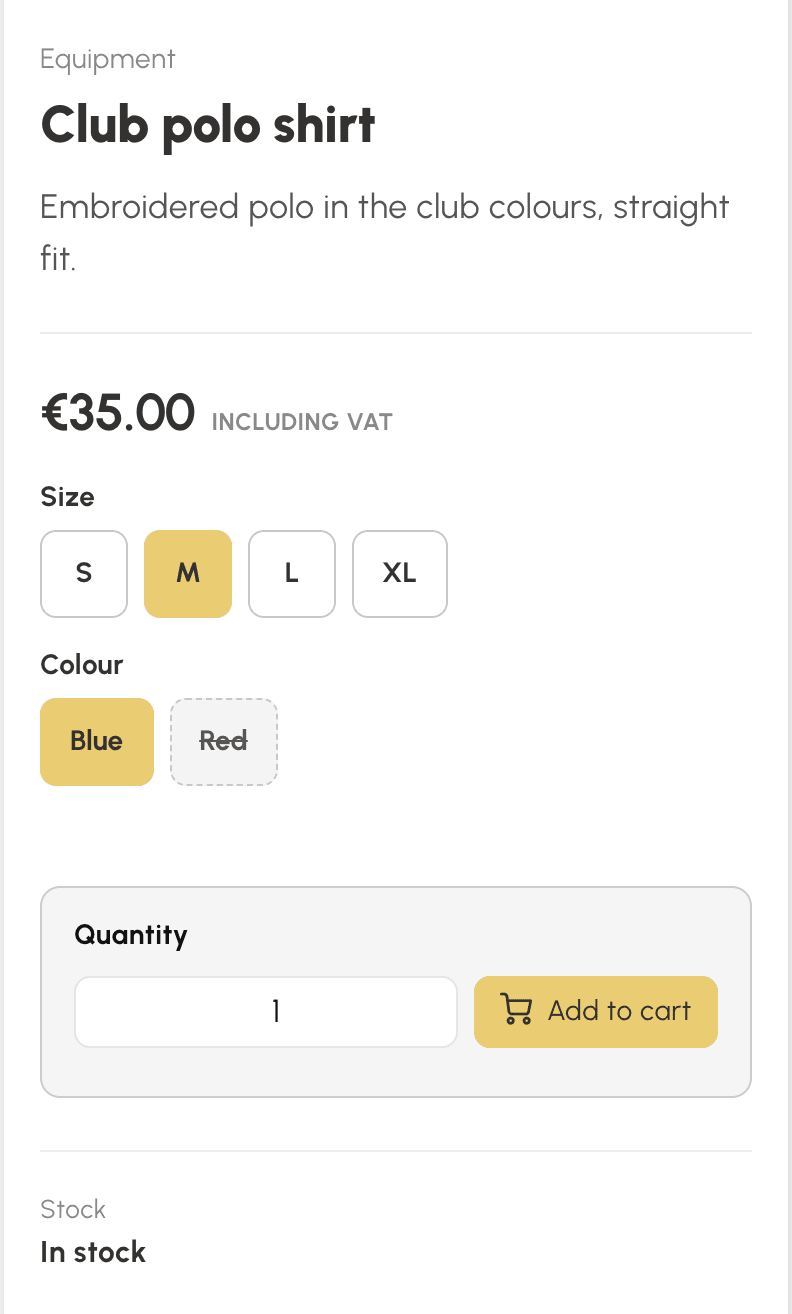
- Nothing is preselected: as long as the selection is incomplete, the page reminds the user what is left to choose.
- If the variants do not all have the same price, the card and the page show the lowest price preceded by "from", then the exact price once the variant is chosen.
- A combination you do not sell is greyed out as soon as the other criterion is chosen: after "Red", only the sizes available in red remain selectable.
- The stock status is that of the chosen variant. An out-of-stock variant remains visible, with its mention, but cannot be added to the cart. The quantity in stock is never shown.
- In the cart, each variant has its own line, named after the product followed by the variant.
A visitor who is not logged in sees the product and its price. They log in from the product page to choose their variant and add it to the cart.
Add several photos to a product
- In the product record, under Title & Description, click Manage photos. The window opens on the drop zone, where you drop a file or click Choose a photo. If you have no image at hand, Generate an image with AI suggests one based on the product name.
- Crop the photo to 16:10, then click Save. The first photo becomes the main photo: it appears on the cash register tile, on the shop cards and when the product is shared.
- Repeat for the next photos, up to ten additional photos. Under each thumbnail, the arrows change the order, the star makes the photo the main photo, and the trash can deletes it.

On the shop page, the photos form a slideshow with thumbnails. With a single photo, the page is unchanged. Deleting the main photo automatically promotes the first additional photo.
For a product with variants, the Associated with menu under each additional photo links the photo to a value, for example a colour. On the shop page, choosing this value immediately displays its photo. A variant with no linked photo shows the main photo. All variants removes the link.
Feature a product
- In the product record, under Online store, click Advanced Settings, then enable Editor's pick.
- Click Save.
Editor's picks open the shop in an animated banner, in the selected sort order, and carry a heart-shaped badge on their card and on their page. They also remain in their category, at the top.
Limit publication to a period
In the product record, under Online store then Advanced Settings, enable Publication period and enter a start date, an end date, or both. Disabling the option clears the dates. Outside this period, the product disappears from the shop and from the homepage block and can no longer be added to the cart from its page. It can still be sold at the cash register and from the other screens. In the product list, the shop badge shows the period and turns grey when it is closed.
Restrict a product to certain users
In the product record, under Online store then Advanced Settings, enable Display criteria and choose one or more criteria from those of the user manager (profiles, subscriptions, age categories, groups, rankings, miscellaneous). The product then appears in the shop and on the homepage only for logged-in users who match these criteria. It remains invisible to visitors who are not logged in. Criteria within the same family (profiles, subscriptions, age categories, groups, rankings) are combined with "or". Families are combined with each other with "and", as is each criterion of the "Miscellaneous" family. Saving is refused if no criterion is selected. Disabling the option makes the product visible to everyone. A user who does not match the criteria cannot add the product to their cart either, even if they know the address of its page. The product can still be sold at the cash register regardless of the criteria. If a criterion disappears (deleted profile, subscription or group), the product is hidden from everyone and its dot switches to an alert in the product list.
Advertise a promo code in the shop
- Go to Administration›Settings›Billing›Promotional Codes and open the code.
- Enable Online store.
- Click Save.
The code and its discount are advertised on the pages of all products it applies to, according to its scope (all products, certain categories or certain products, subscriptions included). A "Promo" badge marks these products on their card in the shop. The announcement shows the amount or percentage of the discount, the minimum purchase, the validity period and the number of remaining uses. It disappears automatically as soon as the code is disabled, expired or used up. It is only shown to users whose cart falls under the code's billing account. A visitor who is not logged in does not see it on a subscription, because online sign-up does not allow a code to be entered. The user then enters the code in their cart, where the discount is calculated. In the list of promo codes, a cart icon identifies advertised codes.

Browse, search and sort the shop
Products are grouped by category, and each category has its own address. On the shop's home page, each category shows its first eight products, and a View All link opens the full category. Category pages and search results are paginated by 24. The tabs on the right sort the list by popularity based on sales over the last three months, by newest, or by price ascending or descending. With no active tab, products are sorted by category then by name. Clicking the active tab again returns to this order.
From six published products onwards, a Search field filters the current list by name and descriptions as you type, ignoring accents and case.
The same product added several times to the cart takes up only one line: its quantity increases, and stock is checked against the total. For a product with variants, this rule applies variant by variant. Registrations for a tournament, lesson or training camp and quantity tiers remain separate lines.
Track stock and stock-outs
Stock is that of the product, or that of the chosen variant for a product with variants. A stock-out displays the corresponding mention and disables purchase. Stock that falls below the product's alert threshold flags the last items available. A quantity tier greater than the remaining stock is disabled. Shop sales decrease stock just like other orders.
Feature products on the homepage
- Go to Administration›Customize›Homepage.
- Click Add a block, then Online store.
- If needed, give the block a Title, then choose Product selection to build the showcase yourself, in the order of your choice, or By category to automatically display products from one or more categories, up to the Number of products to display.
- Leave Show the shop button enabled to offer the link to the full shop, then click Save.
The block only displays products published in the shop, following the same visibility rules as the shop itself: removing a product from the shop, closing its period or setting display criteria on it also affects the block. Like other blocks, it can be restricted to certain profiles or subscriptions.

Get found and shared
The shop, its categories and each product page have their own address, which search engines can index according to the visibility chosen in your SEO settings. The shop and product pages are included in your homepage's sitemap. Search results, a shop with no products and products restricted to certain users are never indexed. A product page shared on social networks or in a messaging app displays the main photo and the product name.
Find shop sales
Purchases made from the shop are orders like any other. You find them in orders and invoices. The user finds them in their "My orders" area.
