



Inviting a person from outside the organization
Bring along someone close to you who is not registered with the organization. Add them as a guest when you book, within the rules set by your organization. If your organization allows it, your guest can also pay their own share through a link.
Adding a guest to a booking
You can invite an outside person in two ways, depending on whether you are playing only with your guests or also with other users of the organization.
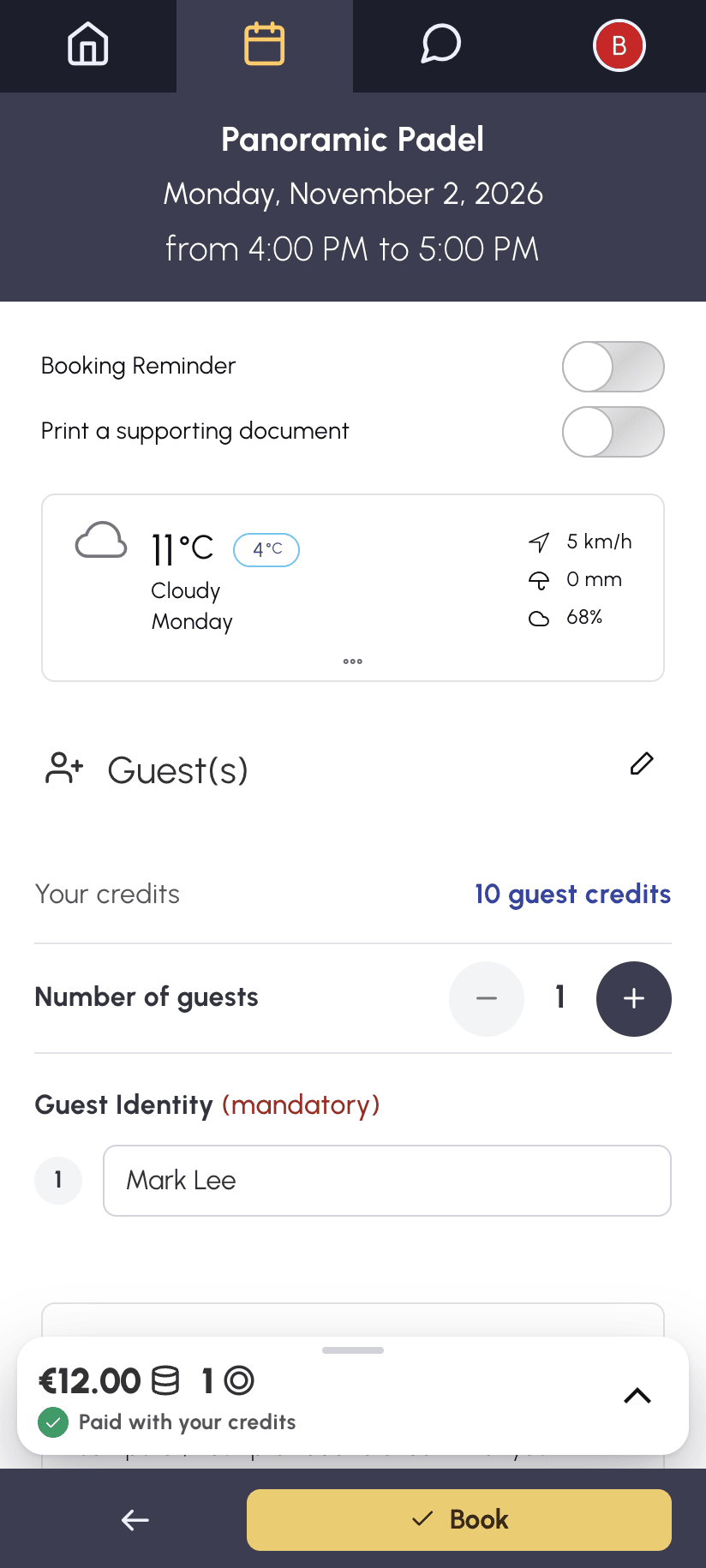
Playing with your guests
- Click a free time slot to open the booking form.
- Choose Guest(s).
- Select the number of guests.
- Enter the guests' identity if it is requested. Depending on your organization's configuration, it is optional or required.
- Confirm with Book.
Playing with partners and guests
- Open the booking form and choose With a partner.
- Tick your partners in the list of users.
- A Guest(s) row then appears at the top of the list. Tick it.
- Select the number of guests and enter their identity if it is requested.
- Confirm with Book.
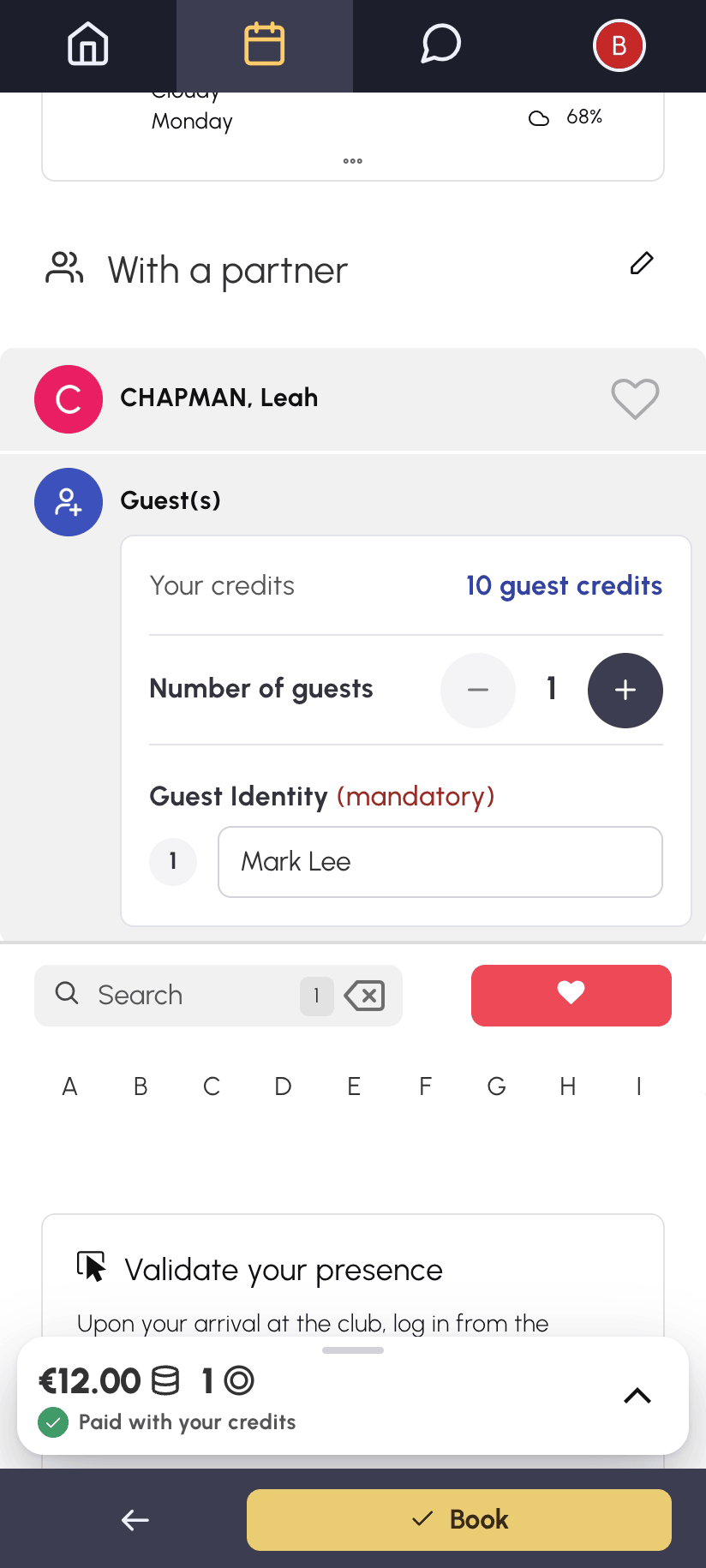
Some organizations do not offer a separate Guest(s) option. In that case, the guest row is always displayed at the top of the With a partner list.
Understanding the cost of a guest pass
Depending on your organization's configuration, guest passes may be charged:
- they are deducted from a guest credit balance, separate from your booking credits;
- some organizations deduct your booking credits directly instead;
- the price may vary depending on the calendar, the day or the time of the time slot.
The remaining balance is displayed in the form when you book, and the Booking Cost box details what will be deducted. Depending on the configuration, either only the booking owner is charged for the guests, or each participant is charged for all the guest passes in the booking. For example, Nicolas and Léa play with a guest at €5: if only the booking owner is charged, Nicolas pays €5; otherwise, Nicolas and Léa each pay €5.
If your subscription allows it, you can also pay for your partners' guest passes when you book. In the example, Nicolas would then pay €10, and Léa nothing.
Getting guest credits
If the organization has enabled the feature, a Purchase credits button is available directly in the booking form. Otherwise, contact the organization to get more credits.
Your organization may also let you pay for any missing guest credits when you book. They are included in the amount shown on the Book button.
Having your guest pay their share
If your organization allows it, each guest can pay for their own place. They pay their share online, through a link, without creating an account, and receive an invoice in their name.
The option appears when you are the only one paying for the guest passes in the booking: you are playing only with your guests, or your organization charges guest passes only to the booking owner. It does not appear if you are paying for your partners' guest passes, nor for a recurring booking.
- Add your guests in the booking form, as usual.
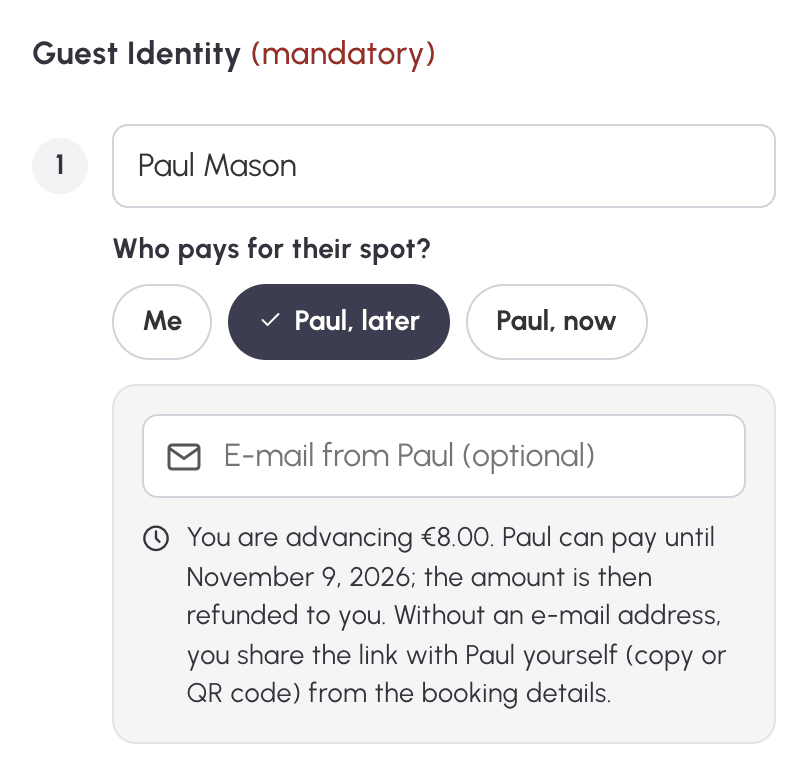
- Enter the first name and last name of each guest who will pay for themselves. They are required in this case.
- Under their name, in Who pays for their spot?, keep Me to pay yourself, or choose one of the two buttons showing their first name: "later" or "now". If their share is too small for an online payment, only Me is offered.
- Enter their e-mail address so they receive the link. It is optional: without it, you will send them the link yourself.
- Check the Booking Cost box, where each guest has their own line. Then click Book.
Once the booking is made, its details open. There you will find each guest's line and link.
Covering the guest's share in advance: "later"
With "later", the booking is confirmed immediately. You cover the guest's share in advance with your credits, as for an ordinary guest pass, and they have up to 7 days after the end of the time slot to pay it. As soon as they pay, the credits you advanced are credited back to you. An e-mail notifies you, depending on your notification preferences. Your credit history shows who paid.
For example, Nicolas books a padel court with his friend Paul, a guest at €8. Nicolas is charged for his own place and for the €8 guest pass. When Paul pays his €8 online, Nicolas gets his €8 of credits back.
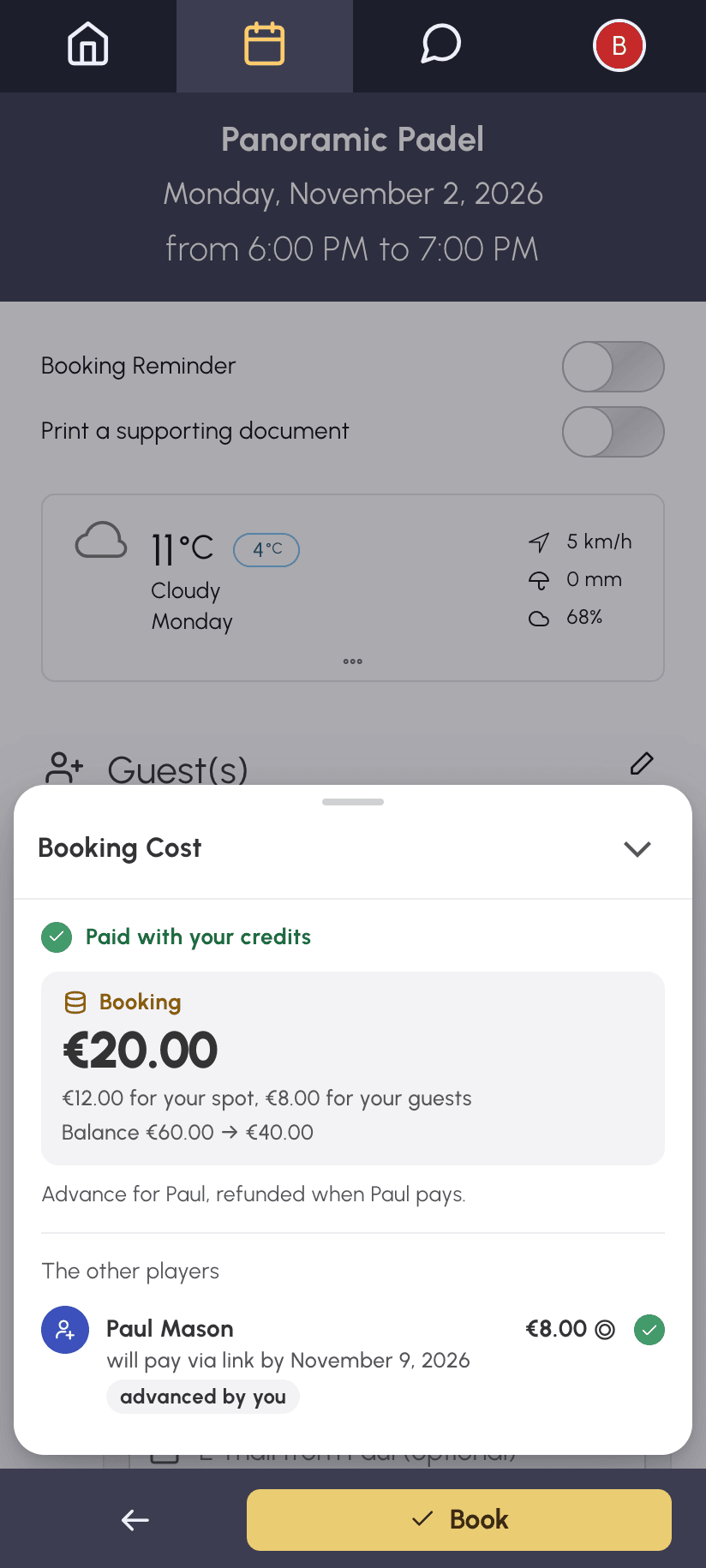
The amount requested from the guest is set at the time of booking. It does not change if the booking is later moved or if its duration changes. The deadline, however, follows the booking. Once the deadline has passed, the link is no longer valid and the share you advanced remains your responsibility.
If your credits are not enough and your organization offers payment at booking, you pay what is missing when you book, including the guest's share. When the guest pays, this share is credited back to you in credits, even if you had paid it by card.
Waiting for the guest's payment: "now"
With "now", the booking is only confirmed once the guest's share has been paid, and this share does not remain your responsibility. The booking waits for their payment during the time limit set by your organization for payment at booking, usually a few minutes. During this wait, their share is deducted from your credits, even if your balance is not enough. It is then credited back to you as soon as the booking is confirmed. This option only exists if your organization offers payment at booking.
After Book, the booking details open with the remaining time, and update automatically as long as they stay open. During the wait, the booking cannot be modified. An e-mail notifies you each time a guest pays, depending on your notification preferences. As soon as everyone has paid, the booking is confirmed and you receive the usual confirmation e-mail.
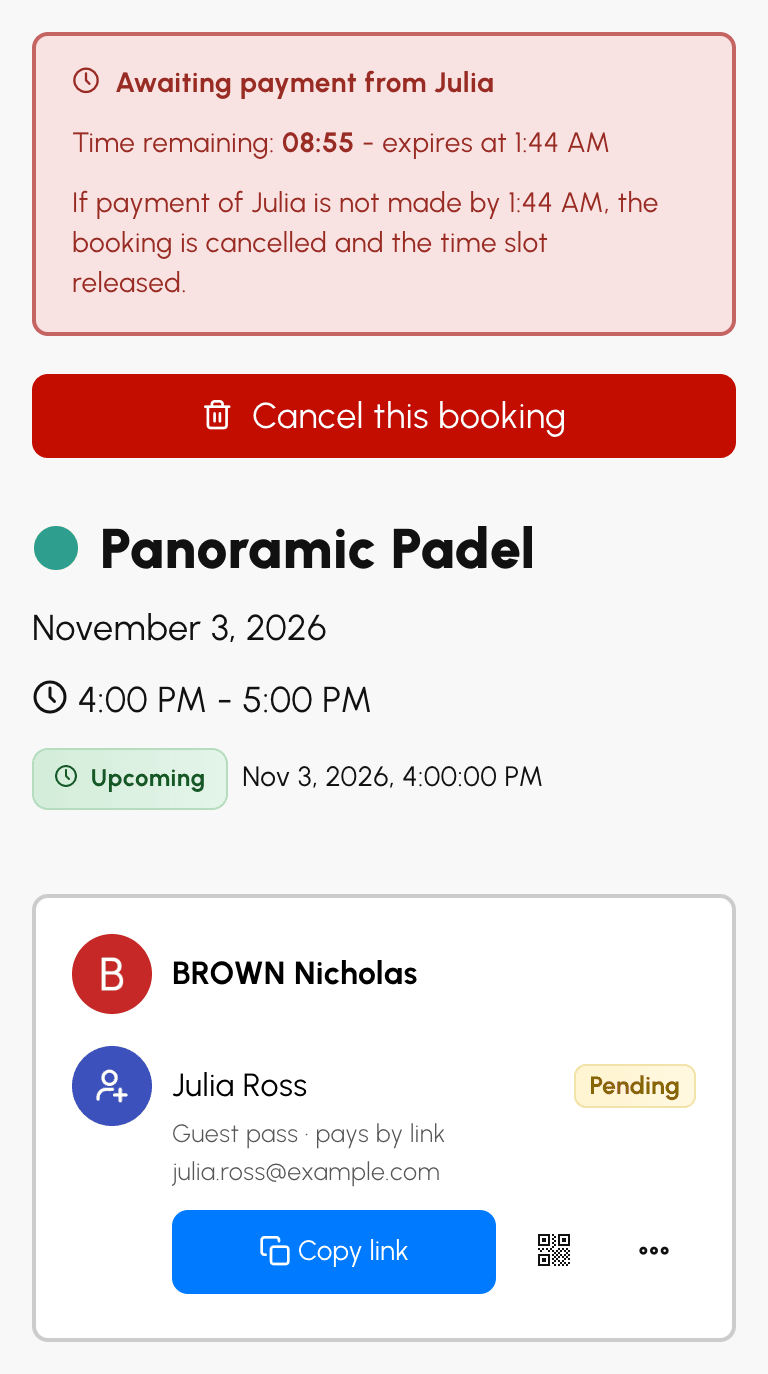
Without payment in time, the booking is cancelled and the time slot is released. Your credits are credited back to you, and an e-mail tells you which payments were missing. The share of a guest who had already paid is refunded to them, or credited back to you in credits, depending on their payment method.
If your own credits are not enough, you first pay what you are missing, as for any payment at booking. The booking then waits for your guests' payment. From the page confirming your payment, View Booking opens its details.
Sending the payment link
If you entered the guest's e-mail address, the link is sent to them automatically, in your language. Otherwise, send it yourself from the booking details, under the guest's line:
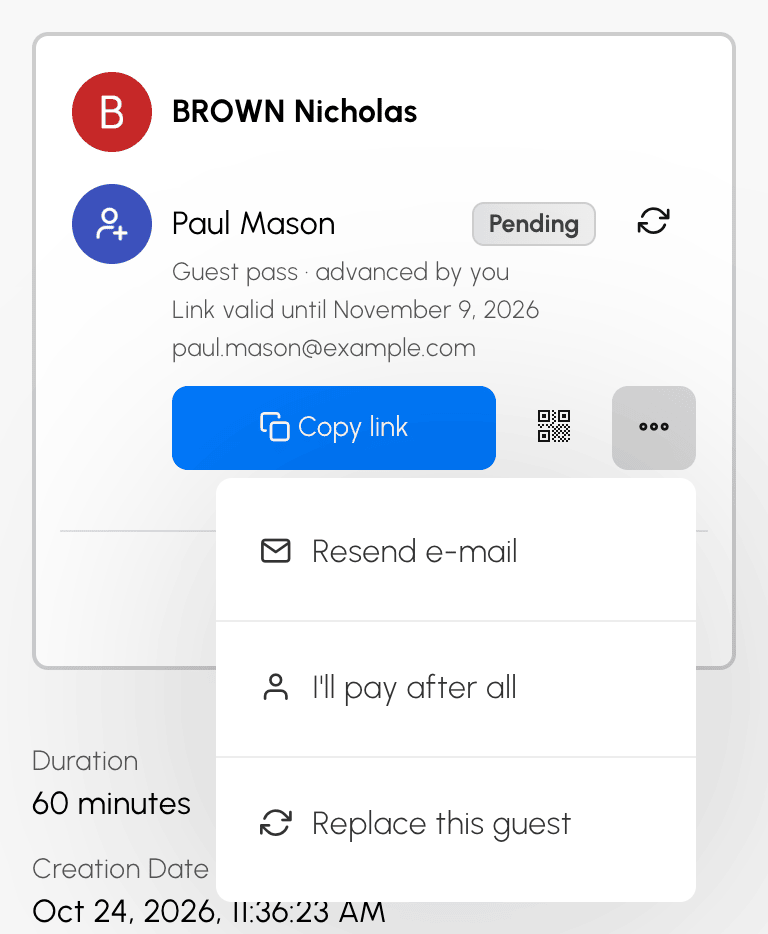
- Copy link copies the link, for you to paste into a message;
- displays a QR code that your guest scans with their phone, handy when they are next to you;
- in the menu, Send by e-mail asks you for their address and sends them the link.
Once the address is known, the menu entry becomes Resend e-mail, with the address prefilled. Correct it if it was wrong: the link is sent immediately to the new address. For the same address, wait 2 minutes between two sends. The number of sends per link is limited.
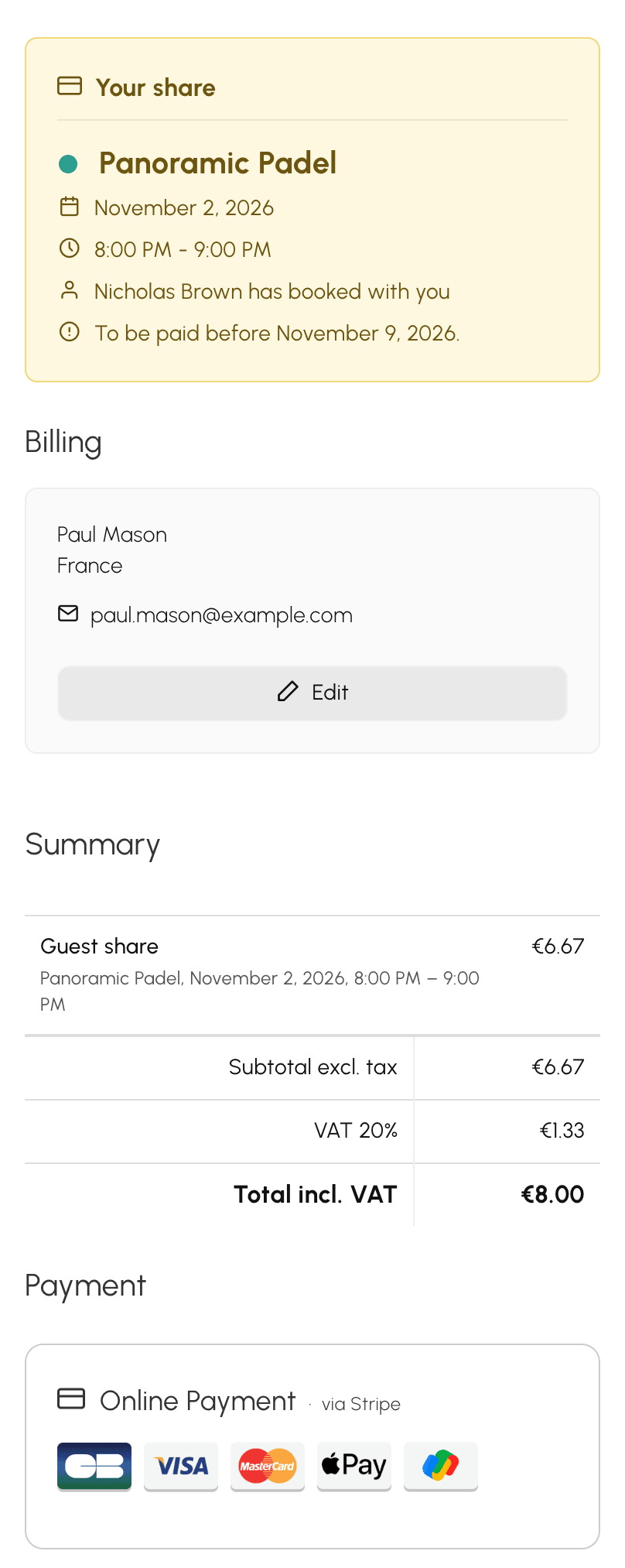
The link opens a payment page in your organization's colours, with your name, the time slot, their share and the deadline. Your guest pays online. For "later", your organization may also let them pay on site, by cheque or by bank transfer. Their share is then settled once your organization has received the payment.
If you did not enter their e-mail address, they are asked for it before paying, so their invoice can be sent to them. It then appears in the booking details.
Only you can see your guests' link, QR code and menu. The other participants in the booking only see whether the guest has paid.
Changing guests who pay by link
From the booking details, several changes are still possible:
- you finally prefer to pay for the place of a "later" guest who has not paid yet: in their menu, choose I'll pay after all. Their link is no longer valid, their share remains your responsibility, and they are not notified;
- a guest drops out: Replace this guest, in their menu, adds another person in their place, and you choose again who pays: you, or the new guest "later". The number of guests and the cost of the booking do not change, and the old link is no longer valid. A guest who has already paid, or who has announced a payment on site, by cheque or by bank transfer, cannot be replaced alone. In that case, replace all the guests;
- you want to change all your guests: the icon on the first guest row replaces them all. Before saving, a message reminds you of the links that will be cancelled and of the refund for guests who had already paid;
- one more guest joins you: Add a participant, then the Guest(s) row. If you only add guests, without a partner, each of them can pay "later". "Now" is never offered once the booking has been made.
As long as a guest has a payment link in progress or has paid by link, you can neither leave a booking that continues with other participants nor be replaced in it. First remove the guests, or cancel the booking.
Cancelling a booking for which a guest has paid
If you cancel within the time limit, the share of a guest who has already paid is refunded to their payment method when possible. Otherwise, it is credited back to you in credits. In both cases, the cancellation confirmation message tells you so, and the cancellation e-mail confirms it. If the cancellation is too late for your guest passes to be credited back to you, your organization also keeps the guest's share.
A guest who has not paid yet can no longer do so: their link is no longer valid.
Knowing the limits set by your organization
Your organization can:
- cap the number of guests per booking;
- limit the number of guest passes over a given period;
- prohibit guest passes on certain calendars, certain days or certain time ranges. A message then informs you in the form;
- restrict the cancellation of a booking with guests to certain cases.
