

Cancelling or changing a booking
Cancel a booking from the calendars or change its participants, within the deadlines and according to the rules set by your organization.
Cancelling from the calendars
- Open the calendar and click your booking. You can also go to the My Bookings menu and find your booking in the history.
- Click the cancellation button.
- Confirm with Yes, continue!, or back out with Cancel.
You receive a notification, and so do your partners, according to their preferences.
Changing the participants
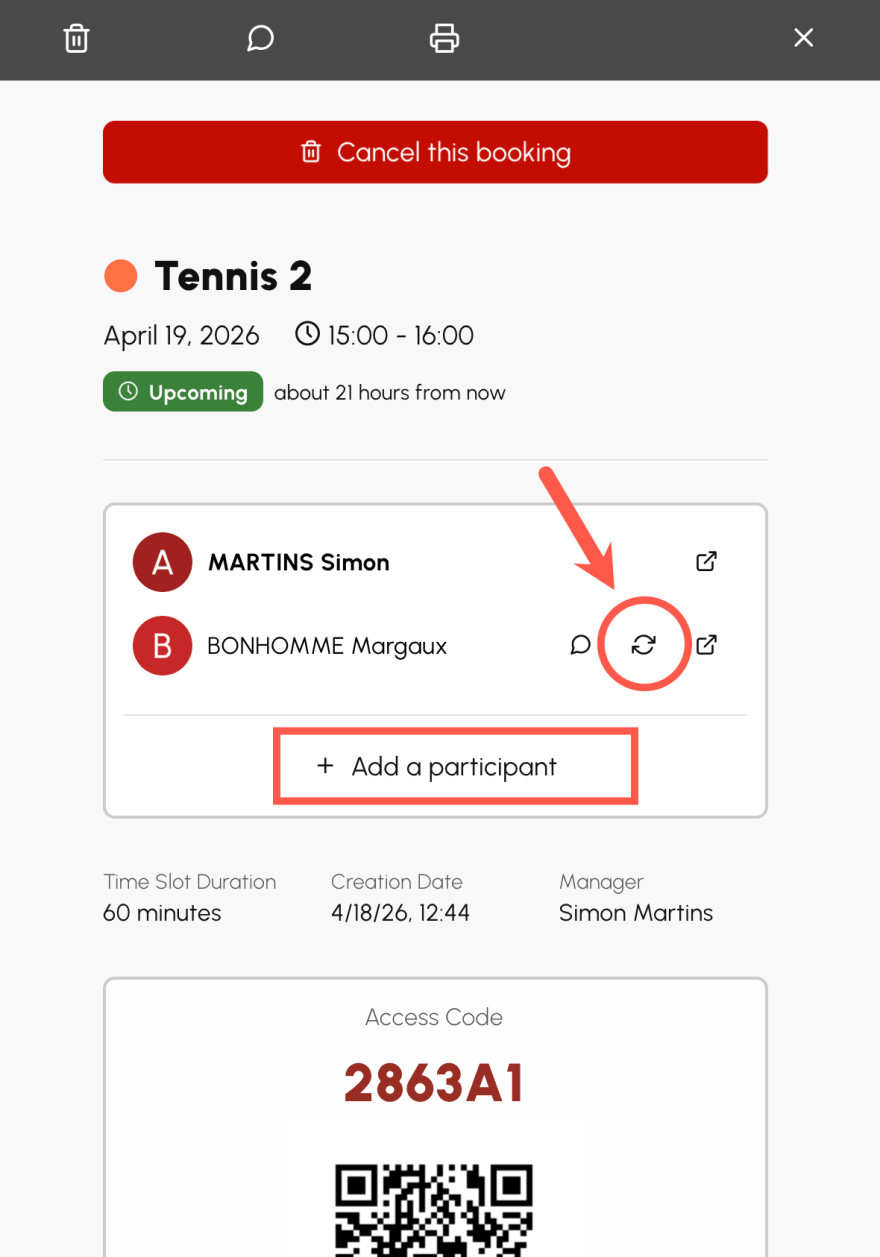
- Click your booking in the calendar or from the My Bookings menu to display the details.
- Depending on your organization's rules, you can add a participant with the Add a participant button, or make a replacement by clicking the icon.
- If the change you want is not possible, cancel the booking and then book again, within the permitted deadlines.
Finding out your organization's cancellation rules
Each organization sets its own rules, so your subscription may:
- prohibit any cancellation;
- limit cancellation in time, for example up to a certain period before the start of the time slot;
- limit the number of cancellations over a given period;
- prohibit the cancellation of bookings that include guests;
- on a booking with several players, allow each player only to remove their own name: only the booking manager can then cancel the time slot entirely.
Getting your credits back after a cancellation
If booking credits or guest credits were deducted, they are automatically returned to your account when the booking is cancelled, according to your organization's rules. No credit is returned if none had been deducted, for example when the organization offers same-day bookings free of charge.
Finding your bookings and cancellations
The full history is available in My Account›My Bookings: upcoming time slots, past bookings and cancellations, with their status. The Hide Cancellations option makes the list shorter.
