The activity reports you receive by e-mail have been completely redesigned. They open with your key figures and how they are changing, flag what still needs to be done, preview the coming week and once again show your payment collections, invoices and payments.
Until now, the report listed counters one category after another, without showing which ones deserved your attention, and it no longer said anything about your payment collections. From now on, it reads from top to bottom: the essentials first, the details next.
The full workings are described in the documentation: Receiving Activity Reports by E-mail.
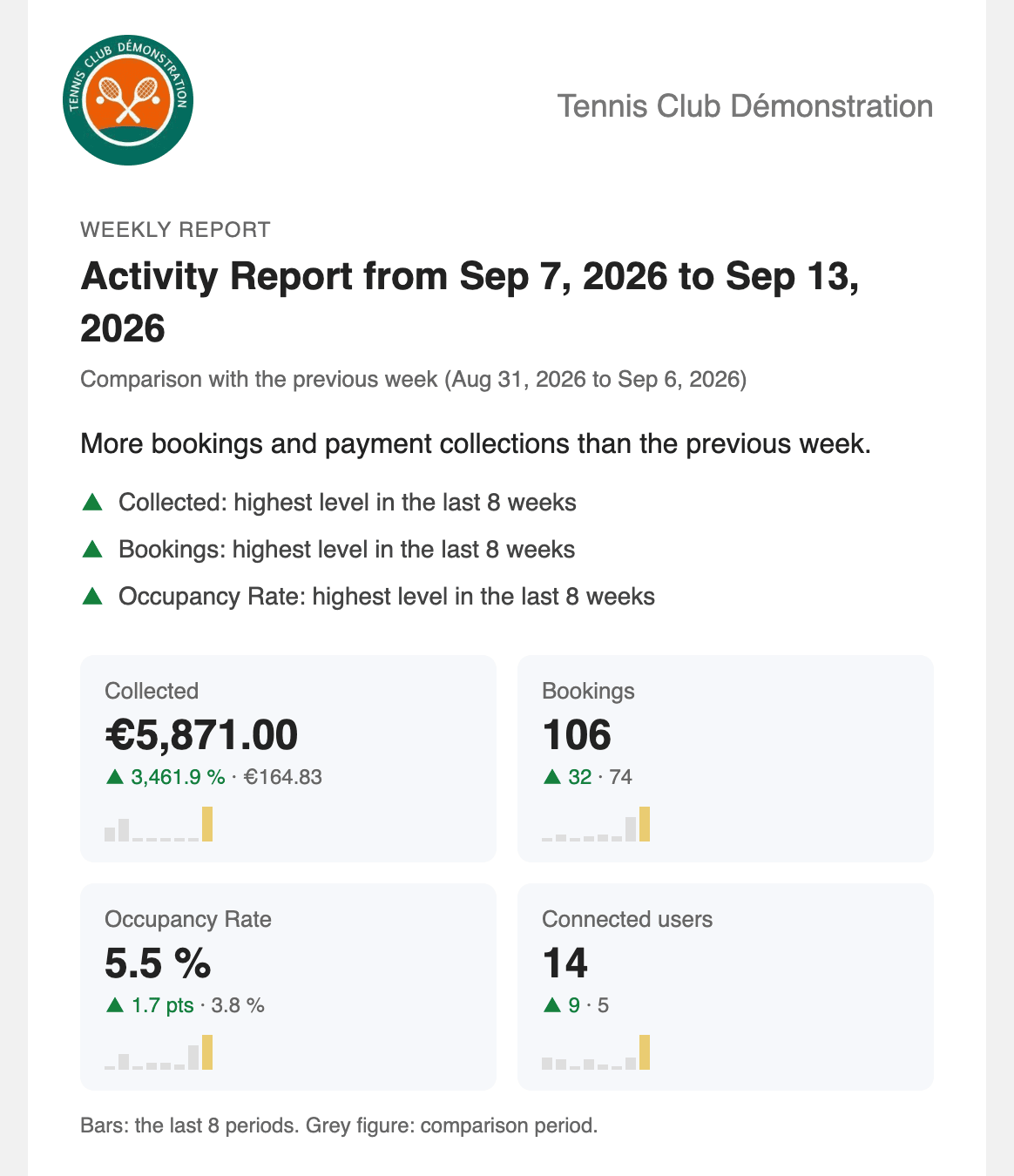
The report starts with a sentence summarising the period, followed by up to three highlights: a record over the last eight periods, or a clear rise or fall.
Next come four key figures: the amount collected, the bookings played, the occupancy rate of your courts and the number of users who logged in. Each one shows the difference from the comparison period and a mini chart of the last eight periods, so you can put the week in context without digging out previous reports.
The weekly report is compared with the previous week, the daily report with the day before. The monthly report is compared with the same month of the previous year: September with September, rather than with a quieter August.
Just below, the To process box gathers everything that requires action from you on the day the report is sent:
Each line opens the relevant screen directly in your application. Overdue instalments lead to Administration›Dashboard›Billing›Invoices & Transactions, with the new Overdue instalments option of the By Status filter, which you can also use at any time in this log.
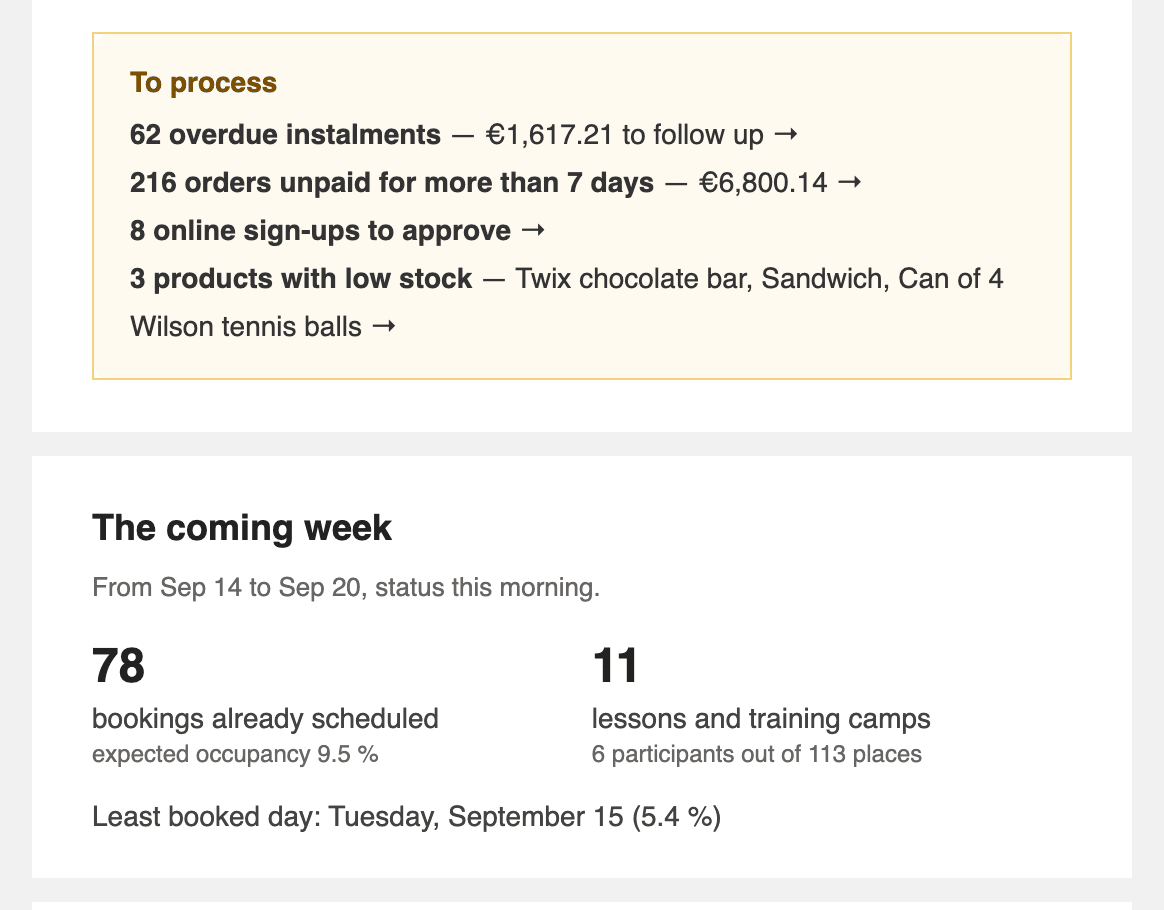
The report also looks ahead. Over the next 7 days, it shows the bookings already scheduled, the expected occupancy, lessons and courses with their participants and places, court closures and the least booked day, which is handy for planning an event.
In the daily report, this part covers the day that is starting.
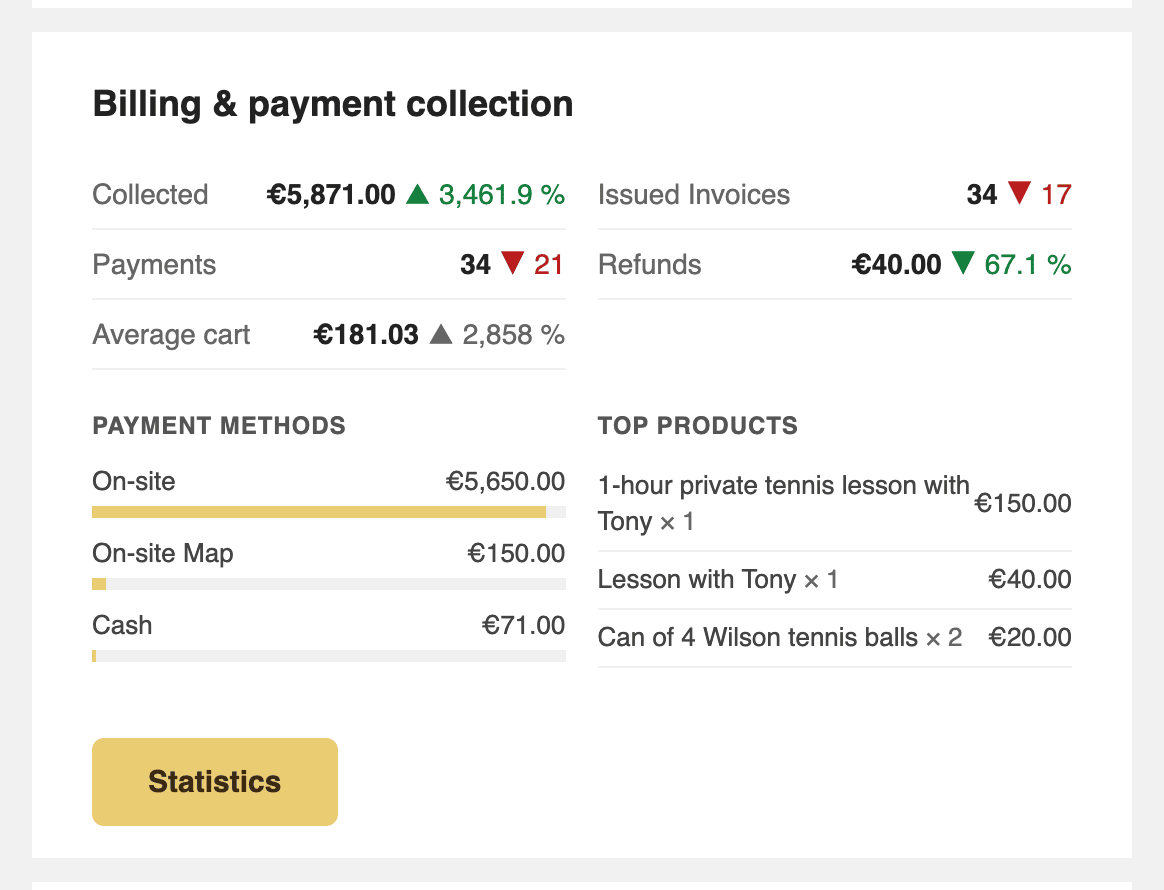
The Billing & payment collection section uses the same calculation as your billing statistics: amount collected net of refunds, payments received, invoices issued, average basket and declined online payments. It also details the breakdown by payment method and your best sellers.
The amounts cover all your billing accounts, and no customer name appears in the e-mail. If your club has not collected, invoiced or refunded anything over the period or the previous one, the section is not displayed.
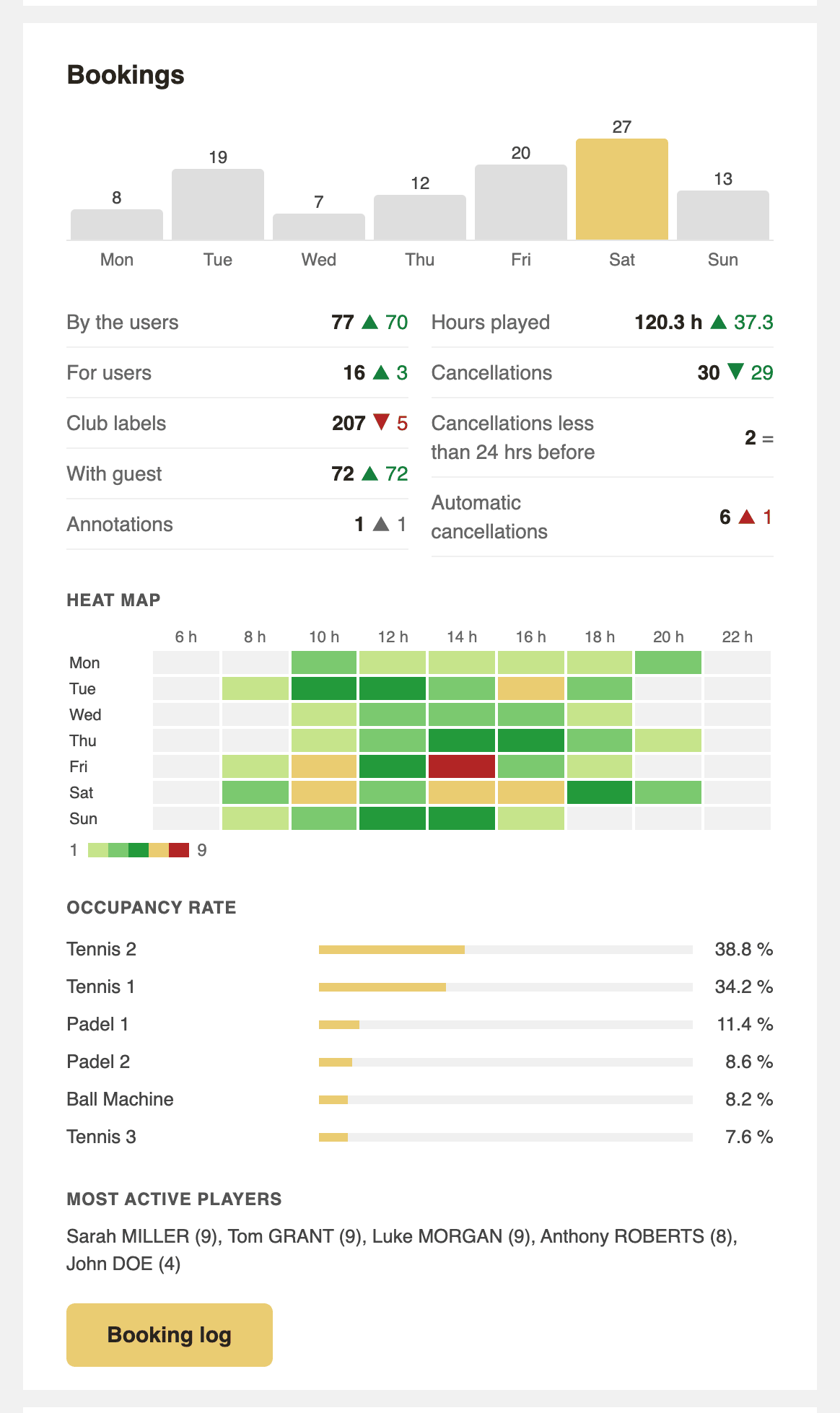
The Bookings section shows bookings day by day, hours played and cancellations, including those made less than 24 hours before the time slot.
A Heat Map cross-references days and hours so you can spot at a glance the most requested time slots and those that remain empty. It uses the same colours as the heat map on your dashboard. Then come the occupancy rate of each calendar and the most active players of the period.
The Users & subscriptions section flags new users, subscriptions that have expired or will expire within 30 days, and subscribers who have not booked for 30 days: a useful list for getting back in touch with them. Lists show up to 20 names, followed by a link to the full list in the application.
For e-mails, the report gives the open rate of your messages and the addresses to correct in user profiles, those to which sending fails.
Presence check-in at the kiosk and online registrations keep their own section, displayed only if the feature is active in your club. A figure that is zero over both periods is not shown, and an empty section disappears: a small club's report stays short. And when there is nothing to report, no e-mail is sent.
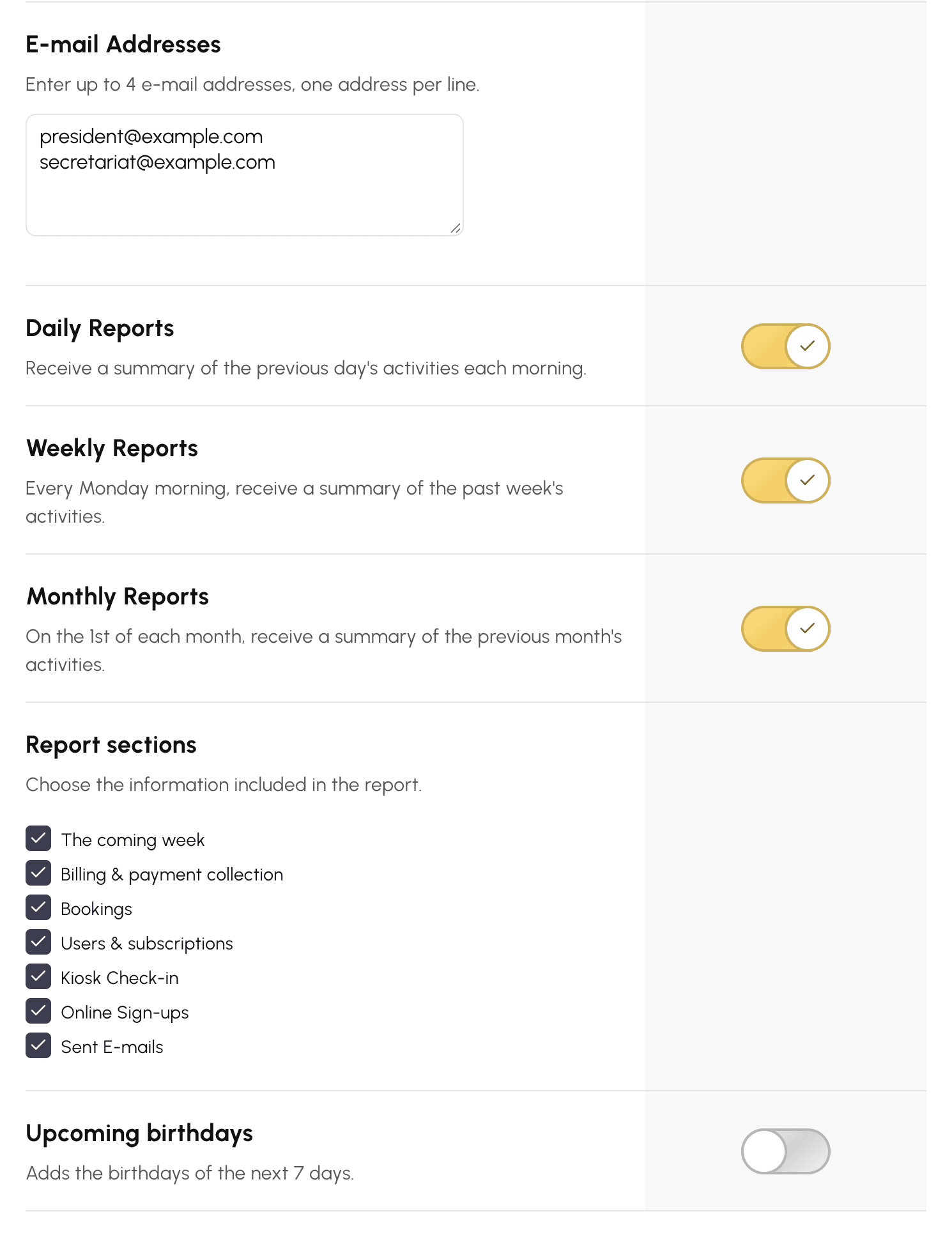
Go to Administration›Settings›Activity Reports. There you can activate the daily, weekly and monthly reports, each with up to 4 e-mail addresses.
Under Report sections, you can now choose what your reports contain. All sections are ticked by default. For example, untick Billing & payment collection if your reports go to a volunteer who does not need to see the amounts: billing then disappears from the whole report, key figures and items to process included. The Upcoming birthdays option adds birthdays for the next 7 days.
The bottom of each report includes a direct link to these settings.
Your reports that are already active keep going to the same addresses, with all sections: you have nothing to do to receive the new version.
Any questions about these changes? Our team is here to help.
The OpenResa team at your service!