


Cancel or modify a booking
Cancel, move or resize a booking from the calendars, or change its participants, within the deadlines and rules set by your organization.
Cancel from the calendars
- Open the calendar and click your booking. You can also go to the My Bookings menu and find your booking in the history.
- Click the cancel button.
- Confirm with Yes, continue!, or go back with Cancel.
You receive a notification, and so do your partners, depending on their preferences.
Change the participants
- Click your booking in the calendar or in the My Bookings menu to display its details.
- Depending on your organization's rules, you can add a participant with the Add a participant button. You can also replace a participant by clicking the icon.
- If the change you want is not possible, cancel the booking and then book again, within the permitted deadlines.
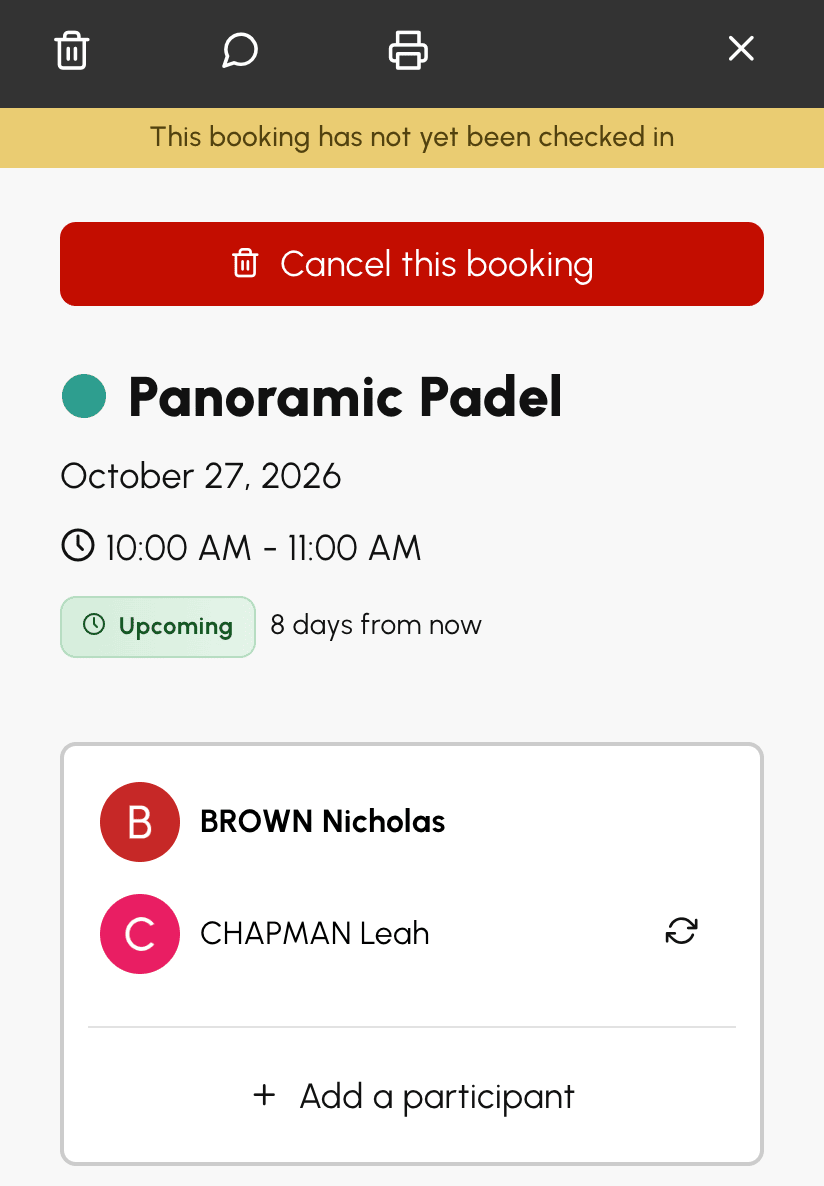
When a friend agrees to step in at short notice for a partner who drops out, you can pay for their place with the I'll pay toggle, if your subscription allows you to pay for your partners. Before you save, the window shows which credits will be debited or returned, and to whom.
Move a booking
If your organization allows it, move your booking to another time, another court or another day by dragging it on the calendars, without having to cancel it and book again.
- Grab your booking in the calendar: hold down the click on it, or press it for half a second on a phone or tablet.
- Drag it: a preview follows the pointer and shows the new time.
- Release it at the desired location.
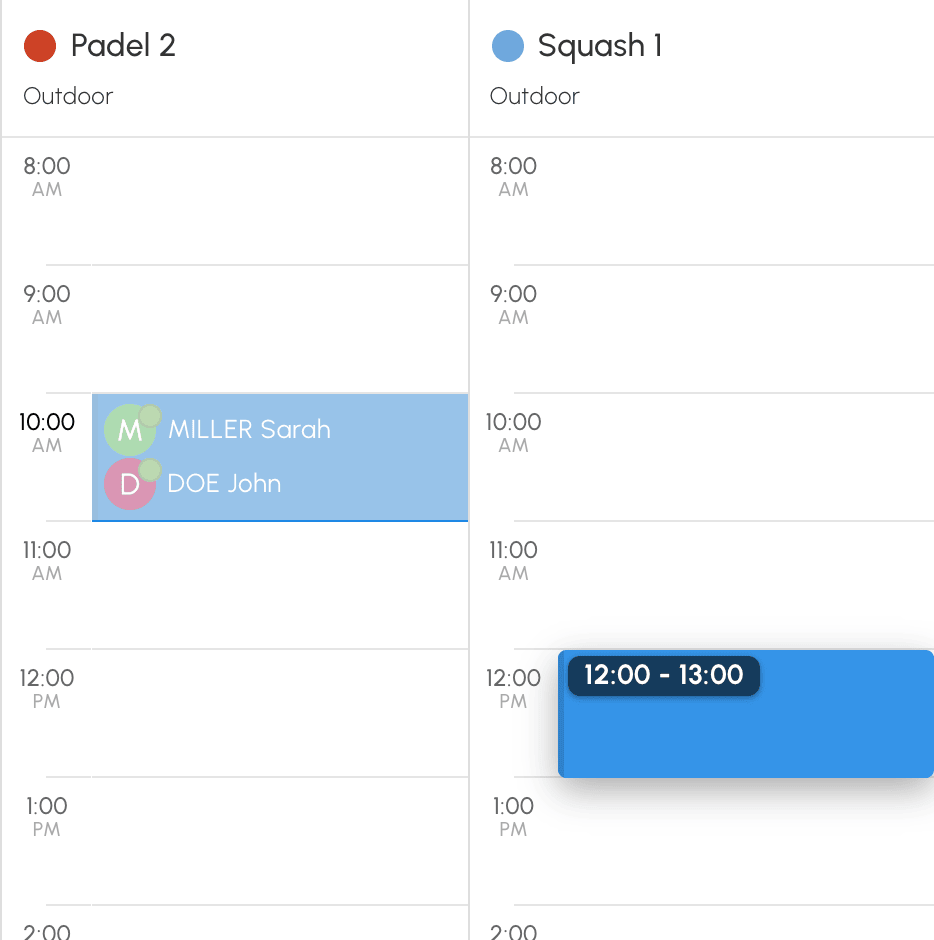
A click or a short tap always opens the booking details. On a touch screen, the half-second press is what starts the move: a finger that slides straight away simply scrolls the calendars.
When the preview turns red, the location is not allowed: release it, a window explains why and your booking stays where it was.
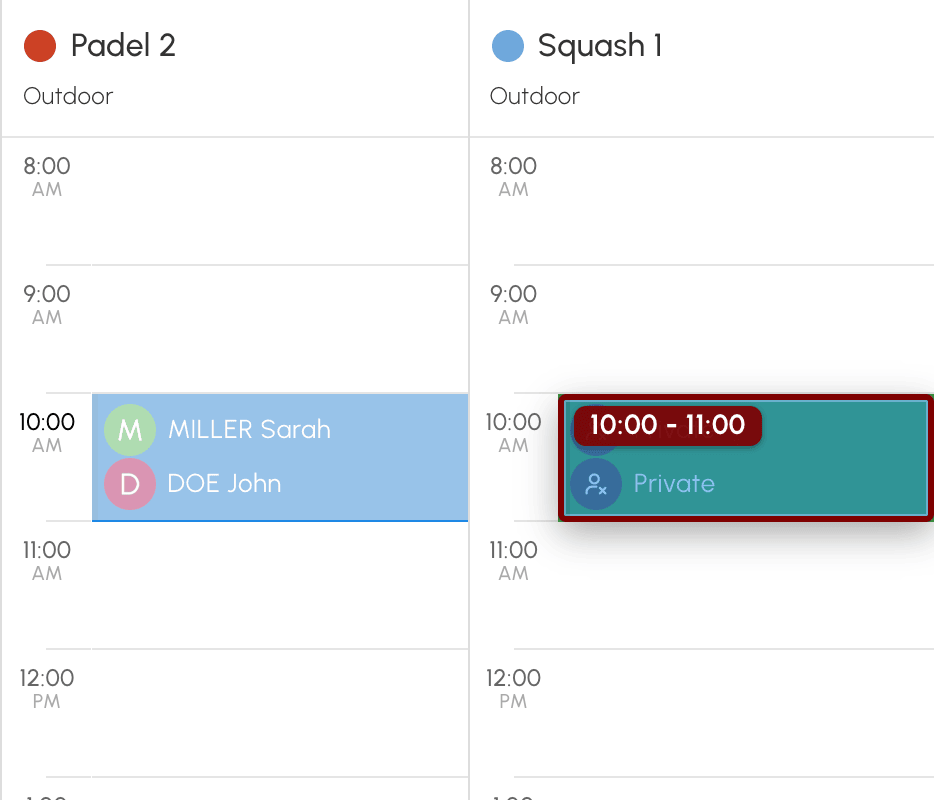
Moving a booking follows the rules of your subscription:
- you can only move your own bookings, and always to a free time slot;
- a booking can be moved as long as you can still cancel it;
- on a shared booking where each player cancels their own place, only the booking owner can move it;
- the start times are those offered by the booking form, and open dates, quotas and credits apply as for a new booking.
If the new time slot costs more credits, the difference is deducted; if it costs fewer, the difference is returned to you, up to the amount you paid. For a place paid by another player, that player pays or gets back the difference. When the day, time or court changes, you and your partners are notified by e-mail, according to your notification preferences. If your organization uses access codes, the codes for the new time slot are displayed after the move, just as after a booking.
Resize a booking
If your subscription lets you choose the duration of your bookings, you can also change it from the calendars.
- Display the booking's handles: hover over it, or on a touch screen press it for half a second and then lift your finger without moving.
- Grab the top handle to change the start time, or the bottom handle to change the end time. With a finger, the handle can be grabbed directly: no new long press is needed.
- Drag, then release.
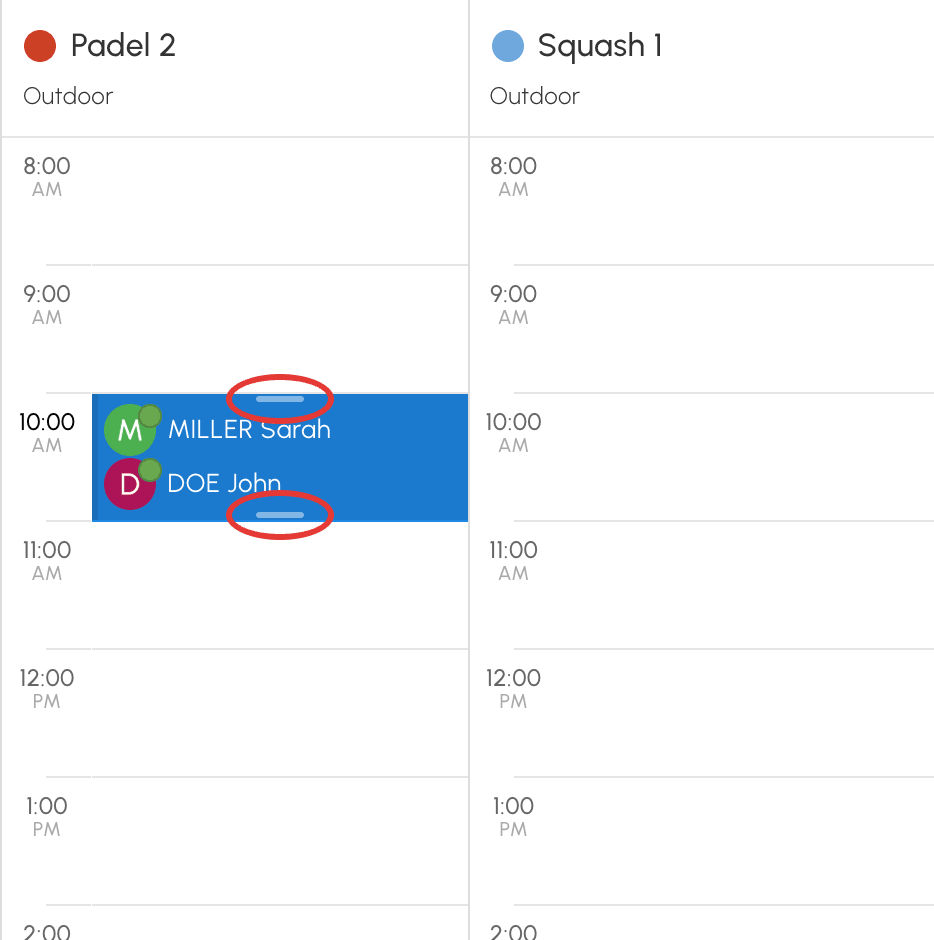
On a touch screen, the booking stays selected, highlighted by a shadow, until you touch the screen outside it. Its handles are two round dots, at the top right and bottom left. A short tap on one of them does nothing. Drag the selected booking to move it, without a new long press. A short tap on it opens its details.
The preview stops at the minimum and maximum durations allowed by your subscription. If your booking has no handles, its duration cannot be changed: move it, or cancel it and book again.
Know your organization's cancellation rules
Each organization sets its own rules, so your subscription may:
- prohibit any cancellation;
- limit cancellation in time, for example up to a certain deadline before the start of the time slot;
- limit the number of cancellations over a given period;
- prohibit cancelling bookings with guests;
- on a shared booking, only allow each player to remove their own name: only the booking owner can then cancel the entire time slot.
If your place is paid by another player, you cannot withdraw from only part of the booking, for example from the second hour of a booking from 6 pm to 8 pm: your withdrawal applies to its entire duration, the booking continues for the other players, and a message warns you before you confirm.
Get your credits back after a cancellation
If booking or guest credits were deducted, they are automatically returned when you cancel, according to your organization's rules. Each amount goes back to the player who paid it: if you paid for a partner's place, you get it back, according to the cancellation conditions of that partner's subscription. The amount returned is the amount that was paid, even if the price or your subscription has changed since.
No credits are returned if none were deducted, for example when the organization makes same-day bookings free.
The Payment summary, at the bottom of the booking details, shows what each player paid and what was returned to them. It can still be viewed after the cancellation, from My Account›My Bookings.
Find your bookings and cancellations
The full history is available in My Account›My Bookings: upcoming time slots, past bookings and cancellations, with their status. The Hide Cancellations option lets you shorten the list.
