The booking form gets a makeover: all the information about the time slot is gathered in a single card, easier to read on a computer as well as on a phone. Managers also benefit from a redesigned repeat feature, to plan a whole season while skipping holidays and public holidays.
Until now, the court, the date and the time were shown as a title, the options in a separate box, and a repeated booking meant ticking the weeks one by one. Now, each piece of information has its own line, and a series is set up with an end date and a preview of the whole year.
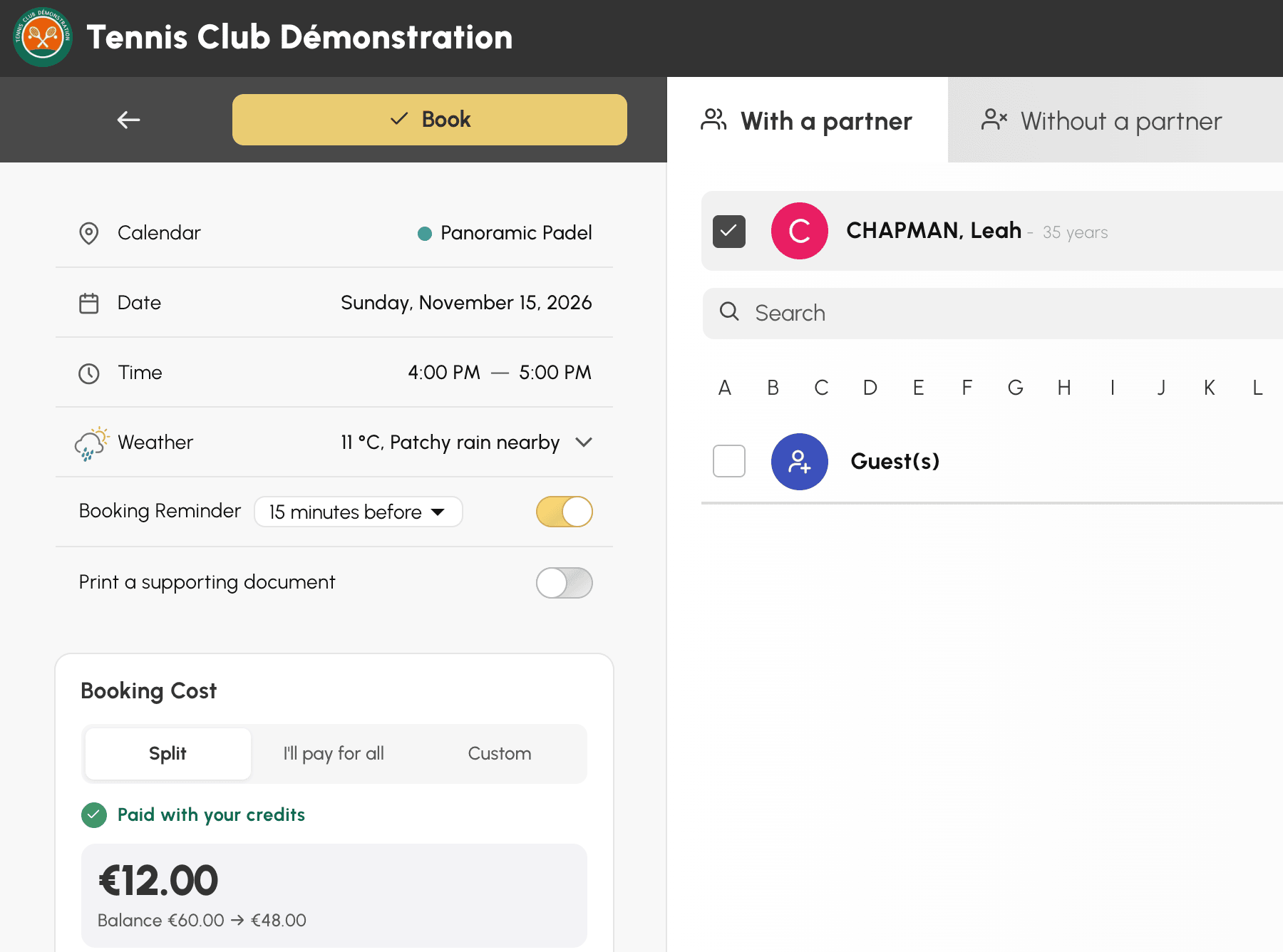
The time slot card shows one piece of information per line: Calendar, Date, Time, then the weather forecast and your options, each with its own switch. Beyond two options, they fold up under Options. The line becomes More options as soon as an option is on: a useful reminder before confirming a series.
On a computer, the left column stays in place while you scroll through the list of users. The Book button and the cost of the booking thus stay in sight.
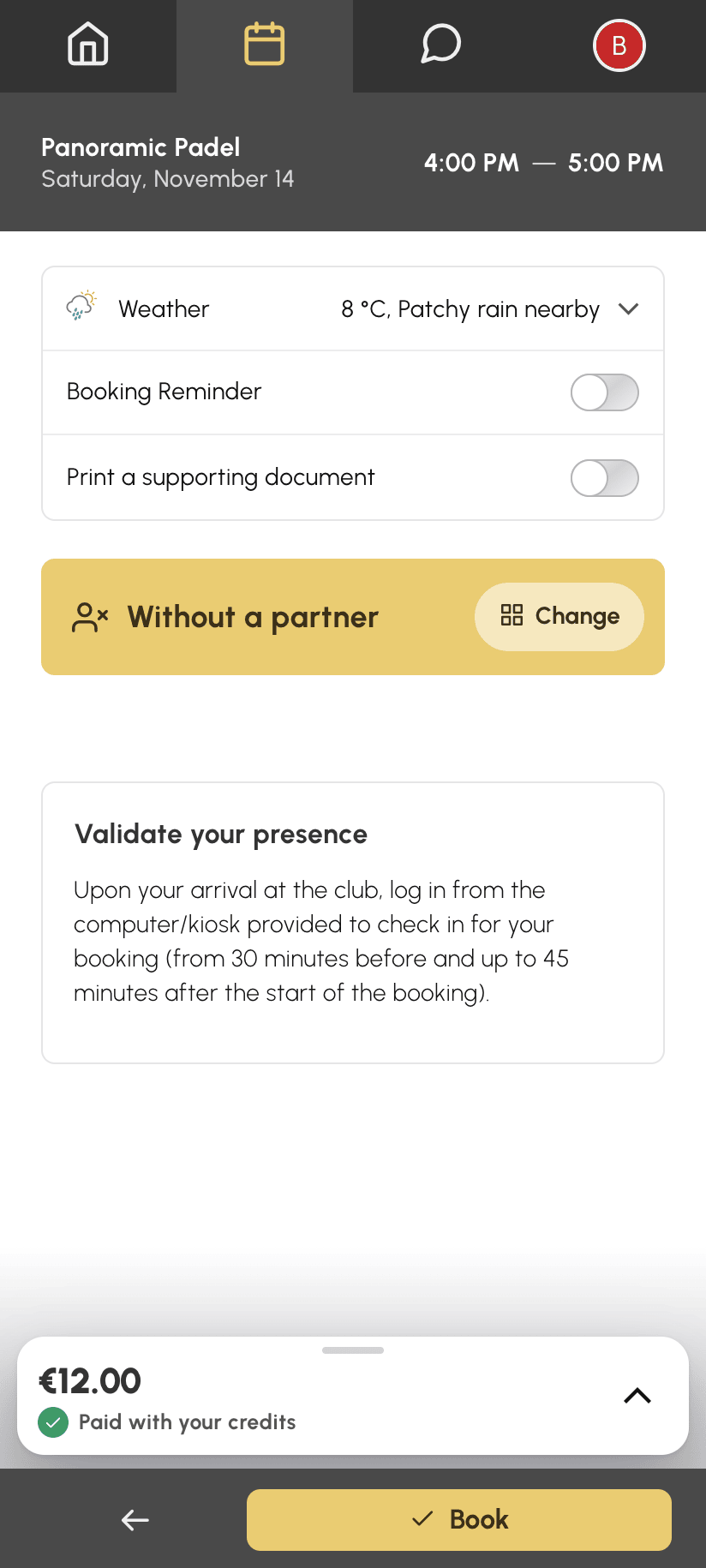
On a phone, the court, the date and the time form the header of the form, in your club's colours. They stay visible while you scroll through the form, and a simple tap on them takes you back to the very top.
The type of booking chosen, for example Without a partner, is shown in a tile. The Change button takes you back to the other choices.
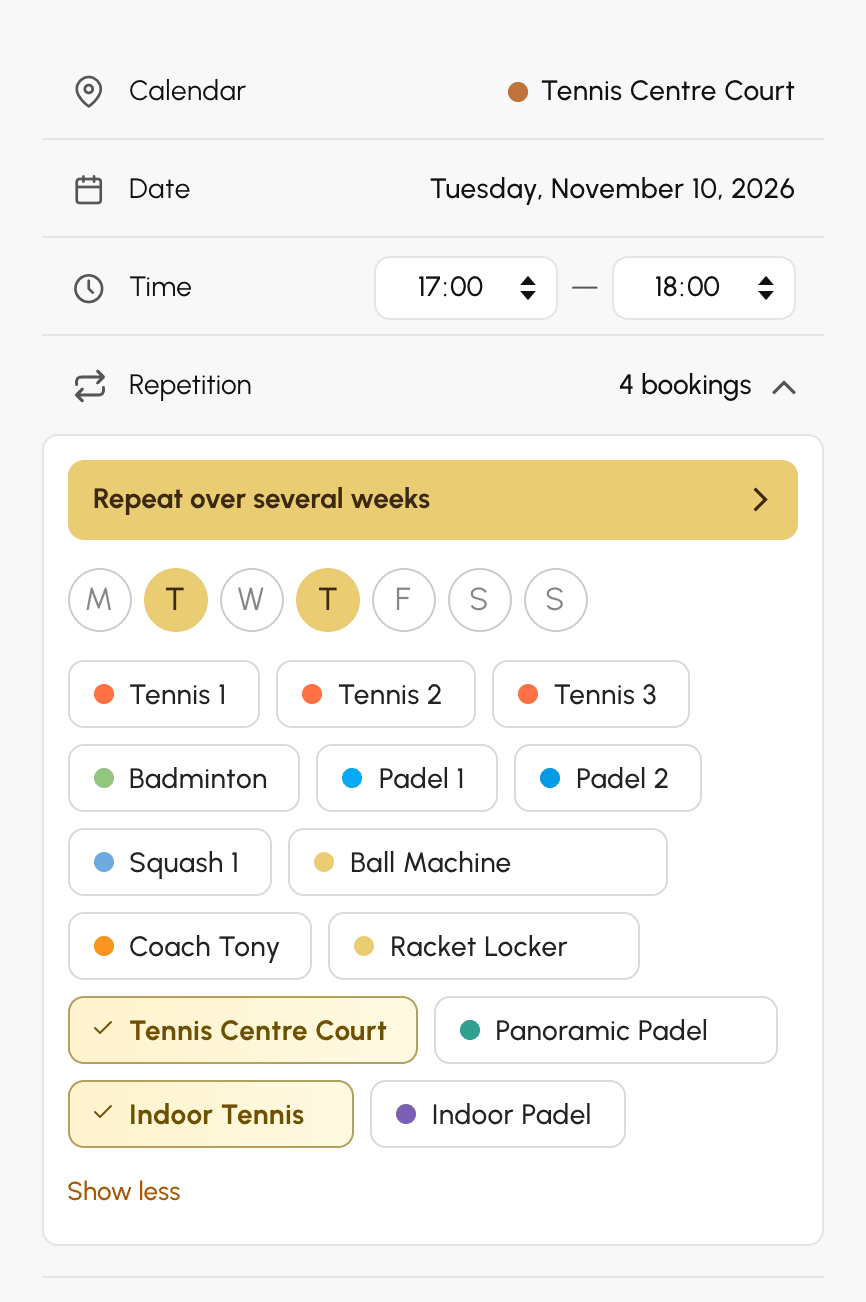
With the Book with Repetition right, the Repetition line of the card sets up the same booking over several days, several weeks and several calendars. On a computer, it opens a panel to tick other days of the week and other courts in an instant, for example to block four courts for a tournament.
For a longer series, Repeat over several weeks opens the repeat window. On a phone, it opens directly from the Repetition line. There, you set up the whole series:
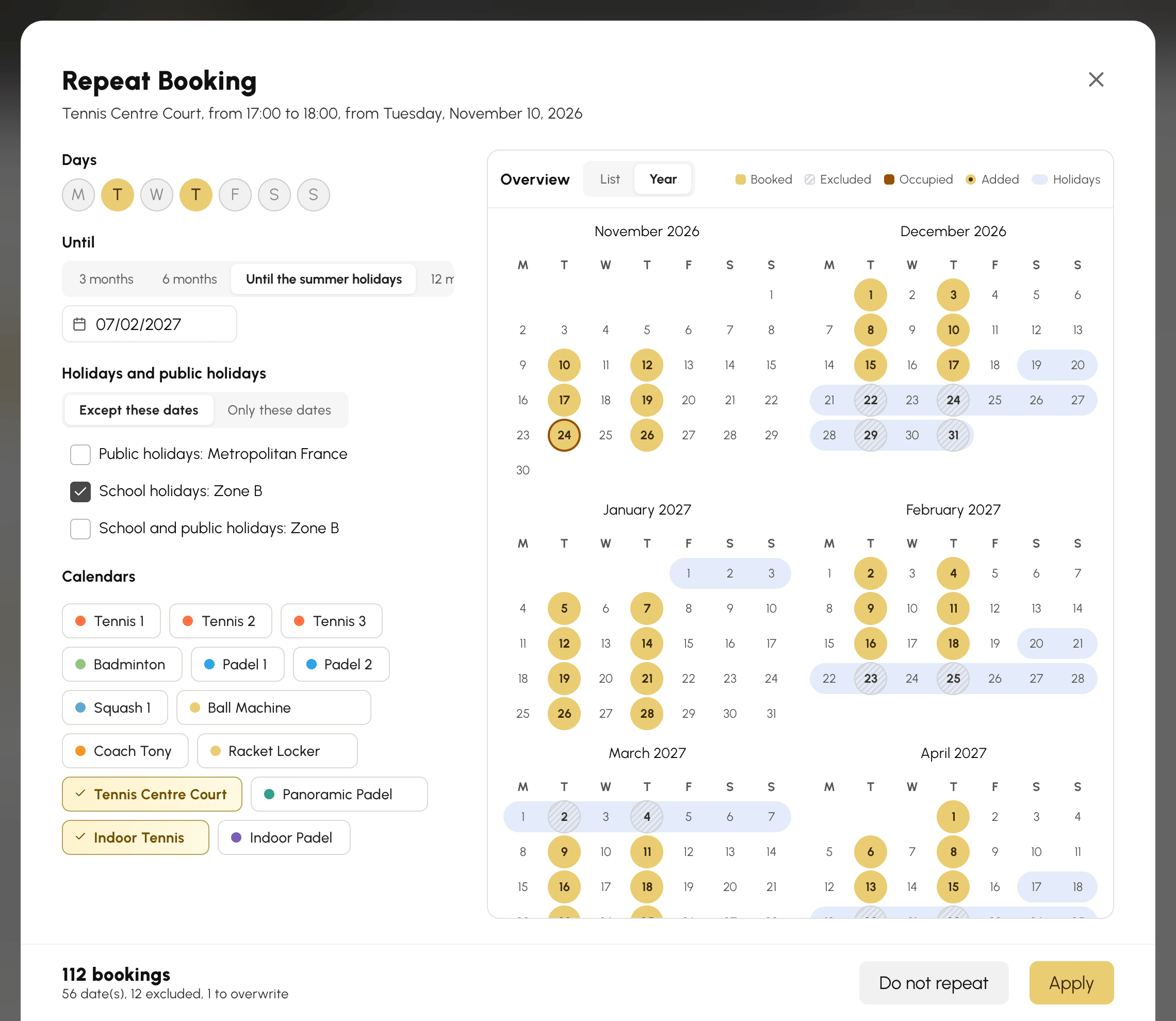
The school holidays and public holidays come from your date groups, in Administration›Settings›Booking›Holidays and public holidays. With Except these dates, a Wednesday lesson falls neither during the holidays nor on a public holiday, without unticking a single week. With Only these dates, a course every morning of the holidays is set up in one go.
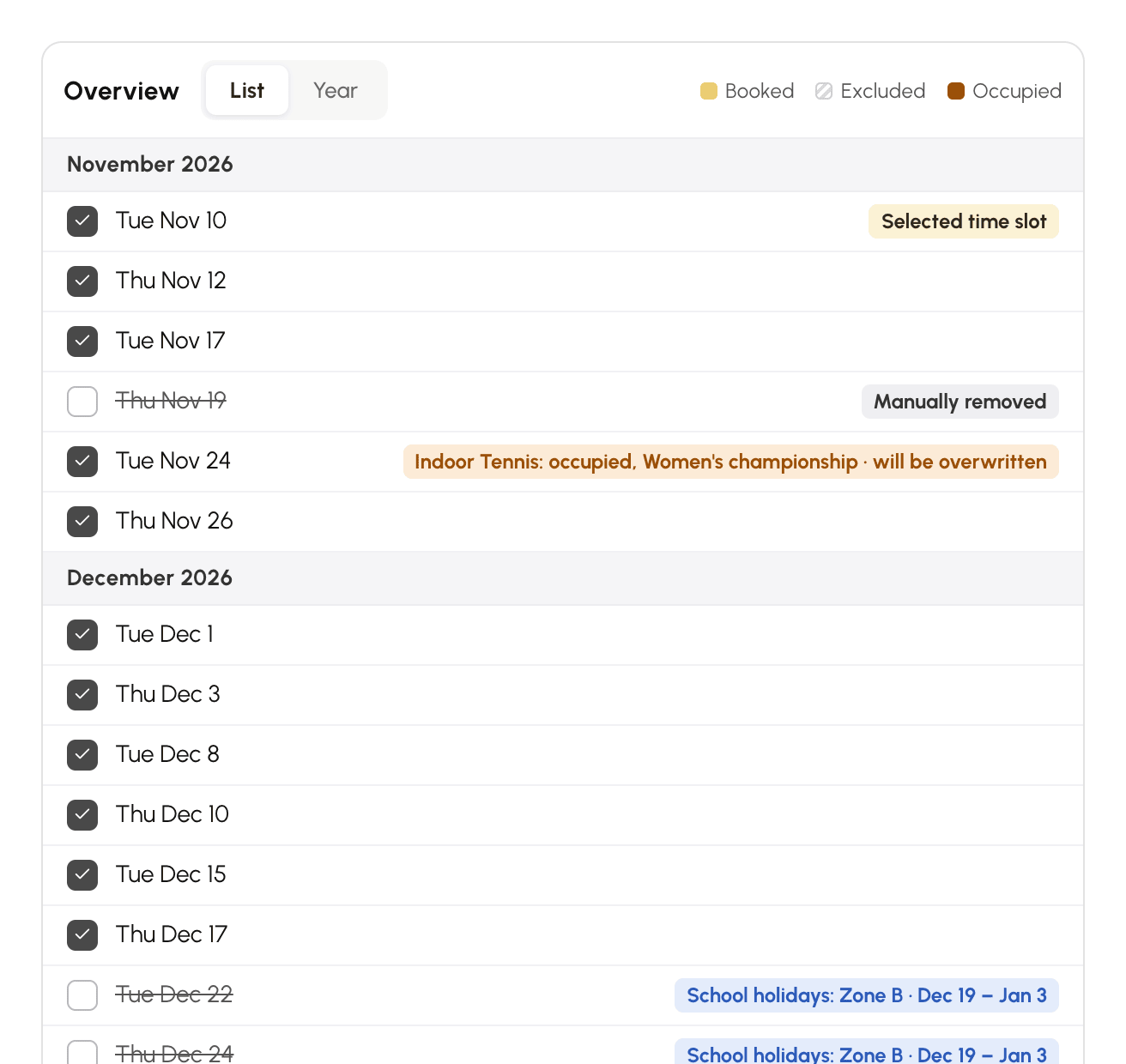
The preview shows the whole series before you book. The Year view shows a small calendar per month, the List view details each date. Time slots already taken are pointed out, along with what will happen to the booking already there.
A click is enough to adjust the series without touching the settings: remove the date of a competition or keep a lesson during the holidays. In the Year view, you can also freely choose the days you want, even outside the days of the series, for example a few Saturdays in a Wednesday series. On a computer, drag the mouse over several days to select or deselect them in a single gesture.
The footer of the window counts the bookings that will be made.
The new form is in place for all users, without any setting. Repetition remains reserved for the profiles that have the Book with Repetition right, to be granted in Administration›Users›Access Rights›Profiles & Roles.
Any questions? Our team is here to help.
The OpenResa team at your service!