


Products & services
The catalogue brings together everything your organization sells: booking credits, subscriptions, equipment, food & drink, tournaments, lessons, training camps… It feeds the users' cart, the cash register and manual orders.
Understanding product types
Each product belongs to a category: subscription, booking credit, guest credit, equipment, food & drink, tournament, lesson, training camp or custom. The tabs above the list let you filter the catalogue by category.
Creating a product
- Go to Administration›Settings›Billing›Products & Services.
- Click New.
- Choose the product type, then enter the title, an optional description and a colour.
- Click Save.

A product can then be published in the online shop on your home page.
Setting the price and taxes
- Enter the unit price including tax: the amount excluding tax is displayed automatically.
- Check the tax rates: they are pre-filled with the organization's default rates, which you can adjust in Administration›Settings›Account Settings.
- For volume pricing, click Add a quantity-based rate and set a price for each quantity tier (for example, 10 units at a reduced price).
- Enable Free Quantity if the user can choose the quantity themselves when ordering, within the limit of available stock (if applicable).
Offering a product in variants
A polo shirt sold in several sizes and colours, a racket in several weights, a grip in several thicknesses: an equipment, food & drink or custom product can be offered in variants. Each variant has its own stock and, if you wish, its own price.
- In the product record, enable Variants.
- In Axis 1, enter the name of the criterion, for example "Size", then click Add a value for each value: S, M, L.
- If the product varies according to a second criterion, for example colour, fill in Axis 2 (optional) in the same way.
- Complete the Variant pricing table, which shows one row per combination: S in blue, S in red, M in blue…
- Click Save.
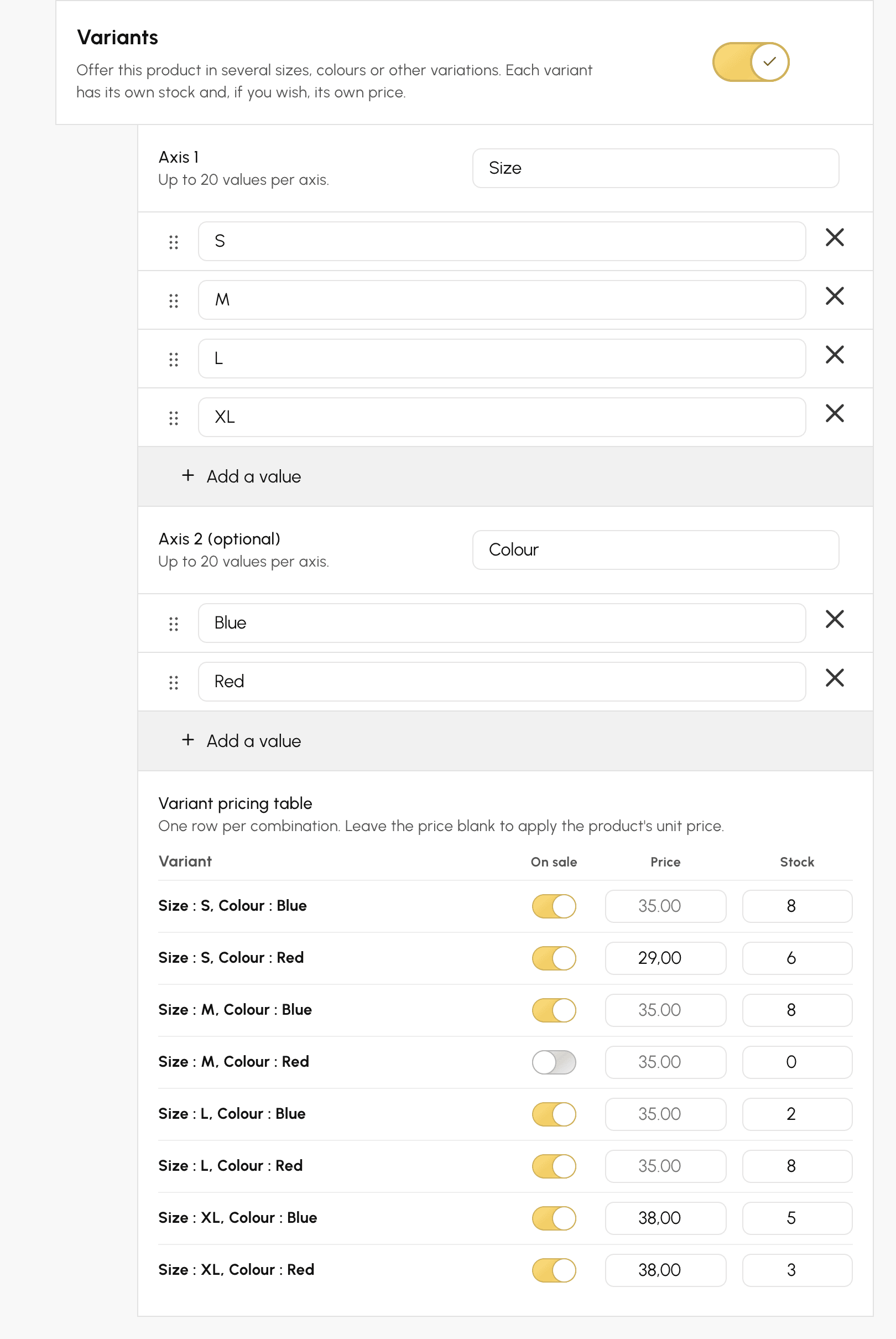
For each row of the grid:
- On sale: turn off the switch for a combination you do not offer, for example M in red. It is then offered neither in the shop, nor at the cash register, nor in a manual order. At least one variant must remain on sale: to stop selling the product, disable it.
- Price: leave the field empty to apply the product's unit price, or enter the price including tax specific to this variant. It can be higher, for example for a large size, or lower, for example for an end-of-line colour.
- Stock: enter the quantity available for this variant.
An axis accepts up to 20 values and a product up to 100 variants. Drag the handle to the left of a value to change the order: this is the order in which the values are offered for purchase. Renaming a value keeps its stock and prices.
Once variants are enabled, the product's pricing comes down to its unit price: a product offered in variants has no quantity-based pricing, and any it had are deleted after confirmation. The buyer freely chooses the quantity of each variant, within the limit of its stock.
On an order, an invoice or a receipt, the line shows the product name followed by the chosen variant, for example "Club polo shirt — Size: M, Colour: Blue". If the buyer takes two different variants, each has its own line.
Disabling Variants deletes all variants after confirmation: the product returns to a single stock, equal to the last total.
Tracking stock
Depending on the product type (food & drink, equipment, ...), you can manage a product's available stock.
- Enter the quantity in stock, or tick Unlimited Stock.
- The stock updates automatically as sales are made. You can adjust it at any time.
- Set the low stock threshold to receive an alert when stock falls below it: 0 disables the alert.
- The alert is sent to the club's e-mail address. To send it to someone else, for example the person in charge of the refreshment bar, fill in Alert e-mail address.
For a product offered in variants, stock is entered variant by variant in the price grid. The record then displays the Total available, the sum of the stock of the variants on sale, and the low stock threshold applies to each variant: with a threshold of 2, the alert is sent when the blue M polo shirt drops to 2 items, and its e-mail names the variant. Unlimited Stock applies to all variants of the product.
Selling a subscription online
Putting a subscription on sale is not configured from the catalogue, but from the subscription's own record, in Administration›Users›Access Rights›Subscriptions, General tab, Payments & Billing section. Enabling this section automatically creates the corresponding product.
The product can then be edited from either side: from Administration›Settings›Billing›Products & Services as well as from the subscription record, both forms edit the same record.
Rolling duration or fixed cycles, proration, renewal and pre-sale are covered on a dedicated page.
Offering payment in instalments
- In the product record, set the Payment in instalments option by selecting the maximum number of instalments.
- The total is divided into equal parts. The first instalment is paid immediately, and the services are delivered from this first payment.
Notifying by e-mail on each sale
Automatically notify the people concerned as soon as a specific product is sold: the person in charge of the refreshment bar for a drink, the coach for a training camp, or the supplier who prepares an equipment order.
- Open the product in Administration›Settings›Billing›Products & Services.
- At the bottom of the record, enable Email Notifications.
- In Recipient addresses (one per line, 4 maximum), enter up to 4 addresses, one per line.
- Click Save.
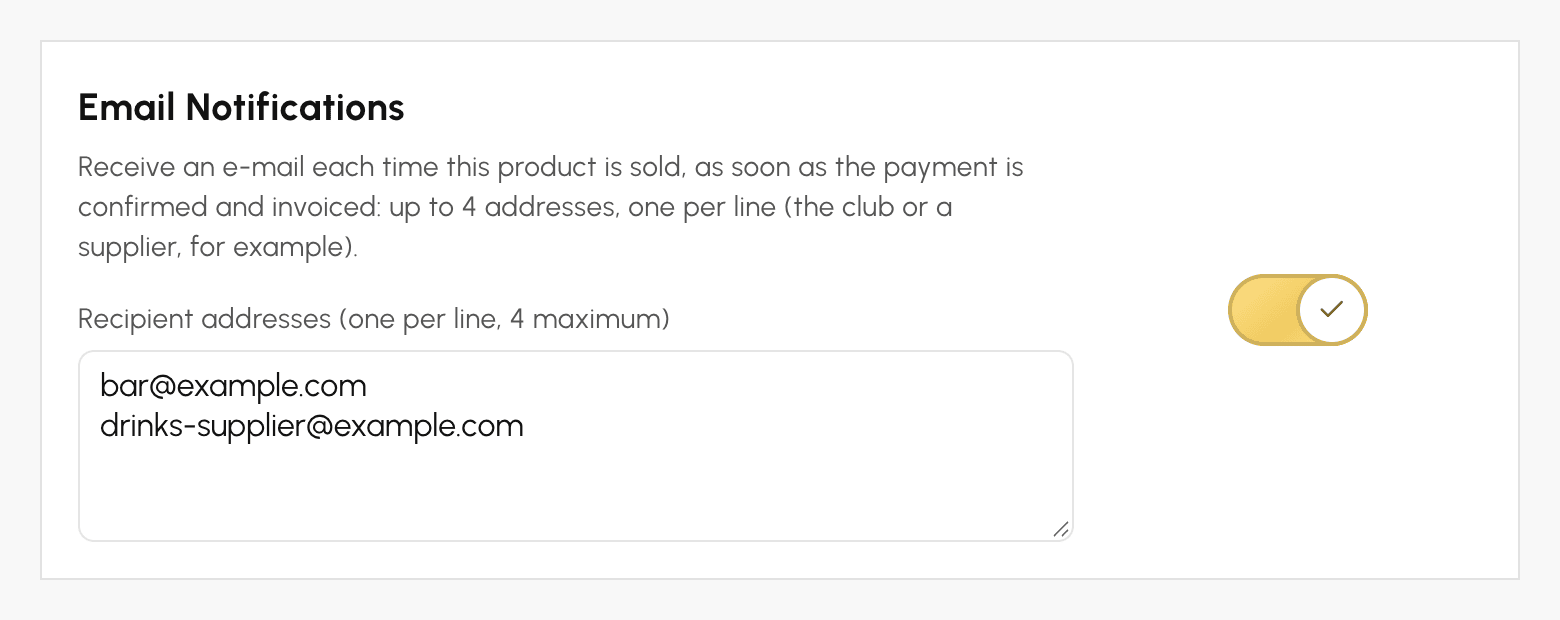
The e-mail is sent only once per order, as soon as the payment is validated and the invoice issued: online payment, sale at the cash register or payment recorded by an administrator. For payment in instalments, it is sent at the first instalment.
It shows the product, the quantity, the line amount including tax (before any discount on the whole order), the invoice reference and the payment date, as well as the buyer's name, e-mail and phone number. It contains no attachment, no link to your administration area, and none of the other products in the order. When an order contains several tracked products, each one sends its own e-mail to its own recipients.
To stop these e-mails, disable Email Notifications and then save: the addresses are deleted. No e-mail is sent for a sale paid with a payment gateway in test mode.
To receive an e-mail for every payment, whatever the product sold, use the billing account notifications instead.
Managing product visibility
- Only active products can be purchased: disable Active product to temporarily withdraw a product from sale without deleting it.
- The Archive button at the top of the panel permanently removes the product from the catalogue. Its sales history is kept.
- Disabled products and products created on the fly from a manual order are hidden from the list by default: display them via Include disabled products and Include one-shot products in the list settings menu.
