The new "Holidays and public holidays" module gathers the school holidays and public holidays of your zone into date groups, filled in with a single choice and completed every month. Your subscription rules use them for a rate or a restriction specific to these dates.
Holidays change the activity of a club: courts may be more or less in demand during the day, tennis schools stop, public holidays have their own opening hours. You can now take this into account in your rates and rules, without entering the dates again every year.
The full step-by-step guide is in the documentation: Manage holidays and public holidays.
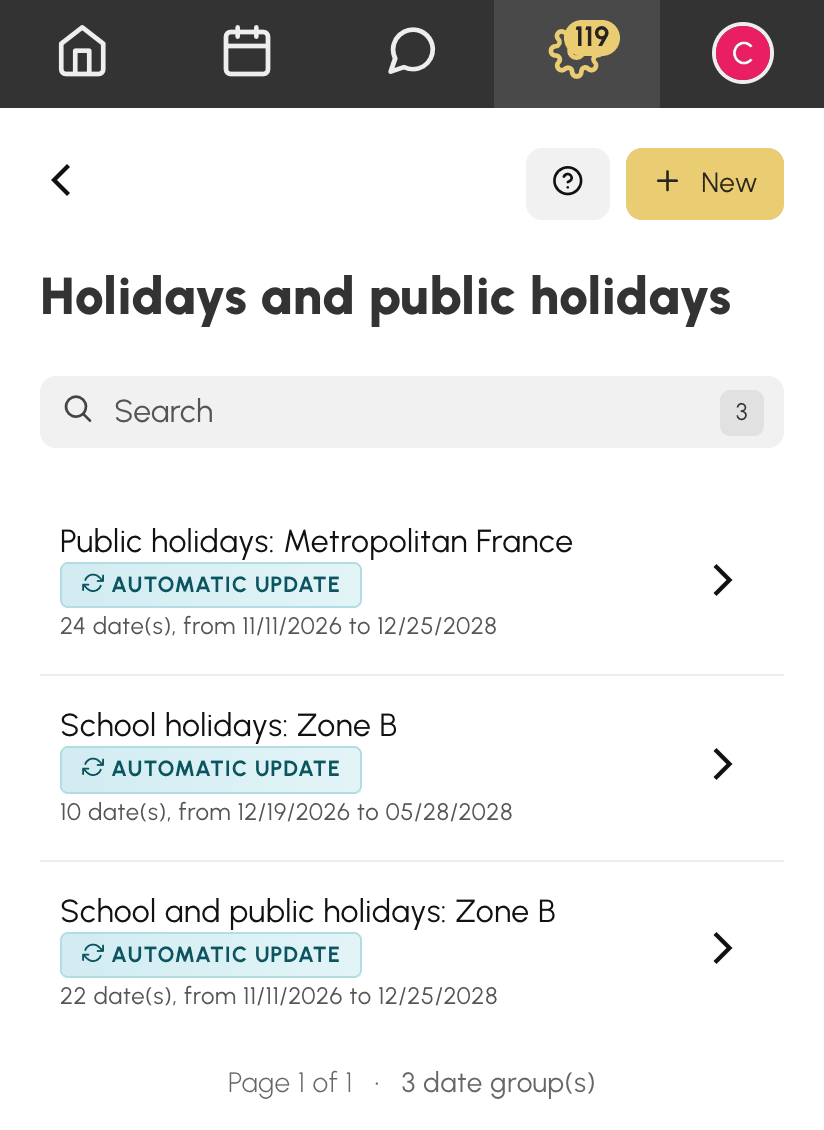
On your first visit to Administration›Settings›Booking›Holidays and public holidays, you find up to three groups already created: school holidays and public holidays together, school holidays alone, and public holidays alone. In France, the holiday zone is deduced from your organization's postcode. If it cannot be established with certainty, nothing is created and you choose your zone yourself.
To create another group, choose in the Pre-fill list the school holidays, the public holidays, or both, for your zone or your region. The upcoming dates are filled in at once, and your zone is pointed out. You can then adjust the group before saving it: remove a bridge day your club does not take off, or add the weekend of your internal tournament.
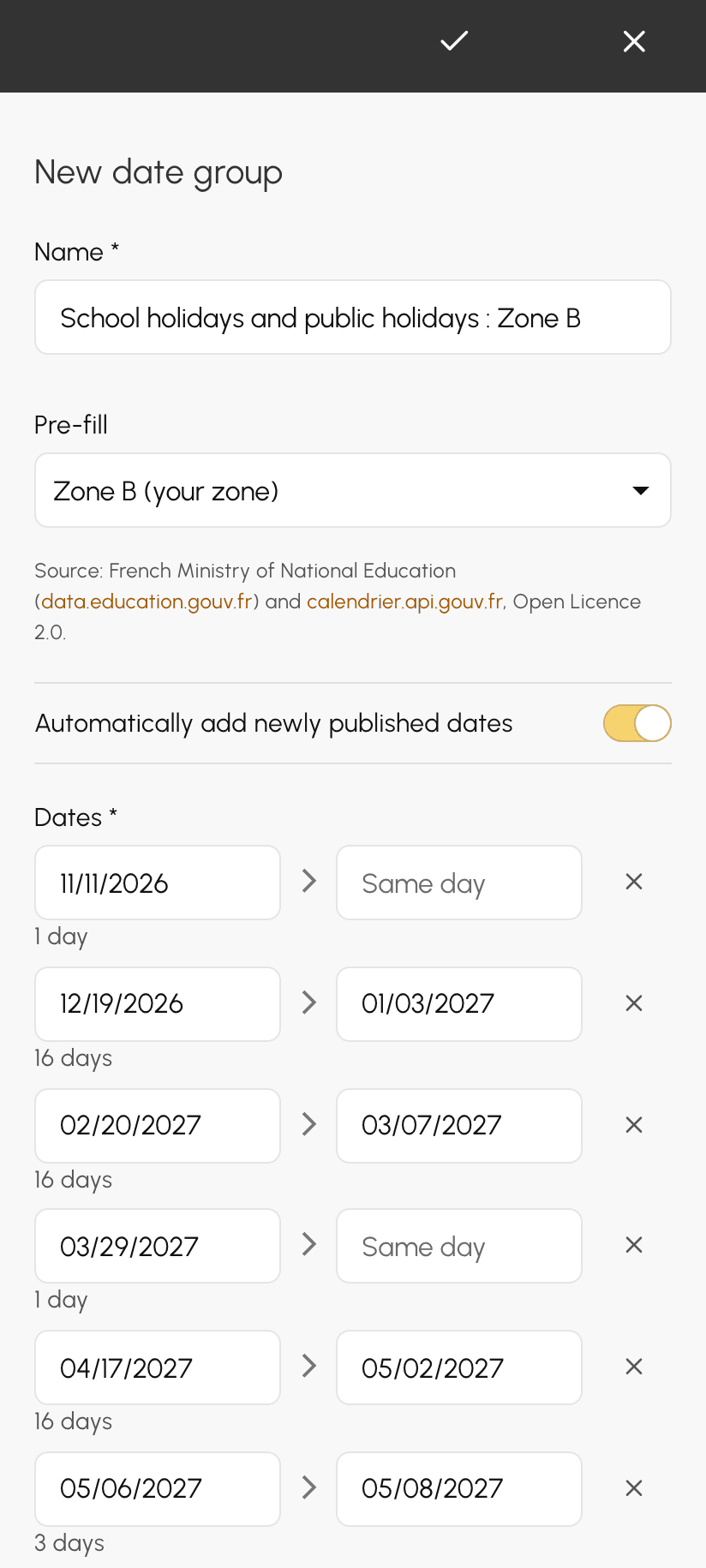
The dates come from official sources for France, overseas territories included, and from the OpenHolidays database for many other countries, mostly European. If your country is not covered, you enter your dates by hand.
A date group is not limited to holidays and public holidays. Enter by hand the periods specific to your club: the summer season, the championship period, the weekends of your internal tournament, a summer closure. Click New, name the group, then enter one date or one period per line: leave the end empty for a single day. These groups are then used in your rules exactly like the others.
With Automatically add newly published dates, the group receives the newly published dates every month. When next year's school calendar comes out, your rules take it into account without you having to think about it.
The follow-up only adds: it never changes a date already present, does not touch the dates you added yourself and does not put back a date you deleted.
A date group takes effect in a rule, through the Holidays and public holidays criterion:
To add it, open the subscription in Administration›Users›Access Rights›Subscriptions, expand the rule, click Add a criterion, then choose Holidays and public holidays. The same group can be used in as many rules and subscriptions as you like.
When you book with repetition, for example a lesson every Wednesday of the season, a date group saves you from removing the weeks one by one. Open the repeat window from the Repetition line of the booking form, choose an end date, then, under Holidays and public holidays, the rule and the groups to follow:
If your organization follows the school holidays, the Until the summer holidays shortcut also ends the series the day before the next summer holidays.
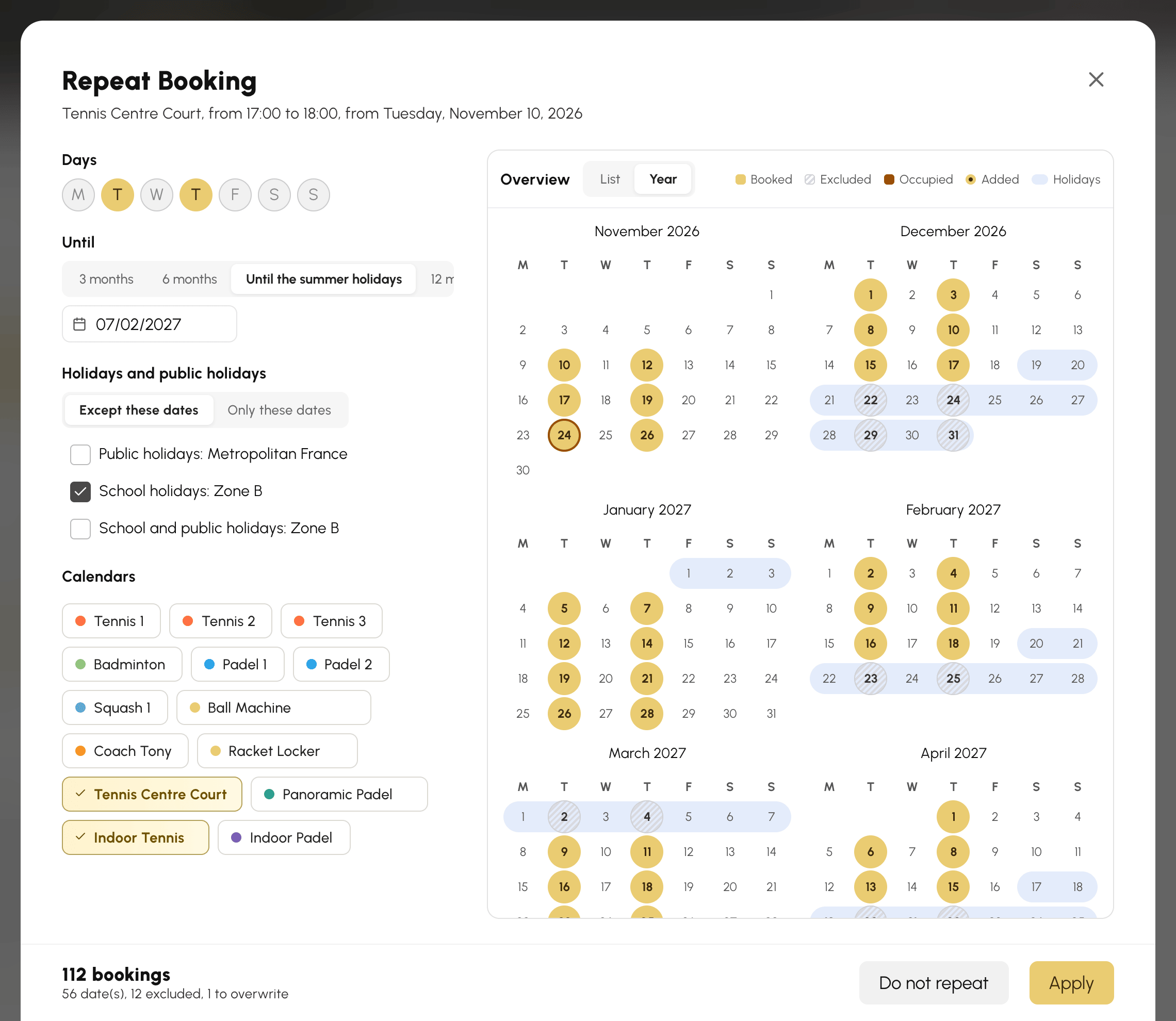
Before you book, the preview shows the dates kept and those excluded by the group, against the background of the holidays. You can still remove or add back a date with a click.
Any questions? Our team is here to help.
The OpenResa team at your service!