



Managing your billing addresses
Save one or more billing addresses to save time when paying and to receive correctly worded invoices.
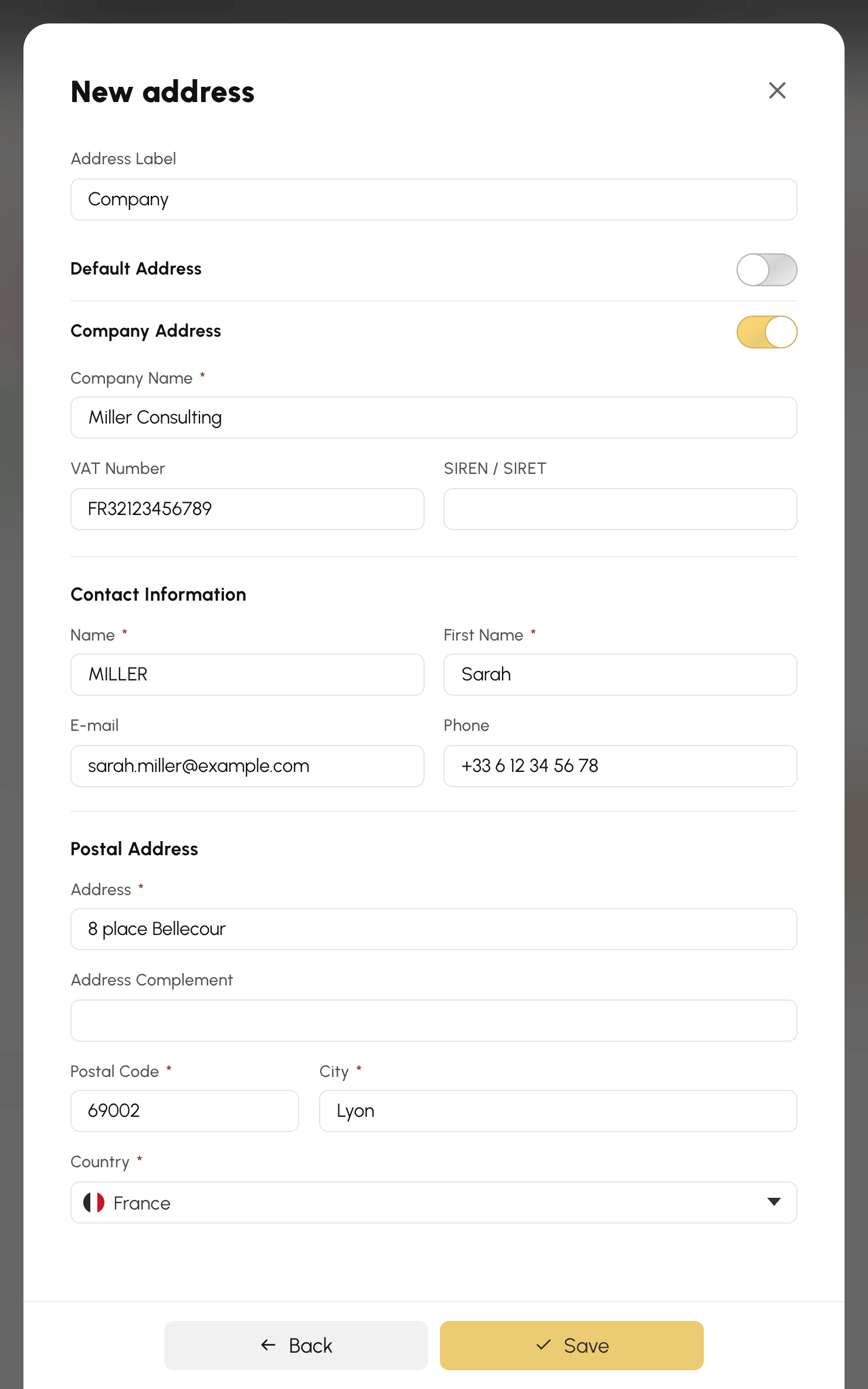
Adding an address
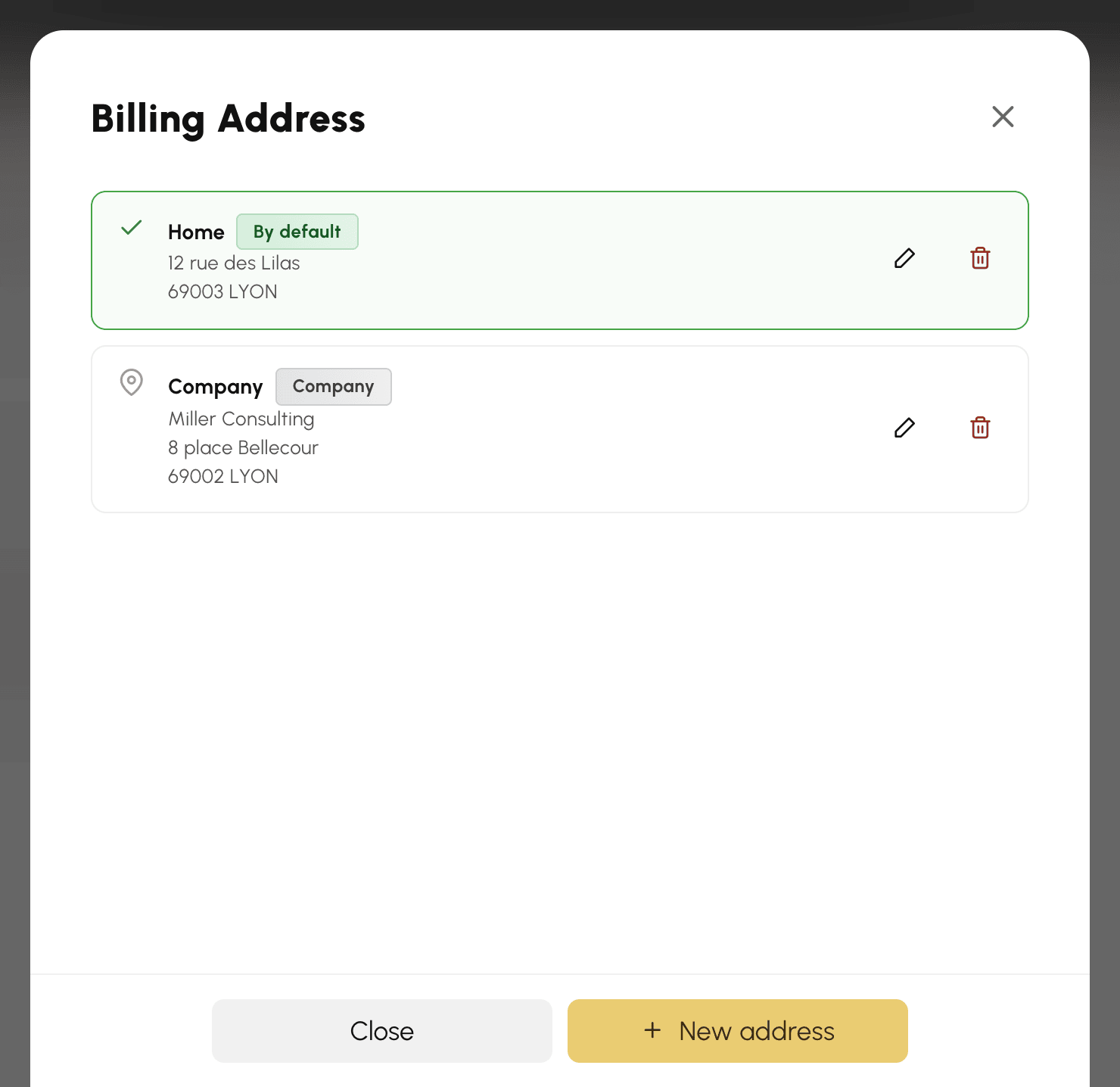
- Open My Account›Billing Addresses: the My billing addresses window lists your addresses.
- Click New address.
- Give it a short label so you can recognise it (Personal, Company, Holiday home, etc.), then fill in the postal address. Your last name, first name, e-mail address and phone number are taken from your account: change them if the invoice must show different details.
- Click Save.
Your first address automatically becomes your default address.
For billing in a company's name, turn on Company Address and fill in the Company Name, then if needed the VAT Number and the organisation identifier. The name of this last field depends on the country of the address, for example SIREN / SIRET for France. With a French VAT number, the SIREN is deduced from it if you leave the field empty.
Setting the default address
Turn on the Default Address option on the address of your choice: it will be pre-selected automatically for your next payments, and the list marks it with the By default badge.
You always have a default address. To change it, turn on the option on another address: the previous one loses this status.
Editing or deleting an address
In the list, click an address or Edit to correct its details, then click Save.
The Delete button removes an address after confirmation. It only appears if you have at least two addresses, as one must be kept. Deletion is also refused when an order or a quote that has not yet been invoiced uses the address: the message lists the orders concerned. Change their address first, or wait until they are invoiced.
If you delete the default address, the most recent of the remaining addresses takes over.
Choosing the address at the time of payment
On the order page, the Billing section shows the selected address, your default address to begin with.
- Click Manage my addresses.
- Click the address you want: it is saved on the order, and the window closes.
An address created from this window immediately becomes the one used for the order. If you do not have any address yet, the Add an address button opens the form directly.
An order or a quote awaiting payment can be changed in the same way from your orders, with the Edit address button, or Choose / create an address if no address is attached to it.
