



Accept payments with Stripe
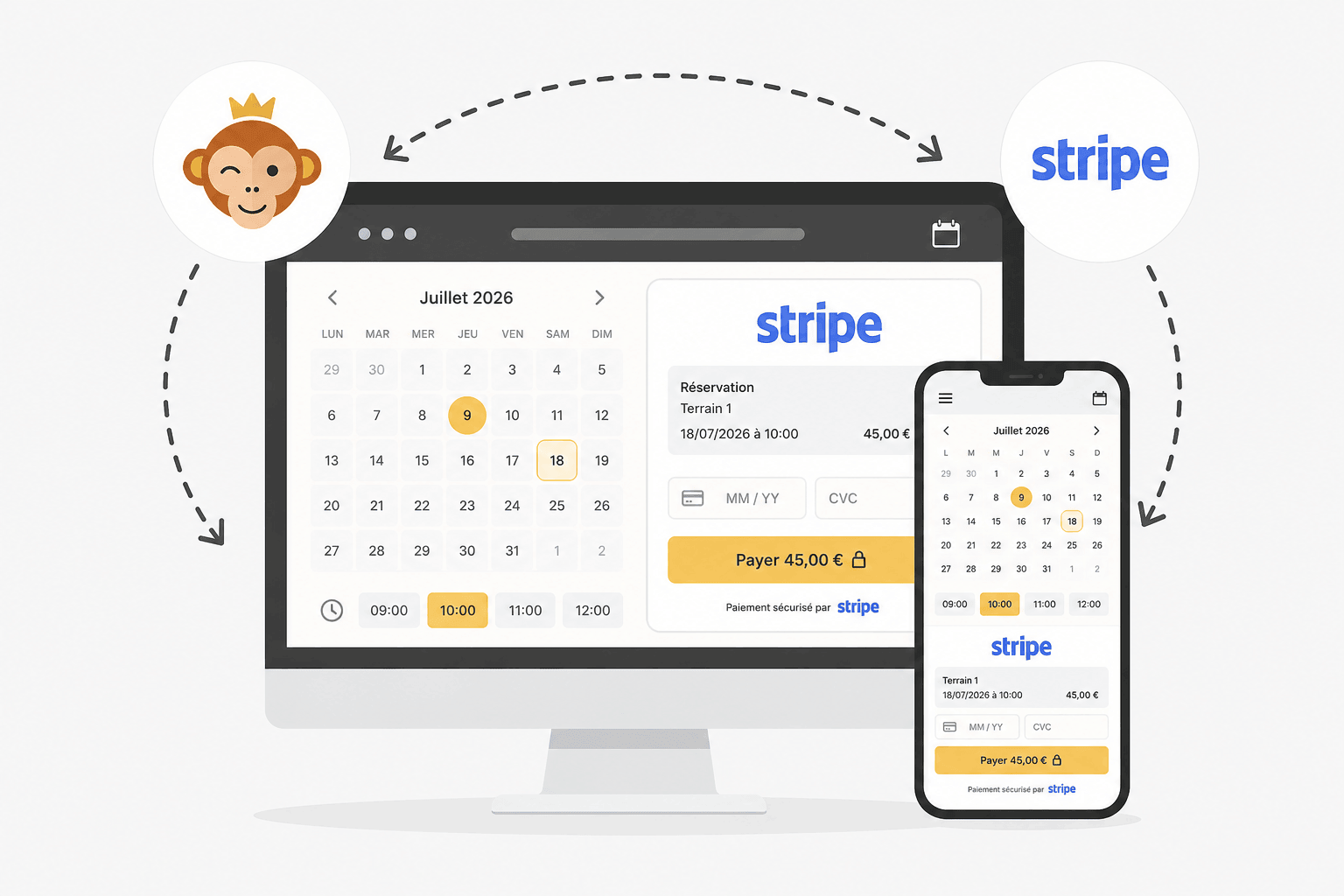
Stripe is a bank card payment solution suited to most organizations, available in the majority of countries. Your users pay directly by card, without needing to create an account, on a secure payment page.
Requirements
If you already have a Stripe account, keep its credentials close at hand. Otherwise, no prior steps are needed: Stripe guides you through creating an account for your organization directly during the connection process.
Connect your Stripe account
- Go to Administration›Settings›Billing›Billing Accounts, open the relevant billing account and go to the Payments tab.
- Enable Online Payments, select Stripe from the list of payment gateways, then click Save: the connection button then appears on the page.
- Click Connect my Stripe account if you already have one, or Create and connect a Stripe account to create one directly: both options are offered side by side. A new tab opens on a secure Stripe page where you can identify yourself (or enter your organization's details) and authorize the connection.
- Back on this page, the account appears as connected. Use Test the connection to check that everything works.
A Online Help link directly in the form details the pricing and the connection steps.

Understanding payment from the user's side
When paying, the user chooses Online Payment and is then redirected to a secure Stripe payment page. There they pay by bank card; electronic wallets (Apple Pay, Google Pay) are offered automatically on that page depending on their device, with no additional setup on your part. Once the payment is made, they are automatically returned to the organization.
Refund a payment
Refunds are started from Administration›Dashboard›Billing›Invoices & Transactions: open the relevant order and choose the refund, either full or partial.
Two things then happen: your order is updated, and a request is sent to Stripe to actually refund the payer.
The update depends on the amount. A full refund withdraws the items delivered — credits returned, subscription revoked — and moves the order to "refunded". A partial refund leaves the delivered items in place and the order paid: it only records a negative entry that reduces the amount collected.
Refunding from Stripe rather than from here
You can just as easily start the refund from the Stripe back office. Stripe then notifies us automatically, and your order is updated as if you had gone through OpenResa: status, credit note, delivered items.
Both routes lead to the same result. Take whichever suits you — but only one of the two.
If the payment gateway does not respond
A refund started from OpenResa takes place in two independent stages, and the second may fail even though the first succeeded: your order moves to refunded, but the money is still held by Stripe.
A message then tells you so explicitly and invites you to complete the operation from the Stripe back office. This is the only case where you need to act on both sides.
