


Practical cases: courts & calendars
Concrete solutions for your courts: hiding a calendar, allowing solo bookings on a practice wall, organising volunteer duty shifts, extending time slots for matches or letting users choose their own times.
Hiding a calendar from users
There are four methods, to be chosen according to your goal:
- For certain subscriptions only: in Administration›Users›Access Rights›Subscriptions, open the subscription, then in the Permissions tab click Edit in the Authorized Calendars & Number of Days for Booking section and untick the calendar to be hidden.
- For everyone, during a given period: in Administration›Settings›Booking›Calendars, open the calendar's details, then in the Temporary Closure section tick Activate a closure and enter the dates. With the Hide Completely option, only administrators still see the calendar.
- For specific recurring time slots: use Administration›Settings›Booking›Close Time Slots. Closed time slots remain visible, greyed out with a padlock, and administrators can still book over them.
- To block a period visually with a reason: book the time slots with a label (for example "Maintenance work") using the repeat function.
Allowing solo bookings on a practice wall
On a tennis wall or in a squash court, requiring a partner makes no sense. Allow booking without a partner, but only on this calendar:
- In Administration›Users›Access Rights›Subscriptions, open the subscription concerned, Permissions tab.
- Enable Book Without a Partner.
- Open the Advanced Settings for this option, then the Advanced Configuration: restrict solo booking to the wall's calendar, and to certain time ranges if needed.

So that bookings on the wall do not use up the courts' quota, add a dedicated quota for this calendar in the Quota tab via the Advanced Configuration.
Organising volunteer duty shifts
To plan the organization's reception desk or duty shifts staffed by volunteers:
- Create a dedicated "Duty shifts" calendar in Administration›Settings›Booking›Calendars, with time slots matching your opening hours.
- Restrict this calendar to the volunteers' subscriptions via the Permissions tab.
- In the Quota tab, add a quota specific to this calendar (Advanced Configuration then Add a quota): signing up for a duty shift then does not prevent booking a court.
Each volunteer signs up for their own duty time slots, and the schedule is visible to everyone.
Offering longer time slots for matches
Two approaches, which can be combined:
- Adapt the time grid: in the calendar's details, use Add a Time Slot to create a dedicated time range with a longer Duration of a Time Slot, for example 90 minutes in the evening for matches.
- Create a "Match" label: in the subscription, Labels tab, enable Allow booking with labels, choose the label and the number of time slots allowed, then tick Allow Consecutive Time Slots. Players can then book two consecutive time slots with this label, without being blocked by the usual rules.
Letting users choose the start time and the duration
To move away from a fixed grid of time slots (useful for golf, simulators or pay-as-you-go hire), enable Custom Time Slots in the Permissions tab of the subscription, from Administration›Users›Access Rights›Subscriptions. The user then chooses how long their booking lasts, and, if you allow it, its start time, within the limits you set.
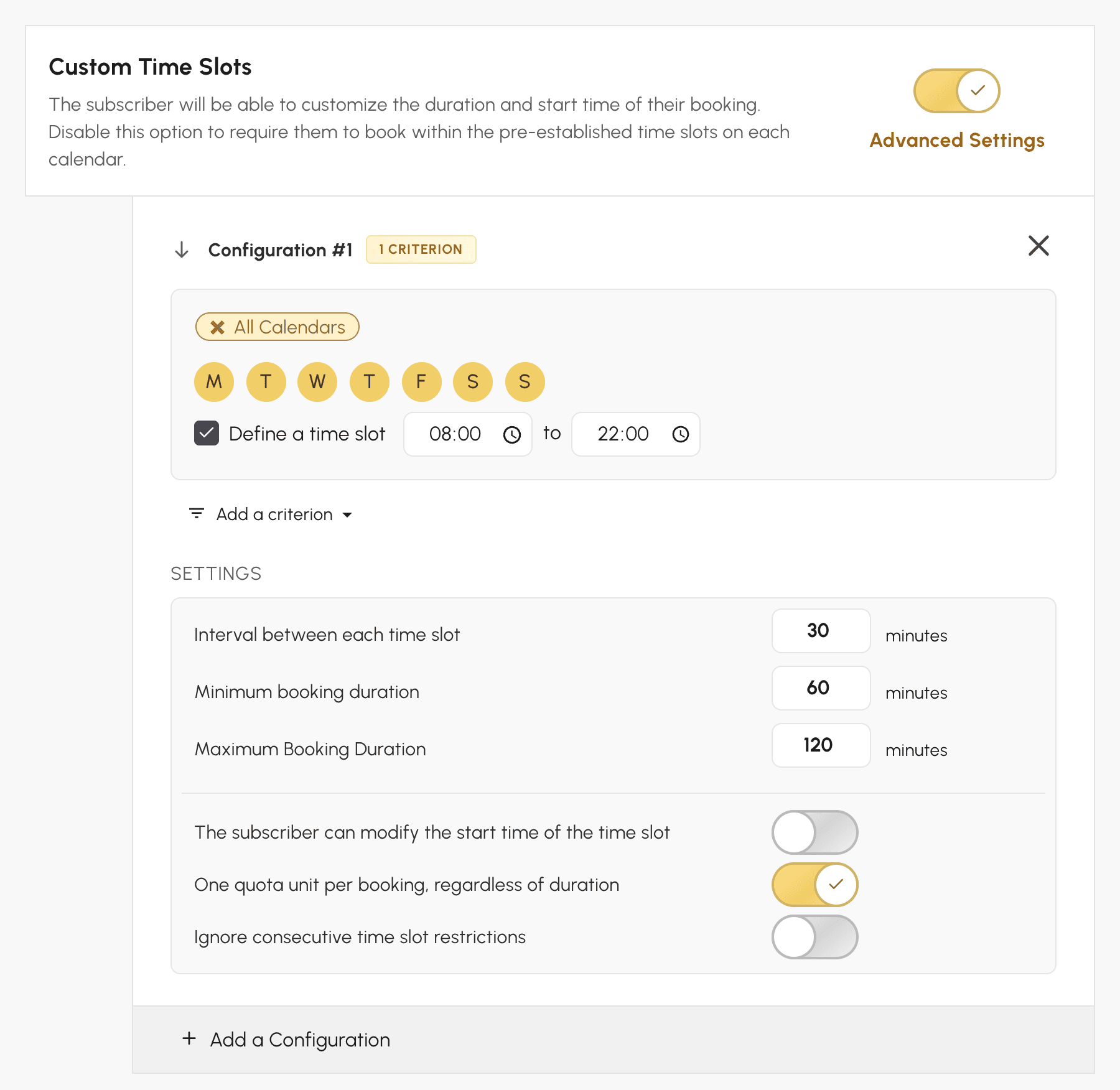
Durations offered, quota deduction, calendars concerned: the "Offering custom time slots" section explains each setting and its effects for users.
