

Buying booking credits
Credits are the organization's internal currency: they are deducted from your account when you book. Buy a pack online, keep track of your balance and review the history of your transactions.
Understanding credits
Depending on how your subscription is configured, a booking may cost one or several credits. There are two types of credits:
- booking credits, deducted when you book a time slot;
- guest credits, deducted when you play with a guest who is not a member.
Not every organization makes a distinction between these two uses. Yours may have chosen to keep a single counter: in that case there are no guest credits, and your booking credits are used both to book a time slot and to invite someone.
There is no setting to look for: if you only see one balance on your account, then this is how it works. The summary displayed when you book then totals everything in that same currency, guests included, and the history of your transactions only shows booking credit movements. A pack you buy tops up this single counter, whatever you then use it for.
Tracking your balance and your history
- On the booking page, click the Credits button in the toolbar: your balance is displayed.
- You can also find your balance in My Account›My Subscription, section Booking Credits (and Guest Credits if applicable).
- Click History to open the Operation History: every purchase, deduction or adjustment is detailed there with its date and its origin (booking, payment, gesture from the organization, etc.).
Buying a credit pack
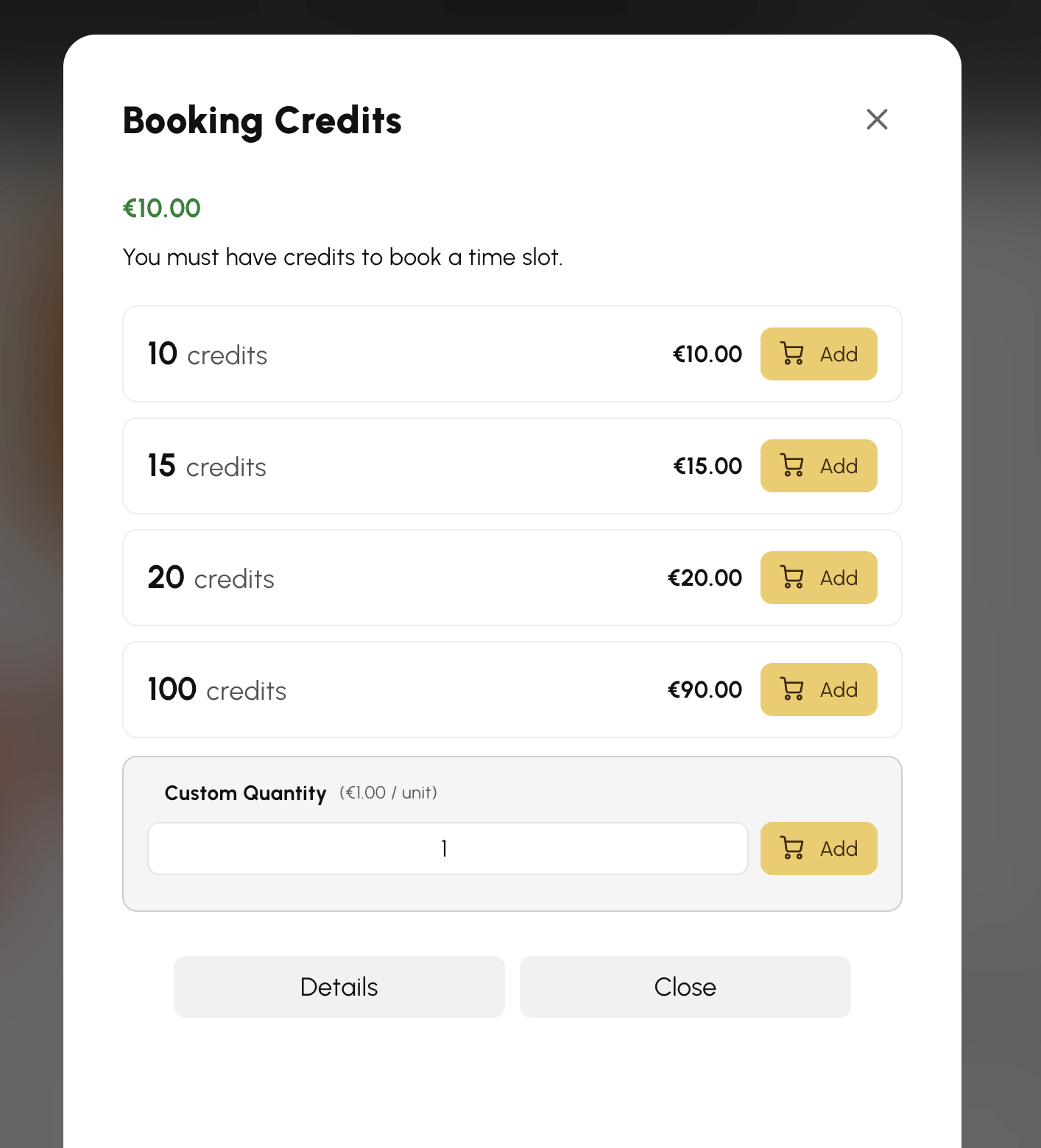
If the organization sells credits online for your subscription, the offers appear in My Account›My Subscription, section Booking Credits, or from the Credits button in the calendar toolbar.
- Choose a pack (the price may decrease with the quantity) or enter a Custom Quantity if the organization allows it.
- Click Add: the credits are added to your cart.
- Then confirm your cart and pay for the order.
- The credits are added to your balance as soon as the payment is confirmed.
If no offer appears, the organization does not sell credits online for your subscription: contact them directly.
Buying credits while booking
- When you book, a message tells you that no credit is available, along with an Purchase credits button.
- Click it: the purchase window opens with your balance and the available offers.
- Add a pack: you are taken straight to your cart to pay.
- Once the payment is confirmed, click Book to go back to the calendars and book your time slot.
