Until now, syncing your licence holders from ADOC took patience: the whole process again with every upload, subscriptions to link again whenever a price changed, and a sync that got stuck each time the FFT (French Tennis Federation) changed its export.
We have completely redesigned the module. Same menu, same export.xls file, but a shorter process, a preview that shows exactly what is about to change, and safeguards before any deletion.
The full step-by-step guide is in the documentation: Synchronise Your Licence Holders with ADOC (FFT).
The new version replaces the old one in the same place: Administration›Users›Import / Export›ADOC Sync (FFT).
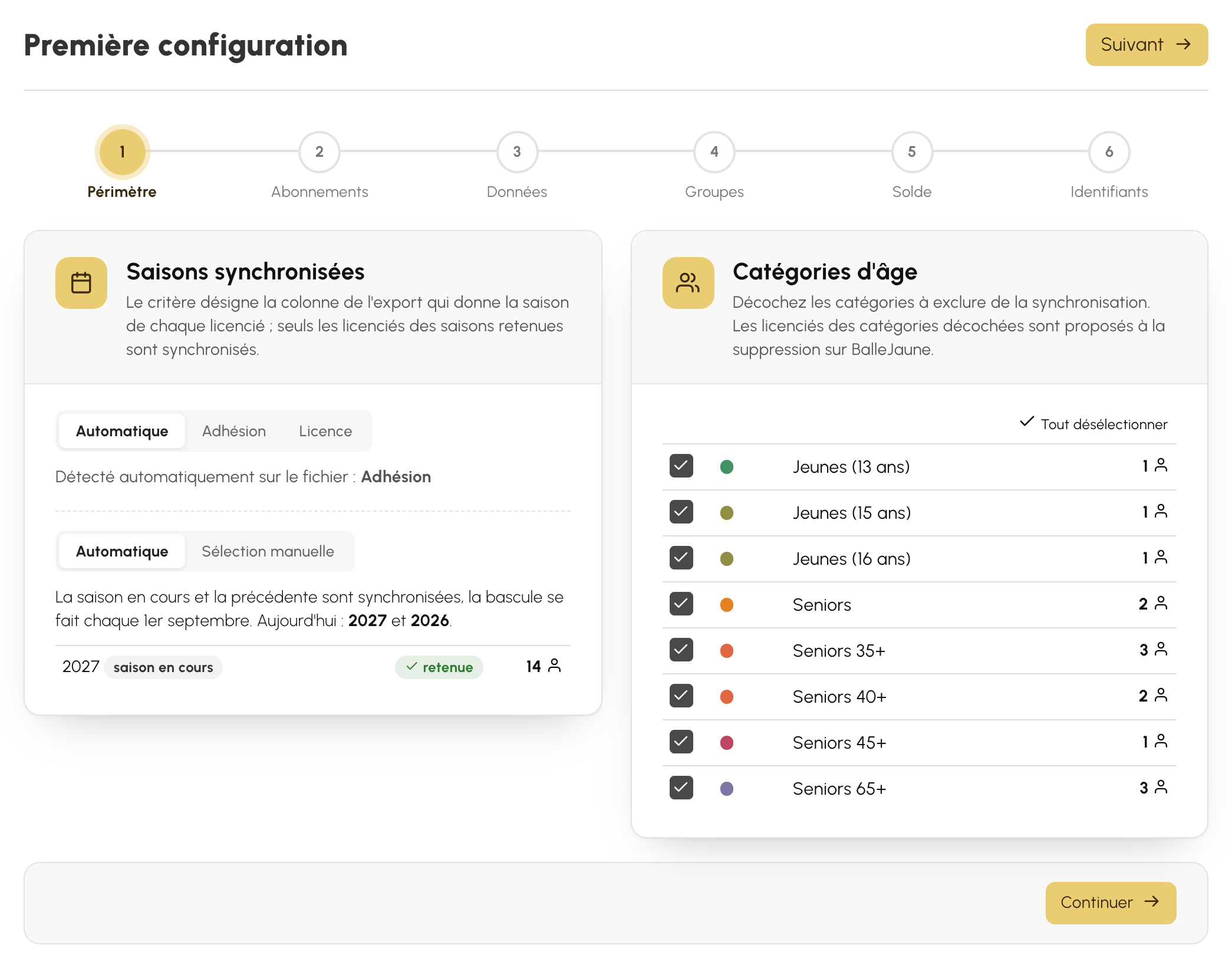
The first time you upload a file, your current settings are carried over automatically: season criterion, synced seasons, age categories, imported data, course groups, balance-related actions and sending of login details. The links between ADOC offers and subscriptions are recovered from your file. Nothing to enter again.
The module works in four steps: “Fichier” (file), “Vérification” (check), “Prévisualisation” (preview) and “Synchronisation” (sync). You upload the export.xls downloaded from ADOC; the module's home screen even reminds you where to find it. The file is read on the spot: nothing changes in your club until you confirm.
When your settings are up to date, you go straight to the preview. The check step only appears when something needs your attention, for example:
The export's columns are now recognised by their heading rather than by their position. Whether a column is added, moved or renamed, the sync keeps working: the check screen simply tells you what has changed.
On our side, we are notified automatically when an export has an unusual format, so we can follow its changes without waiting for your call.
If your club has never synced with ADOC before, a wizard guides you through six steps. Your choices are saved at each step: if you are interrupted, you pick up where you left off.
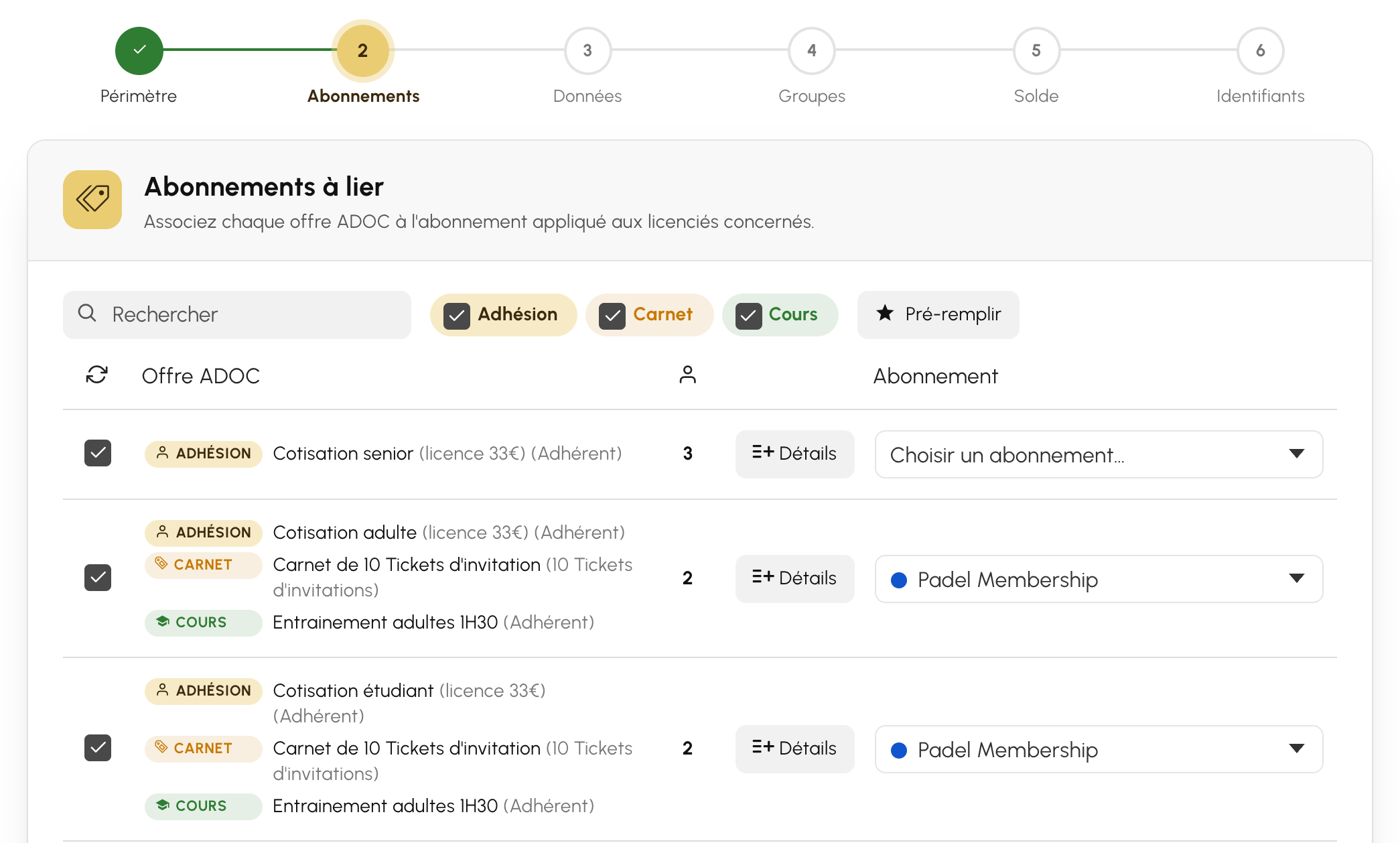
Each ADOC offer, whether a membership, a book of tickets or a course, is matched to one of your subscriptions. The match is stored without the price: when the adult membership fee goes up from €33 to €35 at the start of the season, there is nothing to redo.
No offer is linked by default. A new offer shows “Choisir un abonnement…” (choose a subscription) until you have matched it; if you sync without doing so, its licence holders receive the club's default subscription, and the preview points this out.
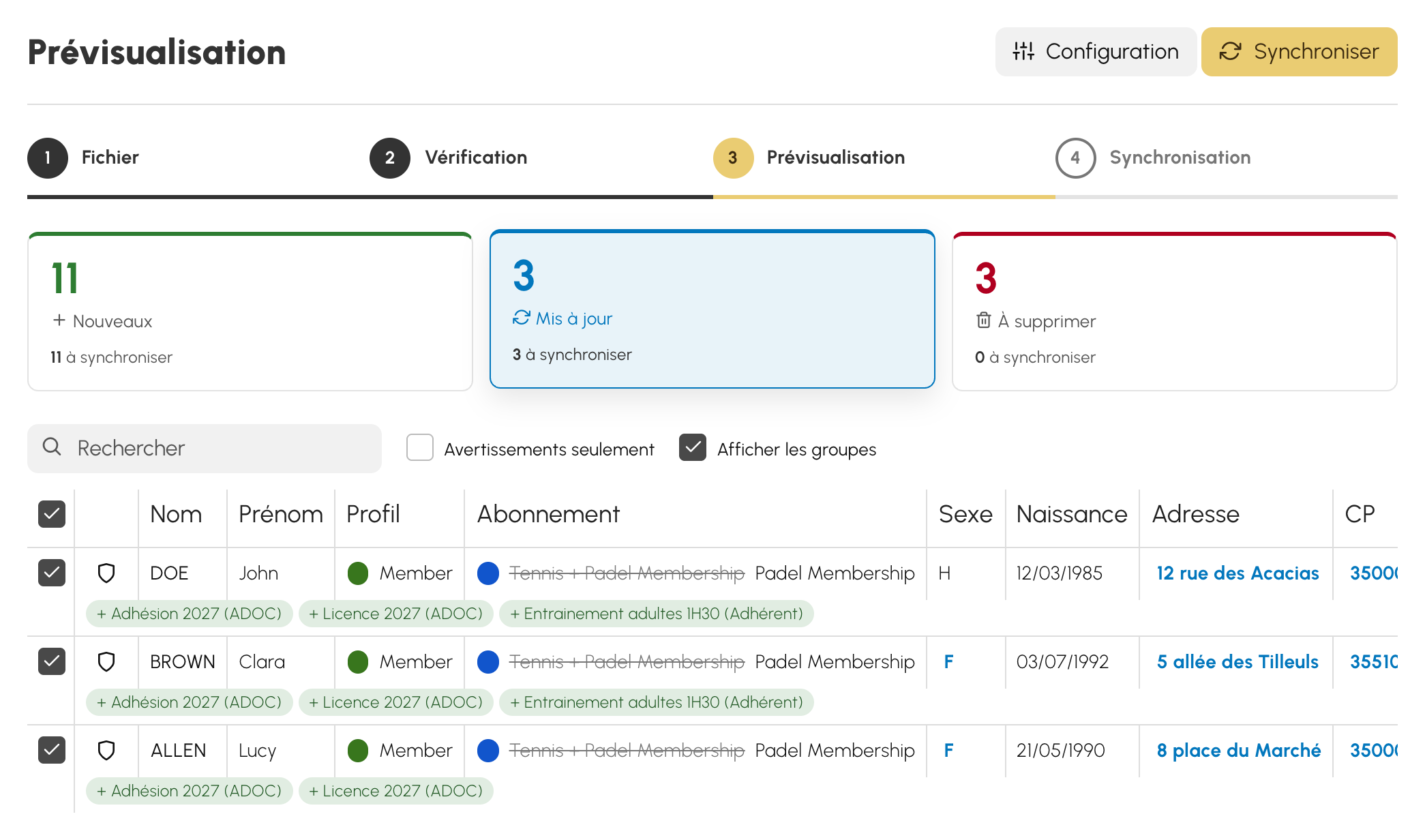
Before anything is written, the preview sorts licence holders into six tiles, which also act as tabs: “Nouveaux” (new), “Mis à jour” (updated), “Inchangés” (unchanged), “À supprimer” (to delete), “Ignorés” (ignored) and “Erreurs” (errors). Under additions, updates and deletions, a second counter shows how many rows will actually be synced.
For an update, the old value appears struck through next to the new one: a licence number, a ranking or a subscription that changes can be spotted at a glance. The “Afficher les groupes” (show groups) checkbox details the groups added or removed.
Licence holders are recognised first by their licence number, then by their last name and first name, ignoring accents. Club administrators are never modified or suggested for deletion: if they appear in the file, they are listed in the “Ignorés” tab.
All that is left is to click “Synchroniser” (sync): a summary of the number of additions, updates and deletions asks you for a final confirmation.
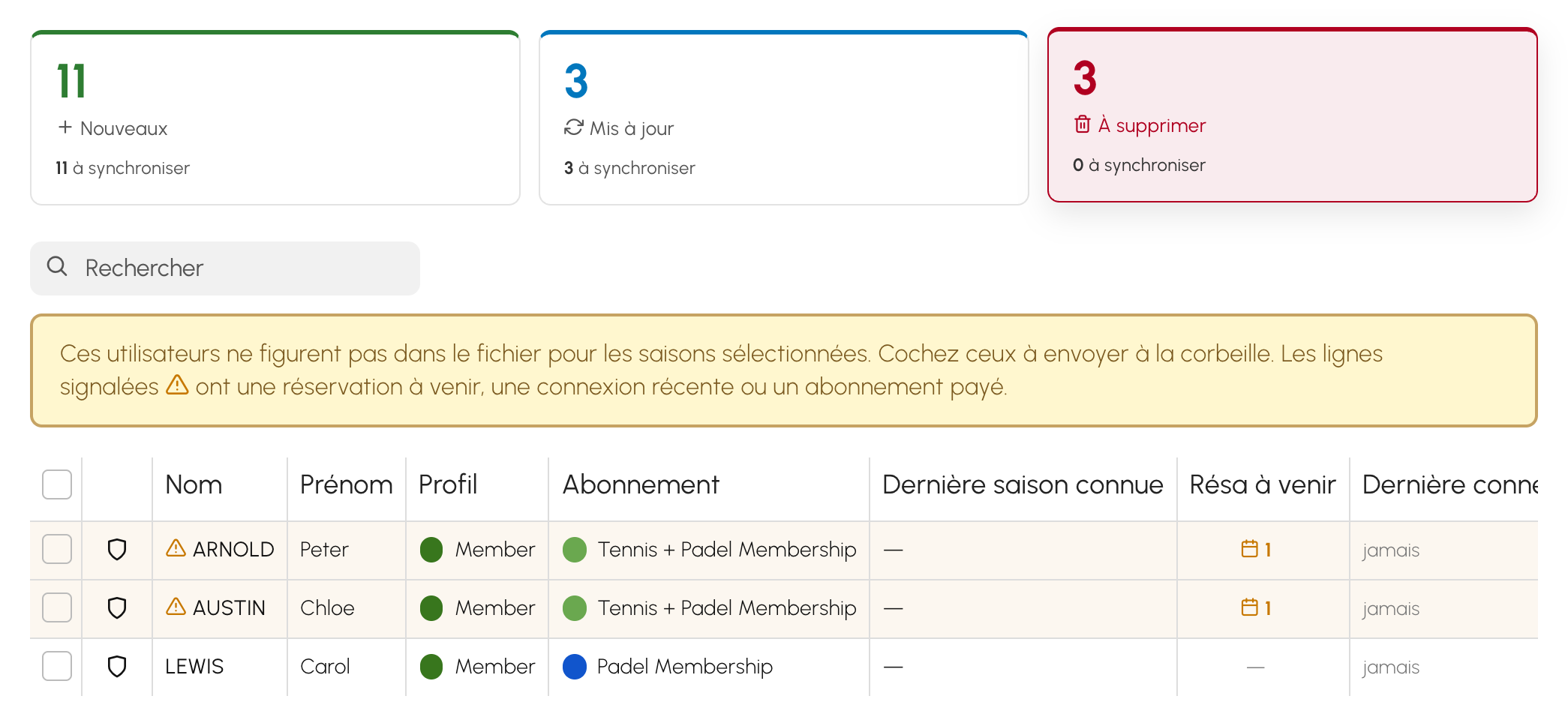
Users of your club who are missing from the file, for the selected seasons and categories, are suggested for deletion. Nothing is ticked by default.
Each row shows the last known season, upcoming bookings, the last login, the paid subscription and the suspension. Sensitive rows (upcoming booking, login within the last 30 days or paid subscription) are flagged, and the checkbox that ticks the whole list leaves them out.
The shield at the start of the row protects a user permanently, for example a coach who is not licensed at the club: they will no longer be suggested for deletion. The list of protected users is in “Configuration”, under “Exclusions”. Users you delete are sent to the trash.
Once the sync is complete, the “Synchronisation effectuée” (sync completed) screen sums up the additions, updates, deletions and login details sent, row by row, with the details of each change. The “Télécharger le rapport” (download the report) button provides the full Excel file.
Every sync is archived. The module's home screen shows the latest one (date, author, counters) along with the history, where each report reopens in a single click.
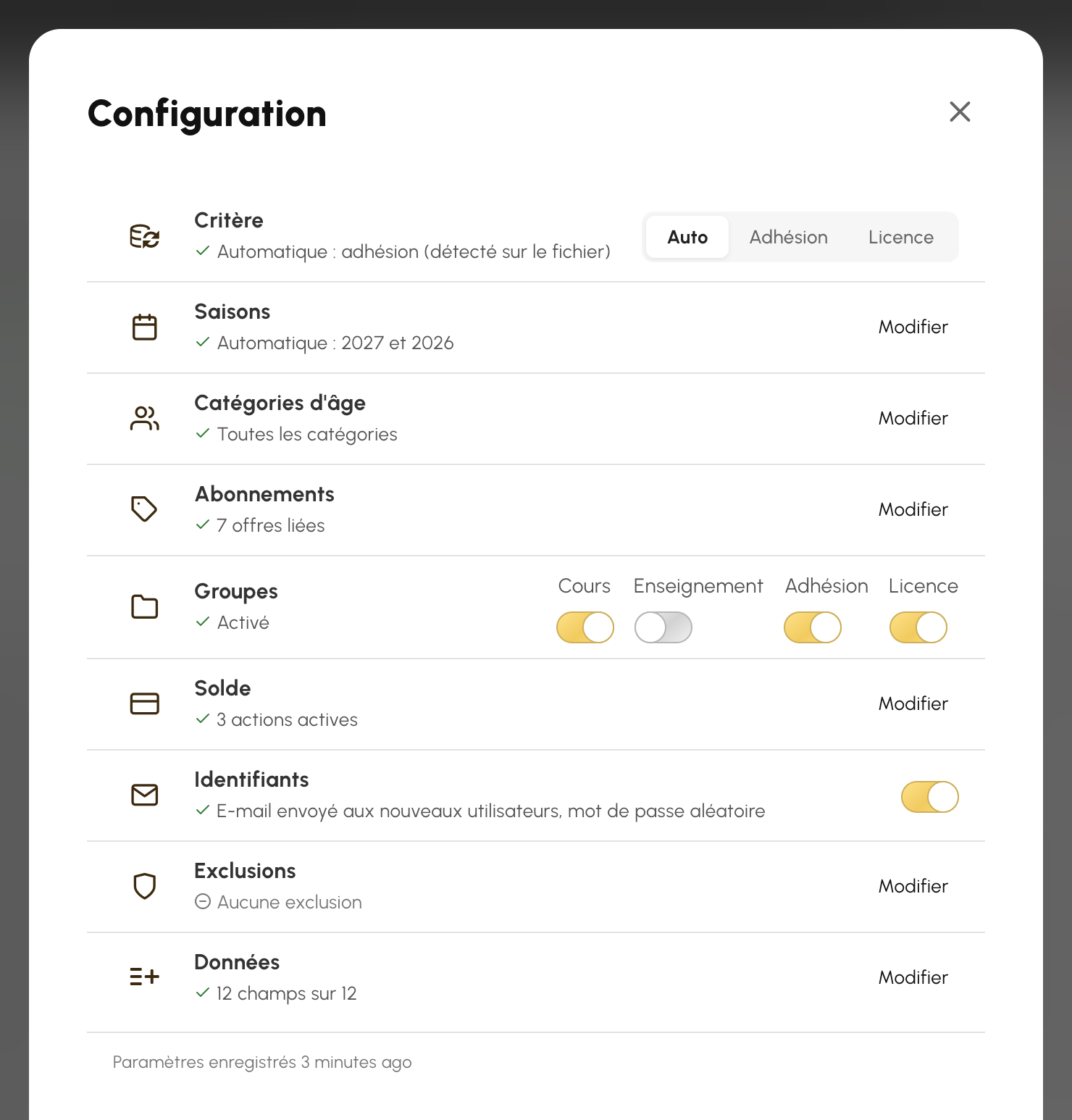
As soon as your file has been read, the “Configuration” button appears at the top of the check, preview and report screens. It opens a summary of your settings, section by section: criterion, seasons, age categories, subscriptions, groups, balance, login details, exclusions and synced data. Each row shows the current setting at a glance.
Each saved setting immediately reruns the current check or preview with your file: you see the effect of your change straight away, without uploading the export again.
A question about the ADOC sync? Our team is here to help.
The OpenResa team at your service!