



Receiving Activity Reports by E-mail
Automatically receive a summary of your organization's activity: membership numbers, subscriptions, registrations, bookings, logins and e-mails, with the change compared with the previous period.
Enabling the reports
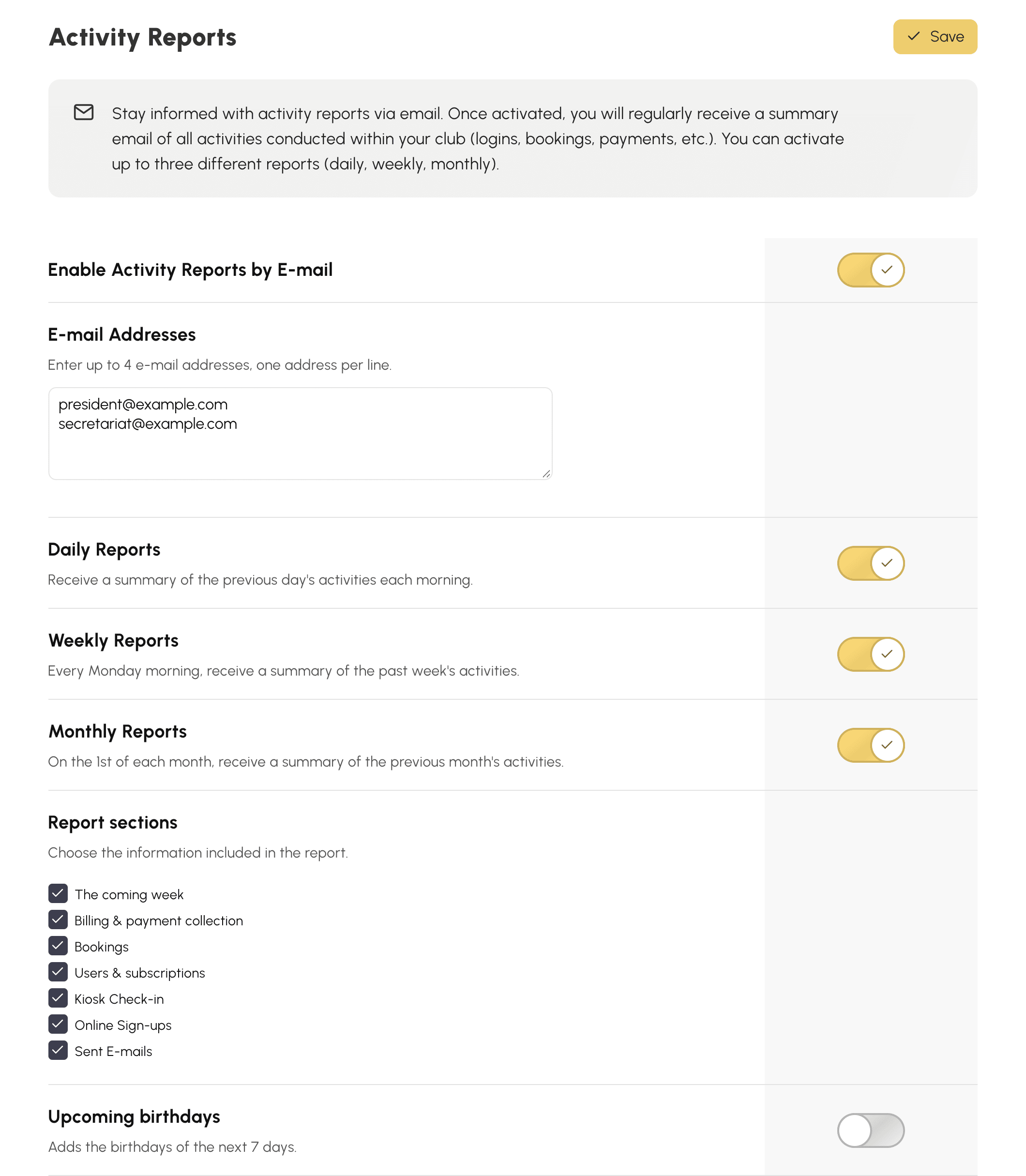
- Go to Administration›Settings›Activity Reports.
- Enable Enable Activity Reports by E-mail.
- In E-mail Addresses, enter up to 4 recipients, one address per line.
- Click Save.
Recipients do not need a club manager account or any special permission: the report simply arrives in their inbox. It is the easiest way to keep a president or a treasurer informed when they never log in to the application.
Choosing the frequencies
Three reports coexist, and can be enabled separately or together:
- Daily Reports: every morning, the previous day's activity.
- Weekly Reports: every Monday morning, the week just ended.
- Monthly Reports: on the 1st of each month, the month just ended.
Each one meets a different need. The daily report serves the front desk: it flags what needs handling today. The monthly report can be forwarded to the committee as it is, with no reformatting. The weekly report sits in between and suits a volunteer manager who comes to the club once a week.
Understanding what the report contains
The report opens with the essentials, then details each area. Every figure is compared with a reference period: the previous day for the daily report, the previous week for the weekly report, and the same month of the previous year for the monthly report, so that the September rush is not compared with the August holidays.
The summary and key figures
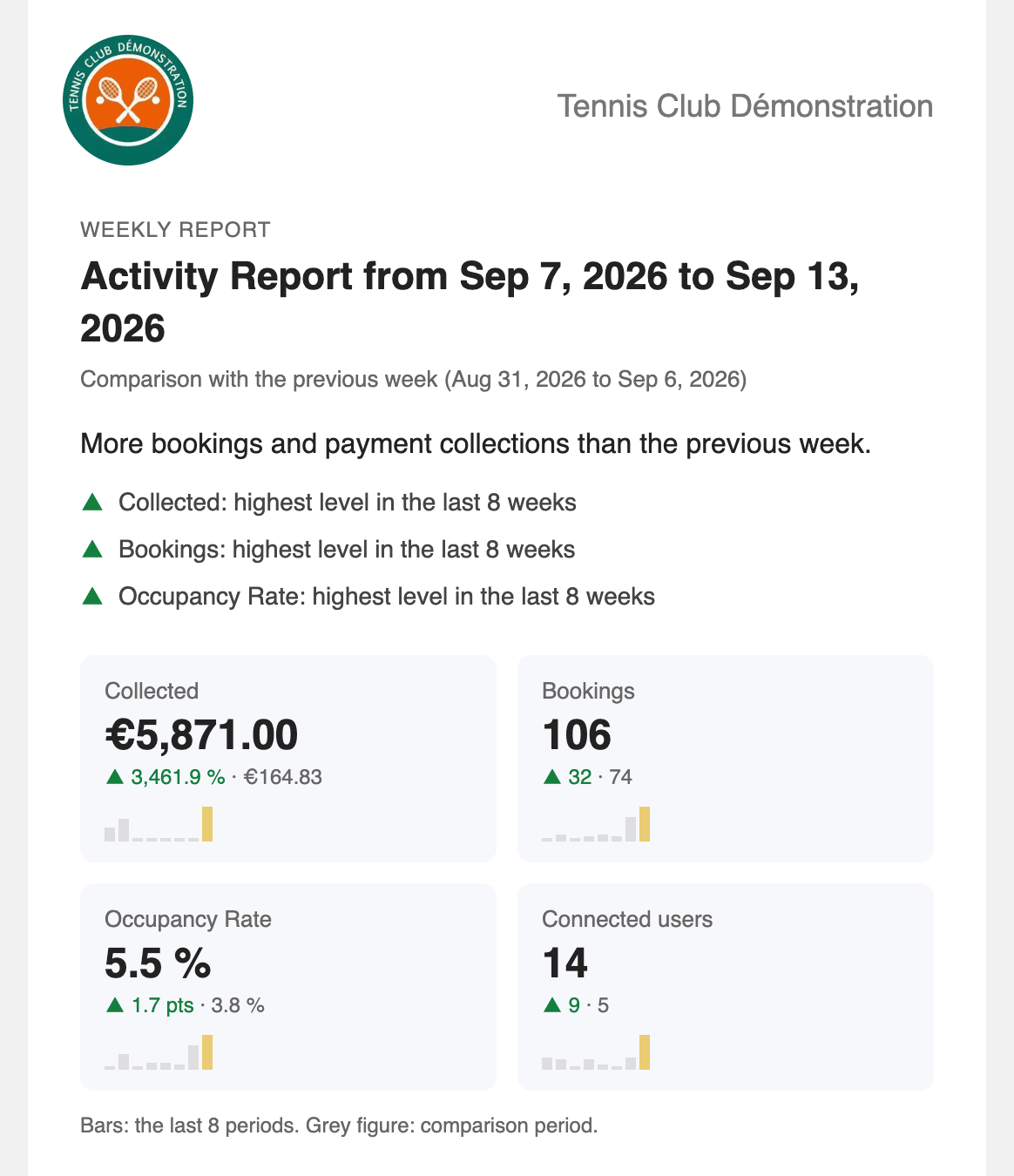
The report begins with a summary sentence and up to three highlights: a record over the last eight periods, or a clear rise or fall.
Then come up to four key figures: the amount collected, the bookings whose time slot falls within the period, the occupancy rate and the number of users who logged in. Each one shows its change, the figure for the comparison period in grey and a mini-chart of the last eight periods.
Items to handle and the week ahead
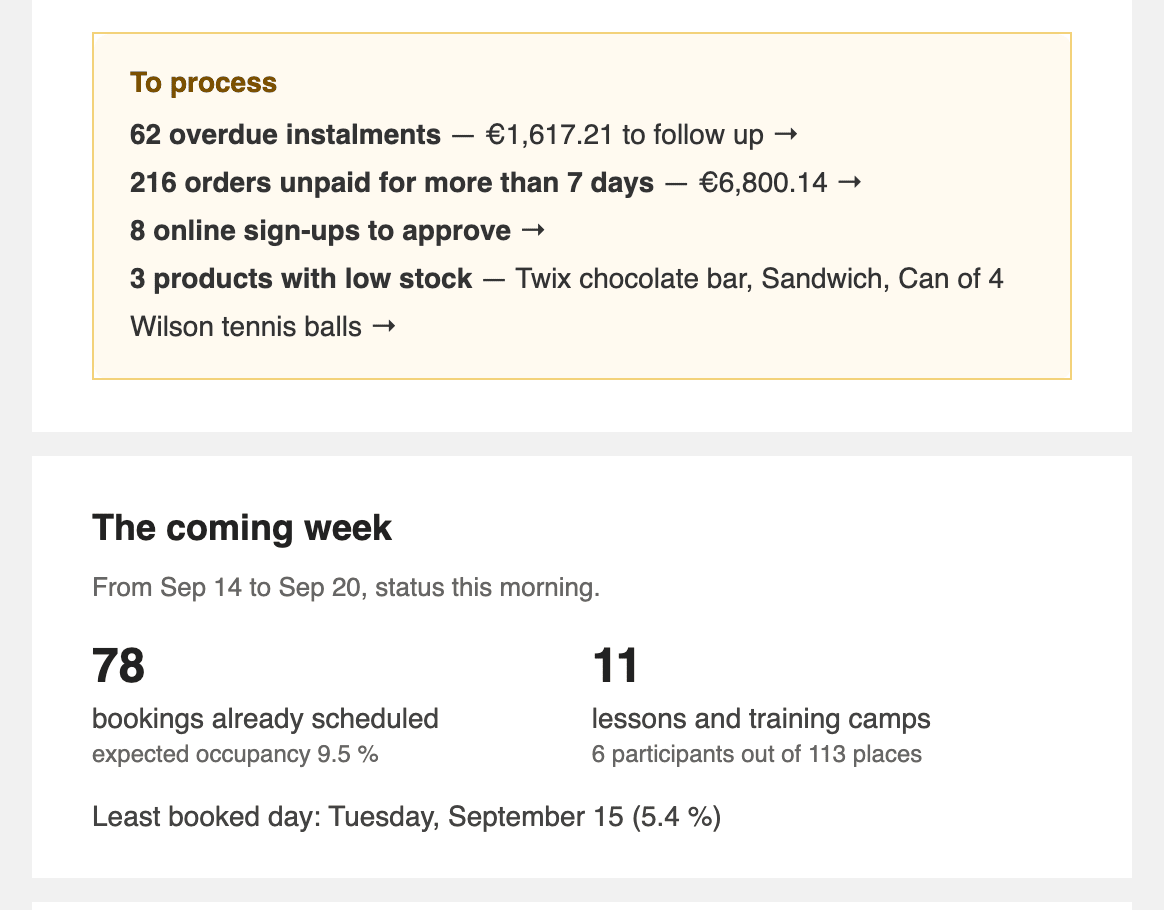
A box gathers the items to handle on the day the report is sent: overdue instalments with the amount to chase up, orders unpaid for more than 7 days (excluding quotes and payments in instalments), online registrations awaiting approval, products low in stock and subscriptions expiring within 30 days. Each line opens the relevant screen.
The next part covers the coming 7 days, or the day ahead in the daily report: bookings already made, expected occupancy, lessons and training camps with their participants and available places, court closures and the least booked day.
Billing and payment collection
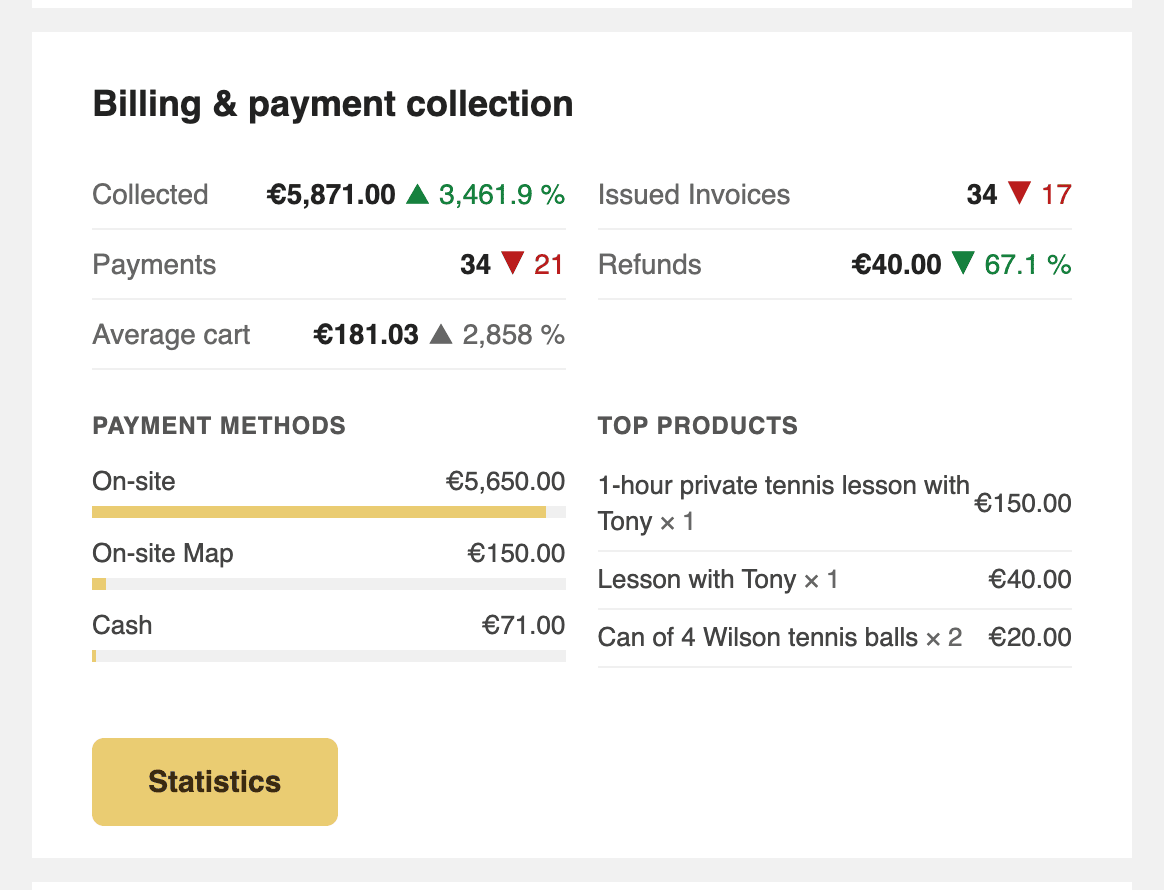
This section covers the amount collected net of refunds, the payments received, the invoices issued, the average basket, the declined online payments, the breakdown by payment method and the best sellers. Amounts follow the same calculation as the billing statistics, across all billing accounts, without any customer name.
It only appears if your organization collected, invoiced or refunded something, or had a declined payment, in either of the two periods.
Bookings
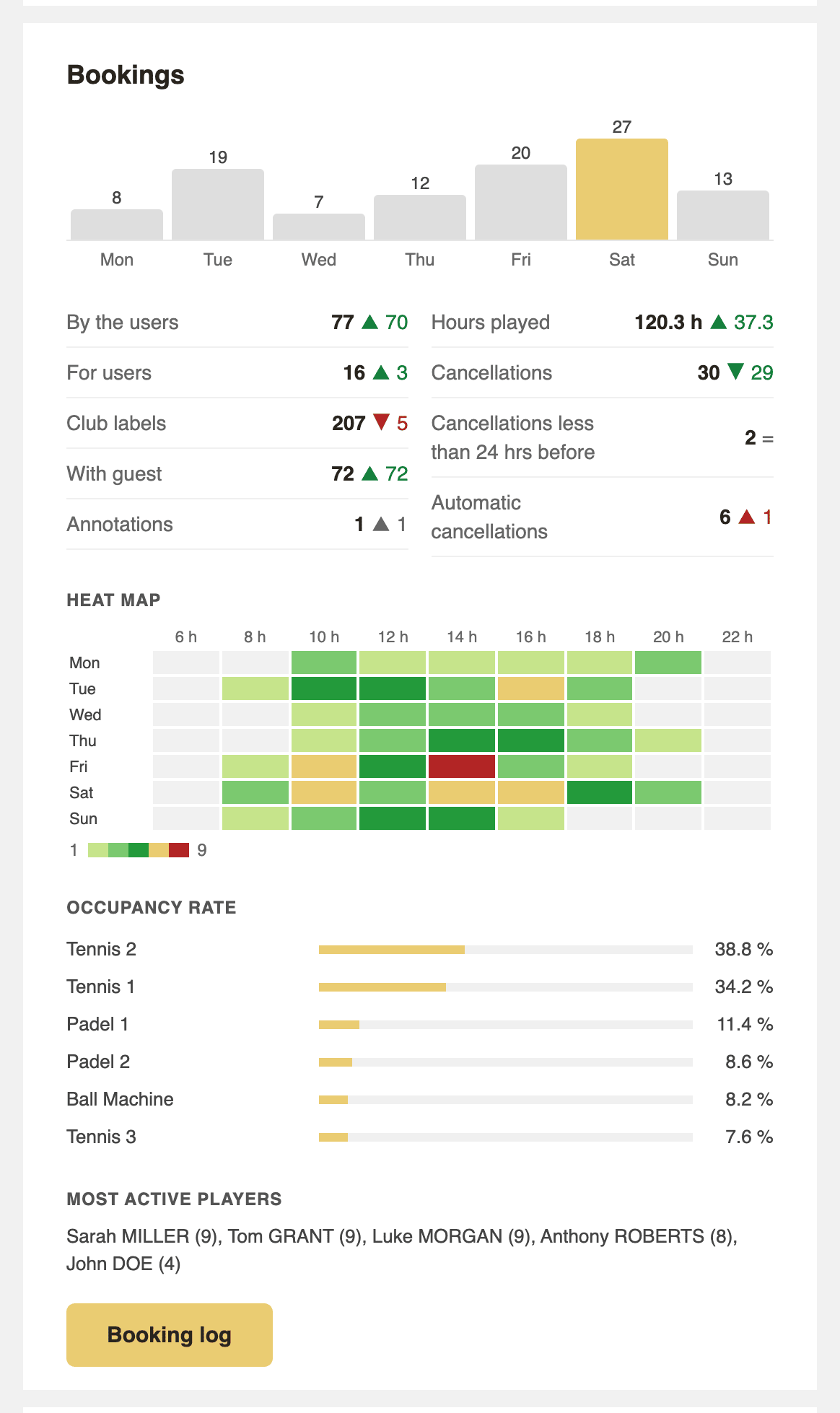
This section shows bookings per day (per week in the monthly report), the bookings created during the period by type, the hours played and the cancellations, including those made less than 24 hours before the time slot. A heat map cross-references days and hours, followed by the occupancy rate per calendar and the most active players.
The daily report, which covers a single day, shows neither the bookings chart nor the heat map.
Users, presence check-in, registrations and e-mails
- Users and subscriptions: new users, subscriptions that expired during the period or expiring within the next 30 days, subscribers with no booking for 30 days, accounts suspended, moved to the trash or deleted, logins and total membership. Birthdays in the next 7 days, or on the day in the daily report, are added if you enable the option.
- Kiosk presence check-in: time slots checked in and not checked in, automatic cancellations and users penalised.
- Online registrations: requests accepted and refused during the period, and requests awaiting your approval.
- E-mails: messages delivered, open rate, failures and addresses to correct in the records.
Presence check-in and online registrations only appear if the feature is active in your organization: online registrations must be open on at least one subscription, and presence check-in must be enabled on the kiosk.
What does not appear
A figure that is zero over both periods is not displayed, and an empty section disappears: the report of a small organization stays short. When there is nothing to show, no e-mail is sent for that period. In the report settings, you can also remove the sections that do not concern you.
Using the report as a to-do list
This is what sets this report apart from a plain table of figures: several sections list names. You do not just read "12 subscriptions are expiring soon", you get the list of the twelve people concerned.
Three uses follow naturally:
- The list of subscriptions expiring within 30 days is your follow-up list. It arrives on its own, every month, with no filter to build.
- The list of pending registrations reminds you of the requests nobody has handled — the typical case of an organization where several people administer without explicitly sharing out the work.
- The counter of failed e-mails flags an address list that is deteriorating, well before a member complains about receiving nothing.
