You can now link subscriptions to manage their shared settings in one place while keeping different prices. The list also gains automatic or manual groups, drag-and-drop ordering and archiving for older subscriptions, without removing them from users who still have them.
These features are available in Administration›Users›Access Rights›Subscriptions. They help you manage your club's different offers and keep the list easy to browse from one season to the next.
Your club offers an Adult Padel subscription at €320, a Junior subscription at €160 and a Student subscription at €220. All provide access to the same courts, with the same quotas. Until now, changing a shared rule meant editing each subscription separately.
You can now link them to a reference subscription, such as Padel Subscription. When you save a new quota or permission on that reference, the change applies to its linked subscriptions. Each keeps its own price.
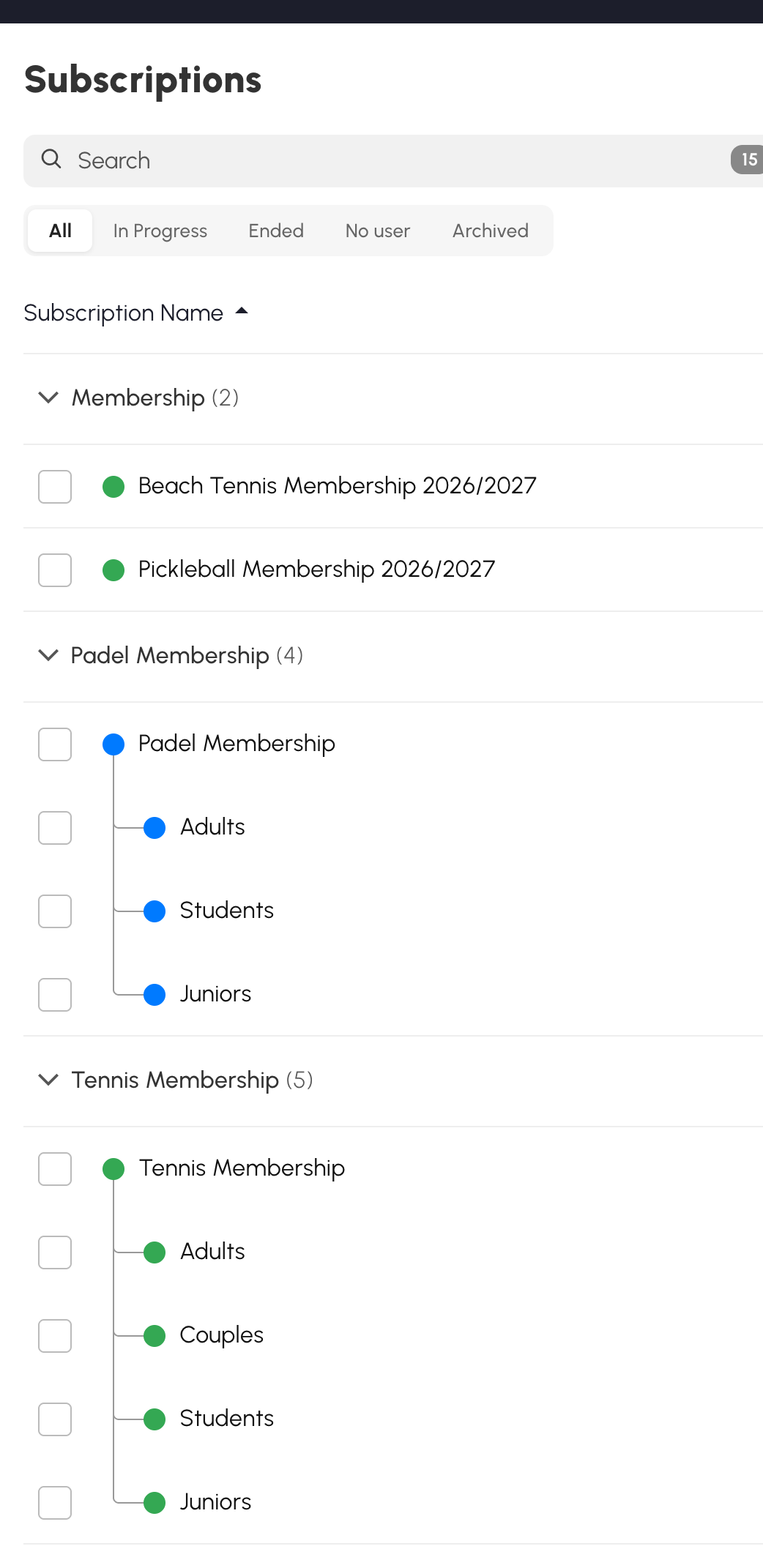
You can have one reference for padel and another for tennis, each with its own variants. In the list, linked subscriptions appear beneath their reference, connected by a tree line so they are easy to identify.
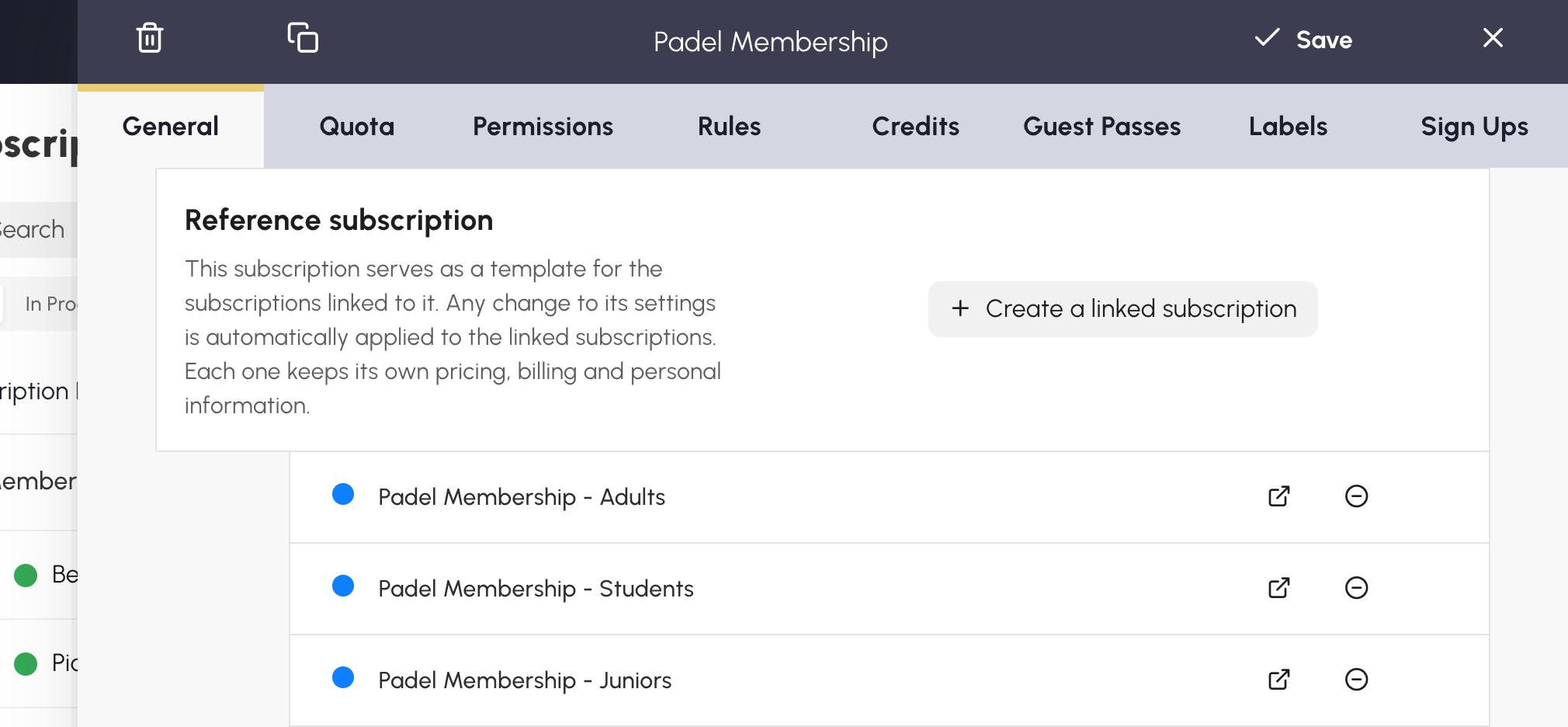
To get started, use Create a linked subscription on the subscription chosen as the reference. You can also select existing subscriptions using the checkboxes and use the Link bulk action. The confirmation tells you which users will be affected when the shared settings are replaced.
Linking lets you share rules without making every subscription identical:
Inherited settings remain visible in a linked subscription but are grayed out. A label shows where they come from. Changing the junior price has no effect on the reference subscription or the adult price.
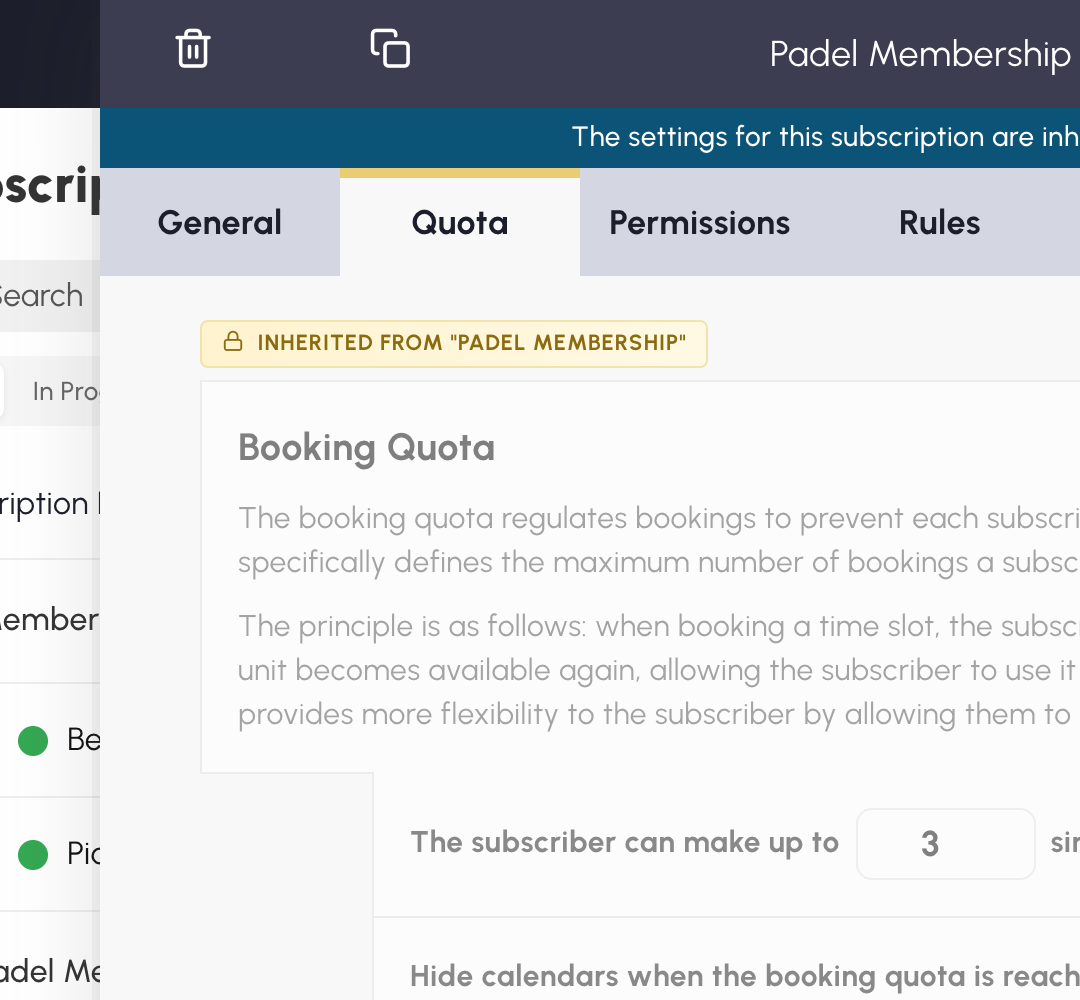
If a subscription later needs its own rules, you can detach it. It keeps its users and current settings; future changes to the reference will no longer apply to it.
The list now brings together subscriptions with similar names or seasons. For example, Recreational Tennis 2026/2027 - Adults and Recreational Tennis 2026/2027 - Juniors may appear in the same group. Consistent names help the application suggest useful groupings.
The default Automatic mode adapts the groups to your chosen sort order: name, start date or end date. You can collapse groups you use less often; this preference is saved to your user account.
The way you organize your club may not follow subscription names. You might want to bring tennis and padel lessons together under Sports School, then separate Casual Play and Occasional Offers.
The Manual groups mode lets you create and name these groups, then arrange subscriptions by dragging and dropping them. Moving is only available with the All filter and no search. On mobile, press and hold a row before moving it.
Moving a reference also moves its linked subscriptions. You can also change the order of linked subscriptions within their family. Groups themselves can be moved, renamed or deleted; deleting a group does not delete the subscriptions it contained.
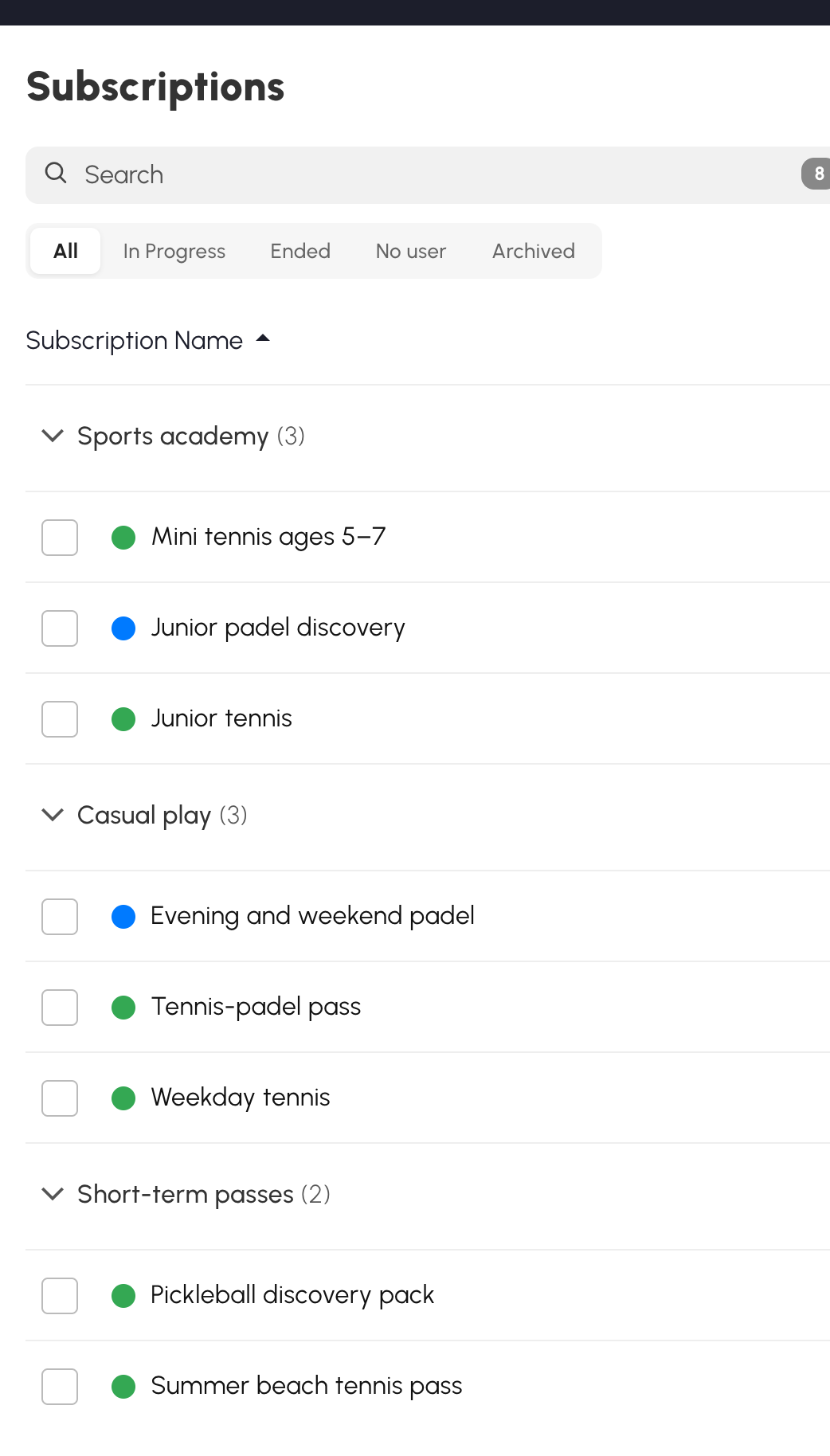
This arrangement does not change subscription settings. You can use it whether your subscriptions are linked to a reference or independent.
You can now archive a subscription that is no longer needed in the current list, even if users still have it. They keep their subscription, while it is no longer offered as a new choice when adding or editing a user.
Archived subscriptions remain available under Archived and can be restored. You can also select several rows to archive them in one action.
Archiving also removes the subscription from online registration choices. After restoring it, you need to re-enable this option if you want to offer it again. The default subscription cannot be archived; to archive a reference subscription, also select its linked subscriptions that are still active.
To make a long list easier to browse, the Settings menu offers a Compact Mode. You can also show descriptions beneath names and a "Payments" column. Your preferences are saved.
For help choosing your reference subscriptions or organizing your subscriptions, our team is here to help.
The OpenResa team at your service!