



Charging for bookings
Charge credits for each booking: your users top up their account in advance, or pay directly when they book. Here is how to set your prices, sell credits and track bookings awaiting payment.
- Understanding the two ways to pay
- Enabling credit sales
- Setting booking prices
- Charging for guest passes
- Offering payment at booking
- Tracking bookings awaiting payment
- Giving free credits
- Sharing the same price grid across several subscriptions
- Switching an existing subscription to Wallet mode
- Tracking sales and balances
Understanding the two ways to pay
Each booking costs a certain number of credits, debited from the player's account. To get credits, the player has two options:
- Top up their account in advance: they buy credits online, then book as many times as their balance allows.
- Pay when booking, if you enable this option: if they don't have enough credits, they pay the shortfall directly from the form, or the whole booking if they have none.
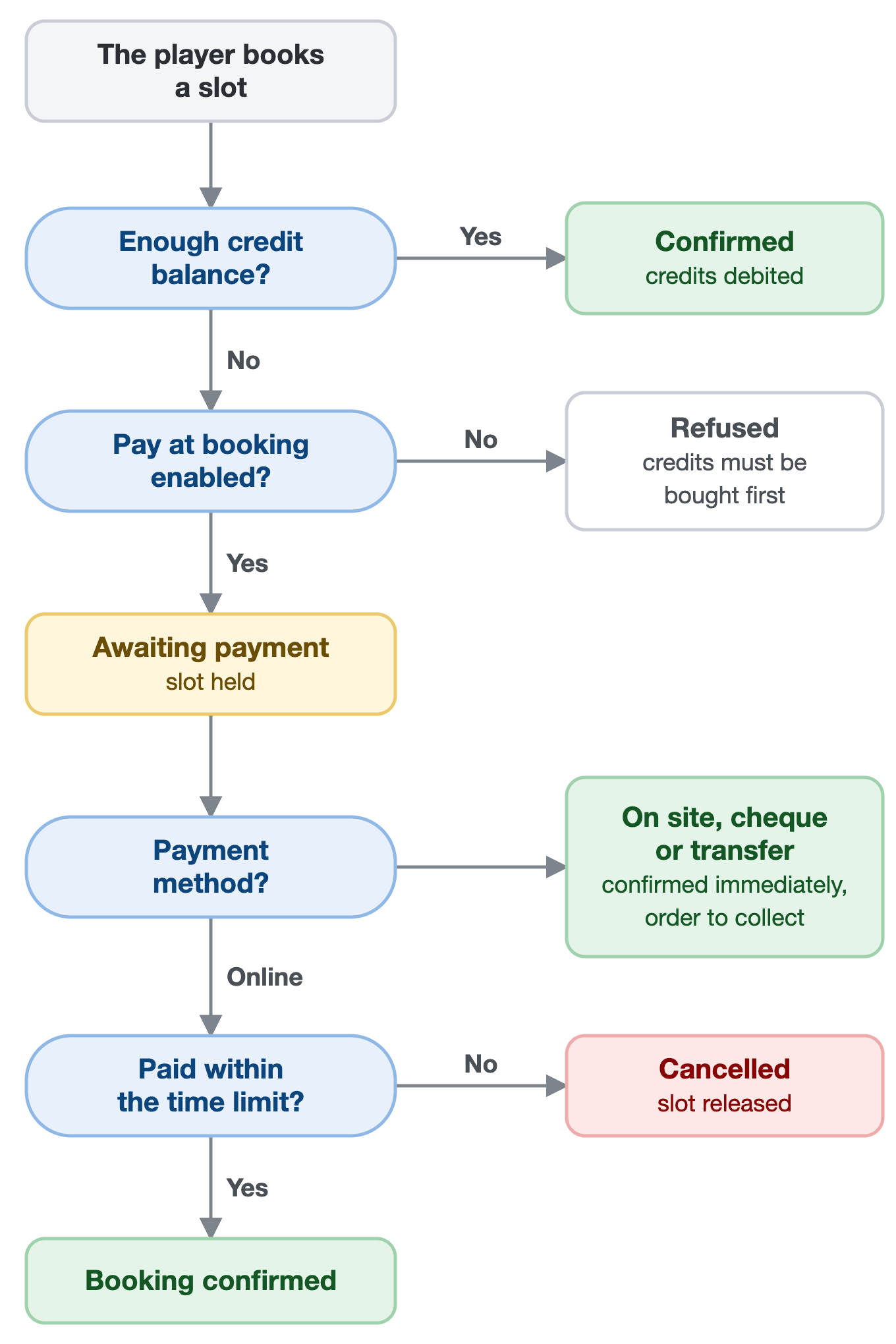
Both ways to pay coexist: each player chooses the one that suits them. The diagram below summarises what happens when a player books.
Enabling credit sales
Credit sales are set up in the subscription record, not in the product catalogue.
- Go to Administration›Users›Access Rights›Subscriptions and open the relevant subscription.
- Open the Credits tab and enable Activate the credit system.
- In the Payments & Billing section, enable online sales.
- Set the Unit price of one credit, then your offers in the Quantity Pricing section (see below).
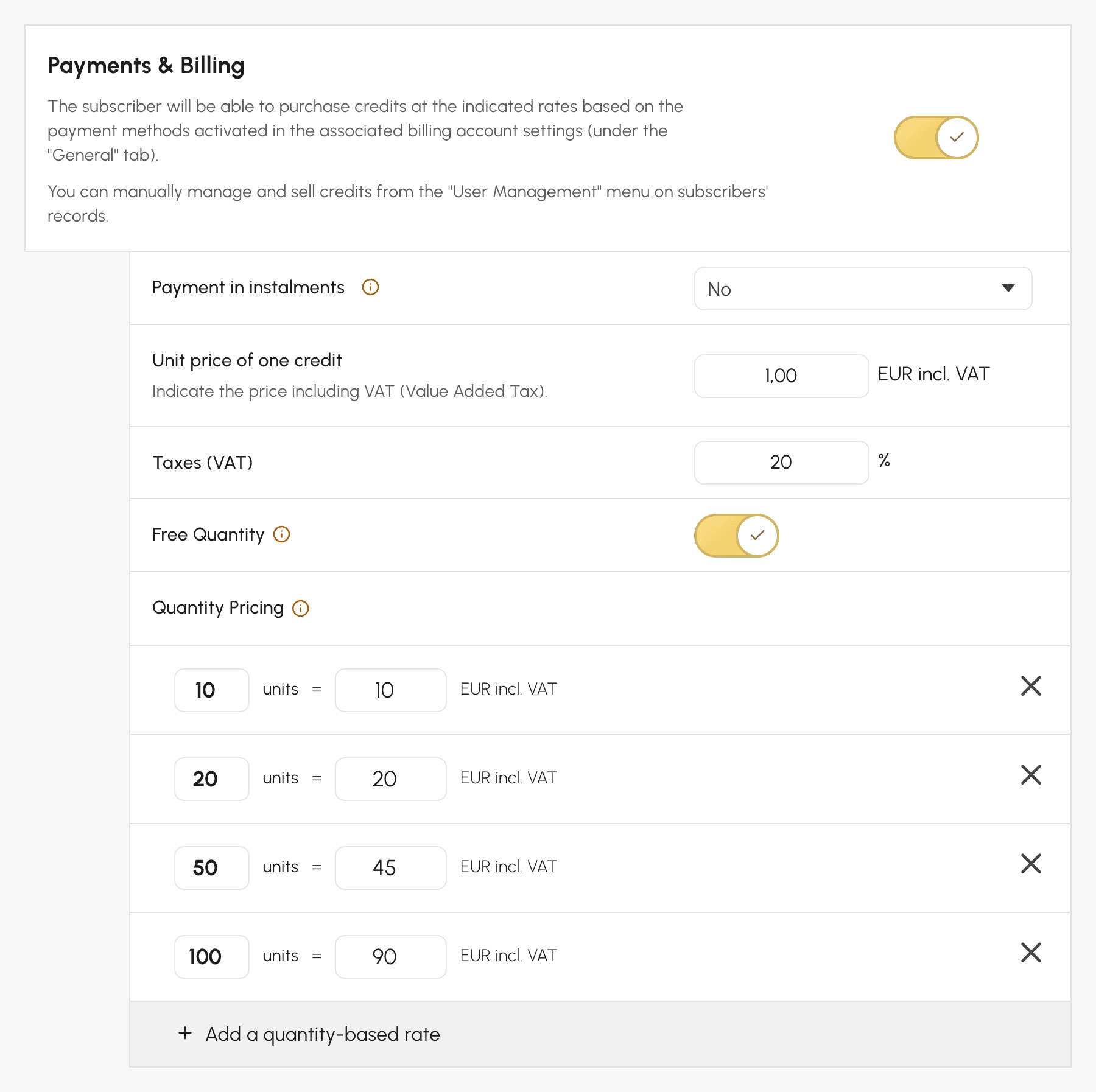
Changing the Unit price of one credit afterwards only changes the selling price: credit prices and your users' balances stay as they are. To change the value of a credit without changing what balances are worth, use Wallet mode, which converts the subscription to 1 credit = €1 (see below).
The corresponding product is created automatically and then appears in Administration›Settings›Billing›Products & Services. Without online sales, the credit system remains usable: you then credit accounts manually from each user's record, after a payment at the club.
Building your credit offers
In the Quantity Pricing section, each line pairs a quantity of credits with a price including tax. The Add a quantity-based rate button adds as many as needed, and the user chooses at purchase. The Free Quantity option also lets them choose the quantity they want, at the unit price. If one credit is worth €1, which we recommend (see below), each offer reads like a top-up, and the discount is immediately visible:
| Quantity | Price | Discount |
|---|---|---|
| 20 credits | €20 | none |
| 50 credits | €48 | 4% |
| 100 credits | €90 | 10% |
| 200 credits | €170 | 15% |
You decide the gap between tiers. A discount that is too small doesn't trigger bulk purchases, while a discount that is too large subsidises heavy users at the expense of occasional ones.

Setting booking prices
Subscriptions you create are set up this way from the start: Display credits in currency is enabled, the Unit price of one credit is proposed at 1, and the default pricing rule counts 10 credits, i.e. €10. An existing subscription whose credit system is disabled, and where no user has any credits, opens with the same prefilled settings: check them before saving.
The booking price is set under Booking Rates, in the subscription's Credits tab. With 1 credit = €1, you enter amounts directly in euros, and you can vary them by calendar, day or time: cheaper off-peak hours, more expensive covered courts, weekend rates.
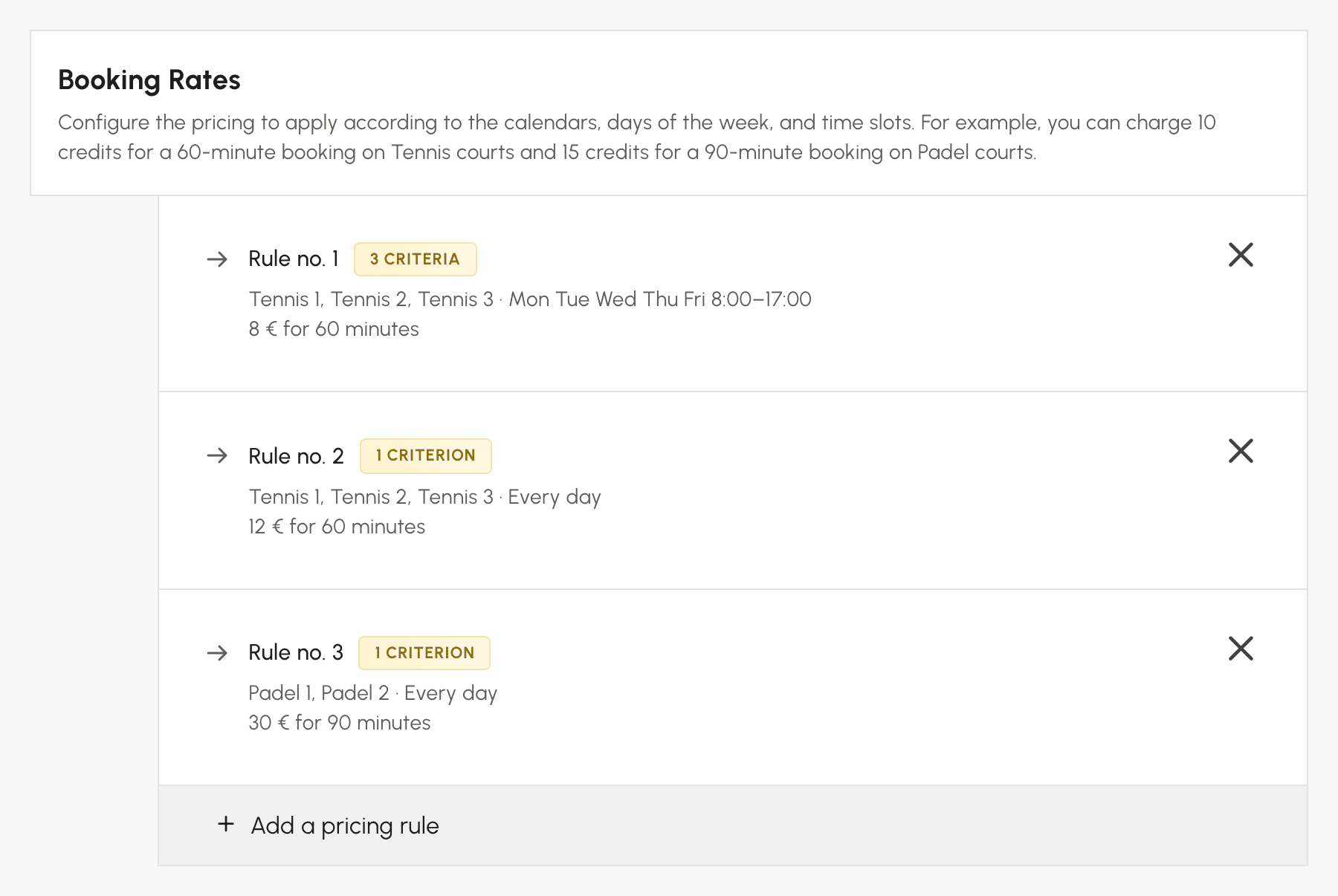
The Duration of a Booking Credit setting then determines how this price is counted:
- X credit(s) = X minutes, the recommended configuration for more flexibility: the price is set for a duration, for example €12 for 60 minutes, and debited in proportion to the booked duration. A 90-minute booking costs €18. The price stays fair when your time slots have different lengths, or when you let users choose their time.
- X credit(s) = 1 booking: the price is debited once per booking, whatever its duration, for example €12. Easy to understand, but one hour and three hours cost the same.
- X credit(s) = 1 time slot: the price is debited for each time slot occupied. At €12 per time slot, a booking of three consecutive time slots costs €36.
If you have chosen 1 credit = €1, finally enable Display credits in currency: the balance, the booking cost and the amount due are displayed in euros rather than as a number of credits, which is what your players really have in mind. Do not enable this option if a credit is worth a different amount: the amounts displayed would be wrong, and the form warns you when the Unit price of one credit is not 1. For a subscription where a credit is worth a different amount, enable Wallet mode instead.

Charging for guest passes
When a player books with someone from outside the organization, a guest, you can charge for this guest pass. Guest credits work like booking credits, with their own balance, and are used only for guests. They are set up in the subscription's Guest Passes tab:
- Enable Allow booking with guests.
- Under Guest Pricing, set the price of a guest pass by calendar, day and time.
- Under Payments & Billing, enable online sales of guest credits and build your offers, as for booking credits.
The price is counted per guest: a booking with two guests costs twice the price of a guest pass. When the player is accompanied by partners, the Who pays for guest passes? block decides who pays for the guests.
Using a single balance for everything
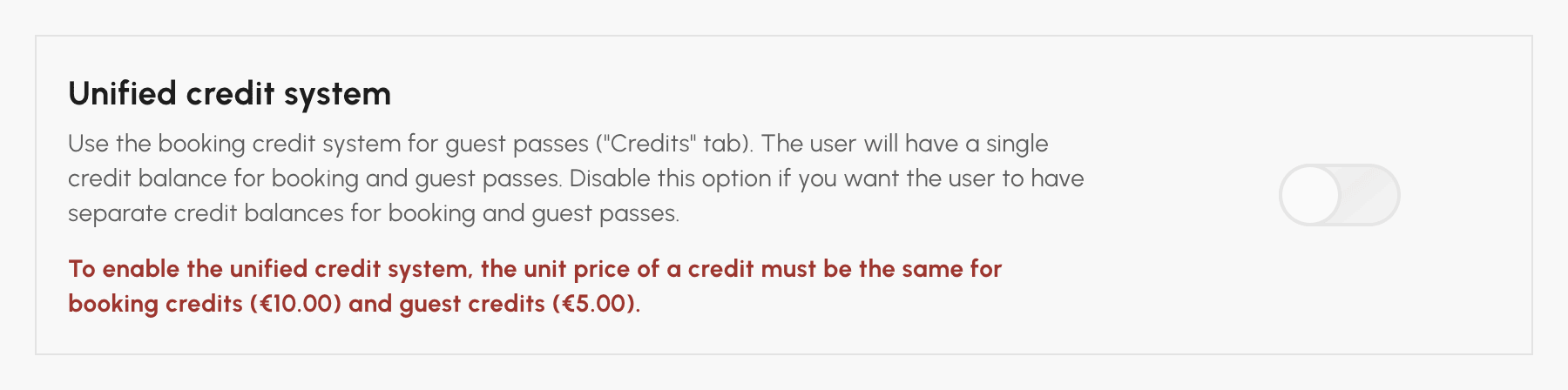
Two separate balances often complicate things for players. With the Unified credit system option, in the Guest Passes tab, guest passes are paid with booking credits: the player has just one balance, topped up in one go, which covers both booking and inviting guests.
Guest pass prices remain those of the Guest Passes tab: only the balance used changes. With 1 credit = €1, this is the simplest configuration for your players: a single top-up, prices in euros, and an amount due that includes guests when they pay at booking.
If you sell both booking credits and guest credits, the option can only be enabled if the Unit price of one credit is the same in both tabs: a credit must be worth the same amount for booking and for guests. Switching both tabs to Wallet mode resolves this.
If users of the subscription still have guest credits, a checkbox under the option offers to convert them into booking credits when you save. It is unchecked by default, and the conversion is permanent: disabling the unified credit system afterwards does not undo it.
Offering payment at booking
With payment at booking, a player who doesn't have enough credits is not blocked: they pay the shortfall when booking, at the price of your credit offers. Their time slot is held while they pay.
- Go to Administration›Users›Access Rights›Subscriptions and open the relevant subscription.
- In the Credits or Guest Passes tab, under Payments & Billing, enable Payment on booking. The option only appears in a tab where online credit sales are enabled.
- Set the time allowed for the player to pay, between 5 and 30 minutes.
- Save the subscription.
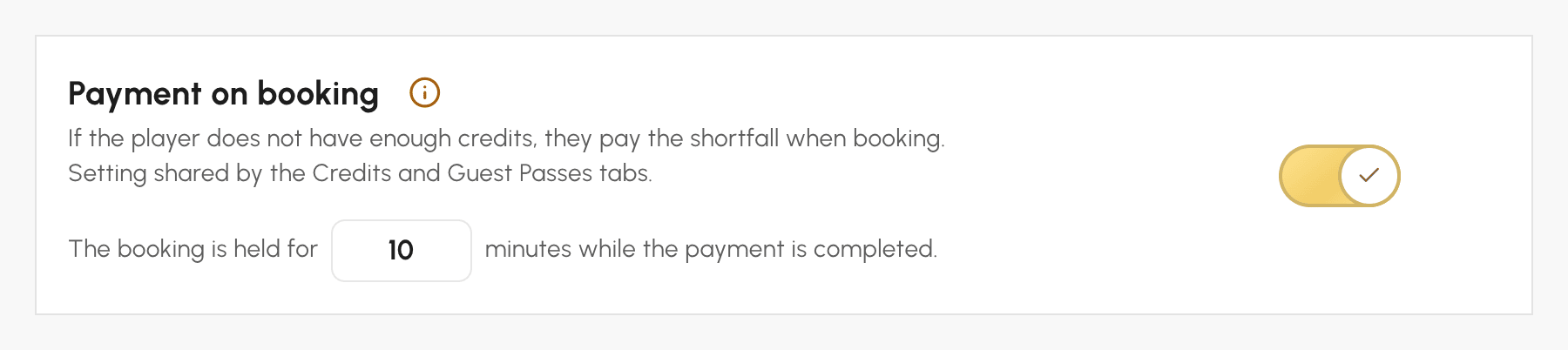
The setting is shared between the Credits and Guest Passes tabs: enabling it or changing the time limit in one also does so in the other. The option is enabled by default, with a time limit of 10 minutes. It works if credit sales are enabled under Payments & Billing, and if your billing account accepts online payment, or payment on site, by cheque or by bank transfer with the Deliver ordered products & services immediately option.
Understanding the time limit by payment method
On the payment page, the player chooses from the payment methods of your billing account:
- Online payment: the player has the set time limit (10 minutes by default) to complete their payment. As soon as payment is received, the booking is confirmed. If no payment is made in time, it is cancelled and the time slot released.
- Payment on site, by cheque or by bank transfer: the booking is confirmed as soon as the player chooses this method. A pending order is created in their name: you collect it when they arrive at the club, or when the transfer is received.
The time limit is therefore only for choosing a payment method: a booking confirmed by payment on site is never released while waiting for the player.
Tracking bookings awaiting payment
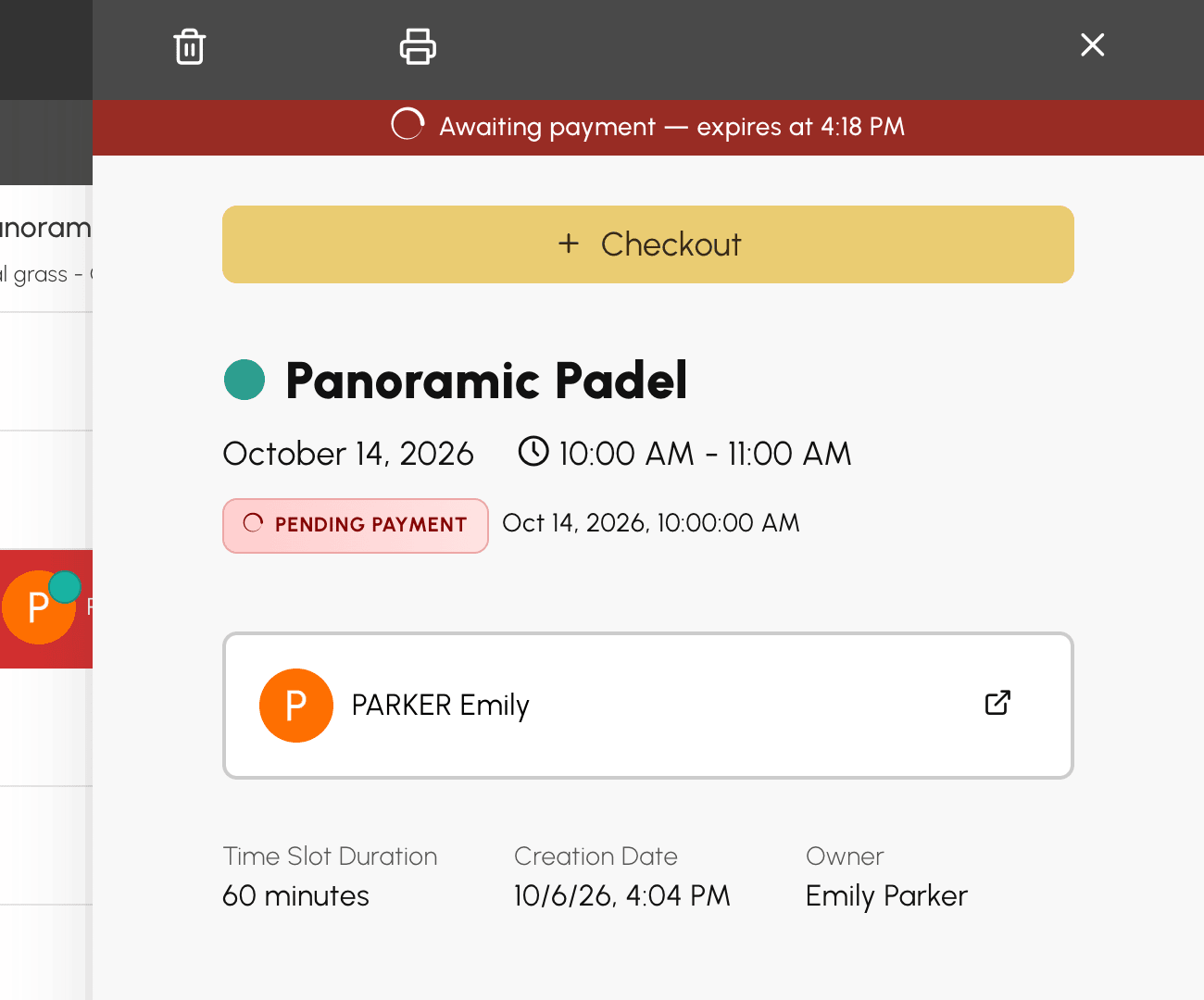
A pending booking already occupies the time slot. In the calendars, you can recognise it by the icon, and its panel shows the payment deadline.
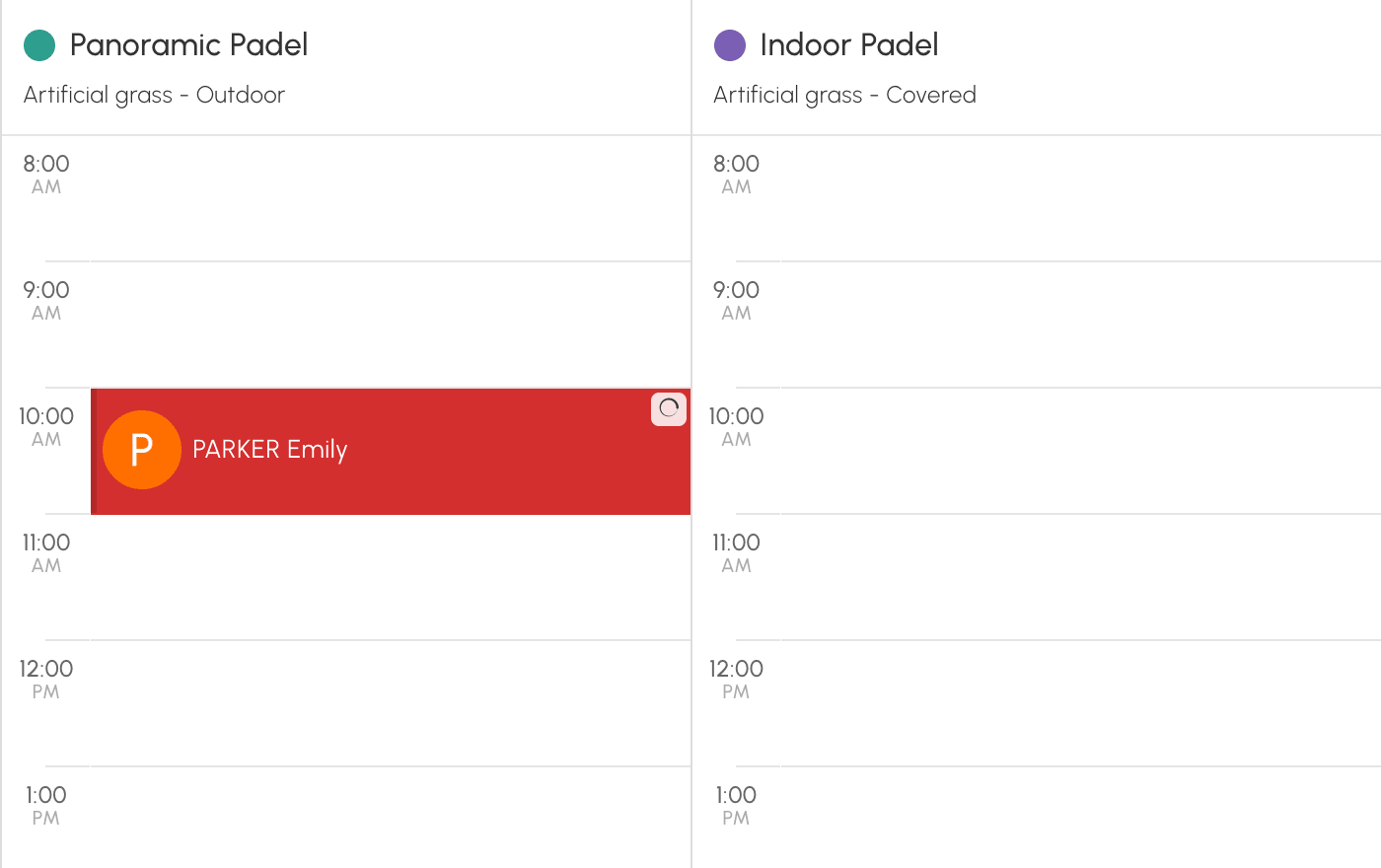
While it is pending, it cannot be edited or moved: it is either paid or cancelled. Confirmation e-mails, reminders and access codes are only sent once payment is received.
From its panel, you can:
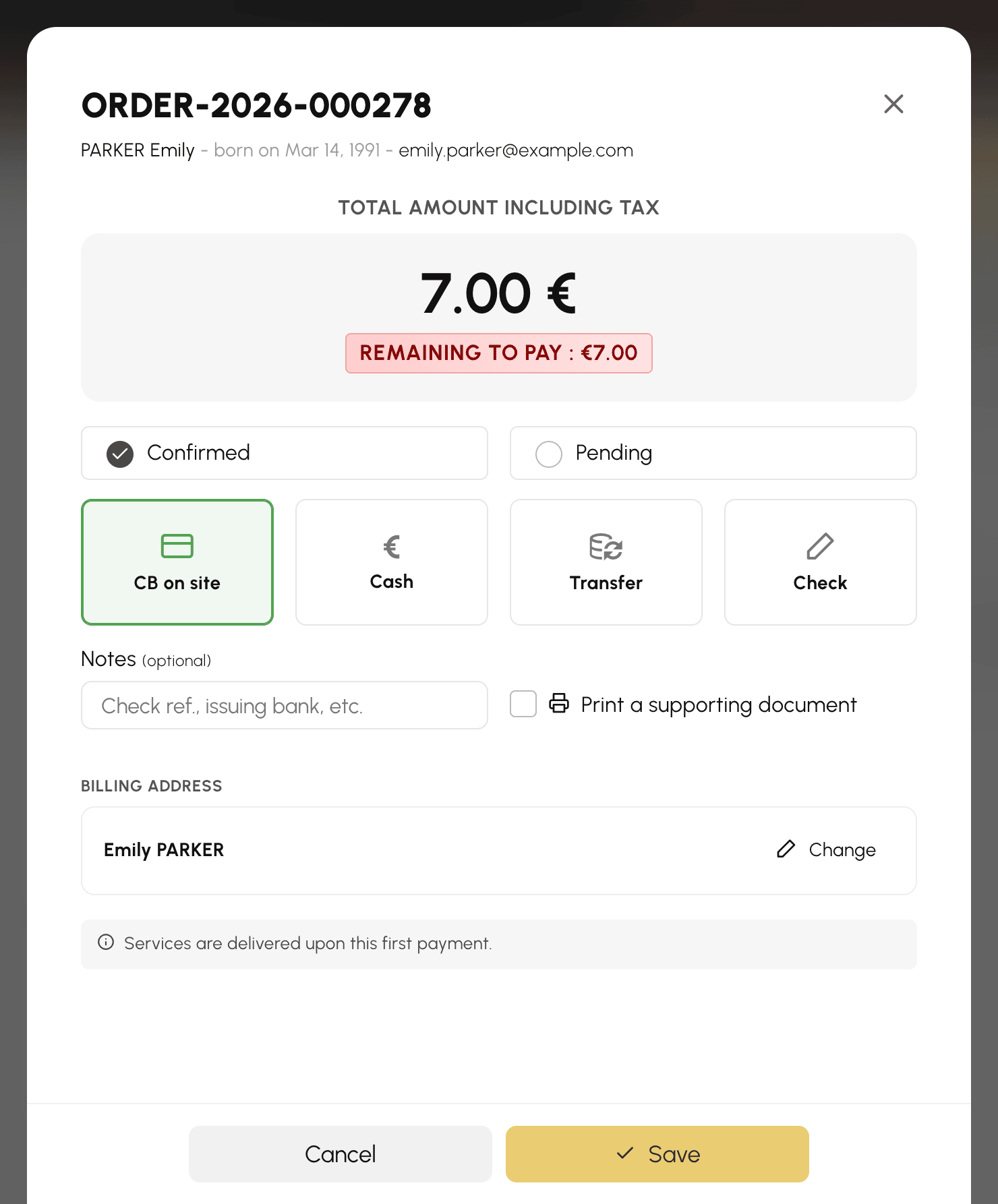
- click Checkout to record a payment received at the club, if you have access to billing: the booking is confirmed;
- cancel it with Cancel: the time slot is released, the order cancelled and any credits already debited returned to the player.
When the time limit expires without payment, the booking is cancelled automatically and any credits already debited are returned to the player. Sometimes a payment still goes through after the time limit, for example an online payment already in progress, or a payment you collect on the order within the following hour:
- if the time slot is still free, the booking is restored;
- otherwise, the purchased credits remain in the player's account, and they are notified by e-mail.
Giving free credits
Selling is not the only use. Several settings credit an account at no charge:
- Add credits when creating the subscriber's account: each new subscriber starts with a balance, enough to try before buying.
- Online registration can credit the account as soon as the request is approved.
- The automatic birthday message can include a gift of credits with its wishes.
- From a user's record, you adjust a balance manually, with a note that stays in their history.
Sharing the same price grid across several subscriptions
If several subscriptions sell credits on strictly identical terms (same unit price, same offers, same instalments), a single product is created and shared. Your catalogue stays clear instead of filling up with duplicates.
Sharing has no side effects: editing the grid of a subscription that shares its product automatically creates a copy linked to that subscription only. The other subscriptions keep their prices.
Disabling sales on a subscription simply detaches it from the product; the product remains available as long as another subscription uses it.
Switching an existing subscription to Wallet mode
In Wallet mode, 1 credit is worth €1 (or one unit of your currency): your subscribers see their prices and balance directly in money. If a subscription's credit is worth a different amount, €10 for example, the Enable Wallet mode panel in its Credits and Guest Passes tabs converts it in a single operation: balances, prices, credit offers and upcoming bookings already paid for, without anyone gaining or losing anything.
Tracking sales and balances
Credit purchases appear in invoices and transactions like any other order. On the user side, each movement (purchase, booking, cancellation, manual adjustment) is recorded in the history of their record.
