You can now change the label of an existing booking, or add, edit and remove its comment, directly from the booking details. The change applies to this booking only, to a single day or to the whole series, without recreating the booking.
Until now, correcting a label or its comment meant reopening the booking in the booking form and saving it again, which replaced it. For a booking repeated every week, this quickly became tedious. This new feature is not limited to participatory bookings: it works for all your bookings with a label, whether they are lessons, courses, tournaments or court closures.
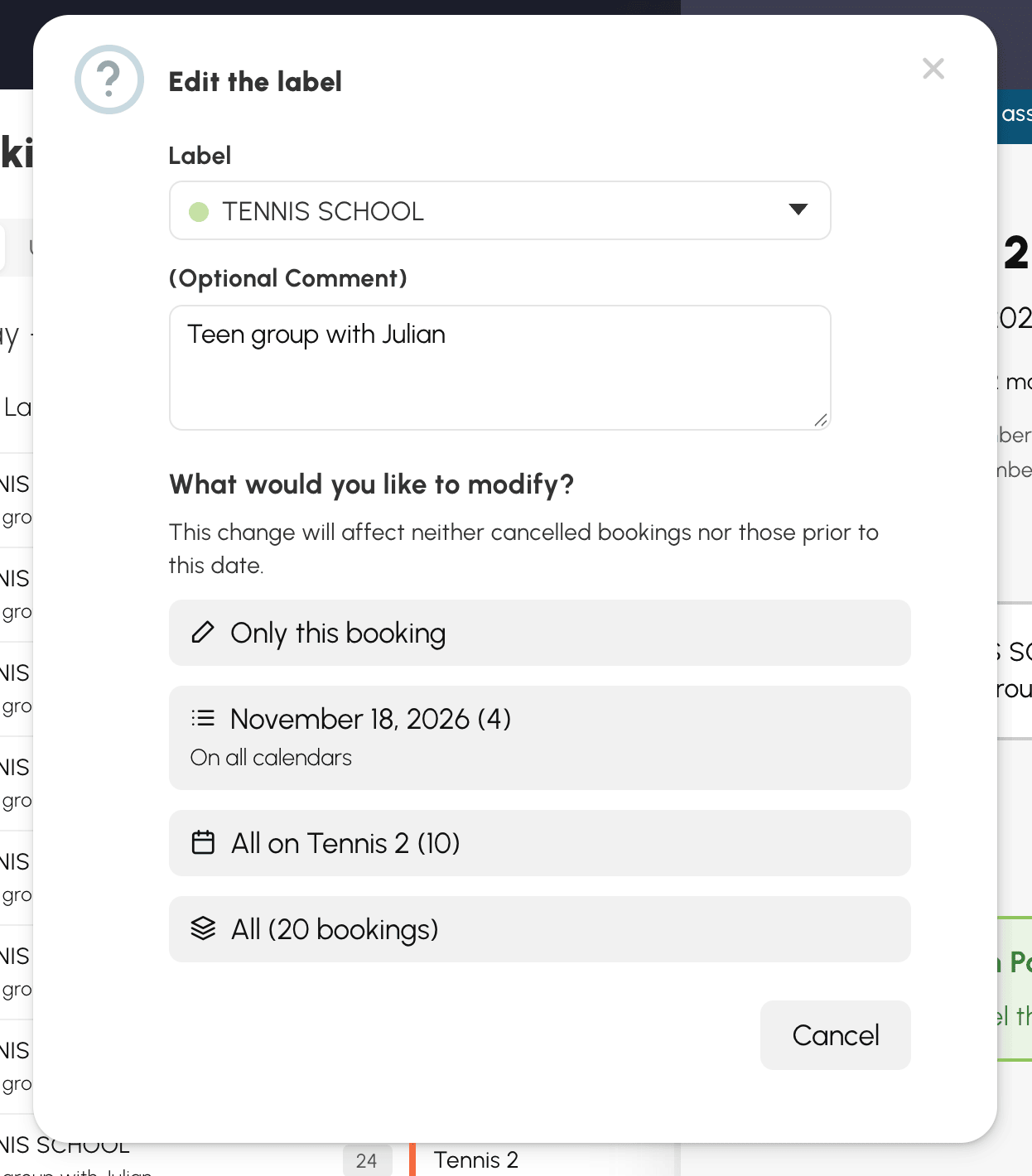
In the details of a booking with a label, an edit button appears to the right of the label. It opens a window where you pick another label from your list of labels, and where you edit the comment shown under its title. To remove the comment, simply clear the field.
Only the label and the comment change: times, courts and participants stay as they are. On a participatory booking, registrations are kept.
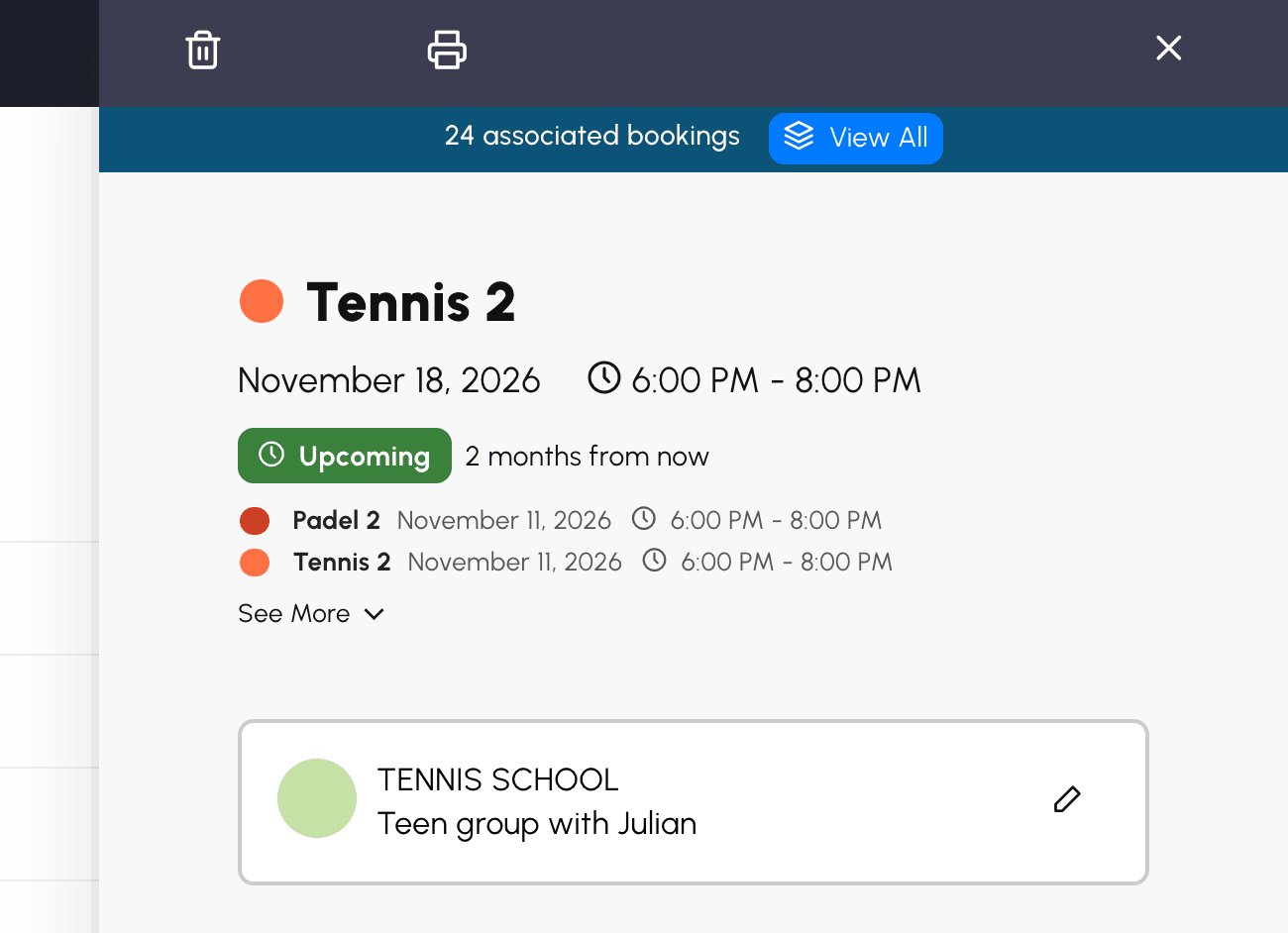
When the booking is part of a series, for example a lesson every Wednesday on two courts, the window asks What would you like to modify? and offers the same choices as when cancelling:
Bookings on earlier days and cancelled bookings are never modified. You can therefore rename a lesson from a given date without touching the sessions that have already taken place. For a single booking, a simple Save button confirms the change.
The change is made from the booking details. For a participatory booking, clicking the booking in the calendars opens these details directly.
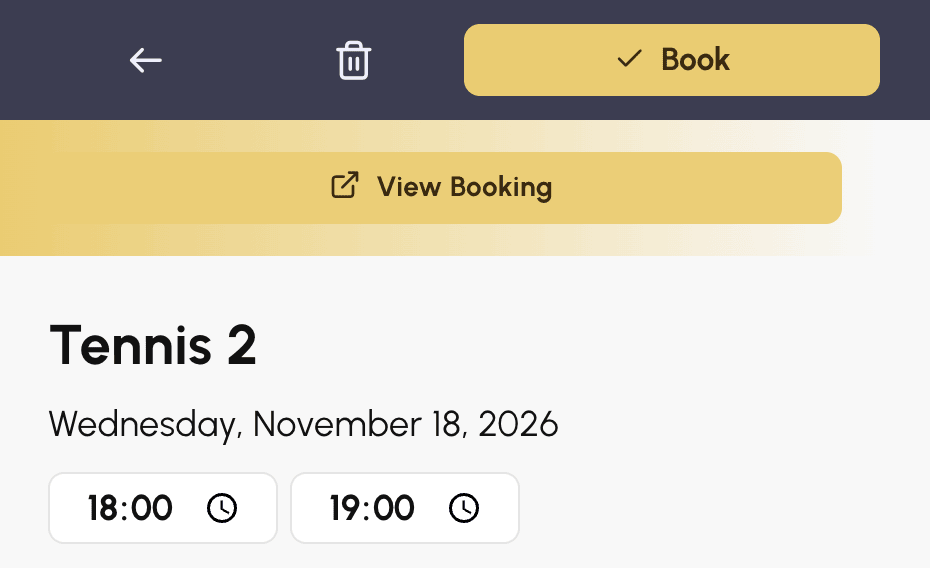
For other bookings with a label, the click opens the booking form: then use the View Booking button to display the details. They can also be reached from Administration›Dashboard›Booking›Booking log.
Editing is available to club managers who have the Book with a club label permission, on the bookings they created. Those who also have the Overwrite/Cancel Existing Bookings permission can edit all bookings with a label. These permissions are set in Administration›Users›Access Rights›Profiles & Roles.
To create your labels and adjust how they are displayed on the calendars: Using labels and annotations.
A question about this new feature? Our team is here to help.
The OpenResa team at your service!